Have you ever found yourself scrolling through endless rows in Excel just to count how many times a value appears? Then, you are not alone in this. For solving this problem, Excel has a built-in function named COUNTIF.
The COUNTIF function is a powerful yet simple tool. It allows a person to count cells based on specific conditions. It helps you get accurate results in seconds.
In this guide, I’ll walk you through everything you need to know about the COUNTIF function in Excel, from its syntax and arguments to real-world examples, advanced use cases and common mistakes to avoid. Let’s begin.
Learn to use Excel’s COUNTIF() function to easily count cells matching specific criteria like dates, numbers, text & wildcard characters with this comprehensive guide.
The COUNTIF in Excel is a built-in function that helps you count the number of cells in a range that meet a specific condition. When you use this function, you are not supposed to scan it manually through rows of data. COUNTIF allows you to quickly find how many times a certain value appears.
In simple terms, it answers questions like: “How many times does this word occur?” or “How many numbers are greater than 50?” This makes it extremely useful when working with large datasets.
Countif works by checking each cell in a selected range against a condition(criteria). If the condition is met, then Excel counts that cell. Otherwise, it will go on to skip it. The criteria can be text (like "Apple"), numbers (like 100), expressions (like >50) or even patterns using wildcards.
COUNTIF is commonly used in tasks such as tracking sales data, counting attendance, analyzing survey responses or filtering specific values in reports. Its simplicity and flexibility make it one of the most widely used Excel functions for data analysis and reporting.
The COUNTIF function in Excel follows a simple and easy-to-understand structure:
|
range: This is the group of cells that you want Excel to evaluate. It can be a single column, a row or a larger dataset (for example, A1:A10).
The function works by scanning each cell in the specified range and counting only those that match the given criteria. This simple syntax is what makes COUNTIF one of the most beginner-friendly yet powerful functions in Excel.
Using the Countif function in Excel is very easy once you understand the basic steps. In this section I have explained step-by-step to help you get started:
First, click on the cell where you want the COUNTIF result to appear.
Then you need to type =COUNTIF( to begin the formula.
Now, choose the range of cells you want to evaluate (for instance, A1:A20). You can either type it manually or select it using your mouse.
Next, you need to enter the condition you want Excel to check. This could be a number (10), text ("Apple") or a logical condition (">50").
At last, complete the formula by closing the bracket ) and press Enter. Excel will instantly return the count based on your criteria.
This formula counts how many times “Apple” appears in the selected range.
When working with text data in Excel, the COUNTIF function makes it easy to count how many times a specific word or label appears in a range. This is especially useful for tracking categories like product names, statuses or responses.
|
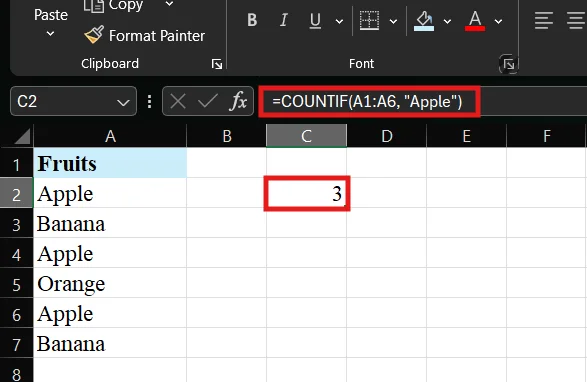
The result will be 3, because “Apple” appears three times in the selected range. This method works for any text value. You can also replace "Apple" with the word you want to count. Whenever you are using this, just make sure that the text is enclosed in double quotes; Excel will return an error.
The COUNTIF function in Excel can also be used to count numeric values based on a specific condition. This is especially helpful when you want to analyze numbers like sales figures, marks or quantities.
|
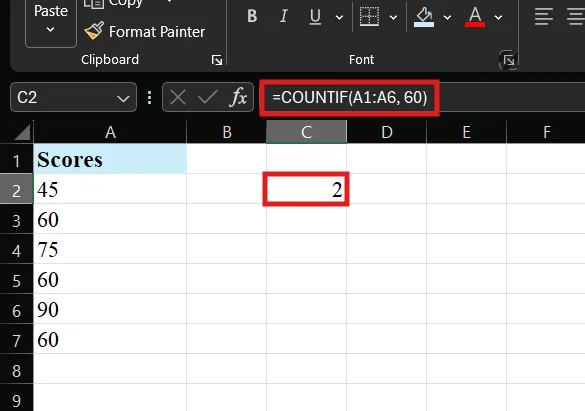
The result will be 3, as the number 60 appears three times in the range. COUNTIF with numbers is widely used for performance analysis, grading systems and financial data tracking.
The COUNTIF function in Excel becomes even more powerful when you use logical operators. These operators allow you to count cells based on conditions like greater than, less than or equal to a value. It is perfect for analyzing numeric data.
|
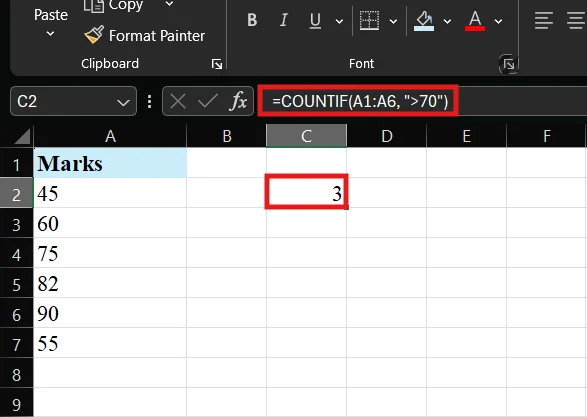
The result will be 3, because three values (75, 82, 90) are greater than 70. This approach is commonly used in reports, grading systems and performance tracking. It is where you need condition-based counting.
The COUNTIF function in Excel can also count cells based on dates. This makes the function more useful in terms of tracking deadlines, attendance or sales over time.
|
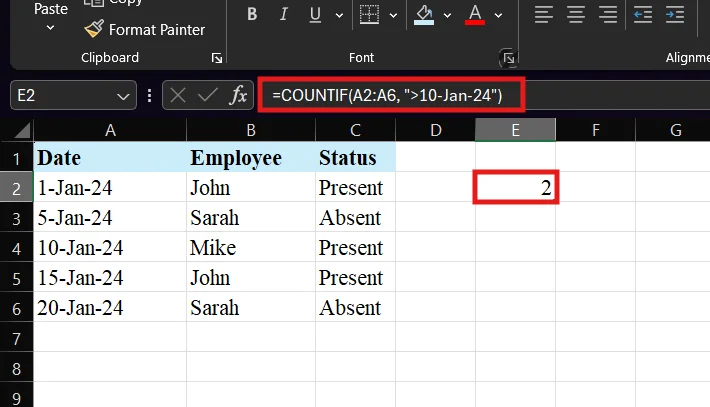
The result of this will be 2. Because the condition was to give the count of the dates that are after 10-Jan-2024. Just remember to use double quotes with date conditions.
The COUNTIF function in Excel also supports wildcards. In this, it allows you to match patterns, rather than the exact text. This is very useful when you are dealing with incomplete, similar or inconsistent data. There are two main wildcards under this function:
|
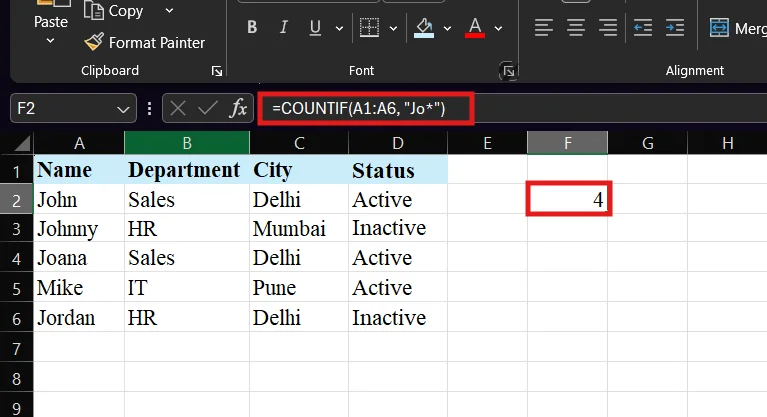
The result of this was 4. Now, how did it counted this? It counts all names starting with “Jo” (John, Johnny, Joana, Jordan) and then gives us the output.
|
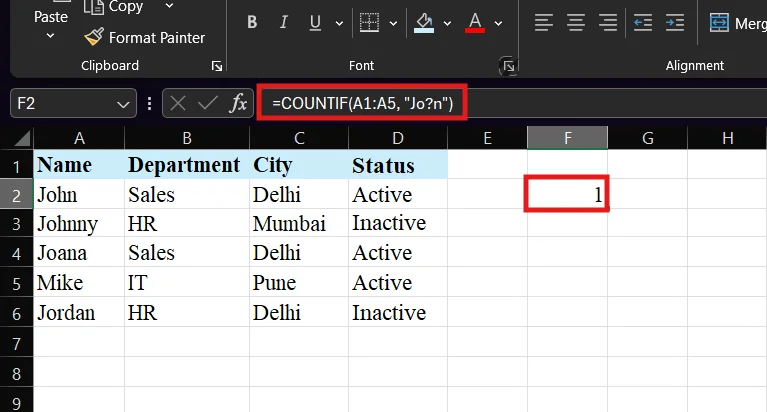
The output of this was 1. Because this counts names like “John” where only one character exists between “Jo” and “n”.
The COUNTIF function in Excel can also help you count empty (blank) and filled (non-blank) cells. This is useful when you want to check missing data or ensure all entries are completed.
|
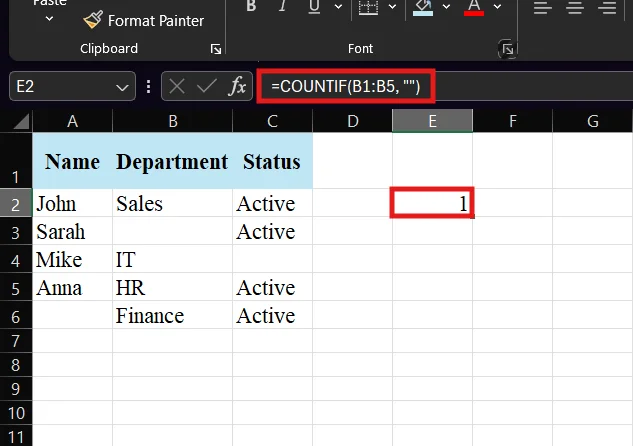
In the department column, there is only one cell which is blank. Hence, in output it returned the value one.
|
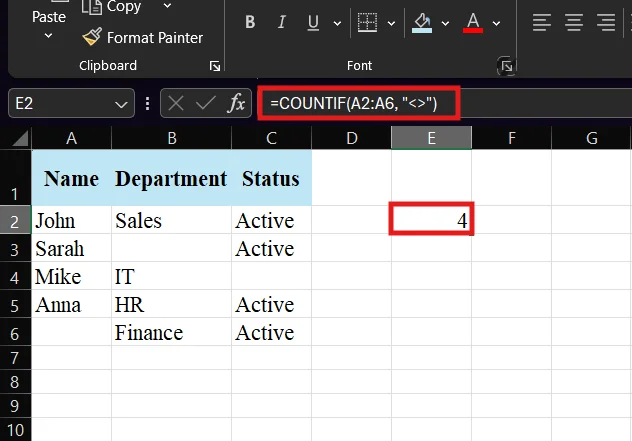
In the name column, 4 columns are filled. This is why the result it gave us was 4.
The COUNTIF function in Excel is designed to handle only one condition. However, if you want to apply multiple criteria, you need to use the COUNTIFS function, which is built specifically for this purpose.
|
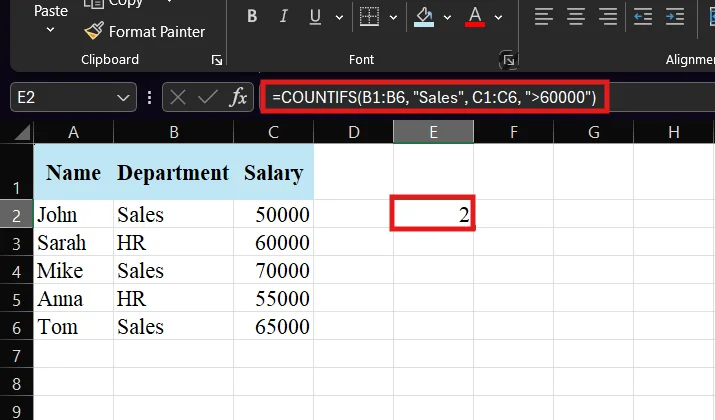
As two employees belong to sales and have a salary greater than 60,000. The result will be 2. Now, something is very important here i.e. COUNTIF cannot handle multiple conditions in a single formula. For such cases, you should always switch to COUNTIFS. This approach is useful for more advanced data analysis where multiple filters are required.
The COUNTIF function in Excel is a powerful way to identify and count duplicate values across a dataset. It helps you quickly spot repeated entries without manually checking each row.
|
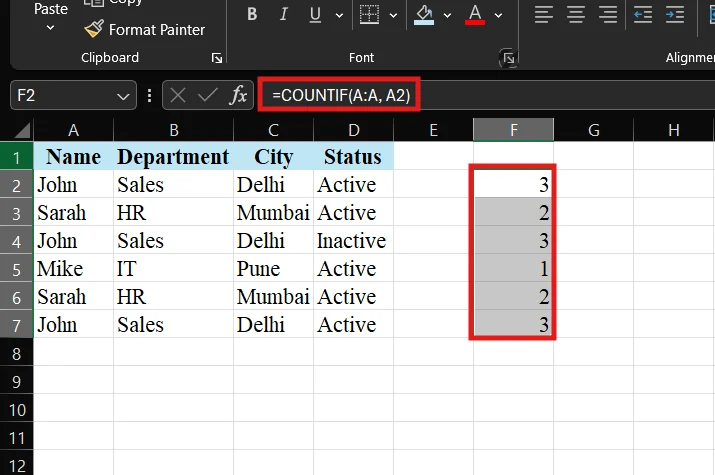
Every value in the output with a count greater than 1 is a duplicate value. This method is widely used in data cleaning, reporting and identifying repeated records.
The COUNTIF function in Excel is simple to use, yet small mistakes can lead to incorrect results. Here are some common errors and how you can fix them:
One of the most frequent issues is not using quotes for text or logical conditions. Sometimes the user writes like this =COUNTIF(A1:A10, >50) and this is an incorrect way of giving conditions.
Selecting the wrong range can also give misleading counts in response.
Sometimes cells may contain hidden spaces. It causes COUNTIF to miss matches.
COUNTIF is not case-sensitive. It can confuse users expecting different results for uppercase and lowercase text.
COUNTIF supports only one condition. It is made like that only.
When you are working with data in Excel, it is easy to confuse COUNT, COUNTIF and COUNTIFS. As they all deal with counting. However, each function serves a different purpose. Understanding their differences helps you choose the right one for your task and avoid incorrect results. Here is a quick comparison:
| Function | Purpose | Criteria Support | Example Use Case |
|---|---|---|---|
| COUNT | Counts cells that contain numeric values only | No criteria | Count how many cells have numbers in a range |
| COUNTIF | Counts cells based on a single condition | Single criteria | Count how many times “Apple” appears |
| COUNTIFS | Counts cells based on multiple conditions | Multiple criteria | Count sales >100 and region = "East" |
The COUNTIF function in Excel is best used when you need to count cells based on a single specific condition. It is ideal for situations where you want quick insights from your data without applying complex formulas. You should use COUNTIF when:
The COUNTIF function in Excel is one of the most useful tools for quickly analyzing data based on a single condition. Whether you’re working with text, numbers, dates, or even patterns using wildcards, COUNTIF helps you save time and avoid manual errors.
Throughout this guide, I have covered everything from the basic syntax to advanced use cases like counting duplicates, handling logical operators and working with blank cells.
The key takeaway from this article is if your goal is to count data based on one condition, COUNTIF is the perfect function. For multiple conditions, you can always switch to COUNTIFS.
Once you start using COUNTIF regularly, it becomes an essential part of your Excel workflow for reporting, analysis and data management.
No, the COUNTIF function only works with one condition. For multiple criteria, you should use the COUNTIFS function.
No, COUNTIF is not case-sensitive. It treats uppercase and lowercase text as the same.
Yes, COUNTIF can work with text, numbers, dates and even wildcard patterns.