
Are you preparing for a Selenium interview? Then, this guide with the most asked Selenium interview questions and answers will help you out. The questions are designed around the most important topics like the tool's architecture, locator strategies, and synchronization techniques. Let's begin with the basic definition!
Selenium is basically an online software testing platform that can test web applications on various browsers. It was developed by Paul Hammant on Java in 2006 which supports various programming languages. It was the first cross-platform WebDriver that performs actions on web elements.
This platform comprises four tools, including -
Explore igmGuru's Selenium training program to accelerate your testing skills.
We understand the present job role requirements, and that is why we have divided this post into different parts. Each part includes the top asked Selenium interview questions and answers based on different experience levels.
Start your first role as a Selenium expert with the following beginner-level Selenium interview questions. It includes some of the fundamental concepts, advantages, limitations and tools of this framework.
Automation testing is a process to check the performance and functions of applications without requiring human intervention. It benefits by saving time, effort and cost of human testers by automating repetitive tasks. Now they can focus on more important and complicated tasks for better productivity.
The automation is executed with a special tool that manages app testing and compares all the outcomes. Both operational and development teams can use this method.
Automation testing with this platform gives the following advantages including -
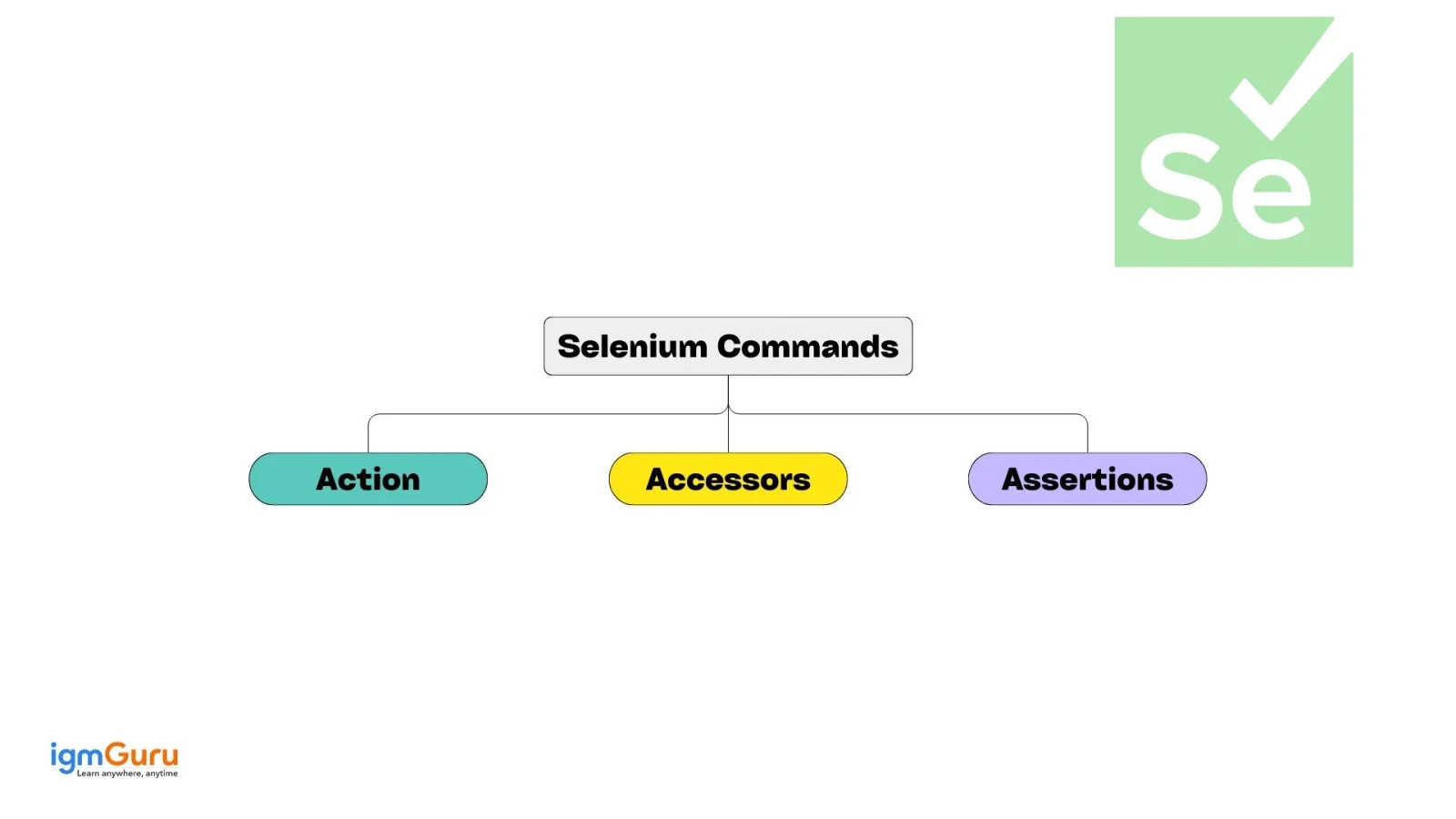
Selenese is a group of commands used for testing different factors of an application. It tests identical objects on the UI, broken links, Ajax functionality, window, alerts, list options, etc. It is classified into the following three categories -
This platform does have some limitations which are listed below -
There are two types of testings that are performed on this tool including -
i) Re-testing
ii) Regression test selection
iii) Prioritization of test cases.
i) Recognize test input
ii) Compute test results
iii) Execute test
iv) Compare both test results and actual results.
This platform has various WebDrivers for mobile testing including -
Listed below are the top automation testing tools for functional automation -
Listed below are the top automation testing tools for non-functional automation -
Various coding languages are used in this platform for writing test cases including C#, JAVA, Python, PHP, Perl and Ruby.
The table given below lists the differences between the manual and automated testing -
| Parameters | Manual Testing | Automated Testing |
| Operating | Human testers perform the manual testing. | Automation tools perform automated testing. |
| Processing time | Slow | Fast |
| Resources requirement | Experts | Experts with automation tool expertise |
| Exploratory testing | Possible | Not possible |
| Framework requirement | No requirement of framework | Does require a framework |
This platform automates functional tests by integrating with various test tools such as Jenkins, Maven and Docker. A continuous testing process can be achieved with this integration which is more efficient and scalable. One can also integrate some other tools such as TestNG and JUnit. This integration unlocks the features to manage test cases and generate reports.
Read Also - How to Download and Install Selenium
This section lists the most asked intermediate-level Selenium interview questions. Here we will discuss concepts like IDE, XPath and annotations.
Selenium IDE (Integrated Development Environment) is an open-to-all online testing tool. It records the actions that are implemented to test an app. These recorded actions can further be used to automate the testing processes. Anyone can easily use this feature as it does not require much programming knowledge. These generated test scripts are not very robust and portable, which means it has limited scope.
Xpath also known as XML path is an approach to locate elements in a web page. It has some conditions along with a path expression. Developers can easily write an XPath query or script to locate any element on a webpage.
There are various key factors that have to be considered while navigating, such as selecting individual attributes, elements, etc. XML path also produces some reliable locators. There are two types of locating strategies available, including XPath Attributes and XPath Absolute.
XPath Absolute mentions the entire XPath location from specific elements to the root HTML tag.
| Syntax | //html/body/tag1[index]/tag2[index]/.../tagN[index] |
| Instance | //html/body/div[2]/div/div[2]/div/div/div/fieldset/form/div[1]/input[1] |
XPath attributes are used when testers do not have a name or id attribute for the element they have to locate.
| Syntax | //htmltag[@attribute1='value1' and @attribute2='value2'] |
| Instance | //input[@id='passwd' and @placeholder='password'] |
Annotations are used to prioritize tests, parallelize tests, parameterize tests and control test execution. Various annotations are available in this platform which are categorized in these three types -
Of course it is possible to perform automated testing without a framework. A framework is basically a set of rules and best practices for performing an operation in an efficient way. If we understand the working of automation tools then we can easily manage automated testing without the framework. The only disadvantage of this method is lack of scalability and efficiency.
The following prerequisites have to be considered while using Java on this app testing platform -
This software testing tool has various web locators to find WebElements. We can use one of them to locate WebElements using Java. For instance we have a web page that includes various vegetable names. The code given below will find the name that we need to detect from that page -
WebElement vegetable = driver.findElement(By.className("vegetable name")); |
There are few advantages of using Python over Java on this app testing platform including -
These two waits can be distinct based on their working. Explicit waits are applied on objects or conditions. It uses WebDriverWait class to wait for a specific condition to be true. Once it is done then it will process the exception of the test.
Implicit waits are applied globally. It specifies a maximum time to wait for an element to be found or an action to be performed. Once it is done then it will throw a TimeoutException or a NoSuchElementException.
A text written on an element can be fetched by employing different languages or libraries. This automation tool has three methods that use different languages and libraries to perform this operation. The languages and libraries are Python, jQuery, HTML and JavaScript.
Python find_element method locates the element using its id, class or other attributes and implements the text property to fetch text. jQuery text method retrieves the content of the element. HTML and JavaScript getElementById method targets the element with its ID and retrieves the text by accessing the innerText property.
It is done by the maximize_window() method from the WebDriver module. This is a two step process where individuals need to start a driver object from their browser and then call this method. It maximizes the window to their potential for a perfect view of the content. Customization of the window size is also possible with the set_window_size() method.
Read Also - Selenium Tutorial For Beginners
We have focused on the advanced-level Selenium interview questions in this section for experienced professionals.
The POM is a design pattern that distinct the web page of an app from the testing program. It is done by building a special Java class for each web page that involves methods and web elements. Given below is an instance of POM -
public class LoginPage { private WebDriver driver; public LoginPage(WebDriver driver) { this.driver = driver; } @FindBy(id = "username") private WebElement usernameField; @FindBy(id = "password") private WebElement passwordField; @FindBy(id = "loginButton") private WebElement loginButton; public void setUsername(String username) { usernameField.sendKeys(username); } public void setPassword(String password) { passwordField.sendKeys(password); } public void clickLoginButton() { loginButton.click(); } } |
DataProvider is a TestNG feature of implementing the same test on different data inputs. Here is an instance of DataProvider -
@Test(dataProvider = "testData") public void loginTest(String username, String password) { LoginPage loginPage = new LoginPage(driver); loginPage.setUsername(username); loginPage.setPassword(password); loginPage.clickLoginButton(); // ... verify login success } @DataProvider(name = "testData") public Object[][] testData() { return new Object[][] { { "user1", "password1" }, { "user2", "password2" }, // ... more data sets }; } |
It can be done by developing a program given below -
import org.openqa.selenium.By; import org.openqa.selenium.WebDriver; import org.openqa.selenium.WebElement; import org.openqa.selenium.chrome.ChromeDriver; import org.openqa.selenium.support.ui.Select; public class DropdownHandling { public static void main(String[] args) { // Set the path of the ChromeDriver executable System.setProperty("webdriver.chrome.driver", "path/to/chromedriver"); // Launch Chrome browser WebDriver driver = new ChromeDriver(); // Find the dropdown/select element WebElement dropdown = driver.findElement(By.id("dropdown-id")); // Create a Select object Select select = new Select(dropdown); // Select by visible text select.selectByVisibleText("Option 1"); // Select by value select.selectByValue("option-2-value"); // Select by index select.selectByIndex(2); // Deselect all options select.deselectAll(); // Perform further actions on the dropdown // ... // Close the browser driver.quit(); } } |
Explain by writing the code below-
import org.openqa.selenium.WebDriver; import org.openqa.selenium.WebElement; import org.openqa.selenium.chrome.ChromeDriver; import org.openqa.selenium.interactions.Actions; public class MouseHover { public static void main(String[] args) { // Set the path of the ChromeDriver executable System.setProperty("webdriver.chrome.driver", "path/to/chromedriver"); // Launch Chrome browser WebDriver driver = new ChromeDriver(); // Find the element to hover over WebElement element = driver.findElement(By.id("element-id")); // Create an Actions object Actions actions = new Actions(driver); // Perform mouse hover action actions.moveToElement(element).perform(); // Perform further actions after the mouse hover // ... // Close the browser driver.quit(); } } |
Here is the code to capture the screenshots using Java.
import org.openqa.selenium.OutputType; import org.openqa.selenium.TakesScreenshot; import org.openqa.selenium.WebDriver; import org.openqa.selenium.chrome.ChromeDriver; import org.apache.commons.io.FileUtils; public class ScreenshotCapture { public static void main(String[] args) { // Set the path of the ChromeDriver executable System.setProperty("webdriver.chrome.driver", "path/to/chromedriver"); // Launch Chrome browser WebDriver driver = new ChromeDriver(); // Navigate to a webpage driver.get("https://example.com"); // Capture the screenshot TakesScreenshot screenshot = (TakesScreenshot) driver; File srcFile = screenshot.getScreenshotAs(OutputType.FILE); // Save the screenshot to a specific location File destFile = new File("path/to/save/screenshot.png"); FileUtils.copyFile(srcFile, destFile); // Close the browser driver.quit(); } } |
It can be done by using the get_attribute(). The code given below in an instance of this method -
# Assuming 'driver' is an instance of WebDriver and has navigated to a page. element = driver.find_element_by_id('elementld') nameValue = element.get_attribute('name') classValue = element.get_attribute('class') # The 'value' attribute can be retrieved equally with get_attribute. valueValue = element.get_attribute('value') |
Here is the code to find the numbers of links.
WebDriver driver = new ChromeDriver(); driver.get("https://www.igmguru.com"); Alert alert = driver.switchTo().alert(); String alertText = alert.getText(); System.out.println("Alert Text: " + alertText); alert.accept(); driver.quit(); |
Here is the Selenium script.
WebDriver driver = new ChromeDriver(); driver.get("https://www.igmguru.com"); driver.findElement(By.cssSelector("input#username")).sendKeys("your_username"); driver.findElement(By.cssSelector("input#password")).sendKeys("your_password"); driver.findElement(By.cssSelector("button#loginButton")).click(); driver.quit(); |
Here is the code to implement a Selenium script in Python.
from selenium import webdriver driver = webdriver.Chrome() driver.get("https://www.igmguru.com") # Take a screenshot and save it as "screenshot.png" driver.save_screenshot("screenshot.png") driver.quit() |
Here is the Selenium script in Java.
WebDriver driver = new ChromeDriver(); driver.get("https://www.igmguru.com"); Alert alert = driver.switchTo().alert(); String alertText = alert.getText(); System.out.println("Alert Text: " + alertText); alert.accept(); driver.quit(); |
This section lists the most asked Selenium WebDriver Interview Questions and Answers for each level of candidates.
There are various methods for interacting with different browser elements in Selenium WebDriver. You first need to locate those elements. Then you can use these interactions based on the type of element and the desired action. Some common methods are:
1. General Element Interactions (Applicable to most WebElement objects)
2. Specific Element Type Interactions:
3. Advanced Interactions (using ActionChains)
4. Browser-Level Interactions
Capturing screenshots during test execution is one of the common practices of test automation that aids in debugging and understanding test failures. You can capture screenshots using the TakesScreenshot interface and the getScreenshotAs() method while using Selenium WebDriver. Here is an example:
import org.openqa.selenium.OutputType; import org.openqa.selenium.TakesScreenshot; import org.openqa.selenium.WebDriver; import org.apache.commons.io.FileUtils; // Requires Apache Commons IO library import java.io.File; import java.io.IOException; public class ScreenshotUtil { public static void takeScreenshot(WebDriver driver, String filePath) { TakesScreenshot screenshot = (TakesScreenshot) driver; File srcFile = screenshot.getScreenshotAs(OutputType.FILE); try { FileUtils.copyFile(srcFile, new File(filePath)); System.out.println("Screenshot captured: " + filePath); } catch (IOException e) { System.err.println("Failed to capture screenshot: " + e.getMessage()); } } } |
JavaScriptExecutor is mostly used when standard WebDriver methods fail to interact with elements. It is mostly used when an element is hidden, disabled or off-screen. You can use it to perform actions like scrolling, clicking disabled elements, highlighting elements, and manipulating the DOM. It will help you to manage complicated and dynamic web page interactions. Here is an example of using JavaScriptExecutor:
// Find an element that is disabled WebElement disabledElement = driver.findElement(By.id("myDisabledButton")); // Use JavaScriptExecutor to click the disabled element js.executeScript("arguments[0].click();", disabledElement); |
CAPTCHAs are specifically designed to prevent automated interactions and distinguish between human users and bots. Automation is what the Selenium mostly used for. This is also the reason why it can't automate Captcha directly.
The choice between getText() and getAttribute() for retrieving element information depends on the specific information required from a web element.
The section includes the best scenario-based Selenium interview questions and answers often asked to check the problem-solving skills of candidates.
You can use an explicit wait to make Selenium wait until the required element meets a specific condition. For example, you can wait until an element becomes visible or clickable before interacting with it. This is more reliable than adding a fixed delay because the test continues as soon as the required condition is satisfied.
First, locate the dropdown element and check whether it is a standard HTML select element. If it is, you can use Selenium's Select class to choose an option by visible text, value, or index. If the dropdown is custom-built, you can locate and click the required option using suitable locators such as CSS selectors or XPath.
First, check whether the tests are sharing browser sessions, test data, or application state. You should also verify whether the tests are dependent on the execution order. Using a fresh WebDriver session for independent tests and properly managing test setup and cleanup can help prevent one test from affecting another.
In this situation, you should avoid depending on the dynamic ID. Instead, identify stable attributes or relationships around the element and create a relative XPath or CSS selector. You can use attributes such as name, class, placeholder, or other consistent properties when they are available.
First, check the browser and WebDriver versions, operating system, screen resolution, and test environment. Then verify that the locators and synchronization methods work consistently across browsers. You should also check whether the test depends on a specific browser behavior, local configuration, or timing condition and run the test with appropriate waits and browser configurations.
Preparing for Selenium interview questions can significantly improve one's chances of success when applying for automation tester positions. It gives understanding of fundamental concepts, functionality and applications of Selenium WebDriver. Remember that practical knowledge and hands-on experience are equally vital as theoretical understanding. Keep practicing and improving your automation testing skills.
The four conditional parameters of this testing framework are host, URL, browser and port number.
There are two different XPath are available in this automation testing framework including Absolute XPath and Relative XPath.
Maven is one of the best open-source build automation and project management tools. It is mostly used for Java-based projects.
TestNG works with Selenium to run and organize tests. It helps set test order, group tests and generate easy-to-read reports.
Course Schedule
| Course Name | Batch Type | Details |
| Programming Certification Courses | Every Weekday | View Details |
| Programming Certification Courses | Every Weekend | View Details |