Most IT firms are using physical machines that are only dedicated to performing specific applications. The use of one or two physical networks does not make them able to reach their full capacity. They have to use multiple machines in this case which results in high costs. This has created a great need to understand how to enable virtualization in their machines.
The global data market of virtualization is estimated to grow over $22.2 billion by 2031 by Allied Market Research. This number is more than double what it is in 2025. This growth shows how important virtualization is for a company. This blog post discusses everything one should know to enable virtualization in their systems.
Understanding 'What is virtualization' is primarily important for enabling it in a system. Virtualization is a technology for building a virtual version of any physical machine or resource. It uses specific software to mimic the applications of different hardware systems. Many virtual machines can run on a particular physical machine. It is used to perform many applications.
Explore igmGuru's best Cloud Computing Certification Courses and choose the best one as per your requirements.
There are many instances of using a virtual machine. It can simplify almost any task within an IT firm including data backup, development, testing and security. Each of these tasks needs to be executed efficiently as these directly affect the performance of a company. Virtual machines are the best solution for these processes.
Virtual machines always contain a copy of the existing programs and operating systems. This copy can restore the data or program whenever needed. These machines can also copy the applications and settings from other devices. This means we can access the prior version of the application or operating system in case of any error.
Developers can create programs individually on virtual machines. These machines give them a new environment for application development. They can also deploy these applications directly to the cloud if the machine is connected to a cloud server. The other users can also use these applications from the cloud server.
Program testing is also possible on virtual machines. These are often used in testing the beta versions of software. It checks the software and decides if it is ready to release or not. Customers can also use these beta versions. This makes sure that everything in the software works according to the requirements.
These run the programs on host devices if there is any cybersecurity issue on the live devices. This method protects the data and devices of all employees within a company. Developers also use these to inspect existing cybersecurity issues in their systems.
There are two methods one should know to understand how to turn on hardware virtualization. Both of these methods use different approaches. The first method involves the BIOS settings and the second involves Windows settings. We will explore both of these methods in further sections.
BIOS (Basic Input/Output System) is a program responsible for starting a computer. It also manages the data flows between the device and its operating system. One should go through their system properties before understanding how to enable virtualization in BIOS. Each BIOS system can not use virtualization due to a lack of functionalities. Then follow these steps to enable virtualization in BIOS -
1. Reboot your system.
2. Press the hotkey to enter BIOS while your system is restarting. These keys differ based on the version or model of computers. The F1, F2, F3, F10, Delete or Esc can be the hotkeys.
3. Go to the Advanced Tab using the arrow keys and press Enter to continue.
4. Select Virtualization in the same way and Enable it.
5. Save changes and again reboot your computer.
6. You can also access BIOS from Windows settings.
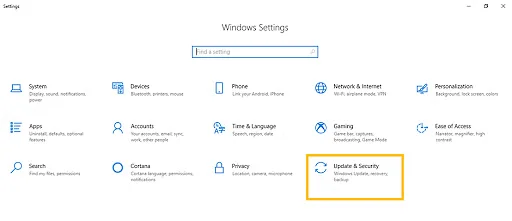
There are some requirements one should know before understanding how to enable virtualization in Windows 10. Virtualization can only be used on certain systems. Go to the control panel and open the system properties to check if you have a suitable system. Then follow these steps to enable virtualization in your Windows 10 -
1. Open the Windows settings in your system and click on the Update & Security button.
2. Go to the Recovery Tab and click on the Restart Now option.
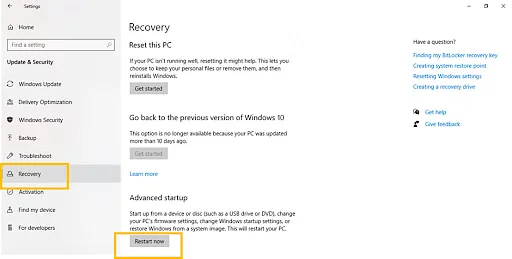
3. Click on the Troubleshoot > Advanced > UEFI Firmware Settings > and then the Restart button.
4. Open the BIOS settings with the F10 key and enable the virtualization.
We have explored different methods on how to enable virtualization in a machine. These methods are very easy to implement and give a new environment for app development and deployment. This environment is integrated with a cloud system which is great to reach a big audience. It is also best for data backup, app testing and cyber security use cases.
There are many ways to check if virtualization is enabled in your system. You can use a command prompt, task manager or system information tool for this purpose. Check the performance tab in the task manager, use the systeminfo command in the command prompt and type msinfo32.exe in the system information tool. This will show the status of virilization.
The system should have a 64-bit processor along with a Second Level Address Translation (SLAT). It should have at least 4GB of RAM and a BIOS which includes hardware virtualization features.
Hyper-V is a product of Microsoft. It is a virtualization technology that can create and run many different virtual machines (VMs) on a single physical computer.
Couse Schedule
| Course Name | Batch Type | Details |
| Google Cloud Platform Training | Every Weekday | View Details |
| Google Cloud Platform Training | Every Weekend | View Details |