Learn how to create a Dockerfile with this tutorial. It includes everything from the definition of Dockerfile to the process of creating one. This knowledge has become very important for software developers and DevOps engineers. They can package complete applications and all their dependencies into containers. This skill gives them the ability to build a consistent and isolated app development environment.
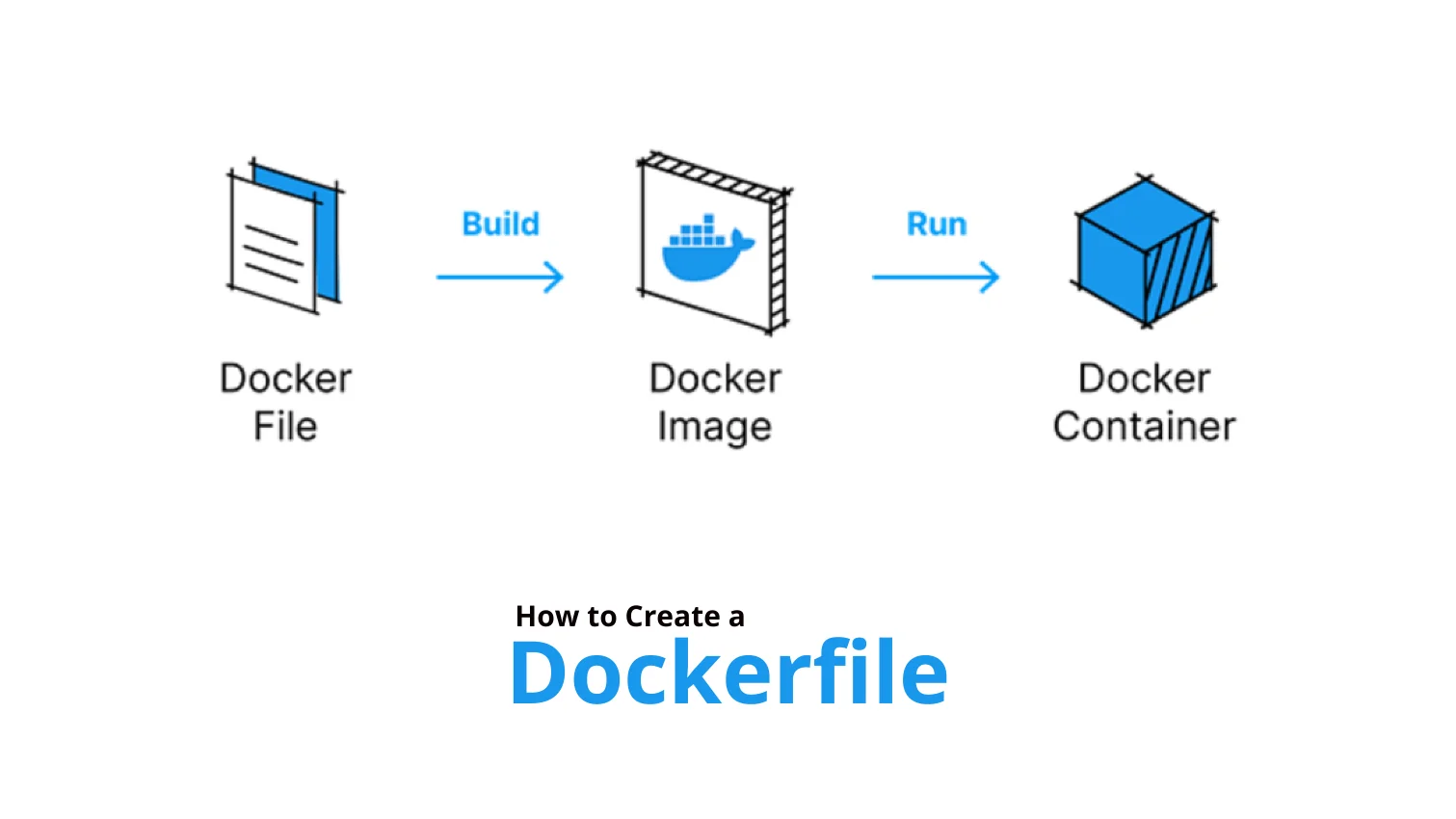
The demand for these experts is humongous these days and rising continuously. This demand comes as a result of its advanced elements, including Image, Container, and Dockerfile. The Dockerfile is the most popular among these three as it only creates the other two. In this article, we will explore how to create a Dockerfile and how to create a Docker image.
It is important to understand 'What is Dockerfile' before creating one. It is basically a combination of different instructions and commands. This file uses Domain Specific Language (DSL) and instructions for generating a Docker image. It defines the processes of producing an image as quickly as possible. The experts must create this file as the Docker daemon will execute all of the commands.
Explore all Cloud Computing Certification Courses by igmGuru to build a career in cloud technology.
Understanding 'What is a Docker image' is also equally important. A Docker image is a lightweight component with a combination of many layers. It is a unique executable package that contains all of the elements required to execute a piece of software. These elements are the program, the runtime, libraries, variables, and different configuration files. It also contains the instructions for building a container.
Let us explore how to create a Dockerfile. This tool can create many types of files for deploying different types of applications. We will create a simple Node.js application in this tutorial. It is basically a Java-based application. There is no necessary requirement to have knowledge of Java to understand this example.
1. It is important to install Docker Desktop on the system before creating a Docker file.
2. Go to the file package.json that is available and add a new file as Dockerfile. Make sure you do not add any extensions to this file. The editor will automatically do it.
3. Now define the base image in the Dockerfile using the following command -
FROM node:20-apline |
4. Use the WORKDIR instruction for defining working directories in the same file. This will decide where commands will execute in the future. It also copies the directory files into the container image.
WORKDIR /app |
5. Now use the COPY command to replicate all the files from the project into the container image.
COPY . . |
6. It is time to install the dependencies of the application using the package manager and yarn CLI. Use the RUN instruction to do so.
RUN yarn install --production |
7. Now use the default command to run with the CMD instruction.
CMD ["node", "./src/index.js"] |
8. This will create the Dockerfile as shown below -
CMD ["node", "./src/index.js"] |
Read this comprehensive Docker Tutorial for a better understanding of this platform.
Let's take one more example of how to create a Dockerfile to run an Ubuntu container. It will enable you to work on different types of operating systems. The file that we are creating in this instance can be used on any OS.
1. Start by downloading the official image for Ubuntu. Use the command given below to pull it -
docker pull ubuntu |

2. Now check if the image is installed in the system or not with this command -
docker images |

3. Create a container in the same directory where the image is available -
docker build -t my-ubuntu . |
4. You might find an issue here as shown below (only in some instances) -

5. This means the system is not able to find the directory for executing the file. This tool sets a default path to store all the images. Use the Docker info command to find out this space.
Docker info |
6. This command will show a lot of information related to the file. Just navigate the Docker Root Dir. It will show the default storage.

7. It still shows the /var/lib/docker which is the right default location. This means the images are downloaded to another location. This error can be removed by creating the Dockerfile from scratch.
8. Build it from scratch by following the same procedure and then use the following command -
docker run my-ubuntu |
Read Also: Docker Interview Questions and Answers
Understanding how to create a Docker image from Dockerfile is important to become a software developer with this platform. It is not a hard nut to crack. Anyone with some fundamental knowledge of this platform can create it. They use the following steps -
The first thing that we need to create a Docker image is a Dockerfile. We have already mentioned the ways to create these files in the above section. Let us create a file and name it Vim Dockerfile.
vim Dockerfile |
Now write the instructions required for defining the setup and environment for app development. This typically involves specifying images, installing dependencies, copying files and customizing the runtime environment. Perform all these tasks as given below -
FROM ubuntu:latest |
WORKDIR /app |
COPY . . |
python3-pip |
CMD ["python3", "app.py"] |
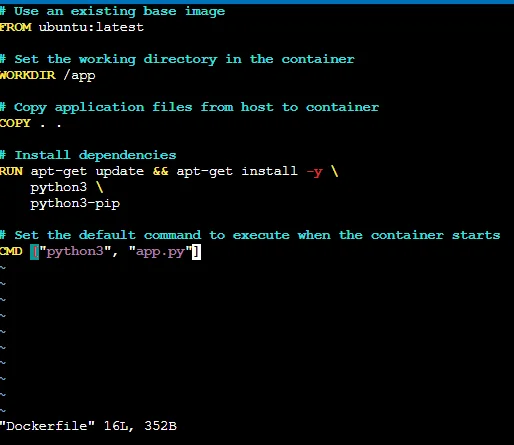
main() |
Use the following command to build a Docker image -
docker build -t myimg . |
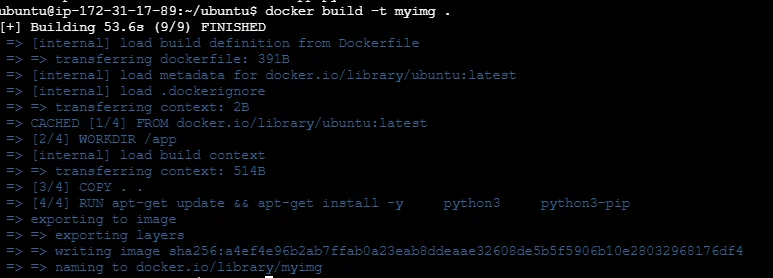
Now verify if the image has been successfully created with the following command -
docker images |
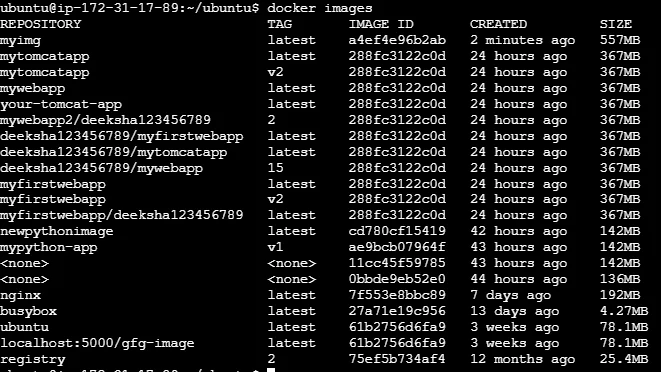
Test the functionality of the image using this command -
docker run -d -p 8080:80 myimg |

This article has explained different methods on how to create a Dockerfile. This knowledge is very important for software developers and DevOps engineers in 2026. It makes them capable of packaging applications and their dependencies into containers. This guide has also covered the fundamentals of Dockerfiles and Docker images. Continue to learn more about this centralized platform with additional resources if you are interested.
Explore These Trending Articles:
What is Kubernetes Architecture? Components Explained
What is DevOps Automation? Everything You Need To Know in 2026
What is a Pipeline in DevOps? Everything You Need To Know
Set up a CI/CD pipeline using a service like GitHub Actions to build a Docker image automatically. Here, you have to use the same location where the repositories are available. Thus, the pipeline can automatically build and push a new image to a Hub repository.
The Docker init command creates a Dockerfile using a compose.yaml and a .dockerignore. It is the easiest and fastest way to get up and going. Each expert on this platform should have knowledge of YAML.
Docker is built using the Go programming language. It takes advantage of many Linux kernel features to deliver its functionality. It also uses a technology called namespaces that gives an isolated environment called containers.
Course Schedule
| Course Name | Batch Type | Details |
| Docker Training | Every Weekday | View Details |
| Docker Training | Every Weekend | View Details |