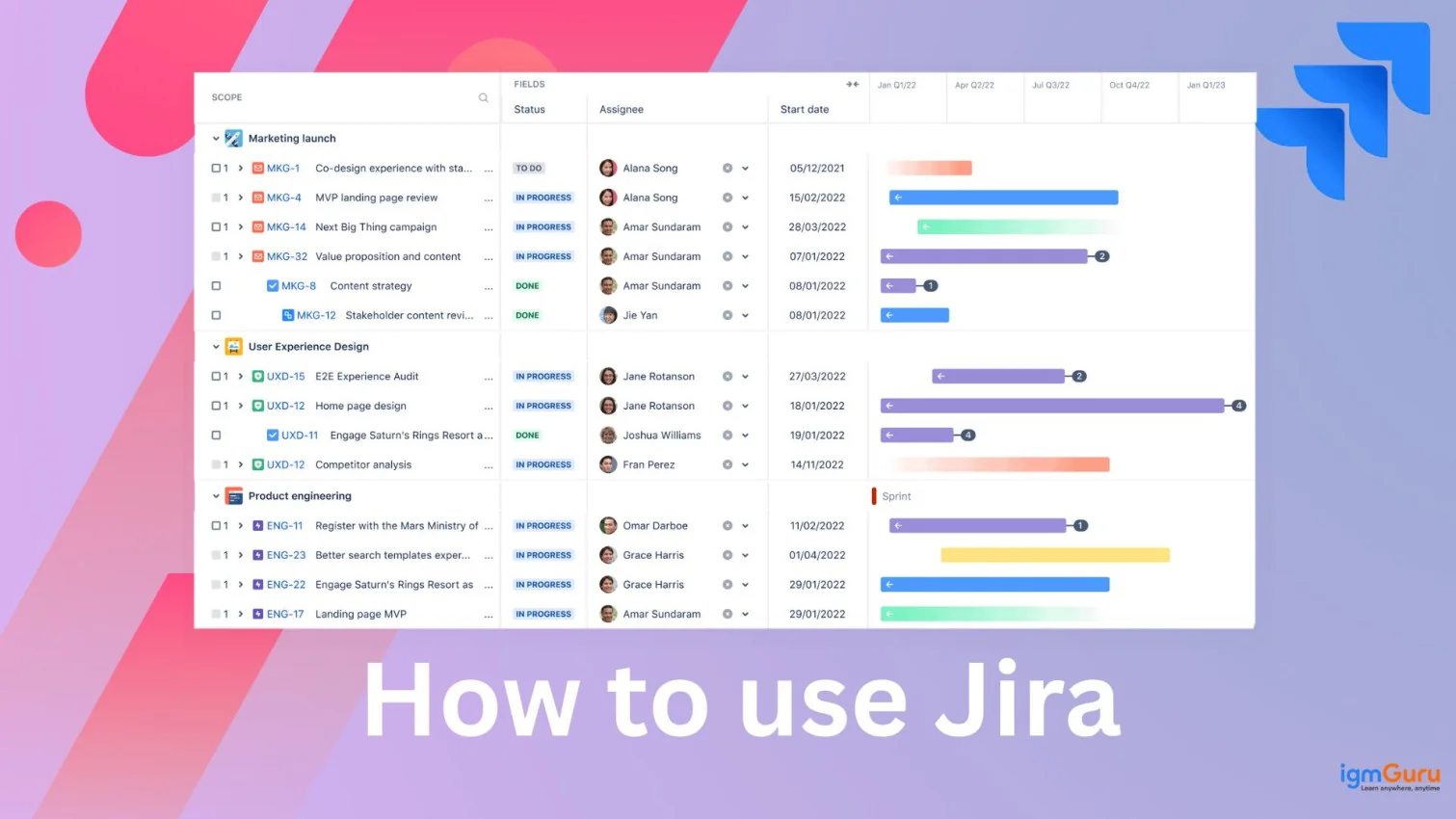
Jira is your trusted guide through the project management wilderness. It is the structured tool you need when your team faces challenges while managing projects. Atlassian introduced this tool to help teams plan and manage work with ease through its impressive features. What are those features? We will discuss it in this guide and go through step-by-step instructions to get you started. Let's learn how to use Jira to make every project feel managed.
You must first understand 'what is Jira' before you jump into finding out how to use Jira. It is the map maker and guide you need for your project journey. It has started as a tool for software issue tracking but has evolved into a full-scale work management solution for all types of teams. You begin with an idea and draw workflows that move from a start to getting done in organized ways.
It allows teams to organize their work by letting them know what's waiting, what's being worked on and blocked. They get a platform to manage tasks, find blocks and handle other kinds of issues. Jira provides you with impressive features and workflows to adapt to your needs. This platform has your back whether you want to make your task sprint in bursts (Scrum) or flow continuously (Kanban).
Read Also: What is Kubernetes?
Who uses Jira? It is for anyone who wants to bring organization to their workspace. I would still mention the main industries where it is often used for better performance.
Jira is heavily used by software engineering teams practicing Agile (Scrum / Kanban). They use Jira to track bugs, user stories, sprints, and releases. DevOps teams too use it, integrating with version control, deployment, monitoring tools.
Product managers use Jira for planning product roadmaps, tracking progress, managing dependencies and releases.
Not just software: marketing, operations, finance, HR, legal, customer service teams use Jira for project management, task tracking, and cross-functional workflows.
Jira (especially Jira Service Management) is used for ticketing/help-desk / ITSM workflows.
Both big companies (thousands of users) and small teams (~2 or a few people) use it. Jira scales from small startups to large global corporations.
Read Also: Jira Tutorial: Learn Agile With Jira Software From Scratch
I have stated some easy-to-follow steps to get you started with Jira. These instructions will guide you to set up your project and choose the template that suits your work style.
The first step is to visit the official site of Jira and begin by registering your email to sign up. You can also use your Google and Microsoft account to get you started. If you are already logged into this powerful platform, log in with your saved credentials. After adding your email, you will be needed to add your name and set a password. You are all set to go, congratulations!
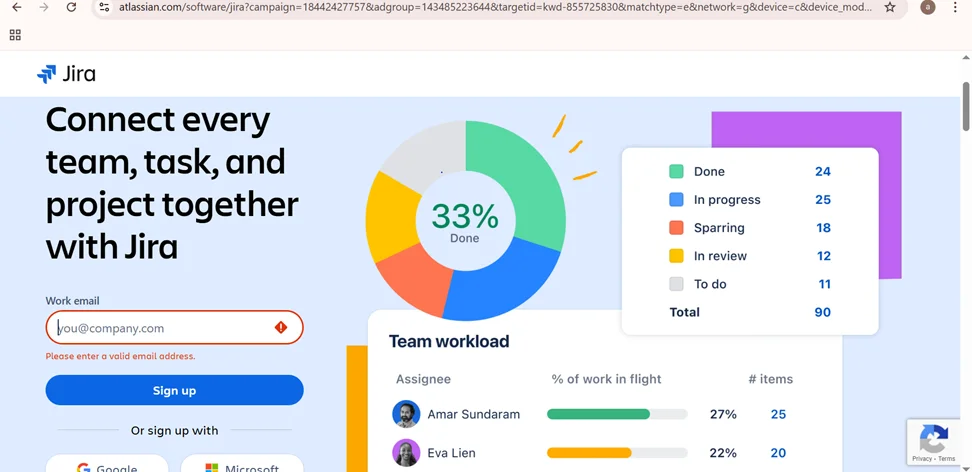
You will be required to create a site next once you are done with the first step. Jira would automatically suggest a site name for you, but you are free to be creative.
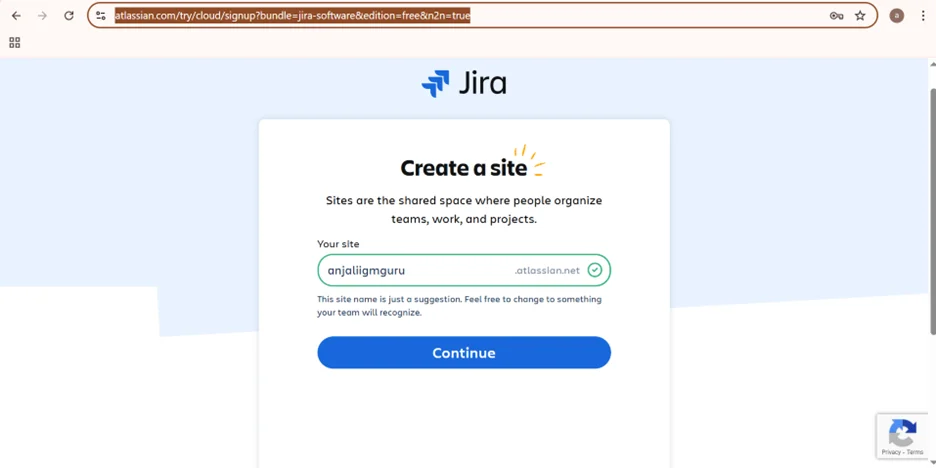
Note: These steps apply to Jira Cloud. Jira Data Center/on-premise installations have a different setup process, usually managed by an administrator.
Now, it is time for you to select the work you do. This is helpful in suggesting templates for you to perform your best. Jira may show onboarding industry options during new site setup. If you join an existing workspace, this step may not appear.. You can simply scroll down and click on 'other' if your industry is not mentioned there.
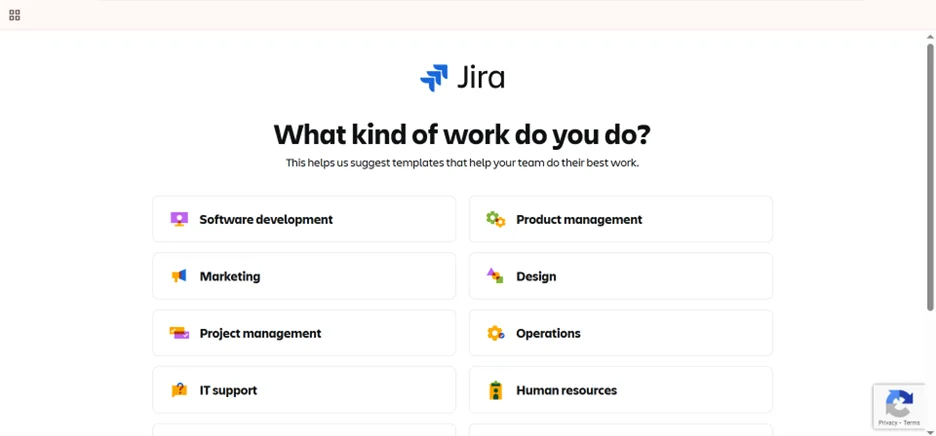
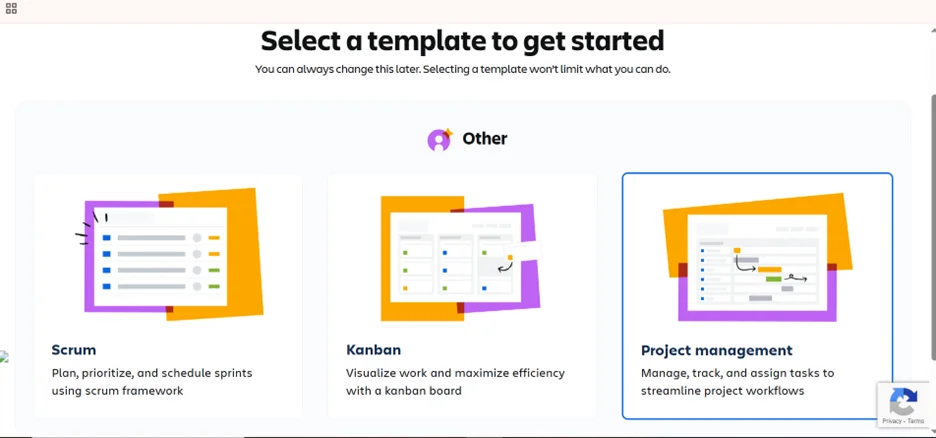
I have selected the 'Other' option as you can see below. Now, I am required to choose a template from the three following options-
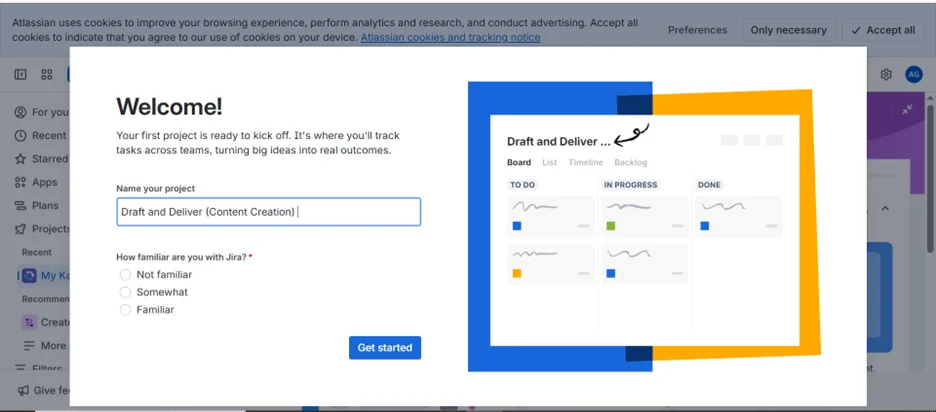
Now, title the project you or your team wants to work on.
You will need to choose between Team-managed and Company-managed project types when starting a Scrum or Kanban project. The difference between these two lies in how they are managed. They are either managed by the team or a Jira administrator at the company level.
You are now free to add more people from your team to your party once you have sufficient work displayed on your board.
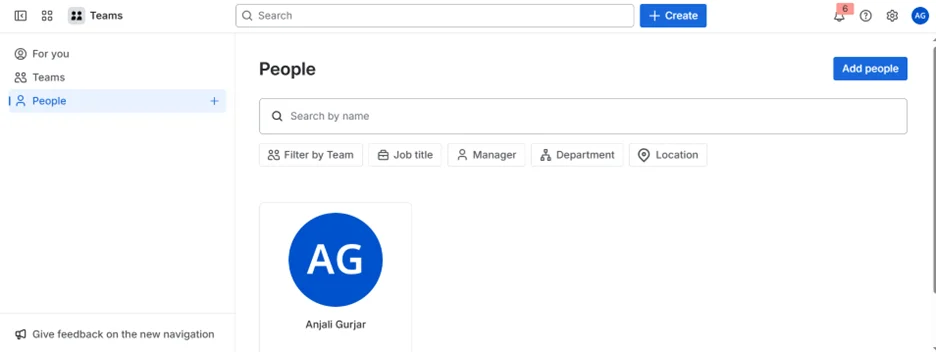
You are all set to team up with the added people and keep track of your work as a group. For a Scrum project, first create and launch a sprint to begin tracking work in defined intervals. For a Kanban project, you can start to monitor work on the board right away. You can simply drag one each work item from one column to the next to update the status of your task as they move through the team's workflow.
Read Also: How to Create a Board in Jira
Let me make this easy for you by describing each of the three templates (Scrum, Kanban and Project Management) in Jira. That's the best way to completely know how to use Jira to its best potential. Choose the one that suits your and your team's workstyle.
Scrum is a well-known Agile methodology that splits work into fixed-length iterations. These iterations are called sprints, which usually last for two weeks. Teams can plan, track and manage their work through the Scrum template using the Scrum framework.
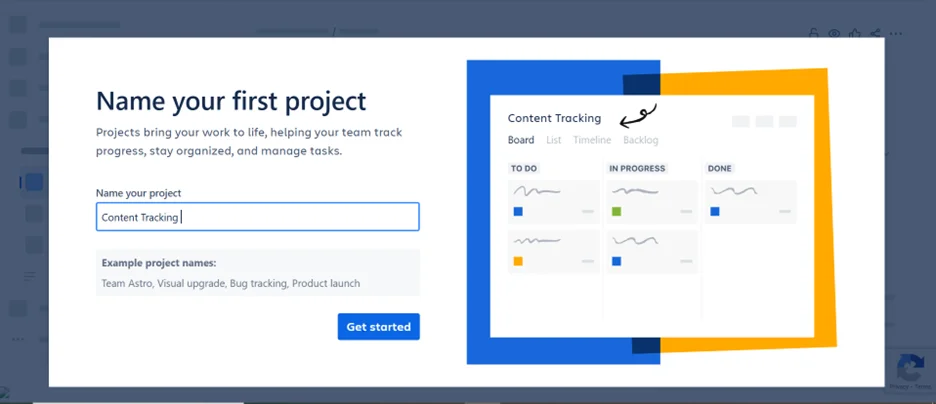
I have named my first project as 'Content Tracking' after choosing the Scrum template. Follow the same for your project and click on 'get started' to begin.
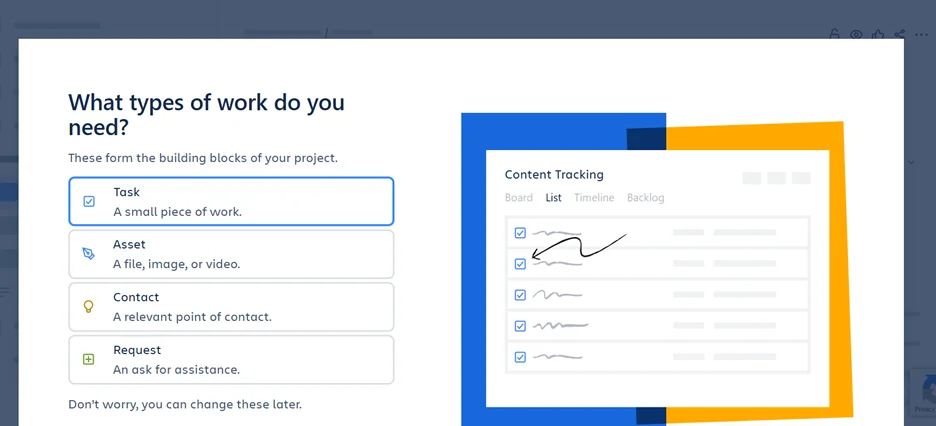
Choose from the options below and do not be too cautious because you can change your preference anytime you want.
Jira keeps up with your project's status by letting you know what needs to be done, what is in progress and what is done. You can also add a status if you want and name it accordingly.
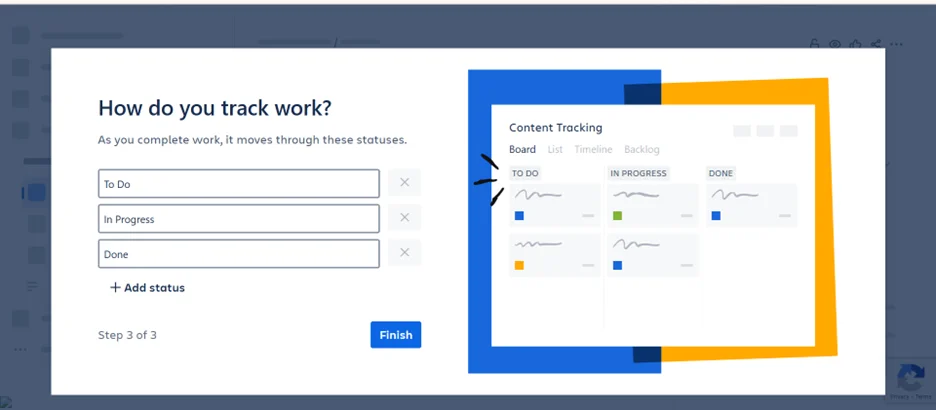
Once you are done with the above steps, this is how it would appear. Let me tell you some important features of the scrum template before you begin turning chaos into clarity.
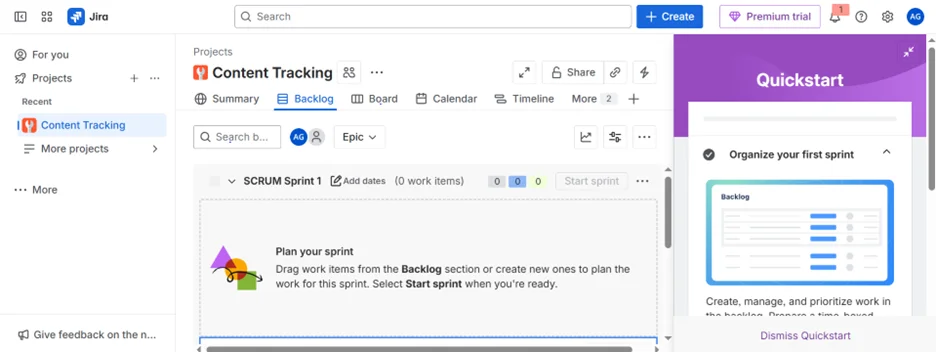
The Kanban template in Jira is the same as a whiteboard. This digital whiteboard showcases your team's tasks as sticky notes. It moves across columns like 'To-do', 'in progress' and 'done' to help teams in visualizing their workflow.
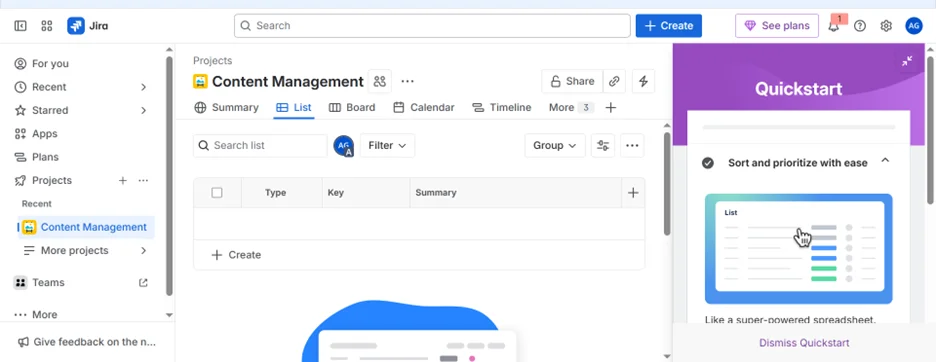
I have chosen a different project name using Kanban's template to not get you confused. Give a creative title to your project and click on get started.
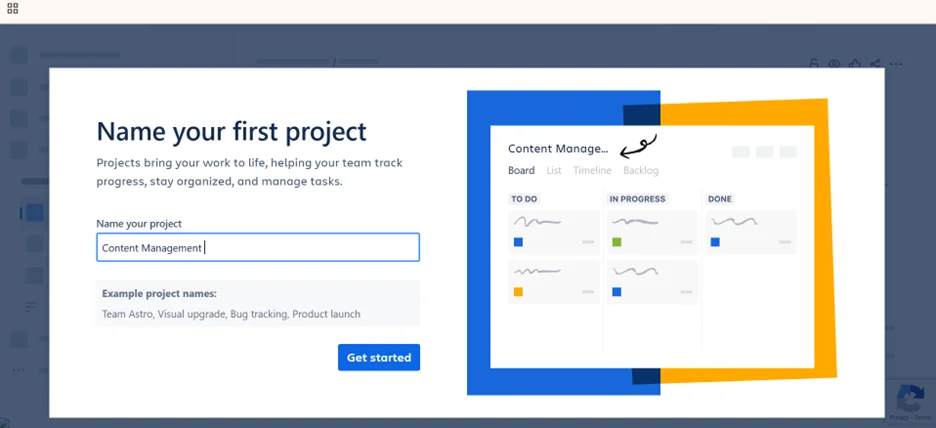
Now, if you have selected the Kanban template, learn about its features to refine your projects in the best way possible.
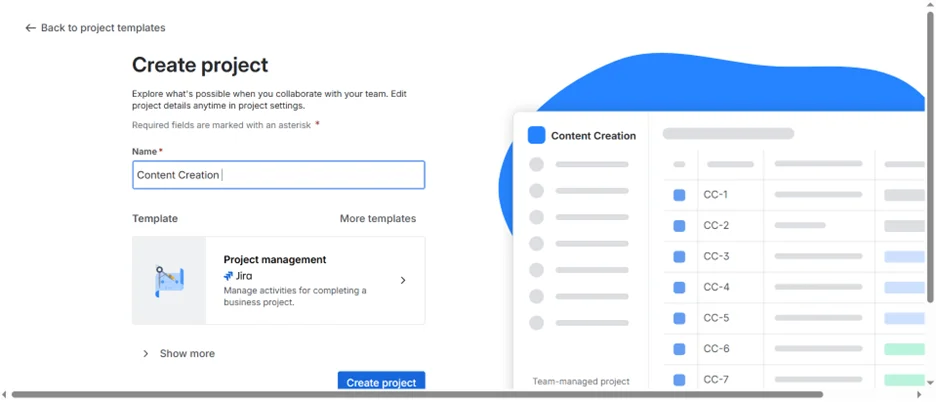
The project management template in Jira is designed for teams to track and manage their projects with ease. It gives you the tools to organize tasks, set deadlines, assign responsibilities and monitor progress. It makes sure that everyone remains on track in short.
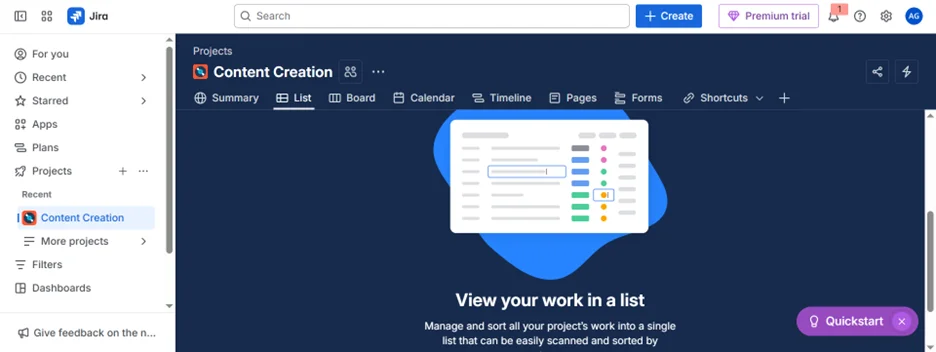
Jira offers more templates than just Scrum, Kanban, and Project Management. Teams can also use templates for Bug Tracking, Product Discovery, Service Management (ITSM), Marketing Campaigns, HR onboarding, Sales pipelines, and more, depending on needs.
Read Also: Top 25 JIRA Interview Questions and Answers
It is safe to conclude that now you can deliver your projects with confidence after thoroughly going through learning how to use Jira. This workspace helps you change your ideas into actions. Every step from setting up a project to tracking its progress will allow you to bring productive work. Begin with a minor project and experiment with Jira's features to learn what works best for you.
As you explore further, you will also encounter automation rules, integrations, advanced reporting, dashboards, apps from Atlassian Marketplace, and multiple project templates designed for different business teams.
Jira offers a free plan for up to 10 users with essential features. However, storage (2GB) is limited and advanced features such as increased automation, audit logs, enhanced security, and admin controls require a paid plan.
Jira supports 20+ languages, including English, French, Chinese, Japanese, Russian, Turkish and many more for people all around the world.
You need to move issues through workflow stages by dragging them on the board or updating their status. Dashboards and filtered views are useful to view what is left, blocked or completed.
Jira is used to plan, track, and manage projects by creating tasks, assigning work, and monitoring progress.
Agile teams use Jira to manage sprints, backlogs, and workflows for better collaboration and delivery.
Task management and project tracking skills can be learned. It also helps improve team collaboration and workflow management.
Course Schedule
| Course Name | Batch Type | Details |
| Jira Training | Every Weekday | View Details |
| Jira Training | Every Weekend | View Details |