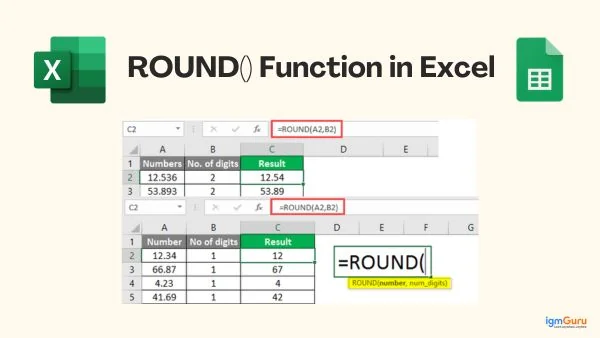
Working with numbers in Excel means dealing with messy decimals. That is where the ROUND formula becomes essential. It helps you in controlling precision, cleaning up data and presenting accurate results in reports.
In this guide, I will explain about what the ROUND formula is, how it works and how to use it with clear examples. I will also cover related functions like ROUNDUP, ROUNDDOWN, MROUND, CEILING and many more. By the end, you will definitely understand how to handle rounding in Excel with confidence. So let’s begin.
Learn how to use the ROUND() function and its alternatives in Excel. A complete guide on how to round decimals, integers, and time values.
The ROUND formula in Excel helps in controlling how many digits will appear in a number by reducing or increasing its decimal places. It takes a number and rounds it to a specified number of digits. This makes your data cleaner and more easy to read. For instance, you can turn 12.6789 into 12.68 or even 13. It all depends upon your requirements, like what you want specifically.
This function is especially useful when you work with financial data, reports or any type of calculations where precision matters. Because of this you do not need to adjust numbers manually. The ROUND formula will do that job instantly and consistently for you. It also helps in avoiding confusion. This confusion may be caused by long decimal values, so it ensures your results look professional.
When you use the ROUND formula, you can save a lot of time and can reduce errors in large datasets. Even if you are preparing budgets, analyzing data, or building dashboards, it will definitely simplify your workflow and will improve your accuracy.
To use it correctly, you need to understand how the formula is structured. In the next section, I will break down the syntax of the ROUND formula so you can directly apply it.
Read Also: Excel Interview Questions and Answers
The syntax of the ROUND formula in Excel is simple and easy to understand:
|
Each part of the formula has a specific tone. Let’s understand that:
For instance, if you use a positive number, then Excel rounds to decimal places. If you use zero, it rounds to the nearest whole number. If you use a negative number, it will round to the left of the decimal such as tens or hundreds.
Now that you know and understand about the syntax, let’s see how the ROUND formula actually works in Excel with practical examples.
The ROUND formula in Excel works by adjusting a number based on standard rounding rules. It looks at the digit right after the place you want to round to and decides whether to increase or keep the value.
Suppose, if the next digit after decimal is 5 or more. Then, Excel will round the number up. If it is less than 5, then it keeps the number as it is. This makes the rounding process consistent and predictable.
For example, if you round 12.345 to two decimal places, Excel will check the third decimal digit which is 5. Since it is 5, the number becomes 12.35. If you round 12.342, it will become 12.34 because the next digit is less than 5.
The formula also works with whole numbers. If you round 126 to the nearest ten, Excel checks the last digit. As 6 is greater than 5, then it will round it up to 130. This behavior helps in maintaining accuracy while simplifying numbers for reports, calculations, and analysis. Once you understand how it works, you can easily control how your data appears.
Now, it’s time to look at all the rounding functions, as you know how ROUND works.
Excel offers several rounding functions beyond just the basic ROUND formula. Each function serves a specific purpose. It gives you more control over how numbers are adjusted in different scenarios. Even if you want to always round up, round down, or round to specific multiples, these functions make your work faster and more precise. Here is a quick overview given below of the most commonly used rounding functions in Excel:
| Function | Description |
| ROUNDUP() | Rounds a number up, away from zero, regardless of the digit. |
| ROUNDDOWN() | Rounds a number down, toward zero, ignoring the next digit. |
| MROUND() | Rounds a number to the nearest specified multiple. |
| CEILING() | Rounds a number up to the nearest multiple of a given value. |
| FLOOR() | Rounds a number down to the nearest multiple of a given value. |
| EVEN() | Rounds a number up to the nearest even integer. |
| ODD() | Rounds a number up to the nearest odd integer. |
| INT() | Rounds a number down to the nearest integer. |
| TRUNC() | Removes the decimal part without rounding. |
| Rounding Time in Excel | Helps round time values to specific intervals like minutes or hours. |
Read Also: Excel Multiple Choice Questions
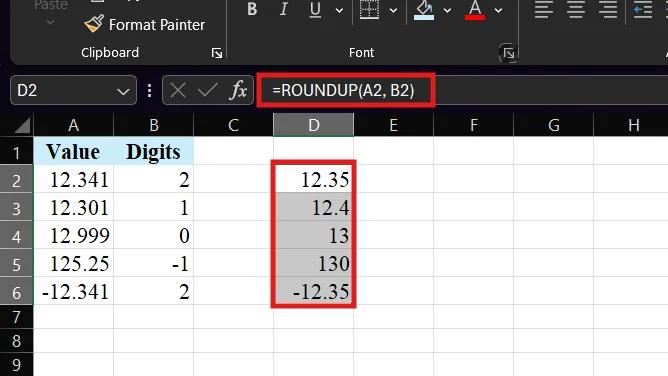
The ROUNDUP function in Excel is used when you always want to round a number up, regardless of the next digit. Unlike the ROUND function, it does not follow standard rounding rules. It increases the value away from zero every time.
This is especially useful in scenarios like pricing, billing, or quantity calculations where you do not want to underestimate values. For example, if you are calculating costs or units, rounding up ensures you stay on the safer side.
FORMULA: =ROUNDUP(A2, B2)
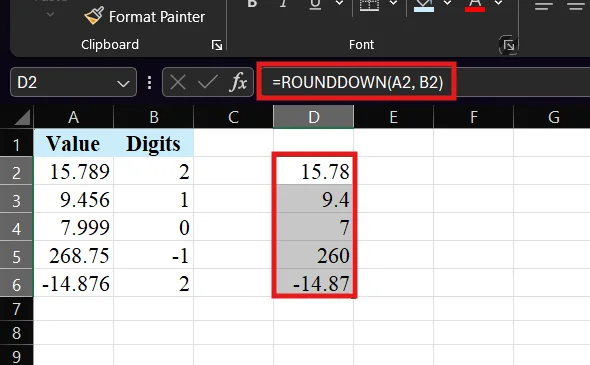
The ROUNDDOWN function in Excel is used when you always want to round a number down, regardless of the next digit. It simply reduces the value toward zero and ignores any digits after the specified place.
This function is useful when you need conservative estimates, such as calculating discounts, truncating values, or avoiding overestimation. It ensures that the result never exceeds the original value.
FORMULA: =ROUNDDOWN(A2, B2)
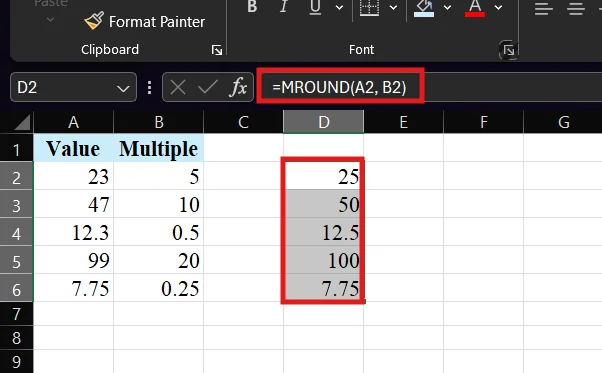
The MROUND function in Excel is used to round a number to the nearest specified multiple. Instead of rounding based on decimal places, it rounds values to the closest multiple you define.
This is especially useful when working with pricing, packaging, time intervals, or measurements where values must follow fixed increments. For example, you can round numbers to the nearest 5, 10, or even 0.5 based on your needs.
FORMULA: =MROUND(A2, B2)
The CEILING function in Excel is used to round a number up to the nearest specified multiple. It always increases the value, even if the number is already close to the multiple.
This function is useful in scenarios like pricing, billing, and inventory where values need to be rounded up to fixed units. For example, you can round prices to the nearest 5 or quantities to the nearest 10 to maintain consistency.
FORMULA: =CEILING(A2, B2)
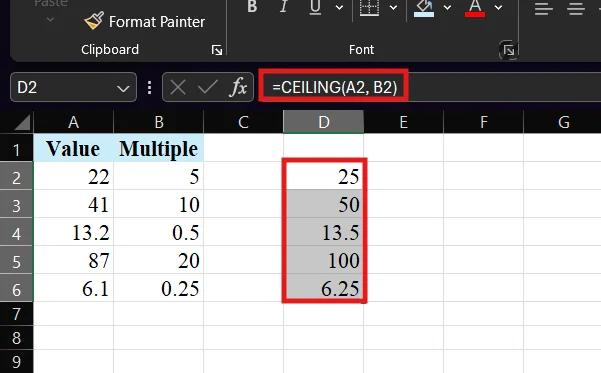
The FLOOR function in Excel is used to round a number down to the nearest specified multiple. It always reduces the value toward zero based on the multiple you define.
This function is helpful when you need to avoid exceeding a limit, such as budgeting, inventory control, or pricing rules. It ensures that the rounded value never goes above the original number.
FORMULA: =FLOOR(A2, B2)
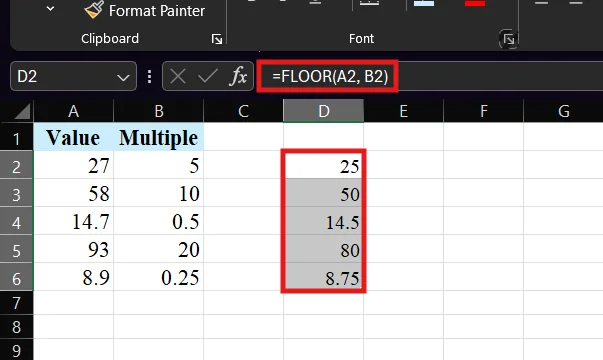
The EVEN function in Excel is used to round a number up to the nearest even integer. It always moves the value away from zero and returns the next even number.
This function is useful when you need values in even numbers only, such as packaging in pairs, batch processing, or standardizing data formats. It ensures consistency by always returning an even result.
FORMULA: =EVEN(A2)
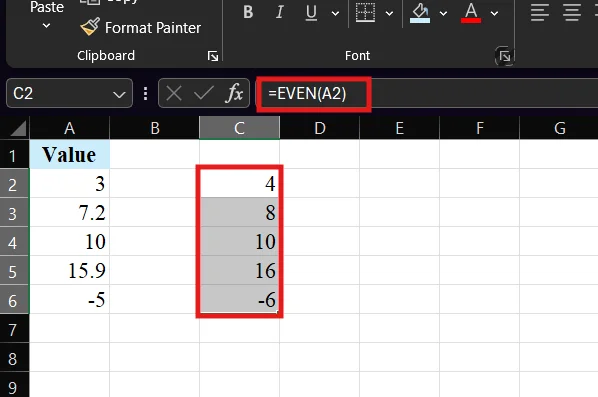
The ODD function in Excel is used to round a number up to the nearest odd integer. It always moves the value away from zero and returns the next odd number.
This function is helpful when you need values in odd numbers only, such as grouping items, distributing resources, or maintaining specific formatting rules. It ensures the result is always an odd integer.
FORMULA: =ODD(A2)
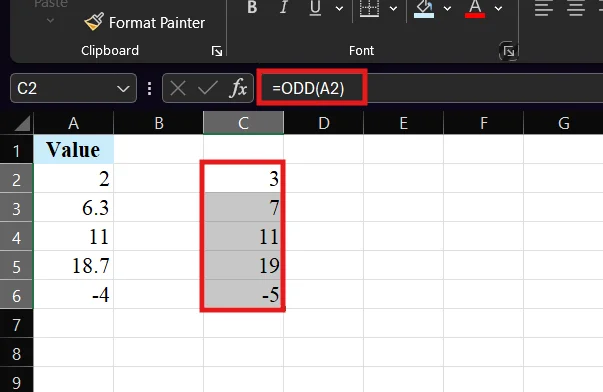
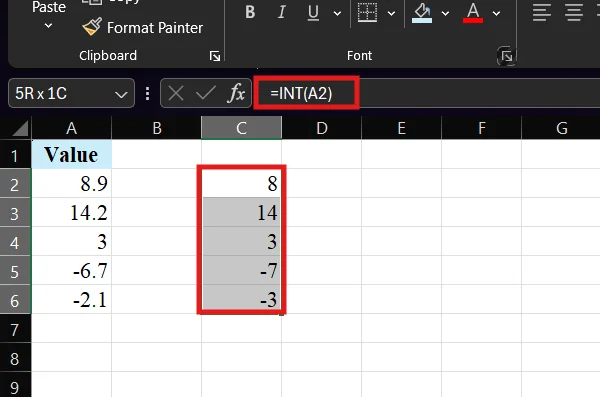
The INT function in Excel is used to round a number down to the nearest integer. It removes the decimal part and always rounds toward negative infinity.
This means it behaves slightly differently from simple truncation, especially with negative numbers. For example, while 5.9 becomes 5, a value like -5.1 becomes -6. This makes INT useful when you need consistent downward rounding in calculations.
FORMULA: =INT(A2)
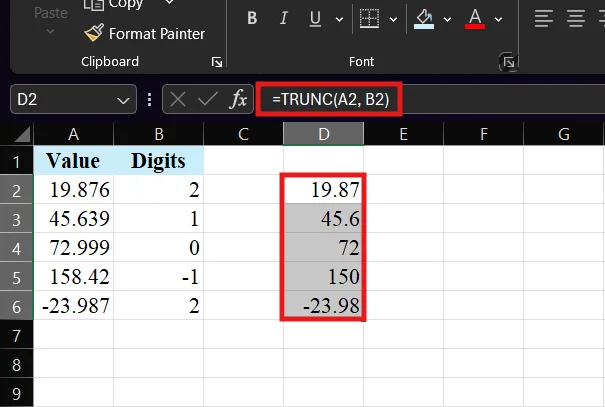
The TRUNC function in Excel is used to remove the decimal part of a number without rounding. It simply cuts off digits after a specified point, making it different from other rounding functions.
This function is useful when you want to control precision without changing the actual value through rounding. It is commonly used in financial calculations, data cleaning, and reports where exact values matter.
FORMULA: =TRUNC(A2, B2)
Read Also: How to Compare Two Columns in Excel
Even though the ROUND formula is very simple, still many users make small mistakes that can lead to incorrect results. Thus, understanding these common errors can help you avoid confusion and ensure your calculations stay accurate. This section will help you in identifying what usually goes wrong and how to fix it before it affects your data. Here are the most common mistakes to be careful for:
Many users get unexpected results because they use positive, negative, or zero incorrectly. For instance, using -1 rounds to tens, not to decimals. Therefore, always double-check what level you want to round.
Changing decimal places in Excel formatting does not actually round the number. It only changes how it looks. The ROUND function changes the actual value.
ROUND follows some standard rules. It only rounds up when the next digit is 5 or more. If you always want to round up, you should use ROUNDUP instead.
Placing ROUND at the wrong position in a formula can affect the final result. It is important to apply it at the correct step of your calculation.
Rounding values too soon can reduce accuracy, especially in financial or scientific data. It is better to round the final result when possible.
Rounding negative numbers can behave differently than expected. Always test your formula when working with negative values.
Avoiding these mistakes will help you use the ROUND function more effectively and keep your data reliable. Now that you know what to avoid, let’s have a look at some practical tips to use the ROUND function efficiently in Excel.
When you use the ROUND function correctly, it can save a lot of time and can improve the accuracy of your data. Once you understand how it works, a few smart practices can make your work even more efficient and error free. Here are some practical tips that can help you get the most out of the ROUND function:
Try to apply the ROUND function at the end of your calculation. This helps maintain accuracy throughout your formula and avoids cumulative rounding errors.
Do not rely on ROUND for every situation. Use ROUNDUP, ROUNDDOWN, or MROUND when you need more control over how numbers are adjusted.
You should always refer to cells instead of typing numbers directly into the formula. This makes your formulas flexible and easier to update.
When you are using ROUND with formulas like SUM, AVERAGE, or IF, make sure you place it correctly so it does not affect intermediate calculations.
Before applying the formula to large datasets, test it with a few examples. This helps you confirm that the rounding behaves as expected.
You need to decide how precise your numbers need to be before applying rounding. Different tasks, such as financial reporting or data analysis, may require different levels of accuracy.
Do not use ROUND if it is not needed. Keeping full precision can be useful for calculations and future analysis.
The ROUND formula and related functions help you manage numbers easily in Excel. This guide has covered how to use ROUND, ROUNDUP, ROUNDDOWN, and other functions based on different needs. Each function gives you better control over accuracy and presentation.
By understanding how these formulas work, you can avoid common mistakes and improve your calculations. You can now handle decimals, multiples, and even time values with confidence. Now, try using these functions in your daily work to save time and keep your data clean and reliable. With practice, you will get faster and more accurate results in Excel.
The ROUND formula is used to reduce or adjust the number of decimal places in a value. It helps make numbers cleaner and easier to read.
ROUND follows some standard rules. It can round up or down also. ROUNDUP always rounds the number up, regardless of the next digit.
Yes, you can use functions like MROUND, CEILING, or FLOOR to round numbers to specific multiples such as 5, 10, or 100.
This usually happens due to incorrect num_digits values, wrong cell formats, or using text instead of numbers. Always check your inputs and formatting.