Microsoft SQL Server is a technology that brings many facilities and utilities to the table. Most of the enterprises depend on it to store, manage, secure and integrate their data. It is, in fact, among the most popular database management systems. This guide is especially designed to explain how to install Microsoft SQL Server on your device.
It could be a great guide for both freshers and experts working on database management systems. It will help you install and leverage the facilities of its most recent versions. Talking about versions, there are many and you can choose any one according to your requirements and preference. This article will help you choose, but before that, we will go through an introduction to Microsoft SQL Server.
Explore all Microsoft Certification Courses by igmGuru to become an all-rounder.
Microsoft SQL Server is a relational database management system run by Microsoft. It is designed with a goal of creating a solution that can store, manage and secure data efficiently. Now it is capable of handling both structured and unstructured data while maintaining security. This is not it, as it has many more features too like accessibility and flexibility.
It enables companies to share information within their teams and employees with restrictions and excels in data security. This system works as the center of the organization, which can be used from any device. Now that you know what it is and its importance, let's come to the point of discussion: How to install Microsoft SQL Server?
Installing Microsoft SQL Server is a multistep process that requires considering many things. You have to check your system configurations, specifications and capabilities before installation. Then you have to follow the required steps carefully. Let's start from understanding the system requirements for this installation.
Related Article: SQL Server Interview Questions
Many versions of Microsoft SQL Server have been launched since it was first introduced. Now, only a few of them exist. One should know which version of this relational database management system is suitable for their system before installing it. Here are some hardware and software requirements for this installation -
| Requirements | Minimum | Recommended |
| Processor/CPU | 1.4 GHz 64-bit processor | 2 GHz or faster processor with at least 4 cores. |
| Memory (RAM) | 1 GB RAM for Express Edition. 4 GB RAM for other editions | 8 GB RAM |
| Disk Space | 6 GB of available hard disk space for Express Edition. 8 GB or more for other editions | Additional space like SSDs for system & user databases and backups. |
| Network Adapter | 1 gigabit Ethernet adapter | 10 gigabit Ethernet adapter |
| Requirements | Minimum |
| Operating System | Windows 2016, 2019, 2022, 10 or 11. |
| .NET Framework | A special version of the .NET Framework is necessary. |
| Additional Software (Optional) | SQL Server Management Studio & SQL Server Data Tools. |
Also Read: Top 10 In-Demand Microsoft Certifications
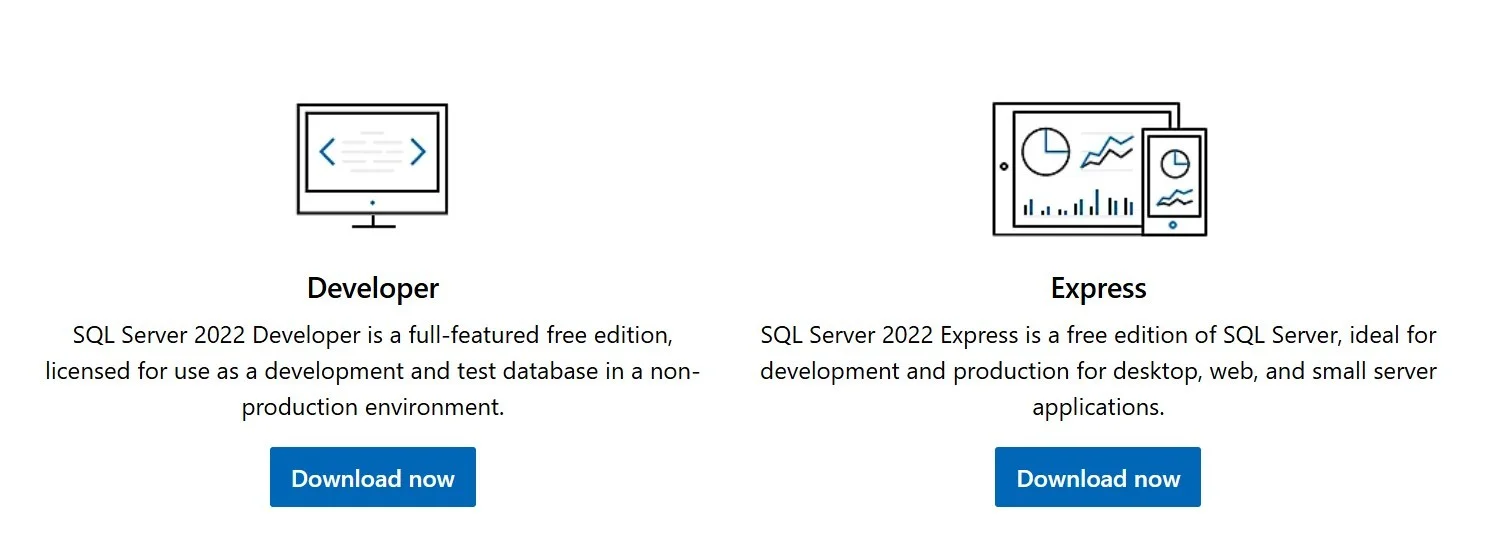
Let's understand how to download the Microsoft SQL Server before installing it. There are two types of free editions of this tool available, including developer and express. The developer edition contains all the functionalities of this server technology. It is best for learning purposes and not applicable in a non-development environment. The Express edition does not have all the functionality of this SQL Server. It is useful in creating or deploying desktop, online and small server applications. Go to the official website and hit the Download Now button. This will immediately start the downloading process.
Let's explore the steps to install Microsoft SQL Server. This requires an executable file, which we have already downloaded. The following steps are useful in this installation process -
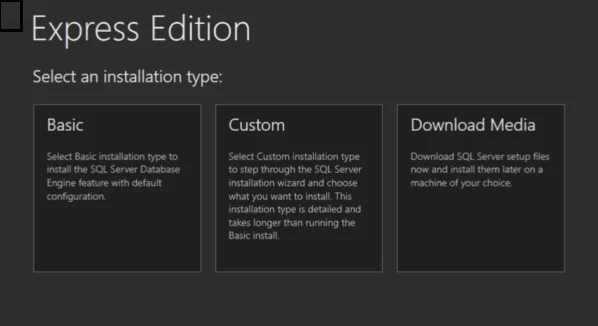
Navigate to the executable file from the system and double-click on it. This will open a new screen showing three options as shown below. We are using the Basic option as it contains all the default configurations for learning this RDBMS.
The Wizard will now ask to accept the Microsoft Server License Terms. Select the Accept button and specify the location for installing the server. Individuals can choose any location they want. Now wait until the installation process of the packages is completed. A new screen will open after this process as shown below. Select the first option from this screen.
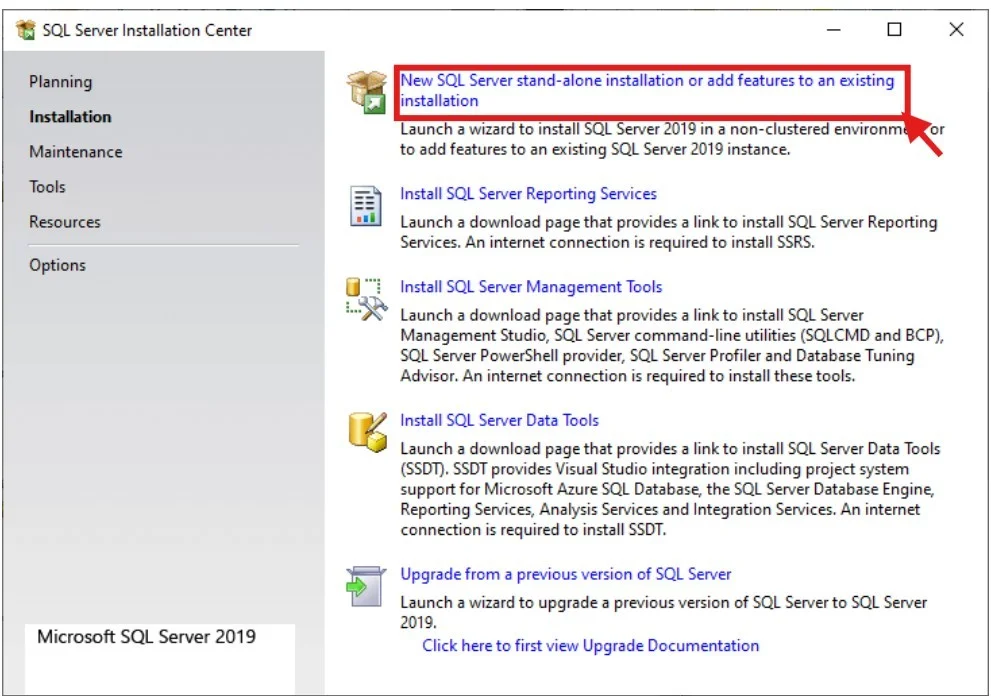
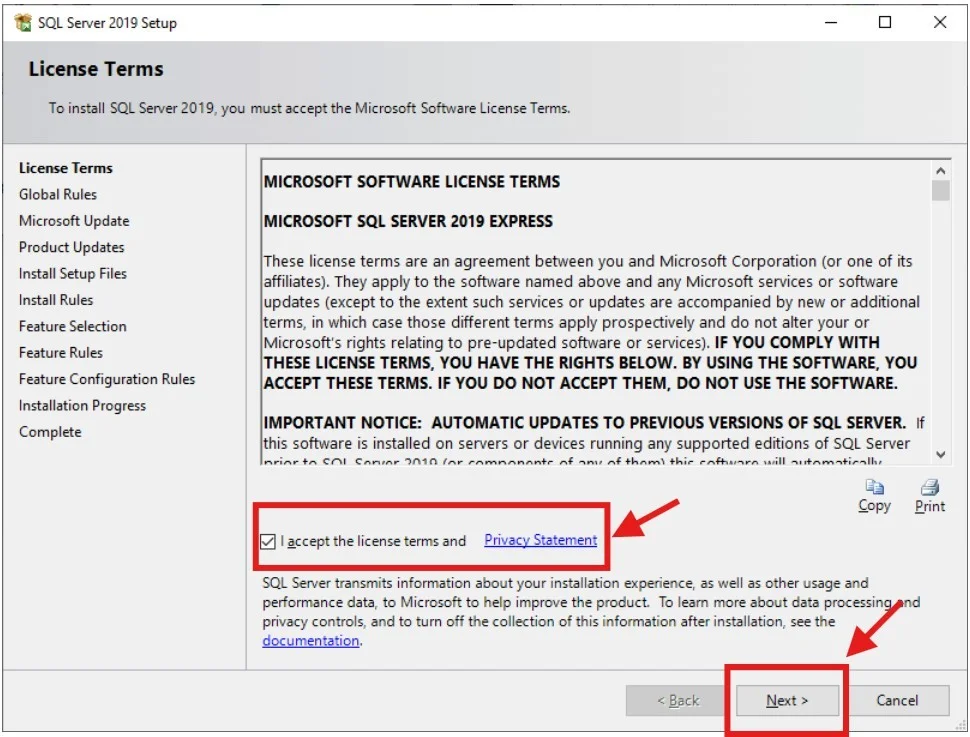
This will open a new wizard showing terms and conditions. Read all the terms carefully, select the accept statement and click on the next button.
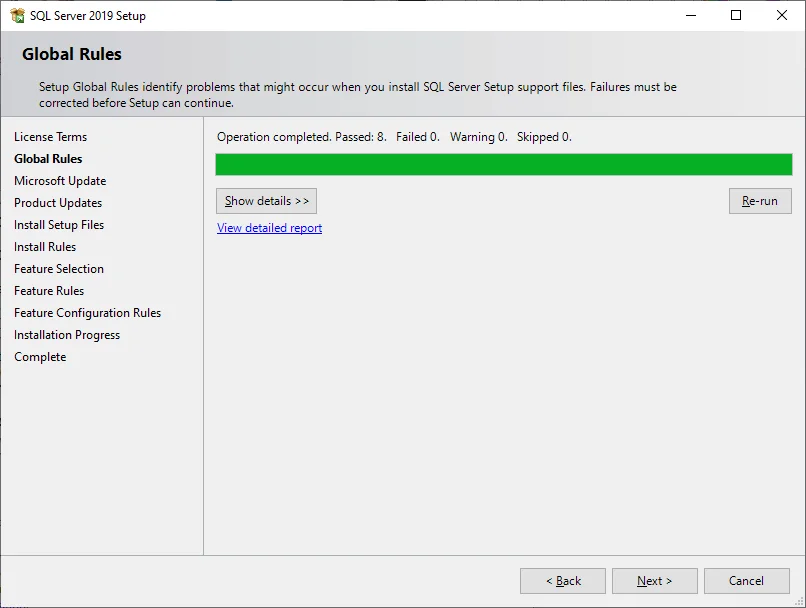
It will open a Global Rule page. The system will automatically redirect to the Product Update page if no error is found.
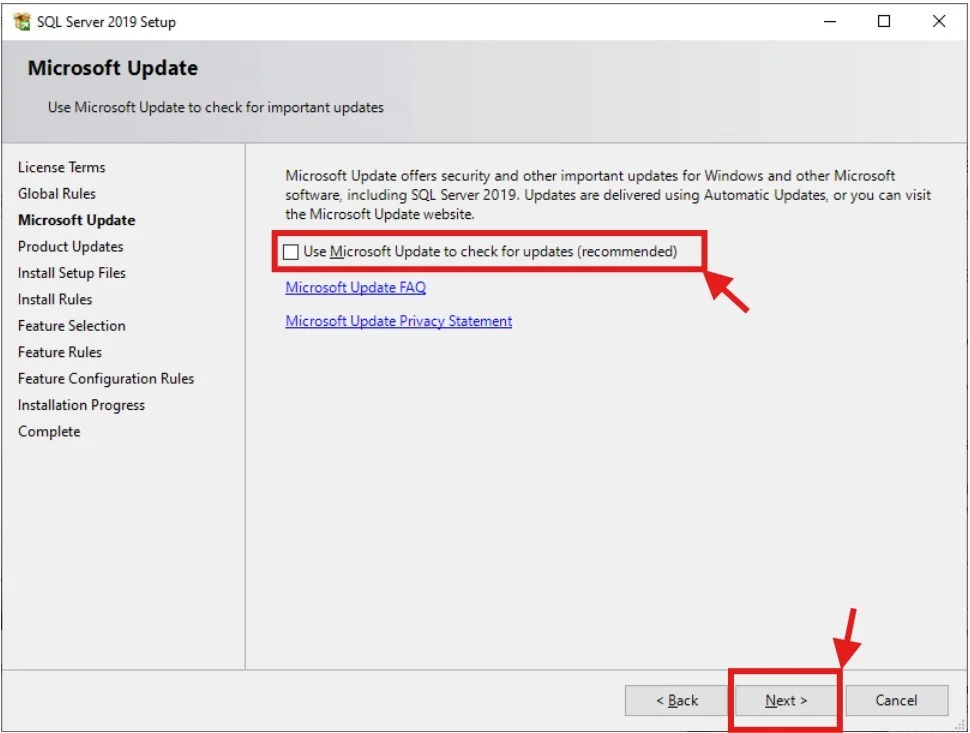
The next page is Microsoft Update as shown below. One can check the latest versions on this page by clicking on the check box. Now hit the next button.
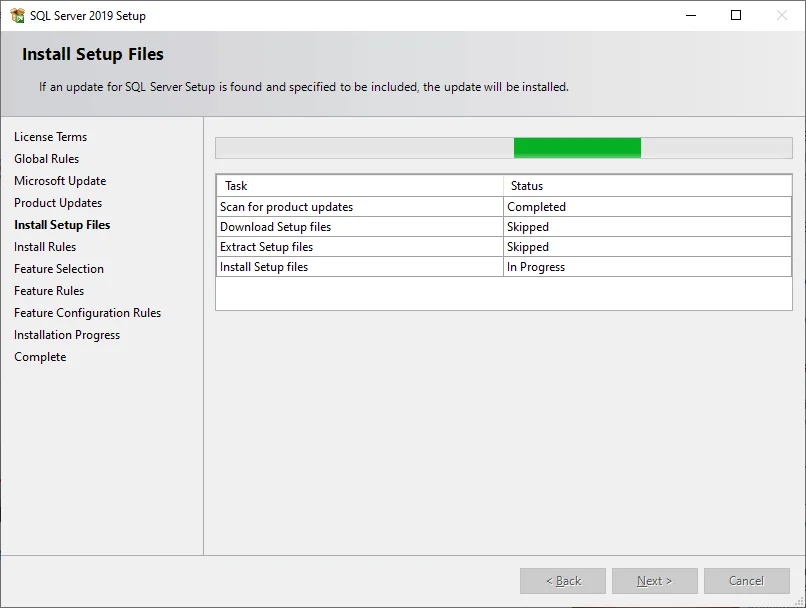
The system will automatically go to the Install Setup Files page by skipping the Product Update page. The reason is that we already have the most recent version. This page shows the process of installation as given below.
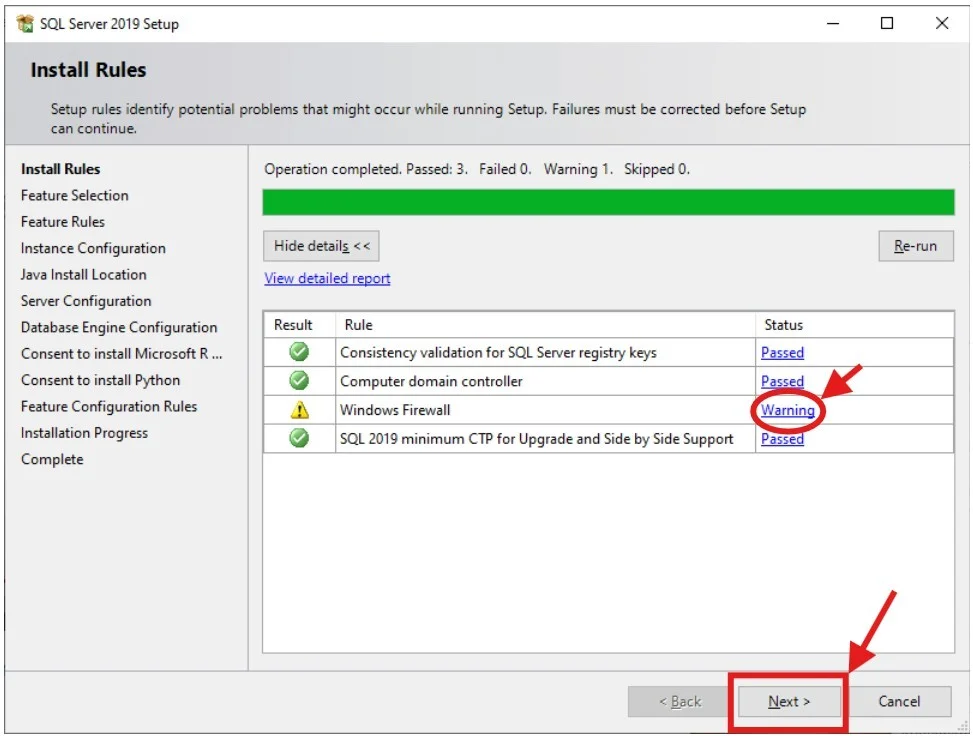
The next one is the Install Rules page. It tests the potential issues of the setup and selects an item from the Status column if it shows any errors. Click on the Next button if no issue is found.
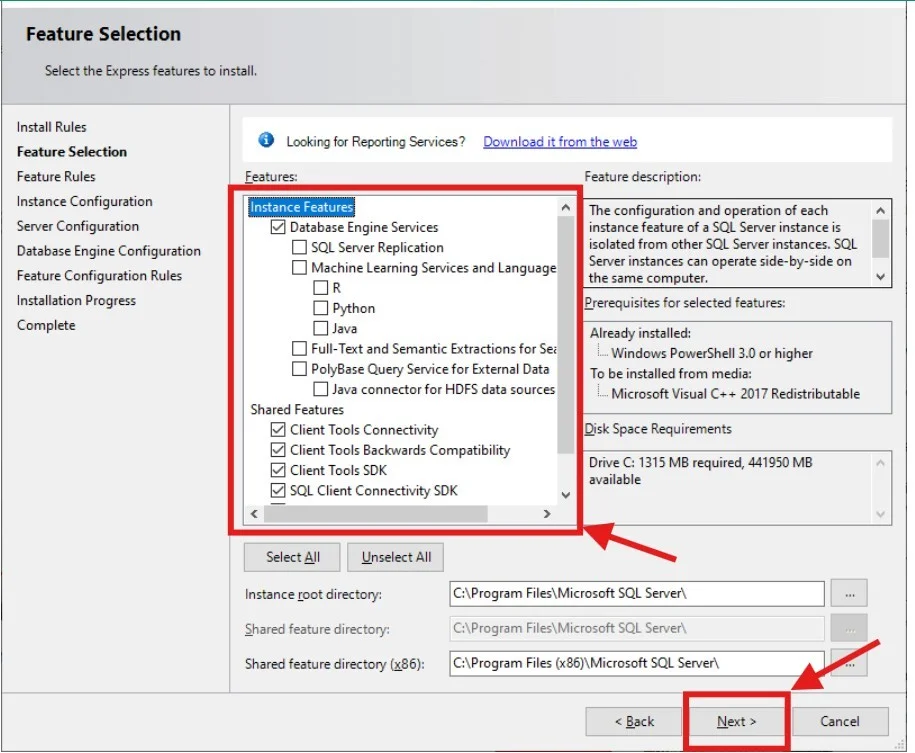
It will avoid the Installation Type page and go to the Feature Selection page as we are downloading it for the first time. One can add new features or installation types on the Installation Type page. Choose the components for the installation on the Feature Selection page and hit the Next button.
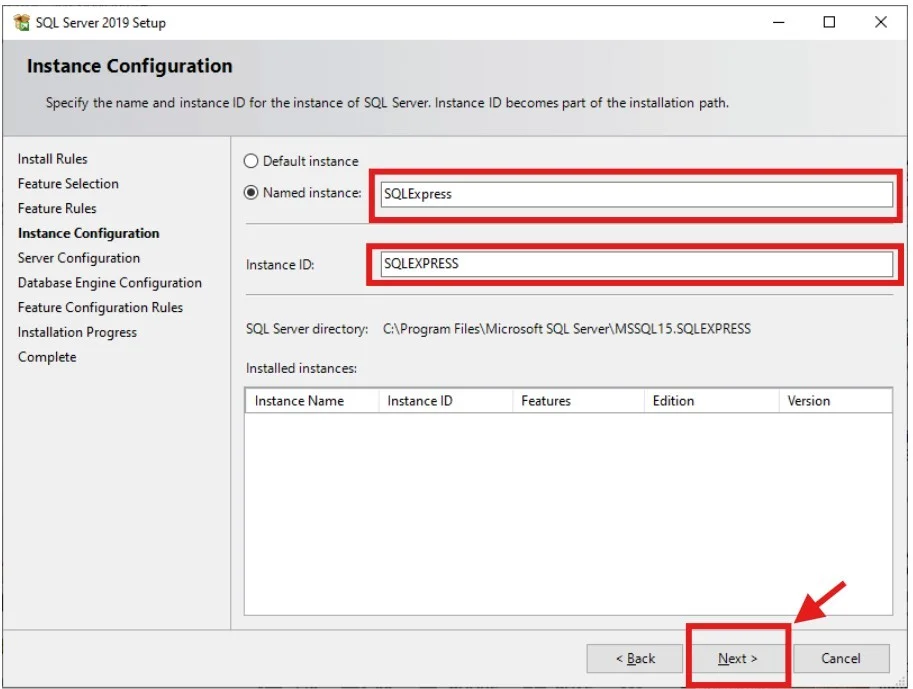
Now define the Name and Instance ID for creating a new instance of SQL Server. One can also leave it to default and select Next to proceed further.
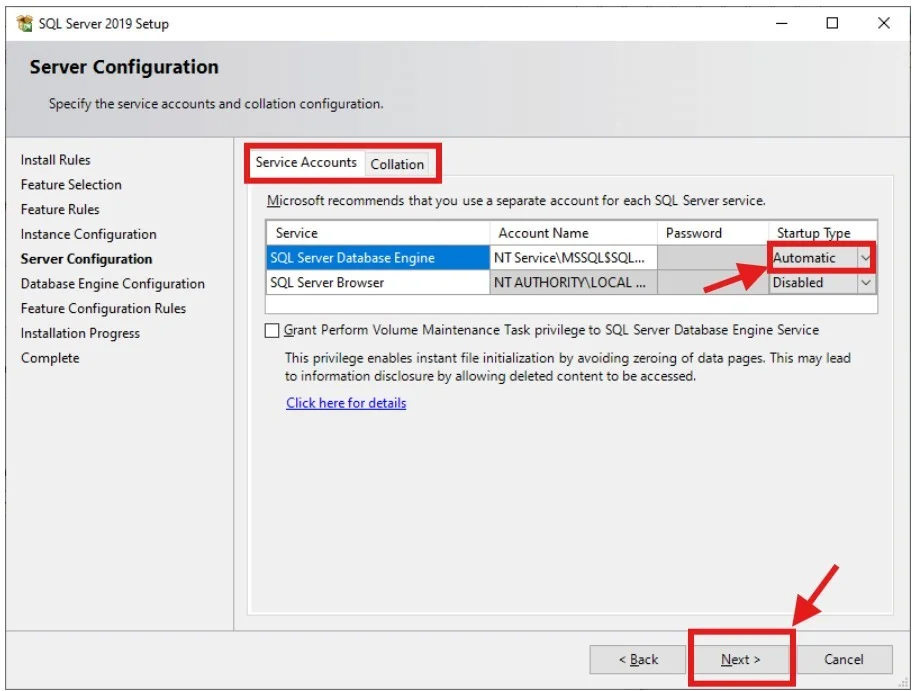
Now the Server Configuration page will open on the screen. Specify the Service Account and Collation Configuration here. Select the Automatic option in Startup Type and hit the Next button.
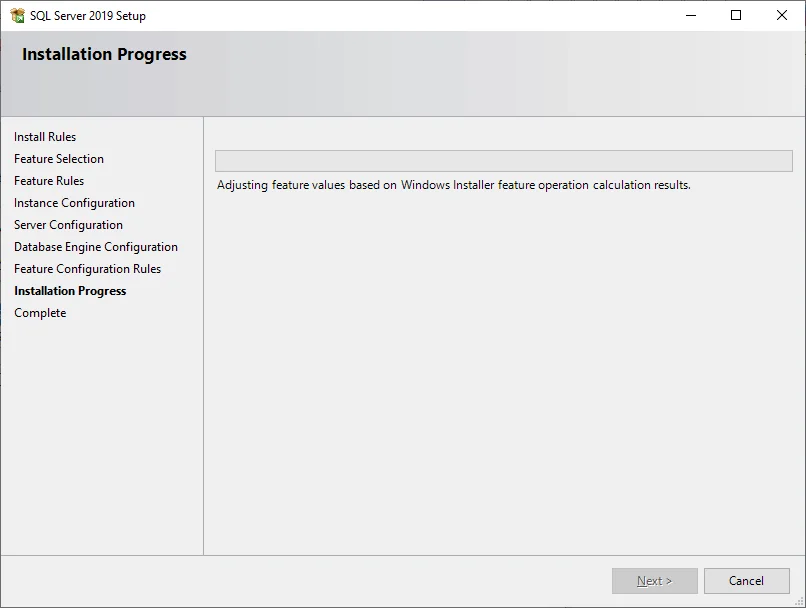
The next screen will show the Database Engine Configuration page. Specify administrators, authentication security mode and data directories here. Go to the Authentication Mode > choose Mixed Mode > enter a strong password > specify SQL Server Administrators > and add the local administrator account. This will start the final installation.
Related Article: Different Types of Microsoft Power Apps
It is very easy to install Microsoft SQL Server. Anyone can easily install it by following the wizard and steps given in this article. They just have to prioritize security by creating strong passwords and regularly checking for the latest updates. Mastering this technology can really improve the capabilities and efficiency of database experts.
There are two utilities to connect SQL servers, including SQL Server Management Studio (SSMS) and the sqlcmd. One can also use MS Access to establish this connection.
Navigate to the Start menu > open Services using services. msc > go to SQL Server > right click on the service and > select properties. It will open a general tab showing a value in the Service name field. This will be the name of the instance.
It is not correct to say which edition is best, as each of them has its own features and capabilities. The following are key areas to use these editions-
SQL is a language used to manage databases, while SQL Server is a Microsoft database management system that uses SQL.
Yes, Microsoft offers a free SQL Server Express edition for learning and small applications.
Course Schedule| Course Name | Batch Type | Details |
| Microsoft SQL Server Training | Every Weekday | View Details |
| Microsoft SQL Server Training | Every Weekday | View Details |