Looking for an installation guide on R programming language? Look no further! This article is all about how to install R programming language on different operating systems including Windows, Mac and Ubuntu. It is now one of the most popular programming languages in the data science field with the sixth position in PYPL Popularity.
Whether it is a developer, business analysts or an experienced data professional, having these skills can be very beneficial for them. This installation tutorial provides all the information needed to download and install this R on different operating systems. Let's start with the downloading process.
Explore our top Data Science & BI Certification Courses to get started today.
The first step to install any programming language is to download their software package to the system. As we know, the R programming language is used on different operating systems including Windows, Mac as well as Ubuntu. It has different software versions for each of them.
Therefore, you need to install the correct version according to your system specifications and requirements. Follow these steps to download this file -
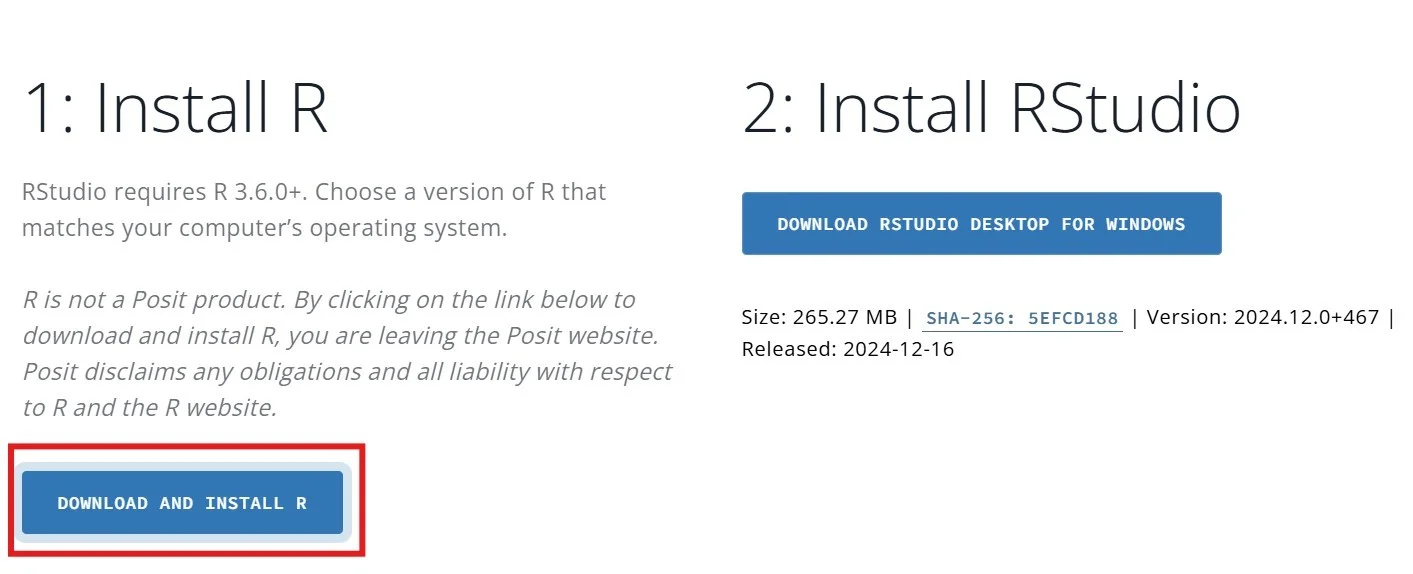
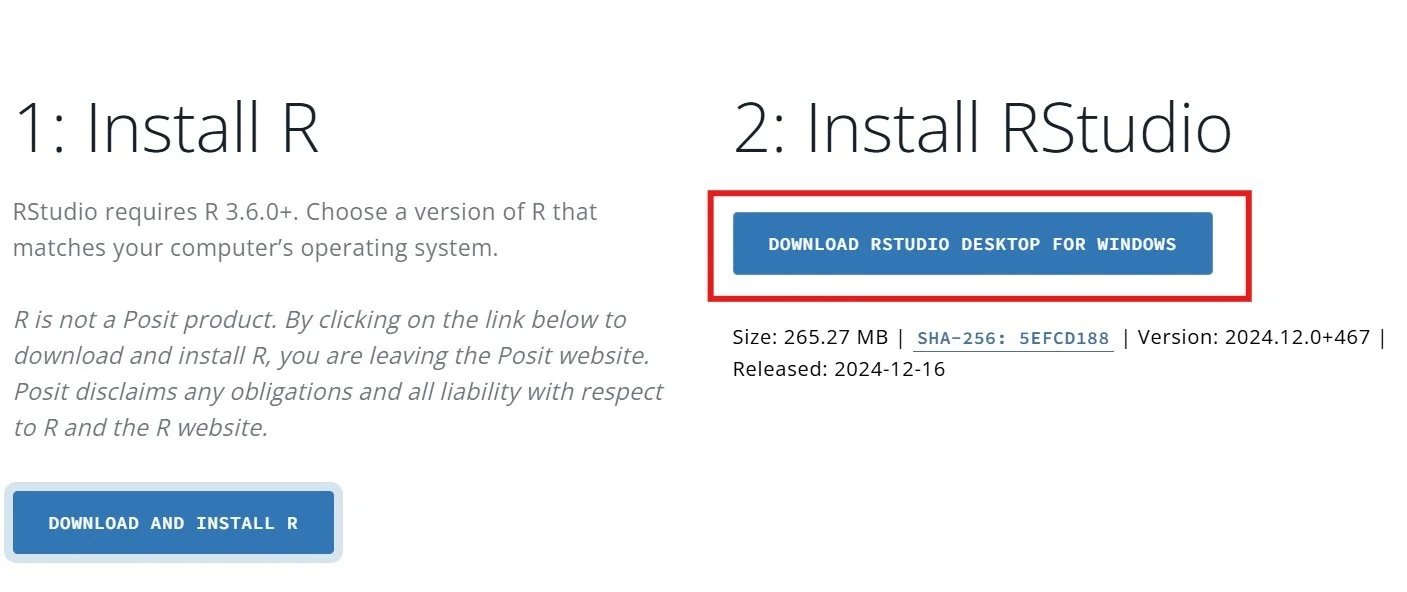
Step 1. You have to download both R and R studio to use this programming language to your system. Start with downloading the R. Go to the official page and click on the download option as shown below -
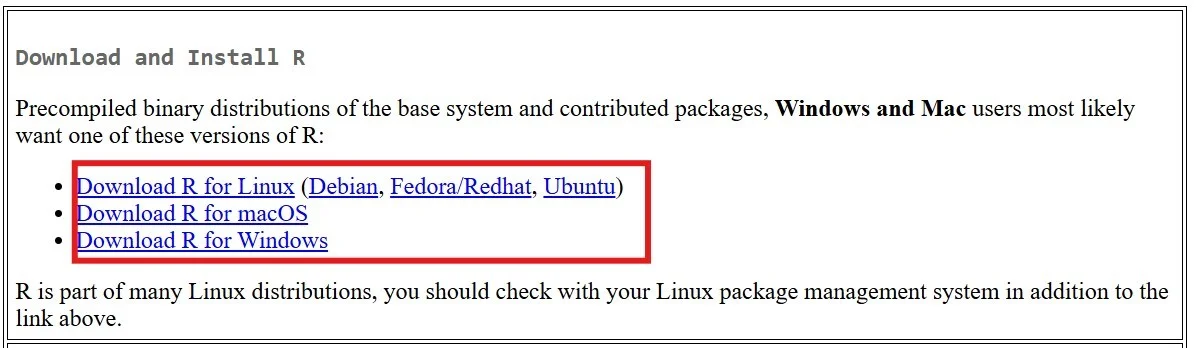
Step 2. This will redirect you to a new page as given below. Here you can see different versions of R on your screen. Select the one according to your system type and requirements.
Step 3. This will start to download the software. Now go back to the previous page and click on the download R studio button. You will be ready to install this programming language after downloading both of these files.
So, how to install R in Windows? Installing R on a Windows device is very simple. The easiest method to install it is using CRAN (Comprehensive R Archive Network). Most of the experts prefer this method only. You have to download the executable file from the Cran download page. We have already done this in the previous section. Let's get started with the installation process -
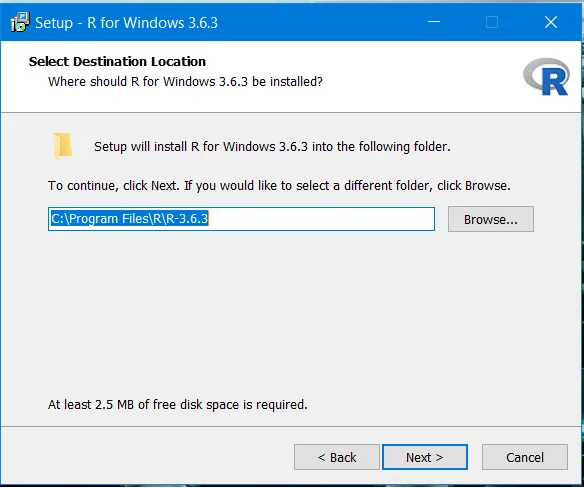
Step 1. Navigate the R software from your download section and double click on it. This will open a window as given below. Continue the process by clicking on the Next button.
Step 2. Now go to the RStudio-1.x.xxxx.exe in the same section and double click on it. You may not find this file as this name. It depends on the version you have downloaded. Install the file.
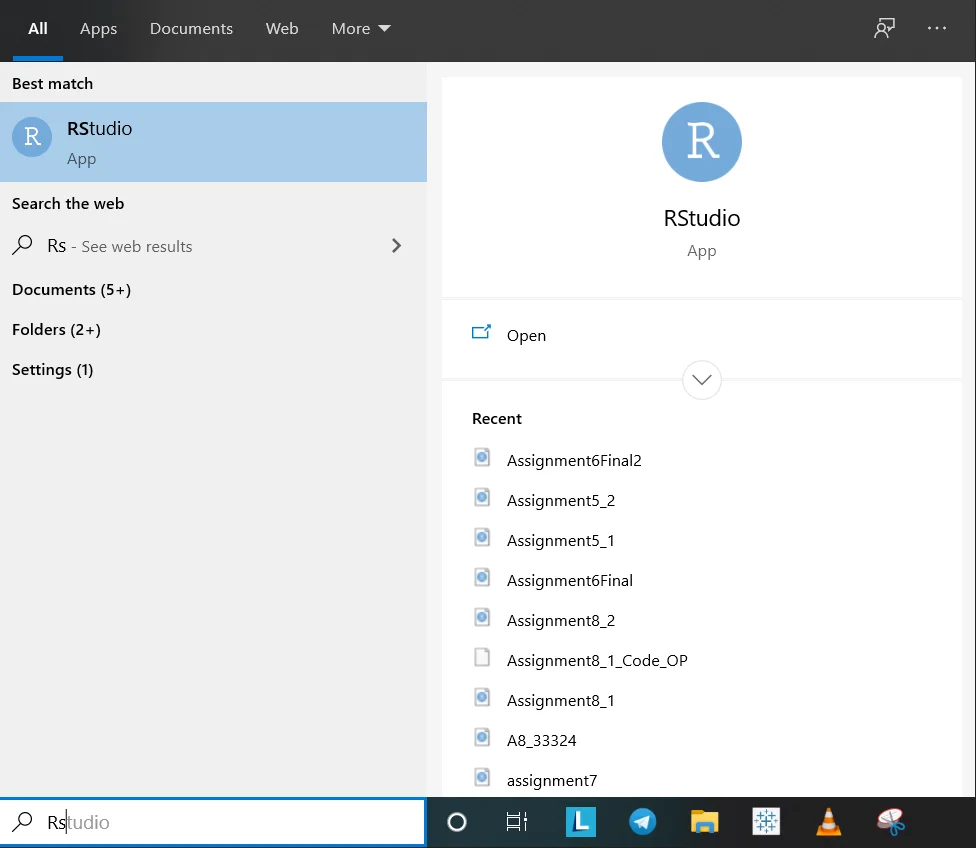
Step 3. Before moving further just check that Rstudio has been successfully downloaded without any error. Go to the start menu and search for the application as given below. Open the application by double clicking on it.
Step 4. Insert a code to check if it works well. Let's take an instance of printing Hello World.
Input : print('Hello world!') Output : [1] "Hello world!" |
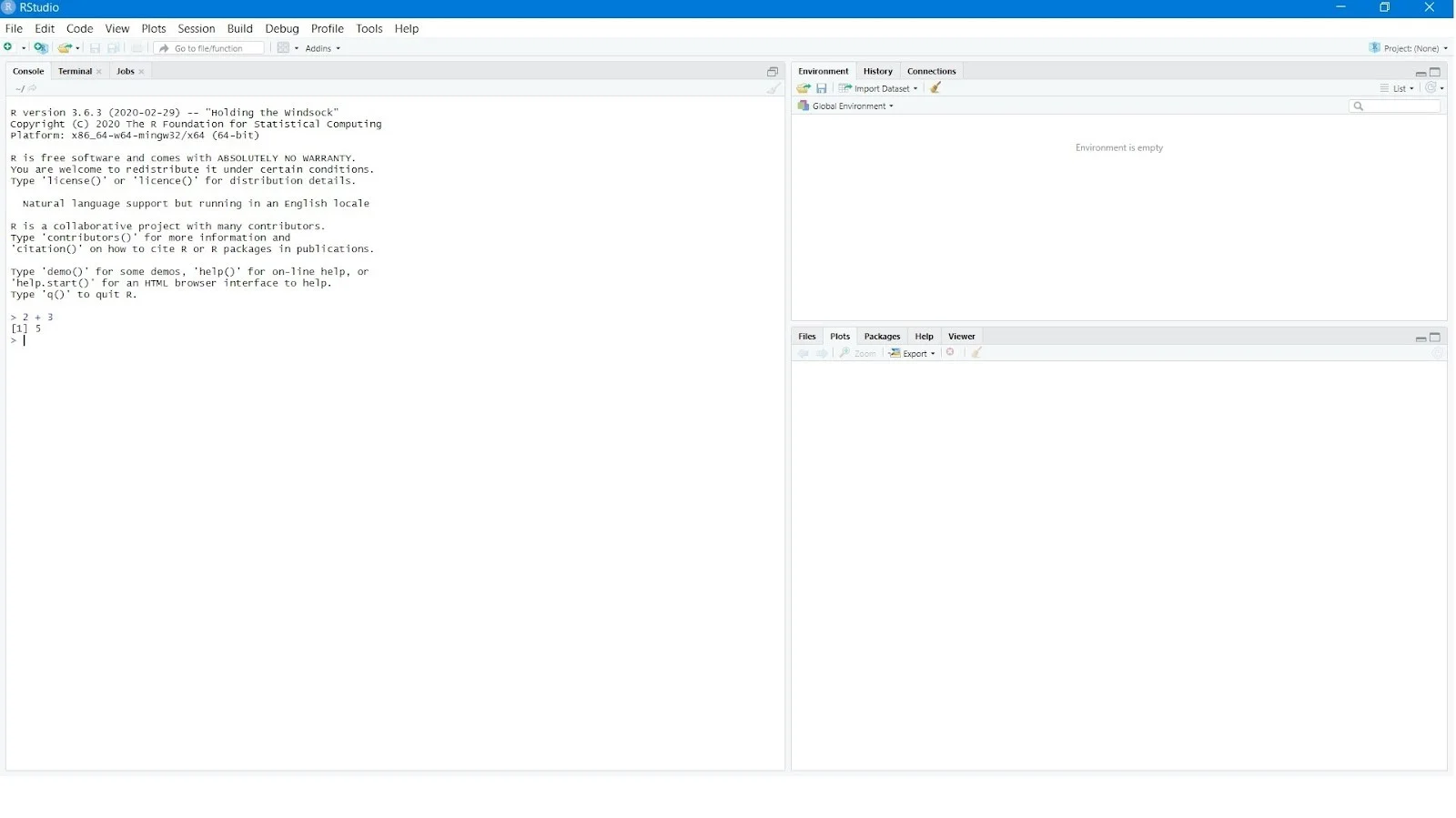
Step 5. If it runs successfully as shown above, this means you have successfully installed R in your Windows system. But this will only execute simple programs. You have to install the R package to reach its full potential. The dplyr package is best for data wrangling capabilities and the ggplot2 package is best for data visualizations. These are installed with the following code -
install.packages(c("dplyr","ggplot2")) |
Also Explore: R Programming Tutorial
Windows is not the only choice to work on this programming language as we have discussed above. One can also use it on Mac OS X. But before that you have to install it in your system. Let's understand how to install R on Mac OS X. It involves a complete process that includes the following steps -
Step 1. Installing this programming language on Mac is similar to Windows. You have to download both software and studio from the official website. We have already discussed the downloading process in the first section.
Step 2. Now navigate the download files and install them to your systems. This might take a few minutes to complete depending on your device specification.
Step 3. Go to the R Studio downloading page and click on the .dmg for Mac OS file as given below. Do not change the default installation options. Now install this file once it is downloaded.
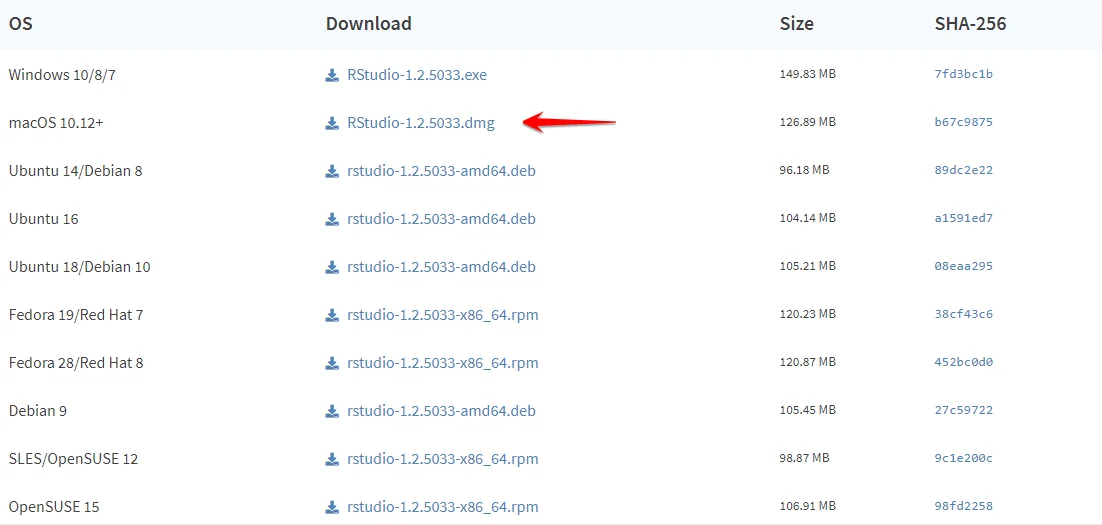
Step 4. Open the R Studio and run the same code as we used in Windows to install packages. This will unlock many complicated features and functionalities of this programming language.
install.packages(c("dplyr","ggplot2")) |
Step 5. R is successfully downloaded in your system. Now you can easily use it for your data related operations.
Related Article- R Programming Tutorial For Beginners
So, how to install R on Ubuntu? One can also use this programming language on Ubuntu systems. Before that they have to download and install this into their system. The downloading process has been already discussed in the first section.
This method might be tricky for those who do not have any experience with command line. The experienced individuals often take this method as a simple one. You just have to run a few commands in a systematic approach to install it.
Step 1. Start with updating your system as it is very important. Use the following two command to update it -
sudo apt update & sudo apt -y upgrade |
Step 2. Now install the base R application by using the following command. This might take a few minutes to complete.
sudo apt -y install r-base |
Step 3. Start to install RStudio after installing the R software. Go to the downloads page again and click on the .deb file for Ubuntu version.
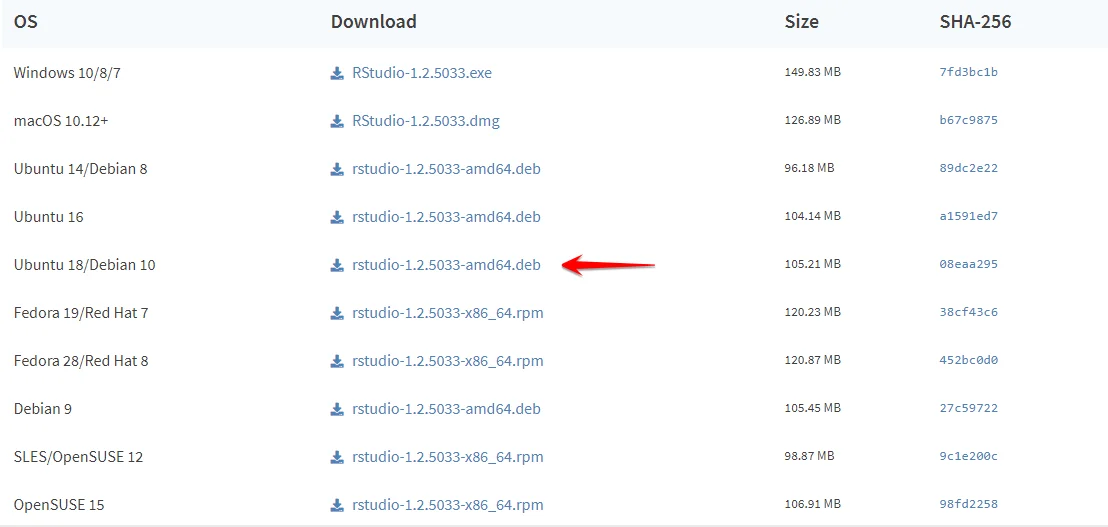
Step 4. Use the cd Downloads command to navigate the download folder. Then run the command given below to start the installation process -
sudo dpkg -i rstudio-1.2.5033-amd64.deb |
Step 5. There are some chances where you may face dependency problems that can fail the installation process. Just run the given command to fix the problem and try again -
sudo apt -f install |
Step 6. Now run the same code in the code in the console which is used in Windows and Mac. This will unlock many complicated features and functionalities.
install.packages(c("dplyr","ggplot2")) |
We have covered R installation processes for different operating systems in this how to install R programming language blog. It trains you to download and install R on your systems. This is the first step to get started with this programming language. You should consider some additional resources like training or courses to understand more about programming with R.
R gives the best libraries and functionalities for statistical computing and design. It is also a best option for quantitative analysis, data importing, data cleaning and many more data related operations.
The installation of this programming language is mostly similar for each operating system. One must have to download two files including R and RStudio. R is the programming language. RStudio is a front end program for writing R code and see plots.
It needs at least 256 MB of RAM, enough disk space, and a mouse to install this programming language. The administrative privileges should be installed to run RStudio elements. A strong network connection is also a must.
Course Schedule
| Course Name | Batch Type | Details |
| R Training | Every Weekday | View Details |
| R Training | Every Weekend | View Details |