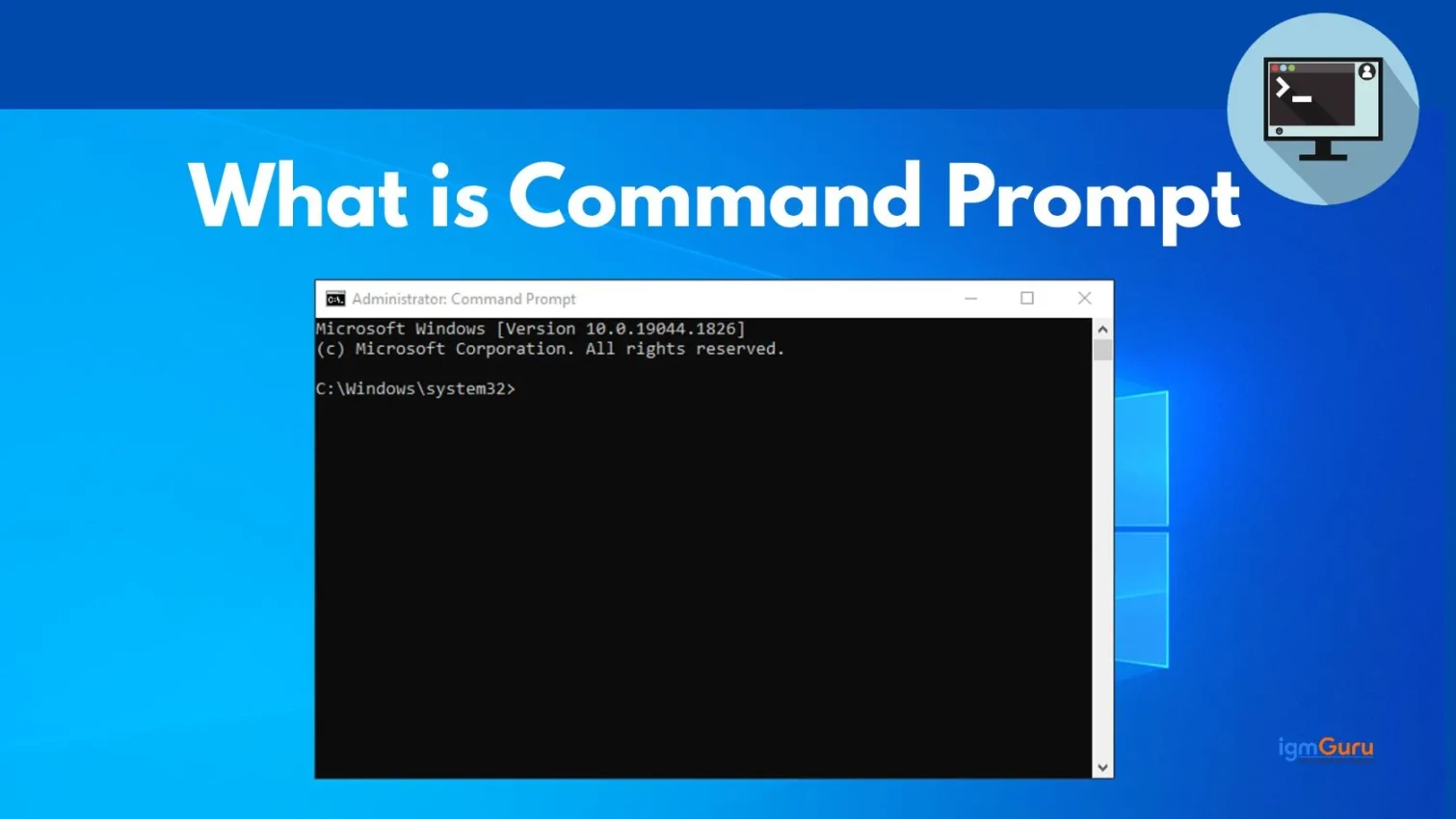
Command Prompt is one of the most powerful tools that Windows offers. Yet many users never explore it beyond the basics. If you are a developer, IT professional, or someone who wants to control your system more effectively, understanding Command Prompt will change how you work.
In this guide, I will walk you through what Command Prompt is, how it works, the essential commands you need to know, and real-world examples of how professionals use it every day. By the end, you will have the knowledge to use this tool confidently.
Read Also: Complete List of Command Prompt (CMD) Commands (2026)
Command Prompt is a built-in command-line interpreter that comes with every Windows operating system. It allows you to interact with your computer using text-based commands instead of clicking through menus and windows.
Think of it this way. A graphical user interface (GUI) is like using buttons and icons. Command Prompt is like speaking directly to your operating system in its native language. You type what you want to do, press Enter, and the computer executes your instruction.
The official name is cmd.exe. This small program sits in your System32 folder and has been a core part of Windows for decades. It is lightweight, fast, and gives you direct access to system operations that would take many clicks to accomplish through the GUI.
Command Prompt did not appear out of nowhere. It has a history that goes back to the earliest days of personal computing.
Before Windows became the dominant operating system, MS-DOS ruled the desktop. MS-DOS was entirely command-line based. Users had to memorize commands to do anything. Open a file. Run a program. Copy data. Everything was text commands.
When Microsoft introduced Windows in the early 1990s, they added a graphical layer on top of DOS. But they kept the command-line functionality for power users. As MS-DOS became outdated, Microsoft replaced it with cmd.exe in 1993. This new version retained compatibility with old DOS commands while adding Windows-specific features.
In 2026, Command Prompt still exists because it remains incredibly useful. While newer tools like PowerShell have more advanced features, Command Prompt remains popular because it is simple, reliable, and available on every Windows machine.
Command Prompt is more than just a text box where you type commands. It has several features that make it valuable for different tasks.
Command Prompt uses minimal system resources compared to graphical tools. It does not require graphics rendering, animations, or complex interface elements. This makes it ideal for systems with limited resources or when you need to work quickly.
Running Command Prompt as an administrator gives you full control over system operations. You can modify system files, change settings, manage user accounts, and perform maintenance tasks that would otherwise be blocked.
Command Prompt still supports hundreds of DOS commands from decades ago. This means old scripts and batch files continue to work without modification. Legacy applications rely on this compatibility.
Windows uses environment variables to store system and user information. Command Prompt lets you view, create, and modify these variables using commands like "set" and "setx". This is essential for developers configuring software environments.
You can navigate your entire file system using text commands. Change directories, create folders, copy files, move data, and delete items. All without opening Windows Explorer.
The most powerful feature is automation. You can create batch files (.bat) that run multiple commands automatically. Schedule these files to run at specific times. This saves hours of repetitive work.
Diagnose network problems using built-in commands. Test connectivity. Check IP addresses. Trace packet routes. Manage network configurations. All from the command line.
Also Read: What is Software Development?
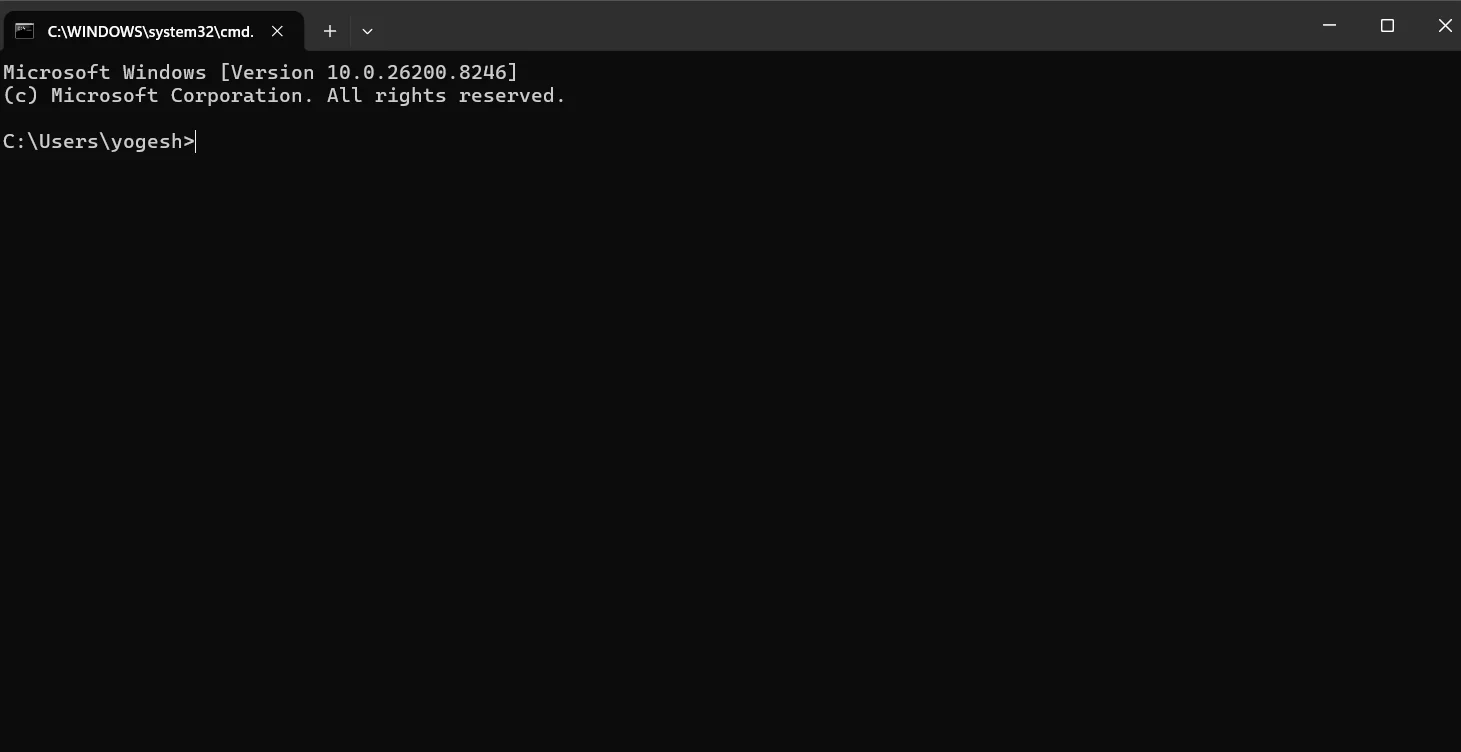
Now, if you understand what the Command Prompt is, then let’s learn about how to access it in Windows. Different easy methods are depending on which operating system you have installed. Below, I have given you simple steps to access it in Windows 11 and Windows 10. The user can choose any method from below as per their suitability.
For Windows 11
1. Press the Windows key + R.
2. In the Run box, type cmd and click Ok.
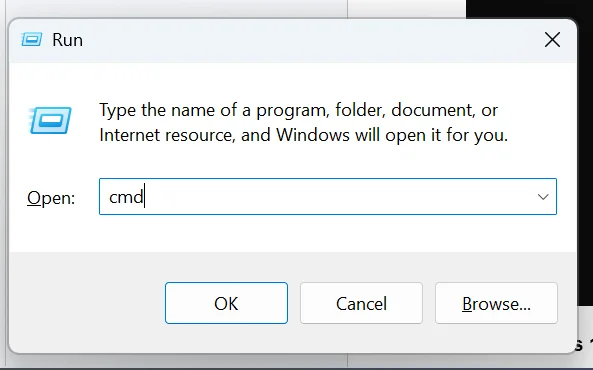
3. This opens the CLI window.
For Windows 10
1. Press Windows key + X.
2. From the power user task menu, select CMD (Admin).
3. This opens the CMD window.
Read Also: How To Become A Sitecore Developer?
Once you know how to access Command Prompt, you can start using different CMD commands. These commands help users to complete tasks quickly and easily. Below are some commonly used Commands and their Functions.
| CMD Commands for Windows Users | Functions |
| dir | View the contents of the current directory |
| cd | Change the current working directory |
| mkdir | Helps you to create a new directory |
| ren | Helps in renaming any file or directory |
| del | Lets you to remove one or more files |
| exit | Closes the CMD window |
| cls | Clears all text from the CMD window |
| help | Lists available commands and their details |
| time | Lets you set the system time or display the current time |
| ipconfig | Displays IP address, subnet mask and gateway information |
| echo | Used to display messages in the interface |
| ping | Connect to another IP address |
| tasklist | Used to get details of running processes or tasks |
| copy | Copy files from one location to another |
| move | Move files from one location to another |
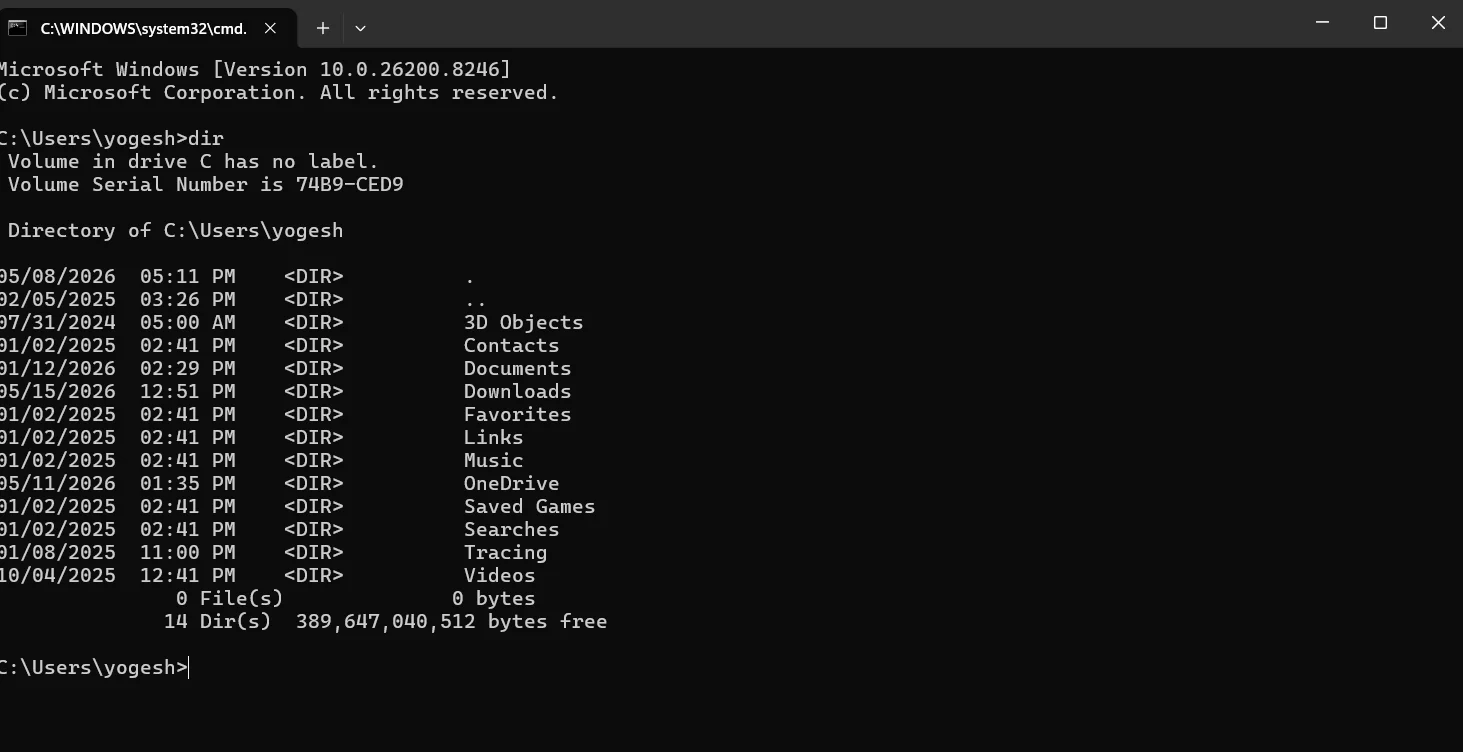
Function: View the contents of the current directory
Syntax: dir
Function: Change the current working directory
Syntax: cd [folder name]

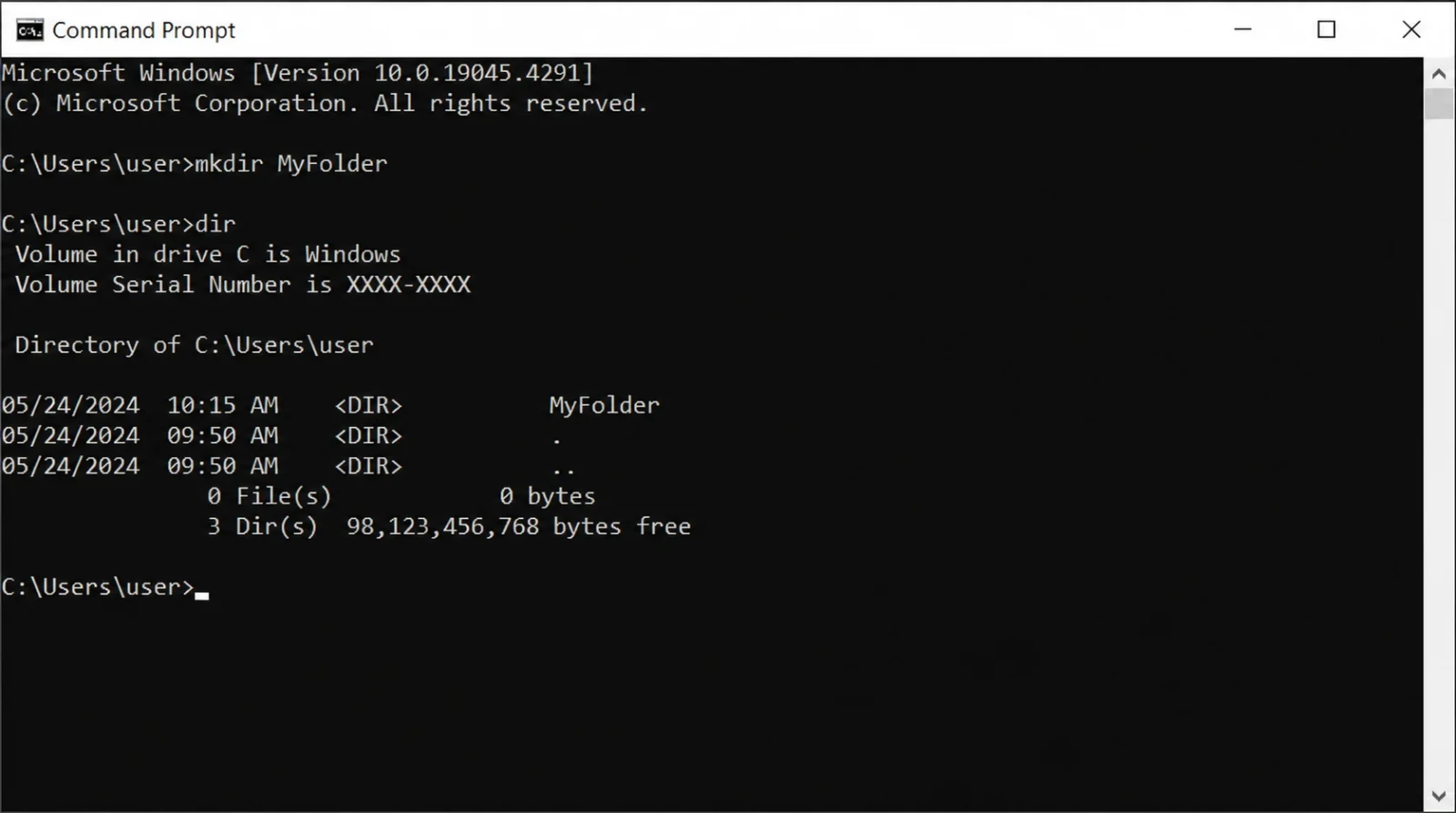
Function: Helps you to create a new directory
Syntax: mkdir [MyFolder]
Also Read: How to Build a Successful Career In IT Service Management?
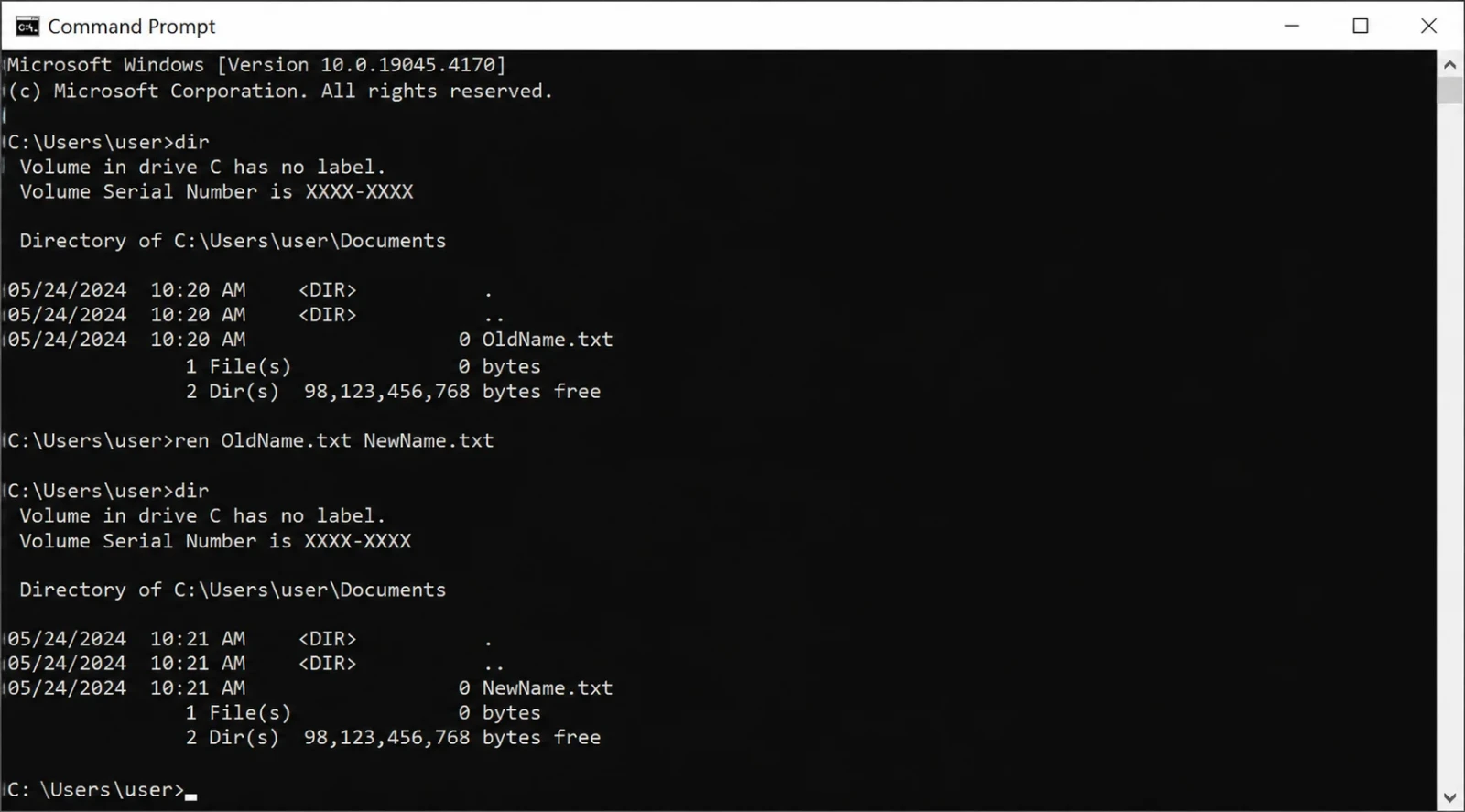
Function: Helps rename file or directory
Syntax: ren [old_filename] [new_filename]
Function: Lets you delete one or more files
Syntax: del [file_name]
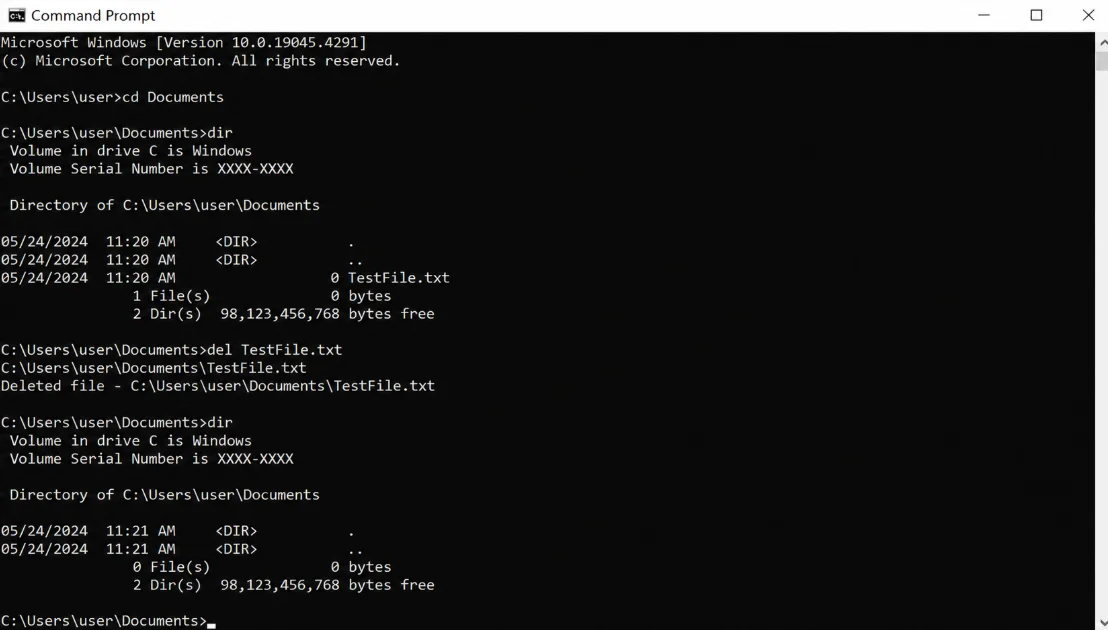
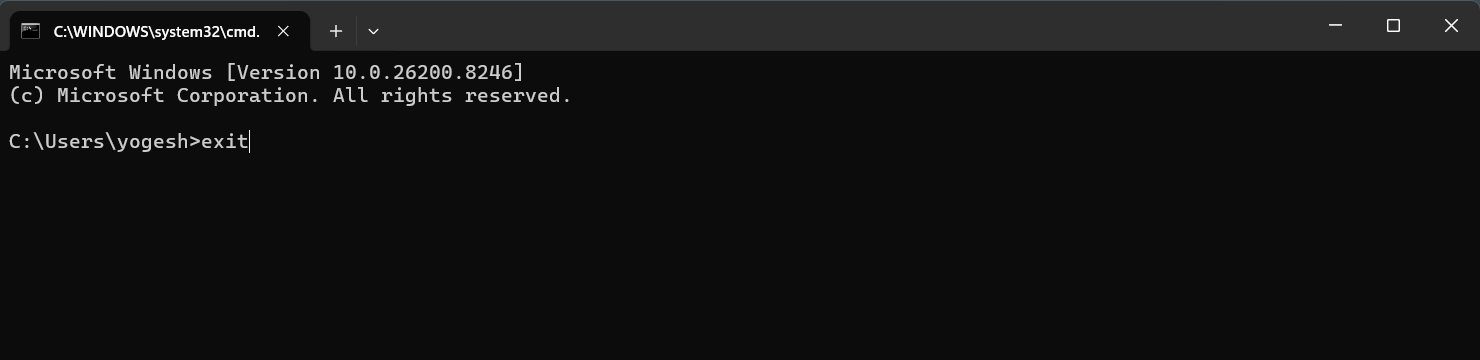
Function: Closes the CMD window
Syntax: exit
Function: Clears text from the CMD
Syntax: cls

Function: Lists all available commands and with descriptions
Syntax: help
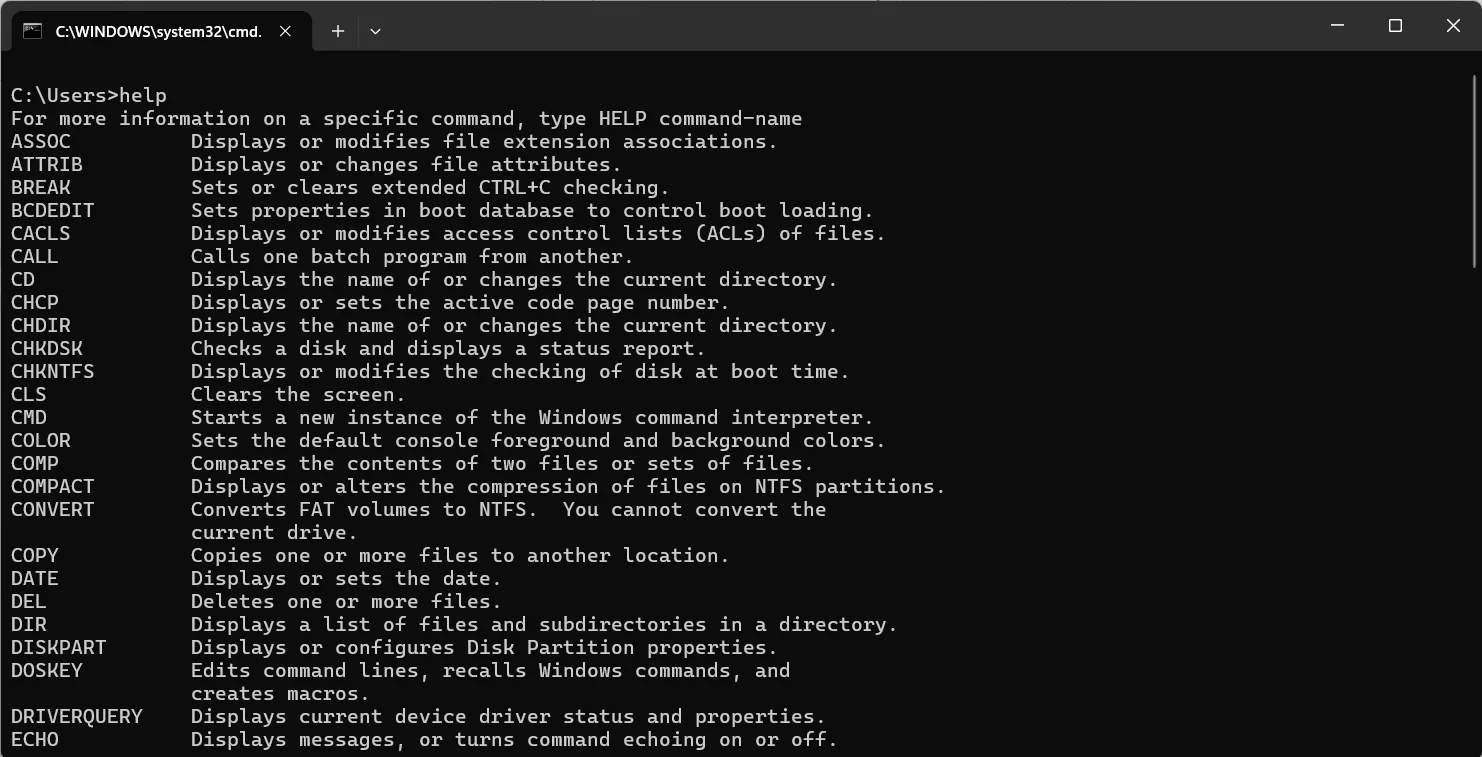
Function: Lets you set the system time or display the current time
Syntax: time [new_time]

Function: Displays IP address, subnet mask and gateway information
Syntax: ipconfig
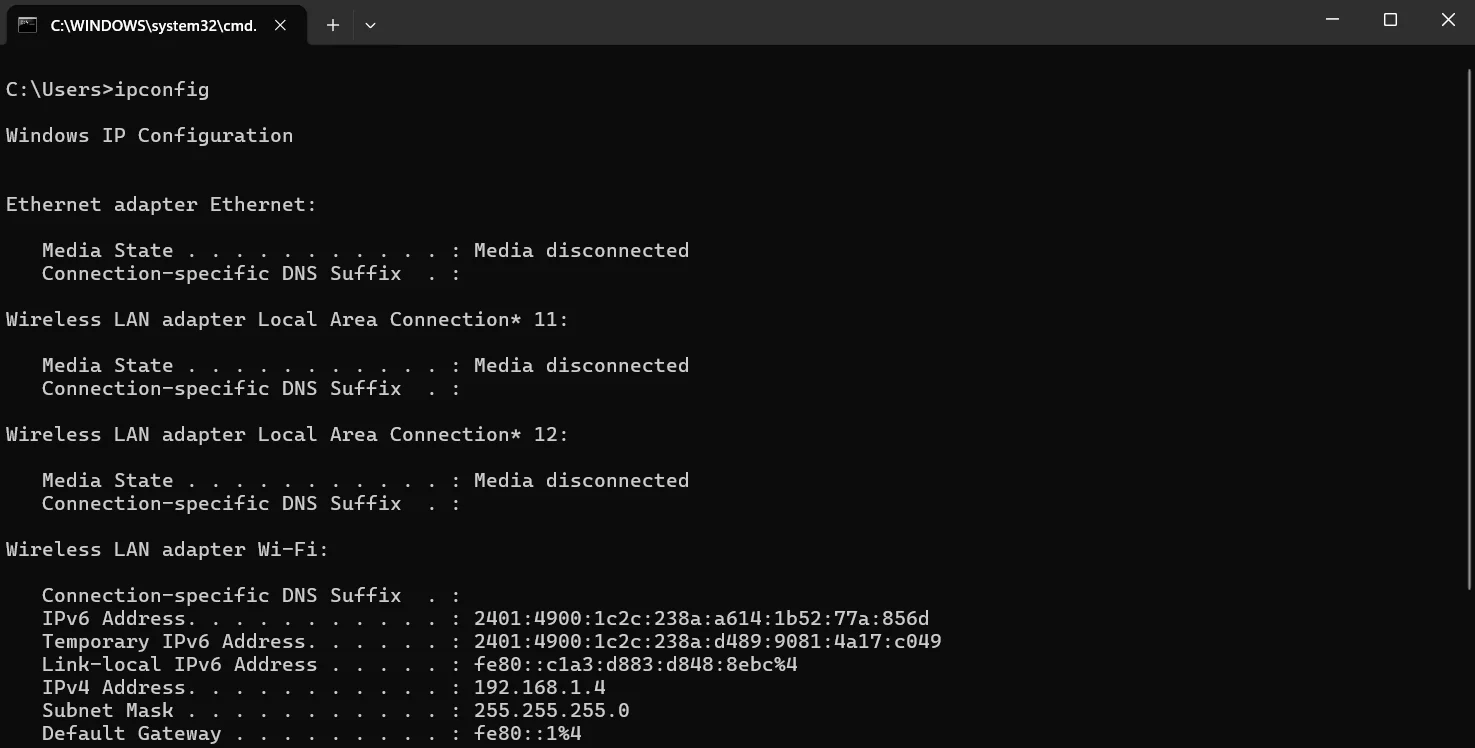
Read Also: Blue Prism Tutorial | A Beginner's Guide To Learn RPA
Knowing commands is one thing. Knowing when and how to use them is another. Here are practical examples of how professionals use Command Prompt to solve real problems.
When your internet is not working, you can troubleshoot faster than waiting for support.
Open Command Prompt and type:
| ipconfig |
This shows your current network settings. If your IP address is 169.x.x.x, your computer is not connecting to the DHCP server. If it is blank, your network adapter is not working.
Next, test connectivity:
| ping 8.8.8.8 |
If this works, your internet connection is fine but DNS is broken. If it fails, your connection is down.
Test DNS resolution:
| nslookup google.com |
If this returns an IP address, DNS is working. If it fails, your DNS server is not responding.
This simple sequence of three commands tells you exactly where the network problem exists. Calling technical support with this information gets you faster help.
Suppose you need to back up important folders every week. Creating a batch file saves hours of manual work.
Create a file called backup.bat with this content:
|
@echo off echo Backup started at %date% %time% copy C:\Documents\* D:\Backup\Documents\ copy C:\Pictures\* D:\Backup\Pictures\ echo Backup completed pause |
Double-click this file and it copies your files automatically. Schedule it to run weekly using Windows Task Scheduler and your backups happen without any effort.
A program is frozen or using too much CPU. The Task Manager is not responding.
Use tasklist to find the program:
| tasklist | find "firefox" |
This shows if Firefox is running. Then use taskkill to stop it:
| taskkill /IM firefox.exe /F |
The /F flag forces termination. The program closes immediately.
Read Also: What is Servicenow?
Before major work, verify your system is healthy.
Run all three commands:
|
systeminfo sfc /scannow chkdsk |
This tells you hardware specifications, whether system files are corrupted, and if your drive has errors. Problems identified here can be fixed before they cause data loss.
You need to rename 200 files or move files matching a pattern. The GUI would take hours.
Use Command Prompt:
| for %f in (*.txt) do ren "%f" "prefix_%f" |
This renames all .txt files in a folder by adding a prefix. One command instead of 200 manual clicks.
Command Prompt has remained relevant for decades because it offers real advantages over graphical interfaces.
Once you know the commands, you work much faster. No waiting for menus to load. No looking for buttons. Type the command, press Enter, and it is done.
GUI applications often hide advanced features. Command Prompt gives you direct access to everything. Change settings that the GUI does not allow. Run complex operations in one command.
Create batch files to automate repetitive work. Schedule tasks to run when you are not even at your computer. Your computer works while you sleep.
Command Prompt uses almost no memory or processor power. Run it on old computers or systems with limited resources. It works everywhere.
Command Prompt is based on DOS conventions. These same commands work on Linux, Mac, and Unix systems with minor variations. Learning Command Prompt prepares you for professional IT work on any system.
Read Also: 6 Tech Innovations for Small Business Benefits in 2026
Command Prompt is powerful, but it has real limitations. Understanding these helps you know when to use it and when to use other tools.
You must memorize commands and their syntax. The GUI does not help you discover options. New users often feel lost and uncertain if they are typing correctly.
Delete a file using "del" and it is gone forever. Type a command wrong and it might delete the wrong files. One mistake can cause real problems.
You cannot see visual representations of data. Working with graphics, images, or visual design requires other tools.
Power comes with responsibility. Command Prompt can damage your system if misused. Follow these safety practices.
Before running del or rmdir commands, verify the path. Type the command, review it, then press Enter. One second of checking prevents one hour of recovery work.
Before running a command on important data, test it on dummy files. Create a test folder and practice there first.
Command Prompt tells you when something is wrong. "Access Denied" means you need administrator rights. "File Not Found" means you typed the path wrong. Pay attention to these messages.
Maintain regular backups of critical files. If something goes wrong, you can restore from backup.
Running as administrator gives Command Prompt permission to modify system files. Only use this mode when you actually need it. Regular mode is safer for everyday tasks.
Before running a .bat or .cmd file, open it in Notepad and read what it does. Do not run files from untrusted sources.
When making system changes through Command Prompt, write down what you did. If problems occur later, you can reverse the changes.
Read Also: What Is Jira Work Management?
Even experienced users encounter errors. Here is what these errors mean and how to fix them.
You typed a command that does not exist or misspelled it.
Solution: Check your spelling. Use "help" to see available commands. Verify the file you are trying to run is in your PATH.
You do not have permission to access this file or run this command.
Solution: Run Command Prompt as administrator. Check file permissions. You might need to change folder access settings.
The file or folder you referenced does not exist or is in a different location.
Solution: Use "dir" to list files in the current location. Double-check the file path. Use the full path if the file is not in the current directory.
Your system is out of RAM or disk space.
Solution: Close other programs. Delete unnecessary files to free up space. Restart your computer. If the problem persists, you need to upgrade hardware.
You typed the command incorrectly.
Solution: Check the command syntax using "help [command]". Compare your command to examples. Watch for missing spaces or incorrect parameters.
Another program has the file open.
Solution: Close the program using the file. Use "tasklist" to find it. Use "taskkill" to close it if normal closing does not work.
In 2026, Windows gives you multiple command-line tools. Knowing the differences helps you choose the right tool for each job.
| Feature | Command Prompt | PowerShell | Windows Terminal |
| Type | Traditional command interpreter | Modern scripting framework | Terminal emulator |
| Purpose | Basic command-line tasks | System administration and automation | Run multiple CLI tools in one app |
| Commands | Basic DOS-style commands | Advanced cmdlets and scripts | Supports CMD, PowerShell, Git Bash |
| Learning Curve | Simple and quick | Moderate but more powerful | Easy if you know CMD or PowerShell |
| Speed | Very fast for simple tasks | Slightly slower for complex operations | Same as what runs inside it |
| Best For | Quick troubleshooting and navigation | System administration and scripting | Developers and power users |
| Integration | Limited to Windows basics | Deep integration with Windows APIs | Integrates with WSL and multiple shells |
| Scripting | Basic batch files | Advanced PowerShell scripts | Depends on shell running inside |
| Resource Usage | Minimal | Moderate | Depends on what is running |
| Real-Time Data | Text output only | Object-based output | Displays output from running shell |
Use Command Prompt for quick file management, network diagnostics, and system information queries. It is the tool when you need something fast and simple.
Use PowerShell for system administration, task automation, and complex scripts. It is more powerful and better for professional IT work.
Use Windows Terminal if you work with multiple command-line environments. It provides a modern interface with tabs and customization options.
Also Read: How to Become a Certified ITIL Expert (Updated 2026)
You might think Command Prompt is outdated. After all, PowerShell is more advanced. Windows Terminal looks modern. Why does Command Prompt still matter?
Every Windows computer has Command Prompt. Every version from Windows XP to Windows 11. You can always use it without installing anything.
Command Prompt has been around for 30+ years. It is stable, predictable, and tested across millions of systems. It just works.
Many tasks are simple. Copying files, checking IP addresses, listing directories. Command Prompt does these tasks perfectly without PowerShell complexity.
IT professionals, system administrators, and developers use Command Prompt daily. It remains part of the professional skillset in 2026.
Organizations have thousands of batch files written over decades. These scripts rely on Command Prompt. They will continue to use it as long as these scripts exist.
AI becomes more important, command-line tools are growing more important too. AI systems understand and work with CLI tools because they are structured and predictable. Learning Command Prompt prepares you for working with AI-powered development tools that rely on command-line interfaces.
While simple batch files are useful, powerful automation requires more sophisticated scripting. Batch files can do much more than basic commands.
Variables store information that changes during script execution.
|
@echo off set filename=backup.zip echo Creating %filename% |
The %filename% placeholder gets replaced with the actual value.
Make batch files smart enough to make decisions.
|
@echo off ipconfig | find "IPv4" > nul if errorlevel 1 ( echo Network is not connected pause exit ) else ( echo Network is connected echo Proceeding with backup ) |
This script checks if the network is connected before proceeding.
Process multiple files without writing separate commands for each.
|
@echo off for %%f in (*.jpg) do ( echo Processing %%f REM Your command here ) |
This loops through every .jpg file in the folder and processes each one.
Create reusable blocks of code.
|
@echo off call :CheckDisk goto end :CheckDisk echo Checking disk space chkdsk C: exit /b :end echo Script completed |
Functions reduce code repetition and make batch files more organized.
This advanced automation saves hours when managing hundreds of files or complex system tasks.
Read Also: Sitecore Developer: Skills, Experience, And Salary
Environment variables are settings that Windows and programs use to find information and configure behavior. Managing these correctly is essential for developers and system administrators.
See every environment variable on your system.
| set |
This displays all current variables in your session. Common variables include PATH, TEMP, USERPROFILE, and WINDIR.
The PATH variable tells Windows where to find executable programs.
| echo %PATH% |
This shows all directories Windows searches when you type a command. If a program is not found, it is not in your PATH.
Make programs available from anywhere by adding their folder to PATH.
| setx PATH "%PATH%;C:\MyProgram\bin" |
This permanently adds C:\MyProgram\bin to your PATH. Restart Command Prompt for changes to take effect.
Create your own variables for scripts and programs.
| setx MYPROJECT "C:\Users\YourName\Projects\MyApp" |
Now any program or script can use %MYPROJECT% to reference this folder path.
Temporary variables exist only in the current session. The "set" command creates these.
| set TEMPORARY=value |
Permanent variables persist after restart. The "setx" command creates these.
| setx PERMANENT=value |
Developers use this to configure software environments, point to frameworks, and organize project paths.
Developers use Command Prompt as much as they use their IDE. Understanding these workflows makes development faster and more efficient.
Git commands run through Command Prompt.
|
git clone https://github.com/user/project.git git add . git commit -m "Fixed bug in authentication" git push |
These commands manage code versions and collaboration.
Install libraries using package managers.
|
npm install express pip install numpy python -m venv myenv myenv\Scripts\activate |
Modern development relies on these commands to add functionality to projects.
Read Also: Growing Demand For Blockchain Developer
Compile code directly from Command Prompt.
|
javac MyProgram.java java MyProgram npm run build |
This compiles code and runs it, all from the command line.
Automated testing runs through Command Prompt.
|
npm test pytest tests/ gradle test |
This ensures code quality before deployment.
Connect to databases and run migrations.
|
mysql -u username -p database_name mongod psql -U username -d database_name |
Developers use Command Prompt to interact with databases during development.
Check application logs to find problems.
| type app.log | find "ERROR" |
This searches your application log for error messages.
Professional developers consider Command Prompt fluency essential. It makes development work faster and more efficient.
Sometimes Windows has problems booting or system files are corrupted. Command Prompt has built-in tools for recovery that you cannot access through the normal GUI.
When Windows will not boot, you can still access Command Prompt through recovery options.
During startup, press F8 or Shift+F8 to access Advanced Boot Options. Select "Command Prompt" from the menu.
This gives you Command Prompt access even when the full Windows GUI is broken.
The System File Checker (SFC) scans and repairs Windows system files.
| sfc /scannow |
Run this from an administrator Command Prompt. It checks every system file and repairs problems automatically. This takes 5-10 minutes.
When Windows will not start, boot files might be damaged.
|
bootrec /fixmbr bootrec /fixboot bootrec /rebuildbcd |
These commands repair the Master Boot Record, boot sector, and boot configuration. Run them only from recovery mode.
Physical damage to your hard drive shows as bad sectors.
| chkdsk C: /F /R |
The /F flag fixes errors. The /R flag locates bad sectors and recovers data. Schedule this to run at the next system restart.
Roll back to a previous working configuration.
| rstrui.exe |
This launches System Restore, which lets you choose a previous restore point. Use this when recent changes broke your system.
A faulty driver prevents Windows from starting.
| bcdedit /set {default} safeboot minimal |
This boots into Safe Mode with minimal drivers. Once in Safe Mode, you can uninstall the problem driver and restart normally.
These recovery commands prevent data loss and restore Windows when normal methods fail.
Read Also: Workday Modules - A Guide to Modular HR Management
Command Prompt has survived for over three decades because it solves real problems. It gives you direct access to your operating system. It automates repetitive tasks. It diagnoses problems faster than any GUI tool. In 2026, with the rise of AI and automation, understanding how to work with command-line interfaces is more valuable than ever. AI systems understand and generate command-line code. Learning Command Prompt now prepares you for the future of computing.
You do not need to become an expert overnight. Start with basic commands. Practice navigation and file management. Gradually add network diagnostics and system administration skills. After a few weeks, Command Prompt will feel natural.The investment in learning Command Prompt pays off for years. Whether you are an IT professional, developer, or curious power user, this tool will serve you well.