Today, when we look around, the world is filled with attractive and sleek graphical interfaces. In all this, there is a tool present that looks simple but is powerful: Command Prompt, also known as CMD.
While fixing a system error, you have probably run into a black screen with white text and a blinking cursor. We can all agree that at first sight it may look outdated, right?
But the truth is CMD today is far from dead. In fact, it is one of those underrated yet powerful tools that is still used by developers, IT professionals, ethical hackers and also by college students who want to level up their tech skills.
Whether you are trying to automate boring tasks, fix system issues, or simply understand how your Windows PC actually works below the surface, learning CMD is a superpower you did not know you needed.
For that, in this blog you will discover what exactly CMD is, why it still matters today, basic and advanced commands, easy ways to open and use Command Prompt efficiently, etc. Let's dive in.
CMD means Command Prompt. Technically, it is also known as cmd.exe, which is the executable file that launches the Command Prompt in Windows. It is like a command-line interface (CLI) of the Windows operating system. This is a space where you give commands via typing, meaning there is no need to use your mouse. When you open CMD, you will see a plain black window where you can type white-text commands and your system executes them instantly. No loading, no lags, it gives you direct system-level access.
You might be wondering that when everything can be done with a mouse, why should I bother with CMD?
It can be very helpful when your PC refuses to boot, you need to process thousands of files at once, or want to run programs silently in the background with one command.
CMD is often underestimated, but once you start learning the right commands it will help you to level up into a true Windows power user. Are you now wondering regarding your first step? Let's start it by opening CMD together in the next section.
Before you dive into the powerful CMD commands, you must start with the basics of how to open the Command Prompt. Windows gives you multiple ways to access it, and once you know them, you will never waste time searching again. The two most popular ways are:
Always run as administrator when you perform system level actions like disk checks, network resets, etc.
It is the quickest method to open CMD, mainly if you are already working on a keyboard heavy task.
With CMD at your fingertips, you are now ready to start exploring the most useful and powerful commands every Windows user should know. Let's move to the next section where the must know basic CMS commands are explained.
When you want to dive into advanced command-line operations and perform so many productive tasks with ease, it is important to master the foundational commands. These commands help you in navigating, inspecting, and managing files and directories, by giving you full control over your system without the use of mouse or graphical interface.
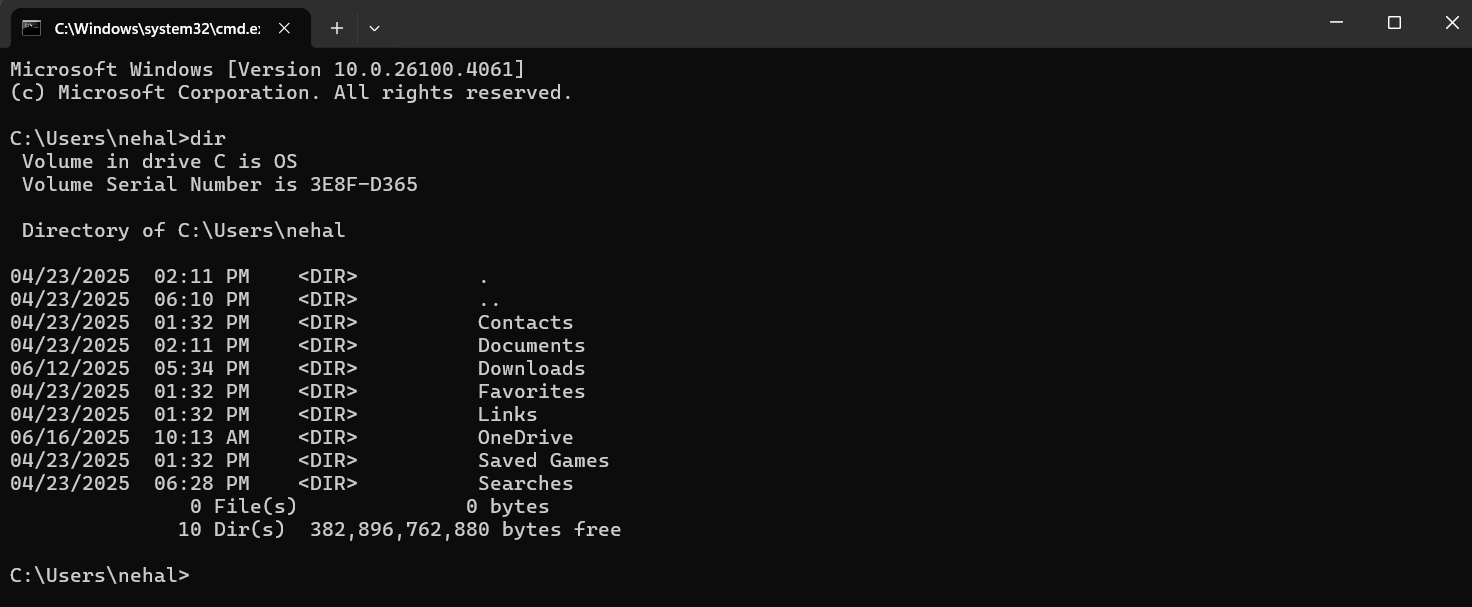
Command:
| dir |
Explanation:
This command displays a list of files and folders in the current directory. It is like opening a folder and seeing what is inside that, just in text format. You can also view file names, their sizes, and the date when they were last modified.
Command:
| cd foldername |
Explanation:
It stands for Change Directory and is used to navigate between folders. It lets you move deeper into your file system.
Command:
| cd.. |
Explanation:
It helps you to move one step back in the folder structure. If you are currency in a nested folder, this command will help you to go back to its parent folder. It is like a back button for folders. For instance, if you are in C:\Users\YourName\Documents, this will take you to C:\Users\YourName.
Command:
| cls |
Explanation:
The cls command helps you to clear all previous commands and outputs on the CMD screen, and will give you a fresh window. It is super helpful when things get cluttered and you want it all clean. Also, it does not delete any files or history.
Command:
| exit |
Explanation:
This command helps you to close the Command Prompt window. It immediately ends the CMD session and brings you back to the desktop or previous window.
Command:
| echo Hello, new CMD users! |

Explanation:
The echo command is used to display messages or output text to the screen. It is commonly used in scripts to print custom messages, variables, or progress updates. In the above example, it would simply show "Hello, new CMD users!" in the Command Prompt window.
Command:
| help |
Explanation:
This command shows you a list of available commands in CMD with their short descriptions. You can also type help commandname to get details about any specific command. This is perfect for beginners or for quick reference.
Command:
| ver |

Explanation:
This command shows the version of Windows, which you are currently using. It is helpful when you need to verify your operating system version before installing software or when troubleshooting issues that depend on system compatibility.
Command:
| time |

Explanation:
This command displays the current system time and also allows you to change it. This is useful for testing time-based scripts or resetting the system clock.
Command:
| date |

Explanation:
It displays the current date and lets you update it. It is similar to the time command, date displays the current system date and allows you to update it. You may need admin rights to make changes.
These are all the basic commands that are useful for navigating the CMD environment efficiently. As you grow more comfortable with these, you will find that using CMD can be faster and more powerful than graphical interfaces for many tasks.
Now, as you have gained the knowledge of foundational commands. Let's move further and explore how you can manage files and folders using CMD.
These commands help you create, rename, delete, and manage files/folders directly from the command line. It is great for quick actions, automation, and even fixing system issues.
Command:
| mkdir NewFolder |
Explanation:
The mkdir command is used to create a new folder in your current working directory. It is also helpful when you want to set up a new folder structure quickly. You can use md (short for make directory).
Command:
| rmdir FolderName |
Explanation:
This command is used to delete a folder. But the folder must be empty first. If it is not, CMD will throw an error. However, you want to delete a folder with all its files and subfolders, use this:
| rmdir /s FolderName |
You can also add /q for "quiet mode" to skip confirmation prompts:
| rmdir /s /q FolderName |
This made the cleanups easy. Also, perfect when you are done with a project or want to declutter your folders.
Command:
| del filename.txt |
Explanation:
This command deletes a file from the current directory. You can add /f to force delete a read-only file, and /q for quiet mode (no confirmation).
| del /f /q mynotes.txt |
But always remember that there is no recycle bin here, therefore once a file is gone, then it is gone forever.
Command:
| rename oldfile.txt newfile.txt |
Explanation:
This command helps you to rename files and sometimes folders. ren is the short version of this command.
Command:
| copy source.txt destination.txt |
Explanation:
This helps you to copy a file from one location to another. It also works for copying files into different folders. You can also keep a backup of your assignment before editing or sending it to another location without dragging files manually. You can do it with:
| copy C:\Docs\report.docx D:\Backup\ |
Command:
| xcopy C:\Folder D:\Backup /s /e |
Explanation:
This is an advanced version of copy. It copies entire folders and subfolders, including empty ones. You can use /s to copy non-empty folders, /e to include empty ones too. This is best for transferring entire projects or directories.
Command:
| move file.txt D:\Folder |
Explanation:
It helps you to move files from one location to another. You can also use it to rename files. It is faster than dragging it manually.
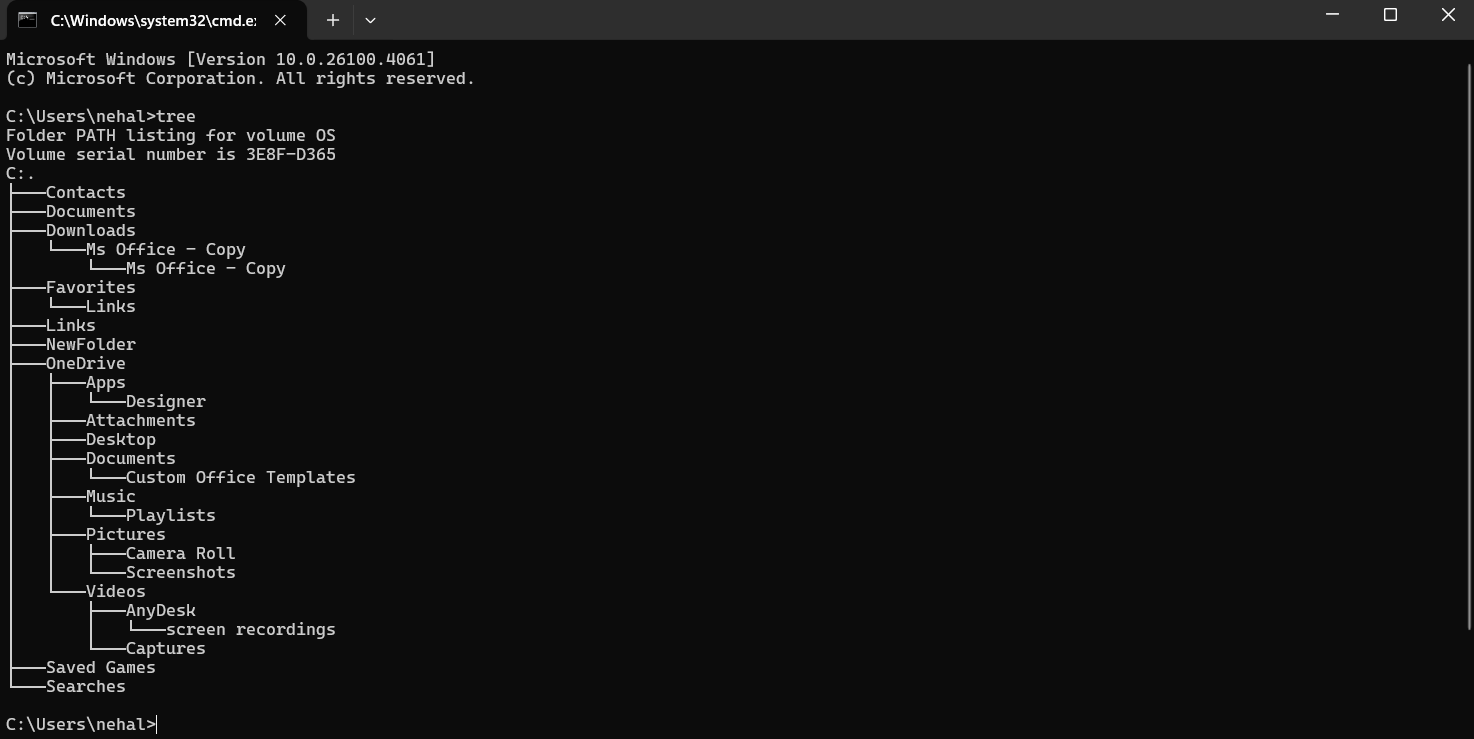
Command:
| tree |
Explanation:
This command displays the folder structure (directories and subdirectories) of the current path in a tree format. Additionally, it also visualizes the layout of your folders, especially useful in large projects.
Command:
| attrib +r file.txt |
Explanation:
This command helps you to change file attributes like read-only, hidden, system, etc. You can use + to add an attribute and - to remove it.
Command:
| fc file1.txt file2.txt |
Explanation:
It stands for File Compare. It helps to compare the contents of two files and shows the differences. Also, it is great for checking changes in code, documents, or logs. These commands help you manage your digital space efficiently, as it is faster than using a mouse, especially when handling lots of files or working remotely.
This category contains powerful commands to check IP addresses, test internet connections, monitor your network, and get details about your Windows system. It is perfect for both basic troubleshooting and advanced diagnostics.
Command:
| ipconfig |
Explanation:
This command displays your system's current IP address, subnet mask, and default gateway (your Wi-Fi router). It is like a mini map of your network. Additionally, it is great when Wi-FI is not working properly or websites are not loading.
To refresh the IP or DNS, use:
To disconnect your IP you can use:
| ipconfig /release |
To get a new IP you can use:
| ipconfig /renew |
To clear all old DNS data (fix site loading errors) you can use:
| ipconfig /flushdns |
Command:
| ping google.com |
Explanation:
This command sends a signal to a website/server and checks if it is reachable. It also shows how fast the signal travels and uses it to check if your internet or a particular site is down.
Command:
| tracert google.com |
Explanation:
This command traces the journey of your data packets to a website, by also showing each server (hop) they pass through. It is like Google Maps but for your internet signal.
Command:
| Nslookup google.com |
Explanation:
This command reveals the IP address behind a domain name. It also shows DNS-related info and is used when sites are not loading but the internet is working.
Command:
| netstat |
Explanation:
This command displays all active internet connections on your system. This can even help detect malware or suspicious apps silently sending/receiving data. Additionally, it uses netstat -an to see ports and IPs.
Command:
| systeminfo |
Explanation:
This gives a full report of your computer's specs from Windows version to BIOS info, RAM, processor, updates, etc. It is great for checking your laptop specs before installing heavy software or updating Windows.
Command:
| tasklist |
Explanation:
This command lists all currently running tasks and processes (like Task Manager). It is used to monitor background processes directly in CMD.
Command:
| taskkill /IM notepad.exe /F |
Explanation:
It kills or force closes a running program using its name or process ID and uses /F to force close it. This command is perfect when a program freezes and Task Manager fails.
Command:
| hostname |
Explanation:
The use of this command displays the name of your computer (host machine) and helps when working in networks or remote desktop connections.
Command:
| set |
Explanation:
This command helps you to display all environment variables of the system. You can also create your own using:
| set VAR_NAME=value |
It is used in programming, scripting, or setting temporary paths.
These all commands are like superpowers for troubleshooting and system management. They are essential for everyone who is into tech, networking, ethical hacking, or IT support. Up next, let us explore some more CMD commands for system power and user controls.
These CMD commands give you direct control over your system's power functions and user account management. Whether you want to quickly shut down your PC, restart, lock the screen or you wish to manage users, these commands are super useful for those especially who are handling lab systems, multiple users, or just exploring system automation.
Command:
| shutdown /s /t 0 |
Explanation:
This command shuts down your computer immediately. The /s stands for shutdown and /t 0 is for the action to happen without any delay.
Command:
| shutdown /r /t 0 |
Explanation:
This command restarts your system instantly. It is helpful when you install software or updates that require a reboot.
Command:
| shutdown /1 |
Explanation:
This command logs off the current user without shutting down or restarting the system. It is useful for quickly switching users.
Command:
| DISM /Online /Cleanup-Image /RestoreHealth |
Explanation:
DISM is a powerful command-line tool used to repair Windows images. It can fix more severe corruption problems by downloading healthy versions of files from Windows Update. It is like an advanced troubleshooting step for persistent system issues, often used when sfc /scannow doesn't resolve the problem.
Command:
| powercfg /batteryreport |

Explanation:
This command creates a detailed battery performance report in HTML format. It helps laptop users monitor battery health and usage.
Command:
| net user |
Explanation:
The command net user displays a list of all user accounts on the system. It is useful for checking active profiles.
Command:
| net user username /add |
Explanation:
It creates a new local user account and replaces the username with the name of the new account you want to add.
Command:
| net user username /delete |
Explanation:
This command removes a specified user account from the system and replaces username with the account name you want to delete.
Command:
| control userpasswords2 |
Explanation:
It launches a user account management window directly from CMD and also allows you quick access to account-related settings.
Command:
| net localgroup administrators username /add |
Explanation:
This command adds the specified user to the administrator group and by giving them elevated system privileges.
These commands offer powerful ways to manage both your device and its users. However, if you are someone who loves speed and shortcuts, then the next section is where things for you will get more interesting. Let's explore some useful CMD tricks and shortcuts which you will love showing off.
Once you are comfortable with the basic commands, it is time to level up with some cool CMD tricks that can actually make your workflow faster, smarter, and a lot more tech-savvy. These tricks help automate tasks and speed up your actions.
Syntax:
| command1 && command2 |
Explanation:
This command lets you run multiple commands in sequence. The second command only runs if the first one is successful. It is perfect for chaining tasks together.
Example:
| cd Documents && dir |
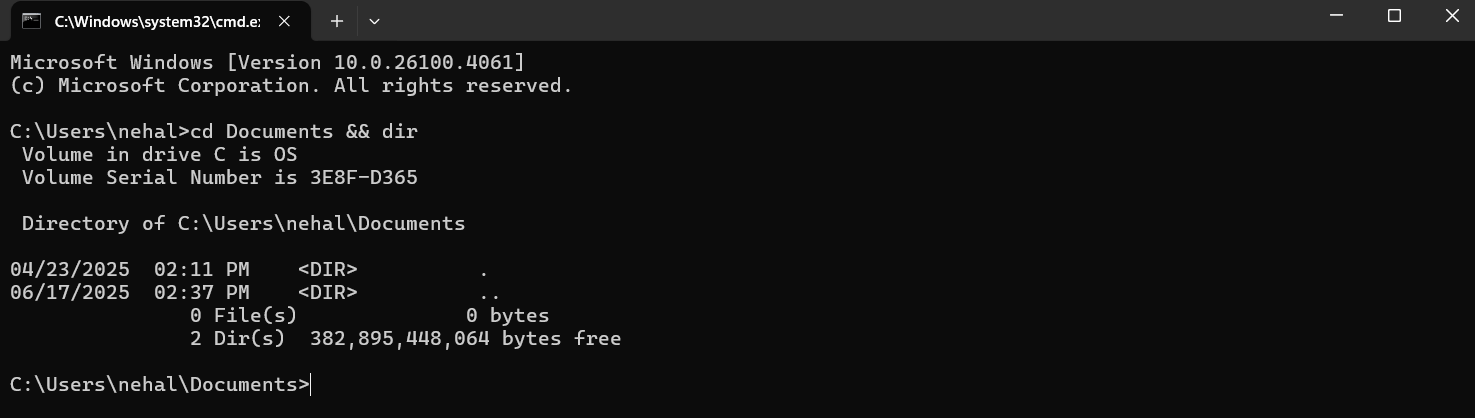
This changes to the Documents directory and lists the files only if the directory change was successful.
Syntax:
| cls |
Explanation:
It clears all text and outputs from the CMD screen. If you are experimenting or debugging and the screen gets cluttered, you can use this to refresh and make things clean.
Syntax:
| cd Doc[TAB] |
Explanation:
When you start typing a file or folder name in CMD and press the TAB key, CMD automatically completes the name or cycles through suggestions.
This is super helpful when the name is long or you're unsure of the exact spelling.
CMD will auto-complete it to:
| cd Documents |
If there are multiple matching names (like "Documents", "Downloads"), pressing TAB repeatedly will cycle through all options. It saves time, prevents typing errors, and feels like a power move once you get used to it.
Explanation:
By pressing F7 on your keyboard, it displays a pop-up menu with all previously used commands in the current session and helps when you forget what you typed earlier.
Syntax:
| title YourText |
Explanation:
This command personalizes your CMD window by changing the title on the title bar.
Example:
| title My Cool CMD Window |
Syntax:
| color [attribute] |
Explanation:
It helps to change the color of the text and background in the CMD window.
Example:
| color 0A |
This gives you black background (0) and green text (A). Additionally, you can use color /? to see all of the options available.
Syntax:
| prompt [text] |
Explanation:
This command changes the appearance of the command prompt. You can use special characters like $g (greater than symbol), $p (current path), etc.
Example:
| prompt $g |
This makes your prompt appear as just >.
Syntax:
| doskey /history |
Explanation:
It displays a list of all the commands you have typed in your current CMD session. It is super useful for tracking your work or revisiting complex commands.
Syntax:
| help |
Explanation:
This command lists all built-in CMD commands with a short description for each. It is the first step if you are ever confused about what CMD can do.
Syntax:
| anycommand /? |
Explanation:
If you want detailed usage info for a command, you can add /? to the end of any command to see its options and help guide.
Example:
| ipconfig /? |
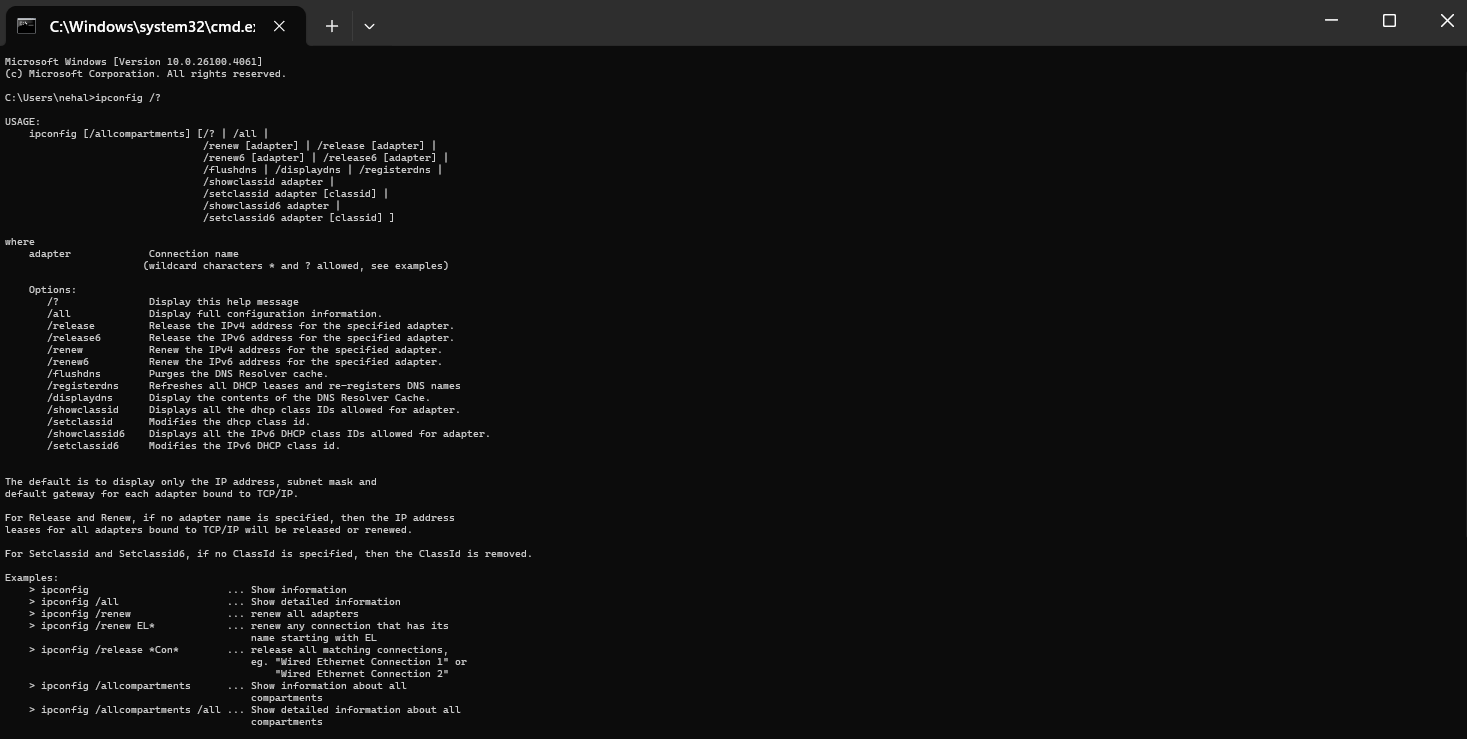
The above example shows all parameters and how to use ipconfig.
That's a wrap-up! You have seen a simple black screen, strong white texts(commands), yet the power to control the complete system. CMD is not just an old tool, but is like a powerful weapon, which performs everything from file handling to network fixing and productivity hacks.
Through this blog, we have covered commands from basics to advanced. Other than that are you thinking what can be your next step? You can practice, experiment and can gradually become Windows pro. So, from now you can work like an admin too, not only as a user.
Yes, CMD is still a powerful tool for Windows users especially for troubleshooting, system tasks, automation, and networking.
Yes, many commands like dir, ping, echo, ipconfig work without admin rights. Yet, for some tasks like sfc /scannow or chkdsk, you will need to run as Administrator.
Yes, CMD (Command Prompt) is a built-in tool in Windows. It is a command-line interface that lets users perform a variety of system-level tasks just by typing commands.
Yes, beginners can use CMD to learn basic system operations and understand how Windows works internally.
Yes, most commands are safe when used correctly. You should be careful with commands that delete files or change system settings.
Explore Our Trending Articles-