PowerShell is a powerful command-line shell, scripting language, and automation framework developed by Microsoft. It is designed for IT professionals for system administration, automation and configuration management. It works across different platforms, including Windows, Linux, and macOS environments.
Have you ever felt stuck with endless clicking that slowed your work? Well it is a common problem among different professionals. This is where you should start using PowerShell and everything will become easier. Then running commands, fixing errors, and automating tasks will just take a few seconds.
In this article, I am going to share some of my useful insights about PowerShell.
PowerShell is a tool from Microsoft that works like a smarter version of the normal command line on your computer. IT professionals mainly use it to automate and manage tasks quickly. Instead of clicking through menus repeatedly, you type simple commands (called cmdlets) to do things like:
This command-line framework works with objects instead of plain text. This means the information it gives you is organized and easier to use. As a result, commands can share data smoothly without you having to fix or format anything.
PowerShell wasn't introduced with all the features it has now. There have been multiple updates over time to make it as powerful as it is today. So let's dive into how it was born and evolved.
In the early 2000s, managing Windows was not that easy because people were using the Command Prompt, the basic black screen everyone recognizes. It only worked with plain text.
So if you asked it to show something like all installed programs, it would throw a long text list at you.
There was a Microsoft engineer named Jeffrey Snover who had a simple but powerful idea that PowerShell should return organized data as objects. This idea eventually became known as the “Monad Manifesto.”
Then, finally, in 2006 Microsoft released the version that is Windows PowerShell 1.0, and it was introduced with some new features like cmdlets, which are commands written in a simple Verb-Noun style like:
Over time, new features were added, like:
After its success in 2016, Microsoft made a huge move, and they made this framework open-source and rebuilt it using .NET Core.
This meant it was no longer limited to Windows. It could now run on Windows, Linux and macOS.
PowerShell has continued to evolve steadily since the 2016 cross-platform shift. As of 2026, the current Long Term Servicing (LTS) release is PowerShell 7.6, with newer preview versions (7.7) already in testing.
Microsoft typically ships a new LTS release roughly once a year, focused on stability, performance improvements, and security fixes, while feature updates continue to land in the non-LTS releases in between. For production environments, Microsoft recommends sticking with the current LTS version.
Once you start using PowerShell, it saves your time by automating tasks that would otherwise require repetitive manual work. It allows you to automate processes, so the computer handles the work for you:
It is so inefficient when you are clicking buttons rather than using commands called cmdlets to make your work faster. If you want your work to get done automatically, then you have to put these commands to get your script ready.
It gives you total control over your computer:
Microsoft designed it to be the official replacement for the old Command Prompt. As it is so much smarter and more powerful, it is now the standard text-based tool for managing systems in all recent versions of Windows.
PowerShell works on the idea that you stop clicking buttons again and again, and let automation make your task easier. Now let's take an example:
You are coming to work, and daily you are repeating your tasks, such as installing updates, checking system performance, or cleaning up files. Instead of this, you can use PowerShell, which will act as your personal assistant that will follow your instructions perfectly.
You know what the amazing part is? No matter how many tasks or commands you give it, it will never get tired or distracted and will also make sure that your time is being saved, and give you the best output with accuracy.
As an administrator or professional who works in a large environment, let's be practical. You cannot control hundreds of systems without an error log, which is why you have to use PowerShell.
This command-line framework is not only for IT experts, but you can also use it in your everyday life. With just one command, you can perform several tasks like adjusting hidden Windows settings or automating boring computer chores. It gives you powerful control with surprisingly little effort. So work smart, not hard.
Just like adding extra packs to a game, PowerShell lets you add modules to expand what it can do. It's like a bonus on top of what is already built in. Each module has some commands (cmdlets) that will help you perform your task smoothly.
You will get to see 4 types of modules:
1. Script module: The most commonly used module. These scripts are saved with .psm1 extensions. They are also very easy to create.
2. Binary module: They have very advanced programming languages like C# (pronounced "C-sharp") that run very fast as they use .dll files.
3. Manifest module: They have an extra file (.psd1) that will tell you what is inside the module, like label or card info.
4. Dynamic module: A dynamic module is a temporary module. It only exists while you are using it and once you close it disappears and is not saved.
First, sign in to your Windows 11 PC. Make sure this account does not have any admin rights during the setup.
This is the fastest way to get a standard PowerShell session running:
1. Click the Windows Start button, or you can simply press the Windows key.
2. Type PowerShell
3. Click on Windows PowerShell. That's it. A blue window appears, and you are ready to type your first command.
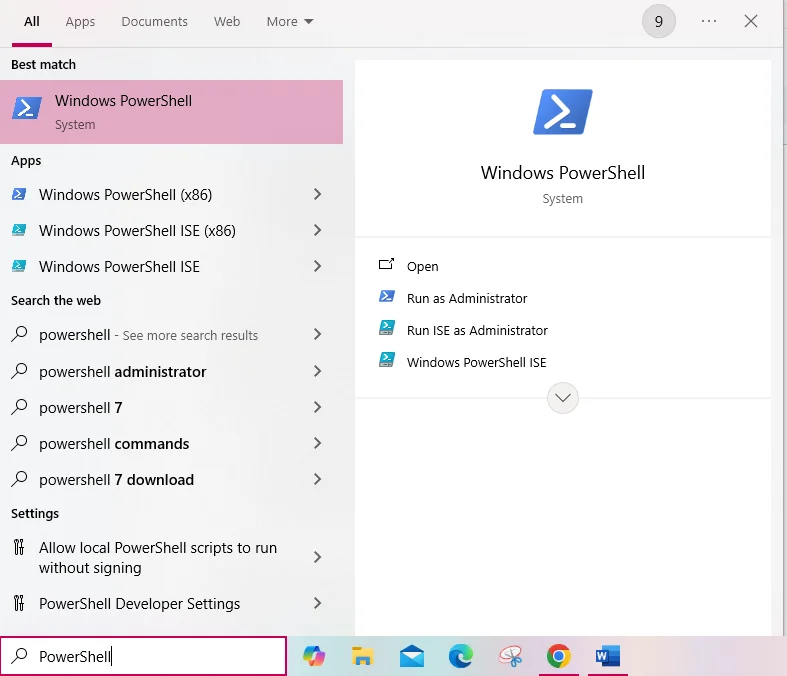
First, sign in to your Windows (8.1, 10, 11 ) PC using a standard domain user account. Make sure this account does not have any admin rights during the setup.
1. First, click the Windows Start button and then search for PowerShell.
2. Right-click on the Windows PowerShell app.
3. Select the option "Run as administrator." You can refer to the picture given above.
4. You will get a prompt asking if you want the app to make changes (the User Account Control, or UAC). Click Yes.
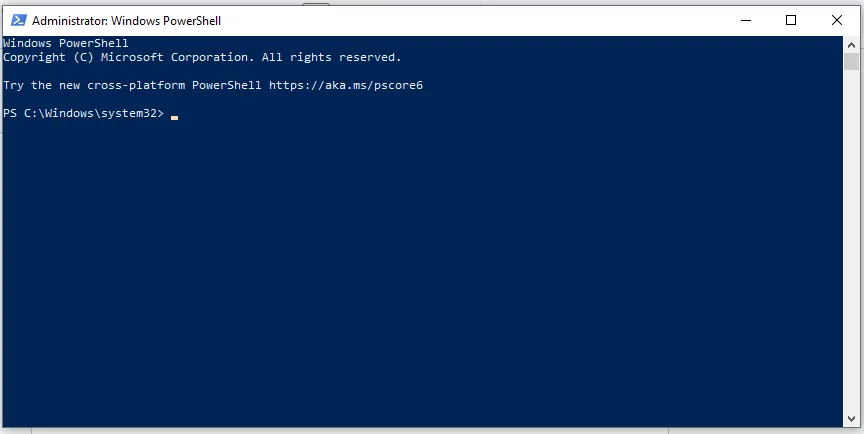
Then, after that, your PowerShell window will likely say Administrator in the title bar, and then you are ready for any task.
Before going into the steps, first let's learn what PowerShell Scripts are: A text file that contains a list of PowerShell commands.
These files use a .ps1 extension.
Let me give you a sneak peek first on how to create it:
You can use:
Want to know what will make scripting much easier? That is VS Code, it will highlight your code, spot your errors, and let you add some extensions.
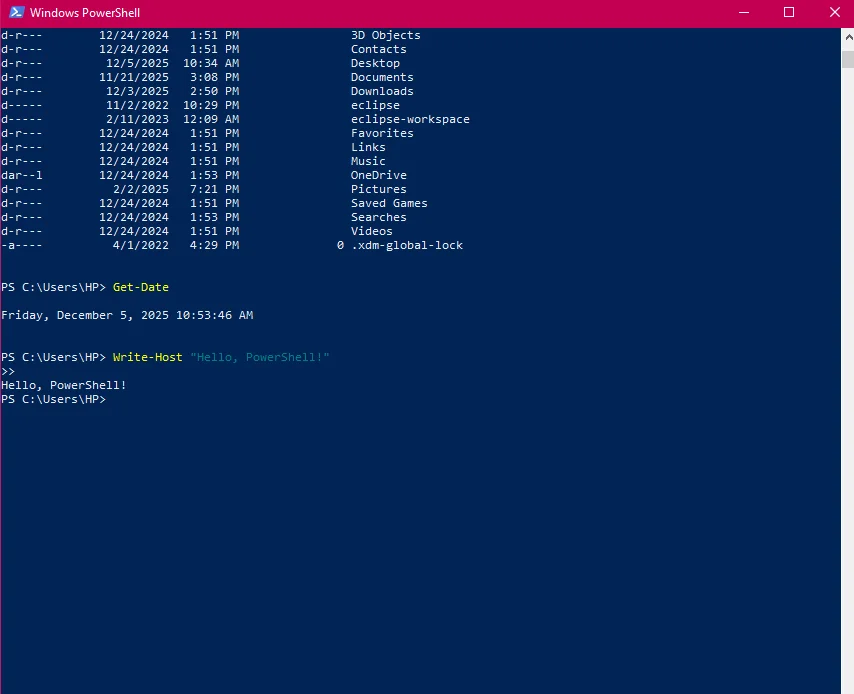
Example (your first basic script): Write-Host "Hello, PowerShell!"
1. Click File and then Save As
2. Change Save as type to All Files
3. Save with a name like:
myscript.ps1
After creating it, you also need to learn how to run it smoothly, but before starting it, you need to know that your Windows might block execution for security reasons, and you have to change the script execution policy.
If you are a beginner in PowerShell, then these are the simplest guided steps for you:
This can be done in 2 ways (feel free to use any of these according to your suitability).
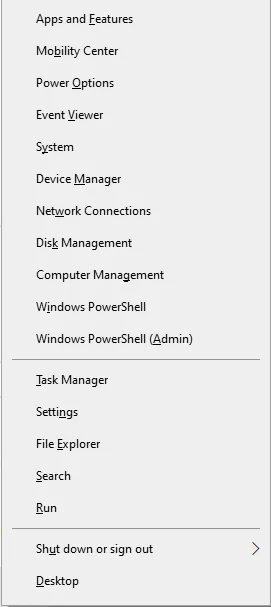
Search for PowerShell in the Start menu and simply run it, or press Win + X key, then select Windows PowerShell or Windows PowerShell (Admin). As you follow these instructions, a quick link menu will appear like this:
Use the cd command to go to where you have saved all your blog files.
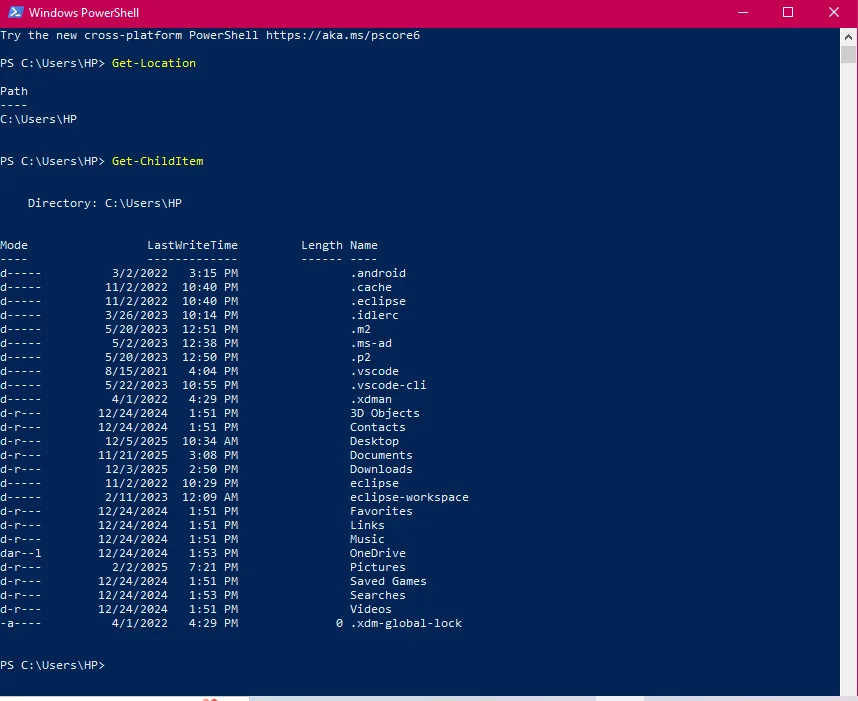
Once you are in the directory, you can start using the following commands:
Get-ChildItem: shows all files
New-Item: creates a new file
Remove-Item: deletes a file
Get-Help <command>: shows help for any command
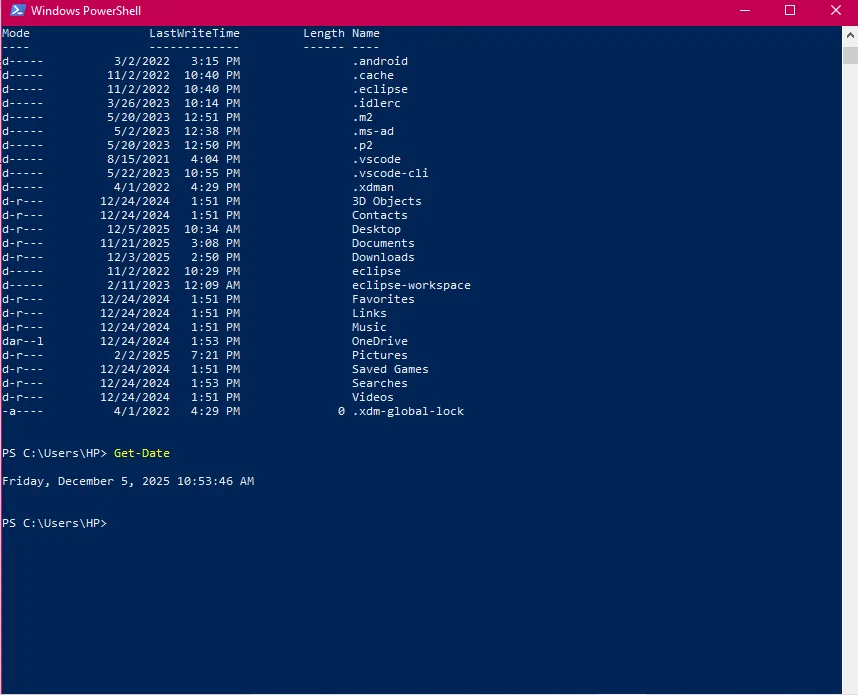
As you start giving these commands, your screen will look just like the following images:
Let's go through some essential features that make this framework a go-to tool for your system:
It never treats everything as plain text because it uses .NET objects, which makes the data more organized and easier to work with.
When you run a command like Get-Process, the output isn't just a block of text; it's a collection of structured objects, each with properties (like ProcessName, ID, CPU) and methods (actions you can perform).
This approach will give you a more structured, reliable data manipulation, filtering, and reporting without needing complex text parsing.
They are basically built-in command tools that will help you perform a single, specific job, such as checking your files. They use Verb-Noun format, which makes it easy to understand for the users, such as: Get-Service or Stop-Process.
This tool lets you connect commands. It will take the result from one command and hand it over to the next one automatically. There will be no extra effort that you have to put as it takes small, simple commands and links them together to handle bigger tasks without any hassle.
With just one tool, you can manage Windows servers, update Active Directory, run Exchange scripts, and automate tasks in Microsoft 365 or Azure. The best part is that it feels seamless because there are modules made specifically for these tasks.
It literally manages hundreds of servers. Remote management has become so smooth that big tasks like deployments, updates, or bulk configuration changes feel way less stressful.
Every tool has its pros and cons. So first, let us discuss its pros:
1. Cross-Platform support: You can use it on Windows, Linux, and macOS.
2. Integrated with cloud and servers: It is very manageable with tools like Azure, Microsoft 365, Active Directory, VMware, AWS, and SQL Servers.
3. It will exactly give you what you want: I understand you are busy, and it takes time to learn a new automation solution. There is this new tech tool known as Robotic Process Automation (RPA), although they are designed to be very user-friendly but it still takes a little time to get the hang of things and feel comfortable using them.
1. Too complicated to handle: This tool is not everyone's cup of tea because it is a highly specialised skill, and you need someone who has full knowledge of it. If the one person who writes and manages your PowerShell scripts quits, then your business is in trouble because no one else can manage the automation.
So make sure you do not rely only on one person, but hire a full team for it
2. Learning problem: As I have already discussed above, it is a highly specialised skill that some may find difficult to learn, specifically for those who have no scripting background.
3. Support Issues: Without the .NET framework, you cannot run PowerShell smoothly.
PowerShell is everywhere, whether you work in the IT sector, learning automation, or handling systems. It can make your work faster and easier. Let me tell you where you can use PowerShell:
When you click multiple menus, all you can do is just run one command, and then it will perform all your tasks. For example, if you want to:
There are so many companies that use cloud AWS, Azure, and Microsoft 365. When you use this framework, you can simply create or remove users, manage the cloud and perform many more tasks like this.
Now you do not have to log in to the cloud dashboard every time, just one single script will do everything.
It will definitely help you to reduce your workload as it will help you in:
Rather than updating, deploying and uninstalling the system across different systems and causing inefficiency in a large working environment, what the administrator will do is use just one single script to do all these tasks for multiple systems.
PowerShell keeps an eye on your system by monitoring CPU and memory usage, reading logs, and spotting errors.
This tool is more advanced as compared to command prompt as it uses automation, scripting and basic system management. Let's get a deeper insight into each tool:
| Parameters | PowerShell | Command Prompt |
|---|---|---|
| Uses | It is used for advanced tasks such as automation and system management. | Mainly used for basic tasks. |
| Command | Uses cmdlets (e.g., Get-Process) based on Verb-Noun structure. | Uses simple commands (e.g., dir, copy, and cls). |
| Scripting Format | It uses variables, loops, functions, and logic, making it a very advanced form. | It has a limited batch scripting format. |
| Output | Works with .NET objects, not just texts. | It gives simple text outputs. |
| Pipeline | Passes objects that make automation easier and more powerful. | Passes text from one command to another. |
| Cross Platforms | It is very compatible and user-friendly, which is why it will work with all Windows, Linux and macOS. | It just works on Windows. |
| Learning Curve | It is powerful and has more features, which make it slightly harder. | Very simple and easy to learn because they use basic commands only. |
Sometimes you may wonder if this tool is worth learning, as AI is taking so many jobs and tasks and it is very common to ask this to yourself because technology keeps on changing. So let's find out what the future PowerShell holds:
1. Earlier, it only worked in Windows, but after Microsoft released its core, which we now call it as PowerShell 7 is now being used not only in Windows but also in Linux and macOS as well.
So the future impact of this is that now companies use a mix of operating systems (OS), a single tool that works everywhere, and it becomes incredibly valuable for consistent management.
2. Modern IT is all about how you should let your computer fix itself, which is called configuration as code. In this, you just script describing the desired state, eg, the Web server must have IIS installed and firewall port 80 open. This framework then continuously checks the server and enforces that state.
DSC will continue to help systems set up correctly and securely without manual work. It checks and fixes settings, which makes security and compliance much easier to maintain.
3. It will continue to grow because automation and cloud management are two essentials in the IT sector and it is best for both.
In this article, I have discussed all about PowerShell on how it makes your work faster rather than clicking on multiple menus. It provides everything you need to know as a beginner. The IT sector is growing rapidly and PowerShell is very useful even in the upcoming years. It will continue to grow because automation and cloud management are two essentials in the IT sector and these are the best areas of this framework.
Both of them are powerful tools, but they are used for different purposes. First, if I talk about PowerShell, then it is great at managing Windows, whereas Python can be used almost everywhere for many types of projects like apps, websites, automation, and more.
Yes, of course, Python can run PowerShell commands using the subprocess module.
They are basically built-in command tools that will help you perform a single, specific job, such as checking your files. They use Verb-Noun format, which makes it easy to understand for the users such as: Get-Service or Stop-Process.
Not anymore! While it started on Windows, the modern version (PowerShell 7+) is open-source and built to run on Linux, macOS, and Windows. It is a truly cross-platform tool used to manage all kinds of systems and cloud platforms.
Course Schedule
| Course Name | Batch Type | Details |
| PowerShell Training | Every Weekday | View Details |
| PowerShell Training | Every Weekend | View Details |