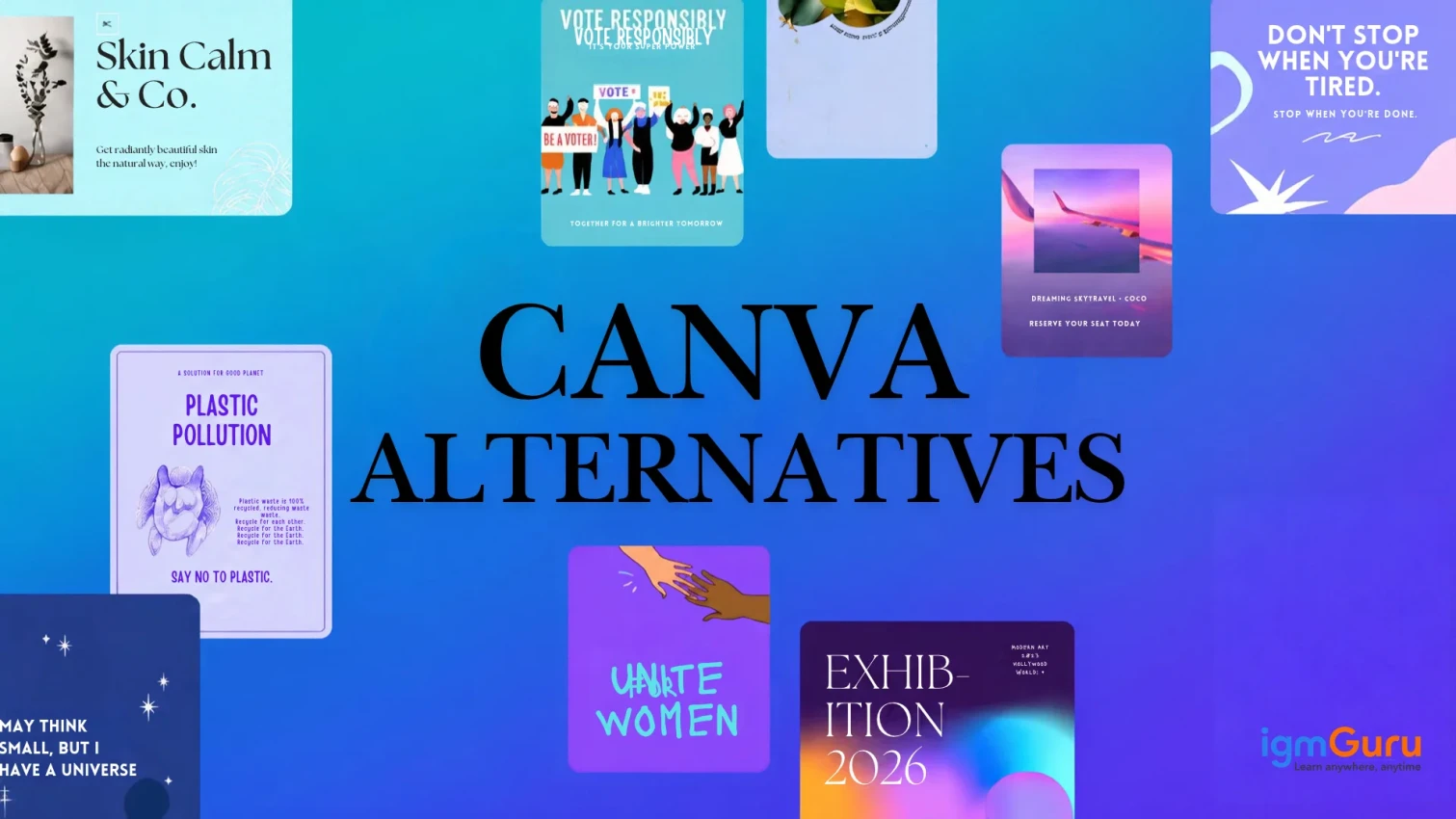
Canva changed how millions of people create graphics. No design degree, no complicated software, just drag, drop, and publish. But Canva is not the only option anymore, and for a lot of users, it is not the best one either.
Maybe you have hit Canva's paywall one too many times. Maybe you need more control over typography and layout. Maybe your team needs better collaboration tools, or you just want to try something new. Whatever the reason, you are not stuck.
I looked at the top design tools people search for as Canva alternatives, tested what I could, and put together this guide with real details on features, pricing, and who each tool actually suits. By the end, you will know exactly which Canva alternative fits your workflow.
Canva is an online graphic design platform that helps people create professional-quality designs without prior design knowledge. It offers a user-friendly drag-and-drop editor, plus templates, images, icons, fonts, and other design elements that let users create visual content easily.
Canva is genuinely good at what it does. So why does anyone go looking for a Canva replacement? A few reasons come up again and again.
Pricing: Canva's free plan is decent, but many premium templates, stock photos, and brand tools sit behind Canva Pro. Costs add up fast for freelancers, agencies, and small teams.
Limited advanced control: If you have used tools like Adobe Illustrator or Figma, Canva can feel basic. It does not offer deep vector editing, advanced layering, or precise typography control.
Template fatigue: Canva's biggest strength, its templates, can also work against you. When everyone uses the same templates, your designs start looking like everyone else's.
Collaboration limits: Some teams need better version history, more granular permissions, or tighter integration with their existing design and marketing stack.
Specific use cases: Canva tries to do everything. Tools built specifically for infographics, presentations, or data visualization often do that one job better.
Note: None of this means Canva is bad. It just means the right tool depends on what you actually need to create.
| Tool Name | Best For | Free Plan | Pricing (Paid) | Key Strength |
| Adobe Express | Social media graphics, marketing assets, and Adobe users | Yes | Starts at $9.99/month | Adobe Firefly AI and seamless Creative Cloud integration |
| VistaCreate | Social media content and animated designs | Yes | Starts at $10/month | Large library of animated templates |
| Figma | UI/UX design and team collaboration | Yes | Starts at $12/month per editor | Real-time multiplayer editing and design systems |
| Microsoft Designer | AI-powered designs for Microsoft 365 users | Yes | Copilot Pro starts at $20/month | AI-generated designs integrated with Microsoft apps |
| Visme | Infographics, reports, and data visualization | Yes | Starts at $12.25/month per user | Interactive charts, dashboards, and presentations |
| Piktochart | Infographics and visual reports | Yes | Starts at $24/month | AI infographic maker and data visualization tools |
| Desygner | Mobile-first graphic design | Yes | Starts at $9.99/month | Powerful design editing directly from mobile devices |
| Pixlr | Photo editing and AI image generation | Yes | Starts at $9.99/month | Advanced layer-based photo editing |
| Simplified | Marketing content creation and scheduling | Yes | Starts at $29/month per seat | Combines design, AI writing, video editing, and publishing |
| Picsart | Creative photo and video editing | Yes | Starts at $9.99/month | Extensive photo effects, stickers, and editing tools |
| Kittl | Branding, logos, and merchandise design | Yes | Starts at $10/month | Advanced typography and print-on-demand tools |
| Gamma | AI-powered presentations and documents | Yes | Starts at $10/month | Generates presentations from prompts and outlines |
NOTE: Prices change often, and most of these tools bill less per month on an annual plan. Treat the numbers above as a starting point and confirm on the vendor's page before you buy.
Now let's go through each of these graphic design tools like Canva in more detail.
Adobe Express is Adobe's browser-based design tool. It gives you templates, stock assets and AI-powered editing features without the learning curve of Photoshop or Illustrator. It runs inside the same ecosystem as Adobe's professional apps, so it is a natural next step if you already use Creative Cloud.
What Is Adobe Express Used For?
People use Adobe Express to create social media graphics, flyers, resumes, videos and quick marketing assets. It also works well as a lightweight entry point into Adobe's design tools before moving up to Photoshop or Illustrator.
Features of Adobe Express
Adobe Firefly AI for generative image creation and text effects
One-click background removal
Access to Adobe Stock photos, videos and fonts
Brand kit for consistent colors, logos and fonts
Direct export or handoff to Photoshop and Illustrator
Common Use Cases
Social media posts and stories
Flyers, posters and print materials
Short-form video editing
Resumes and one-page documents
Free plan with limited templates and stock assets
Premium: starts around $9.99/month, often bundled free with paid Creative Cloud plans
Here's what I found: The Firefly-powered AI tools and Adobe Stock integration make it easy to produce polished, professional-looking graphics fast, and the handoff to Photoshop or Illustrator is smooth if you outgrow the basics.
The one thing to watch for: Its template library is noticeably smaller than Canva's, so if you rely on a huge variety of ready-made layouts, you will run out of options faster, especially outside the Adobe ecosystem.
VistaCreate (formerly Crello) is a design tool built for content creators and marketers who publish frequently. It leans heavily into ready-made templates, animated graphics and a large media library, which makes it a close match for how Canva feels to use.
What Is VistaCreate Used For?
VistaCreate is mainly used to produce social media content, ads and marketing graphics fast. Its animated templates make it popular for Instagram Stories, video ads and short promotional clips.
Features of VistaCreate
Thousands of animated and static templates
Built-in stock photo, video and music library
Brand kit for saving fonts, colors and logos
One-click resize across platforms
Background remover and video trimmer
Common Use Cases
Social media posts and Stories
Animated ads and promo videos
Email graphics and banners
Print materials like business cards and flyers
Free plan with core design features
Pro: starts around $10/month
Here's what I found: The animated template library makes it genuinely fast to put together Instagram Stories and short promotional videos without opening a separate video editor.
The one thing to watch for: Detailed print work and strict brand guideline management feel more limited here than in Canva or Adobe Express, so agencies with heavy brand rules may hit a ceiling.
Figma started as a professional interface design tool, but it has grown into a serious option for anyone who wants precise control over layout, typography and collaboration. It is not template-first the way Canva is, but its free tier and real-time collaboration make it a strong pick for teams.
What Is Figma Used For?
Figma is used for UI/UX design, but designers and marketing teams also use it to build presentations, social graphics, brand assets and prototypes. Multiple people can work on the same file at the same time, which Canva's free plan does not fully support.
Features of Figma
Real-time multiplayer editing
Vector-based design tools with precise controls
Reusable components and design systems
Auto-layout for responsive designs
Plugin ecosystem for icons, templates and automation
Common Use Cases
Website and app design
Brand and marketing asset creation
Presentation decks
Design systems for product teams
Free plan for individuals and small teams
Professional: starts around $12/month per editor
Here's what I found: Real-time multiplayer editing and precise typography controls give teams a level of design control Canva's free plan simply does not offer, especially for building reusable components.
The one thing to watch for: The learning curve is steeper than Canva's, and for a quick one-off social graphic, Figma can feel like more tool than you need.
Microsoft Designer is Microsoft's answer to Canva, built directly into the Microsoft 365 ecosystem. It leans on AI to generate design ideas from a simple text prompt, then lets you refine the result with a familiar Office-style interface.
What Is Microsoft Designer Used For?
Microsoft Designer is mainly used by people who already work inside Word, PowerPoint and Outlook and want design help without leaving that environment. It works well for social posts, invitations, presentations and quick graphics tied to Office documents.
Features of Microsoft Designer
AI-generated design suggestions from a text prompt
Integration with Microsoft 365 apps
Stock images, icons and fonts
Copilot-powered image generation
Direct export to PowerPoint and other Office formats
Common Use Cases
Social media graphics and invitations
Presentation slides and title graphics
Email headers and newsletters
Quick branded content for Office-based teams
Microsoft Designer Pricing
Free plan with limited AI credits
Copilot Pro: around $20/month, which unlocks expanded AI generation across Microsoft 365
Here's what I found: Its AI suggestions turn a plain text prompt into a usable design fast, and the Microsoft 365 integration saves real time if your team already lives in Word, PowerPoint and Outlook.
The one thing to watch for: You need a Copilot Pro subscription to unlock the full AI generation, and the template library is thinner than Canva's once you step outside Office-style content.
Visme positions itself as a data visualization and presentation tool first, and a general design tool second. It is one of the strongest Canva alternatives for anyone who needs to turn numbers, reports or complex information into something visual and easy to read.
What Is Visme Used For?
Visme is used to build infographics, presentations, documents and interactive content that includes live data, charts and widgets. It suits marketing teams, educators and business analysts who need more than static templates.
Features of Visme
Data widgets and charts that update automatically
Interactive presentations with clickable elements
Brand kit and content library for teams
Animated infographics and explainer graphics
Analytics on how viewers interact with your content
Common Use Cases
Business reports and infographics
Interactive presentations and pitch decks
Data dashboards and visual reports
Employee training materials
Free plan with limited downloads and storage
Starter/Premium: starts around $12.25/month per user
Here's what I found: The data widgets and interactive elements let you build a presentation that actually responds to a viewer's clicks, something Canva does not offer at all.
The one thing to watch for: The editor feels busier than Canva's, and the free plan restricts downloads enough that you will likely need to upgrade for real work.
Piktochart is built specifically for infographics, reports and one-page visual documents. It does not try to compete with Canva across every design category. Instead, it focuses on making dense information easy to scan.
What Is Piktochart Used For?
Piktochart is used to turn data, research and reports into infographics, one-pagers and presentations that are easy to read at a glance. It is popular with educators, non-profits and internal communications teams.
Features of Piktochart
Infographic-focused templates and layouts
AI infographic maker that builds a first draft from a topic
Chart and data visualization tools
Team collaboration and brand kit features
Print and digital export options
Common Use Cases
Infographics and one-page reports
Internal training and onboarding materials
Non-profit impact reports
Educational visuals and posters
Free plan with limited downloads
Pro: starts around $24/month when billed annually
Here's what I found: The AI infographic maker genuinely speeds up the first draft. Give it a topic and it lays out a structure you can then refine, which saves the blank-page problem.
The one thing to watch for: The pricing feels high for what you get, and the template variety thins out fast once you move past infographics into general social or print design.
Desygner is a mobile-first design tool that focuses on speed. It is built for people who need to create and publish content directly from a phone, which makes it a practical Canva alternative for small business owners on the move.
What Is Desygner Used For?
Desygner is used to create social media posts, flyers, business cards and marketing materials from a phone or tablet, without needing a desktop-grade design skill set.
Features of Desygner
Mobile app built for on-the-go editing
Thousands of templates across categories
Brand kit for saving logos, fonts and colors
Background remover and photo editing tools
Team accounts for shared brand assets
Common Use Cases
Social media graphics from a phone
Flyers, posters and print materials
Business cards and stationery
Quick promotional graphics for local businesses
Free plan with core features
Pro: starts around $9.99/month
Here's what I found: The mobile app is genuinely built for real work, not just a stripped-down companion to a desktop tool, which makes it a rare, solid option for designing entirely from a phone.
The one thing to watch for: The desktop editor feels less polished than Canva's, and the stock photo and video library is noticeably smaller.
Pixlr is closer to a photo editor than a template-based design tool, which sets it apart from most names on this list. If your work leans more toward photo retouching than laying out social posts, Pixlr fills a gap Canva does not cover well.
What Is Pixlr Used For?
Pixlr is used for photo editing, retouching and AI-powered image generation. It offers both a simplified editor for quick fixes and a more advanced editor with layers, similar to Photoshop.
Features of Pixlr
Layer-based photo editor for advanced edits
AI background remover and object removal
AI image generator from text prompts
Batch photo editing
Browser-based, no download required
Common Use Cases
Photo retouching and color correction
Removing backgrounds and unwanted objects
Creating AI-generated images
Preparing product photos for e-commerce
Free plan with ads and limited tools
Premium: starts around $9.99/month
Here's what I found: The layer-based editor gives you real, Photoshop-style control over photo edits, something none of the template-first tools on this list attempt to match.
The one thing to watch for: The free plan runs ads, and if you need template-based social graphics rather than photo editing, Pixlr is the wrong tool for the job.
Simplified bundles design, video editing, copywriting and social media scheduling into one platform. It is built around AI generation, so a lot of the work starts with a prompt rather than a blank canvas.
What Is Simplified Used For?
Simplified is used by marketing teams and creators who want design, content writing and social scheduling in one place instead of juggling separate tools for each task.
Features of Simplified
AI design generator from text prompts
Built-in AI copywriting tools
Social media scheduling and publishing
Video editing with AI voiceovers
Brand kit shared across design and content tools
Common Use Cases
Social media content creation and scheduling
AI-generated marketing copy paired with visuals
Short video ads and social clips
Small team content workflows
Free plan with limited AI credits
Paid plans start around $29/month per seat
Here's what I found: Having design, copywriting and scheduling under one login genuinely cuts down on tool-switching for a lean marketing team.
The one thing to watch for: It costs more than most tools on this list, and because it tries to do so much at once, the design templates themselves feel less refined than Canva's.
Picsart combines photo editing, graphic design and video editing in a single app, with a strong focus on mobile. It has one of the largest user bases among Canva competitors, particularly for casual content creators.
What Is Picsart Used For?
Picsart is used for photo editing, collage-making, sticker and meme creation, and short video editing. It is especially popular for Instagram-style content and creative photo effects.
Features of Picsart
AI-powered photo effects and filters
Background remover and replacer
Collage maker and sticker creator
Video editing with templates and transitions
Mobile and desktop apps
Common Use Cases
Creative photo editing and effects
Social media content and Reels
Collages, memes and stickers
Short-form video editing
Free plan with ads and watermarks
Premium: starts around $9.99/month
Here's what I found: Combining photo effects, collage-making and video editing in one app makes it genuinely fun to use for casual, creative social content.
The one thing to watch for: The free plan leans hard on watermarks, and the interface can feel cluttered once you start digging past the basic effects.
Kittl is built around branding, logos and print-on-demand style graphics. Its vintage-inspired templates and typography tools give it a distinct look that stands apart from Canva's more generic style.
What Is Kittl Used For?
Kittl is used to design logos, t-shirt graphics, posters and brand identity assets. It leans into bold typography and illustration-style templates rather than corporate, generic layouts.
Features of Kittl
Advanced typography and text effects
AI-assisted vector graphics and mockups
Print-on-demand friendly export formats
Large library of fonts and illustrations
Mockup generator for merchandise
Common Use Cases
Logo and brand identity design
T-shirt and merchandise graphics
Posters and vintage-style artwork
Print-on-demand product design
Free plan with limited projects and storage
Pro: starts around $10/month when billed annually
Here's what I found: The typography tools and mockup generator produce a distinctive, non-generic look that stands out from Canva's more corporate templates, which is exactly what print-on-demand sellers need.
The one thing to watch for: The general template library is smaller than Canva's, and it is not built for document design, presentations or social media scheduling.
Gamma builds presentations, documents and simple web pages from a prompt or outline. Instead of fixed slides, it uses flexible cards that resize to fit your content, which makes it feel less rigid than a typical slide deck.
What Is Gamma Used For?
Gamma is used to turn an outline, idea or pasted document into a polished presentation in minutes. It is popular with startups, students and anyone who needs a professional-looking deck fast without manually designing every slide.
Features of Gamma
AI-generated presentations from a prompt or outline
Flexible card-based layouts instead of fixed slides
One-click theme and design changes
Ability to publish a deck as a shareable web page
Real-time collaboration and comments
Common Use Cases
Pitch decks and investor presentations
Internal reports and business proposals
Course materials and training decks
Quick web pages built from a document
Free plan with starter AI credits
Plus: starts around $10/month
Pro: starts around $20/month
Here's what I found: Turning a rough outline into a presentable deck takes minutes, not hours, and the card-based layout adapts to your content instead of forcing it into fixed slides.
The one thing to watch for: The credit-based system can feel limiting on the lower tiers, and you get less precise layout control than you would in Canva or Figma.
The best Canva alternative depends on what you actually create most often. Instead of picking a tool because it is popular, match it to your main goal. Here is a practical breakdown to help you decide.
| If Your Main Goal Is | Choose | Best For |
| Staying in the Adobe ecosystem | Adobe Express | Professional templates, Firefly AI, Adobe Stock |
| Fast social media content | VistaCreate | Animated templates and quick publishing |
| Precise design control and team collaboration | Figma | UI design, brand systems, real-time editing |
| Working inside Microsoft 365 | Microsoft Designer | Office-integrated, AI-generated designs |
| Data-driven presentations and reports | Visme | Charts, interactive content, dashboards |
| Infographics and one-page reports | Piktochart or Venngage | Data visualization, education, non-profits |
| Designing from a phone | Desygner | Mobile-first editing for small businesses |
| Photo editing and retouching | Pixlr | Layer-based editing, AI photo tools |
| An all-in-one AI content workflow | Simplified | Design, copywriting and scheduling together |
| Creative photo and video content | Picsart | Social content, collages, Reels |
| Branding, logos and merchandise | Kittl | Typography, mockups, print-on-demand |
| AI-generated presentations | Gamma | Pitch decks, reports, quick web page |
Canva earned its popularity for good reason, but it is not the only tool worth using in 2026. Each alternative on this list does at least one thing better than Canva, whether that is deeper AI generation, tighter Adobe or Microsoft integration, sharper typography or genuinely useful data visualization.
The right choice comes down to matching the tool to what you actually design day to day, not picking whichever name is most familiar. Try the free plan of two or three tools that fit your use case before committing to a paid subscription. Most of the platforms on this list let you do that without any risk.