Ever wonder how people create polished, professional-looking documents? If you use Microsoft Word daily (or even weekly), whether for notes, assignments or official documents, you are already one step ahead of most of your peers; however, many users never realize or explore the complete use of Word.
I have personally used Microsoft Word every day to create reports, format documents, manage content and fulfill real-life documentation needs. With this experience, I have learned a lot about how to use Word efficiently and effectively, including shortcuts to make your work faster, cleaner and more well-organized.
Throughout this guide, I will provide you with practical, hands-on experience with Microsoft Word from daily use so you can move beyond the basics and learn how to use it like a pro! I will demonstrate to you how to effectively work with Microsoft Word, as well as give you the resources and information necessary to get the most from the program in real-world scenarios.
Let's begin!
Word Processing Software (Microsoft Word) is a program to create, edit and format text-based documents such as letters, assignments etc. It allows the user to easily insert pictures, tables and designs into their documents. Microsoft 365 (formerly known as Office 365) is a subscription-based service that includes Word, Excel, PowerPoint and various online and cloud storage services, which allows users to work from anywhere, at any time.
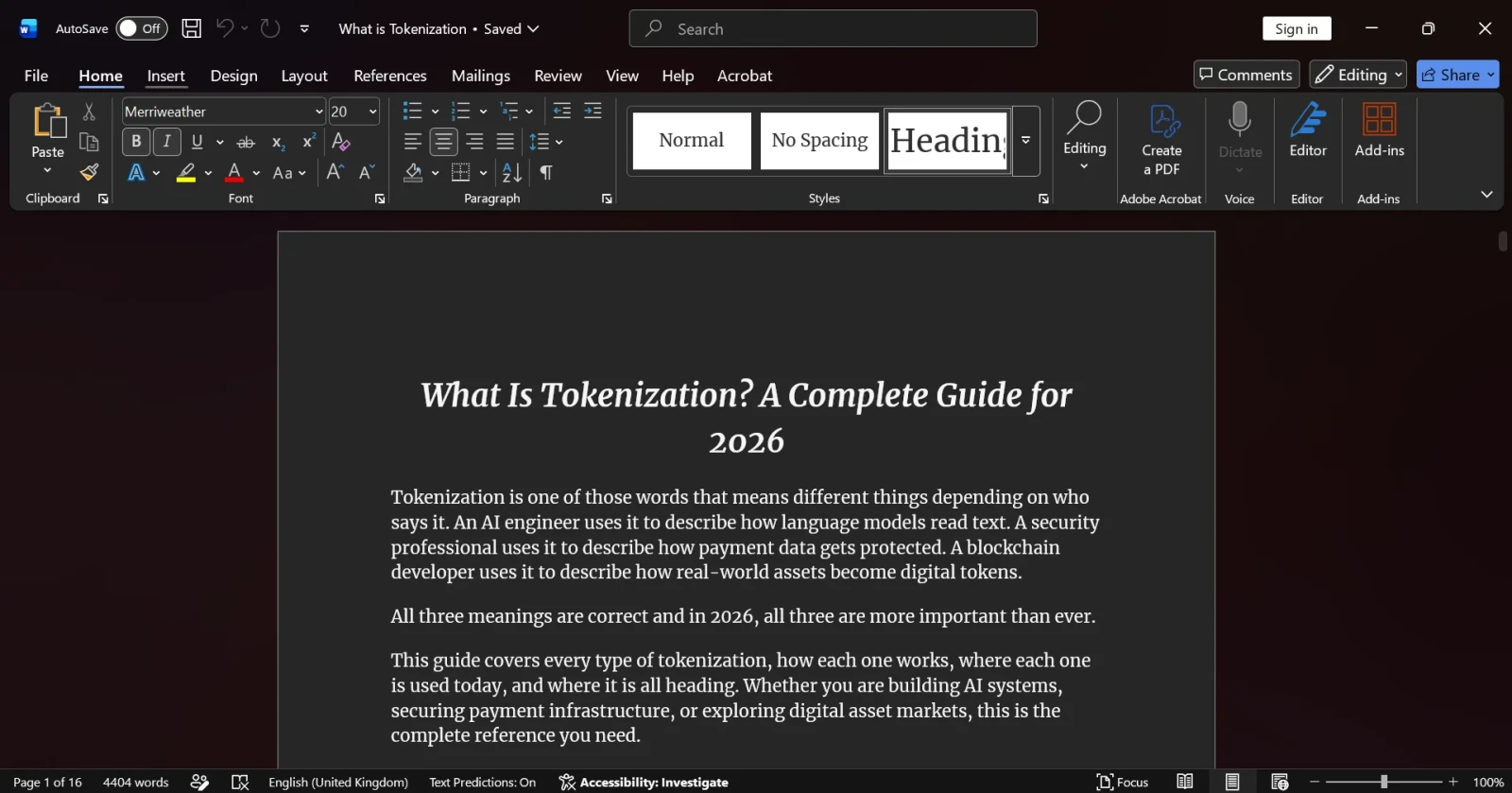
Microsoft Word is available in Desktop, Web and Mobile versions. Each is designed for different needs, that is, advanced work, online collaboration or quick editing, which helps the users to choose the most suitable option.
| Features | Desktop Version (MS Word) | Web Version (Word Online) | Mobile Version (Word App) |
| Platform | Windows and macOS | Browser-based (Chrome, Edge, etc.) | Android and IOS |
| Installation Required | Yes | No | Yes (App install) |
| Internet Required | Not required (works offline) | Required | Mostly required (some offline support) |
| Performance | Fastest and most powerful | Depends on the internet speed | Optimized for smaller devices |
| Features Availability | Full features (advanced tools, macros, add-ins) | Limited features | Basic to moderate features |
| Collaboration | Available but not real-time by default | Real-time collaboration | Real-time collaboration |
| Auto Save | Manual or via OneDrive | Automatic | Automatic |
| File Storage | Local + Cloud (OneDrive) | Cloud only (OneDrive) | Cloud + Device |
| Formatting Options | Advanced formatting and layout tools | Basic formatting | Limited formatting |
| Add-ins & Extensions | Supported | Limited support | Not supported |
| Best For | Professional work, detailed documents | Quick edits, collaboration | On-the-go editing |
| Cost | Paid (Microsoft 365 / License) | Free (with Microsoft account) | Free (basic), premium for advanced features |
Read Also: Excel Interview Questions and Answers
Microsoft Word offers a wide range of features that help users create, edit, format and manage professional documents efficiently. Here are some of those features:
1. User-friendly interface: Microsoft Word has an easy-to-use layout, which makes it simple to find tools and options. You can quickly access main functions through the menu.
2. Formatting: Word's formatting is powerful, which allows you to change fonts, sizes, colours and other features to make the documents stand out.
3. Templates: Word also includes ready made templates for many kinds of documents, which saves your time and giving the work a professional look from beginning to end.
4. Graphics and media integration: Users can effortlessly insert images, shapes, charts and other media elements into their documents. This feature is helpful for adding visual appeal and enhancing the overall presentation.
5. Collaboration and sharing: Microsoft Word allows for seamless collaboration among users. Multiple people can work on the same document simultaneously. This makes it ideal for team projects and group editing.
6. Review and Commenting: The Track Changes and Comment features enable easy reviewing and editing of documents. Users can leave comments and suggestions. It allows effective communication and revision.
7. Spelling and Grammar Checks: Microsoft Word has a tool to check spelling and grammar. It helps users find and fix mistakes in their documents, which ensures that you work look polished abd with no error.
8. Page layout and design: Users can adjust how their pages look by changing margins, orientation and adding headers and footers. This helps create documents that look professional and consistent.
9. Table of Contents and Navigation: MS Word allows users to create a table of contents for lengthy documents. They can use headings to navigate easily through the content. This feature enhances document organisation and accessibility.
10. Mail Merge: This helpful tool lets users customise multiple documents, like letters and labels, with individual details for each recipient, which will eventually save your time.
11. AutoCorrect and AutoText: Word automatically fixes spelling mistakes and creates shortcuts for commonly used phrases. With its help, it can make your writing smoother and faster.
12. Word Count and Statistics: MS Word provides a word count tool that helps users track the length of their documents. It offers statistics on reading time and sentence count.
13. Language translation: Microsoft Word includes language translation features, allowing users to translate their documents into different languages, which is useful when changing language in Microsoft Word.
14. Compatibility and cloud integration: Microsoft Word allows you to Save Your Word Documents in a range of formats, which ensures that they can be opened on other devices. It also connects to cloud based storage providers It also allows you to access documents from anywhere with an internet connection.
15. Storage: You can keep your documents stored safely and you can access them whenever you need.
16. Object Linking and Embedding: OLE is a technology that facilitates the exchange of information between software programs regarding various types of objects. These objects can range from graphs and equations to video clips, audio clips, images and many more.
17. Page Break: Easily define where pages end for printing. It always makes sure to give you smooth transitions between sections.
18. Search and Replace: You can quickly find and swap specific words throughout your document using Find and Replace in Microsoft Word.
19. Thesaurus: With its help, you can enhance your writing by substituting words with synonyms, which will eventually enrich your language and it will also avoid any sort of repetition.
Read Also: Excel Formulas
Creating a document in Microsoft Word (part of Microsoft 365) is simple and beginner-friendly. Follow these easy steps:
a. Make text bold
b. Change font size
c. Change color
d. Align text (left, center and right)
Basic formatting in Microsoft Word means how you change the appearance of text and layout in your document. It includes adjusting fonts, sizes, spacing, alignment and more to make your document visually appealing.
Fonts are the style of your text. Word offers many options like Arial, Times New Roman and Calibri.
Example: Use a larger font for headings and a smaller font for body text.
These are simple ways to highlight important words. Use these sparingly to avoid clutter:
Alignment controls how your text is positioned on the page:
Spacing makes your document easier to read:
For readability, 1.5 line spacing is commonly used.
These help organize information clearly:
You can change the color of your text or highlight it. They are useful for emphasizing key points.
Word has in built styles like Heading 1, Heading 2 etc.
Margins control the space around your document:
Read Also: How to Use Power Query in Excel?
Many people use Microsoft Word across a wide range of applications, which includes document creation and editing, academic projects, business reports, resumes and other types of creative writing. With its various tools and features, Microsoft Word enables users to efficiently create very well-structured professional-looking materials that can be used for different purposes. Following are some common uses of MS word:
Microsoft Word is mainly used to make and change various types of documents. It is helpful for tasks like writing essays, letters or reports. It offers you an easy way to write, review and improve written content.
For students and educators, MS Word is an essential tool for academic assignments, research papers and presentations. Its formatting options, headers, footers and referencing tools help organise and professionally present academic work.
In the corporate world, Microsoft Word is commonly used for crafting business reports, memos, proposals and other official documents. Its collaboration features to enable seamless teamwork and real time editing among colleagues.
Job seekers rely on Microsoft Word to create eye catching and structured resumes and curriculum vitae. The software's templates and formatting options help applicants present their qualifications effectively, which is especially valuable for those pursuing Microsoft Office Specialist Jobs.
Writers and authors use Microsoft Word to craft novels, short stories, poems and other creative pieces. The ability to organise content, use various fonts and add images fosters creativity and enhances the overall writing experience.
Journalists and media professionals use Microsoft Word to compose newsletters and news articles. MS Word’s spell checker and grammar tools ensure accuracy and professionalism.
In law, Microsoft Word is used to write legal documents like contracts and court papers, ensuring accuracy and professionalism in the legal process.
To use Microsoft Word effectively requires knowledge of the fundamental tools and features of the software, allowing users to create, modify and style documents easily. If you learn some of the easier tips and shortcuts, you can do your job faster, maintain organization and produce high-quality documents more effectively.
Make sure when you first create your document, the layout is well organized. This means you want to choose the right page size, margin size and font style to create a great looking document. When a document has an organized layout, it will be cleared to the reader and will give off a positive first impression.
You should always use the formatting provided by microsoft such as Heading 1, Heading 2, and Normal instead of manually formatting. The use of styles helps maintain a consistent and organized document and they also allow you to quickly create a table of contents and allow you to easily navigate through long documents.
Be familiar with most layout features such as Bold, Italics, Underlined, Alignment, and Line spacing. These tools enhance readability and draw attention to important pieces of information. Use these tools judiciously in order not to congest your document and minimize readability.
Using keyboard shortcuts will save you time and allow you to complete your tasks in an efficient manner. Using shortcuts will enable you to complete tasks quicker than repeatedly using the user interface.
Inserting additional elements, such as images, tables, and charts can create an engaging and informative document. Visual elements help to illustrate concepts more clearly than using a long passage of text and help to display your material in an aesthetically pleasing manner.
Read Also: What is Microsoft Copilot?
MS Word allows you to complete tasks such as saving, formatting and navigating more quickly and easily than if you were using menus again. By using keyboard shortcuts to perform these standard operations, you will reduce the time it takes to complete such tasks, therefore increasing your productivity in general and creating an overall better working experience.
Here are those shortcuts that will help you with your work:
| Shortcut Key | Function | Explanation |
| Ctrl + N | New Document | Creates a new blank document |
| Ctrl + O | Open | Opens an existing document |
| Ctrl + S | Save | Saves the current document |
| Ctrl + P | Opens the print window | |
| Ctrl + C | Copy | Copies selected text or object |
| Ctrl + X | Cut | Removes and copies selected content |
| Ctrl + V | Paste | Pastes copied or cut content |
| Ctrl + Z | Undo | Reverses the last action |
| Ctrl + Y | Redo | Repeats the last undone action |
| Ctrl + A | Select All | Selects all content in the document |
| Ctrl + B | Bold | Makes selected text bold |
| Ctrl + I | Italic | Italicizes selected text |
| Ctrl + U | Underline | Underlines selected text |
| Ctrl + F | Find | Searches for text in the document |
| Ctrl + H | Replace | Finds and replaces text |
| Ctrl + K | Insert Link | Adds a hyperlink |
| Ctrl + L | Align Left | Aligns text to the left |
| Ctrl + E | Center Align | Centers the text |
| Ctrl + R | Align Right | Aligns text to the right |
| Ctrl + J | Justify | Aligns text evenly on both sides |
| Ctrl + Shift + > | Increase Font Size | Makes text larger |
| Ctrl + Shift + < | Decrease Font Size | Makes text smaller |
In conclusion, Microsoft Word represents innovation as a combination of efficiency and creativity. With an incredibly versatile feature set and a user-friendly interface, it has changed the way we interact with text. The next time someone asks you "what is Microsoft Word?" keep in mind that it is not only an application but also a transformational experience.
To save your Word file as a PDF, simply go to File and select Save As from the drop-down menu. From there, select PDF from the list of file types and save the document.
MS Word's default file extension is called .docx
Yes, the desktop version works offline; however, the web version must be used with an Internet connection, and the mobile app has limited options for offline usability.
Choosing the best version of MS Word depends on what you will be using it for. If you only need complete functionality, the desktop version is best; if you are working with a group on a project, the online version is created for collaborative productivity. If you will only need to create or modify documents on occasion while on the go, the mobile app would be the best option.
Use a few simple rules for this goal: Use similar/same fonts consistently; use the right amount of white space; use the built-in styles in the Word program. Templates may also be useful for making your document appear professional.
Copilot in Word is Microsoft's AI assistant built into the app. It can draft or rewrite content from a prompt, summarize long documents, generate images with Designer, and transcribe speech with Dictate, all without leaving your document. It is not free by default: using it requires a Microsoft 365 Copilot add-on or a qualifying Microsoft 365 subscription plan. The standard version of Word, on desktop, web, or mobile, does not include these AI features.