Artificial Intelligence (AI) is not a new technology anymore; it has been revolutionizing various industries for a long time. The ChatGPT Atlas, a new AI-based browser by OpenAI, is also a part of this revolution. It is a robust tool designed to cater to each individual, from content writers to IT professionals.
It is a smart assistant that summarizes pages, compares products, fills forms, and remembers context across different sessions. This browser embeds ChatGPT directly into your web workflow. Don’t you think it is a great tool for your work? Let’s understand its installation, usage, and features with this comprehensive ChatGPT ATLAS Tutorial.
ChatGPT Atlas is a web browser integrated with the ChatGPT chatbot. It was released on October 21, 2025, and is currently used only on macOS. Windows, iOS, and Android system versions will be introduced soon. Now you may be wondering why this browser, if we can use ChatGPT in others too.
You first open the browser, then the ChatGPT website, and then give a prompt or a query to get the output. This is quite a long process. ChatGPT Atlas collapses all this workflow into one tool. It also avoids the need to constantly switch between specs, code samples, docs, forums, and email drafts.
ChaGPT Atlas is indeed an amazing tool for various professionals. Do you know how? Let’s explore the reasons:
This browser can save you time as there is no need to toggle between browser windows and ChatGPT tabs. You have the assistant side by side. For example, you are reading a new SDK release notes page and you want a summary + to compare with the previous version. Just invoke the sidebar and it will avoid the need of copy-paste, alt-tabbing, and context-switching.
It also sees the web page you are on to give targeted help. It can explain a code you are on, find errors, rewrite content for better readability and more. Example: you are reading a REST API doc and you ask: “What are the query parameters, and show me a sample curl call”. The assistant can parse the doc in-place.
Say you are working on a migration project. What you will do is browse a few pages like cloud architecture docs, vendor comparison and cost calculator. What its assistant will do is to know what you have been doing and can recall it: “You were comparing Azure vs AWS vs GCP last week — here are your notes and the next step you asked me to remember”. You just have to enable this feature.
The paid tier allows ChatGPT to act rather than just advise. For example, you are gathering job postings across sites, want a summary of industry trends, and ask the assistant to fetch and analyze the pages. Atlas lets it do that without any hustle.
A technical writer explores various documents and pages to create perfect guides. It takes a lot of time for research. They also have to ensure the readability of grammar and many more things. The Atlas assistant makes it easy for them.
It gives them features like highlight text in a draft, refine readability, check grammar, compare statistics, verify facts against web pages and more. The best part they don’t have to switch between many tabs.
Read Also: ChatGPT Tutorial: The Ultimate Beginner's Guide
Ready to dive into ChatGPT Atlas? Before you download, ensure your system meets the mark. Here’s a quick breakdown of ChatGPT Atlas System Requirements for macOS:
| Requirement | Details |
|---|---|
| Operating System | macOS 12 (Monterey) or newer |
| Processor | Apple Silicon (M1, M2, or M3) |
| ChatGPT Account | Active account required (Free, Plus, Pro, or Go) |
| Internet Connection | Stable connection needed for real-time web context and AI sync |
| Future Support | Windows, iOS, and Android versions coming soon (stay tuned!) |
After knowing the benefits, you must be excited to use it. Wait! Let’s install the browser first. Here’s a practical walkthrough of installing and getting started with ChatGPT Atlas:
1. Check System Requirements: Atlas currently only supports Macs with Apple silicon M1, M2 and M3 running macOS 12 (Monterey) or newer. Means that if you have a system with these specifications, you can continue to download and install the browser.
2. Download ChatGPT Atlas: Visit chatgpt.com/Atlas to download the .dmg installer. You will see a page as shown below. Just hit the download option and the process will start.
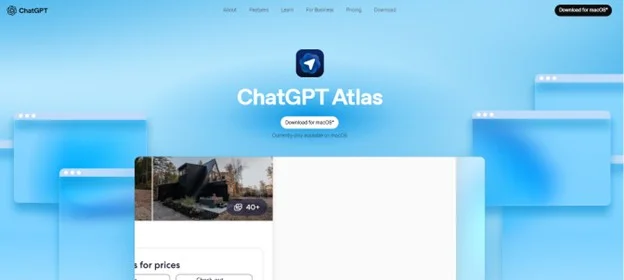
3. Install ChatGPT Atlas: Drag the Atlas icon into your Applications folder and then open it and log in using your ChatGPT account (Free, Plus, Pro or Go).
4. Import browser data (optional): You will be prompted to import bookmarks, passwords, and browsing history from your previous browser for continuity.
5. Familiarize with the UI: Once you have the browser, familiarize yourself with its UI. Here are some important points:
6. Privacy settings and data control: OpenAI states you are automatically opted out of using your browsing data to train models. You can manage memory, clear history, and even switch to incognito.
7. Explore core features: After installation, start browsing as usual, but keep the sidebar open. As you browse, try summarising a page, analyzing a code snippet, or asking a quick comparison. You’ll get comfortable fast.
Let’s dive into what ChatGPT Atlas features with some scenarios for tech professionals.
Think of you’re reading a 30-page whitepaper on Kubernetes networking and you need a rapid summary plus three key takeaways for your team. Use these steps:
The assistant processes the visible content, gives you bullet points and suggestions you can immediately copy into your report. This means you no longer have to copy text into ChatGPT separately or toggle between windows.
Imagine you have a draft email or technical blog snippet in the browser editor, and you want it rewritten for clarity or to remove jargon for junior grads. It will include the following steps:
Let’s say over the last two days, you’ve browsed several job-posting platforms looking for DevOps roles, plus you compared AWS vs Azure cost savings. You want to ask: “What were the trends I looked at last week across job postings and cost comparisons?”
With memory enabled, Atlas will recall the context of those browsing sessions and summarise for you. It might say: “You viewed job postings for DevOps in Bangalore and Delhi, and you compared Azure reserved instance vs AWS savings. Here are summaries.”
This is highly useful for ongoing projects where context spans multiple sessions.
Let’s say you’re preparing for a vendor evaluation. You may ask: “Find the top 5 cloud-storage services with enterprise pricing in India, download their whitepapers, and summarise differences.”
You will receive a ready-to-use comparison sheet without doing every step manually.
Instead of switching between a search engine and ChatGPT, you simply open Atlas, type your query in a new tab, and ChatGPT responds inline. It will also capture context, page content and your previous chats. This smooths out the user experience.
Read Also: How to Write ChatGPT Prompts
The real power of ChatGPT Atlas lies not just in its ability to summarize a single page, but in its potential to function as a digital co-worker that remembers context and executes multi-step actions.
To truly supercharge your productivity, you must master the integration of its Agent Mode, Memory and Sidebar features. Here are four advanced workflows designed for professionals that can help them turn their browser into an intelligent workspace.
Use this workflow and stop spending hours manually gathering data and start delegating intent. It allows Atlas to perform multi-step, action-based tasks across different websites. It is only available for paid tiers.
| Manual Steps | Atlas Agent Mode Prompt |
| 1. Search for Competitor A. 2. Find pricing. 3. Copy-paste. 4. Repeat for B and C. 5. Manually summarize. | "Find the top 4 AI content writing tools. Navigate to their features pages, extract the main benefit of each, and present a side-by-side comparison table." |
Atlas autonomously opens tabs, parses unstructured text (like feature lists and marketing copy), extracts the data, and delivers a clean, synthesized output. You get the ready-to-use comparison sheet without the manual hustle.
It can maintain context across disparate technical resources, which is a game-changer for developers and IT professionals. This feature eliminates the constant friction of switching between documentation and your code editor.
While browsing a complex REST API documentation page in one tab, use the sidebar to ask: "What is the specific header format required for a successful GET request?" Atlas captures this answer and stores the context.
Switch to a separate tab where you are editing a code snippet. Highlight the relevant code block and ask the sidebar: "Based on the header format we just discussed, apply it to this highlighted cURL command and check for syntax errors."
Atlas seamlessly recalls the previous answer and applies that knowledge to the new content, acting as a context-aware technical consultant.
Traditional browsing forgets your work the moment you close the tab. Atlas, with its Memory toggle enabled, turns your browser history into a cohesive project log.
Over three days, you browse various vendor whitepapers, check industry trends on forums, and compare different infrastructure models for a single migration project.
"Last week I was comparing Azure, AWS, and GCP for our migration. Summarize the key pros/cons for hybrid environments and remind me what I asked you to do next."
The browser doesn't just pull up history; it synthesizes and reasons based on the combined information of those past sessions, making your work instantly recallable.
Technical writers and content creators can dramatically speed up the revision and quality assurance process using the Inline Editing & Rewriting feature.
You have a technical whitepaper draft. Highlight a complex paragraph and ask: "Rewrite this for clarity and remove all technical jargon for a general business audience." The rewrite happens in place.
Highlight a key statistic or claim and ask: "Verify this fact against a current web source and update the source if necessary." Atlas uses the web to check the claim, saving you a separate search cycle.
This flow ensures your content is accurate and perfectly pitched for its intended audience with minimal effort.
Related Article: GPT-6 Astra- Benchmarks and Pricing
ChatGPT Atlas is a recently introduced modern AI-powered browser by OpenAI. Known for blending browsing with intelligent automation, Atlas has been rolling out new improvements every month. The last month also came with several exciting features and enhancements, including:
| Feature | Description |
| Vertical Tabs (Sidebar Layout) | Atlas now supports an Arc-style vertical tab view that makes it easier to manage, group, and switch between multiple tabs. |
| Chrome Extensions Support | You can now import and use Chrome extensions directly in Atlas, making migration from Chrome seamless. |
| Set Google as the Default Search Engine | Users can now switch their default search engine to Google for more familiar and accurate search results. |
| iCloud Passkeys Integration | macOS users can log in securely using iCloud Keychain passkeys, enhancing passwordless authentication. |
| Revamped Downloads Panel | The downloads interface has been redesigned to show progress clearly and offer smoother file management. |
| Multi-Tab Selection & Dragging | Users can select multiple tabs using Cmd/Shift and move them together for faster tab organization. |
| ChatGPT Pulse Integration | Pro users can access ChatGPT Pulse inside Atlas for automated research summaries and daily digests. |
| Enhanced Agent Mode | Agent Mode got improvements for performing multi-step tasks like comparisons, form-fill automation, and browsing assistance. |
While ChatGPT Atlas is powerful, it’s wise to recognize limitations before using it for your work:
This comprehensive guide has explained everything you need to know about how to use ChaGPT Atlas. Whether you are an IT professional or a college graduate, adopting this productive tool can be really beneficial. It can be a key to your successful future. I would further suggest that you explore our other ChatGPT guides to improve your productivity and knowledge.
No. This browser is currently only available for Mac users.
Anyone can use this browser if they have the system and a ChatGPT account.
You will have both options, a free and paid tire. The subscription plans provide better features.
Course Schedule
| Course Name | Batch Type | Details |
| ChatGPT Course | Every Weekday | View Details |
| ChatGPT Course | Every Weekend | View Details |