Every single day, we use the internet all the time. We search for a lot of things like information, read articles, watch videos, study, shop, and work. While doing all these things, we sometimes open many browser tabs and switch between apps. We copy something from one place and paste it somewhere else. This process can feel slow, tiring, and messy.
Now think about this: what if your browser itself could help you understand what you are reading? What if it could summarise long pages, explain difficult words, compare products or, guide you while studying?
This is now possible only with the help of ChatGPT's newly launched browser named ChatGPT Atlas.
ChatGPT Atlas is not just another browser like Chrome or Safari. It has ChatGPT built into it. This means AI support is always there with you while you browse. This blog explores everything you need to know, from What is ChatGPT Atlas, how to download and use it, its use cases, and its future scope. Let's begin.
ChatGPT Atlas was launched on October 21, 2025. It is a web browser that allows you to open and view websites just like Chrome, Safari, Firefox, or Edge. The main difference is that ChatGPT Atlas has ChatGPT already built into it. Therefore, the browser is not only a tool for visiting websites, but it also helps you understand what you are seeing on the screen.
For instance, in a normal browser, if you read something and find it confusing, you might copy it, open ChatGPT in another tab, paste it there, and then ask your question. With ChatGPT Atlas, you do not need to go through those extra steps. ChatGPT appears on the side of your screen while you browse. You can ask it questions directly, and it will explain, summarise, or clarify what you are reading without leaving the webpage.
This makes browsing simpler. Everything stays in one place. You can read information and get help at the same time. So, you continue your work smoothly without interrupting your flow.
In short, ChatGPT Atlas is a browser that does not just show information. It also helps you understand and use that information in an easier and more comfortable way.
Read Also: How to Write Effective Prompts For ChatGPT
To understand why ChatGPT Atlas was created, think about how we usually browse the internet. Suppose you are studying something online. You open an article and start reading, but it is full of difficult words and long explanations. You get tired and open ChatGPT in another tab to ask for help. Then you copy and paste parts of the article, wait for the answer, and switch back again. This process takes time and breaks your focus many times.
ChatGPT Atlas was created to make this process easier. The idea was simple: what if help could come to you while you are reading? What if you didn't have to leave the page at all?
The Key Motives:
You should be able to understand what you read without working too hard. If something is confusing, you can ask ChatGPT instantly.
You no longer need to switch between apps or to copy and paste. Everything happens within the same window.
Students, researchers, interns, office workers, etc., many people struggle with difficult information on web pages. This browser helps them learn in a simple way.
The browser is no longer just a window. It becomes a helper, a guide, a teacher, and sometimes even an operator(if using agent features).
Also Read: GPT-6 Astra: A Complete Guide
Using ChatGPT Atlas is simple. You do not need any technical knowledge. Just follow a few easy steps to get started.
Visit the official ChatGPT Atlas website and download the browser on your computer. Right now, it works mainly on macOS, yet more versions are expected soon.
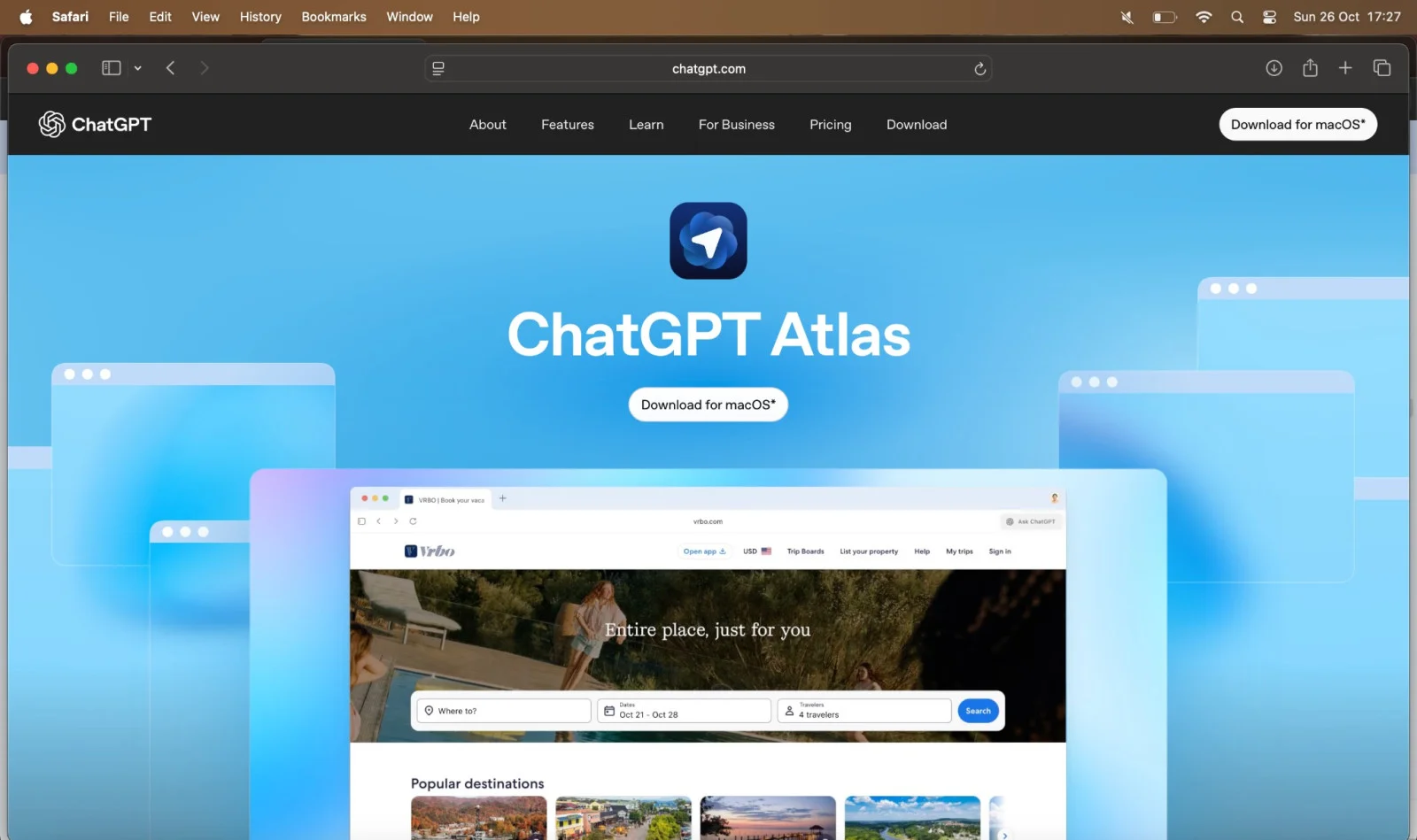
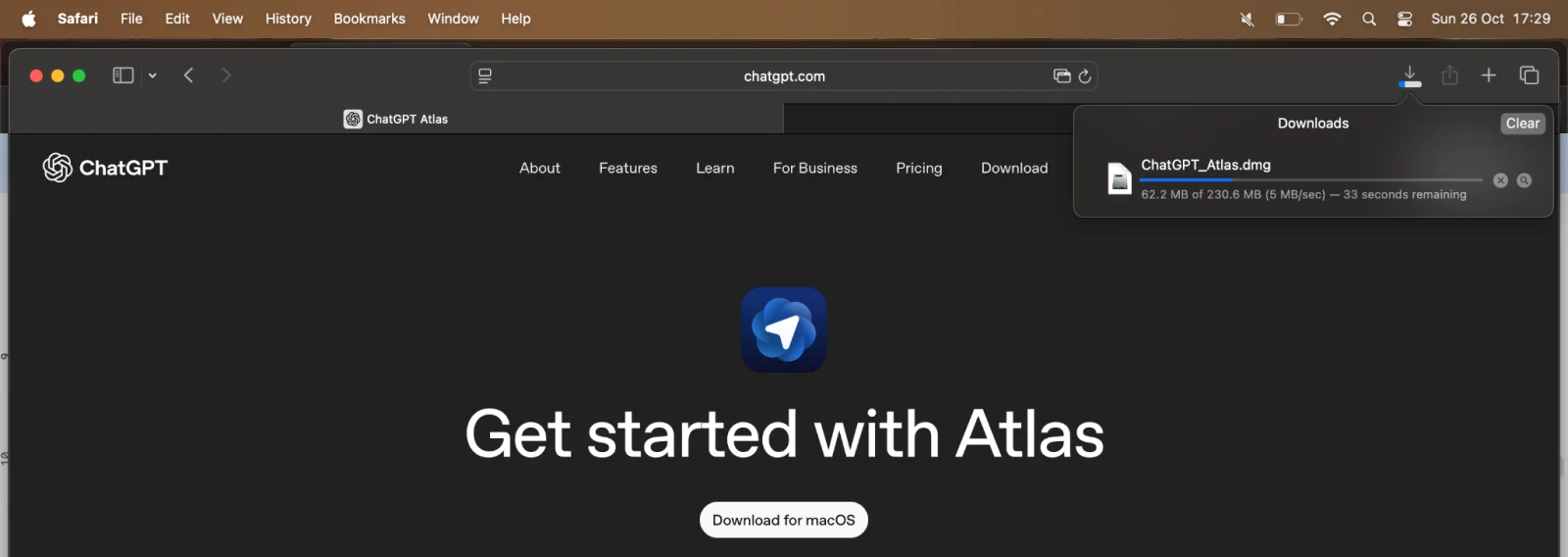
Once the file is downloaded, open it and follow the on-screen instructions. The setup is quick and similar to other browsers.
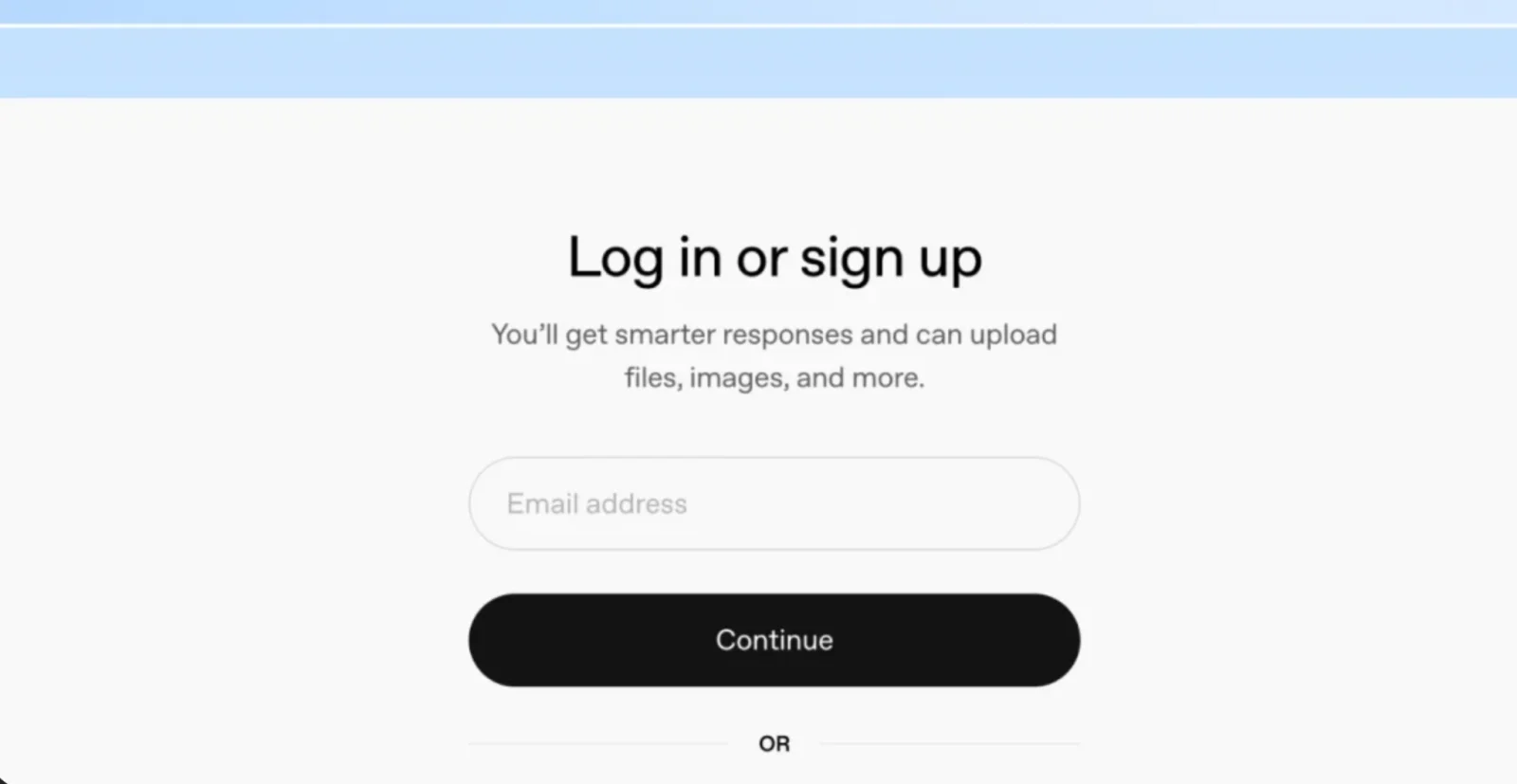
When the browser opens for the first time, log in with your ChatGPT account. If you don't have one yet, you can create it easily for free.
If you want, you can import your bookmarks, saved passwords, and browsing history from your old browser. This helps you continue where you left off. You can also skip this step if you prefer a fresh start.
ChatGPT Atlas includes a feature called Memory. When it is on, the browser remembers what topics you read and what kind of pages you visit. This helps it give you better suggestions later. If you care more about privacy, you can keep it off. You are always in control.
Now, open any website, maybe an article or a blog post. On the right side, you will see the ChatGPT sidebar. This is where you can chat with the AI while you browse.
You can type things like:
You can even highlight a line on any page, right-click, and select "Ask ChatGPT to explain." It is quick, useful, and especially helpful for students who often deal with long, confusing content.
Read Also: How To Use ChatGPT - A Guide For Beginners
ChatGPT Atlas offers several features that make it stand out from regular browsers. Let's go through them one by one in simple terms.
The main highlight of ChatGPT Atlas is its built-in sidebar. It appears on the right side of your screen while you browse. You can ask questions about the page you are viewing, and ChatGPT instantly responds. For instance, if a paragraph is difficult to understand, just ask, "Explain this in simple English" and it will do that right there.
This is one of the easiest ways to use the tool. You can select any line or paragraph, right-click, and ask ChatGPT to explain or summarise it. This helps when you are reading long articles, studying, or doing research.
When enabled, the memory feature helps Atlas remember your preferences and the type of content you engage with. It can then provide more relevant answers or suggestions next time. If privacy matters to you, you can keep it off. You have complete control over what the browser remembers.
Some versions of Atlas include Agent Mode. This allows ChatGPT to perform small tasks on your behalf like comparing product prices, finding hotel options, filling out online forms, or organising information across tabs. It works like a digital helper that can take small actions for you while you browse.
Switching to Atlas is easy because you can bring your bookmarks, browsing data, and passwords from Chrome or other browsers. This will save setup time.
Atlas respects your privacy. You can clear memory, use incognito mode, limit what ChatGPT can access, or delete your browsing data anytime. Everything remains under your control.
Let's look at five simple examples of how people can use ChatGPT Atlas in daily life.
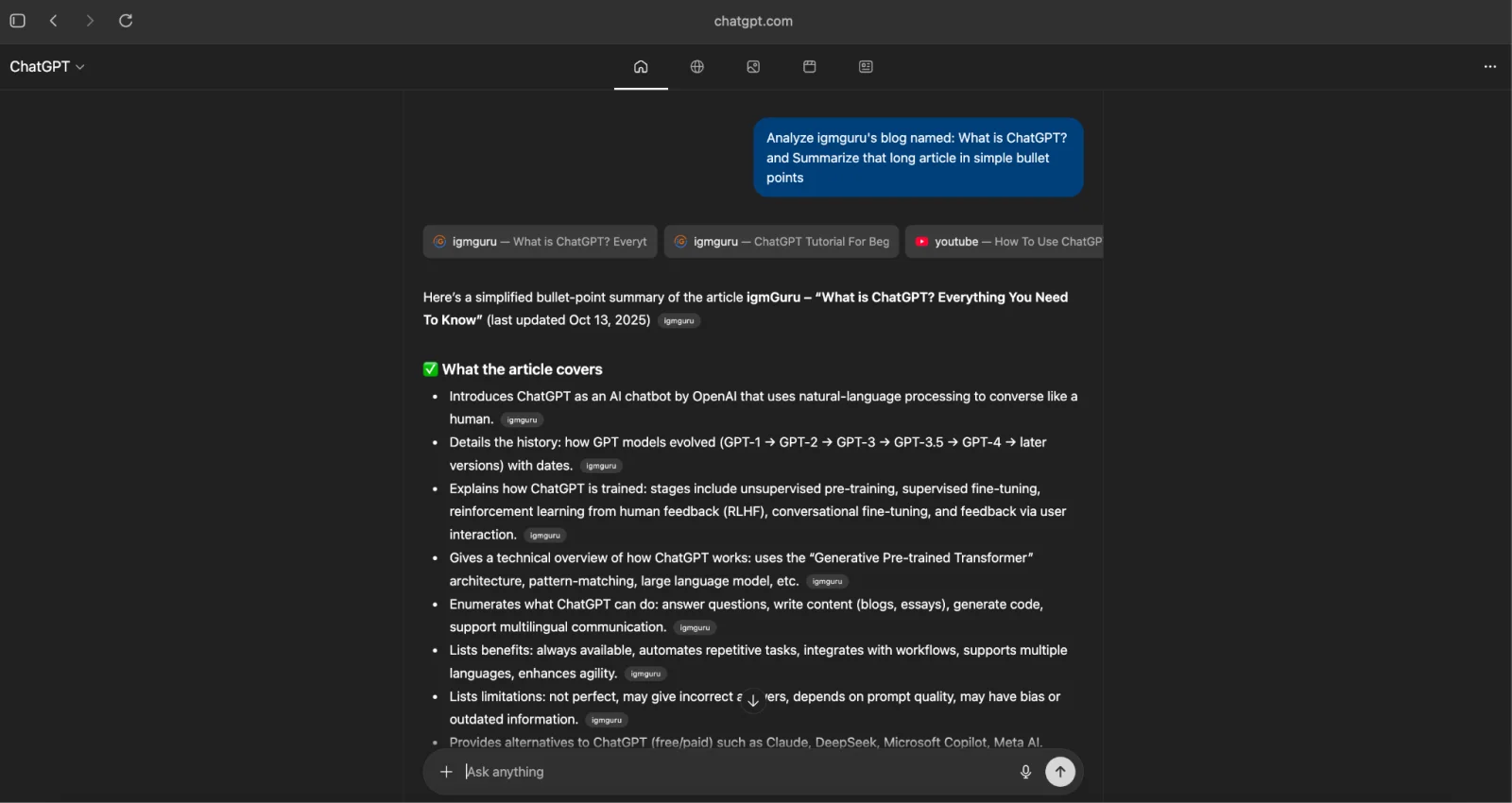
Here's what I asked: "Analyze igmGuru's blog named: What is ChatGPT? And summarise that long article in short bullet points."
Here's what happened: ChatGPT read the page and created a clean, easy summary.
Here's why it matters: You can understand the main idea quickly without reading every line. This saves time and helps you study faster.
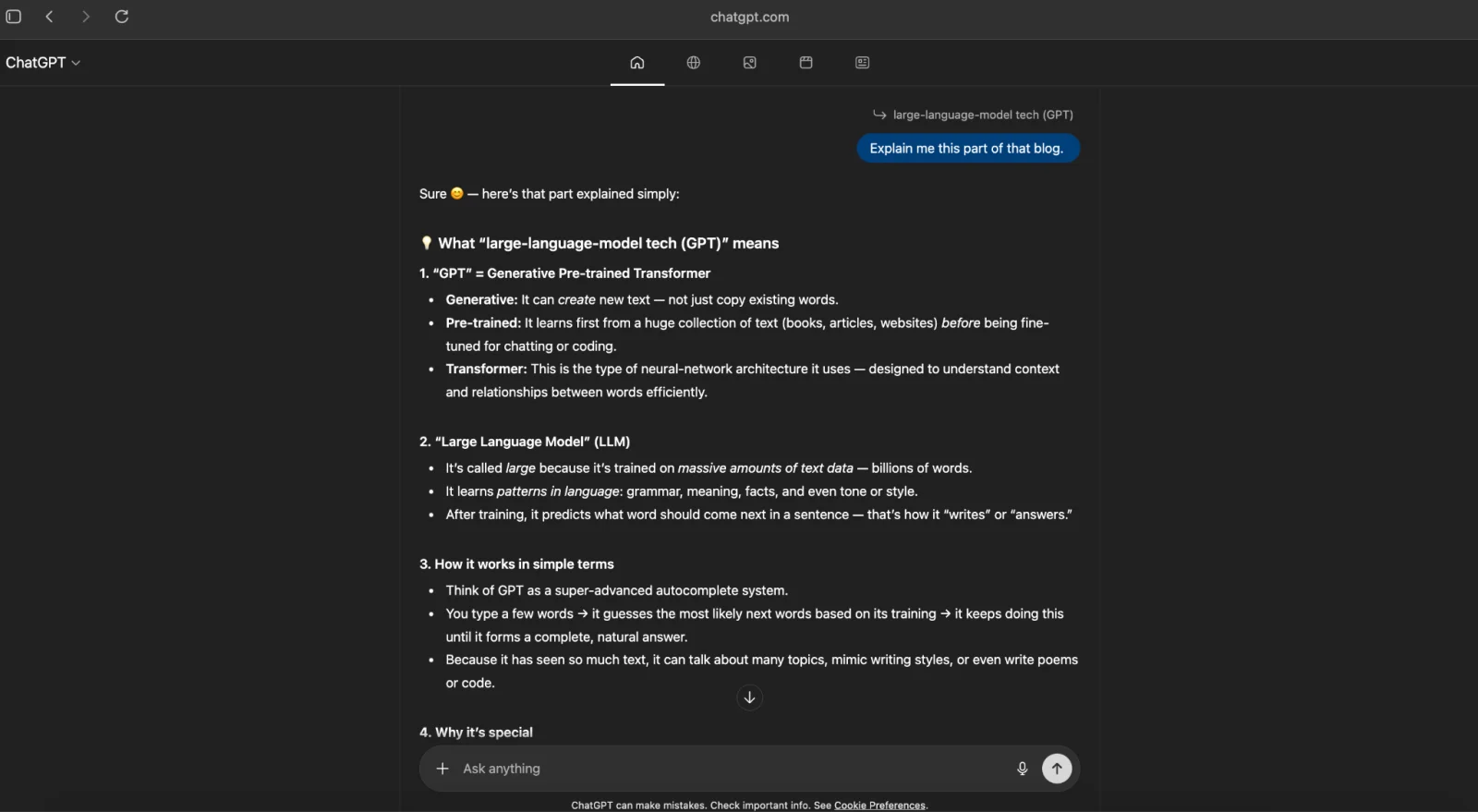
Here's what I asked:
I highlighted a difficult paragraph and asked ChatGPT to explain it in simple words.
Here's what happened: The AI rewrote the section and broke down each concept clearly.
Here's why it matters: Students can learn tough subjects more easily and remember better.
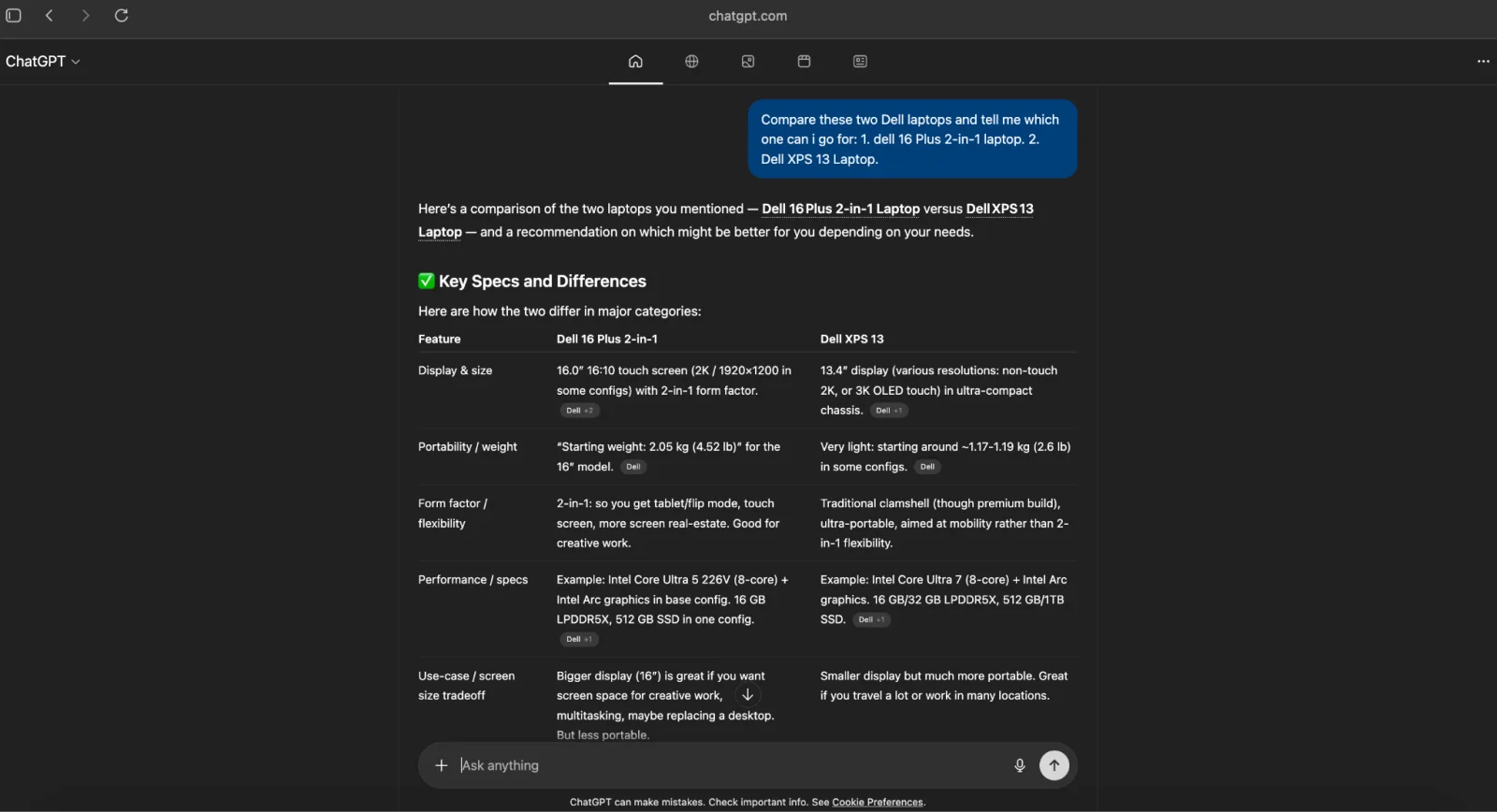
Here's what I asked: Compare two products that I have given and tell me which one I can go for.
Here's what happened: ChatGPT listed pros, cons, and prices and gave a clear suggestion.
Here's why it matters: It helps you make smarter shopping decisions.
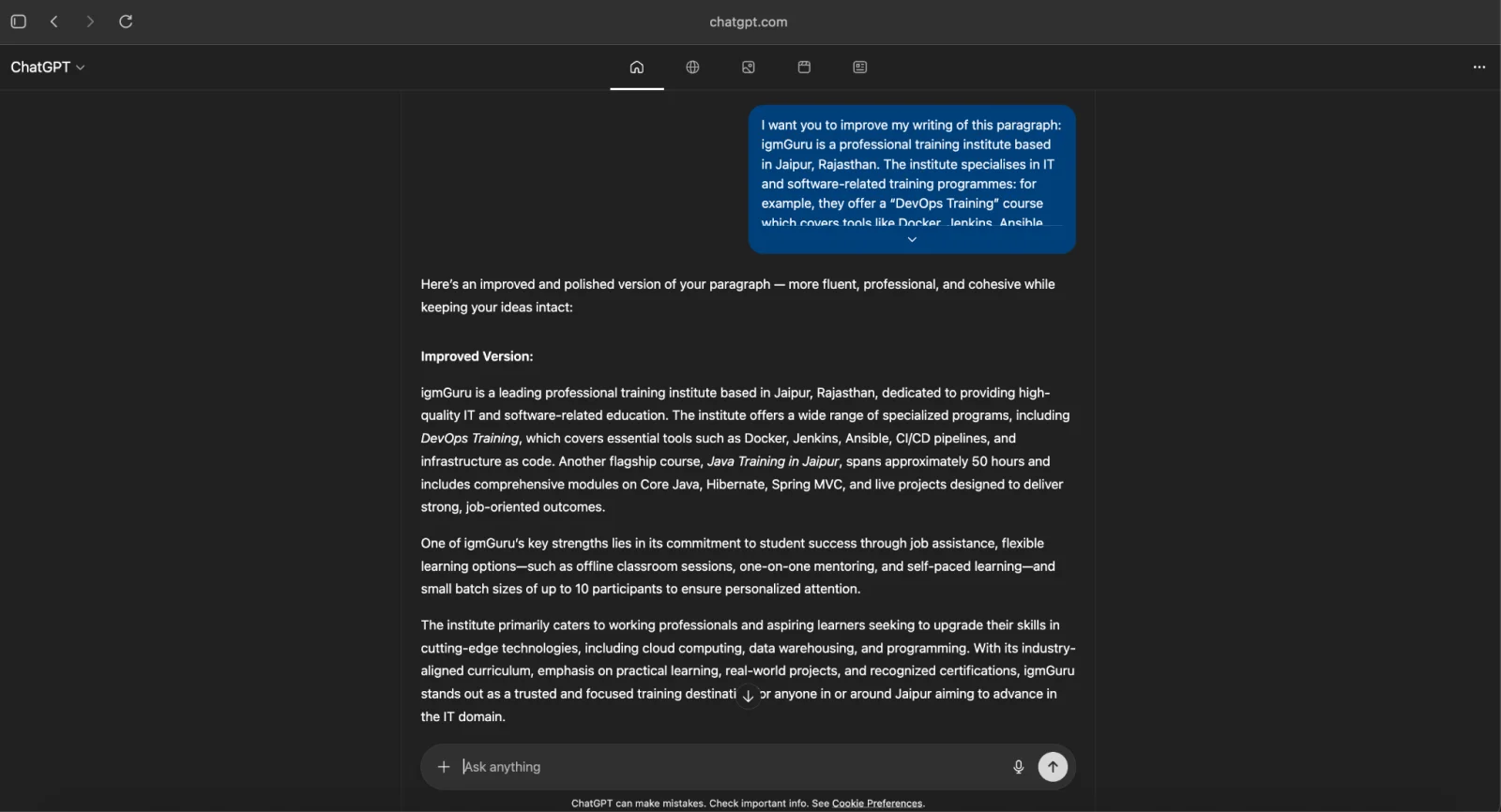
Here's what I asked: Improve my writing of this paragraph.
Here's what happened: It made the text clearer and smoother.
Here's why it matters: This helps bloggers, students, and professionals write better without much effort.
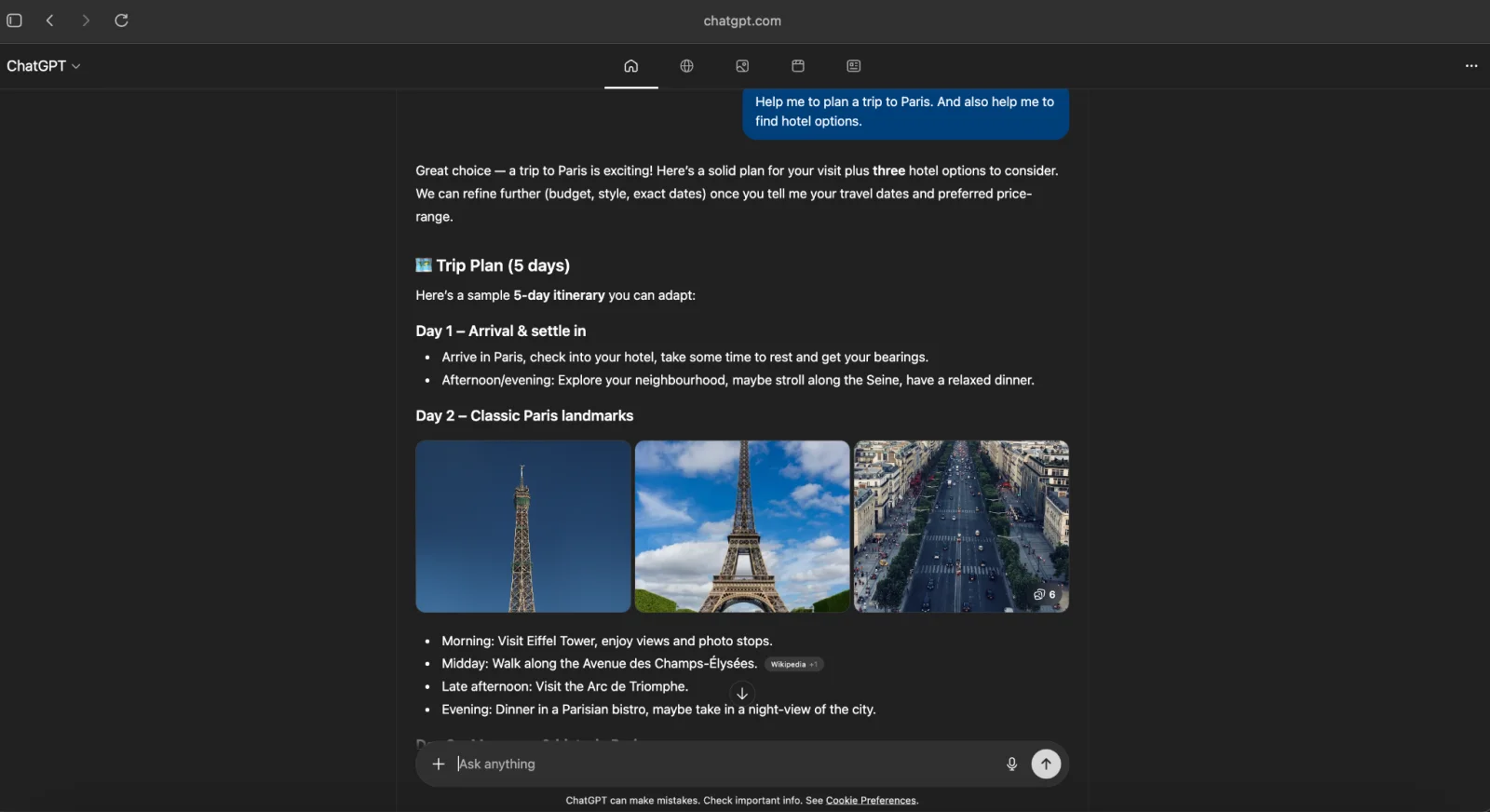
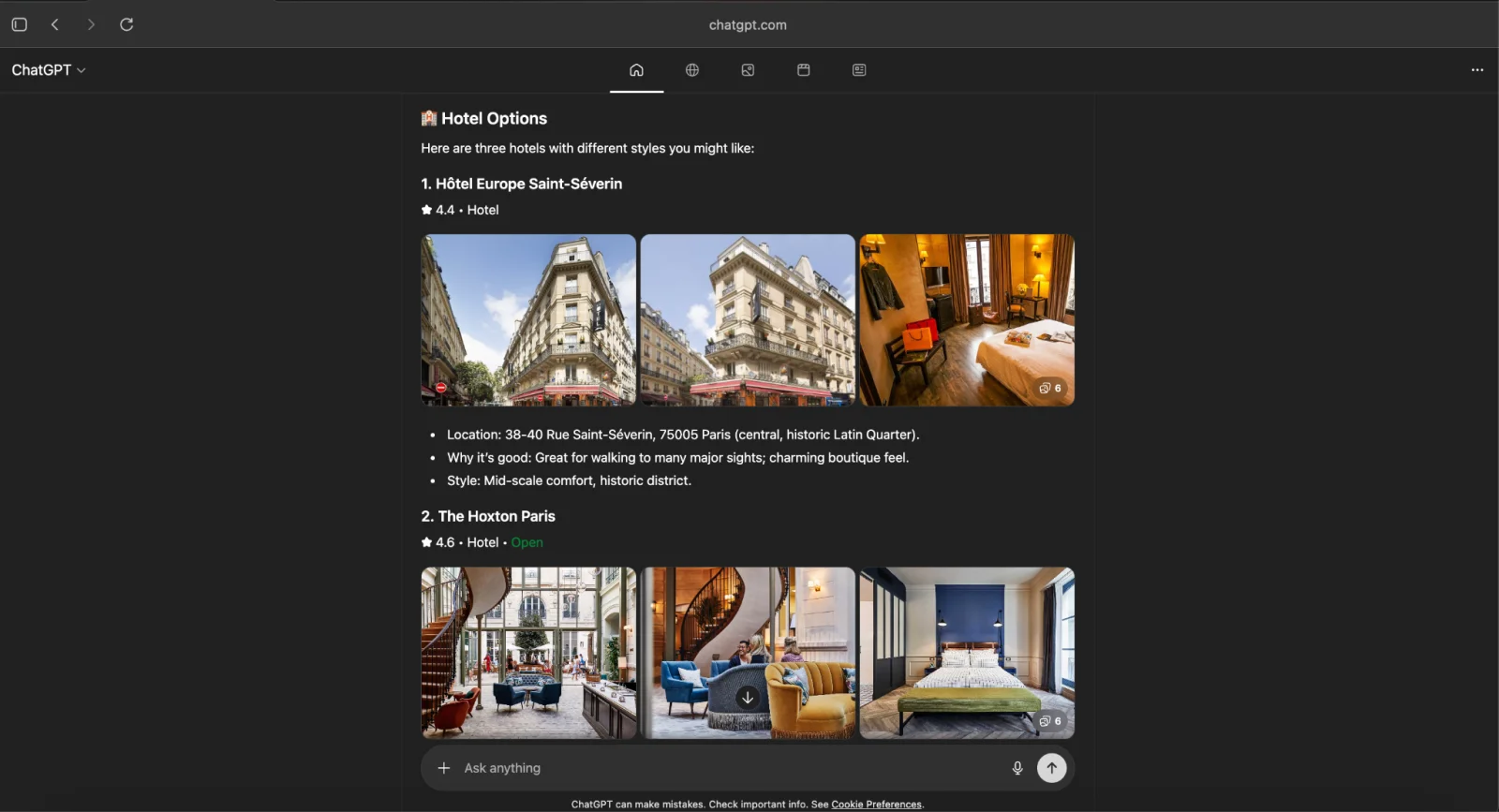
Here's what I asked: Help me to plan a trip to Paris and help me to find hotel options.
Here's what happened: ChatGPT checked different pages and organized the results neatly.
Here's why it matters: It saves hours of manual searching and planning.
Many people ask how ChatGPT Atlas is different from other browsers or AI tools like Perplexity Comet or Google Chrome.
Let's look at a simple comparison to understand how they work and what makes each one unique.
| Feature | ChatGPT Atlas | Perplexity Comet | Google Chrome |
| Main Purpose | Smart browser with built-in ChatGPT for help while browsing | AI-powered search and summarisation tool | A traditional web browser for opening websites |
| AI Integration | Built directly into the browser sidebar | Works mainly as an AI search assistant | No built-in AI (uses Google Search) |
| Usage Style | You can chat, summarise, explain, and explore websites at the same time | You ask a question, and it gives direct answers with sources | You manually search, read, and analyse information |
| Ease of Use | Very simple for beginners; one-window workflow | Easy for quick factual searches | Familiar and fast but requires switching between tools |
| Learning Support | Great for studying and understanding complex topics | Good for quick answers, not deep explanations | Needs extra tools for learning help |
| Time Saving | High, no copy-paste or tab switching | Medium, still need to open some links | Low, requires manual searching and reading |
| Personalisation | Memory feature remembers your browsing preferences | Some personalisation but limited | Personalisation through the Google account only |
| Agent Mode (Automation) | Can take actions like comparing prices or summarising across tabs | No such automation | No AI automation features |
| Availability | macOS currently | Web and mobile | All devices |
| Ideal For | Students, researchers, content creators | Quick learners, readers, and question-seekers | General users, professionals, and casual browsing |
Also Read: Grok AI vs ChatGPT
Even though ChatGPT Atlas is a powerful and helpful tool, it still has some limits you should know about before depending on it completely.
ChatGPT Atlas works online. It needs an active internet connection to access ChatGPT's features and give you responses. Without the internet, you can still open websites that are already loaded, but the AI part will not work.
ChatGPT is smart, but it is not always right. Sometimes, it can give incorrect or outdated information. It does not "know" things like a human, it predicts answers based on patterns from what it has learned. Therefore, it is always better to double-check important facts.
ChatGPT Atlas may not have full information about the most recent news or updates unless it connects to live data sources. For instance, if you ask about something that happened just a few hours ago, it might not have all the details.
When you ask questions or type prompts, some of that data might be stored or processed by OpenAI's servers to improve the system. Users should still be careful not to share personal or sensitive details while ChatGPT follows privacy standards.
Since ChatGPT Atlas combines both browsing and AI processing, it can sometimes feel a bit heavy on older laptops or computers with low memory. It's best to keep fewer tabs open if your system starts lagging.
Traditional browsers can show saved pages offline, yet ChatGPT Atlas cannot use its AI tools without an internet connection. This limits its usefulness if you're in a place with poor connectivity.
Whatever limits exist in ChatGPT like message length, token limits, or temporary access restrictions, also apply in Atlas. Therefore, ChatGPT's servers are busy or down, and Atlas may not respond immediately.
ChatGPT Atlas is great for quick help, explanations, and summaries, yet it shouldn't replace detailed research, especially for academic or professional work. It is better to treat it as an assistant, not the final authority.
These limitations don't make ChatGPT Atlas any less useful. They simply remind us that, like every new technology, it's still growing and learning. Even with its flaws, it already changes the way we browse and learn online. The exciting part is that future updates could fix many of these limits and add even smarter features and that's what we'll explore next in the future scope of ChatGPT Atlas.
Read Also: ChatGPT Tutorial: The Ultimate Beginner's Guide
In the future, ChatGPT Atlas may:
The idea is to make browsing smarter, not just faster.
ChatGPT Atlas is a new kind of browser that helps you while you browse. It makes online work and learning simple and clear. If you find long readings or complex topics tiring, Atlas can make things easier. It is helpful for students, office workers, writers, and anyone who uses the internet to learn or work. You can start small, like summarising one article or understanding a topic. Once you try it, you will see how comfortable it feels to use. Over time, it can become your main browser or just a smart helper for study and work.
No, it is made for everyone and you don't need to be a tech expert to use it.
Yes, the basic features are free. Some special features need a paid plan.
Yes, it is possible. You can switch anytime whenever needed.
ChatGPT Atlas helps you organize prompts, access tools faster, and boost productivity in your AI projects.
Yes, ChatGPT Atlas allows you to save, organize, and share your favorite prompts with others easily.
Course Schedule
| Course Name | Batch Type | Details |
| ChatGPT Training | Every Weekday | View Details |
| ChatGPT Training | Every Weekend | View Details |