HTML or HyperText Markup Language is the outline that structures every webpage you visit. It could be anything from a simple blog to a very advanced e-commerce site. The web would be a disorganized jumble of data without this standard language for creating web pages. You would be surprised to know that more than 95% of websites use HTML for better performance. I have created this blog to help you understand what is HTML and what role it has in web development. Let’s take the first step towards learning the art of web creation.
HyperText Markup Language or HTML, is an invisible framework that supports everything you see on a web page, including links, pictures, and text. It organizes them with the help of elements and tags that browsers can read. It is important to note that HTML is a markup language, which is different from a programming language.
Now, what’s a markup language? This language annotates text through tags so web browsers know how to display and structure it. It declares how content should be structured instead of running logical operations like programming languages. Another important point to note is that it defines content but cannot handle interactive behaviour or logic by itself. You can instead use CSS to add styling and layers on JavaScript to make it interactive.
HTML elements are important components of a HyperText Markup Language document that defines a webpage’s structure and content. It consists of the following:
| Part | Definition | Example |
|---|---|---|
| Opening tag | It signals the start of an HTML element and specifies its type. It also specifies optional attributes that change its behaviour or appearance. | <p class="intro"> where p is the tag name and class="intro" is an attribute. |
| Content | It can be everything between an element’s start and end tags. It could be nested elements, plain texts or nothing at all when it comes to self-closing elements. | in <p>Hello world</p>, the content is Hello world. |
| Closing tag | This one marks the end of an HTML element. It mirrors the opening tag’s name but starts with a forward slash inside the angle brackets. | </p> ends a paragraph element. |
Let’s take a look at some popular elements.
| Elements | Description |
| Images | The <img> tag loads an image in a web page by linking to its source. |
| Lists | The <li> tag shows related items as a list in an organized manner. It is either numbered or bulleted. |
| Links | The <a> tag is a connection from one web source to another. The two ends of a link are the anchor (clickable part) and the destination (where the link leads). |
| Tables | Tables are useful to organize data in columns and rows. This makes information more readable. <table> is the tag for this HTML element. |
| Buttons | The HTML tag for creating buttons is <button>. It creates clickable elements for users to take actions like activating events or submitting forms. |
| Paragraphs | It uses the <p> tag to group related sentences in paragraphs. This improves readability and structure in your content. |
Read Also: Top 8 Frontend Languages - A Beginner's Guide
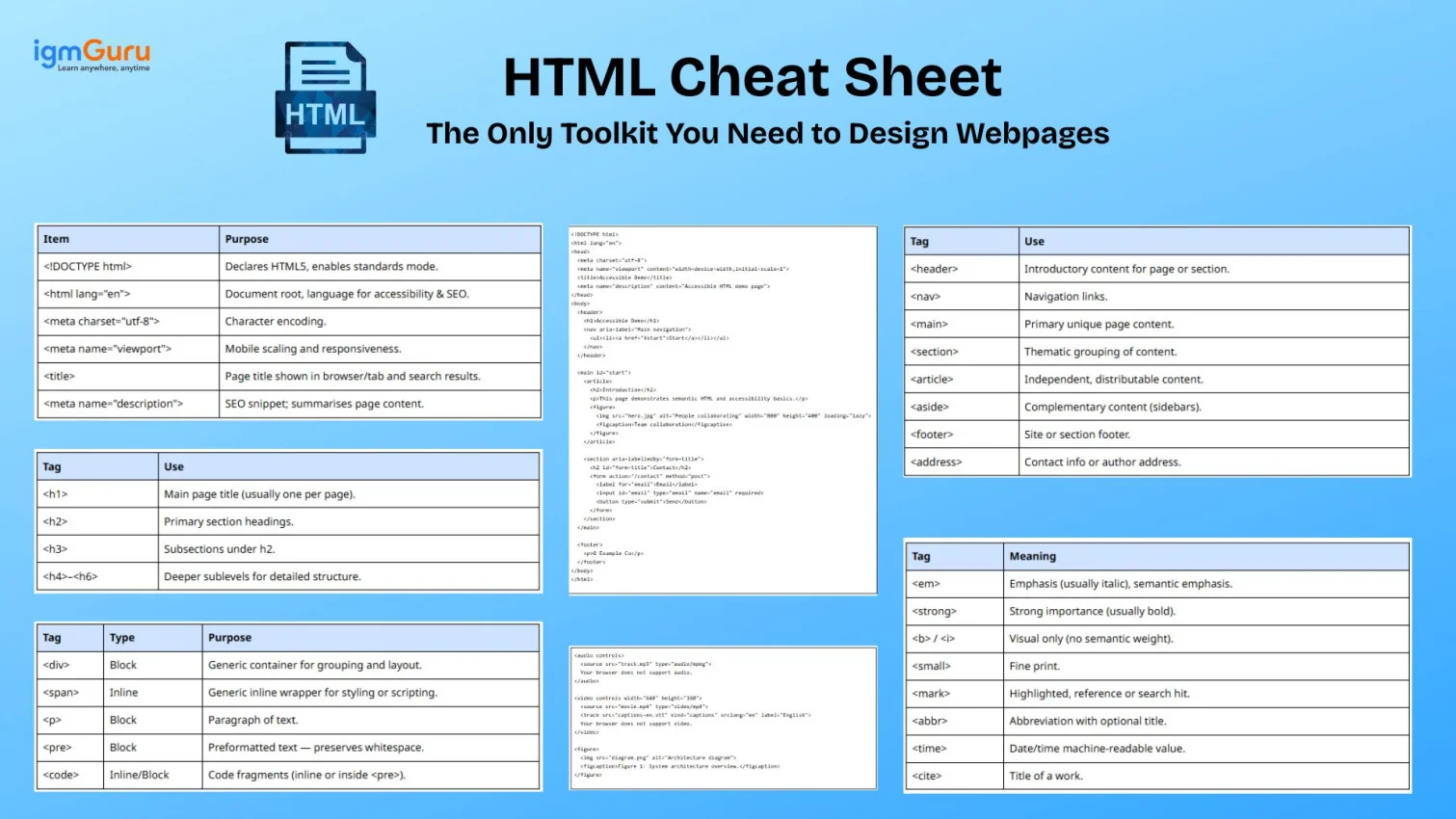
An HTML tag is another important component for defining the content of a page. You can see it as a keyword that comes in enclosed angle brackets (<>) and pairs. Look at the table down below to understand it better -
| Tag | Description |
| <HTML> | This tag is the main container of an HTML document. |
| <p> | A paragraph is defined using the <p> tag. |
| <ol> | This tag is used to create an ordered list in HTML. |
| <ul> | This one on the other hand represents an unordered list. |
| <a> | This tag stands for ‘anchor’ and it used to create a hyperlink. |
| <body> | It defines the main content of a webpage that is visible to users. |
| <head> | It defines metadata about a webpage which provides detailed related to the author, content and more. |
| <img> | This tag displays images like photos, logos, etc. |
| <table> | It defines a table to display data in columns and rows. |
| <form> | This tag creates a form that collects user input on a webpage. |
Let’s take a look at some practical examples-
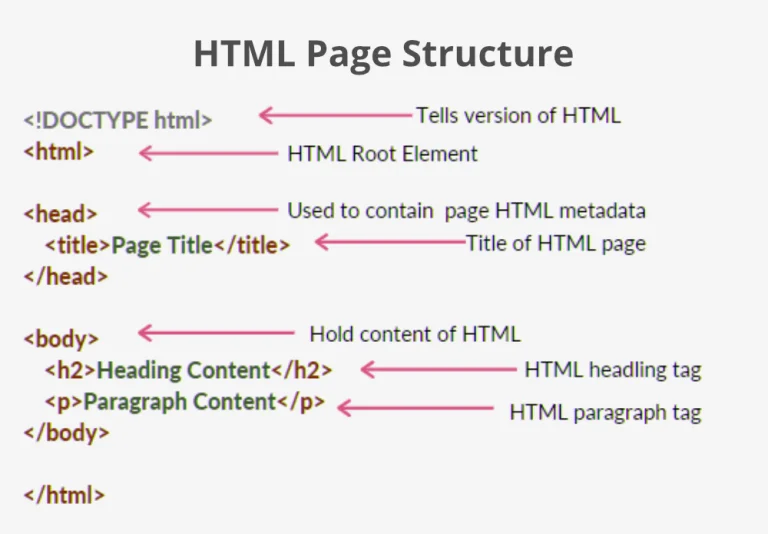
1. <HTML>This is the outermost container of an HTML document. Everything else like head, body, content, etc., goes inside this tag. It tells the browser “this is an HTML file.”
<!DOCTYPE html> <html> <head> <title>Welcome to igmGuru</title> </head> <body> <p>igmGuru is an online training platform.</p> </body> </html> |
2. <p>
It is used to group together text into a paragraph and It creates a block of text separated from other content.
<p>This is a paragraph of text showing how the p tag works.</p> |
3. <ol>
This makes a list where the order matters and items are automatically numbered. Each list item inside needs to be wrapped in.
<ol> <li>First ordered item</li> <li>Second ordered item</li> <li>Third ordered item</li> </ol> |
4. <ul>
It creates a list of items where order doesn’t matter and items are typically shown with bullets instead of numbers. Also uses <li> for each item.
<ul> <li>Apple</li> <li>Banana</li> <li>Cherry</li> </ul> |
5. <a>
This is used for hyperlinks as you wrap text (or elements) inside <a> and give it an href attribute pointing to another page or resource. That makes the wrapped content clickable.
<a href="https://www.example.com">Visit Example.com</a> |
6. <body>
The <body> tag defines the main content of an HTML page, everything that you see when you open a webpage (text, images, links, lists, tables, etc.) lives inside <body>
<!DOCTYPE html> <html> <head> <title>Body Tag Example</title> </head> <body> <h1>Main Heading</h1> <p>This content is inside the body tag.</p> </body> </html> |
7. <head>
<head> helps browsers and search engines understand what your page is. This includes its title, how it should behave, how it should be displayed.
<!DOCTYPE html>
<html>
<head>
  <title>Head Tag Demo</title>
  <meta charset="UTF-8">
  <style>
    body { background-color: #f0f0f0; }
  </style>
</head>
<body>
  <p>Check the title and styles in the head section.</p>
</body>
</html> |
8. <img>
Inserts an image into the page. You need a src attribute (to say where the image file is) and usually an alt attribute (alternative text if image fails or for accessibility). It’s a self-closing tag (no <img>).
<img src="https://via.placeholder.com/150" alt="Placeholder image"> |
9. <form>
It wraps input elements to collect user input data. Data inside the form (input fields, etc.) can be sent to a server or processed when submitted. Forms usually include things like <input>, <button>, etc.
<form action="/submit" method="post"> <label for="name">Name:</label> <input type="text" id="name" name="username"> <br> <input type="submit" value="Send"> </form> |
Read Also: Top Backend Languages For Web Development
Attributes are special pieces of information added to HTML elements. They provide extra details or instructions to the browser about how an element should behave or appear. They always appear inside the opening tag of an element and are written as name-value pairs.
HTML’s power lies not just in its elements and tags. When you start building real web pages, you will rely on attributes and proper syntax to control and enhance the content. Let’s understand how to use them perfectly.
<tagname attribute="value">Content</tagname> |
Attribute Name: Tells the browser what kind of information you’re specifying (e.g., href, src, alt, class).
Attribute Value: The value or instruction for that attribute, always enclosed in quotes.
<a href="https://www.example.com">Visit Example</a> |
Here, href is the attribute that tells the browser where the link should go.
Proper syntax ensures your HTML works reliably across all browsers and devices. Here are the main rules to follow:
Most elements have an opening tag and a closing tag. Some, like <img>, are self-closing.
<p>This is a paragraph.</p> <img src="image.jpg" alt="Example image"> |
Tags should be properly nested—open and close them in the correct order.
Correct: <strong><em>Important</em></strong> Incorrect: <strong><em>Important</strong></em> |
HTML tags and attributes are not case-sensitive, but using lowercase is the recommended standard.
Always enclose attribute values in quotes, especially if they contain spaces or special characters.
Some elements do not require closing tags or content.
<br> <img src="logo.png" alt="Website Logo"> <input type="text" placeholder="Enter your name"> |
Read Also: HTML Cheat Sheet
Semantic HTML refers to the practice of using meaningful HTML elements that clearly describe their purpose in a web page. Unlike generic tags like <div> or <span>, semantic elements provide structure and meaning to browsers and assistive technologies.
Using semantic HTML improves clarity, accessibility, SEO, and maintainability. Elements like <header>, <nav>, <main>, <article>, and <section> help define the page’s structure.
<header>Intro or Navigation</header> <nav>Main Navigation Links</nav> <main>Page's Primary Content</main> <section>A Group of Related Content</section> <article>Self-Contained Content</article> <aside>Sidebar or Related Info</aside> <footer>Footer Information</footer> |
Semantic elements describe the meaning of their content. Non-semantic elements do not.
Semantic: <article>, <footer>, <nav> Non-semantic: <div>, <span> |
Use semantic elements whenever possible to create well-structured, meaningful web pages. Reserve <div> and <span> only when no suitable semantic element exists.
Let’s go through a brief history of Hyper Text Markup Language through the given table. It is an invention of Tim Berners-Lee, an English computer scientist who also invented the World Wide Web. He brought this creation to share and organize documents on the web.
| Released Year | Version | Description |
| 1993 | HTML 1 | The first basic and limited version which introduced paragraphs, headings and links. |
| 1995 | HTML 2 | The second version with added support for forms and tables. |
| 1997 | HTML 3 | This one came with support for aplets, scripting with JavaScript and styling with CSS. |
| 1999 | HTML 4 | It introduced better multimedia support and accessibility features. This version also brought separation of content and presentation. |
| 2012 | HTML 4.01 | It did not add any new features but included fixing some issues. It was a minor revision of the previous version. |
| 2014 | HTML 5 | This one is the most latest and advanced version with new elements and better support for web applications. |
What are web browsers? Definitely something that you come across and use everyday. A web browser is an application that allows you to access, receive and view content on the World Wide Web (WWW). It shows web pages written in HTML along with JavaScript and CSS (Cascading Style Sheets). A web browser is the mediator between you and the internet you use for almost everything. Some popular examples are Firefox, Safari, Google, Mozilla, etc. Any of them can be used to open a '.HTML' file and check out the results.
Related Article: Web Developer Interview Questions
HTML is used to add textual elements and define the structure of the content. It is yet not sufficient enough in itself to build a professional and fully responsive website. It works with JavaScript and Cascading Style Sheets (CSS) to achieve that.
CSS takes care of design aspects like spacing, animations, layouts, background, etc. JavaScript brings interactive functionality to the site like photo galleries and sliders. HTML, CSS, and JavaScript are the main foundations of front–end web development.
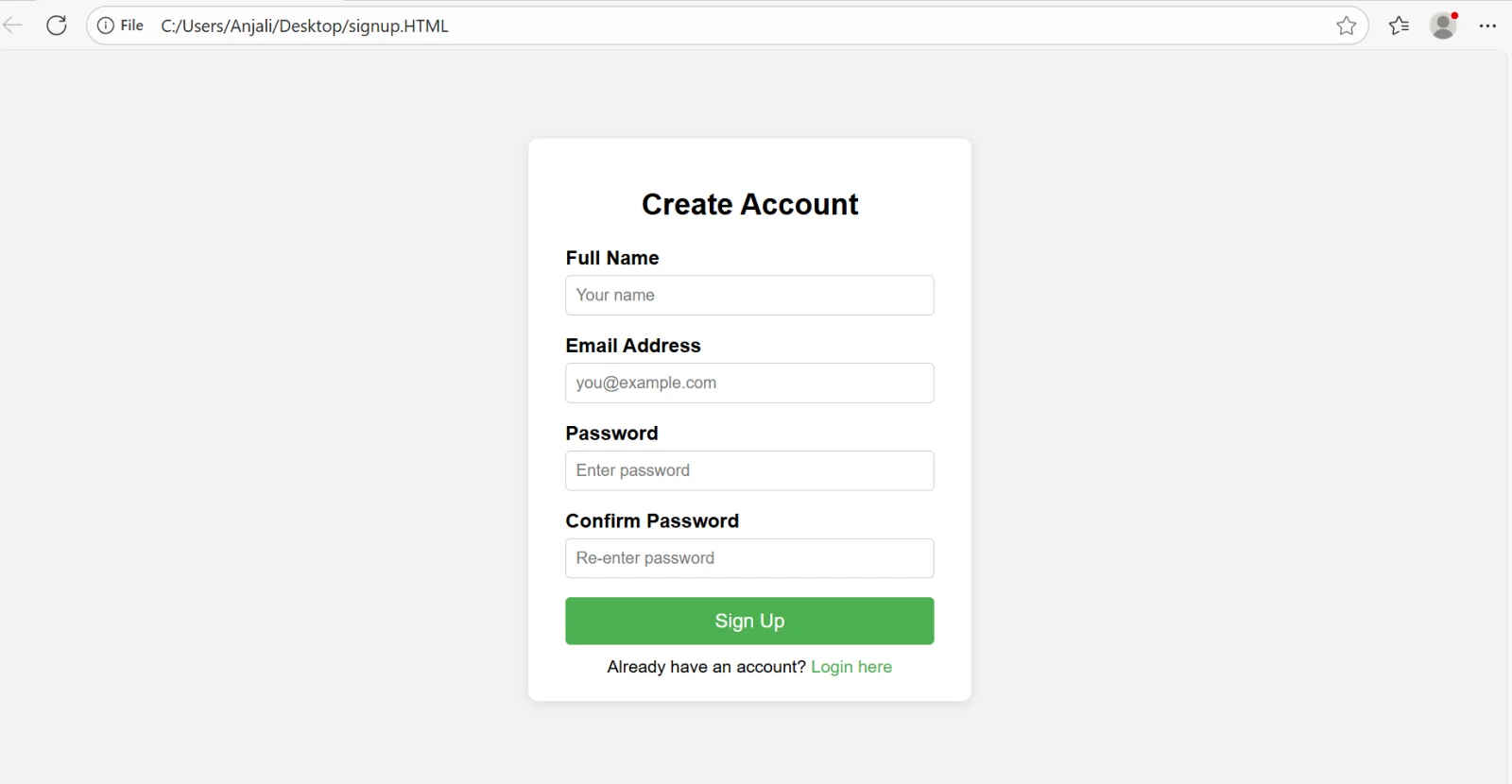
Let’s take a look at this real-life example I have created for you by creating a sign-up page using HTML and CSS-
<!DOCTYPE html>
<html lang="en">
<head>
  <meta charset="UTF-8">
  <meta name="viewport" content="width=device-width, initial-scale=1">
  <title>Sign Up</title>
  <style>
    body {
      font-family: Arial, sans-serif;
      background-color: #f2f2f2;
      display: flex;
      justify-content: center;
      align-items: center;
      height: 100vh;
      margin: 0;
    }
    .signup-container {
      background-color: #fff;
      padding: 20px 30px;
      border-radius: 8px;
      box-shadow: 0 2px 10px rgba(0,0,0,0.1);
      width: 300px;
    }
    .signup-container h2 {
      text-align: center;
      margin-bottom: 20px;
    }
    .signup-container label {
      display: block;
      margin-bottom: 5px;
      font-weight: bold;
    }
    .signup-container input {
      width: 100%;
      padding: 8px;
      margin-bottom: 15px;
      border: 1px solid #ccc;
      border-radius: 4px;
      box-sizing: border-box;
    }
    .signup-container button {
      width: 100%;
      padding: 10px;
      background-color: #4CAF50;
      color: white;
      border: none;
      border-radius: 4px;
      cursor: pointer;
      font-size: 16px;
    }
    .signup-container button:hover {
      background-color: #45a049;
    }
    .signup-container .login-link {
      text-align: center;
      margin-top: 10px;
      font-size: 14px;
    }
    .signup-container .login-link a {
      color: #4CAF50;
      text-decoration: none;
    }
    .signup-container .login-link a:hover {
      text-decoration: underline;
    }
  </style>
</head>
<body>

  <div class="signup-container">
    <h2>Create Account</h2>
    <form action="/submit_signup" method="POST">
      <label for="name">Full Name</label>
      <input type="text" id="name" name="name" placeholder="Your name" required>

      <label for="email">Email Address</label>
      <input type="email" id="email" name="email" placeholder="you@example.com" required>

      <label for="password">Password</label>
      <input type="password" id="password" name="password" placeholder="Enter password" required>

      <label for="confirm-password">Confirm Password</label>
      <input type="password" id="confirm-password" name="confirm_password" placeholder="Re-enter password" required>

      <button type="submit">Sign Up</button>
    </form>

    <div class="login-link">
      Already have an account? <a href="/login">Login here</a>
    </div>
  </div>

</body>
</html>
|
The first thing I did after creating this code was copying and pasting it on a notepad. I saved it as a document named ‘signup.HTML’. After that I ran this code in my browser and received the output that I have given down below.
This is what the output looks like -
Let’s discuss some key features to highlight its goodness and purpose in web development.
| Features | What it does |
| Styling and scripting support | It can be merged with JavaScript for better interactivity and CSS for styling. This results in the creation of visually appealing webpages. |
| Multimedia support | Enhance user experience by embedding videos, images, audios and much more to your webpages using HTML. |
| Content organization | It gives you a clear structure by organizing images, texts, links and other elements on a webpage. |
| Cross platform compatibility | It works across different browsers and devices to make sure that a wide audience get access to the content. |
| Hyperlinks | This allows for navigation between different websites or pages by creating links. |
| Geolocation API | This allows users to share their location with websites so that they can get location based services like local search and map. |
| Drag and drop API | Users are free to drag and drop elements within the webpage. It facilitates interactive interfaces like sortable lists and file uploads. |
| Cross document messaging | This feature ensures safe communication between different origins through this messaging system between documents. |
Also Read: Frontend developer Interview Questions
There are a number of advantages to learning HTML and applying it in real time scenarios. Let’s see what are those -
Put your creativity and imagination into designing and structuring attractive web pages.
Learning this markup language will take you to different domains of digital marketing, web development, content management and much more. It would be easier to come by good job opportunities with higher wages.
You will get to step into the world of the internet and learn how it works, how the web pages are structured and how users interact with them.
The best thing about learning HTML is that it will give you the ability to create your own website or blogs. It means there is no need for you to depend on developers to make it happen. This is beneficial for anyone who wants to learn HTML but especially professionals like freelancers and content creators wanting to work independently.
Learning this language will come with getting familiar with other programming languages like JavaScript and CSS. This gives you a chance to strengthen and expand your programming knowledge.
Test Your HTML Code with Our Online HTML Compiler
It is also important to know both advantages and disadvantages of HTML to put it into best use. Let’s start with some advantages -
Here are the advantages of HTML -
Let’s discuss the disadvantages of HTML –
It is safe to conclude that HTML (HyperText Markup Language) is the foundational language of the web, enabling the creation and structuring of content across all websites. Its simplicity, universality, and adaptability make it an essential skill for anyone interested in web development. By understanding HTML, you unlock the ability to build accessible, responsive, and interactive web pages that function seamlessly across devices and browsers.
HTML is important because it forms the backbone of all websites, allowing browsers to display text, images, links, and other content properly.
Yes, HTML is beginner-friendly, and with practice, anyone can start building web pages in a short time.
HTML is used to create webpage structure, add text and images, create links, design forms and embed multimedia like audio and video. It forms the basic foundation of every website.