Gherkin is a plain-text format that describes how software should behave. You write it in simple English, and both humans and tools can read it. A product manager can understand it. A tester can automate it. It can be used as a foundation for further development.
If you work in QA, Agile, or BDD, you will meet Gherkin sooner or later. I first used it on a project where testers, developers, and business analysts kept reading the same requirement in three different ways. Gherkin fixed that problem faster than any meeting did.
This blog explains what Gherkin is, how its syntax works, and how you can use it with Cucumber and Selenium. Let's begin!
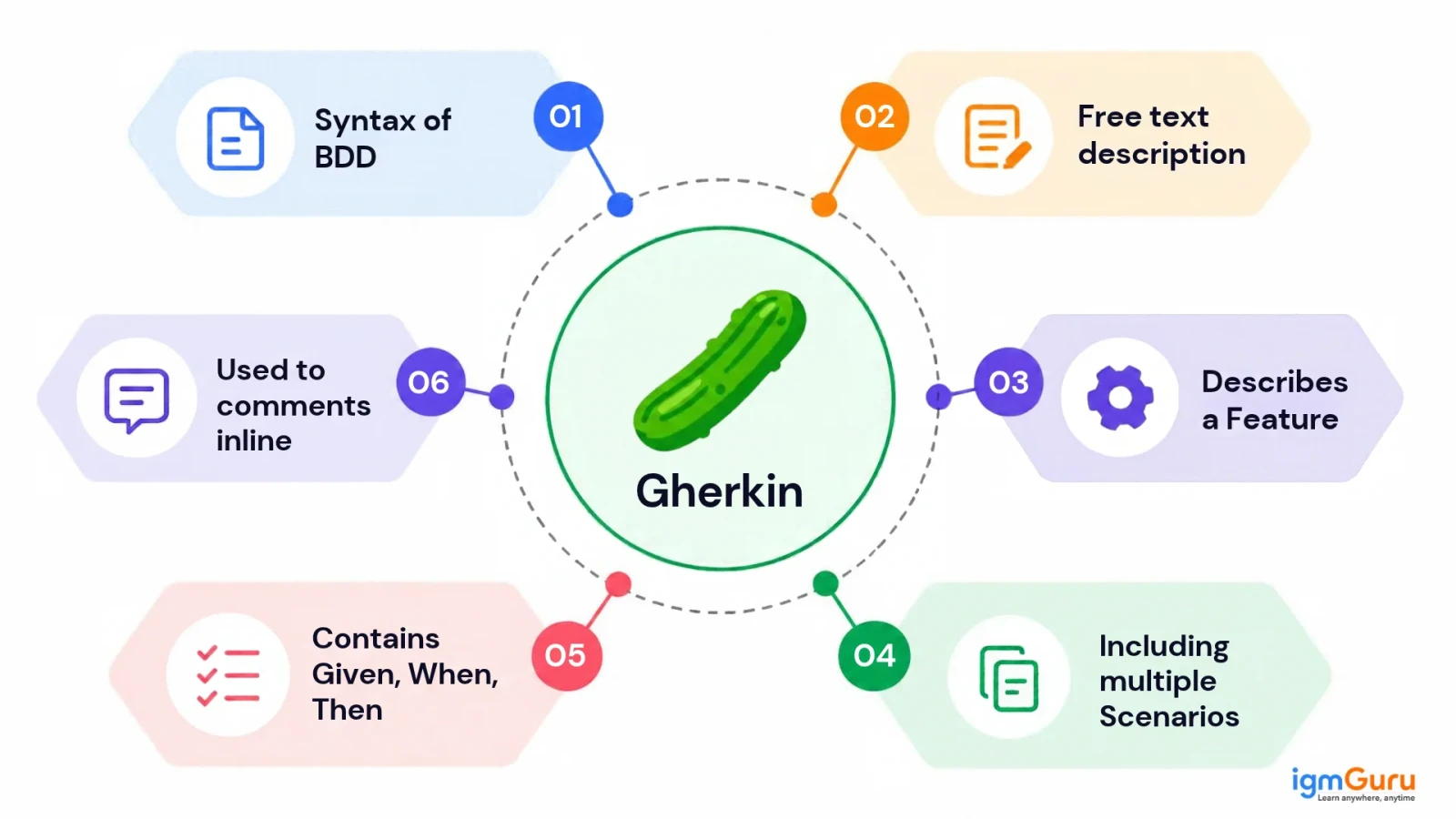
Gherkin is a straightforward language that is used in software testing to describe how a certain feature should function. It allows developers, testers, and even those who do not possess any technical expertise to understand what needs to be tested and how it should be functioned.
In the field of software testing, teams have started using Gherkin to generate test scenarios using plain English and not some complicated programming language. The scenarios tend to go about in a simple way with phrases such as Given, When, and Then. For instance, in the situation where a team is testing a login page, they can use Gherkin to illustrate what happens when the user’s login credentials are accurate and he clicks the login button.
Gherkin language is well renowned in the concept of Behavior Driven Development (BDD), where the all members of teams are brought together to decide how software should behave before or during its development. Thanks to Gherkin, everybody is on the same page and does not confuse things, thus helping collaboration between business-oriented teams and software engineers.
Also, Gherkin is vital for automated testing because together with other programs such as Cucumber, it lets the prepared test scenarios be automated.
Also Read: What is Software Development?
BDD is a way of working and Gherkin is the language that makes that way of working practical.
BDD grew from Test-Driven Development. Dan North introduced the idea in the mid-2000s to help teams talk about behavior instead of code.
The goal is simple. Business people, testers, and developers should agree on what a feature does before anyone builds it.
The process by which these two come together in a standard workflow is as follows:
Gherkin does not force you to follow BDD. Still, it fits BDD so well that most people learn them together. In my experience, teams that skip step 1 and let only testers write the scenarios get very little value from Gherkin. The shared discussion is what makes it work.
Gherkin syntax is easy to learn because it follows a few clear rules.
Example:
| Feature: User login As a registered user I want to log in to my account So that I can see my dashboard Scenario: Login with valid credentials Given the user is on the login page When the user enters a valid username and password And the user clicks the login button Then the user should see the dashboard |
Even a first-time reader can understand this. That is the whole point of Gherkin.
For the complete syntax rules, supported keywords, tags, and other language features, refer to the official Cucumber Gherkin documentation.
Also Explore: What Is Postman?
Gherkin has a small set of keywords. Learn these and you can read almost any feature file.
| Keyword | What it does |
| Feature | Names the feature and describes its purpose |
| Rule | Groups scenarios under one business rule (Gherkin 6 and later) |
| Scenario / Example | Describes one test case |
| Given | Sets the starting condition |
| When | Describes the action the user takes |
| Then | States the expected result |
| And / But | Adds more steps to Given, When, or Then |
| Background | Holds steps that repeat before every scenario |
| Scenario Outline | Runs one scenario with many data sets |
| Examples | Provides the data table for a Scenario Outline |
Let's look at the three main ones in plain words.
Let's see how Gherkin handles common situations.
| Scenario: Login with a wrong password Given the user is on the login page When the user enters a valid username and a wrong password And the user clicks the login button Then the user should see the message "Invalid credentials" |
| Feature: Shopping cart Background: Given the user is logged in Scenario: Add an item to the cart When the user adds a laptop to the cart Then the cart should show 1 item Scenario: Remove an item from the cart Given the cart has 1 laptop When the user removes the laptop Then the cart should be empty |
| Scenario Outline: Login with different users Given the user is on the login page When the user logs in with "<username>" and "<password>" Then the user should see "<result>" Examples: | username | password | result | | anita | pass@123 | the dashboard | | anita | wrong | an error message | | blocked | pass@123 | an account locked | |
A Scenario Outline lets you run the same scenario with different sets of test data. For example, instead of writing separate login scenarios for valid credentials, an incorrect password, and a locked account, you can define one outline and provide the different inputs and expected results in an Examples table.
Read Also: How to Download and Install Selenium?
You can write a good scenario in just five simple steps. Following are those steps:
Step 1. Pick one behavior: Focus on a single outcome, such as "reset a password." Do not mix two behaviors in one scenario.
Step 2. Write a clear title: The title should tell the reader what the scenario checks. "User resets password with a valid email" works well.
Step 3. Set the starting point with Given: Describe the state of the system. Keep it short.
Step 4. Add the action with When: Use one main action. If you need more, add them with And.
Step 5. State the result with Then: Write what the user should see or what the system should do. Make it something you can check.
Then read it aloud. If a non-technical teammate can follow it, you have written it well. This is the test I use every time. When a scenario sounds awkward out loud, it is usually too long or too technical.
Gherkin and Cucumber work together in automated testing. Gherkin describes the expected behavior of an application using readable steps such as Given, When, and Then. Cucumber reads these scenarios, matches each step with its corresponding step definition, and executes the code written by the developer or tester.
That code interacts with the application and checks whether the expected result occurs. Here is the flow:
A step definition links one Gherkin line to real code. Here is a Java example:
| @Given("the user is on the login page") public void userIsOnLoginPage() { driver.get("https://example.com/login"); } |
Cucumber matches the text in the annotation with the line in your feature file. It supports many languages, including Java, JavaScript, Ruby, and Kotlin. Other tools read Gherkin too, such as Behave and pytest-bdd for Python, Reqnroll for .NET, and Behat for PHP.
One thing that helped me early on: when Cucumber finds a step with no matching code, it prints a ready-made snippet for you. I copied that snippet, filled in the logic, and moved on. It saves a lot of typing.
Cucumber does not control a browser on its own. Selenium WebDriver does that part. So Gherkin describes the test, Cucumber runs the steps, and Selenium clicks and types in the browser.
The feature file (login.feature):
| Feature: User login Scenario: Login with valid credentials Given the user is on the login page When the user enters username "anita" and password "pass@123" And the user clicks the login button Then the user should see the dashboard |
The step definitions (Java):
| public class LoginSteps { WebDriver driver = new ChromeDriver(); @Given("the user is on the login page") public void openLoginPage() { driver.get("https://example.com/login"); } @When("the user enters username {string} and password {string}") public void enterCredentials(String user, String pass) { driver.findElement(By.id("username")).sendKeys(user); driver.findElement(By.id("password")).sendKeys(pass); } @And("the user clicks the login button") public void clickLogin() { driver.findElement(By.id("loginBtn")).click(); } @Then("the user should see the dashboard") public void verifyDashboard() { Assert.assertTrue( "Dashboard URL was not displayed", driver.getCurrentUrl().contains("dashboard") ); } |
Notice how {string} captures the values from the feature file. You can change the data in Gherkin without touching the Java code.
A practical tip from my own runs: do not create the driver inside every step class. When I did that, several browser windows opened and tests failed for no clear reason. Move the driver setup and teardown into Cucumber hooks (@Before and @After) so each scenario gets one clean browser. In a real project, you also add a test runner class, but this example shows the core idea.
Also Read: Top 15 Highest Paying Software Developer Jobs in 2026
Gherkin, Cucumber, and BDD are closely related in software testing, but each serves a different purpose. To understand the difference, imagine a team testing a login page. The business team wants to describe how the login should work, and the developers and testers want to turn those requirements into automated tests.
That is where BDD, Gherkin, and Cucumber work together.
| Feature | Gherkin | Cucumber | BDD |
| What is it? | A language for writing test scenarios | A tool that executes scenarios written in Gherkin | A software development approach |
| Main purpose | Describe application behavior in simple language | Connect scenarios to automation code and execute them | Help teams understand and build the right features |
| Who uses it? | Testers, developers, and business teams | Mainly testers and developers | Developers, testers, product owners, and business teams |
| Example | Given the user is on the login page | Matches that step to Java code that opens the login page | Encourages the team to agree on what successful login means |
| Is it executable? | No, not by itself | Yes, when configured with step definitions and supporting code | No, it is a development approach, not an execution tool |
A simple way to remember it: BDD is the idea, Gherkin is the language, and Cucumber is the tool.
Gherkin and traditional test cases are two ways to describe how an application should behave during software testing. The main difference is how the test steps are written and how they can be used in test automation.
Traditional test cases usually follow a structured format with test steps, test data, and expected results. Gherkin uses simple, structured language with keywords such as Given, When, and Then to describe application behavior.
| Feature | Gherkin | Traditional Test Cases |
| Format | Given–When–Then structure | Step-by-step instructions |
| Language | Simple, structured, and behavior-focused | Structured instructions, often written in plain language |
| Readability | Designed to be understood by technical and non-technical teams | May require more testing knowledge to interpret |
| Structure | Uses keywords such as Feature, Scenario, Given, When, and Then | Often includes test case ID, preconditions, steps, test data, and expected results |
| Automation | Can be connected to automation tools such as Cucumber | Can be automated using scripts or testing frameworks |
| Maintenance | Can be easier to maintain when scenarios focus on business behavior | Can become harder to maintain when test cases contain lengthy or repetitive steps |
| Best suited for | BDD and collaborative testing | Manual testing, structured test documentation, and automation |
Read Also: What is Node.js?
Gherkin helps teams in many ways beyond writing tests. It improves communication, keeps documentation useful, and connects requirements directly to automation. Here are the main benefits you can expect when you use it well.
Gherkin is not perfect. You should know its limits before you adopt it.
I would not push Gherkin on a two-person team that only runs a handful of simple checks. The extra layer costs more than it returns in that case.
Follow these habits to keep your feature files clean.
1. Writing steps like a script. Steps such as "click the blue button at the top right" break as soon as the design changes.
I learned this lesson when a UI redesign broke several automated tests because their steps were too closely tied to the page layout.
For example, a step that refers to clicking a button in a specific screen position can stop working when the layout changes, even if the underlying business behavior remains the same. Writing scenarios around user goals and expected outcomes helps reduce this kind of maintenance.
2. Cramming too much into one scenario. If a scenario has fifteen steps, split it.
3. Using Then for actions. Then should check a result. It should not act.
4. Mixing several When steps without a reason. One main action keeps the scenario focused.
5. Skipping the Background, or overusing it. Missing it causes repetition. Overusing it hides important setup from the reader.
6. Testing the UI instead of the behavior. Gherkin should explain what the system does, not how the page looks.
7. Leaving business people out. If only testers write Gherkin, you lose its biggest benefit.
8. Creating duplicate steps. Two steps with slightly different wording often do the same job. Merge them.
Also Explore: What is an API (Application Programming Interface)?
Gherkin is a simple and powerful way to describe software behavior. It uses plain English, a small set of keywords, and the Given-When-Then pattern. When you pair it with Cucumber and Selenium, it also turns those descriptions into automated tests.
You do not need to be an expert programmer to start. Begin with one feature and write two or three short scenarios. Share them with your team and ask whether everyone reads them the same way. Then add automation step by step.
Used well, Gherkin saves time, reduces confusion, and keeps your tests and requirements in sync. That is why so many Agile and BDD teams rely on it.