Git is one of the most powerful tools today, with its diverse range of commands and functionalities. Therefore, many individuals often face confusion and complications at the start. Are you one of them? Once you understand how Git tracks changes and manages versions, it will be easy. I am here to help you do that with this comprehensive GIT cheat sheet.
It is designed to simplify everything you need to know, from installation to branching, merging, logs, and recovery. Whether you are a beginner or moving toward advanced Git workflows, this guide will help you understand every essential command with clarity and confidence.
Introduction to Version Control
Version control helps you track changes in your code, collaborate with teams, and revert mistakes instantly. It automatically manages your project history, which means you do not have to save files manually. It allows you to work simultaneously, merge updates, and maintain a clean development workflow. With version control, you always have a secure snapshot of your entire project, ensuring nothing is ever lost.
What is GIT?
Git is a distributed version control system that helps developers track changes and manage source code efficiently. Unlike centralized systems, Git stores full project history on every machine, making it fast and reliable. It allows developers to experiment by creating branches, committing updates, and merging changes without worrying about losing work. Git is widely used in modern development workflows, especially with platforms like GitHub, GitLab, and Bitbucket.
Read Also: Complete List of Command Prompt (CMD) Commands
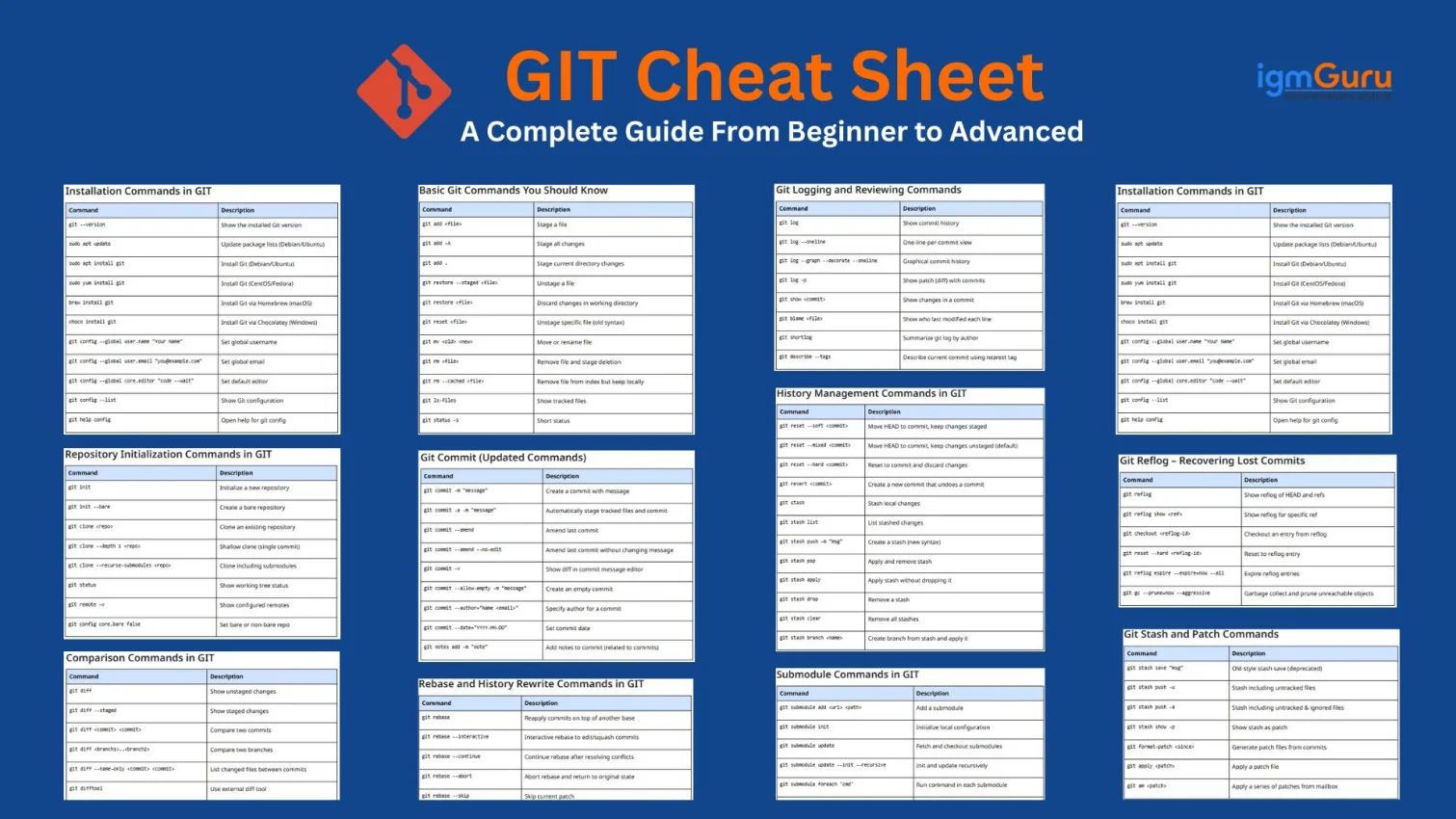
Installation Commands in GIT
| Command | Description |
git --version
| Show the installed Git version |
sudo apt update
| Update package lists (Debian/Ubuntu) |
sudo apt install git
| Install Git (Debian/Ubuntu) |
sudo yum install git
| Install Git (CentOS/Fedora) |
brew install git
| Install Git via Homebrew (macOS) |
choco install git
| Install Git via Chocolatey (Windows) |
git config --global user.name "Your Name"
| Set global username |
git config --global user.email "you@example.com"
| Set global email |
git config --global core.editor "code --wait"
| Set default editor |
git config --list
| Show Git configuration |
git help config
| Open help for git config |
Repository Initialization Commands in GIT
| Command | Description |
git init
| Initialize a new repository |
git init --bare
| Create a bare repository |
git clone <repo>
| Clone an existing repository |
git clone --depth 1 <repo>
| Shallow clone (single commit) |
git clone --recurse-submodules <repo>
| Clone including submodules |
git status
| Show working tree status |
git remote -v
| Show configured remotes |
git config core.bare false
| Set bare or non-bare repo |
Basic Git Commands You Should Know
| Command | Description |
git add <file>
| Stage a file |
git add -A
| Stage all changes |
git add .
| Stage current directory changes |
git restore --staged <file>
| Unstage a file |
git restore <file>
| Discard changes in working directory |
git reset <file>
| Unstage specific file (old syntax) |
git mv <old> <new>
| Move or rename file |
git rm <file>
| Remove file and stage deletion |
git rm --cached <file>
| Remove file from index but keep locally |
git ls-files
| Show tracked files |
git status -s
| Short status |
Read Also: CI/CD Interview Questions and Answers
Git Commit (Updated Commands)
| Command | Description |
git commit -m "message"
| Create a commit with message |
git commit -a -m "message"
| Automatically stage tracked files and commit |
git commit --amend
| Amend last commit |
git commit --amend --no-edit
| Amend last commit without changing message |
git commit -v
| Show diff in commit message editor |
git commit --allow-empty -m "message"
| Create an empty commit |
git commit --author="Name <email>"
| Specify author for a commit |
git commit --date="YYYY-MM-DD"
| Set commit date |
git notes add -m "note"
| Add notes to commit (related to commits) |
Branching and Merging Commands in GIT
| Command | Description |
git branch
| List branches |
git branch -a
| List all local and remote branches |
git branch <name>
| Create a new branch |
git branch -d <name>
| Delete a branch |
git branch -D <name>
| Force delete a branch |
git checkout <branch>
| Switch to a branch (older) |
git switch <branch>
| Switch to a branch (recommended) |
git switch -c <branch>
| Create and switch to new branch |
git merge <branch>
| Merge specified branch into current |
git merge --no-ff <branch>
| Merge and always create merge commit |
git merge --squash <branch>
| Squash merge changes into single commit |
git rebase <branch>
| Rebase current branch onto another |
git rebase -i <base>
| Interactive rebase |
git cherry-pick <commit>
| Apply a commit from another branch |
git cherry -v
| Show commits yet to be applied upstream |
git reflog
| Show reference log (useful for recovery) |
Remote Repositories Commands in GIT
| Command | Description |
git remote add <name> <url>
| Add a remote |
git remote remove <name>
| Remove a remote |
git remote set-url <name> <url>
| Change remote URL |
git fetch <remote>
| Fetch refs from remote |
git fetch --all
| Fetch from all remotes |
git pull
| Fetch + merge from remote |
git pull --rebase
| Fetch and rebase local changes |
git push
| Push commits to remote |
git push -u origin <branch>
| Push and set upstream |
git push --force
| Force push (rewrites remote history) |
git push --force-with-lease
| Safer force push |
git push origin --delete <branch>
| Delete remote branch |
git ls-remote <remote>
| List references in remote repository |
git remote show <name>
| Show remote details |
Read Also: Docker Tutorial for Beginners
Comparison Commands in GIT
| Command | Description |
git diff
| Show unstaged changes |
git diff --staged
| Show staged changes |
git diff <commit> <commit>
| Compare two commits |
git diff <branch1>..<branch2>
| Compare two branches |
git diff --name-only <commit> <commit>
| List changed files between commits |
git difftool
| Use external diff tool |
Git Logging and Reviewing Commands
| Command | Description |
git log
| Show commit history |
git log --oneline
| One-line-per-commit view |
git log --graph --decorate --oneline
| Graphical commit history |
git log -p
| Show patch (diff) with commits |
git show <commit>
| Show changes in a commit |
git blame <file>
| Show who last modified each line |
git shortlog
| Summarize git log by author |
git describe --tags
| Describe current commit using nearest tag |
History Management Commands in GIT
| Command | Description |
git reset --soft <commit>
| Move HEAD to commit, keep changes staged |
git reset --mixed <commit>
| Move HEAD to commit, keep changes unstaged (default) |
git reset --hard <commit>
| Reset to commit and discard changes |
git revert <commit>
| Create a new commit that undoes a commit |
git stash
| Stash local changes |
git stash list
| List stashed changes |
git stash push -m "msg"
| Create a stash (new syntax) |
git stash pop
| Apply and remove stash |
git stash apply
| Apply stash without dropping it |
git stash drop
| Remove a stash |
git stash clear
| Remove all stashes |
git stash branch <name>
| Create branch from stash and apply it |
Git Reflog – Recovering Lost Commits
| Command | Description |
git reflog
| Show reflog of HEAD and refs |
git reflog show <ref>
| Show reflog for specific ref |
git checkout <reflog-id>
| Checkout an entry from reflog |
git reset --hard <reflog-id>
| Reset to reflog entry |
git reflog expire --expire=now --all
| Expire reflog entries |
git gc --prune=now --aggressive
| Garbage collect and prune unreachable objects |
Git Stash and Patch Commands
| Command | Description |
git stash save "msg"
| Old-style stash save (deprecated) |
git stash push -u
| Stash including untracked files |
git stash push -a
| Stash including untracked & ignored files |
git stash show -p
| Show stash as patch |
git format-patch <since>
| Generate patch files from commits |
git apply <patch>
| Apply a patch file |
git am <patch>
| Apply a series of patches from mailbox |
Tagging Commands in GIT
| Command | Description |
git tag
| List tags |
git tag <name>
| Create lightweight tag |
git tag -a <name> -m "msg"
| Create annotated tag |
git show <tag>
| Show tag details |
git push origin <tag>
| Push tag to remote |
git push origin --tags
| Push all tags |
git tag -d <tag>
| Delete a local tag |
git push --delete origin <tag>
| Delete remote tag |
Submodule Commands in GIT
| Command | Description |
git submodule add <url> <path>
| Add a submodule |
git submodule init
| Initialize local configuration |
git submodule update
| Fetch and checkout submodules |
git submodule update --init --recursive
| Init and update recursively |
git submodule foreach 'cmd'
| Run command in each submodule |
git submodule deinit <path>
| Unregister a submodule |
git rm --cached <path_to_submodule>
| Remove submodule (keep files locally) |
Rebase and History Rewrite Commands in GIT
| Command | Description |
git rebase
| Reapply commits on top of another base |
git rebase --interactive
| Interactive rebase to edit/squash commits |
git rebase --continue
| Continue rebase after resolving conflicts |
git rebase --abort
| Abort rebase and return to original state |
git rebase --skip
| Skip current patch |
git filter-branch
| Rewrite branches (legacy; use filter-repo) |
git filter-repo
| Powerful history rewriting tool (external) |
Cherry-pick and Apply Commands in GIT
| Command | Description |
git cherry-pick <commit>
| Apply single commit to current branch |
git cherry-pick -n <commit>
| Cherry-pick without committing |
git cherry-pick --continue
| Continue after resolving conflicts |
git cherry-pick --abort
| Abort cherry-pick |
| Command | Description |
git difftool --tool=<tool>
| Use external diff tool |
git mergetool
| Run merge resolution tool |
git mergetool --tool=<tool>
| Specify mergetool |
git range-diff <base> <branch1> <branch2>
| Compare sequences of commits |
Index and Low-level Commands
| Command | Description |
git ls-files --others --exclude-standard
| List untracked files |
git ls-tree <tree-ish>
| List contents of a tree object |
git update-index --assume-unchanged <file>
| Ignore changes to a tracked file |
git update-index --no-assume-unchanged <file>
| Revert assume-unchanged |
git hash-object -w <file>
| Write object into Git database |
git cat-file -p <object>
| Show object content |
git rev-parse <ref>
| Parse revision (get SHA) |
git rev-list <ref>
| List commit objects |
Maintenance, Garbage Collection & Performance
| Command | Description |
git gc
| Run garbage collection |
git fsck
| Verify repository integrity |
git prune
| Prune unreachable objects |
git repack -a -d --window=250 --depth=250
| Repack objects for performance |
git maintenance start
| Start background maintenance |
git maintenance stop
| Stop background maintenance |
git maintenance run
| Run maintenance tasks now |
Config, Aliases and Credential Helpers
| Command | Description |
git config --global core.editor "vim"
| Set default editor |
git config --global alias.co checkout
| Create alias 'co' for checkout |
git config --global alias.br branch
| Create alias 'br' for branch |
git config --global alias.ci commit
| Create alias 'ci' for commit |
git config --global alias.st status
| Create alias 'st' for status |
git config --system --list
| Show system-level config |
git config --global credential.helper store
| Store credentials in plain file |
git config --global credential.helper cache
| Cache credentials in memory |
git credential approve
| Approve credential (low-level) |
Worktree, Sparse Checkout, Large File Support
| Command | Description |
git worktree add <path> <branch>
| Add a working tree linked to repo |
git worktree list
| List worktrees |
git sparse-checkout init
| Initialize sparse checkout |
git sparse-checkout set <dir>
| Set sparse-checkout cone patterns |
git lfs install
| Install Git LFS |
git lfs track "*.psd"
| Track filetypes with LFS |
git lfs ls-files
| List LFS tracked files |
Bisect and Debugging
| Command | Description |
git bisect start
| Start bisect session |
git bisect bad
| Mark current commit as bad |
git bisect good <commit>
| Mark commit as good |
git bisect run <script>
| Run script to automate bisect |
git bisect reset
| End bisect session |
Archive, Bundle and Packaging
| Command | Description |
git archive --format=zip -o repo.zip HEAD
| Create archive of HEAD |
git bundle create repo.bundle --all
| Create a bundle of repository |
git bundle verify repo.bundle
| Verify bundle |
git bundle list-heads repo.bundle
| List refs in bundle |
Apply, Patch, Mail and Email Workflows
| Command | Description |
git send-email
| Send patches by email |
git format-patch -n <since>
| Create n patch files |
git am --signoff <mbox>
| Apply mailbox to repository |
Replace, Notes, and External Helpers
| Command | Description |
git replace <old> <new>
| Replace object with another |
git notes add -m "note"
| Add note to commit |
git notes show <commit>
| Show notes for commit |
git remote-prune origin
| Prune stale remote-tracking branches |
Security, Signing and Verification
| Command | Description |
git config --global user.signingkey <key>
| Set GPG signing key |
git commit -S -m "msg"
| Sign commit with GPG |
git tag -s <tag> -m "msg"
| Sign tag |
git verify-commit <commit>
| Verify GPG signature of commit |
git verify-tag <tag>
| Verify GPG signature of tag |
Advanced Plumbing Commands
| Command | Description |
git update-ref <ref> <newvalue>
| Update reference to value |
git symbolic-ref HEAD refs/heads/<branch>
| Set HEAD to branch |
git for-each-ref
| Iterate and show refs |
git pack-refs --all
| Pack refs file |
Troubleshooting & Useful Helpers
| Command | Description |
git status --ignored
| Show ignored files too |
git blame -L <start>,<end> <file>
| Limit blame to lines |
git reset --keep <commit>
| Reset but keep uncommitted changes if possible |
git clean -fdx
| Remove untracked files, directories and ignored files |
git checkout -- <file>
| Discard changes in working tree (old syntax) |
git show-branch
| Show branches and their commits |
Wrapping Up
Git becomes easier when you clearly understand how commits, branches, and remotes work together. This cheat sheet gives you a complete command reference you can use daily, whether you’re building simple projects or contributing to enterprise-level applications. Keep practicing these commands, experiment with branches, and review logs regularly. With consistent use, Git transforms into a powerful tool that simplifies collaboration and ensures your code is always safe, organized, and easy to manage.
FAQs
1. Is Git difficult for beginners?
No. Git looks complex at first, but once you understand the add → commit → push workflow, everything becomes easier.
2. Do I need GitHub to use Git?
No. Git works locally on your system. GitHub is only a hosting platform for Git repositories.
3. What if I lose my commits in Git?
You can recover almost everything using git reflog, which keeps a history of every HEAD movement.
Course Schedule