XLOOKUP vs VLOOKUP are two of the most commonly used Excel functions for retrieving data from large datasets. Both formulas solve similar problems in different ways, and that is why many Excel users struggle to decide which one to use and when. Choosing the right lookup function directly impacts their accuracy, performance, and maintainability.
VLOOKUP is a legacy function that works only left-to-right and depends on column numbers, while XLOOKUP is a modern alternative that supports exact matches by default, dynamic arrays, and flexible lookup directions. In real Excel dashboards and business reports with thousands of rows, I’ve consistently seen XLOOKUP outperform VLOOKUP in stability and maintenance.
Let’s understand their differences to make perfect choices in your next project.
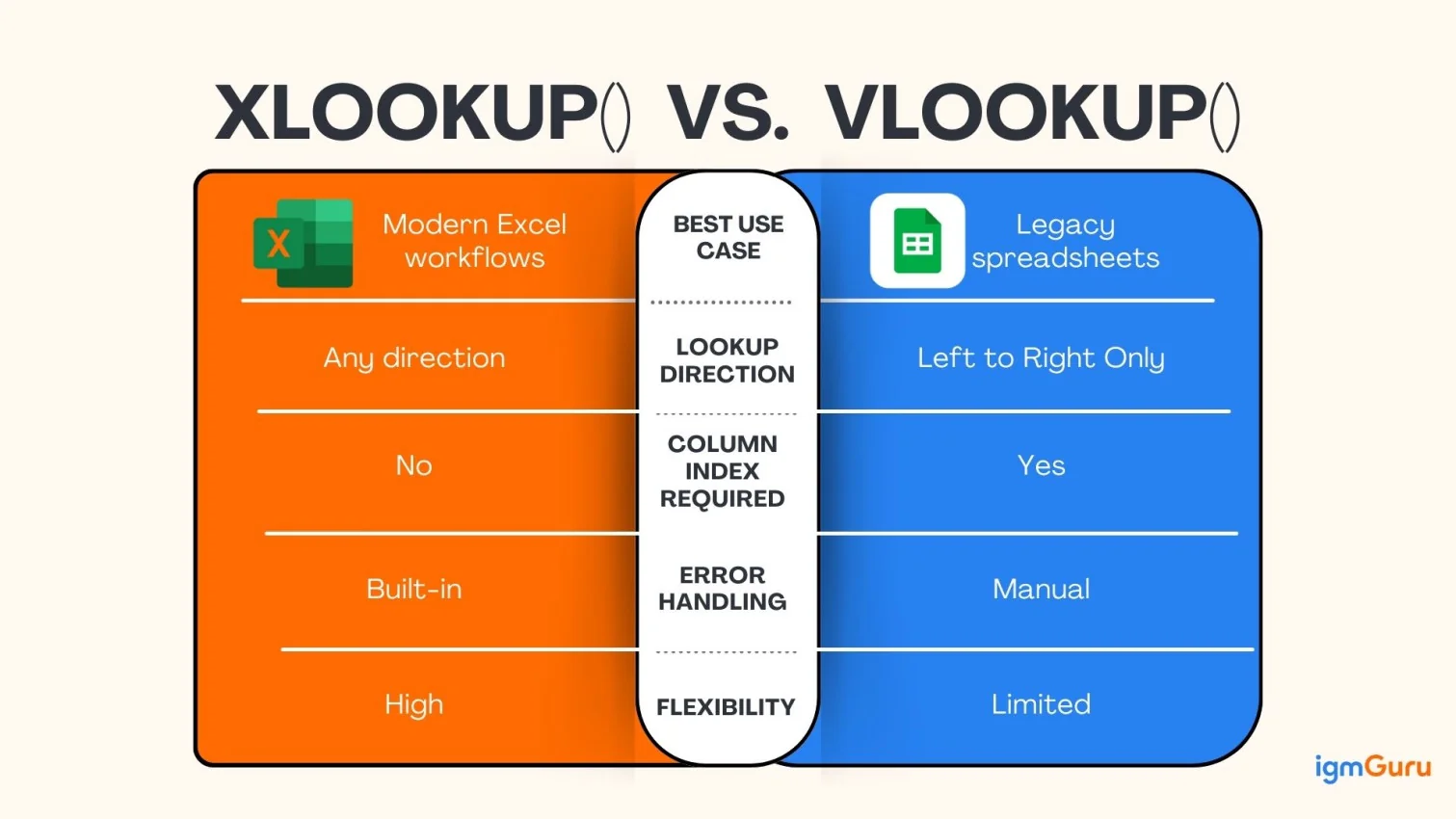
Here is a quick table explaining the core differences between XLOOKUP and VLOOKUP.
| Feature | VLOOKUP() | XLOOKUP() |
| Lookup Direction | Left to right only | Any direction (left or right) |
| Exact Match by Default | No (requires FALSE) | Yes |
| Column Index Required | Yes | No |
| Handling Column Changes | Breaks easily | Remains unaffected |
| Error Handling | Manual (IFERROR required) | Built-in |
| Return Multiple Values | No | Yes |
| Performance on Large Data | Slower | Faster and more stable |
| Excel Version Support | All versions | Excel 365, Excel 2021+ |
| Best Use Case | Legacy spreadsheets | Modern Excel workflows |
| Wildcard Support | Limited (requires extra logic) | Advanced (built-in support) |
| Dynamic Arrays Support | No | Yes |
VLOOKUP is a legacy function limited to left-to-right searches and column index numbers, while XLOOKUP is a modern replacement that supports exact matches by default, flexible lookup directions, built-in error handling, and dynamic arrays. XLOOKUP is best for modern Excel versions, while VLOOKUP remains useful for backward compatibility.
This means both of them have their own significance in different tasks. The decision of the best function depends on what you want to perform and what kind of data you are working on. So, let's understand each situation in detail, starting from their definitions, feaures and limitations.
Related Article: How to remove blank rows in Excel?
VLOOKUP (Vertical Lookup) is an Excel function used to search for a specific value in the first column of a table and return a corresponding value from another column in the same row. This is an excellent tool for finding related data like prices, employee names or product details within large datasets. Its syntax is easy to understand and use, which has made it one of the most commonly used Excel formulas across industries. It does work well for basic and structured datasets, but not with complicated ones. It relies heavily on how the data is arranged, which can lead to issues in more complicated spreadsheets.
VLOOKUP() is indeed the most used formula due to its early availability and no substitutes, but not anymore. It is less suitable for modern Excel workflows. It has a lot of limitations compared to XLOOKUP(). Some of the common ones are as follows:

XLOOKUP is a robust Excel formula introduced recently as an alternative to VLOOKUP/HLOOKUP. It is designed to be more flexible, readable and reliable. Unlike VLOOKUP, XLOOKUP allows you to define the lookup range and the return range separately, which removes many structural restrictions. This Excel function works with both vertical and horizontal data and supports advanced search options. It is available in newer versions of Excel, such as Microsoft 365 and Excel 2021. Its improved design has also made it a preferred lookup function for most modern Excel users.
XLOOKUP offers several features over VLOOKUP that make it more suitable for modern Excel usage. Its features make it more reliable, flexible and safer for long-term use. Let's explore them:
Note: Since XLOOKUP is the upgraded version of VLOOKUP, so it doesn't have any limitations.
Read Also: Top 50 Excel Multiple Choice Questions (MCQs)
The syntax of the VLOOKUP function is:
|
As VLOOKUP depends on column numbers instead of column references, even small changes in the dataset structure can affect the accuracy of the results.
The syntax of XLOOKUP is:
|
This structure makes XLOOKUP formulas easier to understand and maintain, even for complicated datasets.
The core difference between XLOOKUP and VLOOKUP lies in flexibility and robustness. VLOOKUP is dependent on table structure and column order, while XLOOKUP works independently of how data is arranged. XLOOKUP also simplifies formula writing by clearly separating lookup and return ranges.
XLOOKUP also reduces the likelihood of hidden errors caused by structural changes in the dataset. This makes it a better choice for collaborative environments where multiple users update the same Excel file. Let's understand these differences in detail:
One of the most important differences between XLOOKUP and VLOOKUP is how they handle exact matches by default. XLOOKUP automatically performs an exact match unless specified otherwise. In contrast, VLOOKUP performs an approximate match unless you explicitly tell Excel to use an exact match by setting the fourth argument to FALSE.
This default behavior often leads to incorrect results in VLOOKUP when users forget to specify the exact match condition. Here is an example:
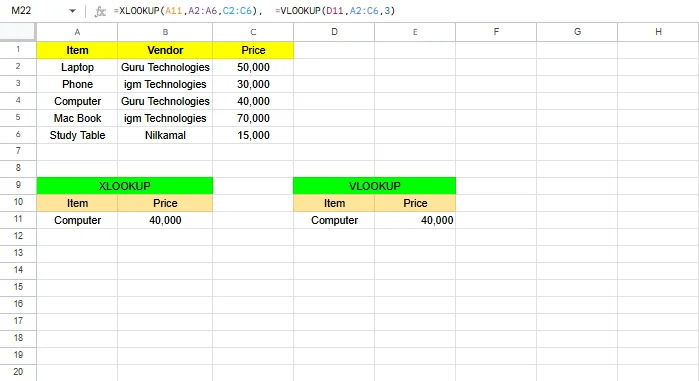
VLOOKUP is limited to searching only to the right of the lookup column. If the return value exists to the left of the lookup value, VLOOKUP simply cannot retrieve it. XLOOKUP removes this restriction entirely and allows lookups in both left and right directions. Let's see an example:
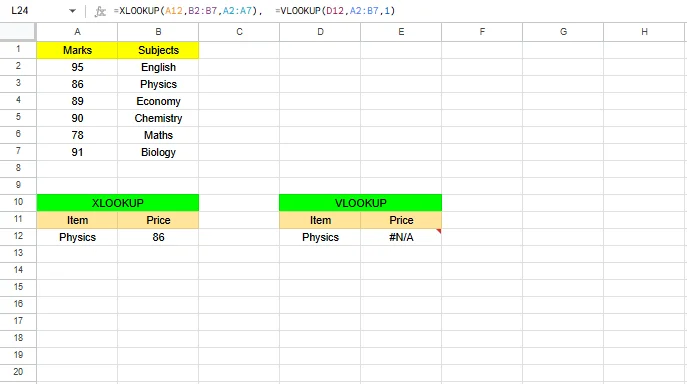
VLOOKUP requires you to define the entire table range and then specify a column number to return the result. This tightly couples the formula to the table structure. XLOOKUP, on the other hand, allows you to define separate lookup and return arrays, making formulas more flexible and easier to maintain. Here is an example of how:
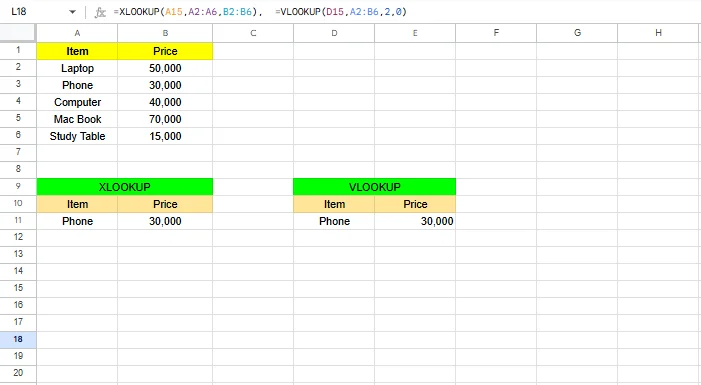
VLOOKUP is designed only for vertical data. If your data is arranged horizontally, you must use a completely different function, HLOOKUP. XLOOKUP eliminates this separation by handling both vertical and horizontal lookups with a single function. Here is an example:
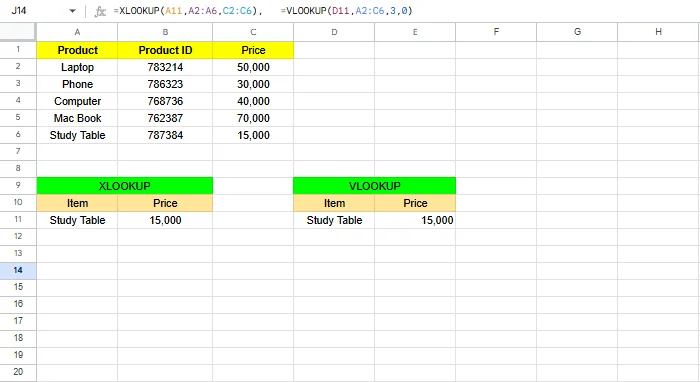
VLOOKUP formulas often break when columns are inserted or deleted because they rely on hardcoded column index numbers. XLOOKUP is immune to this problem since it directly references the return array. Let's understand it with an example:
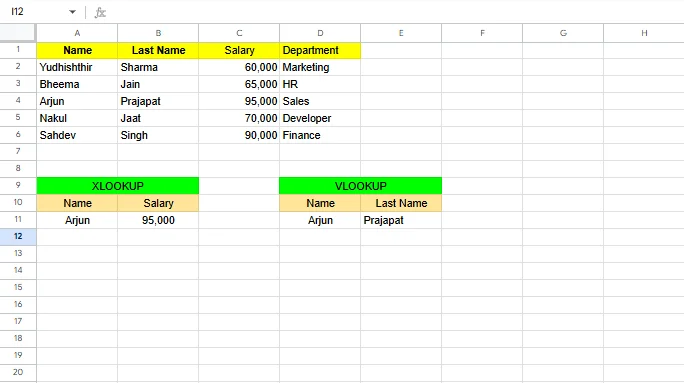
VLOOKUP performs approximate matches only when the data is sorted in ascending order. This can be risky and restrictive. XLOOKUP offers a search_mode argument that allows searching in ascending, descending, or reverse order without sorting the data. Here you can see how to do it:
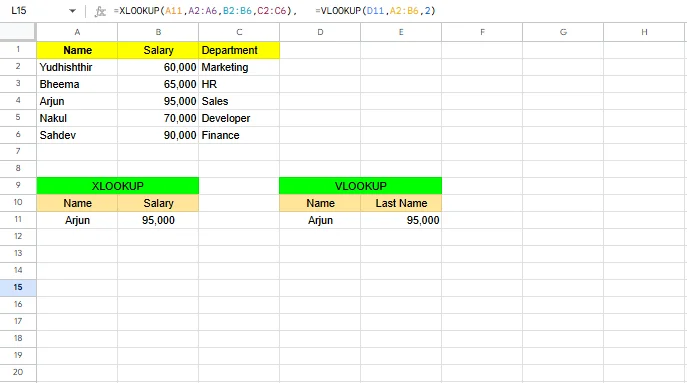
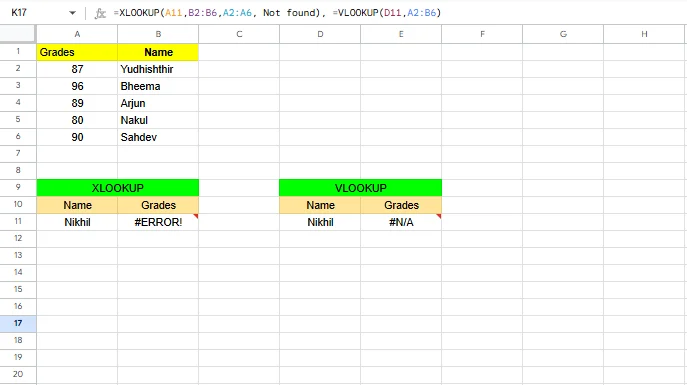
When VLOOKUP cannot find a value, it returns a generic #N/A error. XLOOKUP allows you to display a custom, user-friendly message using the if_not_found argument. Here is a simple example:
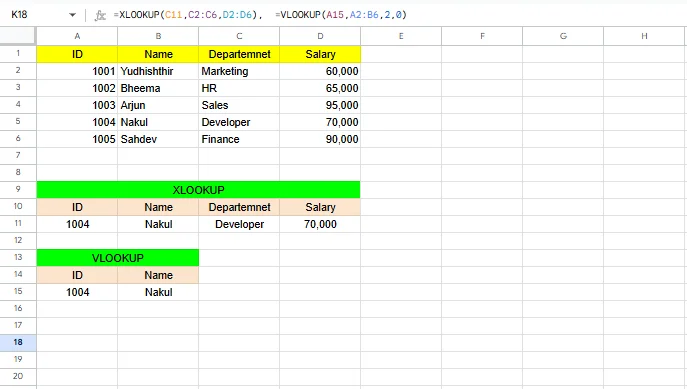
VLOOKUP can return only one column at a time, requiring multiple formulas to retrieve multiple fields. XLOOKUP can return multiple columns in a single formula, reducing redundancy and improving efficiency. Let's understand it with an example:
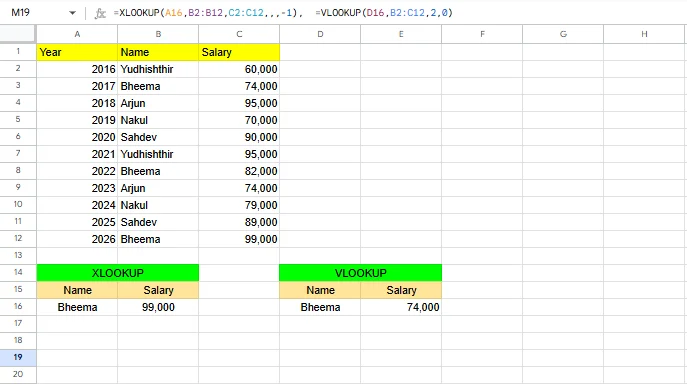
VLOOKUP always searches from the top and returns the first matching value. XLOOKUP allows you to search from the bottom using search_mode = -1, making it ideal for retrieving the most recent entries. Here is an example:
Dynamic Arrays have changed how modern Excel formulas work by allowing a single formula to return multiple results that automatically spill into neighboring cells. XLOOKUP is fully compatible with Dynamic Arrays and works seamlessly with spilled ranges, which makes it ideal for modern Excel workflows.
VLOOKUP, on the other hand, was designed long before Dynamic Arrays were introduced. It can only return a single value per formula and does not support spilling results across cells. This limitation often forces users to write multiple formulas or rely on helper columns.
When working with dashboards, reusable templates or automated reports in Excel 365 or Excel 2021+, XLOOKUP combined with Dynamic Arrays offers a cleaner, more efficient, and future-ready approach compared to traditional VLOOKUP formulas.
I am also a regular Excel user and use Excel files in real business reports. I think performance and compatibility are the two most important things to consider when working on data. XLOOKUP and VLOOKUP seem to be similar in theory, but I've noticed clear differences in practical use. They behave differently, especially when files grow in size or are shared across teams. Let's see how:
I was a big fan of VLOOKUP until XLOOKUP was introduced. It was really helpful for my tasks and also I was working on small data files those days. It worked fine for small datasets, but as files became larger and more complicated, I started facing performance issues.
Sheets with thousands of rows and multiple VLOOKUP formulas began recalculating slowly. Any small change, like inserting a column, often forced me to revisit formulas and fix broken references. This is where the need to use XLOOKUP arises.
After switching to XLOOKUP in newer Excel versions, I immediately noticed the difference. It allows me to define only the lookup and return arrays, which feels more efficient and cleaner. I no longer worry about unnecessary columns being processed or formulas breaking due to structural changes. In my experience, especially with large and frequently updated files, XLOOKUP has consistently given me faster and more reliable results.
What stood out the most for me was the ability to search from the bottom of a dataset using search mode. This helped a lot when working with logs and transaction data, where I needed the most recent entry. Achieving the same result with VLOOKUP was either impossible or required complicated workarounds.
XLOOKUP provides more flexibility in modern Excel environments, but I still have to use VLOOKUP in certain situations. The main reason is compatibility. Many of the files I work on are shared with clients, teams, or learners who may not be using the latest Excel version. Since VLOOKUP works in every Excel version, it remains the safer choice when backward compatibility is critical.
I've seen cases where XLOOKUP formulas simply did not work when a file was opened in older Excel versions. That experience taught me an important lesson: choosing a function is not just about features, but also about who will use the file and where it will be opened.
Read Also: How to Create a Dashboard in Excel?
My approach is simple. If I'm working on modern Excel versions and building reports, dashboards or reusable templates, I almost always choose XLOOKUP. It gives me better performance, fewer errors and more confidence that the formula will continue working as the data changes.
However, if the file needs to be shared widely or used in older Excel environments, I still rely on VLOOKUP. Understanding both functions has helped me choose the right tool based on real-world constraints, not just theory. A quick mantra is:
Both XLOOKUP and VLOOKUP are often used incorrectly, which leads to inaccurate results or performance issues. Understanding these common mistakes can help you build more reliable and maintainable Excel spreadsheets.
Avoiding these mistakes ensures better performance, fewer errors and a smoother experience when sharing Excel files across teams.
VLOOKUP has played an important role in Excel's history and remains relevant in older versions of spreadsheets. However, its limitations make it less suitable for today's dynamic and complex data environments. XLOOKUP offers a more powerful, flexible and future-ready approach to data lookup. If you are using a modern version of Excel, learning and adopting XLOOKUP can be a smart long-term decision.
In simple terms, if compatibility with older Excel versions like Excel 2016 or earlier is essential, VLOOKUP is still a practical choice. But if you are working in Excel 365 or Excel 2021+, XLOOKUP is clearly the better option. It reduces formula errors, improves maintainability, and handles large datasets more efficiently.
For modern dashboards, reusable templates, automated reports, and collaborative files, XLOOKUP provides greater reliability and cleaner formula logic. Understanding both functions is valuable, but for future-focused Excel workflows, XLOOKUP should be your default lookup function.
Explore Our Trending Articles-
XLOOKUP is Microsoft’s recommended modern replacement, but VLOOKUP is not deprecated and is still widely used, especially in legacy and backward-compatible spreadsheets. If you use Excel 365 or 2021+, XLOOKUP is the safer and future-ready choice; use VLOOKUP only when backward compatibility is required.
XLOOKUP is generally more efficient and stable in large or dynamic datasets, but performance differences depend on workbook structure and usage.
XLOOKUP can replace most common INDEX-MATCH use cases, though INDEX-MATCH is still useful in complex array-based or legacy scenarios.
Excel’s lookup functions have evolved from rigid formulas to flexible, dynamic and error-resistant tools. Early functions like VLOOKUP and HLOOKUP required strict column positioning and manual error handling. Later, INDEX-MATCH improved flexibility but added complexity.
Yes, XLOOKUP is generally better than VLOOKUP for large datasets. XLOOKUP allows you to define precise lookup and return ranges, which reduces unnecessary calculations.
VLOOKUP often returns wrong values because it defaults to an approximate match when the range_lookup argument is omitted.
XLOOKUP is supported only in Excel 365 and Excel 2021 or later. It does not work in older perpetual versions such as Excel 2016, Excel 2013, or Excel 2010.
Yes, XLOOKUP is considered future-proof. Microsoft has designed it to align with modern Excel features such as Dynamic Arrays, spill ranges and AI-assisted formula creation.