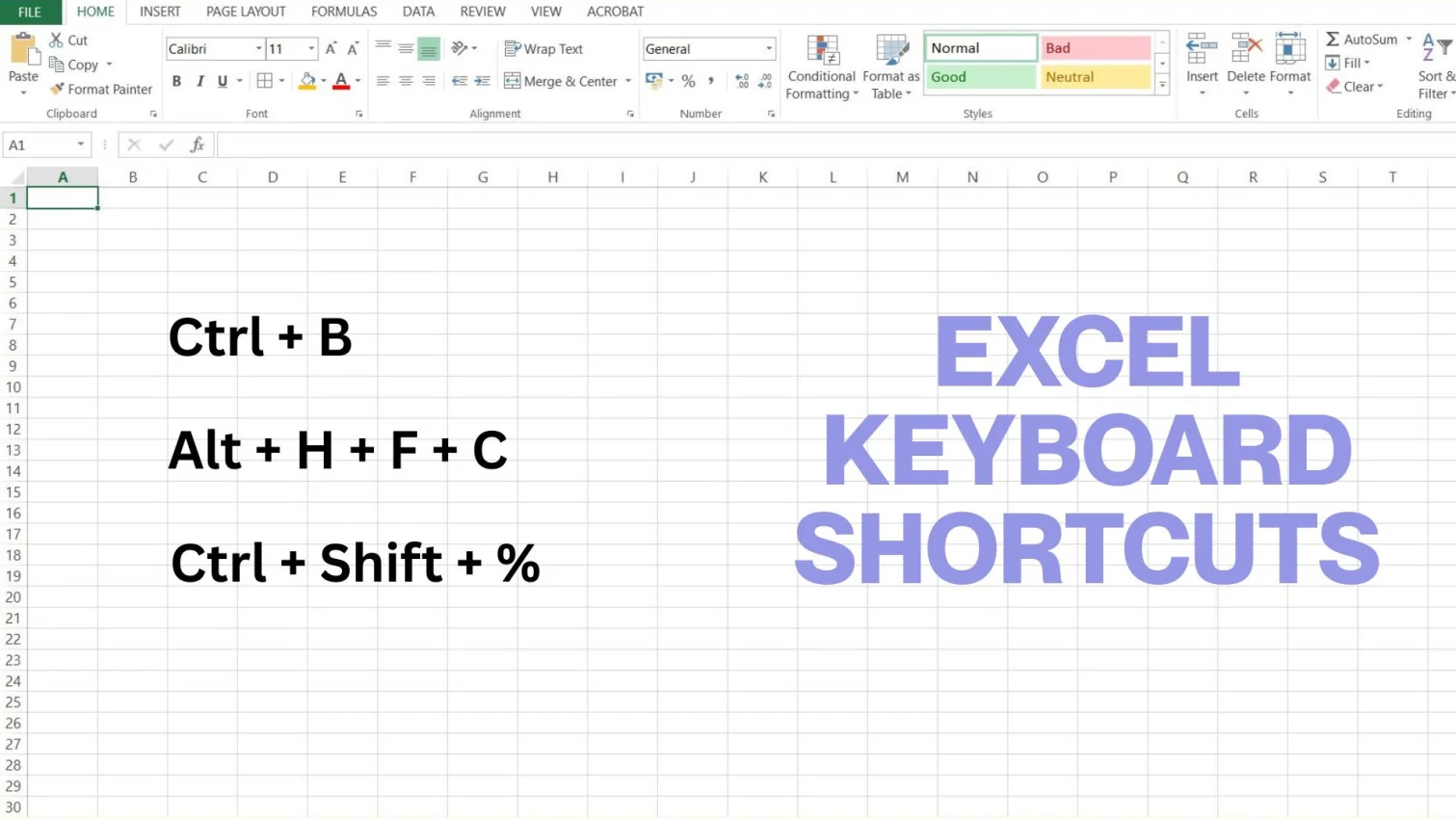
Have you ever felt like Excel tasks take longer than they should? You are continuously clicking through menus, dragging the mouse, and repeating the same steps again and again to perform a simple data analysis. This seems like a dedicated task, but it slows you down more than you realize. That is where Excel keyboard shortcuts come in.
They help you work faster, smarter, and with less effort. Whether you're a beginner or someone who uses Excel daily, learning a few powerful keyboard shortcuts can instantly boost your productivity and make your workflow feel effortless. They have also helped me to achieve nearly 4 times my productivity. To help you do the same, I have included all the powerful Excel keyboard shortcuts in this article. These shortcuts work across Excel 2019, Excel 2021, Excel 2024, and Microsoft 365 on both Windows and Mac.
Excel shortcuts are a combination of keyboard keys that help you perform tasks quickly without relying on a mouse. These shortcuts are designed to save time, reduce effort, and make your work in Excel smoother and more efficient, especially when handling large amounts of data. So, the time of navigating through multiple menus and options is long gone. Use these shortcuts to complete actions instantly. Understanding the Excel shortcut keys is important for:
Related Article: Excel Formula Cheat Sheet
Most Excel shortcuts work on both Windows and Mac, but the modifier keys are different. Use this quick reference table before diving into the full list:
| Windows Key | Mac Equivalent |
|---|---|
| Ctrl | ⌘ Command |
| Alt | ⌥ Option |
| Backspace | Delete |
| Windows Key | Control (^) |
| F keys (F1–F12) | Fn + F key (on most MacBooks) |
Let's start with the basic shortcut keys. These universal shortcuts will help you speed up your everyday tasks by allowing you to select, copy, save, and navigate more efficiently. They're perfect for beginners learning the basics as well as advanced users who want to minimize reliance on the mouse.
| Excel Keyboard Shortcuts in Windows | Excel Keyboard Shortcuts in Mac | Action |
|---|---|---|
| Ctrl + N | ⌘ + N | New workbook |
| Ctrl + O | ⌘ + O | Open workbook |
| Ctrl + S | ⌘ + S | Save workbook |
| Ctrl + P | ⌘ + P | |
| Ctrl + C | ⌘ + C | Copy |
| Ctrl + X | ⌘ + X | Cut |
| Ctrl + V | ⌘ + V | Paste |
| Ctrl + Alt + V | ⌘ + ⌥ + V | Paste Special dialog |
| Ctrl + Z | ⌘ + Z | Undo |
| Ctrl + Y | ⌘ + Y | Redo |
| Ctrl + F | ⌘ + F | Find |
| Ctrl + H | ⌘ + H | Replace |
| Ctrl + A | ⌘ + A | Select all |
| Ctrl + W | ⌘ + W | Close workbook |
| F12 | ⌘ + Shift + S | Save As |
| Alt + F4 | ⌘ + Q | Close Excel |
These shortcuts help you quickly change appearance, align text, and apply formatting styles. These are perfect for creating clean, professional spreadsheets.
| Excel Keyboard Shortcuts in Windows | Excel Keyboard Shortcuts in Mac | Action |
|---|---|---|
| Ctrl + B | ⌘ + B | Bold |
| Ctrl + I | ⌘ + I | Italic |
| Ctrl + U | ⌘ + U | Underline |
| Alt + H + H | ⌥ + H + H | Fill color |
| Alt + H + F + C | ⌥ + H + F + C | Font color |
| Ctrl + Shift + L | ⌘ + Shift + F | Add/remove filters |
| Ctrl + 1 | ⌘ + 1 | Format Cells dialog |
| Alt + H + O + I | ⌥ + H + O + I | Auto-fit column width |
| Alt + H + O + A | ⌥ + H + O + A | Auto-fit row height |
| Ctrl + Shift + % | ⌘ + Shift + % | Apply percentage format |
| Ctrl + Shift + $ | ⌘ + Shift + $ | Apply currency format |
| Ctrl + Shift + # | ⌘ + Shift + # | Apply date format |
| Alt + H + M + C | ⌥ + H + M + C | Merge & Center |
Navigating large workbooks and multiple worksheets can be very time-consuming without using shortcuts. Make it faster with the following essential movement shortcuts.
| Excel Keyboard Shortcuts in Windows | Excel Keyboard Shortcuts in Mac | Action |
|---|---|---|
| Ctrl + → | ⌘ + → | Move to the last column |
| Ctrl + ← | ⌘ + ← | Move to the first column |
| Ctrl + ↑ | ⌘ + ↑ | Jump to top |
| Ctrl + ↓ | ⌘ + ↓ | Jump to the bottom |
| Ctrl + Page Up | Fn + Ctrl + ↑ | Previous sheet |
| Ctrl + Page Down | Fn + Ctrl + ↓ | Next sheet |
| Ctrl + Tab | ⌘ + ~ | Switch open workbooks |
| Ctrl + G / F5 | Ctrl + G / F5 | Go to a specific cell |
| Ctrl + Home | Fn + Ctrl + ← | Jump to A1 |
| Ctrl + End | Fn + Ctrl + → | Jump to the last used cell |
| Alt + Page Down | Fn + ⌥ + ↓ | Move one screen to the right |
| Alt + Page Up | Fn + ⌥ + ↑ | Move one screen to the left |
Also Explore: Excel Interview Questions
Have you ever felt that data entry takes too much of your time? Make it faster, smoother, and more accurate with the given shortcuts. These are great for analysts and accountants working with large datasets.
| Excel Keyboard Shortcuts in Windows | Excel Keyboard Shortcuts in Mac | Action |
|---|---|---|
| Ctrl + Enter | ⌘ + Enter | Fill selected cells with the same value |
| Alt + Enter | ⌥ + Enter | Line break within a cell |
| Ctrl + D | ⌘ + D | Fill down |
| Ctrl + R | ⌘ + R | Fill right |
| Ctrl + E | ⌘ + E | Flash Fill (auto-fill pattern detection) |
| Ctrl + ; | Ctrl + ; | Insert current date |
| Ctrl + Shift + ; | ⌘ + ; | Insert current time |
| Ctrl + Shift + " | ⌘ + Shift + " | Copy value from the cell above |
| Ctrl + ' | ⌘ + ' | Copy formula from above |
| Shift + Space | Shift + Space | Select entire row |
| Ctrl + Space | Ctrl + Space | Select entire column |
Let's come to the most important part, the Excel Formulas. The shortcuts help you enter, edit, and calculate formulas much faster. These are perfect for data analysts and the relevant field.
| Excel Keyboard Shortcuts in Windows | Excel Keyboard Shortcuts in Mac | Action |
|---|---|---|
| = | = | Start a formula |
| Ctrl + Shift + Enter | ⌘ + Shift + Enter | Enter array formula |
| Alt + = | ⌘ + Shift + T | AutoSum |
| F2 | F2 | Edit active cell |
| F4 | ⌘ + T | Toggle absolute/relative cell reference ($) |
| Shift + F9 | Shift + F9 | Calculate the active worksheet |
| F9 | F9 | Calculate all worksheets |
| Ctrl + ` | Ctrl + ` | Show/hide formulas |
| Ctrl + Shift + U | Ctrl + Shift + U | Expand/collapse formula bar |
| Ctrl + K | ⌘ + K | Insert hyperlink |
| Ctrl + [ | ⌘ + [ | Select cells referenced by formula (trace precedents) |
| Ctrl + ] | ⌘ + ] | Select cells that reference active cell (trace dependents) |
Excel keyboard shortcuts can make data analysis faster by reducing repetitive mouse actions when you sort, filter, clean, and review large datasets. The following shortcuts are especially useful for data analysts, accountants, marketers, and other professionals who regularly work with Excel data.
| Excel Keyboard Shortcuts in Windows | Excel Keyboard Shortcuts in Mac | Action |
|---|---|---|
| Ctrl + Shift + L | ⌘ + Shift + F | Turn filters on or off |
| Alt + A + S + S | ⌥ + A + S + S | Open the Sort dialog box |
| Alt + A + E | ⌥ + A + E | Remove duplicate values |
| Ctrl + E | ⌘ + E | Use Flash Fill to detect and complete patterns |
| Ctrl + F | ⌘ + F | Find specific data in a worksheet |
| Ctrl + H | ⌘ + H | Find and replace values |
| Ctrl + Arrow Keys | ⌘ + Arrow Keys | Move quickly through a data range |
| Ctrl + Shift + Arrow Keys | ⌘ + Shift + Arrow Keys | Select a large data range |
| Alt + ↓ | ⌥ + ↓ | Open a filter or drop-down list |
| Ctrl + T | ⌘ + T | Convert a data range into an Excel Table |
| Alt + N + V + T | ⌥ + N + V + T | Insert a Pivot Table |
| Alt + F5 | ⌘ + Shift + F5 | Refresh the active Pivot Table |
These shortcuts are particularly useful when analyzing large datasets because they help you move, filter, clean, and summarize information without repeatedly switching between the keyboard and mouse.
Coming to the selection part, you may have struggled while selecting rows and columns. Your struggle is over. Here are some of the best Excel shortcut keys for quickly selecting ranges, rows, columns, and blocks of data.
| Excel Keyboard Shortcuts in Windows | Excel Keyboard Shortcuts in Mac | Action |
|---|---|---|
| Shift + Arrow keys | Shift + Arrow keys | Extend selection |
| Ctrl + Shift + Arrow keys | ⌘ + Shift + Arrow keys | Select a large data block |
| Ctrl + Shift + End | ⌘ + Shift + End | Select to last used cell |
| Ctrl + Shift + Home | ⌘ + Shift + Home | Select to A1 |
| Ctrl + Shift + Space | ⌘ + Shift + Space | Select entire worksheet |
| Shift + Space | Shift + Space | Select entire row |
| Ctrl + Space | Ctrl + Space | Select entire column |
| Ctrl + A + A | ⌘ + A + A | Select all used cells twice |
Also Explore: How to Remove Blank Rows in Excel?
Editing is also another important aspect when you are working on Excel or a spreadsheet. Let's speed up cleaning, correcting, and adjusting data with the editing shortcut keys:
| Excel Keyboard Shortcuts in Windows | Excel Keyboard Shortcuts in Mac | Action |
|---|---|---|
| Delete | Delete (Fn + Backspace) | Clear cell content |
| Ctrl + Delete | ⌘ + Delete | Delete to end of data |
| Alt + H + D + R | ⌥ + H + D + R | Delete row |
| Alt + H + D + C | ⌥ + H + D + C | Delete column |
| Ctrl + Shift + + (plus) | ⌘ + Shift + + | Insert row/column |
| Ctrl + - (minus) | ⌘ + - | Delete selected cell/row/column |
| F4 | ⌘ + Y | Repeat last action |
| Shift + F2 | Shift + F2 | Insert or edit a cell comment/note |
| Ctrl + Shift + O | Ctrl + Shift + O | Select all cells with comments |
Hiding and unhiding rows or columns is a common task when managing large datasets or preparing reports for sharing. These shortcuts save you from right-clicking every time.
| Excel Keyboard Shortcuts in Windows | Excel Keyboard Shortcuts in Mac | Action |
|---|---|---|
| Ctrl + 9 | ⌘ + 9 | Hide selected rows |
| Ctrl + Shift + 9 | ⌘ + Shift + 9 | Unhide rows |
| Ctrl + 0 | ⌘ + 0 | Hide selected columns |
| Ctrl + Shift + 0 | ⌘ + Shift + 0 | Unhide columns |
| Alt + H + O + H | ⌥ + H + O + H | Hide rows (via Ribbon) |
| Alt + H + O + U + R | ⌥ + H + O + U + R | Unhide rows (via Ribbon) |
| Alt + H + O + U + L | ⌥ + H + O + U + L | Unhide columns (via Ribbon) |
Have you worked with structured tables? These shortcuts help you filter, format, and navigate quickly while working with these tables.
| Excel Keyboard Shortcuts in Windows | Excel Keyboard Shortcuts in Mac | Action |
|---|---|---|
| Ctrl + T | ⌘ + T | Create table |
| Ctrl + L | ⌘ + L | Create table (alternate) |
| Alt + ↓ | ⌥ + ↓ | Open filter dropdown |
| Ctrl + A | ⌘ + A | Select table |
| Ctrl + Shift + L | ⌘ + Shift + F | Toggle filters |
Related Article: How to Use Power Query in Excel?
Now, let's come to the most amazing part, data visualization. Creating reports, dashboards, or visual data summaries is what we want to explore the hidden insights. Make it simple with the following Excel shortcut keys:
| Excel Keyboard Shortcuts in Windows | Excel Keyboard Shortcuts in Mac | Action |
|---|---|---|
| Alt + F1 | Fn + ⌥ + F1 | Create a chart in the same sheet |
| F11 | Fn + F11 | Create a chart in a new sheet |
| Ctrl + 1 | ⌘ + 1 | Format chart elements |
| Ctrl + Shift + F | ⌘ + Shift + F | Format chart font |
| Ctrl + Shift + P | ⌘ + Shift + P | Format chart size |
Pivot Tables are one of the most powerful features in Excel, used by analysts, finance teams, and managers daily to summarize and analyse large datasets. These keyboard shortcuts help you create, refresh, and manage Pivot Tables without touching the mouse.
| Excel Keyboard Shortcuts in Windows | Excel Keyboard Shortcuts in Mac | Action |
|---|---|---|
| Alt + N + V + T | ⌥ + N + V + T | Insert a new Pivot Table |
| Alt + J + T | ⌥ + J + T | Open PivotTable Analyze tab |
| Alt + F5 | ⌘ + Shift + F5 | Refresh active Pivot Table |
| Ctrl + Alt + F5 | ⌘ + ⌥ + F5 | Refresh all Pivot Tables |
| Alt + Shift + → | ⌥ + Shift + → | Group selected Pivot Table items |
| Alt + Shift + ← | ⌥ + Shift + ← | Ungroup selected Pivot Table items |
| Ctrl + A | ⌘ + A | Select entire Pivot Table |
| Alt + J + T + I | ⌥ + J + T + I | Insert a calculated field |
| Alt + J + T + P + O | ⌥ + J + T + P + O | Open PivotTable Field dialog |
Paste Special is one of the most used yet underrated features in Excel. Instead of pasting everything (format, formula, value together), these shortcuts let you paste only what you need — saving time and avoiding formatting headaches.
| Excel Keyboard Shortcuts in Windows | Excel Keyboard Shortcuts in Mac | Action |
|---|---|---|
| Ctrl + Alt + V | ⌘ + ⌥ + V | Open Paste Special dialog |
| Ctrl + Alt + V, then V | ⌘ + ⌥ + V, then V | Paste values only |
| Ctrl + Alt + V, then T | ⌘ + ⌥ + V, then T | Paste formats only |
| Ctrl + Alt + V, then F | ⌘ + ⌥ + V, then F | Paste formulas only |
| Ctrl + Alt + V, then C | ⌘ + ⌥ + V, then C | Paste comments only |
| Ctrl + Alt + V, then W | ⌘ + ⌥ + V, then W | Paste column widths only |
| Ctrl + Alt + V, then E | ⌘ + ⌥ + V, then E | Paste and transpose data |
Conditional formatting helps you visually highlight important data automatically. Use these shortcuts to apply, manage, and clear conditional formatting rules without navigating through menus.
| Excel Keyboard Shortcuts in Windows | Excel Keyboard Shortcuts in Mac | Action |
|---|---|---|
| Alt + H + L | ⌥ + H + L | Open Conditional Formatting menu |
| Alt + H + L + N | ⌥ + H + L + N | Create a new conditional formatting rule |
| Alt + H + L + M | ⌥ + H + L + M | Manage existing conditional formatting rules |
| Alt + H + L + C | ⌥ + H + L + C | Clear conditional formatting rules |
| Alt + H + L + H + H | ⌥ + H + L + H + H | Highlight cell rules (e.g. greater than, duplicates) |
Grouping rows and columns is a great way to organise and collapse large datasets in Excel. These shortcuts let you group, ungroup, and manage outline levels efficiently.
| Excel Keyboard Shortcuts in Windows | Excel Keyboard Shortcuts in Mac | Action |
|---|---|---|
| Shift + Alt + → | ⌘ + Shift + K | Group selected rows or columns |
| Shift + Alt + ← | ⌘ + Shift + J | Ungroup selected rows or columns |
| Alt + A + U + C | ⌥ + A + U + C | Remove all row and column groups |
| Ctrl + 8 | ⌘ + 8 | Show or hide outline symbols |
| Alt + A + G + G | ⌥ + A + G + G | Open Group dialog box |
Before sending a spreadsheet to print or sharing it as a PDF, these shortcuts help you quickly set the print area, preview the output, and adjust the page layout without going through multiple menus.
| Excel Keyboard Shortcuts in Windows | Excel Keyboard Shortcuts in Mac | Action |
|---|---|---|
| Ctrl + P | ⌘ + P | Open Print dialog |
| Ctrl + F2 | ⌘ + P | Open Print Preview |
| Alt + P + S + P | ⌥ + P + S + P | Set print area |
| Alt + P + S + C | ⌥ + P + S + C | Clear print area |
| Alt + W + I | ⌥ + W + I | Switch to Page Break Preview |
| Alt + W + N | ⌥ + W + N | Switch to Normal view |
| Alt + W + P | ⌥ + W + P | Switch to Page Layout view |
Function keys are some of the fastest single-key shortcuts in Excel. Each F key triggers a specific action instantly, making them extremely handy for power users who want to avoid multi-key combinations wherever possible.
| Key (Windows) | Key (Mac) | Action |
|---|---|---|
| F1 | Fn + F1 | Open Excel Help |
| F2 | Fn + F2 | Edit the active cell |
| F3 | Fn + F3 | Paste a defined name into a formula |
| F4 | Fn + F4 | Repeat last action / toggle absolute reference ($) |
| F5 | Fn + F5 | Open Go To dialog |
| F6 | Fn + F6 | Switch between worksheet, Ribbon, task pane, and Zoom |
| F7 | Fn + F7 | Run spell check |
| F8 | Fn + F8 | Toggle Extend Selection mode |
| F9 | Fn + F9 | Calculate all worksheets in all open workbooks |
| Shift + F9 | Fn + Shift + F9 | Calculate active worksheet only |
| F10 | Fn + F10 | Turn key tips on/off (show Ribbon shortcuts) |
| F11 | Fn + F11 | Create a chart in a new sheet |
| F12 | Fn + F12 | Open Save As dialog |
These shortcuts are great for experienced Excel users, analysts, and power users who want deep efficiency. These can be a great skill if you want to switch your career as a senior manager.
| Excel Keyboard Shortcuts in Windows | Excel Keyboard Shortcuts in Mac | Action |
|---|---|---|
| Alt | ⌥ (then key tip) | Highlight Ribbon shortcuts (press to show key tips) |
| Alt + A + E | ⌥ + A + E | Remove duplicates |
| Alt + A + S + S | ⌥ + A + S + S | Sort dialog |
| Ctrl + E | ⌘ + E | Flash Fill (auto-detect and fill patterns) |
| Alt + A + M | ⌥ + A + M | Text to Columns |
| Ctrl + Shift + F3 | ⌘ + Shift + F3 | Create named ranges from selection |
| Ctrl + F3 | ⌘ + F3 | Open Name Manager |
| Ctrl + Shift + F | ⌘ + Shift + F | Search format |
| Ctrl + Shift + O | Ctrl + Shift + O | Select cells with comments |
| Alt + H + M + C | ⌥ + H + M + C | Merge & Center |
| Alt + F8 | ⌥ + F8 | Open Macro dialog box |
| Alt + F11 | ⌥ + F11 | Open Visual Basic Editor (VBA) |
Excel keyboard shortcuts are one of the simplest yet most powerful ways to speed up your Excel workflow. With 170+ shortcuts across 17 categories in this cheat sheet, you now have everything you need to work smarter, save time, and navigate Excel like a pro. Whether you're a beginner learning the basics or an expert working with complex reports, these shortcuts will help you stay fast, efficient, and organized — on both Windows and Mac.
Related Articles
Not at all. Start with the ones you use most often, such as Ctrl + C, Ctrl + V, Ctrl + Z, and Ctrl + Arrow Keys. Over time, you will naturally pick up more as you work. Even learning 10–15 shortcuts from this list will noticeably improve your speed and reduce your reliance on the mouse.
Most shortcuts are similar on Mac, but the modifier keys are different. On Mac, the Ctrl key is typically replaced by ⌘ Command, and Alt is replaced by ⌥ Option. Every table in this article includes a dedicated Mac column so you can find the right keys instantly. Use the Windows vs Mac Quick Reference table at the top of this article as a guide.
Absolutely! Shortcuts cut down mouse movement and help you complete tasks much faster, especially with large datasets. Research consistently shows that switching between keyboard and mouse is one of the biggest hidden time drains in spreadsheet work. Even saving just a few seconds per action adds up significantly when you repeat tasks dozens of times a day.
The most useful Excel shortcuts are arguably Ctrl + Arrow Keys for navigation and Ctrl + Shift + Arrow Keys for selection, as they allow instant movement and selection across large datasets. For data cleaning and analysis, Ctrl + Alt + V (Paste Special) and Ctrl + E (Flash Fill) are also extremely powerful time-savers that most users do not use often enough.
The fastest way to learn Excel shortcuts is to stop reaching for the mouse and force yourself to use the keyboard. Start by replacing just three actions you do most often — such as copy, paste, and undo — with their shortcuts. Once those feel natural, add three more. Within a few weeks, keyboard shortcuts will become second nature. You can also print this cheat sheet and keep it next to your desk for quick reference.
Yes, Excel shortcuts are different on Mac. Most Windows Ctrl actions are replaced by the Command (⌘) key on Mac (e.g., ⌘ + C to copy, ⌘ + V to paste). Some function key shortcuts also require the Fn key on MacBooks since function keys are mapped to system controls by default. Every table in this article includes the Mac equivalent alongside the Windows shortcut.
Ctrl + Shift + L in Excel instantly toggles the filter dropdown arrows on the header row of a selected dataset. Press it once to add filters, and press it again to remove them. This is one of the most useful shortcuts for analysts who frequently switch between filtered and unfiltered views of their data.
To hide rows in Excel, select the rows you want to hide and press Ctrl + 9 on Windows or ⌘ + 9 on Mac. To hide columns, press Ctrl + 0 on Windows or ⌘ + 0 on Mac. To unhide rows, press Ctrl + Shift + 9, and to unhide columns, press Ctrl + Shift + 0. Make sure to select cells on both sides of the hidden rows or columns before unhiding.
To insert a Pivot Table using a keyboard shortcut in Excel on Windows, press Alt + N + V + T in sequence. This opens the "PivotTable from table or range" dialog box. Press Enter to confirm and insert the Pivot Table into a new worksheet. On Mac, the equivalent sequence is ⌥ + N + V + T.
Ctrl + E activates Flash Fill in Excel, which is one of the most powerful data entry shortcuts available. Flash Fill automatically detects the pattern of data you are entering and fills the remaining cells accordingly. For example, if you are extracting first names from a full name column, type the first name in the first cell and press Ctrl + E — Excel will fill the rest of the column automatically.