

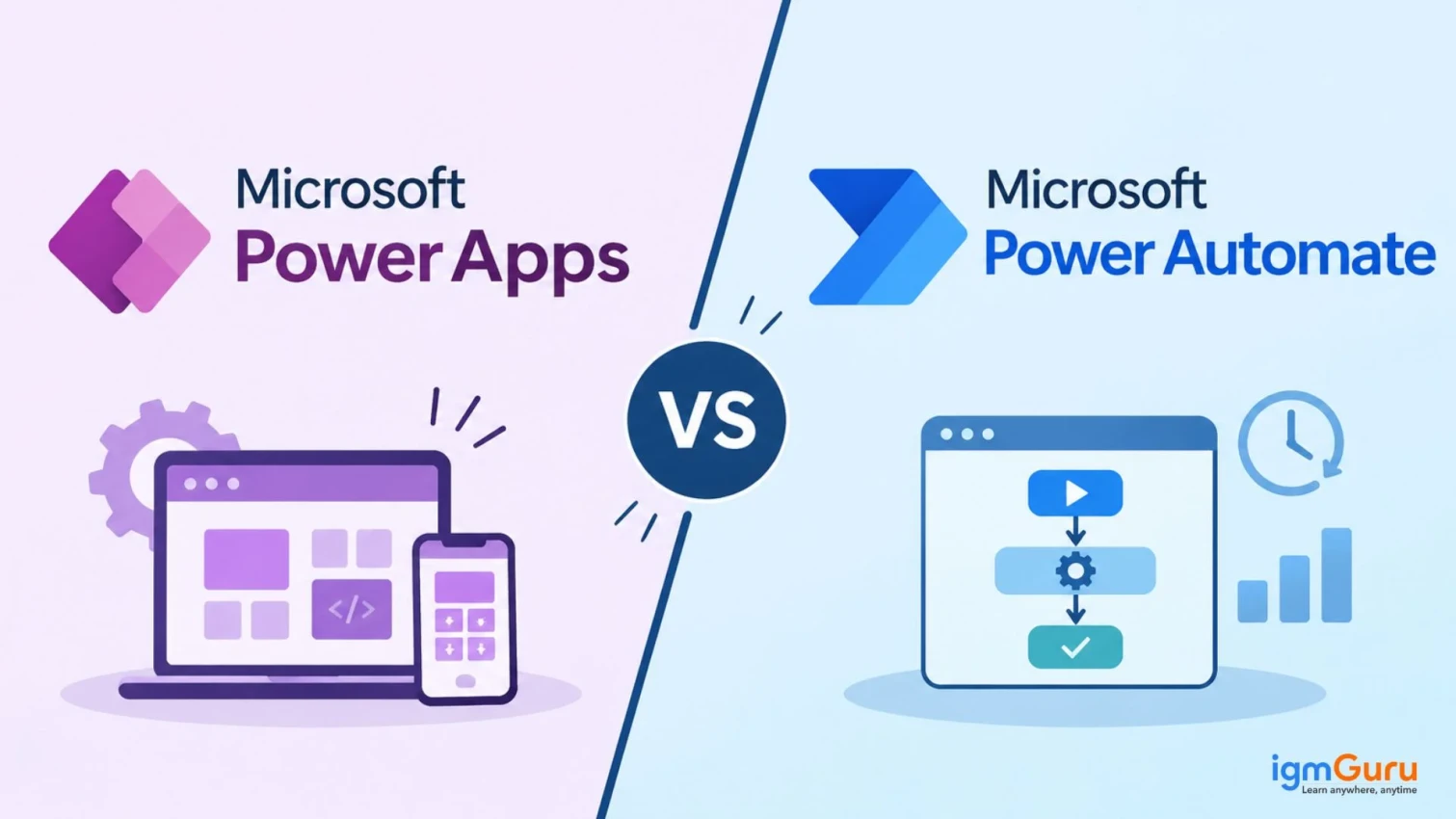
Ask five Microsoft 365 users what Power Apps does, and you will get five different answers. Ask them about Power Automate, and the answers get even fuzzier. Both tools live inside Microsoft Power Platform. Both are low-code. Both connect to the same data. So many people assume they do the same job.
They do not. The Power Apps vs Power Automate question is really a question about what you want to build. One tool builds the screen that people use. The other tool builds the work that runs behind that screen.
In this guide, I will explain what each tool does, where they differ, and when you should use each one. You will also see a 2026 pricing breakdown that includes a price change that Microsoft has announced for Power Apps Premium. By the end, you will know which tool fits your needs.
Microsoft Power Apps is a low-code, AI-powered development platform from Microsoft. It allows users to create custom business applications quickly without writing large amounts of traditional code.
In simple terms, Power Apps is the front end. It builds the part of a solution that a person can see and touch, such as a form, a dashboard, or a mobile app.
Learn to create custom business apps, automate workflows, and connect data using Microsoft Power Apps.

You can build two main types of apps in Power Apps:
Power Apps also uses a formula language called Power Fx. It looks a lot like Excel formulas, so many business users pick it up quickly. Apps can store data in Microsoft Dataverse, or they can connect to SharePoint, Excel, SQL Server and many other sources.
Microsoft is also adding more AI to the platform. Generative pages are now generally available and they let you describe a page in plain language. Copilot then helps you build it. Power Apps also supports code apps for professional developers.
For example: A company needs a way for employees to submit leave requests. A team can build a simple Power Apps form in a few days. Employees open the app on their phone, pick their dates and tap submit.
Also Explore: Types of Microsoft Power Apps
Microsoft Power Automate, now known as Microsoft Flow, is a low-code workflow automation platform included in Microsoft Power Platform. It helps individuals and businesses automate repetitive tasks, manage routine workflows and connect different apps and services without requiring extensive coding knowledge.
Power Automate works on a simple idea. Something happens and then an action follows. The first part is called a trigger. The second part is called an action. A flow can have many actions in a row.
Power Automate supports several types of automation:
For example: A customer fills out a web form. Power Automate saves the response in a spreadsheet, sends a confirmation email and Copilot posts a message in Microsoft Teams. Nobody has to do any of it by hand.
Learn to create automated workflows, connect applications, and streamline repetitive business tasks using Microsoft Power Automate.

The biggest difference between Power Apps and Power Automate is the job each tool does. Power Apps creates an experience for a user. Power Automate creates a process that runs on its own.
| Factor | Power Apps | Power Automate |
| Main purpose | Builds custom business apps | Automates tasks and workflows |
| What you create | Apps with screens, forms and buttons | Flows with triggers and actions |
| User interaction | A person opens and uses the app | The flow runs in the background |
| How it starts | A user opens or taps something | A trigger, a schedule, or a button |
| Design focus | Layout, controls and user experience | Logic, conditions and connections |
| Formula skills | Uses Power Fx | Uses expressions and a visual designer |
| Typical users | Citizen developers and app makers | Business users, analysts and IT teams |
| Best for | Data entry, dashboards and mobile tools | Approvals, alerts and data syncing |
Let me tell you the easiest way to remember it:
If a person needs to see something and work with it, you need Power Apps. If a task should happen without a person, you need Power Automate.
There is one more point to keep in mind. Power Apps and Power Automate are both part of Microsoft Power Platform. This platform also includes Power BI, Power Pages and Copilot Studio. All these tools share connectors and data, so they work well together.
Read Also: Excel Multiply Formulas
Each tool has its own strengths. Let us look at them one by one.
Also Read: CALCULATE Function in Power BI
The best way to understand these tools is to see them at work. Here are common situations for each one.
Ask yourself one question. Does a person need to interact with it? If the answer is yes, start with Power Apps. If the answer is no, start with Power Automate.
Read Also: Top 10 In-Demand Microsoft Certifications
Learn Power BI data modeling, visualization, DAX, and interactive dashboard development through practical training.

No tool is perfect. Here is an honest look at both.
Pros
Cons
Pros
Cons
I have worked with both tools and they feel very different in daily use.
Power Apps feels like design work. I spend most of my time on screens, layouts and formulas. The first version of an app comes together fast. The polish takes longer because I sometimes adjust spacing, test on a phone and fix small display issues. The reward is easy to see. People open the app and start using it right away.
Power Automate feels like problem solving. I map the steps, pick a trigger and test each action. Simple flows take only a few minutes to build. Longer flows need more care. A flow can fail when a connector changes or a field is empty so I add error handling early.
Here are the lessons I learned from using both:
My biggest takeaway is simple. I stopped asking which tool is better. I now ask which part of the problem each tool should handle. That one change made my projects faster and easier to maintain.
Also Explore: What is Microsoft Fabric?
Yes, you can. In fact, this is where both tools deliver the most value. The Power Apps vs Power Automate debate often misses this point. Most strong solutions is that you can use both tools.
Power Apps handles the part that people see. Power Automate handles the work that happens after they act.
Let us look at an expense claim example:
The app gives the employee a simple experience. The flow does the heavy lifting in the background. Neither tool could do the whole job well alone.
Power Apps can start a flow with a button click. The flow can also send data back to the app. This two-way link makes the pair very flexible.
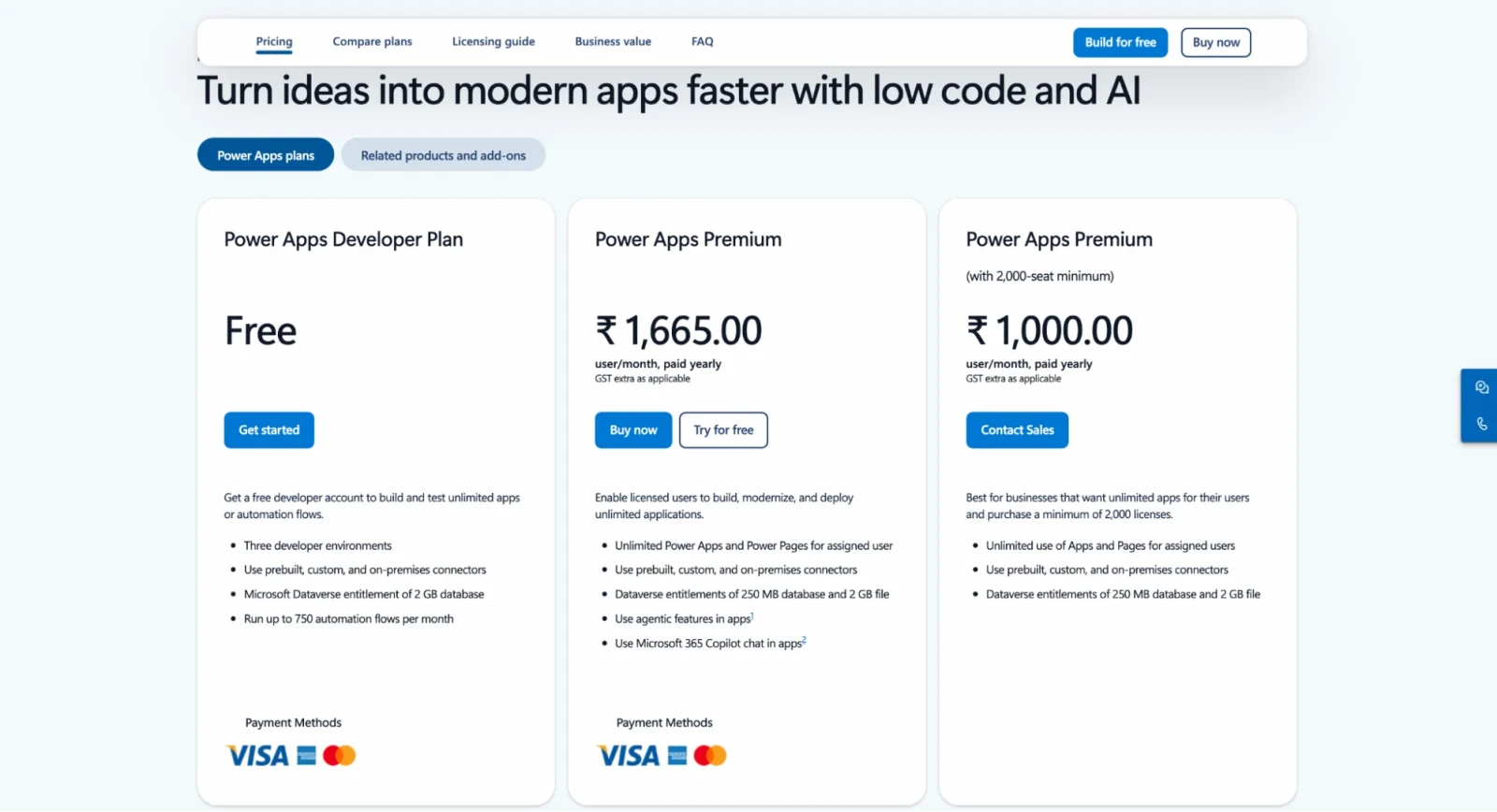
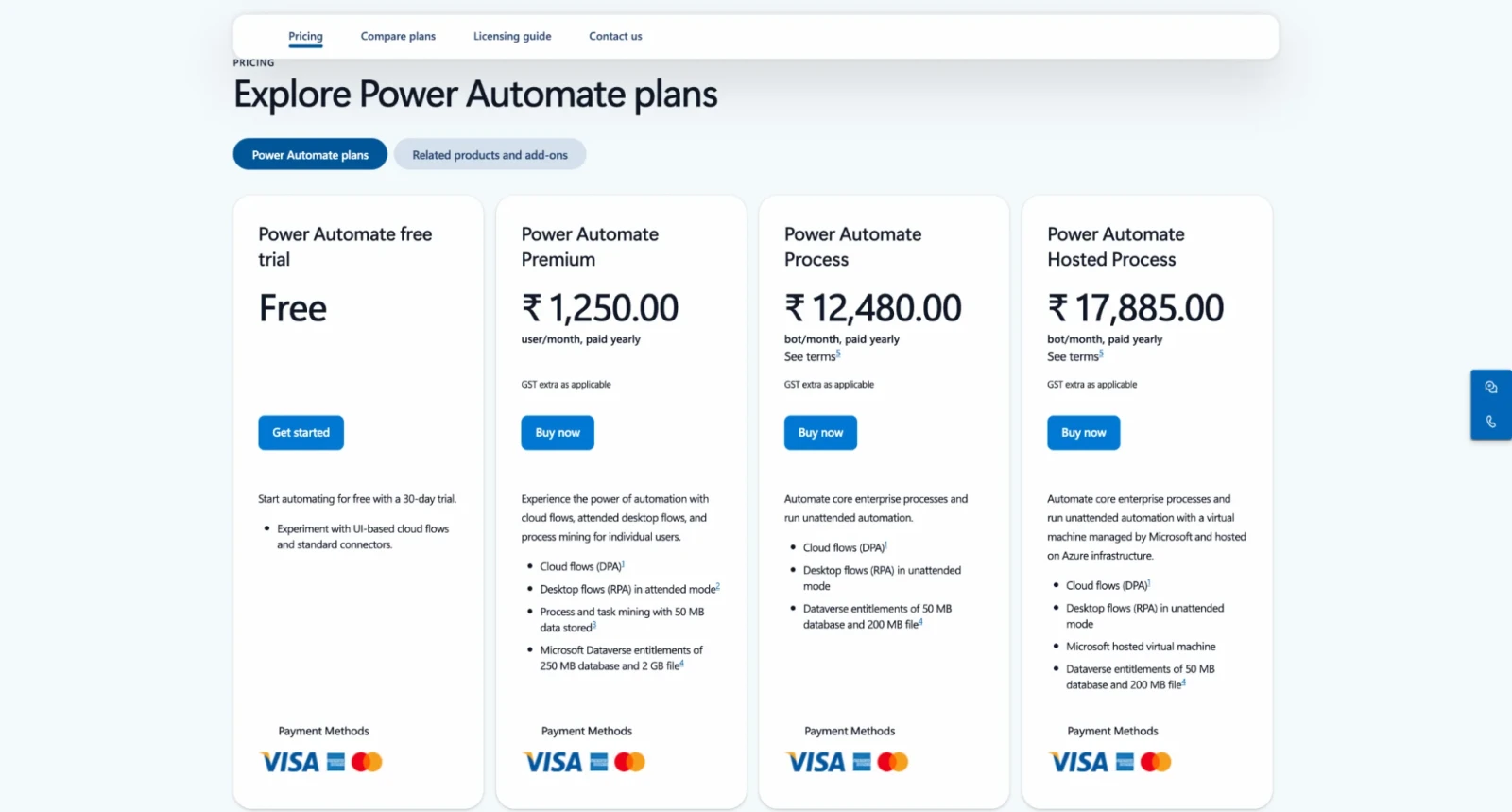
Power Apps and Power Automate offer different pricing plans based on their features, usage, and licensing requirements. Let us look at the pricing and licensing options for each tool to understand which one best suits your business needs.
Learn more about Power Apps pricing which includes its plans and licensing options.
Explore Power Automate pricing to understand its plans and licensing options.
Read Also: What is PowerShell?
Choosing between these tools becomes easy when you start with your goal. Follow these steps:
Here is a quick guide for common situations:
| If you need to... | Choose |
| Build a mobile app for field staff | Power Apps |
| Collect data through a custom form | Power Apps |
| Send alerts when something changes | Power Automate |
| Route requests for approval | Power Automate |
| Automate a task in an old desktop app | Power Automate (desktop flows) |
| Build an app with a built-in approval process | Both tools together |
Note: If you are still unsure, start with the pain point. A manual task points to Power Automate. A missing screen points to Power Apps.
Learn PowerShell scripting, command automation, system administration, and task management through practical training.

The Power Apps vs Power Automate question has a simple answer. Power Apps builds the app that people use. Power Automate builds the automation that works behind the scenes. They are not rivals. They are partners inside Microsoft Power Platform.
If your need is a form, a dashboard, or a mobile tool, choose Power Apps. If your need is an approval, an alert, or a data sync, choose Power Automate. If your need includes both a user screen and a background process, use them together. That combination is where most teams see the biggest results.
Start with one small project, check your licensing and grow from there. That is the smartest way to get value from both tools.
No, they are separate products, but both belong to Microsoft Power Platform. They work closely together and a Power Apps app can start a Power Automate flow.
Yes, you can. Many apps work fine on their own. You only need Power Automate when your app must trigger background tasks, such as approvals or notifications.
Most beginners find simple flows in Power Automate easier to build at first. Power Apps takes a little more time because you also have to design screens and learn Power Fx. Both tools are friendly for non-developers.
No, both are low-code tools. You can build useful solutions with drag-and-drop design, templates and simple formulas. Coding knowledge helps with advanced projects, but it is not required.
Neither is better in every case. The right choice depends on your goal. Most businesses end up using both, because apps and automation solve different parts of the same problem.


