Generative AI has moved far beyond simply asking a chatbot a question and getting an answer. It is now used to build applications, test prompts, analyze documents, work with images and audio, and create AI-powered features for real products. As these use cases have grown, there is also a growing need for tools that let people experiment with AI models before putting them into a real application.
This is where Google AI Studio becomes useful. Instead of treating AI only as a chatbot, it gives you a workspace where you can experiment with Google's Gemini models, test different prompts, adjust model settings, work with different types of inputs, and explore how Artificial Intelligence behaves in different situations. You can start in the browser without setting up a complete development environment, and developers can move from experimentation toward application development using APIs and generated code.
The interesting part is that you do not have to be an experienced AI developer to start using it. A beginner can use Google AI Studio to understand prompting and experiment with AI, while a developer can use it to prototype applications, compare model responses, test multimodal capabilities, and prepare integrations. This makes it useful for both learning and practical AI development.
But there is more to Google AI Studio than simply typing prompts and getting responses. The platform has evolved with features for app building, multimodal interactions, structured outputs, prompt management, real-time applications, and other AI development workflows. Understanding these features can help you decide whether AI Studio is the right tool for your particular use case.
In this article, I will explain what Google AI Studio is, how it works, how to get started, its latest features, important interface options, useful prompts, real-world use cases, limitations, and how it compares with tools such as ChatGPT, Claude, Copilot, and other AI platforms. Let’s begin!
Google AI Studio is a web-based prototyping tool that is designed mainly for developers and creators. It is a completely free platform where you can build, try, test prompts and understand how Google's AI works. It allows you to talk to AI by typing prompts and getting instant responses.
In simple words, Google AI Studio is a free Google platform that lets users experiment with AI models to generate text, test ideas, and explore how AI responds to different prompts. You type what you want, and the AI gives you an output.
This tool is designed by Google mainly for experimentation like generating API keys to integrate it with AI. It helps users understand how AI behaves in different situations. Google AI Studio is like a safe space to experiment before using AI in real projects.
Google AI Studio runs on Google Gemini, which is Google's advanced generative AI model. Gemini is built to understand language, context, and intent. This is why the responses feel more natural and relevant.
One of the best things about Google AI Studio is that it works completely in your browser. You just need to sign in with your Google account and you can start using it. There is no software that you need to download, no system requirements and no technical setup. This is why it is perfect even for beginners who are using an AI tool for the first time.

Google AI Studio continues to evolve rapidly, with several new capabilities introduced throughout 2026. These updates make the platform more powerful for prompt engineering, multimodal AI development, real-time applications, and building production-ready AI solutions.
The platform now offers a single playground where you can try out different AI models, including text, image, audio, and video, all in the same place. The homepage has also been redesigned to help you jump into projects faster and see your usage at a glance. It makes the experience smoother for both beginners and developers.
Google added more tools that help you manage prompts, API keys, and project limits without leaving the studio. You can also export prompts and code directly into environments like Colab. It speeds up real development work.
AI Studio now supports the newest Gemini models, including Gemini 3 Pro and the faster, more efficient Gemini 3 Flash. These models provide more accurate outputs and richer capabilities for building intelligent apps right from the studio.
There is improved support for the Build mode. It lets you take natural language prompts and turn them into working app prototypes faster than before. It helps you go beyond simple prompt testing to real AI-powered applications.
Google AI Studio now supports the Model Context Protocol (MCP), an open standard that allows Gemini models to connect with external tools, databases, APIs, and local applications. Instead of building custom integrations, developers can use MCP-compatible servers to give AI access to real-time data and business workflows, making it easier to build powerful AI agents.
AI Studio now offers improved support for structured outputs using JSON Schema. Instead of returning only plain text, Gemini can generate responses in a predefined JSON format. This makes it much easier to integrate AI into websites, mobile applications, automation workflows, and enterprise systems where consistent data formats are required.
The Live API has been improved to support lower-latency voice, video, and streaming interactions. Developers can prototype conversational AI assistants, real-time customer support systems, and interactive applications directly inside Google AI Studio before deploying them to production.
Google AI Studio now provides better tools for organizing, saving, and reusing prompts across projects. This helps developers experiment with different prompt versions, compare outputs, and maintain consistent AI behavior while developing applications.
Google AI Studio now provides stronger multimodal workflows by allowing users to work with text, images, audio, video, and documents within the same project. This enables advanced use cases such as document understanding, image analysis, multimedia content generation, and AI-powered data extraction from multiple input types.
The platform now features native testing suites that let you benchmark prompt performance at scale. You can create custom grading criteria, run automated evaluation runs, and compare different prompt versions side-by-side. This makes it much easier to catch regressions, track reliability, and optimize AI behavior before deploying your models to production.
Overall, these updates are about giving you a smoother, more capable workspace to explore Google’s AI models and move from ideas to real output with less friction.
Additionally, Google AI Studio is moving beyond experimentation and making it easier to build and launch real AI applications quickly with some new features like Agentic Vision for deeper and more interactive image analysis and one-click deployment to Cloud Run.
Read Also: What is Gemini 3: Google's Most Powerful LLM
Getting started with Google AI Studio is very simple. When I first used it, I realised Google has kept the onboarding clean and beginner-friendly. You don't need to download anything or go through complex steps. Just follow these three steps and you are in:
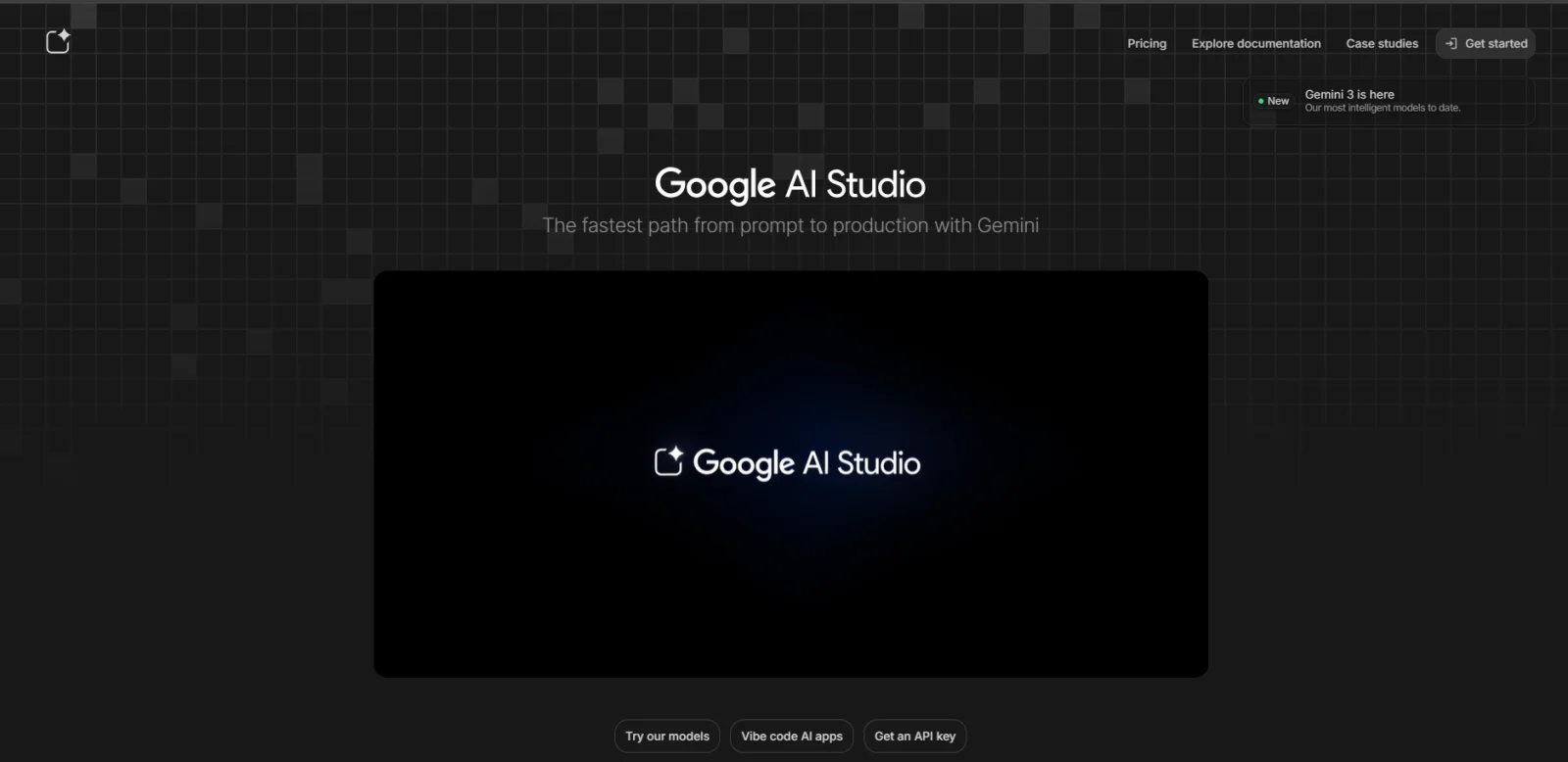
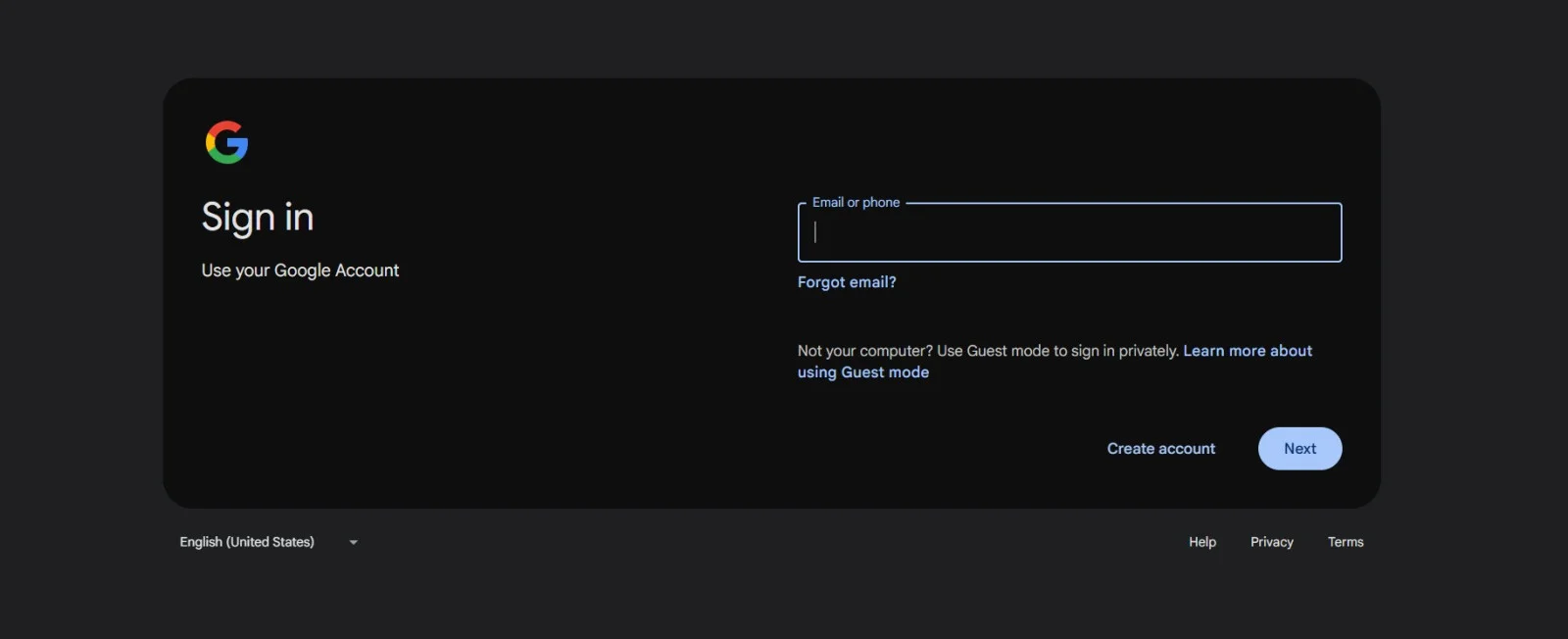
First, go to the official Google AI Studio website. You will see a clean landing page with a "Get started" option. Click on it and sign in using your Google account. If you already use Gmail, this step takes barely a few seconds. There is no separate registration process.
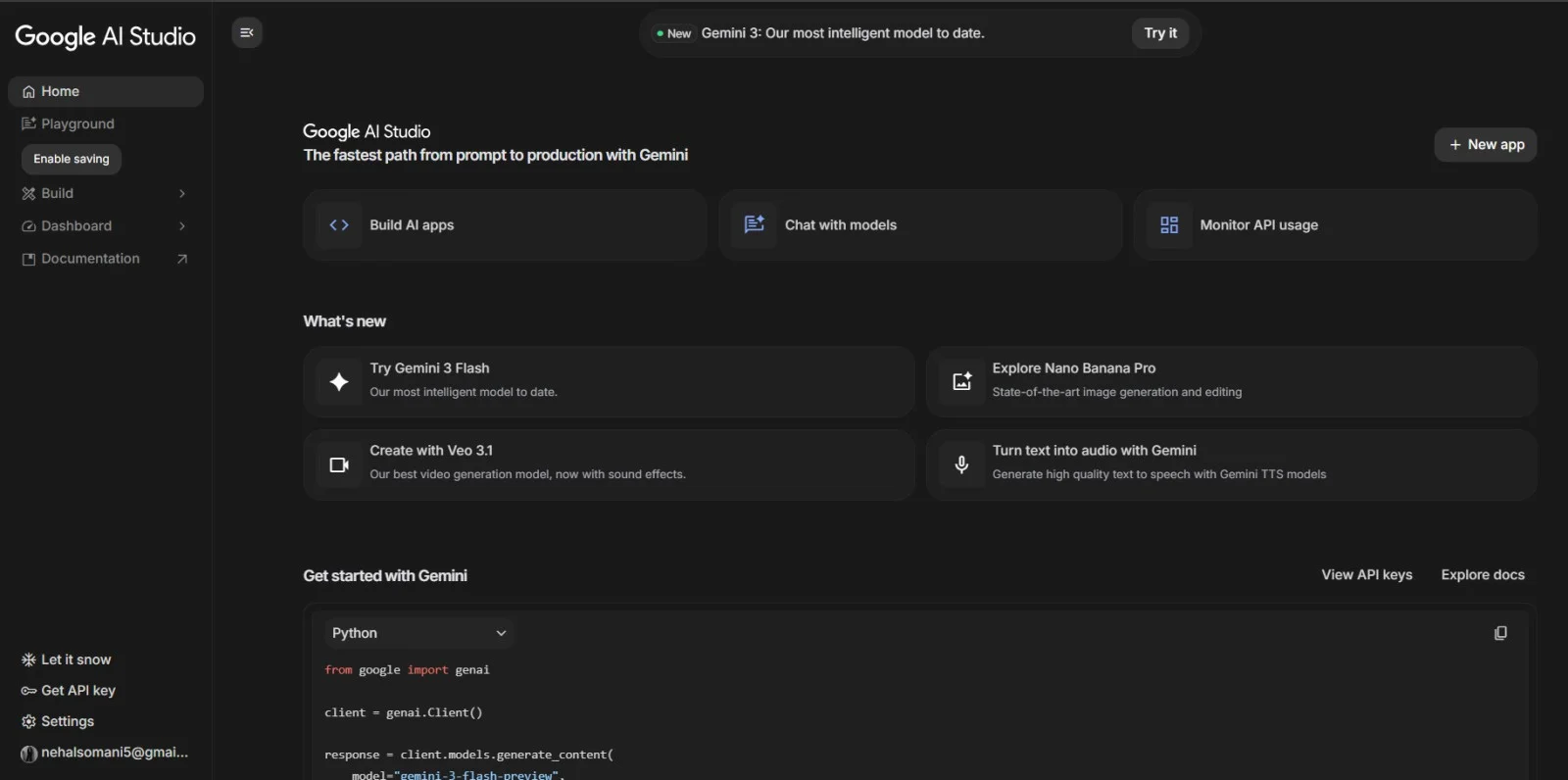
Once you sign in, you land directly on the Google AI Studio dashboard. This is the main workspace. Here, you'll see options like chatting with AI models, building AI apps, exploring new features, and checking documentation. Everything is clearly labelled, so even a first-time user won't feel lost.
Now comes the actual fun part. You can start typing prompts and interact with Google's AI models right away. Whether you want to generate text, test ideas, or simply explore how the AI responds, you can begin instantly. No setup, no configuration, just type and experiment.
from google import genai client = genai.Client() response = client.models.generate_content( model="gemini-3-flash-preview", contents="Explain how AI works in a few words", ) print(response.text) |
import { GoogleGenAI } from "@google/genai"; const ai = new GoogleGenAI({}); async function main() { const response = await ai.models.generateContent({ model: "gemini-3-flash-preview", contents: "Explain how AI works in a few words", }); console.log(response.text); } await main(); |
package main import ( "context" "fmt" "log" "google.golang.org/genai" ) func main() { ctx := context.Background() client, err := genai.NewClient(ctx, nil) if err != nil { log.Fatal(err) } result, err := client.Models.GenerateContent( ctx, "gemini-3-flash-preview", genai.Text("Explain how AI works in a few words"), nil, ) if err != nil { log.Fatal(err) } fmt.Println(result.Text()) } |
package com.example; import com.google.genai.Client; import com.google.genai.types.GenerateContentResponse; public class GenerateTextFromTextInput { public static void main(String[] args) { Client client = new Client(); GenerateContentResponse response = client.models.generateContent( "gemini-3-flash-preview", "Explain how AI works in a few words", null); System.out.println(response.text()); } } |
curl "https://generativelanguage.googleapis.com/v1beta/models/gemini-3-flash-preview:generateContent" -H "x-goog-api-key: $GEMINI_API_KEY" -H 'Content-Type: application/json' -X POST -d '{ "contents": [ { "parts": [ { "text": "Explain how AI works in a few words" } ] } ] }' |
When you open Google AI Studio for the first time, the UI might look advanced, but once you spend a few minutes inside it, everything starts making sense. Google has designed the interface in a way that most things you need are available on a single screen. No unnecessary clutter. No confusion.
I'll take you through the main parts of the interface exactly how I experienced them, in a simple and practical way.
The New Chat button, usually shown as a plus (+) icon, lets you start a fresh session. Whenever you feel your current conversation has become messy or you want to try a completely new idea, this is what you click. It clears the previous context and gives you a clean workspace for a new prompt.

Temporary Chat is useful when you want to experiment freely without saving the conversation. When this mode is enabled, your chat history is not stored in AI Studio. This is helpful for quick testing or sensitive experiments. One thing to note is that any files you upload during a temporary chat are still saved to your Google Drive.
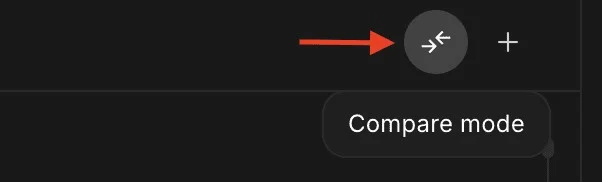
Compare Mode is designed for side-by-side testing. You can send the same prompt using different models or different settings and compare the responses on the same screen. I found this extremely helpful for checking quality differences, tone variation, and prompt effectiveness. It's especially useful for A/B testing and fine-tuning outputs.

This feature is a big plus for developers. Once you are happy with a response, clicking Get Code generates a ready-to-use code snippet, usually in Python or JavaScript. This allows you to take what you tested in the UI and directly move it into an application or workflow. It saves time and reduces guesswork.
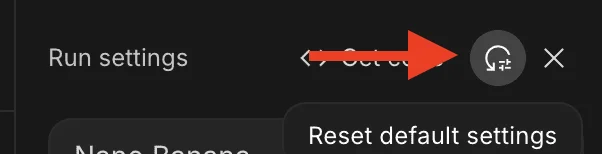
After experimenting with creativity, output length, or other controls, things can get a little chaotic. The Reset Default Settings option instantly brings everything back to Google's recommended baseline. This is useful when you want to restart testing from a neutral point.
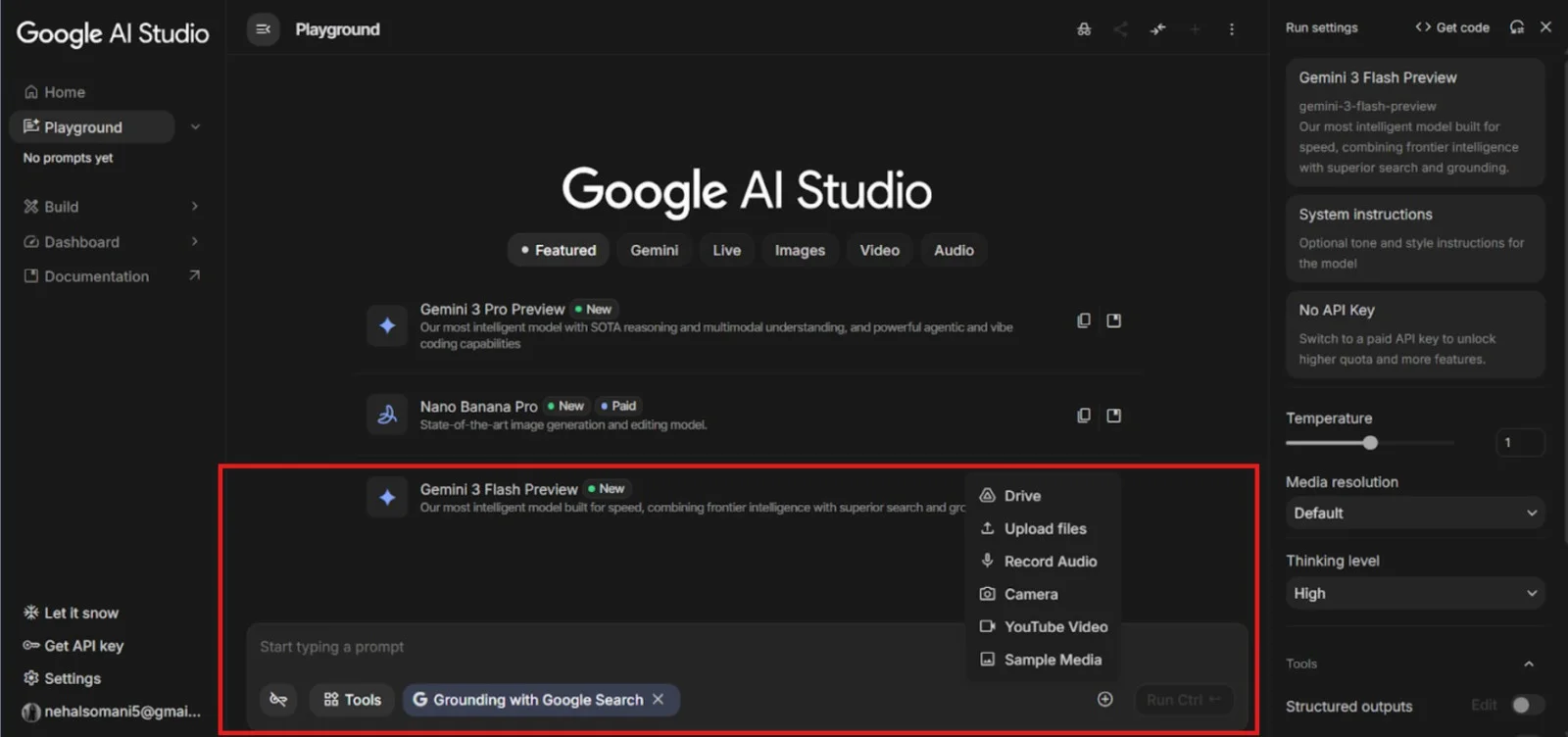
The prompt editor is the main input area. This is where you type instructions, ask questions, paste text, or upload files. It supports multi-turn conversations, so you can refine prompts step by step. You can also attach images or other media depending on the model you're using.
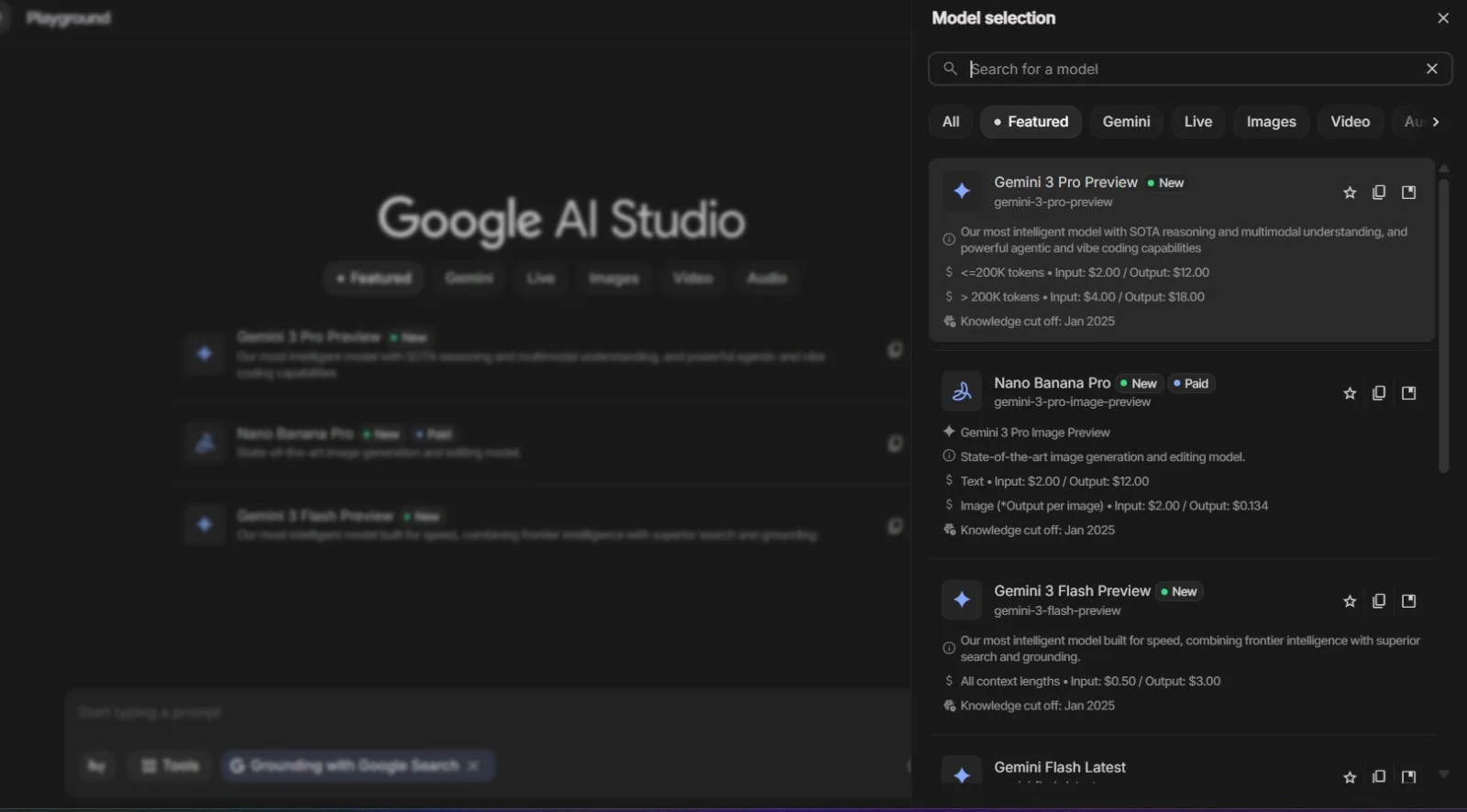
At the top right of the interface, you'll find the Model Selector. This lets you choose from available models across text, image, audio, video, and live interaction categories. You can also view model details like token limits, strengths, and supported inputs before selecting one. Switching models is instant.
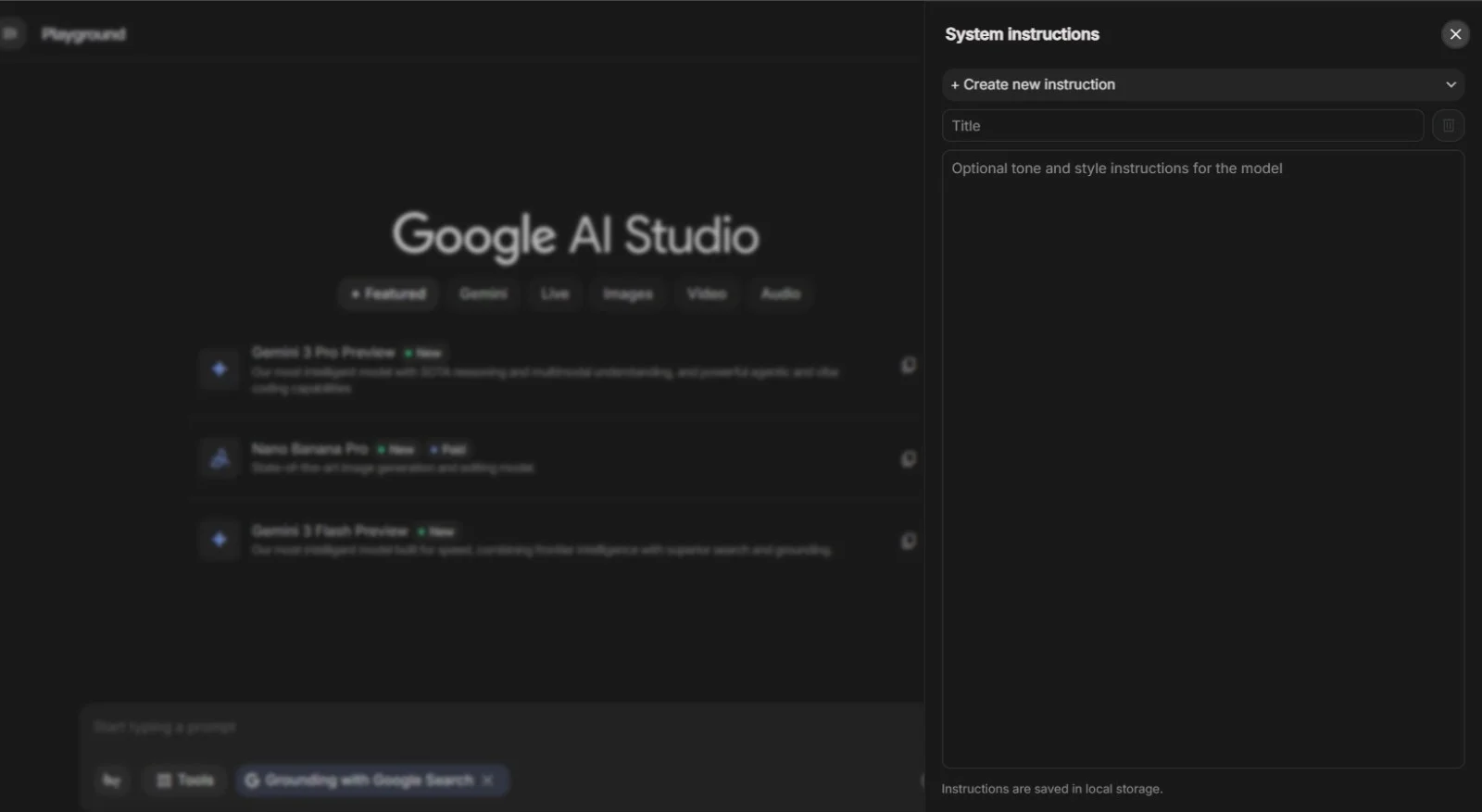
System Instructions act like a rulebook for the AI. Instead of repeating instructions in every prompt, you define them once here. For example, you can tell the model to behave like a marketing expert, keep answers short, or always use bullet points. These instructions influence every response in the session.
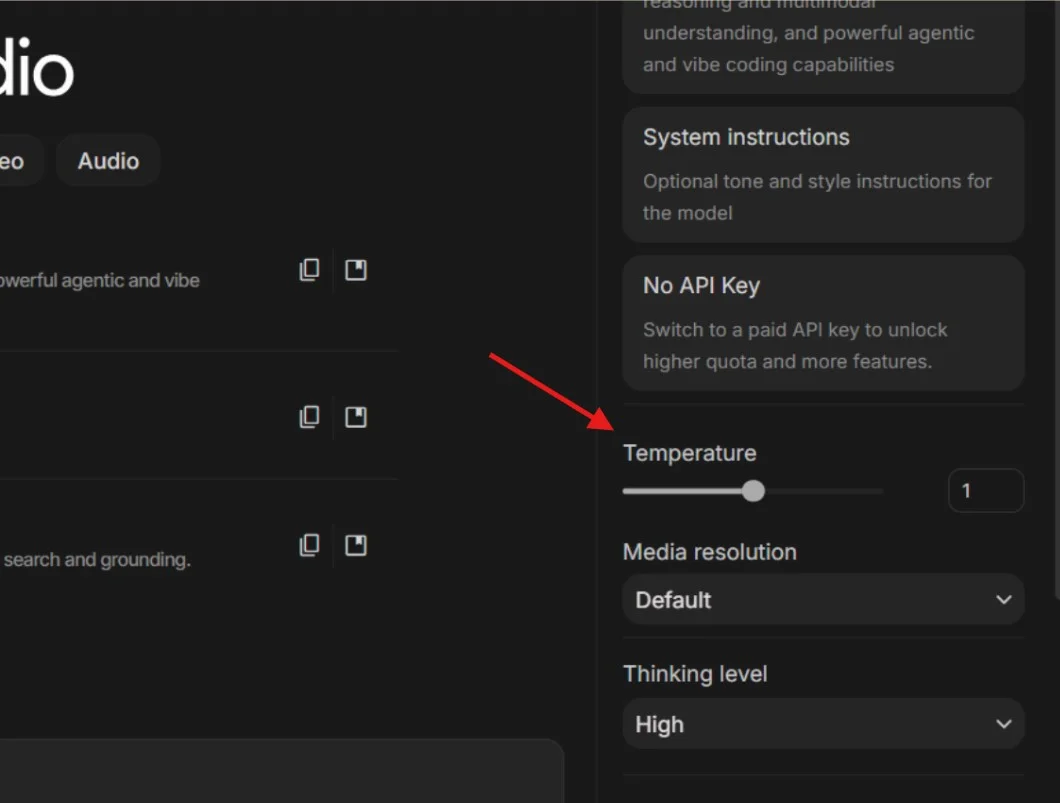
The temperature slider controls how creative or predictable the AI's responses are. Lower values give more focused and factual answers. Higher values make responses more creative and diverse. Adjusting this setting makes a noticeable difference, especially for writing and brainstorming tasks.
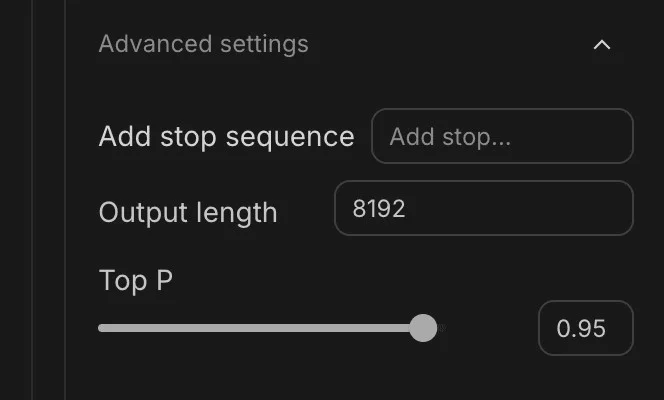
Advanced settings give you deeper control over how responses are generated. You can set output length limits, define stop sequences to control where responses end, and adjust Top P to manage randomness more precisely. These options are useful once you move beyond basic experimentation.
This is where the AI's answers appear. Along with the response, you can see usage details like tokens consumed, generation time, and feedback options. You can rerun a response, delete it, or give feedback to improve future outputs.
After spending time inside Google AI Studio, one thing becomes very clear. The features are simple to understand, even if you are using AI for the first time.
Chat mode is the easiest way to start. This is where you type a prompt and get an instant response from the AI. I used this mode mostly for testing ideas, writing and testing prompts, and understanding how the AI reacts to different instructions. If you are a developer and writing prompts to test and creating API keys for application integration, this mode alone is extremely useful.
Build mode is where things get more interesting. Here, you can take a simple prompt and slowly shape it into something more structured, like an AI-powered feature or workflow. Even if you are not a hardcore developer, this mode helps you understand how prompts can be used in real time. It feels like moving from experimenting to actually building something meaningful.
Stream mode allows you to work with voice and video-based AI interactions. This is helpful if you want to explore AI beyond text. For example, real-time responses, audio generation, or interactive experiences. It shows how AI can be used in more dynamic and modern applications.
This part gives you control. You can adjust how creative the AI should be, how long the response is, and how detailed the output feels. Once I started tweaking these settings, the results became much better and more aligned with what I actually wanted.
Google AI Studio is not limited to text. You can also explore image generation, video-related features, and audio outputs. This makes it useful for content creators who work across different formats, not just written content.
One practical feature I really liked is the ability to export code or use the output for integrations. This helps when you want to move from testing inside the studio to using AI in real projects or applications.
Overall, these features make Google AI Studio feel like a complete AI workspace rather than just another chatbot.
One of the biggest reasons people enjoy using Google AI Studio is that you can instantly test ideas and see how different prompts change the output. When I started experimenting with it, I realised even small prompt changes could completely change the quality of the response.
If you are new to AI prompting, the easiest way to learn is by trying practical examples. Below are some useful prompts you can test directly inside Google AI Studio.
This type of prompt is useful for bloggers, marketers, and content creators.
| Write a beginner-friendly blog introduction explaining cloud computing in simple words with real-world examples. |
You can also adjust the tone, length, and creativity settings to see how the output changes.
Google AI Studio is very useful for developers who want to test code explanations or debug errors quickly.
| Act as a senior Python developer and explain this code line by line. Also identify possible bugs and suggest improvements. |
I found this especially helpful while testing small scripts and understanding unfamiliar code.
If you upload an image, you can ask the AI to describe, analyse, or extract details from it.
| Analyze this image and explain what is happening in detail. Also identify important objects and possible context. |
This works surprisingly well for screenshots, diagrams, charts, and visual content.
You can upload transcripts or paste long content and ask AI Studio to summarise it clearly.
| Summarize this YouTube transcript into key points for beginners and highlight the most important takeaways. |
This saves a lot of time when researching long educational videos.
If you want to build or test chatbot behaviour, prompts like this are very useful.
| Act as a professional customer support assistant for a cloud computing company and answer user queries politely and clearly. |
This helps you understand how system instructions and prompt structure affect chatbot responses.
Students and professionals can also use Google AI Studio for career-related tasks.
| Create a professional resume summary for a data analyst with two years of experience in Power BI and SQL. |
Small prompt refinements usually improve the quality of the output significantly.
Overall, the more prompts you test, the better you understand how Google's AI models behave. This hands-on experimentation is one of the biggest advantages of Google AI Studio.
After actually using Google AI Studio, I realised this is not just a tool to experiment with for fun. It has very practical, real-world uses. Things you can apply immediately in your work or learning.
Google AI Studio lets you upload files, documents, videos, audio, etc., and you can simply ask it to analyze your document (let's say you have uploaded 500 pages) and extract meaningful insights for it.
Google AI Studio is great for testing chatbot logic. You can simulate conversations, see how the AI responds to different user inputs, and improve prompts accordingly. This is helpful if you are planning to build a customer support bot, an FAQ assistant, or any AI-based interaction for a website or app.
Beyond text, the platform also supports image, audio, and video-related experiments. This opens up possibilities for creators who want to explore AI-generated visuals, voice outputs, or multimedia content. It gives a clear idea of how AI can be used across formats, not just words on a screen.
You don't need to be a developer to start. With basic prompts and built-in tools, you can create simple AI-powered features and workflows. This is perfect for beginners who want to understand how AI features are built, without writing complex code.
Probably the biggest advantage is learning by doing. Instead of reading theory, you interact with AI directly. You test, observe, adjust, and learn. For students and beginners, this hands-on approach makes AI concepts much easier to understand and remember.
Read Also: Top 5 Cloud Computing Courses To Consider in 2026
After using Google AI Studio and also working with other popular AI tools, one thing becomes clear. These tools may look similar on the surface, but they are built for very different purposes. Some are made mainly for chatting. Others, like Google AI Studio, are designed more for testing, building, and practically experimenting with AI.
| Feature | Google AI Studio | ChatGPT |
|---|---|---|
| Primary Purpose | AI experimentation and building | AI chatbot for conversations |
| Best For | Testing prompts, prototyping, and AI development | General Q&A, writing, brainstorming |
| AI Models | Google Gemini models | OpenAI GPT models |
| Interface | Studio/workspace style | Chat-based interface |
| Prompt Control | Advanced control for testing | Limited prompt controls |
| Code Export | Yes, for integrations and apps | Limited, mostly manual |
| Multimodal | Text, image, audio, and video support | Text + limited multimodal (depends on plan) |
| Target Users | Developers, creators, AI learners | General users, writers, students |
| Use Case | From prompt to production | Conversation and content help |
ChatGPT feels like a finished AI assistant. Google AI Studio feels like a workshop where you test, tweak, and build with AI.
If your goal is just chatting or writing quick content, ChatGPT is great. If your goal is to understand how AI works, test prompts deeply, or build something with AI, Google AI Studio gives you more control.
Here's how Google AI Studio compares with other major competitors in the AI space.
| Tool | What It's Best For | How It Compares to Google AI Studio |
|---|---|---|
| Claude (Anthropic) | Long documents, reasoning, writing | Better for long text, less for building |
| Microsoft Copilot | Office productivity (Word, Excel, Outlook) | Tied to Microsoft apps, less flexible |
| Perplexity AI | AI-powered search and research | Best for search, not for AI building |
| Amazon Bedrock | Enterprise AI development | More complex, enterprise-focused |
| Meta AI | Social platform integrations | Limited for serious AI development |
From my experience, Google AI Studio is not trying to replace AI chatbots. It is trying to help people move from experimenting with AI to actually using AI in real projects. That's a big difference.
If you are a:
Google AI Studio gives you more flexibility than most simple AI chat tools.
Although Google AI Studio is powerful and beginner-friendly, it is not perfect. After using it for different types of tasks, I noticed there are still a few limitations users should understand before relying on it heavily.
Like most AI tools, Google AI Studio can sometimes generate inaccurate or misleading information. Even though Gemini models are very advanced, they can still make mistakes or confidently provide incorrect answers. This is why fact-checking is always important.
Features like temperature, Top P, token limits, and system instructions are useful, but beginners may feel overwhelmed at first. If you are completely new to AI tools, some settings may require experimentation before they start making sense.
Google AI Studio is free to start, but usage limits can still apply depending on the model and workload. During heavy usage or testing, you may notice restrictions, slower responses, or limited access to certain advanced models.
In some cases, very large prompts or highly detailed instructions can lead to inconsistent outputs. Sometimes the model follows only part of the instructions or misses smaller details inside long conversations.
Since Google AI Studio is completely web-based, you cannot use it offline. A stable internet connection is necessary for testing prompts, generating outputs, and accessing models.
Google regularly updates and changes Gemini models inside AI Studio. Because of this, certain models, features, or preview versions may appear, disappear, or behave differently over time.
Despite these limitations, Google AI Studio remains one of the easiest ways to explore and experiment with modern AI models. Once you understand its strengths and weaknesses, the platform becomes much more useful and practical for real-world tasks.
By now, you have a clear idea of what Google AI Studio is and how it actually works. You have seen that it is not just another AI chatbot, but it is like a practical workspace where you can test your prompts, explore Google's AI models and understand how AI behaves in real situations. The tool offers a lot more than what most beginners expect like content creation, chatbot testing, experimenting with images, audio, advanced settings, etc.
If you are new to AI, the biggest takeaway from this article for you is that you don't need deep technical knowledge to start. Google AI Studio is built in a way that lets you learn by doing. You can experiment, observe the output, tweak your prompt, and slowly improve. This kind of hands-on experience is what makes AI concepts easier to understand and remember.
Now, you can open Google AI Studio and try it yourself. Just start with a basic prompt and test different ideas. The more you use it, the clearer its real value becomes.
Yes, Google AI Studio is free to start. You just need a Google account to sign in and use most features for learning and experimentation.
No, you can use Google AI Studio by simply typing prompts in plain language. Coding is optional and only needed if you want to build or integrate AI into apps.
Yes, but it depends on the model you select. Hence, Google AI Studio can work with images, audio, and video, not only with text.