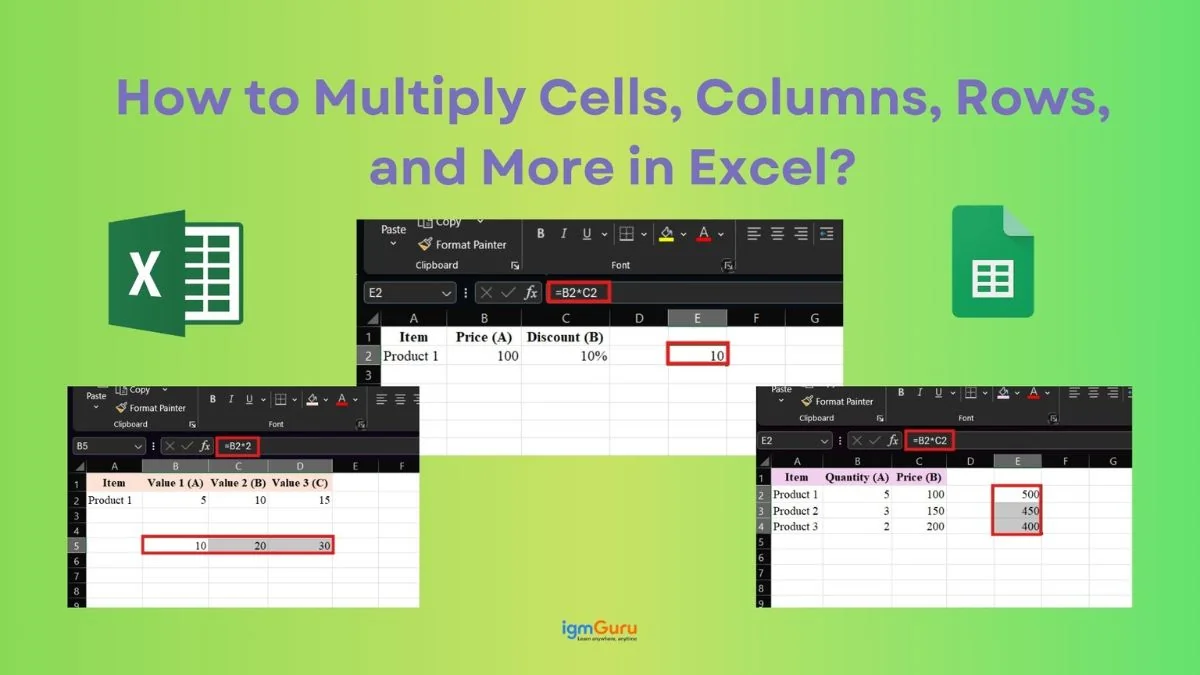
Suppose you are working on a simple Excel sheet, maybe keeping track of your monthly expenses, calculating product prices, analyzing sales data, or anything else. You will quickly realize that so many calculations depend heavily on the multiplication formula in Excel. Whether it is about finding total revenue (price × quantity) or applying discounts, multiplication is everywhere in Excel.
The best thing is that you don't need to be an expert to do all this. Excel makes multiplication a lot easier once you understand a few basic methods. In fact, there are multiple ways to perform multiplication in Excel, depending on what your goal is or what you are trying to achieve, like multiplying two cells, entire columns, applying percentages, or even working with advanced formulas like matrix multiplication.
In this guide, you’ll learn all the essential multiplication methods in Excel. Let’s begin.
There are multiple multiplication types and their methods in Excel, but each of the are inspired by one simple and quick method. It is using the asterisk * sign in formulas. You can think of this sign as Excel's way of saying “multiply”.
Excel is not just a calculator where you just type numbers to multiply. It only understands formulas, and you have to create one to do calculations. For instance, if you want to multiply 5 and 10 in Excel, you will write: =5*10. Then the result will be 50.
But Excel becomes truly powerful when you start multiplying values from cells instead of typing numbers directly. Suppose you have numbers in cells A1 and B1. Rather than rewriting them, you can simply use: =A1*B1
In this way, Excel can automatically calculate the result based on the cell values. The best part is that if you change the value in any of the selected cells, the result updates instantly. You are not required to recalculate anything manually.
This dynamic nature is what makes Excel so useful for real-world tasks like budgets, reports, and data analysis. You just need to set up the formula once, and Excel will do the rest for you. Now, let’s begin with the very basic and common way to multiply in Excel.
Related Article: Subtraction Methods in Excel
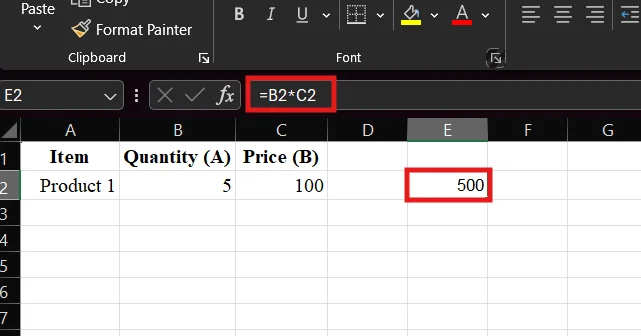
Multiplying two cells in Excel means calculating the product of the values stored in two different cells using a simple formula. Instead of typing numbers manually, you reference the cell locations. It allows Excel to automatically update the result whenever the data changes.
This is one of the most basic and commonly used operations in Excel. It is especially used when someone works with values like price and quantity, marks and weightage, or cost and units.
|
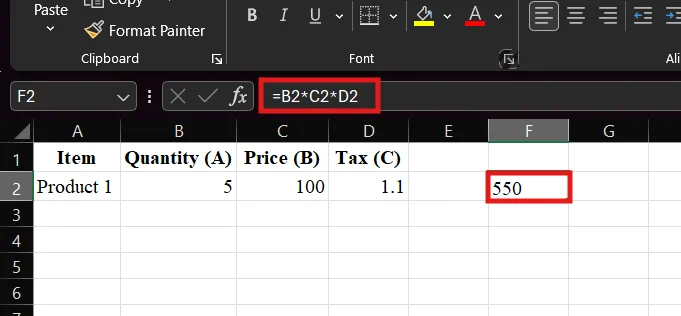
Multiplying multiple cells in Excel means calculating the product of more than two values at once by combining them in a single formula. In this, you do not multiply cells one by one; you can include all the required cell references together. It makes your calculation faster and more efficient.
This method is useful when you are working with datasets that involve multiple factors, such as calculating total cost with quantity, price, and tax, or combining different values in a single calculation.
|
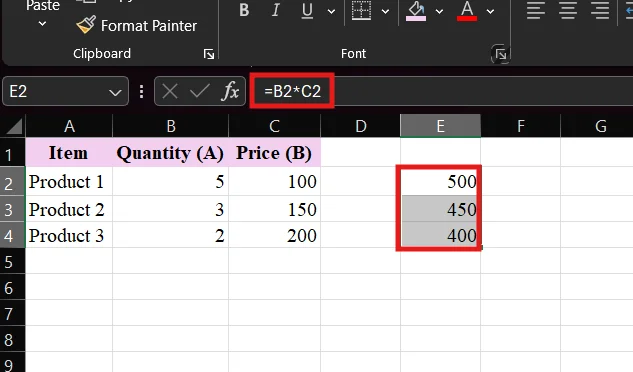
Multiplying columns in Excel means calculating the product of corresponding cells from two columns row by row. Instead of multiplying values individually, you write one formula and apply it across the entire column, making the process fast and efficient.
This method is commonly used in real-world scenarios like calculating total sales (quantity × price), marks (score × weightage), or any dataset where values are arranged vertically.
|
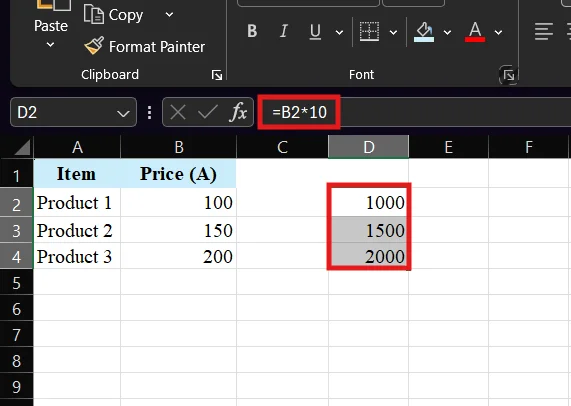
Multiplying a column by a number in Excel means applying the same fixed value (constant) to every cell in a column. This is especially useful when you want to increase prices, apply tax, convert units or adjust values by a fixed multiplier.
You do not need to write separate formulas for each cell, Excel allows you to use one formula and apply it across the entire column efficiently.
|
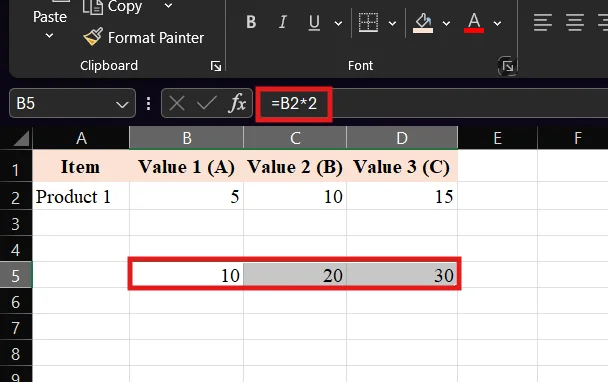
Multiplying rows by a number in Excel means applying a fixed value (constant) to each cell across a row. This is useful when you want to increase values, apply a multiplier or adjust data consistently across multiple columns.
In this also you are not supposed to calculate for each cell. You can just write one formula and drag it to all the other cells where you want to do it calculation. This saves a lot of time and effort.
|
The PRODUCT() function in Excel is a built-in formula that allows you to multiply multiple numbers or cell ranges in a single step. Instead of using the * operator repeatedly (like A1*B1*C1), you can directly use PRODUCT to make your formula cleaner and easier to manage.
This function is especially useful when you are working with large datasets or long ranges. It is where writing manual multiplication formulas will be time-consuming and harder to maintain.
|
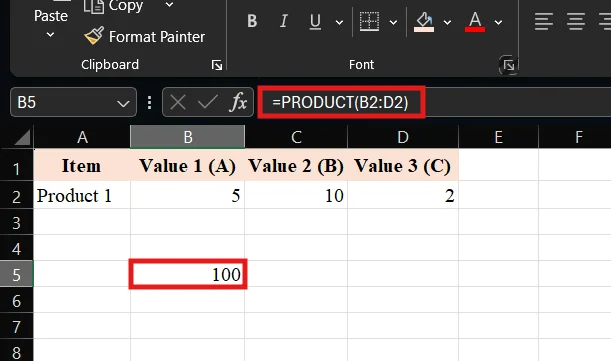
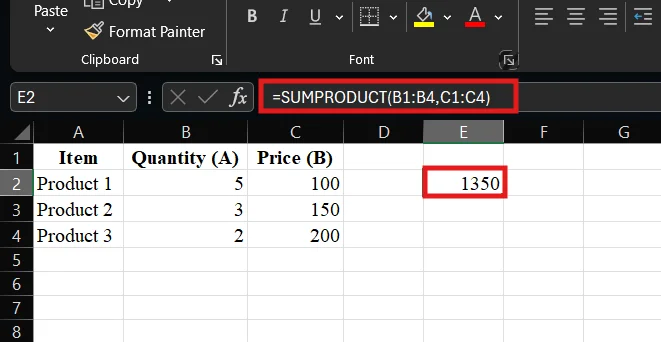
The SUMPRODUCT() function in Excel is used to multiply corresponding values in two or more ranges and then return the sum of those products. In simple terms, it performs multiplication and addition in a single step.
This function is especially useful when working with datasets like total sales (quantity × price). It is where you want both multiplication and summation without creating extra columns.
|
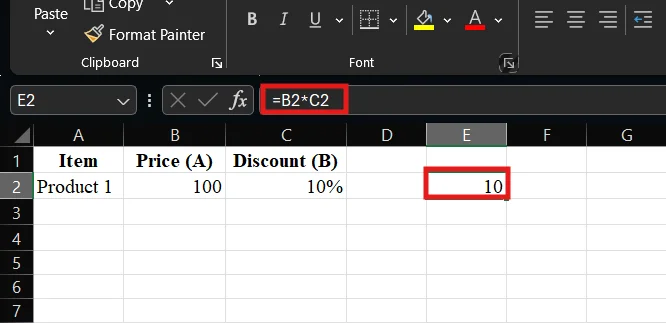
Multiplying by percentages in Excel means calculating a value based on a percentage of another number. This is very commonly used in real-life scenarios like applying discounts, calculating tax, finding commissions or increasing/decreasing values.
In Excel, percentages are treated as their decimal equivalents. For example, 10% = 0.1, so when you multiply a number by a percentage, Excel automatically performs the correct calculation.
|
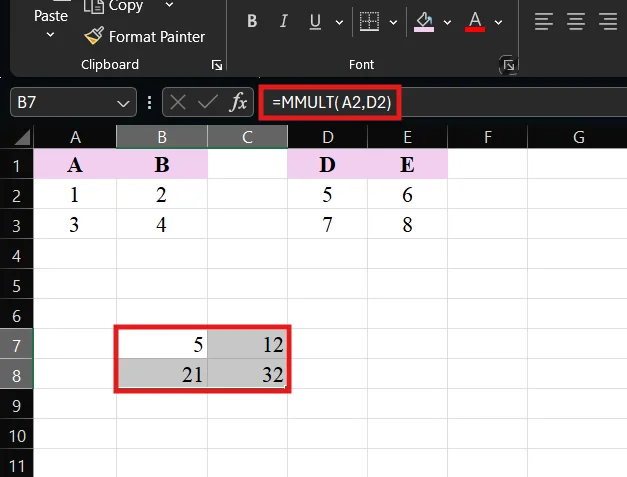
Matrix multiplication in Excel is an advanced method used to multiply two arrays (matrices) of numbers. It is like a basic multiplication; this method follows specific mathematical rules. It is where rows from one matrix are multiplied by columns from another.
In Excel, this is done using the MMULT() function, which returns the matrix product of two arrays. It is commonly used in data analysis, engineering calculations and statistical modeling.
|
Multiplication in Excel is simple, but small mistakes can lead to incorrect results or confusing errors. Therefore, understanding these common issues will help you avoid wasting time and you will be able to work confidently.
Every formula in Excel must start with an equals sign. If you forget it, Excel will treat your formula as plain text instead of a calculation.
Sometimes users accidentally reference the wrong cells, which leads to incorrect results. That is why always double-check your cell references before pressing Enter.
When multiplying columns or rows by a fixed number, if you forget to lock the reference, then it can cause errors when dragging formulas.
If a cell contains text instead of a number, Excel may return errors or unexpected results.
Example:
Excel shows errors for a reason; you should not use any of them. Common multiplication-related errors are:
When you type results manually in place of using formulas, then it defeats the purpose of Excel. It is a mistake because of no automatic updates, has a higher chance of errors, is not scalable, etc.
Using A1*B1*C1*D1... for a lot of cells can become messy and error-prone. For multiplying a lot of cells, the better approach is =PRODUCT(A1)
Selecting the wrong range can lead to incorrect results when you are using functions like PRODUCT() or SUMPRODUCT(). That is why always verify the selected range before applying the formula.
Multiplying in Excel is easy once you learn the basics. You can multiply cells, rows, columns, or use functions like PRODUCT() and SUMPRODUCT(). It all depends on your needs. The key is to use formulas instead of manual calculations, i.e., your results update automatically. As you practice these methods, you will notice how quickly you can perform calculations and manage data.
Now, just start with simple formulas, then gradually explore advanced options like matrix multiplication to build confidence and improve your Excel skills.
Yes, you can multiply multiple cells using the * operator (e.g., =A1*B1*C1) or by using the PRODUCT() function for larger ranges.
The fastest way is to write one formula and use AutoFill (drag down or across) to apply it to multiple cells instantly.
PRODUCT() is easier to use when multiplying many cells or ranges, as it keeps formulas clean and reduces errors.
Always check if your formula starts with =. It ensures that all cells contain numbers and verifies correct cell references to avoid errors like #VALUE!.