Companies often run into Jira and Asana when finding good project management tools. These are known for their robust features like task optimization, great efficiency, and complete project tracking. Their integration gives a way better performance. This is why we are here with this Asana Jira integration guide. It entails all the information one should have to connect these tools.
Software developers and technicians should have this skill to create efficient projects. This skill can help them secure a job in one of the best companies. Zoom has improved its time-saving up to 200% year over year since it adopted this integration. Its adoption is not limited to Zoom, as many big companies like Meta, Twitter, and LinkedIn also use it.
Asana and Jira are project management tools that have different functionalities. Asana focuses on planning and collaboration for projects. Jira is mostly known for its functionalities in development like bug finding and workflow management. Building an efficient project that caters to every requirement without having any issues requires both of them.
This is why Asana Jira integration is performed. This collaboration can establish smooth communication along with data sharing between teams and businesses. They can sync their information like operation status, priorities and feedback across both platforms. There is no need to update information manually. This connection basically works as a bridge between planning in Asana and execution in Jira.
Enrol in igmGuru's Agile and Scrum Certification Courses program to start your career in project management.
The benefits of Asana Jira integration are the main reasons to use this integration. There are innumerable features and benefits that tag along with this integration. We will go through the top three among them. Knowing them is most important in order to learn this integration.
Performing Asana Jira integration can streamline tasks for project managers and developers. Project managers can easily see the status of the development process on Asana from Jira. They do not have to do it manually. Developers can see all the Jira issues in one go from Asana. This visibility gives a real-time view to everyone on a single page.
This integration eliminates the need to enter data manually. It syncs all the data automatically. Any operation or task performed on one tool is automatically updated to another. This automation benefits in many ways, including saving time, minimizing errors, and improving the efficiency of users.
This integration automatically syncs comments from one tool to another. Business and stakeholders communicate natively with each other with this feature. They will not miss any important discussion or information related to the project. It does not use traditional methods to check for updates. It builds a unified task related to communication.
Learn the steps to create a Board in Jira.
There are some requirements for Asana Jira Integration that have to be followed carefully. It is very important to consider them in order to perform this integration. Let's explore these requirements -
Related Article - Jira and Confluence
We are using Unito to establish Asana Hira integration to streamline our workflow. There are a few steps involved in setting up this integration. This process might take a significant time but that is outweighed by its feature of eliminating manual tasks. So let us dive in-
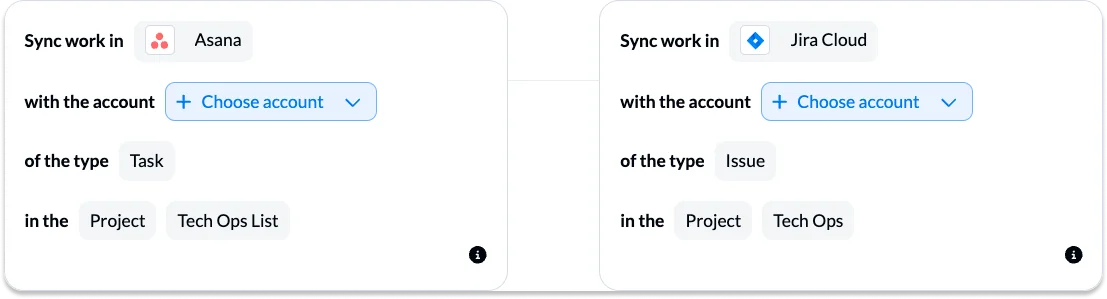
Start by signing up on Unito if you do not have an existing account. Now open the application > click on the Create Flow option > select the Start button to connect the tools > choose Add to place them in any column > select an account defining your project > and click on the Confirm button. These steps will surely connect Unito with the tools.
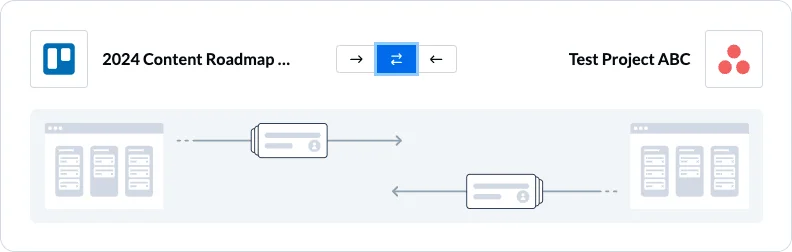
It is important to select a flow direction for creating tasks and issues. There are two options of flow direction to pick, including 1-way and 2-way. This informs Unito where to build a new item automatically in both directions. Do not forget to click on confirm after choosing either flow direction.
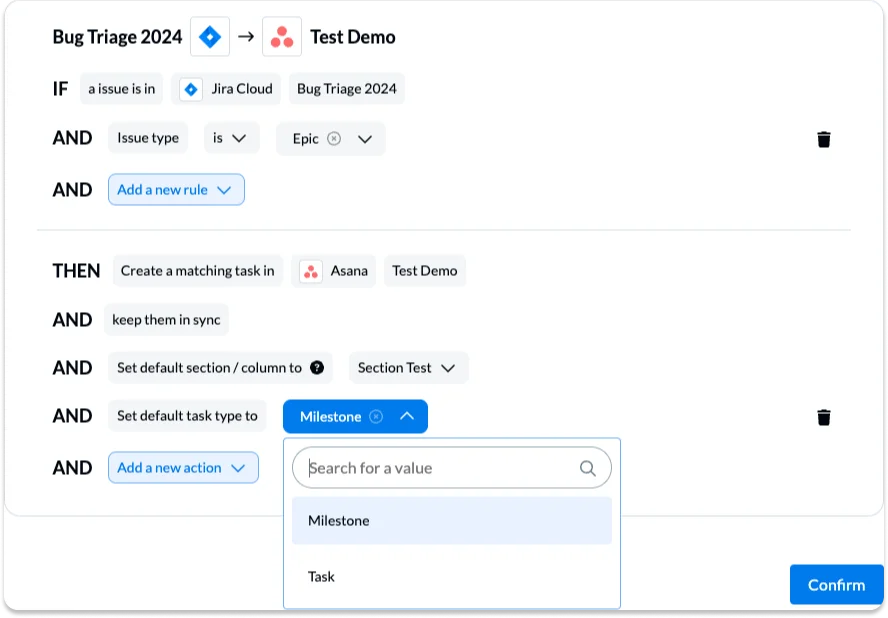
The next step is to filter all the unwanted tasks from sync between Asana and Jira. This requires setting up rules to define the trigger events that will send information between the tools.
This involves choosing Add a new rule option for establishing rules and applying conditions for each directional flow. Individuals can select as many options as they want. Each of the options is going to trigger a sync. It is also possible to command Unito to take specific actions in the destination tool.
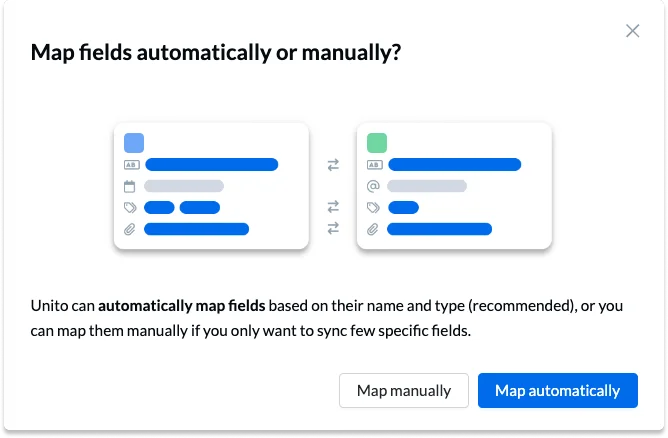
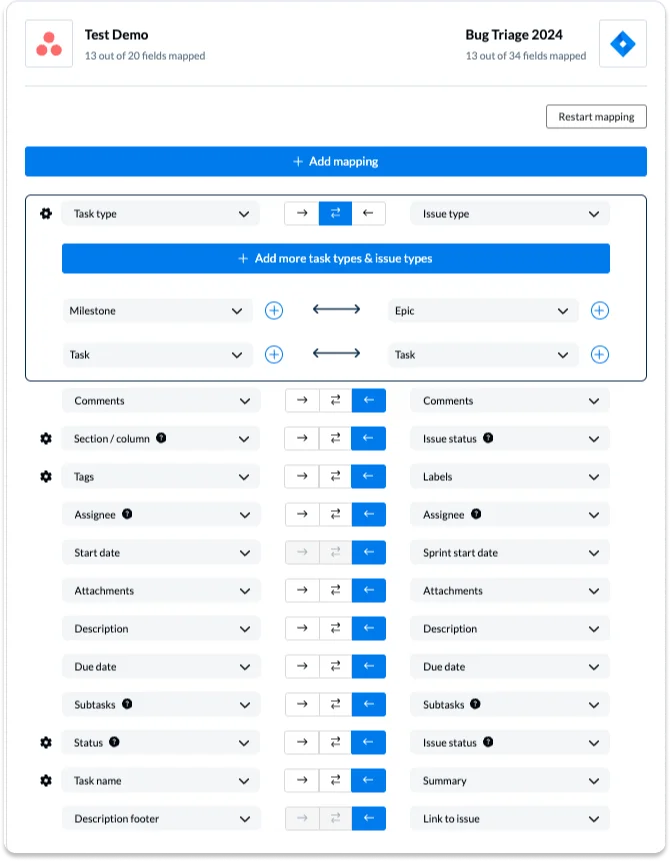
Now it is time to set pairs of fields to create a sync between Asana operations and Jira bugs. This builds a 1:1 relationship as well as defines how these fields are going to update each other in real time. It is recommended to start with an existing template.
These templates can be modified further by clicking on the Add mapping to add extra fields > selecting a field for each tool > finding an appropriate field for mapping > and choosing the direction for each pair. Here is an instance of using an existing template -
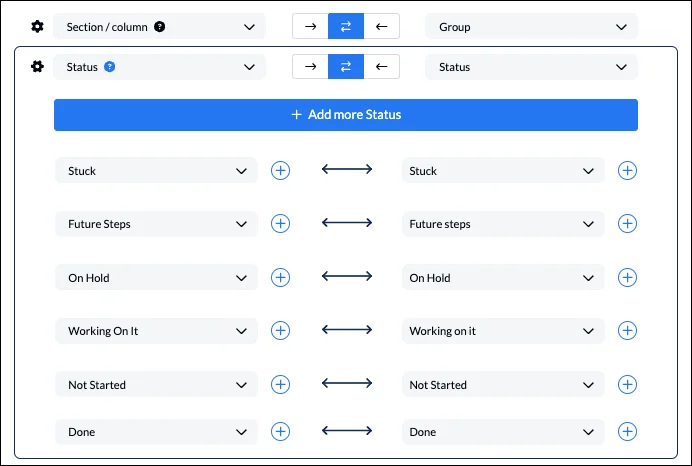
The next step is to select the gear icon along with a field that will let you customize the statuses or values. It is very important if you want to modify the flows according to your requirements. For instance we can append the Jira issue number to the Asana task name.

It is important to configure each pair of values in order to create a single select field. This informs Unito to link them together. For instance, there are two different statuses namely blocked in one tool and on hold status in another. Here we can inform the flow that both of these field values are the same. Here are the steps to configure these value pairs-
Just save and launch the Asana Jira integration. You have successfully established a flow between these tools. This integration will let teams to -
All these functionalities are indeed great, but you might see a functional error here. This error occurs when you do not integrate the Asana and Jira servers.
Also Read - Jira Bug Tracking Tutorial
Integrating Asana and Jira servers is important to use all the functionality of each tool. Their integration is not hard to crack. Anyone can do it by starting to configure the Jira Admin Dashboard and then going towards Asana Dashboard. This involves the following steps -
1. Start by configuring the Jira Server instance
2. Open the browser and go to the Jira Server Marketplace. Find, download and install the Asana for Jira Server.
3. Now, authenticate the Jira Administrator application by choosing the Connect To Asana option.
4. Choose an appropriate Asana domain to make this connection after authorization is granted.
5. A confirmation window will open after completing this process. Now move to the Asana dashboard.
6. Choose the project on which you want to add Asana Jira Server integration.
7. Choose the Customize menu, which you will see in the right corner.
8. Select the Add App button from the bottom right corner.
9. Now choose the Jira Server.
Ace your interview with these top Jira Interview Questions.
Asana Jira integration gives many benefits like boosting team efficiency, enhancing task visibility and streamlining project communication. Teams can work more efficiently on different projects without wasting any time. This guide has already walked you through how to integrate these tools and their servers. With this information, you can use both tools in your workflows and projects.
Related Article - Jira Tutorial
There are many tools available to perform this integration. Zapier and Unito are two of the most popular among them. These tools streamline the integration process. This article has already discussed the use of Unito in this integration.
It is possible to sync all the tasks in both directions with this integration. One just has to select the appropriate settings while performing this integration. Then this integration will show all the tasks, configurations and issues from one tool to another.
You can filter the tasks including issue type, tags or custom fields. You just have to set rules and configurations for the workflows. These rules will control the data transfer between both tools.
Course Schedule
| Course Name | Batch Type | Details |
| Jira Training | Every Weekday | View Details |
| Jira Training | Every Weekend | View Details |