Bash (Bourne Again SHell) is a command-line interpreter and scripting language. This is used in Unix operating systems like Linux and macOS. It allows users to interact with the operating system through text commands. I have also been using Bash for a long time and trust me it is not just an auditory system. There is much more if you go deeper.
I recall my first server fix when simple commands were not working and I had no idea why. This is where one of my coworkers has told me about this command line tool. Line by line, it rendered chaos legible at first, but with time it becomes so simple and easy to use.
In this article, I will explain what is BASH, its architecture, its working and some common mistakes you should avoid. Let’s begin:
Bash is a tool that helps in communicating with a computer using commands rather than clicking with a mouse. In this terminal users can open files, move folders, run programs and control how the system works. It remembers previous commands, lets multiple tasks run at once and connects commands to work faster.
Many beginners, programmers and system administrators use this terminal due to its flexibility. It also gives direct control over the operating system in a text based way.
A shell is a type of computer program that acts as a command-line interpreter in which Linux and Unix users control their operating systems with command-line interfaces. In this, users communicate efficiently and directly with their operating systems. However, each shell scripting dialect is considered a language and if you plan more complex activities, shells take a lot of practice.
Brian Fox created this terminal in 1989 for the GNU Project as a free Unix shell. It was designed to replace the Bourne Shell to add better features and usability. Let’s look at some of its versions as well:
| Version | Release | Description |
| Bash 1.x | 1989 | This was the very first version and it had some basic shell functions. |
| Bash 2.x | 1996 | This became more stable and smarter as their scripts worked better and they started following standards. |
| Bash 3.x | 2004 | They started learning new tricks like arrays, which made scripting easy. |
| Bash 4.0 | 2009 | There was a big upgrade as now it can store data as key–value pairs, making scripts more powerful. |
| Bash 4.1 | 2009 | Helped programmers catch errors more easily while running scripts. |
| Bash 4.2 | 2011 | It got faster and smoother, especially for big scripts. |
| Bash 4.3 | 2014 | Mostly bug fixes. |
| Bash 4.4 | 2016 | It helped in the betterment of daily system work that helped in improving job control and security |
| Bash 5.0 | 2019 | Loading became faster and it started to handle command history. |
| Bash 5.1 | 2020 | Small improvements that made it more stable and efficient. |
| Bash 5.2 | 2022 | It became cleaner and smarter with better built-in commands. |
| Bash 5.3 | 2025 | More polished, modern, and developer-friendly. Works better with today’s systems. |
From my experience of working with this terminal, its an essential tool for both daily tasks and automation. After understanding this, I learned that its simple command line has a well-structured architecture that handles command parsing, execution and process control efficiently.
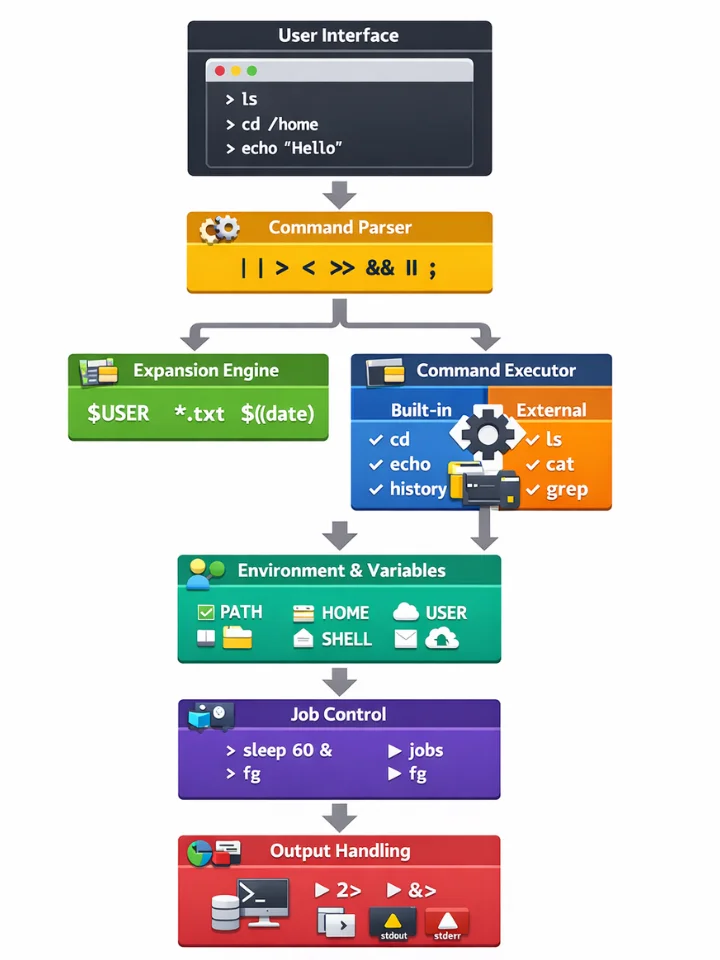
This terminal consists of the following components that actually help you automate tasks, debug scripts and use Linux more efficiently.
This component is also known as command line input as it helps you write your commands. This is where you provide the command to perform your tasks. What happens in the background is that Bash reads your command and waits for you to press the Enter button.
|
After taking your input, it understands what those commands mean. This work is done by the command parser. It breaks down the commands into words, understands spaces and quotes and identifies the command name and arguments. Parsing also includes:
|
Without parsing, it would not know how to interpret commands correctly.
Before it starts the execution process, it replaces special symbols with actual values and this step is called expansion. Here, BASH performs variable expansion($HOME), wildcard expansion(*.txt) and command substitution ($(date))
|
This does not literally rewrite the command. It replaces $USER with its value during expansion.
|
With this step your command is now dynamic and powerful.
Now this will decide how your command should be executed and for that there are two types of command:
A) Built-in Commands: In bash, they give faster and direct execution and there is no new process created.
|
B) External Commands: It creates a child process. Then, the linux kernel runs the program and the result is sent back to BASH for display.
|
This command line tool stores and shares information through variables. Here are some of the common variables:
|
|
In this code, PATH tells where to search for external commands like ls or grep.
It manages the programs you run in this terminal and it runs a command, pauses it, sends it to the background or brings it back to the screen whenever you want.
|
After the execution, your results will be shown or stored. It handles command output using streams:
a. Standard Output (stdout)
b. Standard Error (stderr)
|
Read Also: Basics of Linux for DevOps
When I first started using this terminal, the black screen really got me confused. I typed random commands and tried different things to understand how does Bash works in the background. At first, the journey felt less scary, but with time it became interesting and I finally started to fix the errors and bugs. Here, I will explain you about its working in step by step guide for your better understanding:
When you open this terminal, it starts a shell program. Then you will find a dollar symbol .The $ symbol is called the prompt and it means that your terminal is ready to accept commands. Now you type something like:
|
At this time, this terminal is waiting for you to press the Enter button as typing alone will not execute anything.
Once you press Enter, it is going to read what you have typed and after reading it separates the command into parts:
After parsing the command it will check:
This step is very crucial in the working process as it will decide how your command will be executed.
If it is not in built, then it will start looking specifically at the PATH environment variable. It is just a list of folders where executable programs live. This terminal will go through each folder and check if the command is there. Even if it is not able to find, it will tell you:
|
As soon as it finds the command it asks the operating system to run it. The OS creates a whole process. There are few things that you should remember in this step:
The command will do its job and it may show you something like:
|
The list of files you see is the command’s output and not this terminal.
When your command is finished, the process ends and this terminal will show you $ again, which means “What's next?”.
Kali Linux is a Debian-based Linux distribution designed specifically for penetration testing, digital forensics and for cybersecurity research. It is mostly used by Ethical Hackers, Penetration Testers, Cybersecurity Professionals or students that help them with cybersecurity, ethical hacking, ndtwork monitoring and many other related tasks.
Now you may wonder how Kali Linux is used in this terminal, so let me explain you just how I learned it and where I have actually used it in my tasks:
Most Kali tools are launched from this terminal as it interprets the command and executes the tool with the given arguments:
|
It is used to automate repetitive security tasks:
|
In Kali, this terminal helps in managing few things such as:
|
Bash scripting allows a person to automate tasks in Linux and Unix systems by writing commands in a script file. Instead of typing commands one by one in the terminal, users can run a script to perform tasks without manual work.
You use it for file management, system administration, software installation, backups and automation.
Read Also: Linux Commands Cheat Sheet
When I was learning about this command line, I used to make a lot of mistakes, break scripts, and fix them again. As I started to learn from my mistakes suddenly everything started to make sense. Let me explain its key concepts just the way I learned it when I was a beginner like you.
In BASH you give the commands and your computer starts working. For example:
This shows files and folders in the current directory.
|
This will tell you where you are:
|
Variable stores all the data so you can reuse it later. For example:
|
So your output will look like this:
|
A script is a file with multiple commands that run together. For example: (file: hello.sh)
|
Run it and then it will look like this:
|
It can make decisions based on conditions. For example:
|
It will check the condition and react accordingly.
Knowing the best practices of writing safe Bash scripts is essential for beginners. I have also made a lot of mistakes that could break the entire system. Over time, I learned that writing terminal scripts is all about discipline, clarity and some best practices. Here are some of them:
1. Always Use a Shebang: You should always start your script with:
|
This will tell your system about which shell should run the script to avoid any unexpected behavior.
2. Enable Strict Mode Early: When you start scripting, always add to the top:
|
This prevents silent bugs.
3. Always Quote Variables: To avoid any script break or security issues you should avoid unquoted variables.
|
4. Use Meaningful Variable Names: Always avoid a, x or temp1. When you use clear names, the scripts are easy and safe to debug.
|
5. Never Trust User Input: To prevent crashes and unsafe options, always validate your input.
|
6. Check Command Success: You should never assume that all your commands will work.
|
This code will help you catch failures faster.
7. Add Comments and Logs: You should always explain why, not just what:
|
Back then, when I was working with Linux, I was repeating tasks like renaming files, cleaning folders and checking disk space. After a few tasks, it started feeling boring. That is when I came to know about this Unix based shell. Following are some real-based examples where you can also apply it.
You can perform repeated tasks automatically instead of doing them manually every time. For example, if you want to rename multiple files at once:
|
This adds new_ in front of all txt files.
It manages system health by updating software, deleting temporary files and checking storage usage. This means that whenever your systems need an update or clean up, this terminal will do it by itself. For example, if you want to update the Linux system:
|
It will read your data, filter it and give useful output. For example, if you want to count the number of lines in a file, what you can do is:
|
This application is very useful for reports or CSV files.
It can copy your important files or databases to safer locations like cloud storage or external drives.
Example: Backup a folder
|
You can run your scripts daily, weekly or monthly without remembering. For example, if you want to run a backup every day at 10pm, so you will:
|
With the help of this terminal, you can create your mini apps. For this, you can take a look at an example of generating a simple password:
|
There are various areas where this terminal is being used to make everyone’s work faster and to avoid any manual work. Here are the most famous ones:
It is used by system administrators to manage their servers and computers. It helps in automating their routine tasks like creating users, installing software, updating systems, checking disk space, restarting services and scheduling jobs.
There are several commands that IT sector people use and the most common are:
| Commands | Description |
| useradd, usermod, passwd | It is used for creating and managing users. |
| apt, yum, dnf | This installs and update software. |
| df, du | It checks disk space. |
| systemctl, service | This restarts and manage services. |
| cron, crontab | It will schedule jobs. |
There are many developers who use this terminal to make their projects faster. As it helps build and test programs, run code, manage files and repeat tasks automatically. It is also commonly used to:
There are various commands that so many developers use and the most common ones are:
| Commands | Description |
| gcc, make | This command compiles and builds programs. |
| git | It is a version control system. |
| bash, sh | It is for scripting and automation. |
| chmod, chown | It manage file permissions. |
It manages servers and virtual machines. Cloud architects use this to set up their servers, deploy applications, start or stop services and check system health. This helps profesionals to:
There are various commands a cloud architect uses for the same:
| Commands | Description |
| docker, docker-compose | It is a container management. |
| top, htop, uptime | It checks your system health. |
| aws, az, gcloud | It provides cloud service CLIs. |
| ssh | It connects cloud to servers. |
It is being used to check logs, find suspicious activity, run security checks and test system weaknesses. With its help security teams can respond quickly to problems instead of checking everything manually. For this area, there are various commands one uses for cybersecurity:
| Commands | Description |
| grep, awk, sed | It will analyse your logs. |
| tail, less | This will monitor log files. |
| nmap | It is for network scanning. |
| netstat, ss | It checks if there are any open ports. |
Network engineers check internet connections, check servers, monitor traffic and change network settings. Network engineers :
Network engineers uses the following commands:
| Commands | Description |
| ping | It tests the connectivity. |
| traceroute | It will track network paths. |
| ifconfig, ip | It is for network configuration. |
| tcpdump, wireshark-cli (tshark) | It analyses all the traffic. |
Data Engineers manage large data and log files. They also search, clean, sort and analyze logs automatically. There are various commands one can use for the same:
| Commands | Description |
| grep | It searches data. |
| sort, uniq | It organizes all the data. |
| awk, sed | It will help in cleaning and transforming data. |
| wc | This is for word count. |
When I started to learn about Bash, I got tired of typing the same commands every day. Then I thought to avoid manual work and from that time I used automated work like creating a small script to clean folders and rename files automatically. Let me explain how you can start with your scripting without manual work:
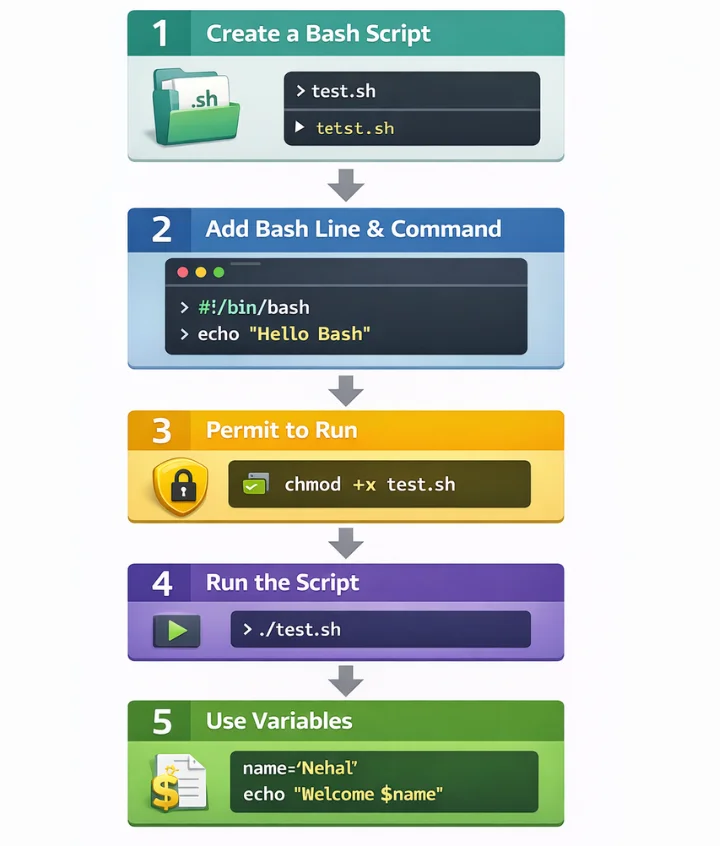
First create a file with the .sh extension. For Example:
|
Start file with:
|
Then your output will be:
|
Use this to run the script:
|
Example: Script runs all commands at once
|
|
After this your output will look like:
|
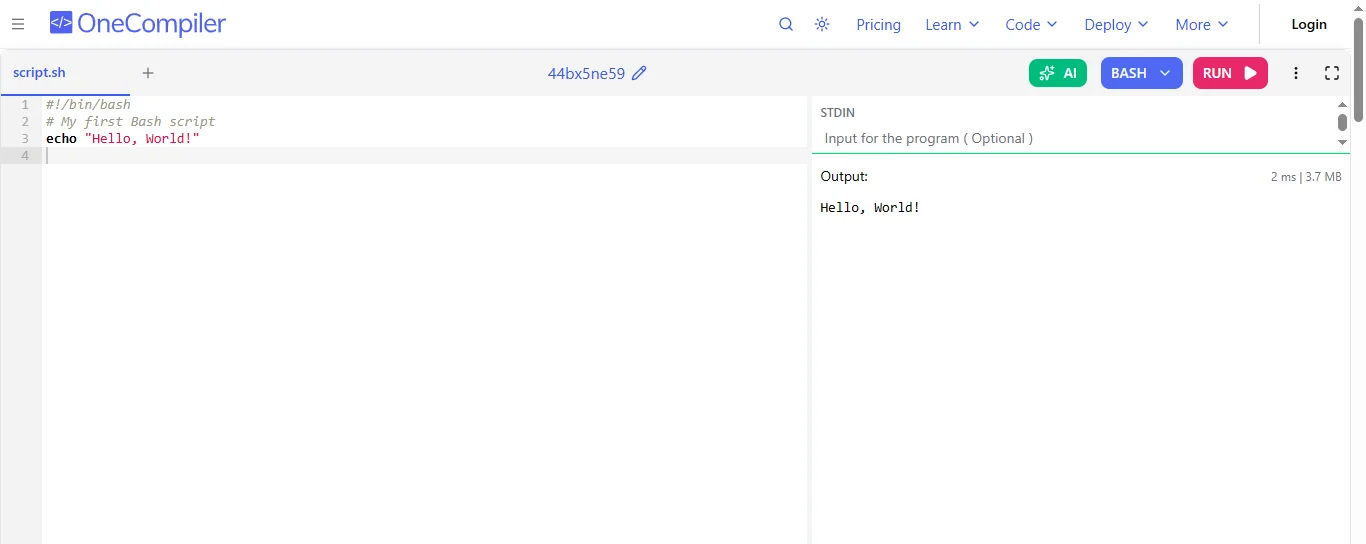
The Hello World script is the easiest way to understand how this Unix-based shell works and how scripts are created and run.
Step 1: Create a file and name it
|
Step 2: Open this file in any editor and write this
|
Step 3: Make this script executable
|
Step 4: Run it
|
Your output will be:
Bash Scripting has various advantages to offer. That is also one of the common reasons why I have started to use it. It has reduced my manual work and finished tasks much faster. Following are some of them:
With some advantages, there are also some lacking areas in this interpreter. There was a time when my error messages were confusing and debugging was taking a lot of time. Let me explain them to you in brief.
When I was new to this terminal, I used to make so many silly mistakes, such as breaking my own scripts more times than I can count, which led to so many issues. Here are some common beginner mistakes that I want you to avoid:
When writing your scripts, spaces are very important. For example:
WRONG WAY
|
RIGHT WAY
|
this terminal will get confused if you don’t use spaces well.
If a variable has spaces and you don’t use quotes, then your script can break.
WRONG WAY
|
RIGHT WAY
|
Many beginners ignore errors instead of reading them. But don’t worry because this terminal usually tells you exactly what went wrong. For example, write this command in your script:
|
If this particular file does not exist, then the terminal shows:
|
You cannot skip this error message and continue with your scripting. Reading the error will definitely help in fixing the problem instead of guessing.
As a beginner, you should never run all the scripts at once. Always test one command at a time. For example:
Avoid writing and running this full script immediately:
|
Always run each command one by one in the terminal:
|
When you do this, even if cd myFolder, you will know where the issue is and this also makes debugging easy.
Bash is not just a simple command-line tool when it comes to DevOps practices. It plays a very important role in automation, deployment and infrastructure management. In fact, many CI/CD pipelines still rely on Bash scripts behind the scenes to execute builds, tests and deployments automatically. You can use it for the following tasks in DevOps:
Let’s take an example for better understanding. In a CI/CD pipeline, a Bash script can automatically build and deploy an application:
|
|---|
This script can be triggered automatically in tools like Jenkins or GitHub Actions whenever new code is pushed. Bash is also heavily used in:
Another use of Bash scripts is to manage virtual machines, configure servers and automate deployments in cloud environments like AWS, Azure or Google Cloud. This is one of the main reasons why Bash remains highly relevant in DevOps. It connects development and operations through automation.
Debugging is one of the hardest parts as a small mistake could break everything you have done. This is why it takes hours of trying to find the problem. However, there are powerful debugging techniques that make troubleshooting much easier. You just have to understand them.
bash -x script.shThis runs the script in debug mode and shows each command before it executes.
|
|---|
This prints every command as it runs, which helps you track where things go wrong.
|
|---|
This shows whether the previous command succeeded or failed.
|
|---|
This makes your script stop safely if something unexpected happens.
Operating systems like Linux and macOS have different shells for different purposes. Many beginners think all shells are the same, but each one has its own strengths. This is where you have to choose the right one. Let’s understand how with a structured comparison of the three popular ones (Bash vs Zsh vs Fish):
| Parameters | Bash | Zsh | Fish |
|---|---|---|---|
| What it is | A Unix shell and scripting language widely used in Linux systems. | An extended version of Bash with more features and customization. | A modern, user-friendly shell designed for better interactive use. |
| Default Availability | Default in most Linux distributions and many servers. | Default shell in newer macOS versions. | Not default in most systems; needs manual installation. |
| Scripting Support | Highly stable and widely supported for scripting and automation. | Mostly compatible with Bash scripts but has additional features. | Not fully compatible with traditional Bash scripts. |
| Customization | Moderate customization with configuration files. | Highly customizable with themes and plugins. | Built-in smart features without heavy configuration. |
| Auto-Completion | Basic auto-completion. | Advanced auto-completion and suggestions. | Intelligent auto-suggestions and syntax highlighting by default. |
| Industry Usage | Industry standard for servers, DevOps, and production systems. | Popular among developers and power users. | Mostly used for personal or interactive use. |
| Best For | DevOps, system administration, automation scripts. | Developers who want powerful customization. | Beginners who want a clean and modern experience. |
While working with my daily tasks, I have used them all. Understanding them all actually helped me in choosing the right tool. Let me explain you why these are different and what to choose for what task:
| Parameters | Bash | Shell | Python |
| What it is | It is a Unix shell and scripting language. | Shell is an Interface that runs OS commands. | It is a high-level programming language. |
| Primary use | Its main purpose is to automate system and admin tasks. | It executes commands and scripts. | Its main purpose is to build applications and tools. |
| Ease of learning | Easy | Easy | Very easy but it is big. |
| Syntax level | It has a simple syntax as it is all command based. | It has a very basic command syntax. | It has a structured, readable syntax. |
| Use case | DevOps or automation scripts. | Simple command execution. | Complex logic and automation. |
Yes, it is still in demand, especially for system administration, DevOps, automation, cloud roles and Linux-based environments. Following are some facts on why it is still in demand:
Bash is still in demand in 2026 because it is widely used for automation, server management and cloud operations. Many DevOps, system admin and cybersecurity roles rely on Bash for daily tasks.
Language ranking indices (TIOBE) may show Bash lower compared to JavaScript, Python, or TypeScript, but this reflects popularity for general programming, not utility in automation and infrastructure.
In this article, I have shared my personal experience of how you can also learn bash just the way I have learned it from my mistakes. It is a reliable companion for automation, problem-solving and system control. When you understand its basics, architecture and best practices, you can work smarter, reduce errors and confidently manage all your tasks.
Explore Our Trending Articles-
Yes, Bash can be used on Windows.
Bash saves time by automating tasks, running commands quickly, managing files and reducing manual work. It helps developers work faster and avoid repeating the same steps.
BASH can work with many programming languages. When you install the compiler or interpreter then it can run those programs directly from the same command line without switching tools.
Anyone can learn Bash even if you are a beginner, a developer, a tester, a system administrator or a student. It is especially useful for people working with Linux, servers or automation.
It is powerful due to the following reasons: