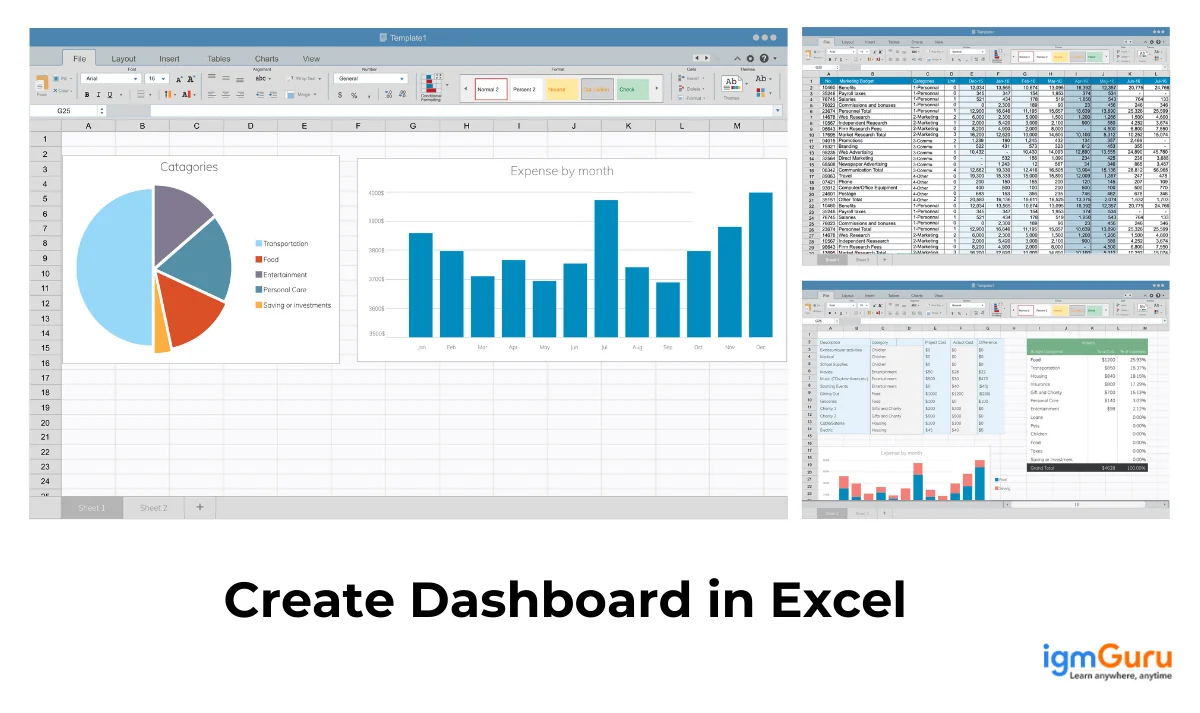
Dashboards in Excel are very handy when it comes to extracting meaningful insights from raw data. It helps in tracking performance and making informed decisions accordingly. Many professionals in data analysis or business intelligence use them to projects projects metrix and KPIs. Do you know how to create dashboards in Excel?
This guide will take you through a step-by-step process to create dashboards in Excel using different methods, like PivotTables, charts, slicers, and formulas. By the end, you will be able to turn scattered data into a single, interactive view. Let's begin with a simple definition.
A dashboard in Excel is a single-page visual summary of key business metrics, charts, and data tables designed to help you monitor performance at a glance. Think of it as a temple that can explain all the imprtant keytaking points from a complicated raw dataset. It helps you understand underlying patterns to make informed decisions for future growth.

A dashboard in Excel is used across many business functions. It gives a consolidated, visual overview of data from different sources on a single screen. Experts use this view to spot trends, monitor performance, and make informed decisions, without digging through huge datasets. Below are some of the core benefits of building dashboards in Excel.
Explore our comprehensive guide on top data visualization tools.
Excel offers many dashboard styles and templates, each suited to a different need. Understanding these types helps you pick the right starting point before you create a dashboard in Excel from scratch.
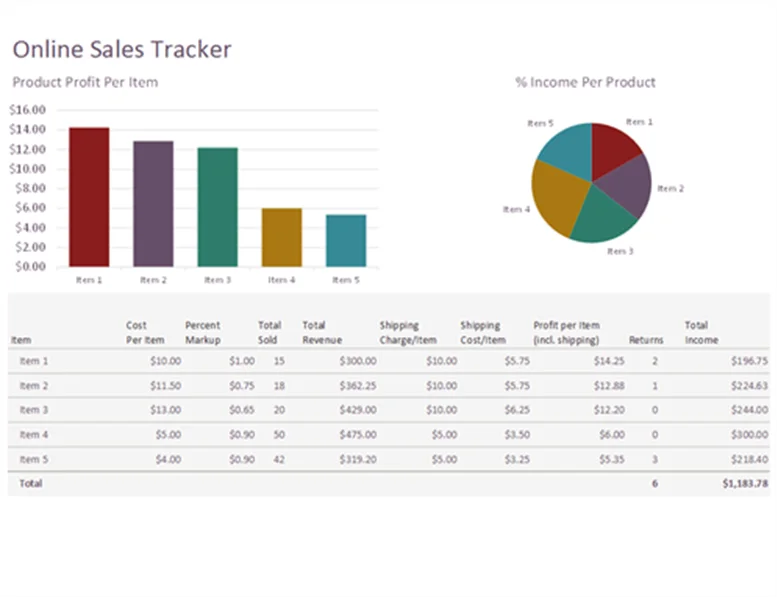
An online sales tracker is a type of KPI dashboard in Excel. After the COVID-19 pandemic closed many offline and small businesses, a large number of them shifted online to recover lost revenue — and needed a simple way to manage sales, spending, and overall performance.
The online sales tracker dashboard is one of the best options for this. It lets businesses track performance, sales, and profit metrics in a simple yet robust visual. It's also the best template for beginners who are just starting to build dashboards.
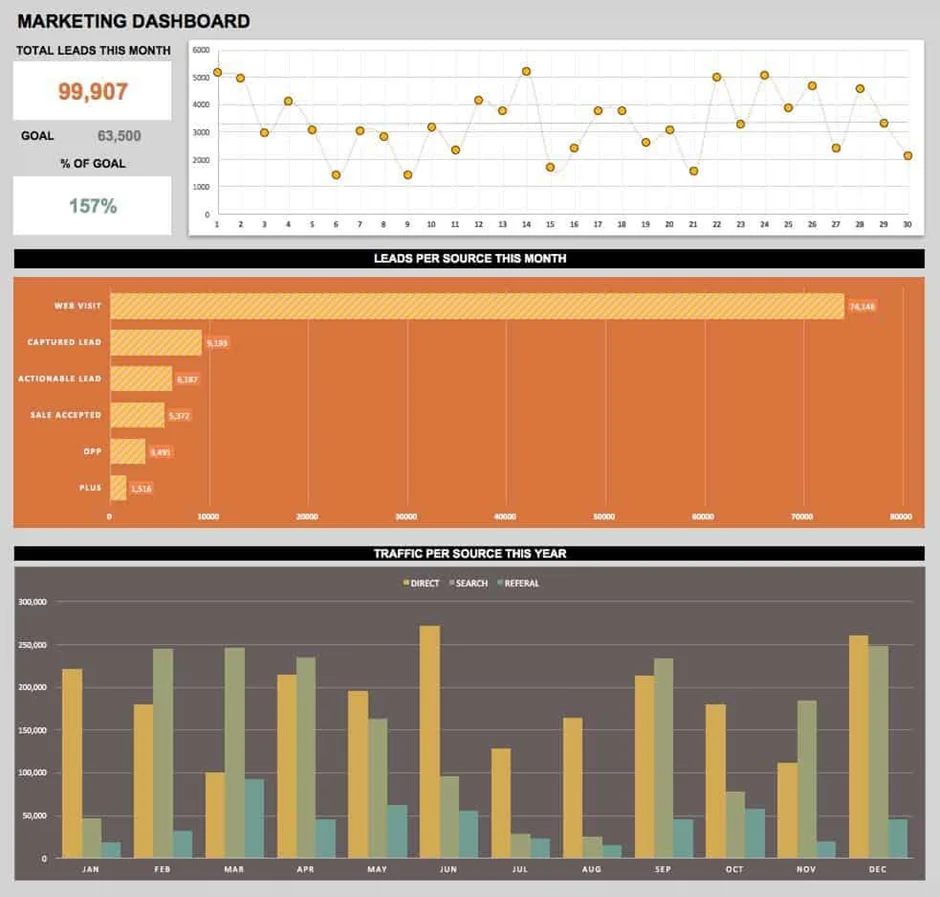
Marketing teams drive sales for products and services across companies of every size, from startups to large enterprises, and need deep research to understand customers and market trends. A marketing analytics dashboard is simple yet powerful — ideal for monitoring leads and tracking them through the funnel.
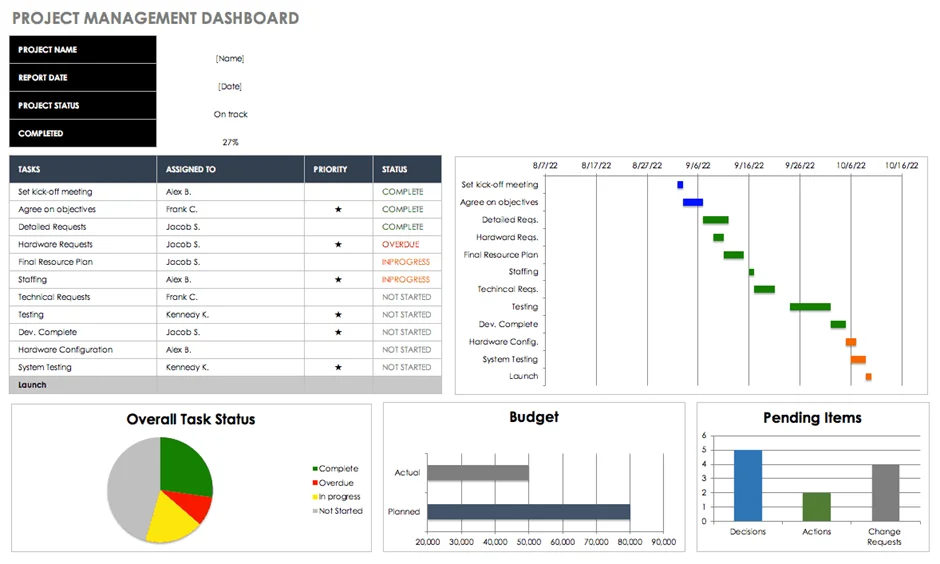
Project management involves many moving stages, so it requires careful planning and evaluation. A project management dashboard makes this easier by monitoring tasks, timelines, and budgets in one place. It typically uses Gantt charts, budget trackers, and task-status visuals to keep a project on schedule and within budget.
Related Article — How to Create a Dashboard in Power BI
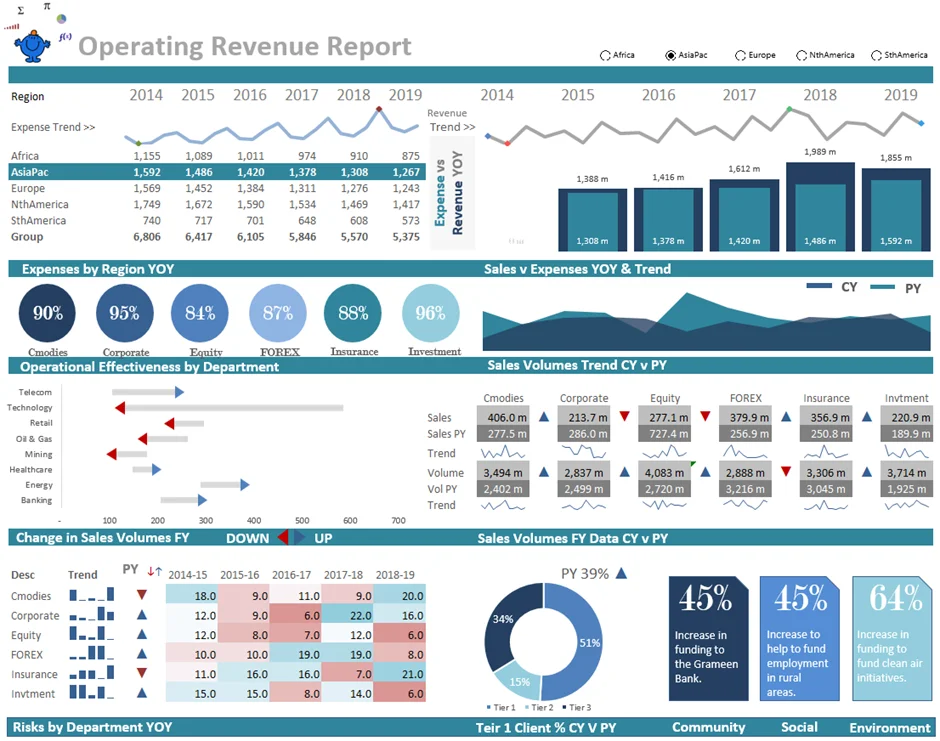
The operational revenue template shows the total revenue a company generates from its core business activities. It's a more advanced dashboard that includes both expenses and revenue from an operational perspective, along with sparkline visualizations for quick trend spotting.
Read Also — Top Data Analysis Tools
Let's get to the main point — how to create a dashboard in Excel that's clean, interactive, and easy to maintain. Creating a dashboard in Excel involves planning, organizing data, building PivotTables and PivotCharts, and adding interactive elements like slicers. Follow the steps below to build your own dashboard from scratch.
Before opening a blank sheet, decide who the dashboard is for and what decisions it needs to support. A sales director needs different KPIs than a project manager. Write down 3–5 key metrics you must show — for example, total revenue, growth percentage, or on-time delivery rate — and resist the urge to add more later. This single step is what separates cluttered dashboards from ones that actually get used.
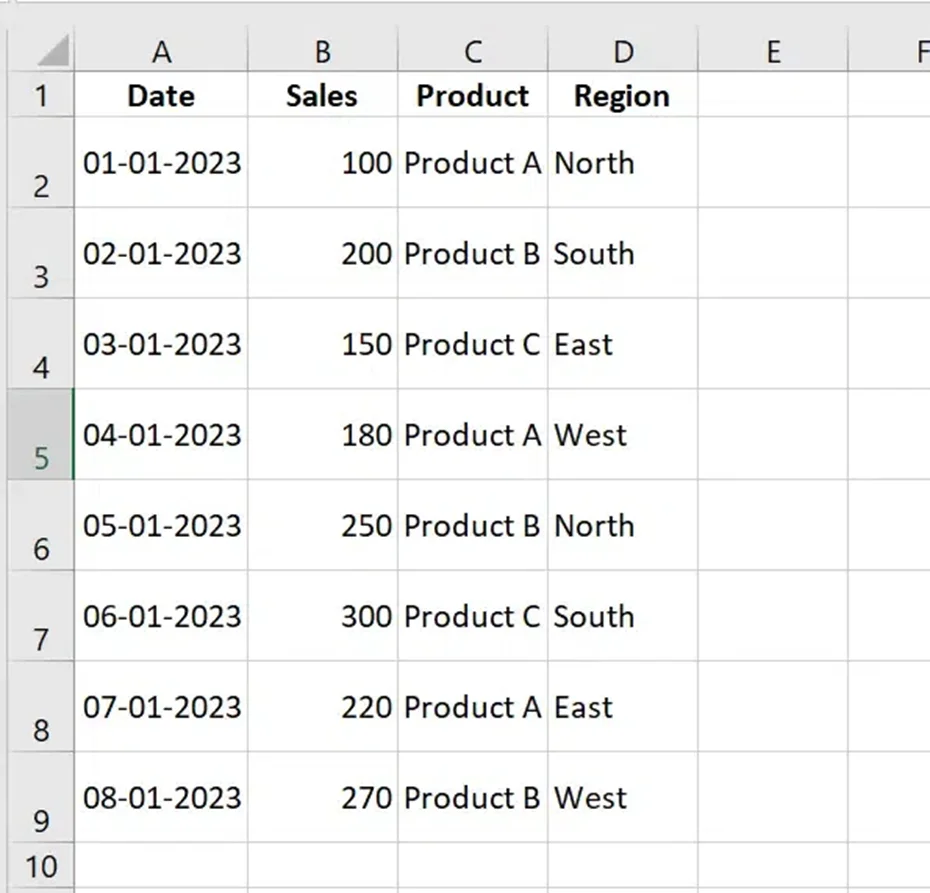
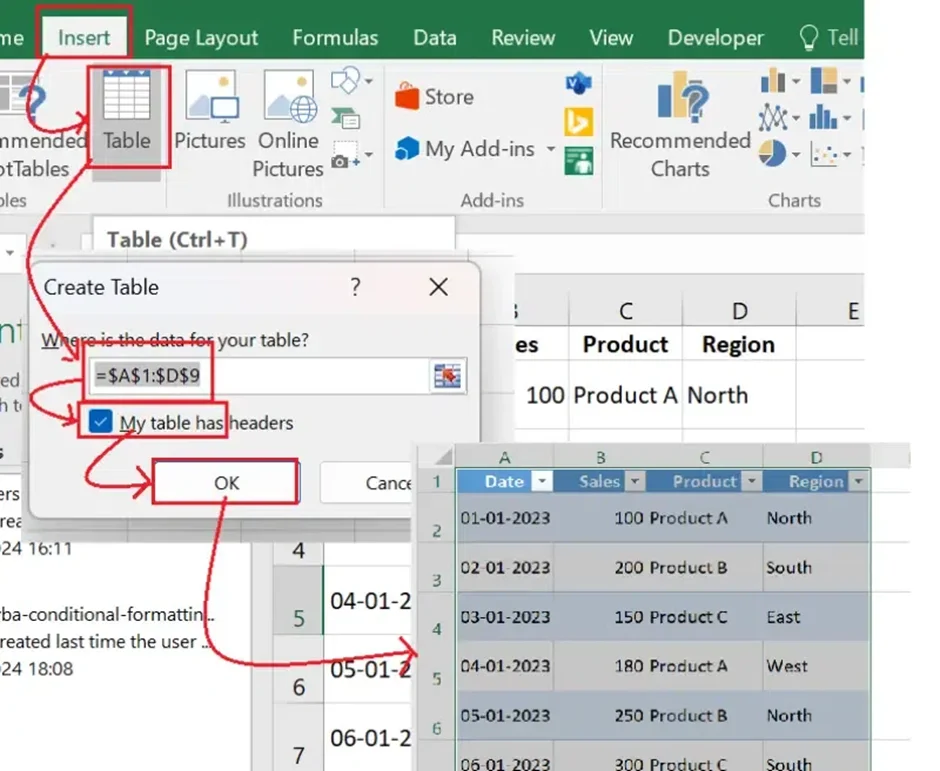
Clean, well-structured data is the foundation of any dashboard. Without it, even the best charts will be meaningless. Set up your workbook with separate sheets — for example, "Raw Data," "Calculations," and "Dashboard" — so your visuals stay clean and your source data stays untouched. Then structure the data with the steps below:
Now plan the layout of the dashboard itself. Decide which elements go where: KPIs, charts, and interactive filters. KPIs highlight key metrics like total sales, growth percentage, and average revenue. Charts visualize trends using bar, line, or pie visuals. Filters like slicers or dropdowns add dynamic, click-to-explore behaviour. A common, proven layout places KPI cards across the top, trend charts in the middle, and filters along the side or top.
Also Explore: Microsoft Excel MCQs
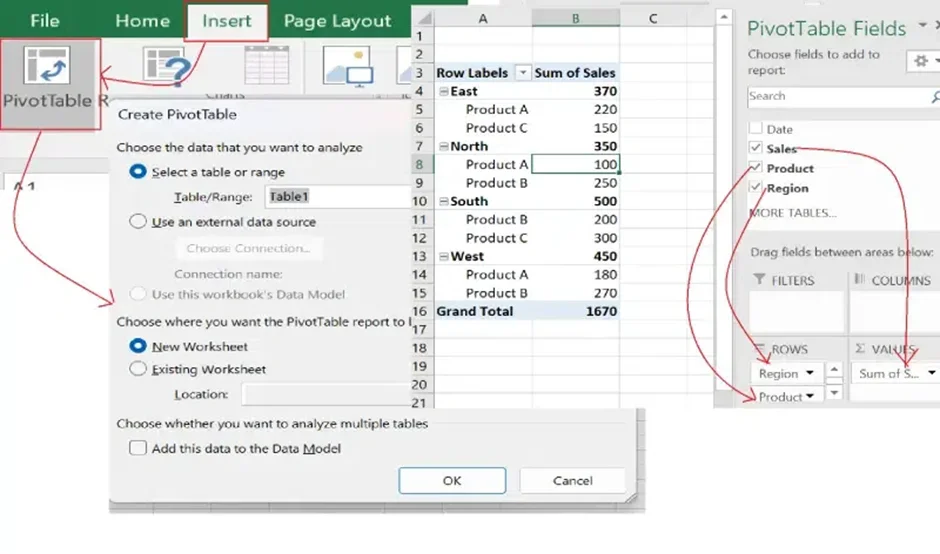
PivotTables are the backbone of most dashboards — they summarize and analyze large datasets in seconds. To create one: select your table, click Insert > PivotTable, choose a location in the worksheet, and drag the fields you need into Rows, Columns, and Values.
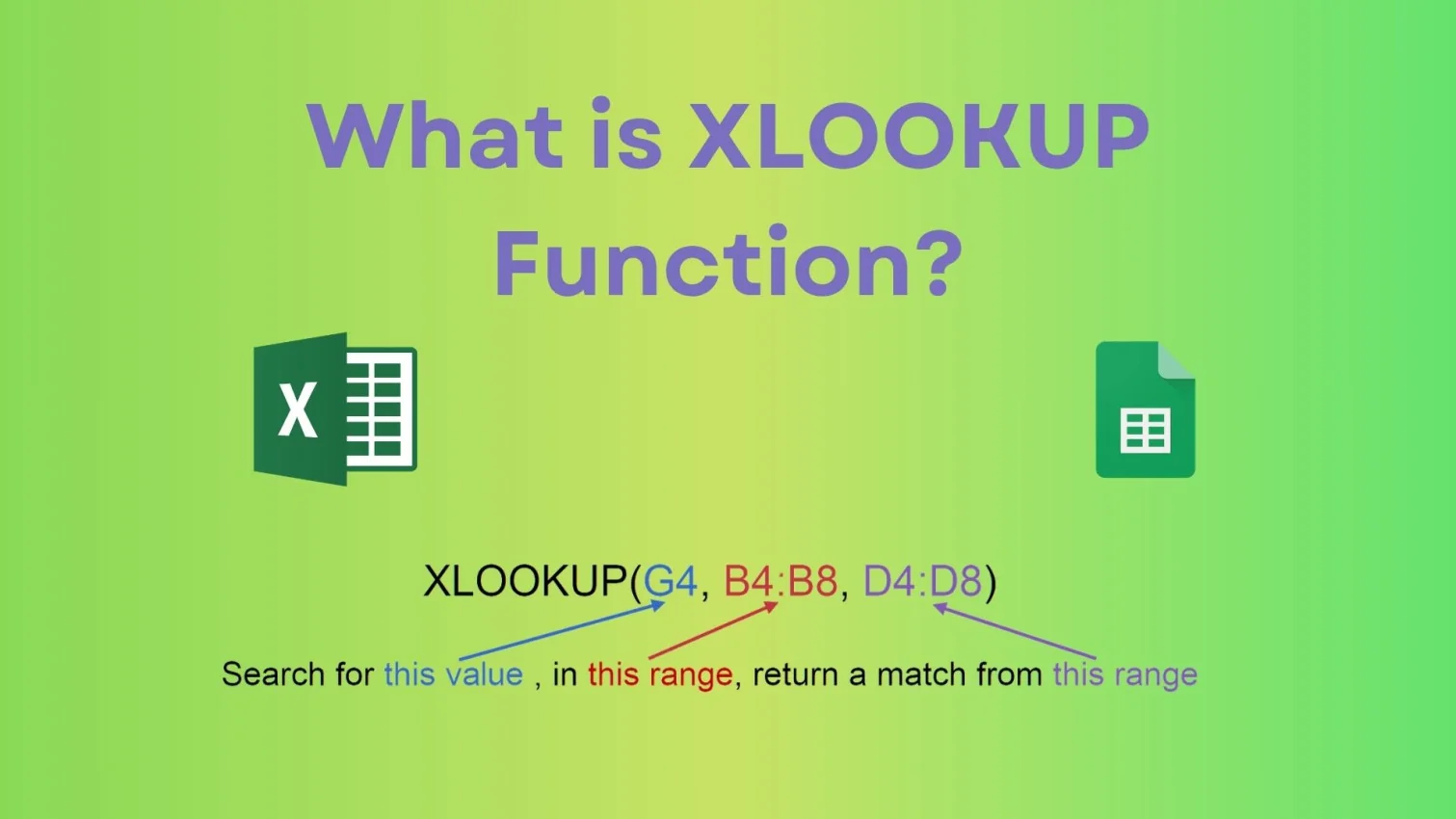
Turn raw data into visual insight by adding charts. This helps users spot trends and patterns instantly. Select the PivotTable and click Insert > Chart, then choose from Column, Line, Pie, and other chart types depending on what you're comparing. For dynamic KPI cards, pair formulas like SUMIFS, COUNTIFS, and XLOOKUP with your PivotTable data so the numbers update automatically as your source data changes.
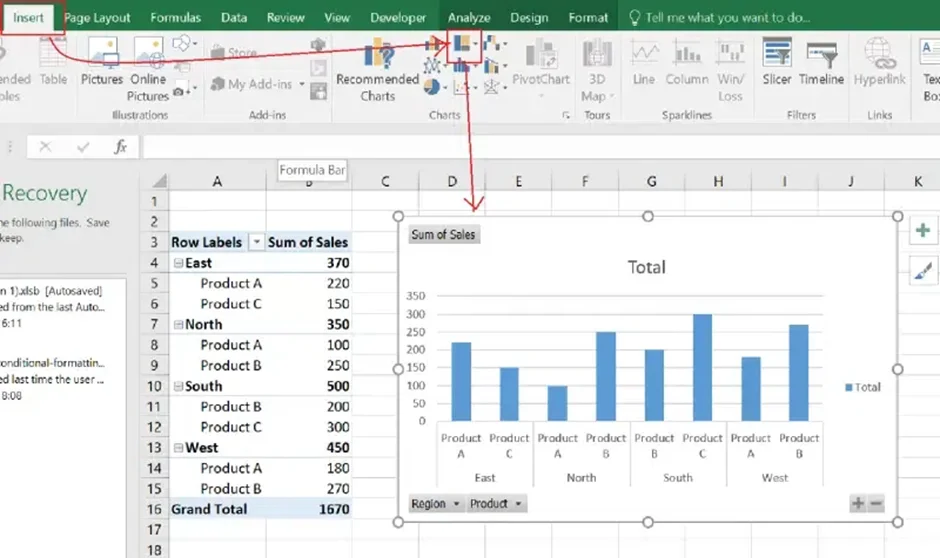
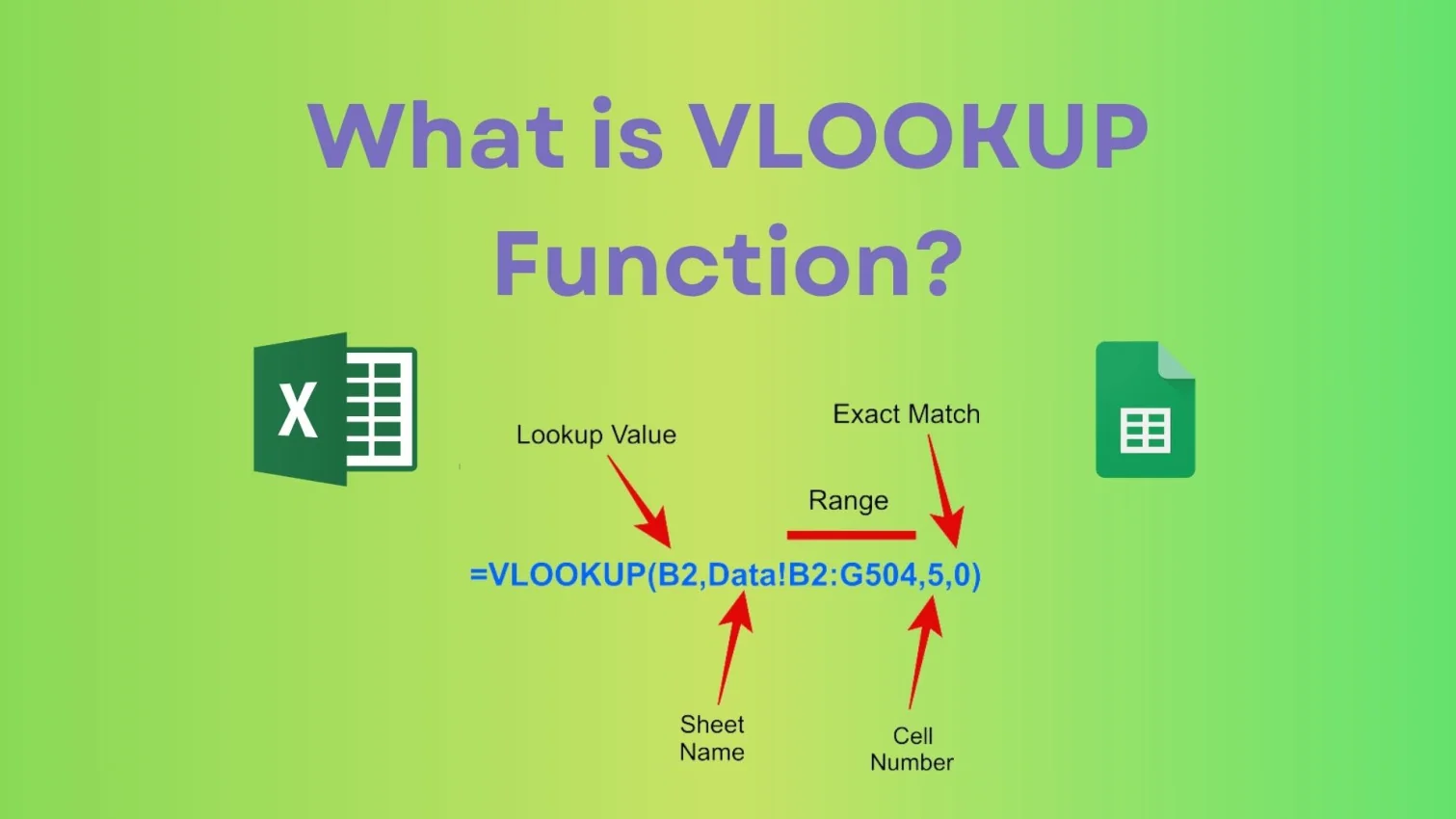
Also Read: Top Excel Interview Questions and Answers to prepare for your next Excel interview, and check out the XLOOKUP function and VLOOKUP function guides to power your dashboard formulas.
Interactive filters make a dashboard genuinely user-friendly. Viewers can focus on specific data points without editing anything. To add one: select the PivotTable, choose Insert > Slicer, pick the fields to filter by (like Product or Region), then resize and position the slicer on the dashboard. If your data includes dates, add a Timeline filter as well, so users can slide between months, quarters, or years.
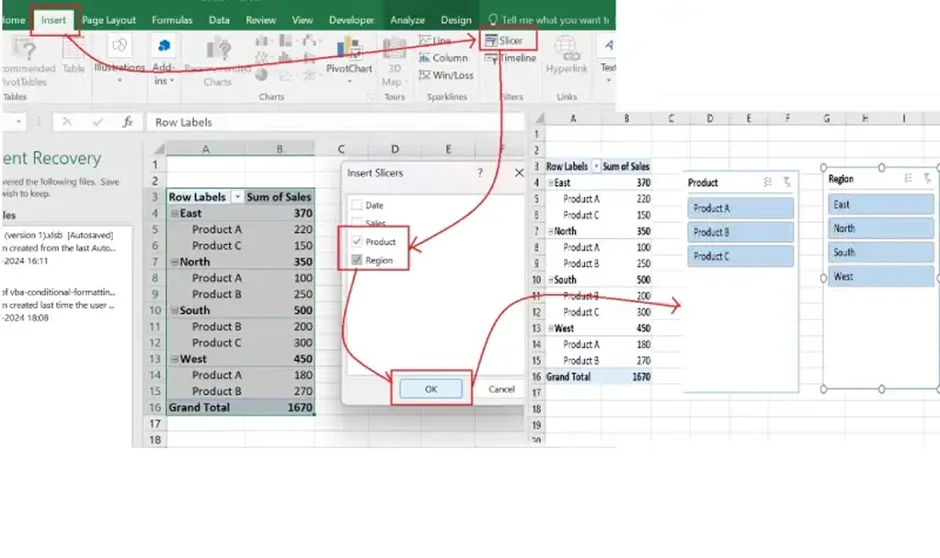
Also Explore: How to remove spaces in Excel?
A dashboard's usability depends heavily on its presentation. Cleaner, more consistent designs are easier to read at a glance. Use these tips while formatting:
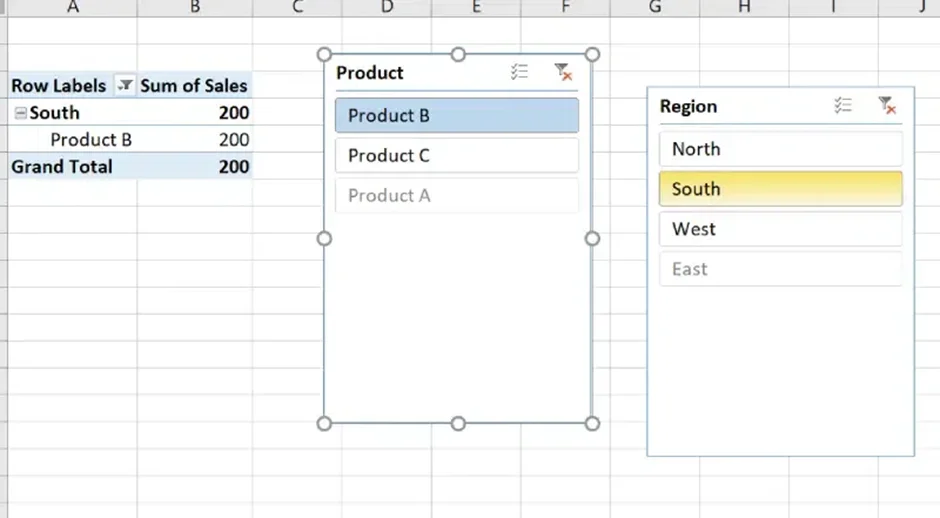
Test functionality before sharing the dashboard with your team. Confirm that every chart and KPI updates dynamically with the slicers and filters, and double-check all formulas. Use Review > Protect Sheet to set a password and prevent accidental edits to formulas or layout. To share it, you can send the workbook directly, export the dashboard sheet as a PDF, or upload it to OneDrive/SharePoint so stakeholders always see the live, refreshed version.
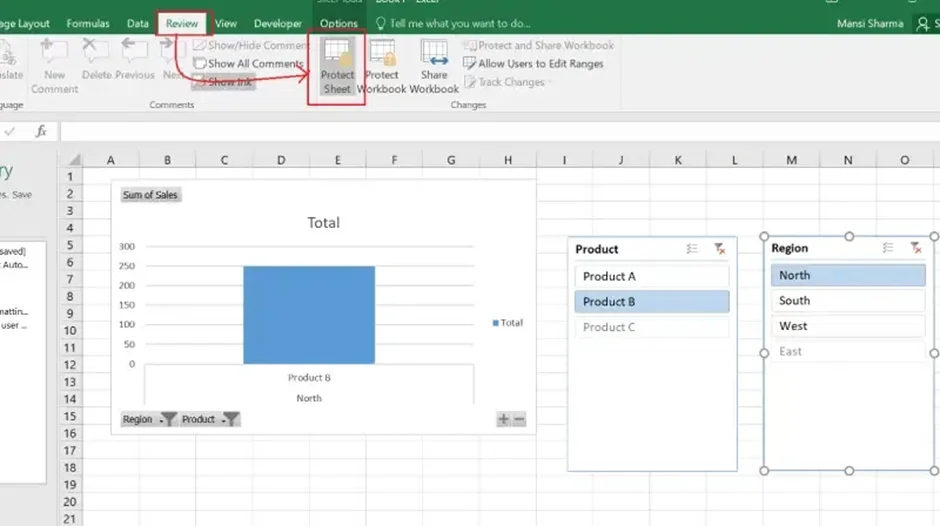
If you'd rather start from a template than build from a blank sheet, Excel's built-in gallery (File > New and search "dashboard") includes ready-made sales, financial, and project templates. These are great for learning layout conventions before you create dashboard in Excel projects of your own. Once you're comfortable, rebuilding one from scratch using the steps above will teach you far more than customizing a template alone.
Creating an Excel dashboard is not just about adding charts and KPIs, the real goal is to present information so users can make decisions quickly. Simple, focused dashboards consistently outperform ones packed with dozens of charts and metrics. The following best practices will help you build dashboards that are both professional and genuinely useful.
One of the most common mistakes is trying to display every available metric on one screen. In most cases, decision-makers only need a handful of critical KPIs. Concentrate on metrics that directly support business objectives, and cut visualizations that don't.
Place the most important KPIs at the top, followed by charts and supporting detail. Users should understand overall performance within a few seconds, without scrolling through multiple sections.
Consistency improves readability. Use the same color palette, font styles, chart formatting, and number formats throughout the dashboard — it looks more professional and helps users interpret information faster.
Different charts serve different purposes: line charts work well for trends, bar charts are best for comparisons, and pie charts should be used sparingly. Picking the right chart type has a bigger impact on usability than adding more visual elements.
Slicers, timelines, and filters let users explore data without modifying the underlying workbook. This gives stakeholders the flexibility to analyze specific regions, products, departments, or time periods on their own.
Even the best-designed dashboard becomes unreliable if the underlying data is inaccurate. Before building visuals, verify formulas, remove duplicate records, and confirm that data sources are updated correctly.
Before distributing a dashboard, test every filter, chart, PivotTable, and formula. Review it from an end user's perspective to confirm everything works as expected and the information is easy to understand.
Following these best practices will help you create dashboards that are visually appealing, easy to maintain, and capable of delivering actionable insights for better decision-making.
People often use "report" and "dashboard" interchangeably, but they serve different purposes. Knowing the difference helps you decide what to build before you open a blank worksheet.
| Aspect | Excel Report | Excel Dashboard |
|---|---|---|
| Purpose | Detailed record of data over a period | Quick, at-a-glance summary of performance |
| Format | Mostly tables and numbers | Charts, KPIs, slicers, and visuals |
| Interactivity | Static or lightly filtered | Highly interactive with slicers and timelines |
| Audience | Analysts who need granular detail | Managers and stakeholders who need quick insights |
Mastering how to create a dashboard in Excel opens up a world of possibilities. With this skill, you can efficiently organize and visualize data to support faster, better decisions. This guide walked through every step, from planning and preparing data to building PivotTables, charts, slicers, and a polished, shareable layout. You now have everything you need to create dashboard in Excel projects of your own, whether for sales, marketing, projects, or operations.
Yes. Excel is an excellent choice for creating dashboards. It offers robust tools like charts, slicers, PivotTables, and conditional formatting for data analysis and visualization, and most businesses already have it installed, so there's no extra licensing cost.
Yes, Excel offers many built-in and downloadable templates for creating dashboards. Each focuses on different functionality, and this article has covered several of the most popular ones, including KPI, marketing, project management, and operational revenue dashboards.
KPI dashboards track metrics like sales, spending, finance, and customer service for a business. They give a complete overview of business status along with signals for where to focus improvement efforts.
A simple dashboard with one or two PivotTables and charts can be built in under an hour once your data is clean. A fully interactive dashboard with multiple slicers, calculated KPIs, and custom formatting typically takes a few hours, depending on data complexity and design requirements.
Yes. If your dashboard is built on Excel Tables and PivotTables, right-click any PivotTable and choose Refresh (or Refresh All from the Data tab) whenever the source data changes, and every chart and KPI on the dashboard updates instantly. You can also set PivotTables to refresh automatically when the workbook opens.
No. Most interactive Excel dashboards can be built entirely with PivotTables, PivotCharts, slicers, and formulas, no coding required. VBA and macros are only necessary for advanced automation, like auto-refreshing data from an external system on a schedule.
Excel is ideal for small to mid-sized datasets, one-off reports, and teams that already work inside spreadsheets. Power BI is better suited for large datasets, live data connections, and dashboards that need to be shared and refreshed across an entire organization. Many analysts use Excel to prototype a dashboard before rebuilding it in Power BI at scale.