Microsoft Excel is a handy tool for managing large databases, but even a small formatting issue can create big problems when working with thousands of records. Unwanted spaces are one of the most common examples. I was also frustrated with the same problem until I learned the best solutions.
A space before or after a name, an extra space between words, or hidden spaces copied from another source can make your data inconsistent and even affect formulas and searches.
So, how to remove spaces in Excel?
The good news is that you do not have to clean every cell manually. Excel provides several quick methods to remove unwanted spaces and keep your data clean and accurate. In this guide, we will explore the easiest ways to remove spaces in Excel with practical examples.
Spaces in Excel look empty, but sometimes they hold a value. Excel reads everything, even if it is invisible to your eyes. There are three ways in which Excel sees your spaces.
This makes a simple sheet behave in unexpected ways. Sorting becomes very tough in this scenario. Due to this, some formulas fail without any warning. Sometimes a single wrong space changes the whole analysis. This is why you need to keep your sheet clean.
Spaces can enter your file for many reasons. They may come from a website when you copy and paste data. They may enter through a PDF. They may enter from a software export. Even typing by hand sometimes creates unwanted spaces. This is why, no matter what the source is, you need to remove them for correct results.
Now let us look at the different types of spaces so you understand what you are dealing with.
Also Read: How to Compare Two Columns in Excel?
Cleaning looks simple, but before that, you need to take care of some things. A small mistake can remove useful spaces or break your data. Here are a few things you should do before you start cleaning.
Always keep a copy of your original data. If any step goes wrong, you can return to the original sheet. A backup saves time and protects you from losing important information.
In some cases, spaces are meaningful. Some IDs contain spaces. Some addresses contain spaces. Some descriptions need spacing to stay readable. Do not remove everything without checking.
Merged cells often disturb the cleaning process. If you have merged cells in the column you plan to clean, unmerge them first.
Some characters look blank but they are not. Non-breaking spaces are one example. A regular TRIM may not fix them. You will need a different method.
If your sheet is large, clean it section by section. This prevents errors and makes it easier to check the results after each step.
Once you have completed these steps, you are ready to remove the spaces. Below are the best methods to do it.
Here are the five most effective methods. Everything is explained simply and practically. These work on small and large datasets.
TRIM is the simplest and most widely used function for cleaning text. It removes leading spaces, trailing spaces, and extra spaces between words. It keeps only one space between words.
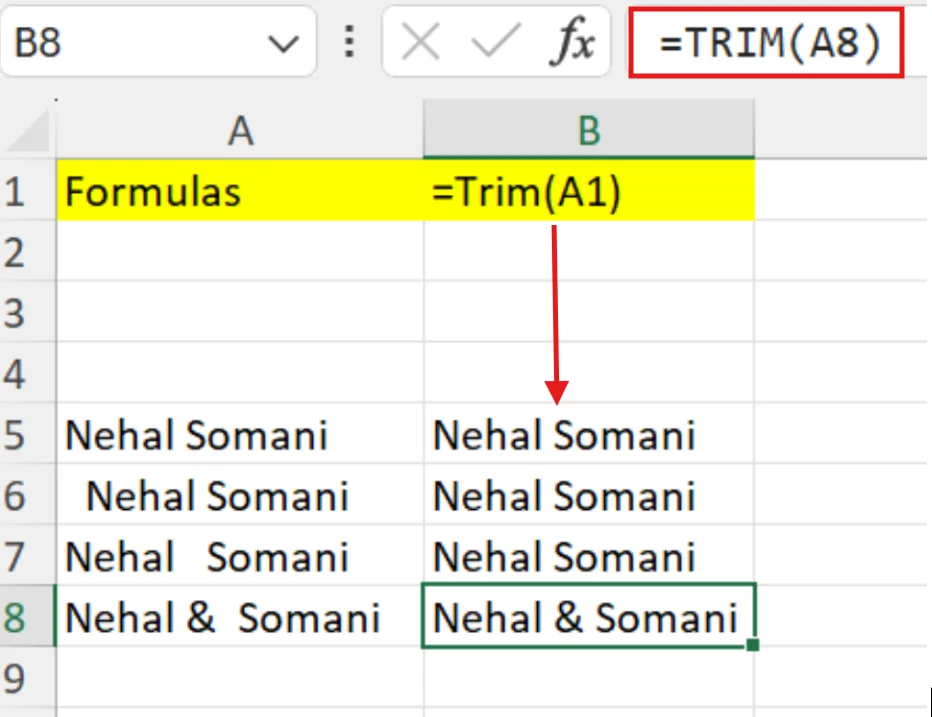
TRIM works best on names, addresses, product descriptions, sentences with uneven spacing, etc. But the TRIM function does not remove non-breaking spaces. For that, you need to use CLEAN or SUBSTITUTE methods.
Find and Replace is simple and fast. It works well when you want to remove normal spaces completely.
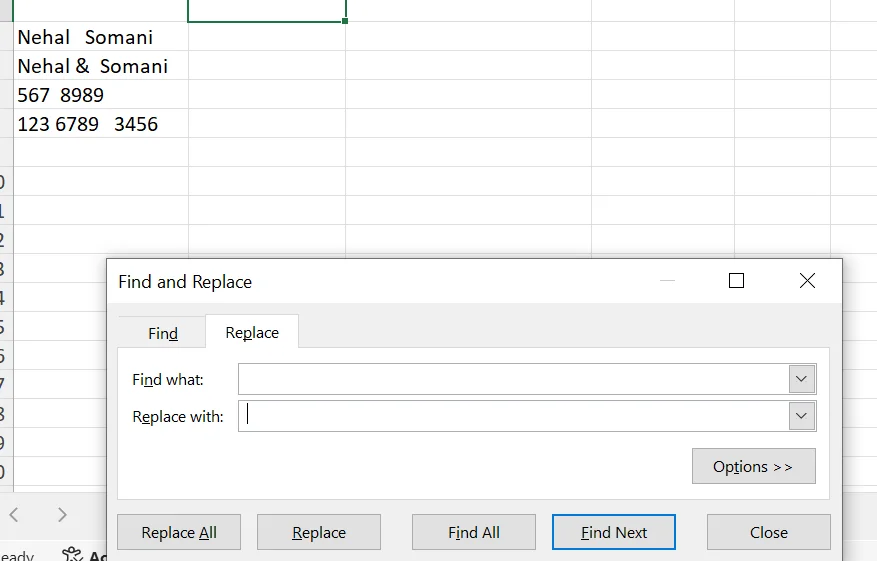
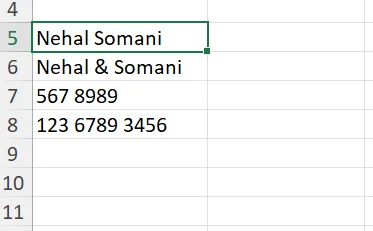
CLEAN removes unwanted characters and TRIM removes extra spacing. CLEAN removes non-printable characters (ASCII 0–31), while TRIM removes extra normal spaces (ASCII 32). However, they do not remove non-breaking spaces (CHAR(160)). For that, you must use SUBSTITUTE.
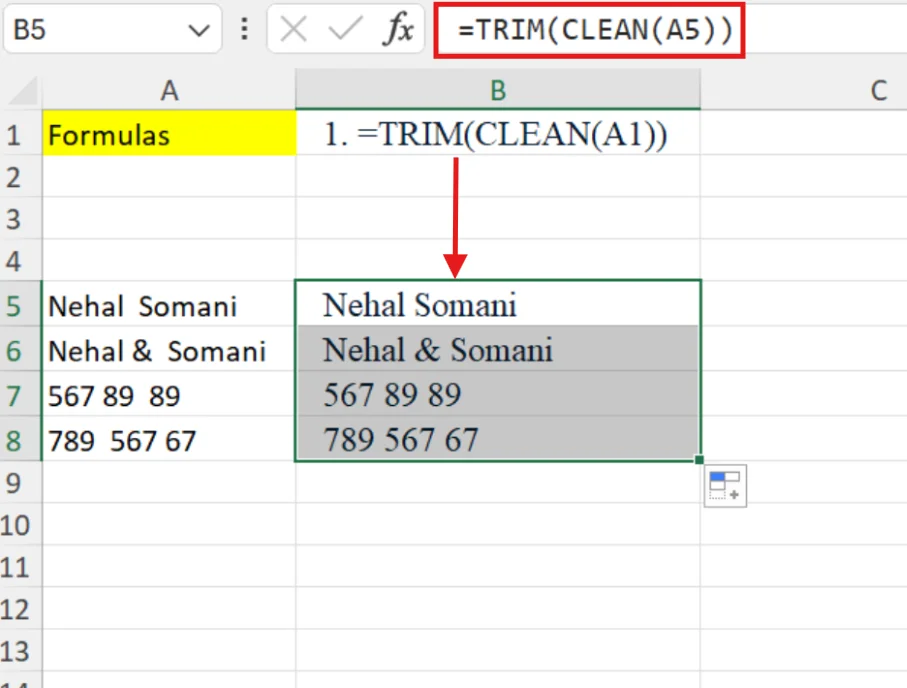
This fixes many hidden issues that normal TRIM does not handle. This method works when data is copied from websites, data from PDFs, data exported from CRM, data exported from ERP, and data containing unknown special characters

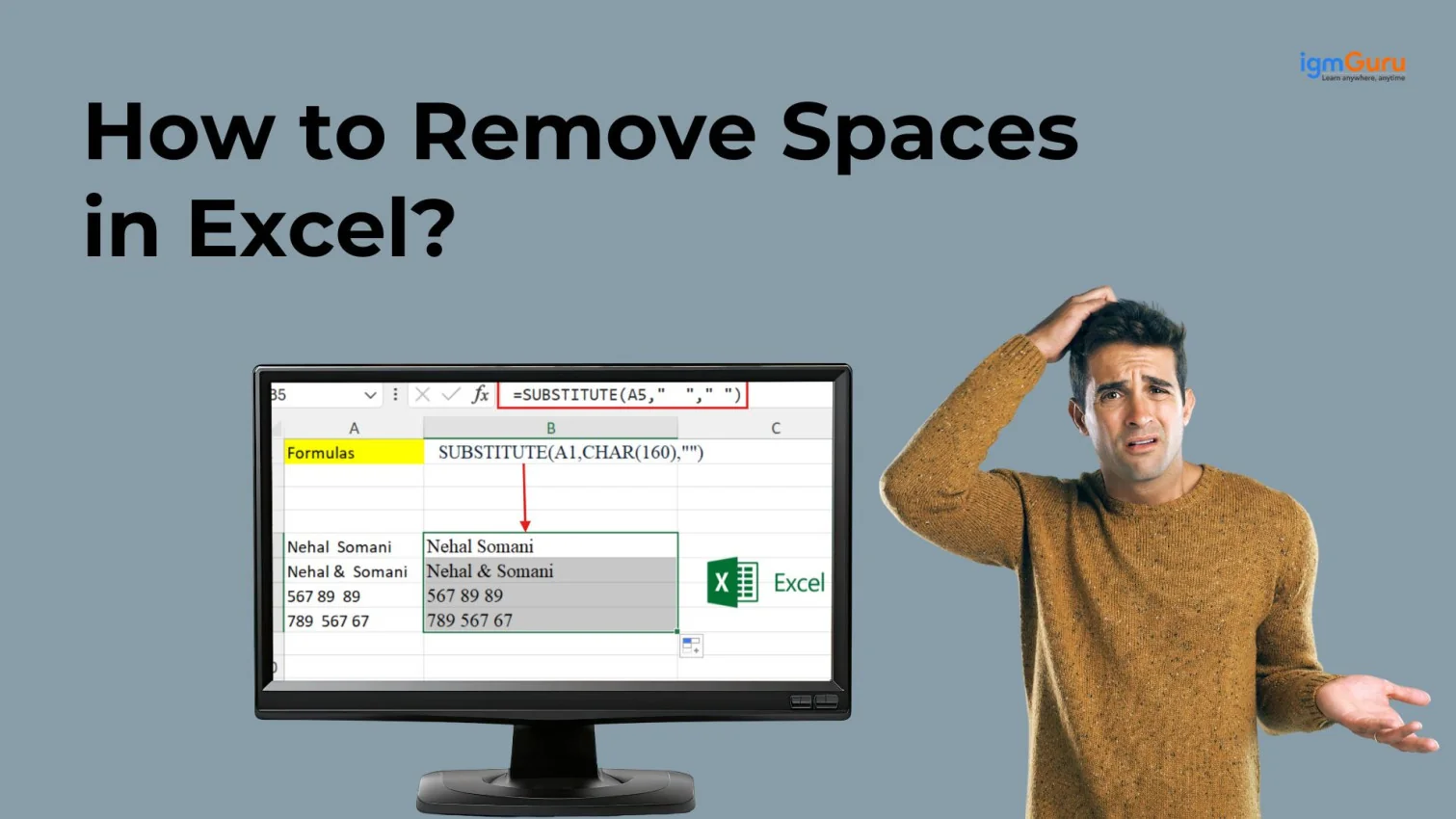
SUBSTITUTE lets you replace characters. It is a direct method to remove non-breaking spaces.
=SUBSTITUTE(A1,CHAR(160),"") |
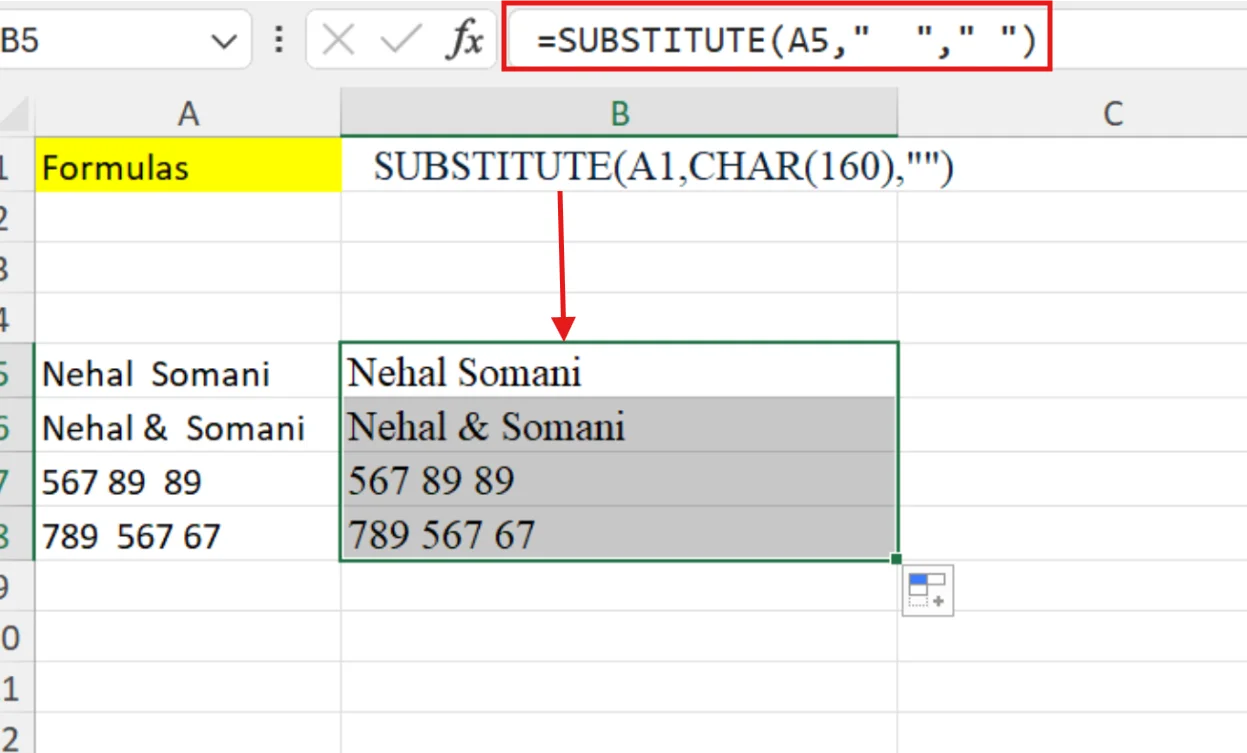
This is one of the best ways to handle data copied from websites and documents. This helps you when you import product lists, website data, social media text, text from government portals, text copied from HTML pages, etc.
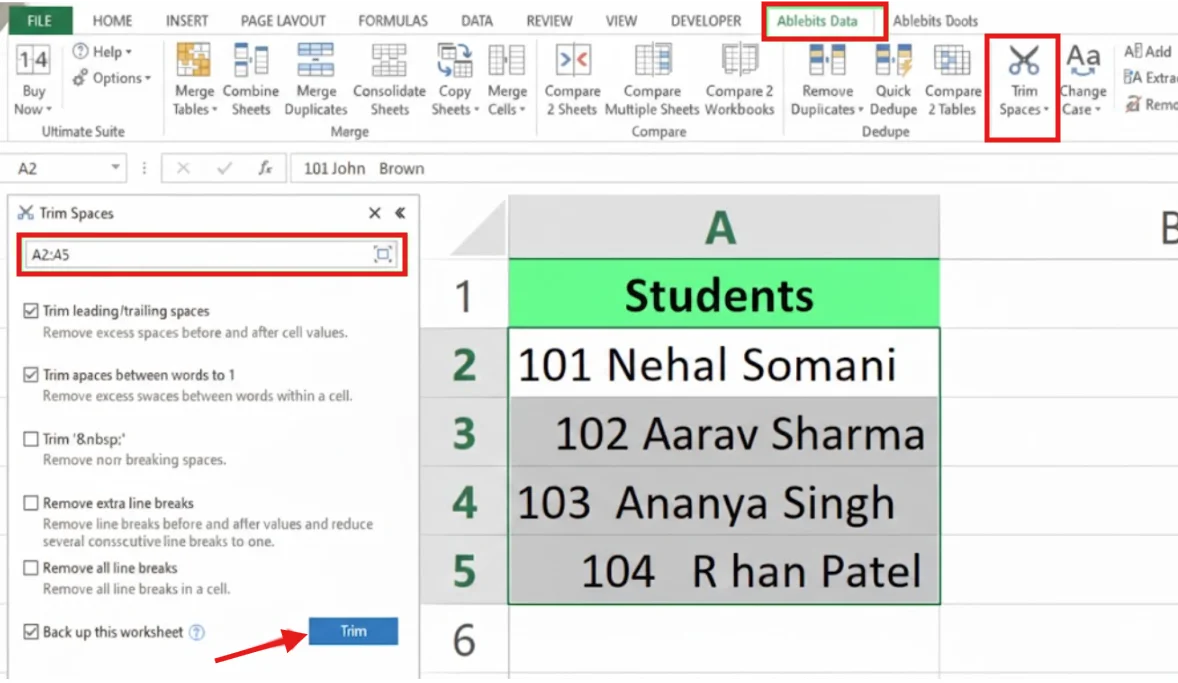
If you work with large datasets regularly, sometimes you may feel that Excel formulas may feel slow or repetitive. In such cases, Excel add-ins can save a lot of time. These are third-party tools that add extra features to Excel. One of the most popular options in Excel add-ins is the Trim Spaces tool. This tool is designed specifically for cleaning text data. It can remove leading spaces, trailing spaces, extra spaces between words, line breaks, and even non-breaking spaces with a single action.
Also Read: How to Create a Dashboard in Excel?
Power Query is one of the most powerful tools in Excel for cleaning large datasets. If you regularly work with thousands of rows, using formulas in every cell can slow down your sheet. Power Query allows you to clean data in a structured way without modifying your original dataset directly.
1. Select your data.
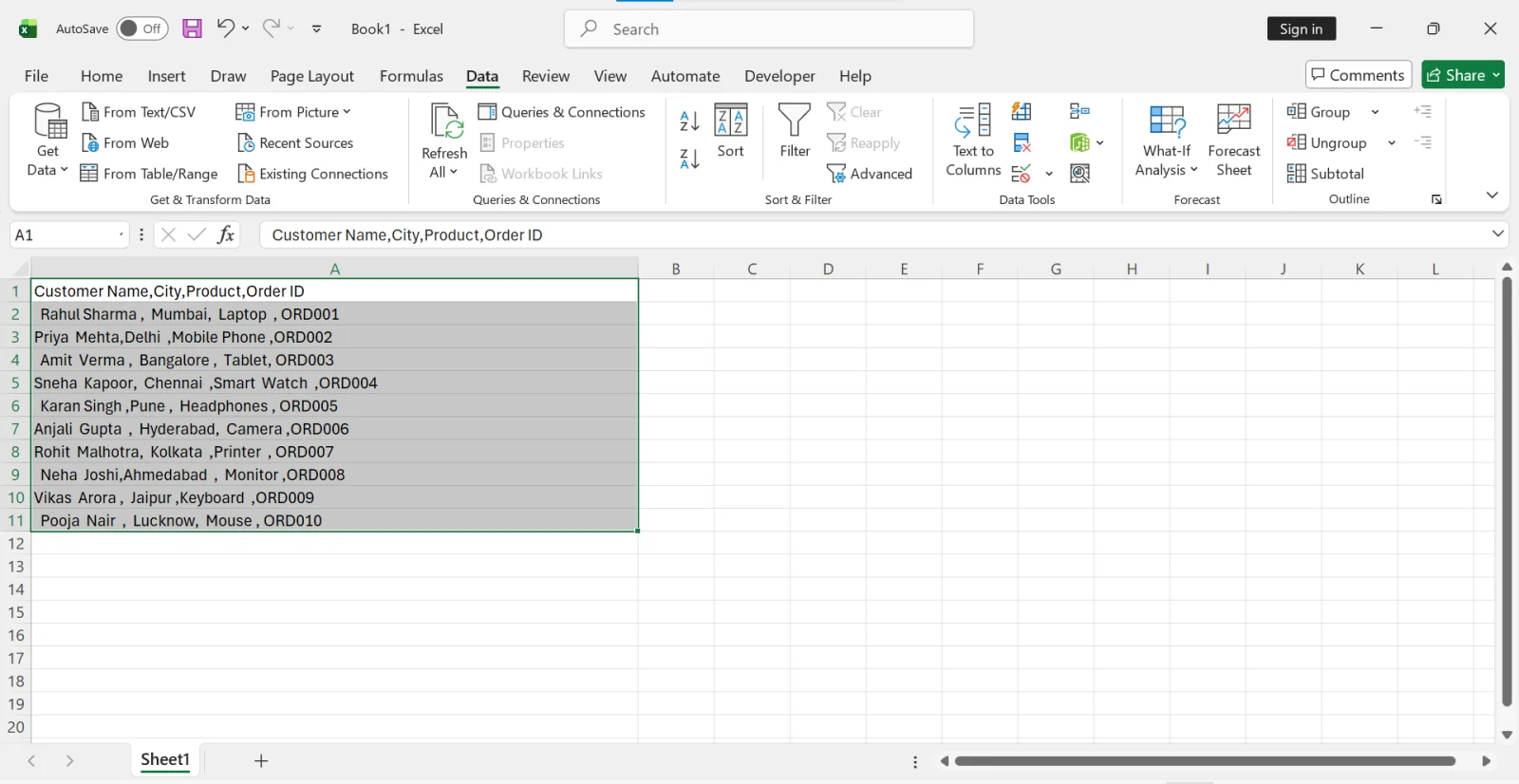
2. Go to the Data tab.
3. Click on “From Table/Range”.
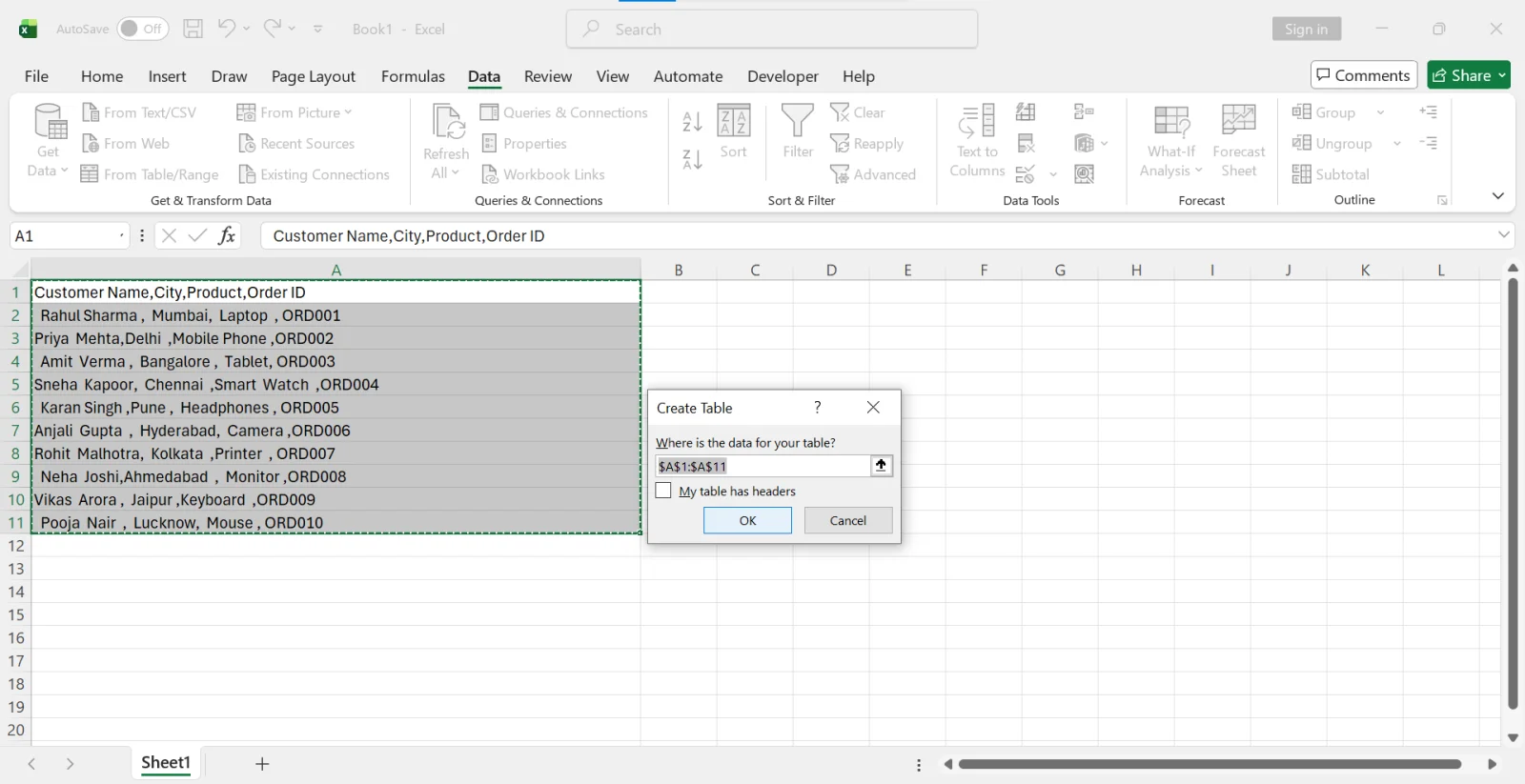
4. In the Power Query Editor, select the column you want to clean.
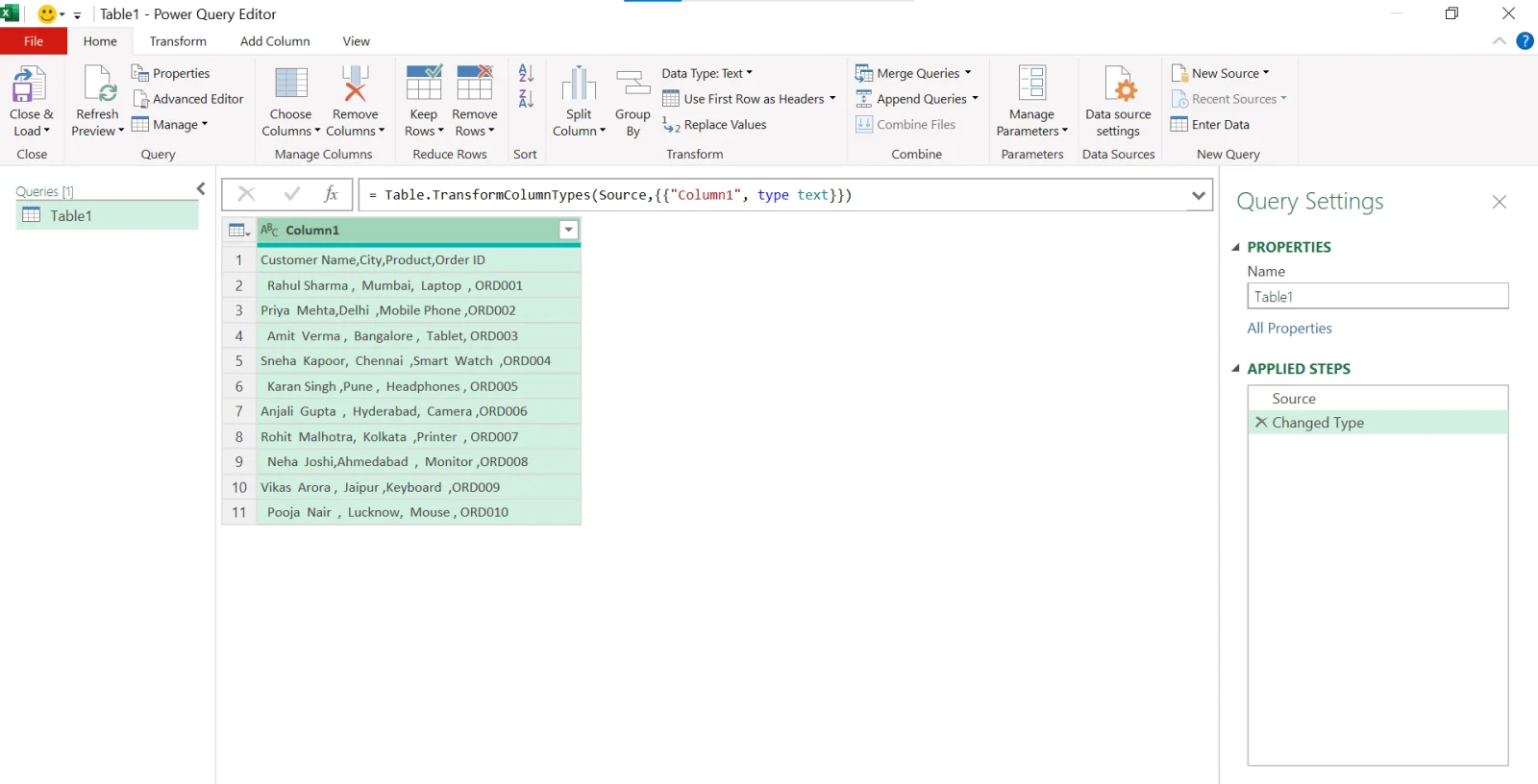
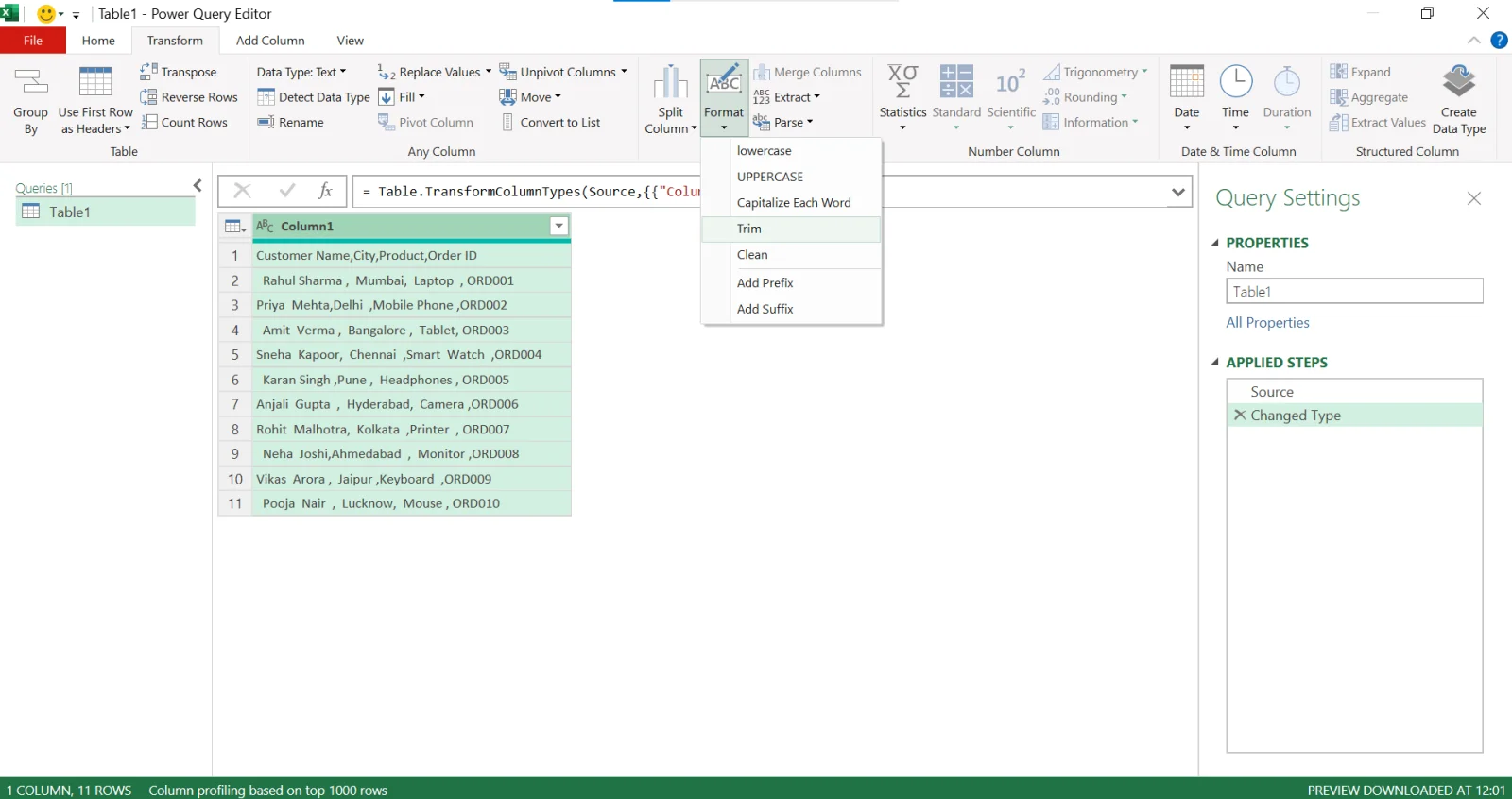
5. Go to Transform → Format → Trim.
6. Click Close & Load.
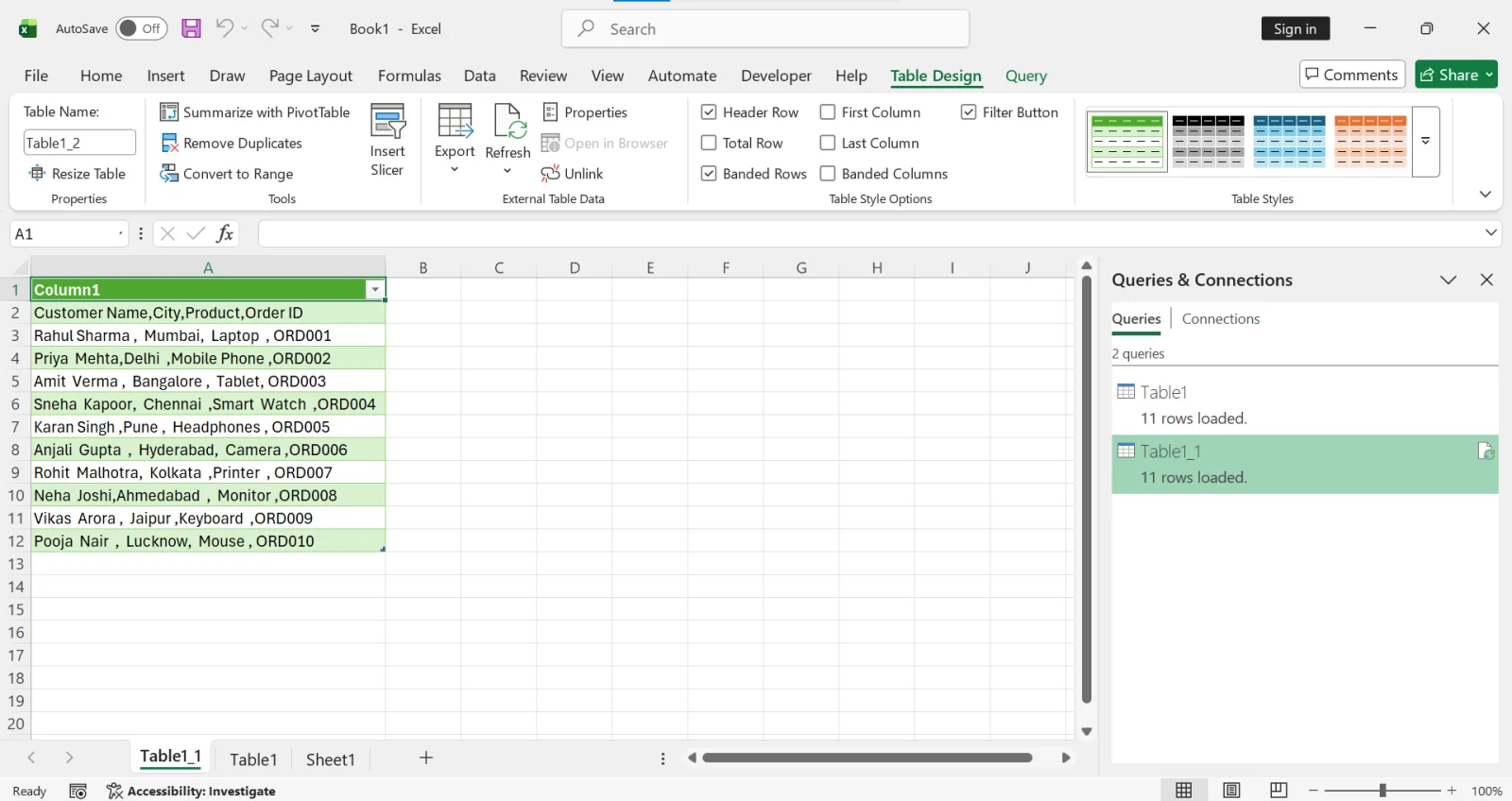
Power Query is built into Excel 2016 and later versions. In Excel 2010 and 2013, it is available as a separate add-in. This method is highly recommended for large datasets and repeated cleaning tasks.
If your data comes from websites, PDFs, CRM systems, ERP export, or other external sources, a single function may not solve the issue. In such cases, it is better to use a combined formula that handles all types of spacing problems together.
Formula:
=TRIM(CLEAN(SUBSTITUTE(A1,CHAR(160),""))) |
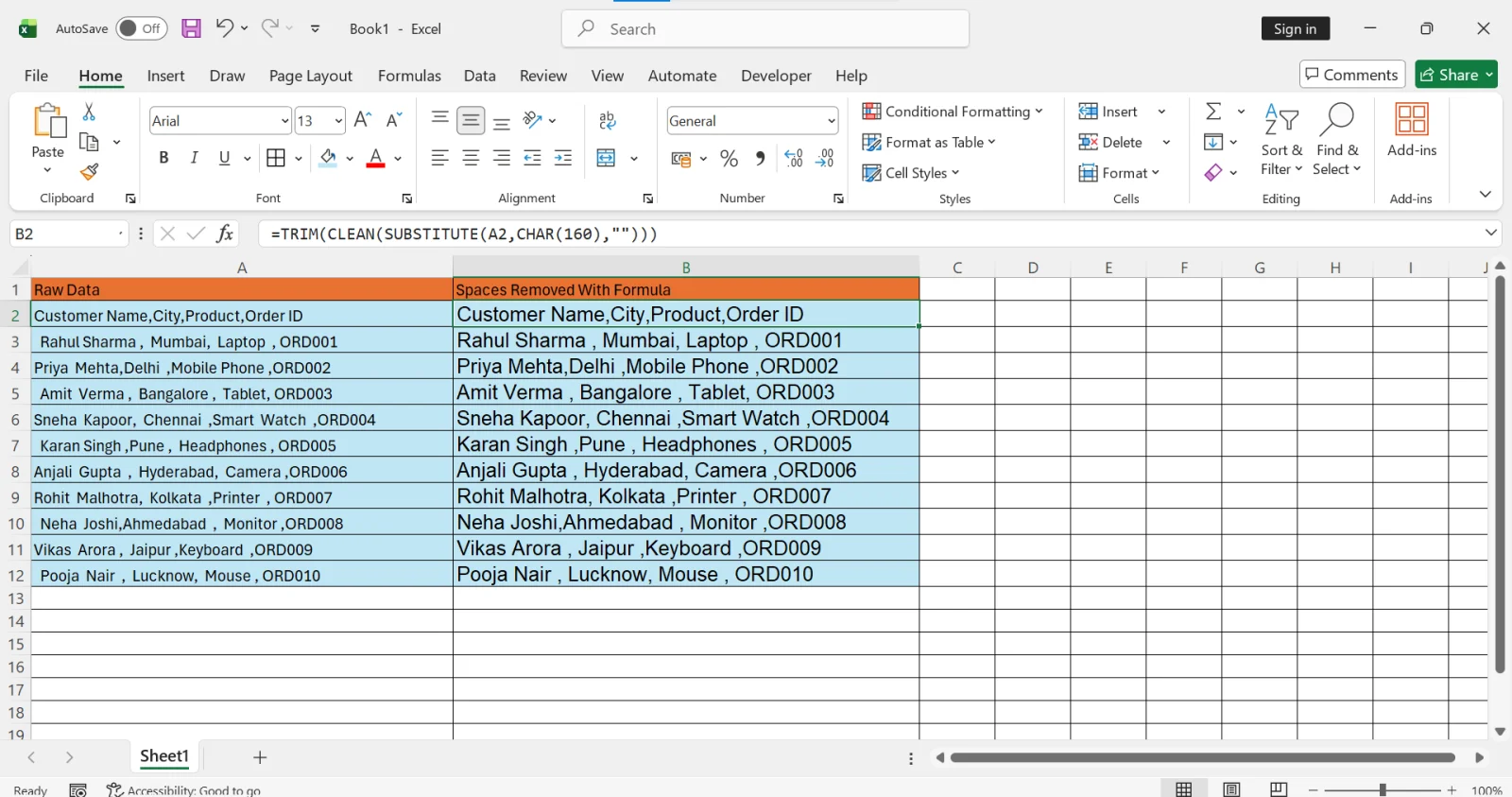
This formula works in three steps. First, SUBSTITUTE removes non-breaking spaces (CHAR 160). Then CLEAN removes non-printable characters. Finally, TRIM removes leading spaces, trailing spaces, and extra normal spaces between words. This is the safest and most reliable formula when working with messy imported data.
When you understand the type of space, it helps you select the right cleaning method. Here are the four main types.
Example: Mango

At first, the word looks normal. But Excel sees extra blank characters before Mango. This makes sorting behave strangely. It also affects lookup formulas. Leading spaces are very common when you import data from external sources.
Example: Mango .
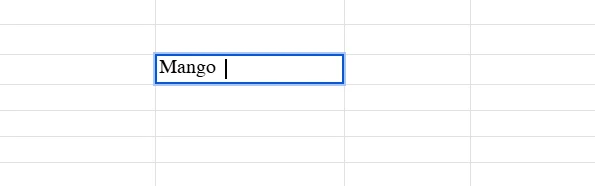
The word looks fine but Excel sees an extra space. Your formulas may treat Mango and Mango(space) as two different things. Many users get incorrect results because they cannot see this space.
Example: Data Science
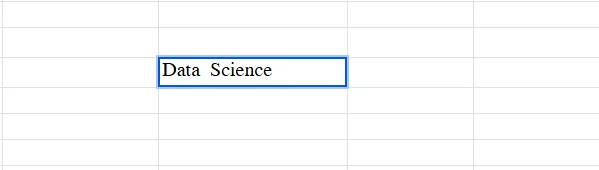
These extra spaces make the text look uneven. They can also break alignment in reports. They often appear when the source of data is messy or when someone typed the content in a hurry.
This is the most confusing type. It looks exactly like a normal space. But Excel does not treat it the same. A normal space has a code of 32. A non-breaking space has a code of 160. Excel does not remove it with simple methods. This type usually enters your sheet when you copy text from websites, PDFs, or software-exported files.
Now that you know the types, you need to understand some precautions before cleaning your data.
Related Article: How to Remove Blank Rows in Excel?
Sometimes you may not be sure whether a cell contains extra spaces. The text may look completely normal, but Excel might still be reading hidden characters. Before removing spaces, it is always a smart idea to check whether the issue actually exists. Excel provides simple functions that help you detect invisible characters easily.
The LEN function counts the total number of characters in a cell, including spaces. If a cell contains hidden spaces, the character count will be higher than expected.
Formula:
=LEN(A1) |
Now compare it with the trimmed version:
=LEN(TRIM(A1)) |
If both numbers are different, your cell contains extra spaces. This is one of the easiest ways to confirm spacing issues before cleaning your data.
Non-breaking spaces are harder to identify because they look exactly like normal spaces. You can check the character code using the CODE function.
Formula:
=CODE(MID(A1,1,1)) |
If the result shows 160, it means your cell contains a non-breaking space. A normal space returns 32. This method helps you understand what type of space you are dealing with.
| Method | Removes | Best For | Difficulty |
|---|---|---|---|
| TRIM Function | Leading spaces, trailing spaces, and extra spaces between words | General text cleaning and everyday Excel tasks | Easy |
| Find and Replace | Normal spaces (manual replacement) | Quick one-time cleanup of selected data | Easy |
| CLEAN + TRIM | Non-printable characters and extra normal spaces | Data imported from software, PDFs, or external systems | Medium |
| SUBSTITUTE | Non-breaking spaces (CHAR(160)) | Data copied from websites, HTML pages, and web applications | Medium |
| Excel Add-ins | Multiple types of spaces in one operation | Regular data cleaning with minimal manual work | Easy |
| Power Query | Leading, trailing, and extra spaces during data transformation | Large datasets and recurring data-cleaning workflows | Medium |
Combined Formula=TRIM(CLEAN(SUBSTITUTE(A1,CHAR(160),""))) |
Leading, trailing, extra, non-printable, and non-breaking spaces | Complete cleaning of messy imported data | Advanced |
Extra spaces in Excel look small but it causes many issues. They change the way formulas behave. They disturb sorting and filtering. They create errors in lookup functions and lead to wrong results. Cleaning these spaces is important for anyone who uses Excel.
You now know every type of space. You know how to check your sheet before cleaning. You also know the best methods to remove each type. TRIM works for simple cases. CLEAN and SUBSTITUTE handle special spaces. Find and Replace helps when you want to remove all spaces. Power Query is great for large data. Flash Fill and Text to Columns help with pattern-based cleaning.
Clean data saves time. Clean data keeps your analysis smooth. Clean data makes your reports accurate. With the methods in this guide, you can fix any spacing problem in your Excel sheet and keep your work ready for reporting or analysis.
Explore Our Trending Articles-
You can use the TRIM function to remove extra spaces from text. If the gaps still remain, try applying CLEAN with TRIM or use SUBSTITUTE to remove non-breaking spaces.
No, TRIM removes leading spaces, trailing spaces, and extra spaces between words. It does not remove non-breaking spaces or special hidden characters.
You can use the TRIM function. It automatically reduces multiple spaces between words to a single space.