


A Power BI dashboard is a visual tool that allows businesses to create a graphical representation of any data. The dashboard carries charts, graphs, and metrics from various sources, helping businesses track performance or trends in real time. Creating a Dashboard in Power BI is easy and requires a few steps that I will explain from the very beginning in this 'How to create a Dashboard in Power BI' guide.
Power BI is a powerful business analytics tool developed by Microsoft that helps users visualize data and share insights across teams. It connects to multiple data sources, transforms raw information into interactive reports and dashboards, and supports data-driven decision-making.
Designed with simplicity and flexibility in mind, Power BI enables professionals to explore, analyze, and present data in a clear and engaging way, turning complex information into meaningful business insights.
Here's a complete step-by-step guide to creating a dashboard in Power BI-
Download Power BI Desktop for free from powerbi.microsoft.com. Once installed, open it- you'll see the main interface with the Report canvas, Visualizations pane, and Fields pane.
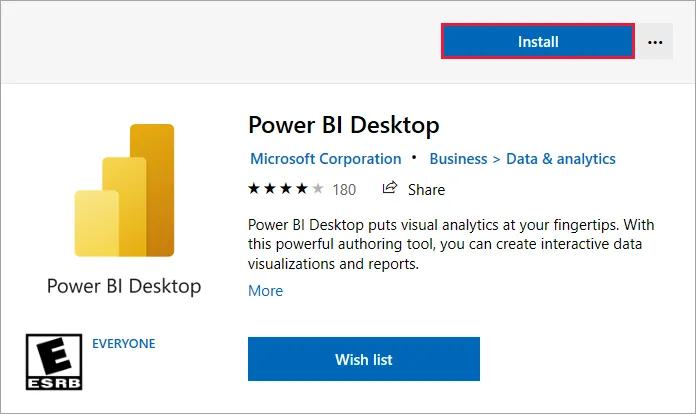
Explore this guide to know how to install Power BI Desktop.
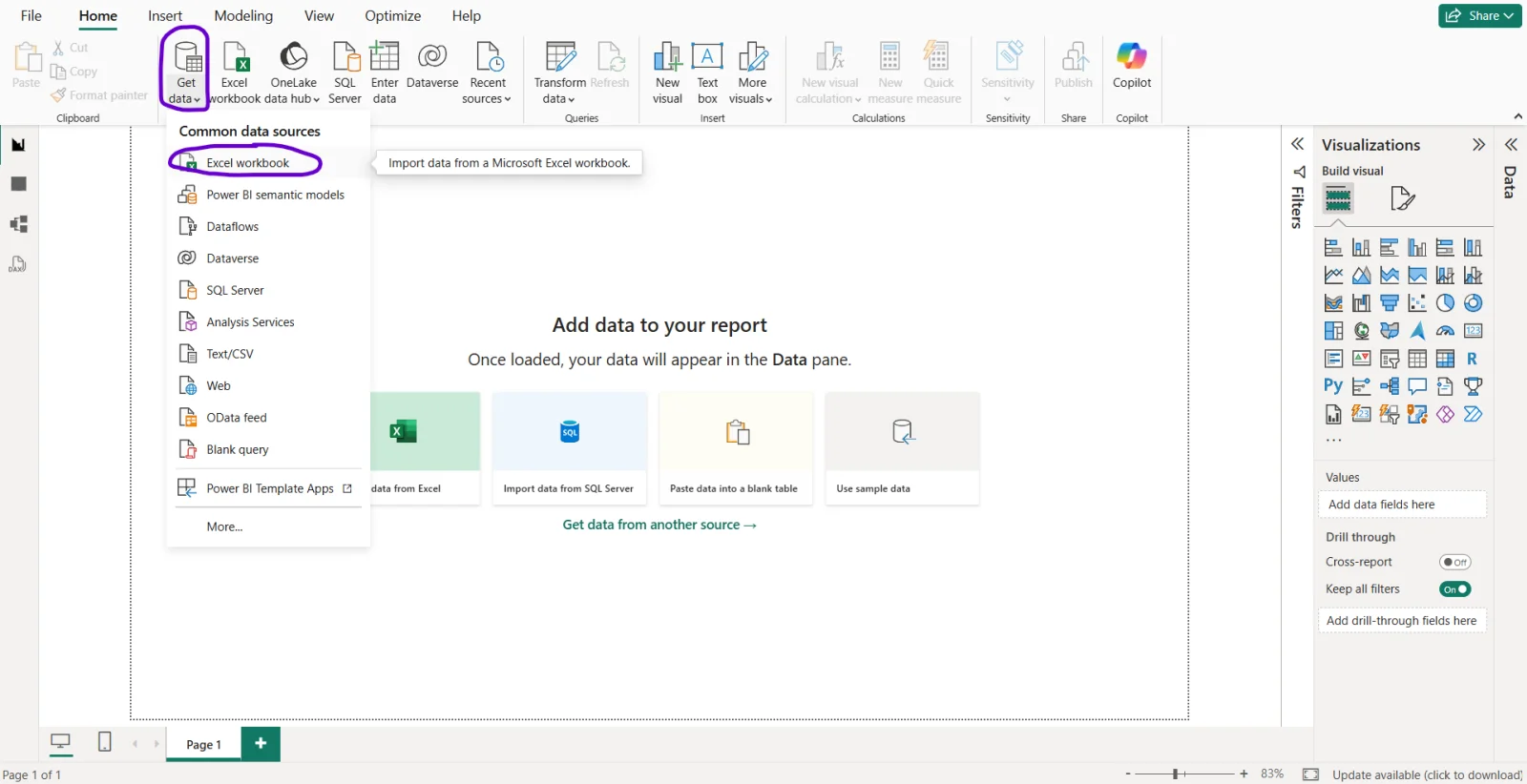
Click Home → Get Data to connect to your data.
Power BI supports 100+ connectors, including Excel, SQL Server, Microsoft Azure, SharePoint, Google Sheets, Web, and more. Select your source, authenticate if needed, and load your data.
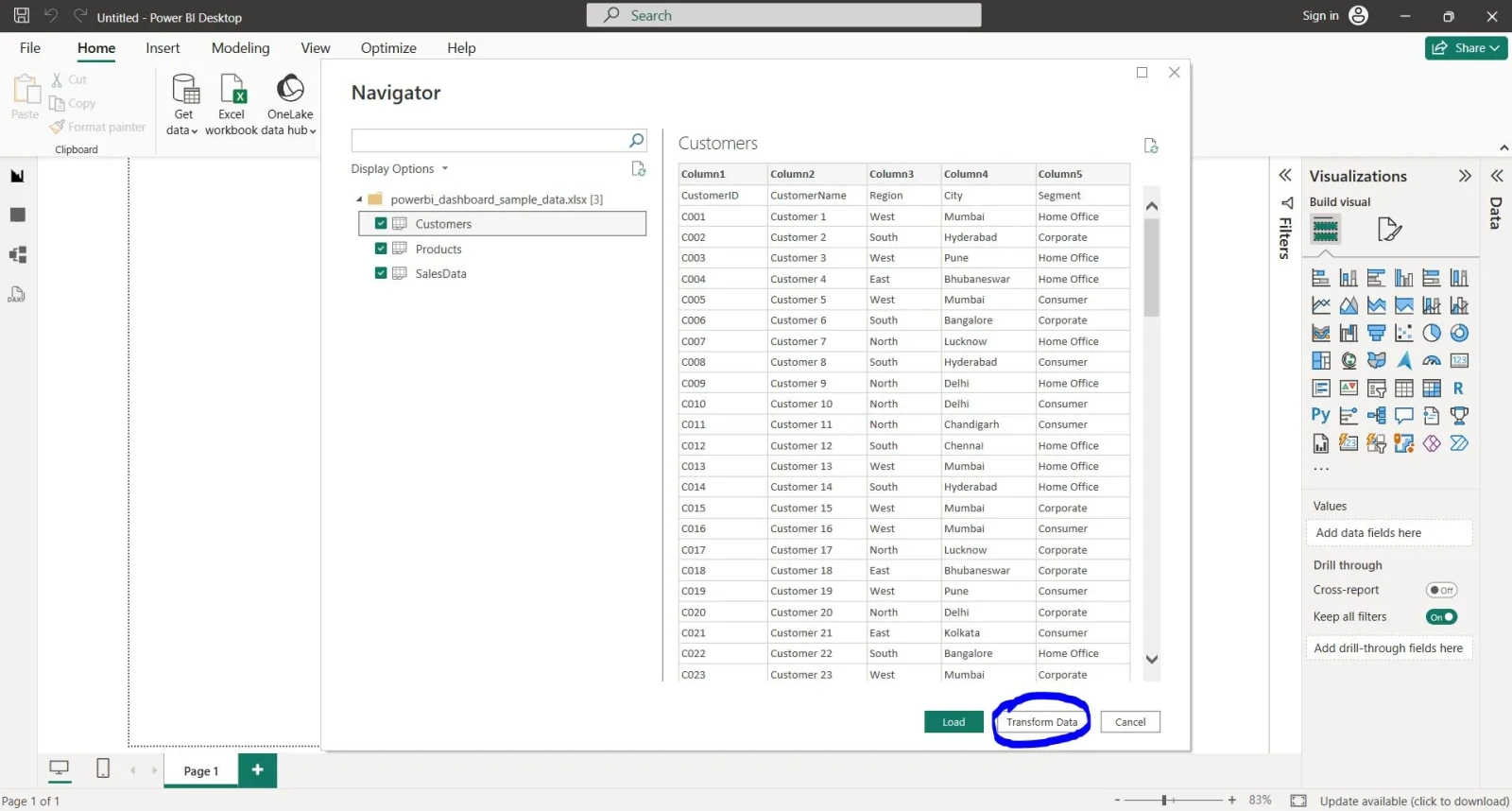
After loading, click Transform Data to open the Power Query Editor. Here you can:
Click Close & Apply when done.
Explore more about Power Query in this guide.
This is where you design the visuals that will later become dashboard tiles.
In the Report canvas:
i. Click a blank area of the canvas
ii. From the Visualizations pane, select a chart type (bar chart, line chart, pie chart, card, map, etc.)
iii. Drag fields from the Fields pane into the Values, Axis, and Legend wells
iv. Repeat to add multiple visuals- charts, KPI cards, tables, slicers, etc.
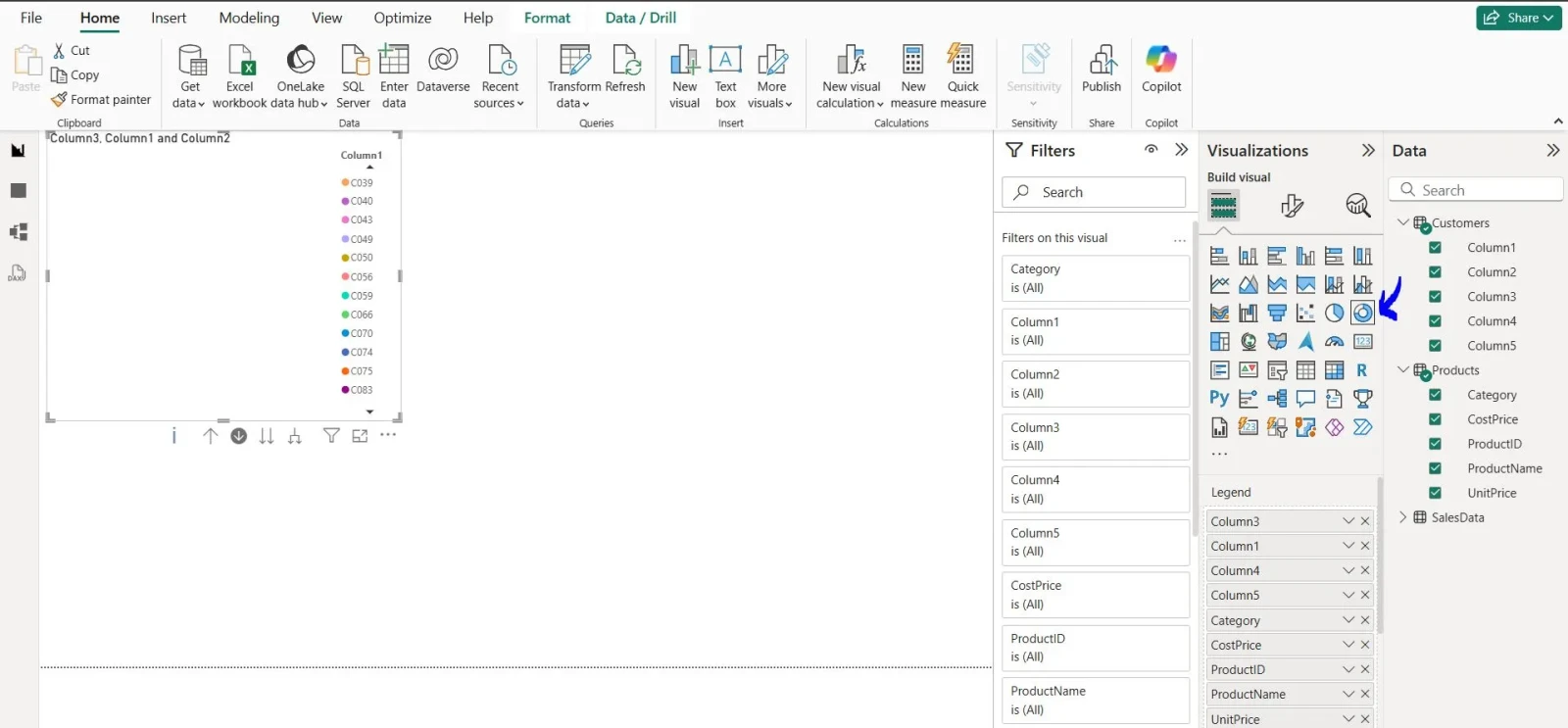
Select any visual and use the Format tab (paint roller icon) in the Visualizations pane to:
A well-formatted report makes your dashboard look professional.
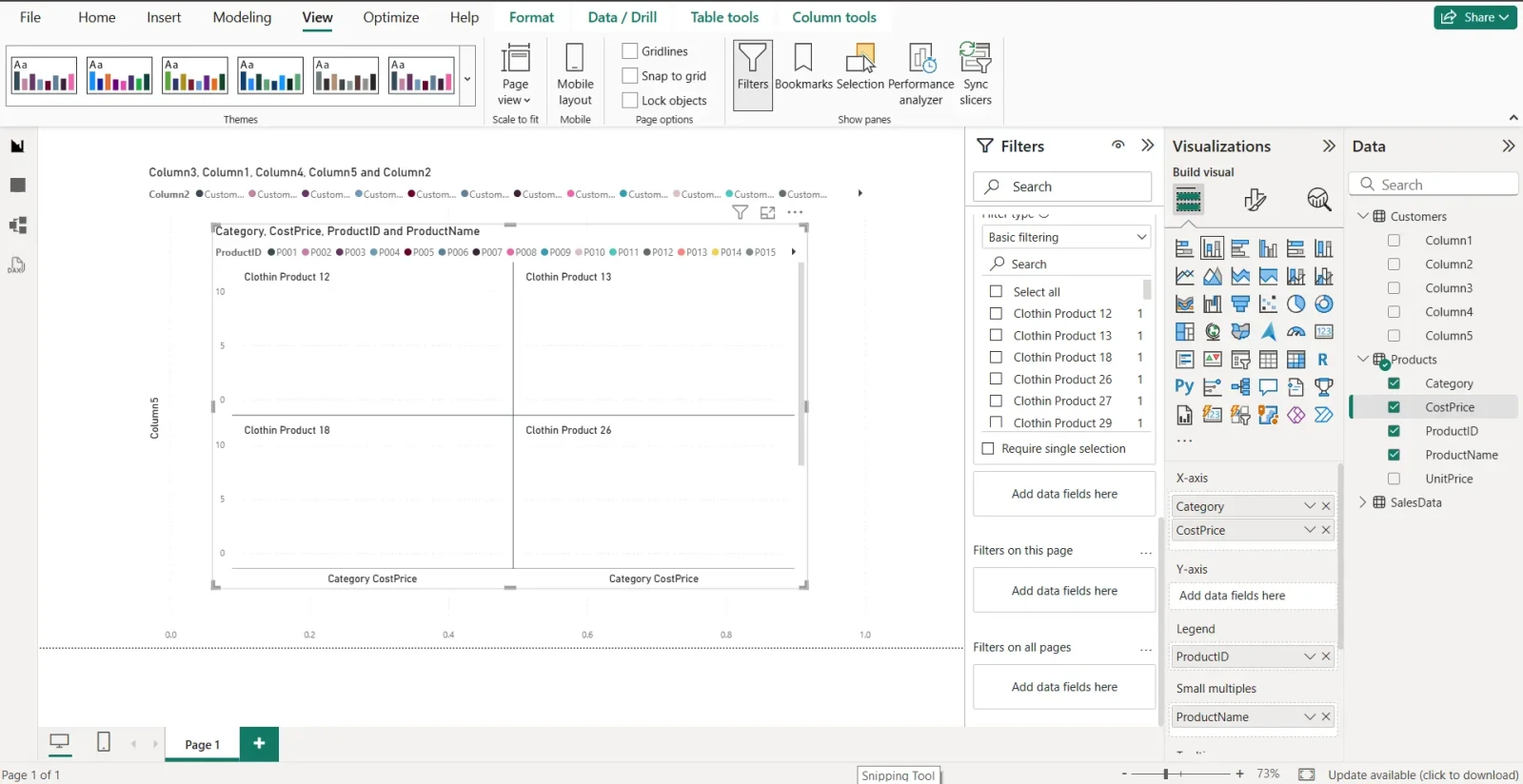
Once your report looks good, click:
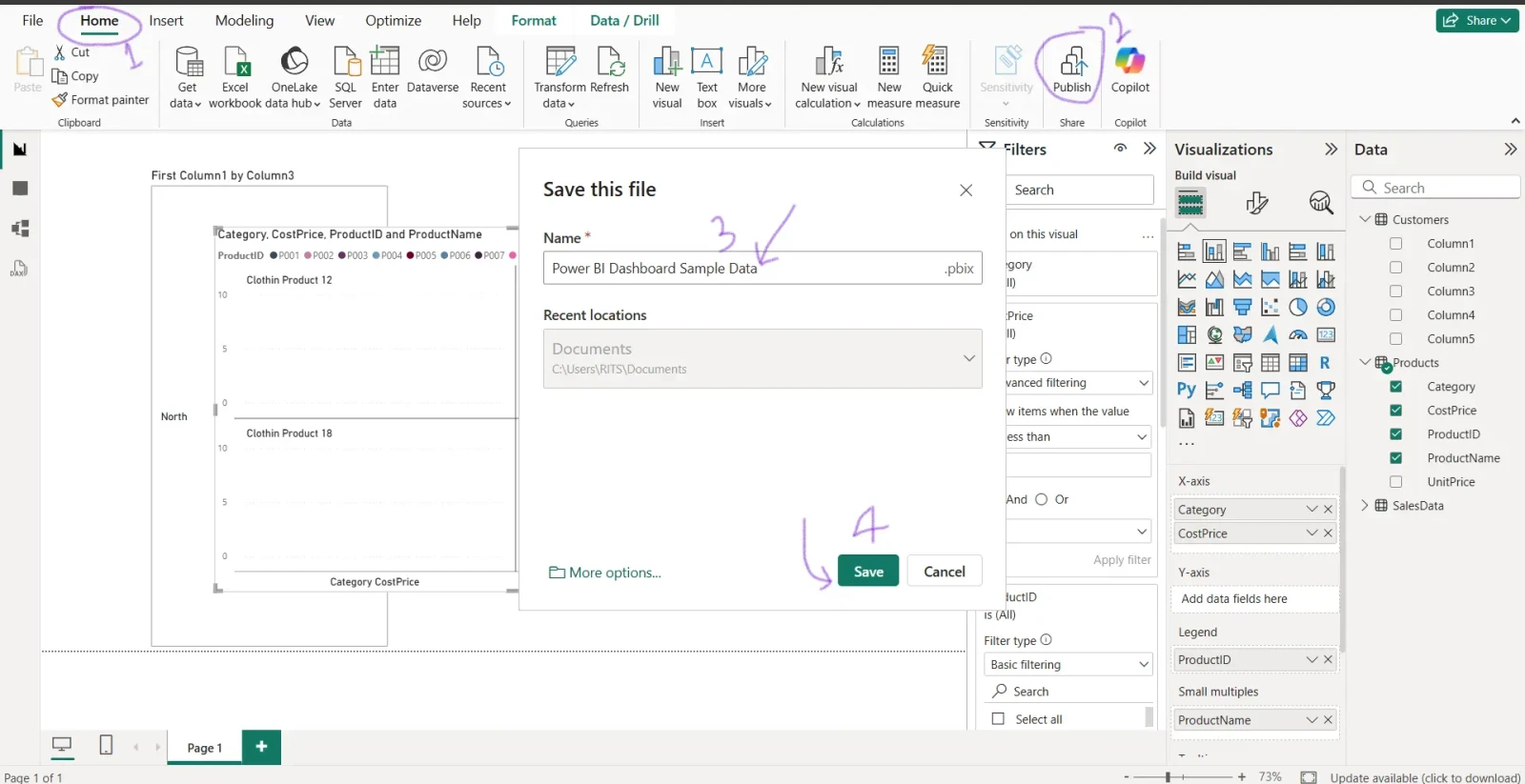
Home → Publish → Select a Workspace → Click Publish
Sign in with your Microsoft/Power BI account. After publishing, click the link to open it in Power BI Service (app.powerbi.com).
In the Power BI Service:
i) Open your published report
ii) Hover over any visual- a Pin icon appears in the top-right corner
iii) Click it → Choose New dashboard (or an existing one)
iv) Give your dashboard a name and click Pin
v) Repeat for all the visuals you want on the dashboard
Go to My Workspace → Dashboards → Your Dashboard. You'll now see all your pinned tiles. You can:
To keep your dashboard up to date:
i) Go to your dataset in the workspace
ii) Click ⋯ → Settings → Scheduled Refresh
iii) Set frequency (daily, hourly, etc.) and time
This ensures your dashboard always shows fresh data automatically.
Click the Share button (top right) and enter the email addresses of colleagues. You can also:
So, using the above steps, one can easily create a dashboard in Power BI. Additionally, this tool offers plenty of advanced features that you can use to make data into actionable insights. A Power BI dashboard is a powerful way to visualize and track key data insights effortlessly.
Explore Our Trending Articles
What Is Business Intelligence?
How to Become a Business Analyst?
Yes, you can easily create a Power BI Dashboard using the above steps.
Course Schedule
| Course Name | Batch Type | Details |
| Power BI Training | Every Weekday | View Details |
| Power BI Training | Every Weekend | View Details |


