Linux is one of the most widely used operating systems for developers, system administrators, DevOps engineers, and cybersecurity professionals. While the Linux terminal may seem intimidating at first, learning a few essential commands can dramatically improve your productivity, troubleshooting skills, and system management capabilities.
This Linux Commands Cheat Sheet is designed to help beginners and professionals quickly understand the most useful Linux terminal commands with practical examples, troubleshooting tips, workflows, and real-world use cases. Instead of just listing commands, this guide focuses on how Linux commands are actually used in day-to-day tasks.
Linux commands are text-based instructions used in the Linux terminal to perform tasks like file management, software installation, networking, process monitoring, troubleshooting, and system administration. These commands help users interact directly with the operating system efficiently without relying on a graphical interface.
If you are just starting with Linux, these are the commands you’ll use most frequently for navigation, troubleshooting, networking, and system management.
| Command | Purpose | Example |
|---|---|---|
| ls | List files and folders | ls -la |
| cd | Change directory | cd /var/log |
| pwd | Show current directory | pwd |
| grep | Search text inside files | grep "ERROR" app.log |
| find | Search files and folders | find /home -name "*.txt" |
| chmod | Change permissions | chmod +x script.sh |
| top | Monitor system processes | top |
| ssh | Connect to the remote server | ssh user@server-ip |
| systemctl | Manage services | systemctl restart nginx |
| df -h | Check disk space | df -h |
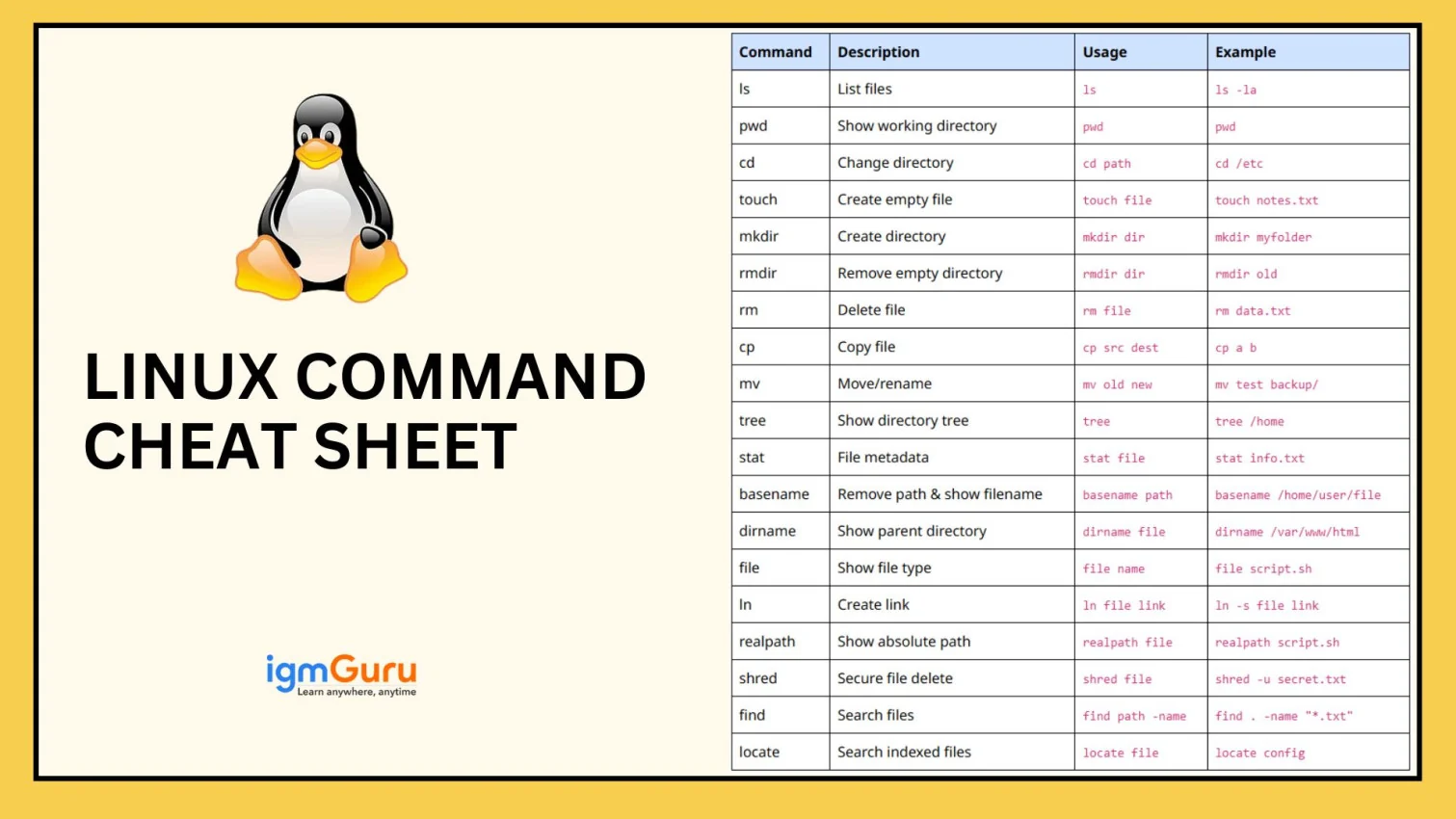
Managing files and directories is one of the first skills every Linux user should learn. These Linux file management commands help you navigate folders, organize files, search data, and work efficiently inside the terminal.
| Command | Description | Real Example |
|---|---|---|
| ls | List files and directories | ls -la /var/log |
| pwd | Show current directory | pwd |
| cd | Change directory | cd /etc/nginx |
| mkdir | Create a new directory | mkdir project-backup |
| touch | Create an empty file | touch notes.txt |
| cp | Copy files and folders | cp config.conf backup.conf |
| mv | Move or rename files | mv old.log archive.log |
| rm | Delete files | rm unwanted.txt |
| tree | Show directory structure | tree /var/www |
| find | Search files | find /home -name "*.pdf" |
| locate | Search indexed files | locate nginx.conf |
| stat | Show file metadata | stat access.log |
| basename | Extract filename | basename /etc/nginx/nginx.conf |
| dirname | Show parent directory | dirname /var/www/html/index.html |
| file | Identify file type | file backup.tar.gz |
| ln | Create links | ln -s app.log latest.log |
| realpath | Display absolute path | realpath script.sh |
| shred | Securely delete files | shred -u confidential.txt |
|
This command helps system administrators locate files larger than 500 MB that may be consuming unnecessary disk space.
|
Also Explore: How to Install Java?
Linux provides powerful terminal-based tools for viewing logs, editing configuration files, and analyzing text quickly. These commands are extremely useful while troubleshooting servers or working remotely through SSH.
| Command | Purpose | Real Example |
|---|---|---|
| cat | View file content | cat config.yml |
| tac | Reverse-view file | tac logs.txt |
| head | Show first lines | head -20 app.log |
| tail | Show last lines | tail -f /var/log/syslog |
| less | Open large files | less nginx.log |
| more | Basic file viewer | more hosts |
| grep | Search text patterns | grep "ERROR" nginx.log |
| sed | Edit text streams | sed 's/http/https/g' file.txt |
| awk | Pattern scanning | awk '{print $1}' access.log |
| sort | Sort lines | sort users.txt |
| uniq | Remove duplicate lines | uniq names.txt |
| diff | Compare files | diff old.conf new.conf |
| vim | Advanced text editor | vim docker-compose.yml |
| nano | Simple editor | nano hosts |
| wc | Count lines and words | wc -l access.log |
| cut | Extract columns | cut -d: -f1 /etc/passwd |
| paste | Merge files line-wise | paste file1.txt file2.txt |
| column | Format columns neatly | column -t users.txt |
|
This command continuously displays new log entries in real time and is commonly used while debugging websites or APIs.
|
This command helps identify all “404 Not Found” errors inside a web server log file.
|
This command helps identify failed SSH login attempts on Linux servers.
Also Explore: How to Install Golang?
Linux follows a strong permission-based security model. These commands help manage users, groups, and access rights securely across Linux systems and servers. Understanding permissions is essential for developers, Linux administrators, and DevOps engineers working with shared environments.
| Command | Description | Real Example |
|---|---|---|
| chmod | Change file permissions | chmod 755 deploy.sh |
| chown | Change ownership | chown ubuntu:ubuntu app.log |
| chgrp | Change group ownership | chgrp developers script.sh |
| id | Display user information | id ubuntu |
| sudo | Run the command as administrator | sudo apt update |
| su | Switch user | su root |
| useradd | Create a new user | useradd devops |
| userdel | Delete user | userdel testuser |
| passwd | Change password | passwd ubuntu |
| groups | Show user groups | groups devops |
| visudo | Edit sudo configuration | visudo |
|
This command adds executable permission to a shell script and fixes one of the most common Linux permission errors.
|
This command displays file ownership and permission details in Linux.
|
Also Explore: How to Install Docker?
System monitoring commands help administrators analyze CPU usage, RAM consumption, running services, system uptime, and hardware information. These Linux troubleshooting commands are extremely useful while maintaining production servers and cloud environments.
| Command | Purpose | Example |
|---|---|---|
| top | Monitor running processes | top |
| htop | Interactive process viewer | htop |
| uname | Display Linux system information | uname -a |
| hostname | Display hostname | hostnamectl |
| uptime | Check server uptime | uptime |
| lscpu | Display CPU information | lscpu |
| lsblk | Display disk partitions | lsblk -f |
| df | Check disk usage | df -h |
| du | Check folder size | du -sh /var/log |
| free | Check memory usage | free -h |
| dmidecode | Display hardware metadata | sudo dmidecode |
| ps | Show running processes | ps aux |
| env | Display environment variables | env |
| printenv | Print environment variable | printenv PATH |
| journalctl | View system logs | journalctl -xe |
| dmesg | View kernel logs | dmesg | tail |
|
This command displays the processes consuming the highest CPU resources.
|
This Linux command helps identify memory-intensive applications running on a server.
|
This command displays human-readable disk usage statistics for all mounted drives.
|
Also Explore: How to Install Splunk?
Linux networking commands are used to troubleshoot internet connectivity, verify DNS resolution, analyze active ports, transfer files securely, and connect to remote Linux servers. These commands are commonly used by network engineers, cloud administrators, and DevOps professionals.
| Command | Description | Real Example |
|---|---|---|
| ping | Test network connectivity | ping google.com |
| ifconfig | Display network interfaces | ifconfig eth0 |
| ip | Modern networking utility | ip addr |
| netstat | Show active connections | netstat -tulpn |
| ss | Socket statistics | ss -lntu |
| curl | Send HTTP requests | curl https://api.github.com |
| wget | Download files | wget backup.zip |
| traceroute | Trace packet route | traceroute google.com |
| dig | DNS lookup | dig gmail.com |
| host | DNS utility | host yahoo.com |
| arp | Display ARP table | arp -a |
| nmcli | Manage network connections | nmcli connection show |
| ssh | Remote server login | ssh ubuntu@server-ip |
| scp | Secure file transfer | scp app.zip user@server:/home |
|
This command shows listening ports and active network services running on a Linux system.
|
This command checks HTTP response headers and verifies whether a website or API endpoint is accessible.
|
This Linux command securely transfers files between local and remote systems using SSH.
|
Also Explore: How to Install Kubernetes?
Package management commands help Linux users install, update, upgrade, and remove software packages efficiently. Different Linux distributions use different package managers such as apt, yum, dnf, rpm, and snap.
| Command | Purpose | Real Example |
|---|---|---|
| apt | Ubuntu/Debian package manager | sudo apt install nginx |
| apt-get | Advanced package utility | sudo apt-get clean |
| dpkg | Install .deb packages | dpkg -i app.deb |
| snap | Universal Linux packages | snap install postman |
| yum | RHEL/CentOS package manager | yum install git |
| dnf | Fedora package manager | dnf install docker |
| rpm | Install RPM packages | rpm -ivh package.rpm |
| flatpak | Install Flatpak applications | flatpak install app |
|
This command refreshes package indexes and upgrades installed packages on Ubuntu or Debian systems.
|
This Linux command resolves dependency and package installation issues.
The apt package manager is used mainly in Ubuntu and Debian-based Linux distributions, while yum is used in CentOS and Red Hat Enterprise Linux systems.
Also Explore: How to Use ChatGPT Atlas?
Compression and archiving commands help Linux users reduce file sizes, transfer backups efficiently, and organize project files. These commands are commonly used in server management, cloud deployments, and backup automation workflows.
| Command | Description | Real Example |
|---|---|---|
| tar | Create or extract archives | tar -czf backup.tar.gz project/ |
| zip | Create ZIP archive | zip project.zip src/ |
| unzip | Extract the ZIP archive | unzip project.zip |
| gzip | Compress files | gzip server.log |
| gunzip | Decompress GZIP files | gunzip backup.gz |
| 7z | Create 7zip archive | 7z a files.7z data/ |
| rar | Create RAR archive | rar a archive.rar files/ |
|
This command creates a compressed backup archive of a website directory.
|
This Linux command extracts compressed archive files into the current directory.
|
Also Explore: How to Install MongoDB?
Linux gives administrators deep control over running applications, services, and background jobs. These commands help monitor processes, stop unresponsive applications, manage priorities, and restart Linux services efficiently.
| Command | Purpose | Real Example |
|---|---|---|
| ps | View running processes | ps aux |
| kill | Terminate the process using PID | kill 1234 |
| killall | Kill process by name | killall firefox |
| bg | Move the process to the background | bg |
| fg | Bring the process to the foreground | fg |
| jobs | View background jobs | jobs |
| nice | Set process priority | nice -n 10 python app.py |
| renice | Modify process priority | renice 10 1234 |
| systemctl | Manage Linux services | systemctl restart nginx |
| service | Older Linux service manager | service apache2 restart |
|
This command restarts the Nginx service after configuration changes or server failures.
|
This command searches for active Nginx processes on a Linux server.
|
This command forcefully terminates a frozen process using its process ID.
|
Linux administrators often repeat the same troubleshooting and monitoring tasks every day. These commands form a practical Linux workflow for checking system health, server availability, and service status quickly.
|
Linux organizes files and system resources using a hierarchical directory structure that starts from the root (/) directory. Each folder has a specific purpose, making it easier to locate configuration files, user data, applications, logs, and system resources. Understanding the Linux filesystem is essential for developers, system administrators, and DevOps engineers because many commands require navigating these directories efficiently.
| Directory | Purpose | Example |
|---|---|---|
/ | Root directory that contains the entire Linux filesystem | cd / |
/home | Stores personal files and folders for users | cd /home/ubuntu |
/root | Home directory of the root user | cd /root |
/etc | Contains system configuration files | cd /etc/nginx |
/var | Stores logs, caches, and variable application data | cd /var/log |
/usr | Contains installed applications, libraries, and binaries | ls /usr/bin |
/bin | Essential Linux command binaries | ls /bin |
/sbin | Administrative system binaries | ls /sbin |
/tmp | Temporary files created by applications | cd /tmp |
/opt | Optional third-party software installations | cd /opt |
/boot | Bootloader and kernel files | ls /boot |
/dev | Represents hardware devices as files | ls /dev |
/proc | Virtual filesystem containing process and kernel information | cat /proc/cpuinfo |
/mnt | Temporary mount point for storage devices | cd /mnt |
/media | Automatically mounted removable media such as USB drives | cd /media |
|
This command lists all top-level directories in the Linux filesystem, helping you understand how the operating system is organized.
|
This command opens the directory where Linux stores application and system log files, making it useful for troubleshooting and monitoring.
Linux uses a permission-based security model to control who can read, write, or execute files and directories. Permissions are represented using both symbolic notation and numeric values. Learning these permission numbers helps you manage access securely, avoid permission errors, and protect important files from unauthorized modifications.
| Permission | Numeric Value | Meaning |
|---|---|---|
| Read (r) | 4 | View the contents of a file |
| Write (w) | 2 | Modify or delete a file |
| Execute (x) | 1 | Run a file as a program or enter a directory |
| Permission | Owner | Group | Others | Typical Use |
|---|---|---|---|---|
777 | rwx | rwx | rwx | Full access for everyone (not recommended) |
755 | rwx | r-x | r-x | Executable scripts and directories |
744 | rwx | r-- | r-- | Private executable files |
700 | rwx | --- | --- | Private user files |
644 | rw- | r-- | r-- | Most text and configuration files |
600 | rw- | --- | --- | Passwords and sensitive files |
400 | r-- | --- | --- | Read-only confidential files |
|
This command allows the file owner to read, write, and execute the script while granting read and execute permissions to everyone else.
|
This command displays the current owner, group, and permission settings assigned to a file or directory.
Bash keyboard shortcuts help Linux users work faster by reducing repetitive typing and simplifying command-line navigation. Instead of retyping commands or manually moving the cursor, you can quickly edit commands, search command history, and control running processes using keyboard shortcuts.
| Shortcut | Purpose | When to Use |
|---|---|---|
Ctrl + C | Stop the running command | Cancel a long-running process |
Ctrl + Z | Suspend the current process | Move a process to the background |
Ctrl + L | Clear the terminal screen | Clean the terminal display |
Ctrl + A | Move the cursor to the beginning of the line | Edit long commands |
Ctrl + E | Move the cursor to the end of the line | Quick navigation |
Ctrl + U | Delete text before the cursor | Clear the current command quickly |
Ctrl + K | Delete text after the cursor | Remove unwanted command text |
Ctrl + R | Search command history | Find previously executed commands |
Tab | Auto-complete commands and file names | Save typing time |
↑ / ↓ | Browse command history | Reuse recent commands |
!! | Repeat the previous command | Run the last command again |
exit | Close the terminal session | End the current shell |
|
Press this shortcut and start typing part of a previous command to search your Bash command history instantly.
|
Pressing the Tab key automatically completes matching directory and file names, reducing typing effort and preventing spelling mistakes.
Linux command chaining allows users to combine multiple commands together for filtering, automation, and faster troubleshooting. These examples are widely used in DevOps, Linux administration, and server management.
|
|
|
|
|
While learning Linux commands, beginners and professionals often encounter errors related to permissions, missing packages, networking issues, or incorrect file paths. Understanding these common Linux problems helps improve troubleshooting skills significantly.
| Error | Cause | Solution |
|---|---|---|
| Permission denied | Missing execute permission | chmod +x script.sh |
| Command not found | Package not installed | Install package or verify PATH variable |
| No such file or directory | Incorrect path | Verify file path using pwd and ls |
| Connection refused | Service not running | Restart service using systemctl |
| Disk full | Storage exhausted | Check usage with df -h |
| Broken package | Dependency conflict | sudo apt --fix-broken install |
| Host unreachable | Network issue | Verify connectivity using ping |
| Port already in use | Service conflict | Check active ports using ss -tulpn |
Some Linux commands can permanently delete files or damage operating system configurations if used incorrectly. Beginners should understand these commands carefully before executing them on production systems.
| Command | Risk | Safer Alternative |
|---|---|---|
rm -rf / | Deletes the entire system | Always verify path before deletion |
chmod -R 777 | Creates security vulnerabilities | Use permissions like 755 or 644 |
dd if=/dev/zero | Can overwrite storage devices | Verify target disk carefully |
:(){ :|:& };: | Fork bomb that crashes system | Avoid running unknown scripts |
This Linux command cheat sheet is useful for anyone who wants to improve productivity and confidently work with Linux systems. Whether you are learning Linux for the first time or managing production servers, these commands will help simplify your workflow.
Also Explore: How to Install Kubernetes?
Syntax: command [options] [arguments] Example: ls -la /home/user Breakdown: • ls → command • -la → options • /home/user → argument |
If you are learning Linux for the first time, following a structured roadmap can help you master Linux commands faster and avoid confusion.
Also Explore: How to Install Ruby on Rails on Windows and Linux?
Linux commands become much easier once you understand where and why they are used. This Linux Commands Cheat Sheet covers essential Linux terminal commands for file management, networking, troubleshooting, process monitoring, permissions, compression, and package management. Whether you are preparing for interviews, working in DevOps, or learning Linux administration, practicing these commands regularly will improve your confidence and productivity significantly.
Explore Our Trending Linux and DevOps Guides
The most commonly used Linux commands include ls, cd, pwd, grep, find, chmod, ssh, top, ps, and systemctl.
Beginners should start with navigation commands like ls, cd, and pwd, followed by file management and networking commands.
Yes, Linux commands are case-sensitive. For example, ls and LS are treated as different commands.
The grep command searches text inside files, while find searches for files and directories based on names, size, or permissions.
DevOps engineers frequently use commands like ssh, systemctl, docker, kubectl, grep, journalctl, and top for server management and automation.
Yes. You can use WSL (Windows Subsystem for Linux), Git Bash, or virtual machines to run Linux commands on Windows systems.
Ubuntu is considered one of the best Linux distributions for beginners because of its simplicity, community support, and extensive documentation.
Linux shell commands are terminal instructions executed through shells like Bash or Zsh to manage files, processes, networking, and system operations.
Course Schedule
| Course Name | Batch Type | Details |
| Ubuntu Linux Training | Every Weekday | View Details |
| Ubuntu Linux Training | Every Weekend | View Details |