Working with large datasets in Microsoft Excel often requires you to find a specific value and return the related information from another range. This is where the XLOOKUP function becomes useful.
It provides a flexible way to search for data and return the matching result without many of the limitations associated with older lookup functions such as VLOOKUP and HLOOKUP. XLOOKUP can search in different directions, return values from another range, handle missing results with a custom message, and search from the beginning or end of a range.
In this guide, you will learn what XLOOKUP is, understand its syntax, use it with practical examples, compare it with VLOOKUP, troubleshoot common errors, and learn when XLOOKUP is the better choice for your Excel tasks.
Learn how to use XLOOKUP function in Excel and Google Sheets to find a specific value by just selecting what to look for, where to look, and what to return.
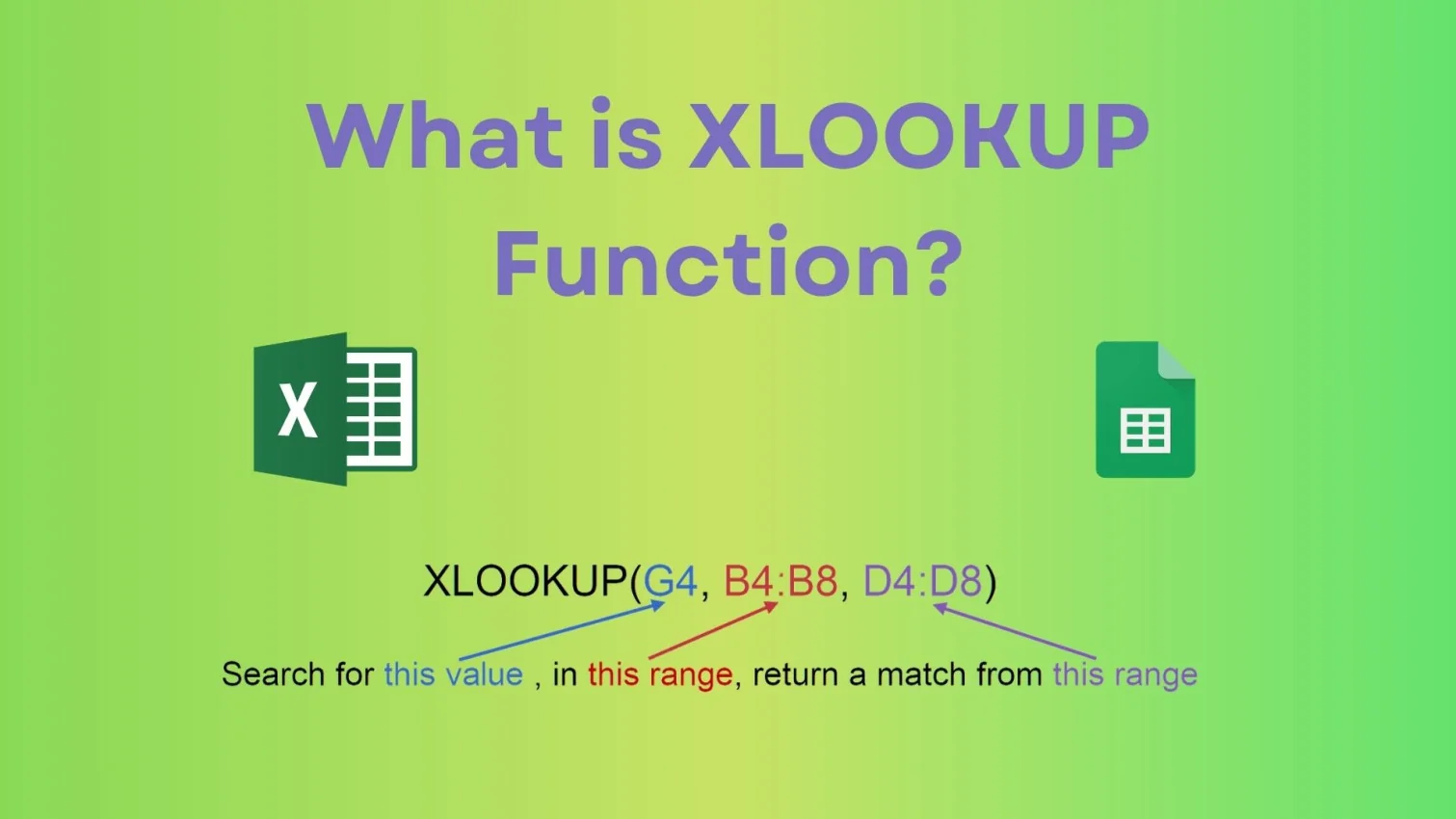
XLOOKUP is a modern Excel function that allows you to search for a value in a range and return a corresponding value from another range. The biggest advantage of XLOOKUP is that it is not restricted like older functions. It works in any direction. You can look left, right, up, or down.
You also do not need to count columns, which removes one of the most common errors people make with VLOOKUP. It also allows you to handle errors easily and even search from the bottom to get the latest value. XLOOKUP is considered a more powerful and user-friendly replacement, or I can say a superior successor to VLOOKUP and HLOOKUP. It does not require sorted data, allows looking to the left, and defaults to an exact match.
It works like this: you search for something, then Excel finds it and returns what you need. For instance, suppose you have a list of employees with their IDs and salaries. If you know the employee ID and want to find the salary, XLOOKUP will do that instantly.
To use XLOOKUP correctly, you need to understand its structure. This is the syntax of XLOOKUP:
|
XLOOKUP is available in modern versions of Microsoft Excel, including Microsoft 365, Excel 2024, and Excel 2021. It is also available in Excel for Mac and other supported Excel platforms.
However, it is not available as a native function in Excel 2016 and Excel 2019. Therefore, you should check your Excel version before using this formula in a workbook that needs to work on older systems. If you are using an older version such as Excel 2016 or Excel 2019, you may need to use VLOOKUP, HLOOKUP, or the INDEX and MATCH combination instead.
Note: Before sharing a workbook with other users, it is important to consider Excel version compatibility. A formula containing XLOOKUP may not work correctly when opened in an older version that does not support the function.
Let’s make this very practical so you can apply it directly.
1. Identify what you want to search: This is your lookup value. It can be an ID, name or product.
2. Select the lookup range: This is where Excel will search for the value that you put under the lookup value.
3. Select the return range: This is the column from which you want the result.
4. Write the formula: Type the XLOOKUP formula using the correct ranges.
5. Press Enter: Excel will instantly return the result.
Also Read: Excel Cheat Sheet
Let’s look at some real examples that you can try by yourself in Excel.
If you want to find the salary of employee ID 101, you need to use:
|
Excel will search for A2 in column A and return the corresponding salary from column C with their name from column B.
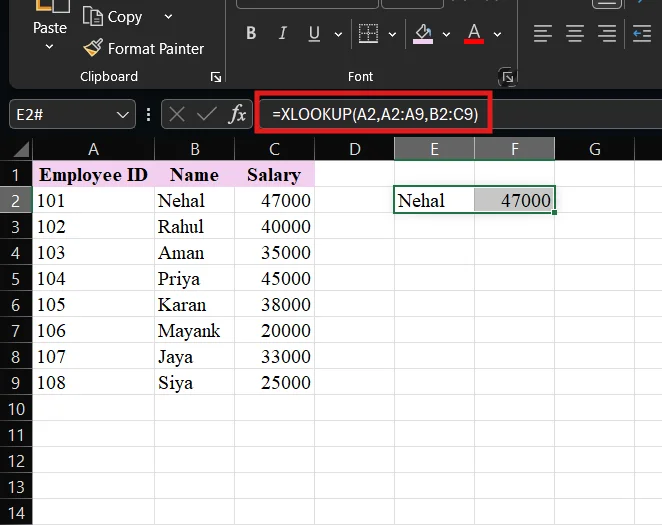
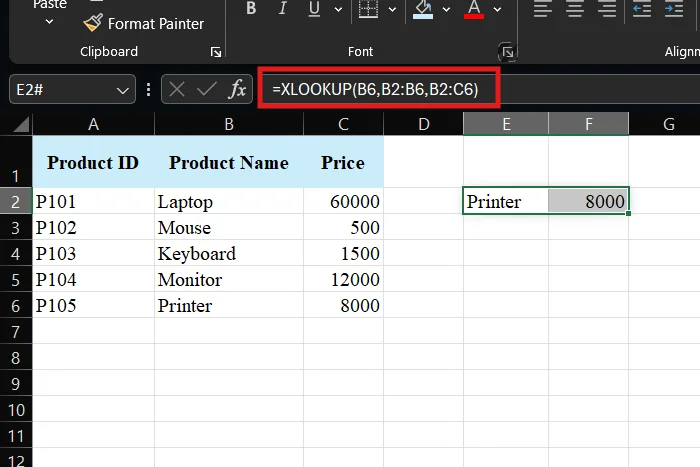
If you want to find the price of B6, use:
|
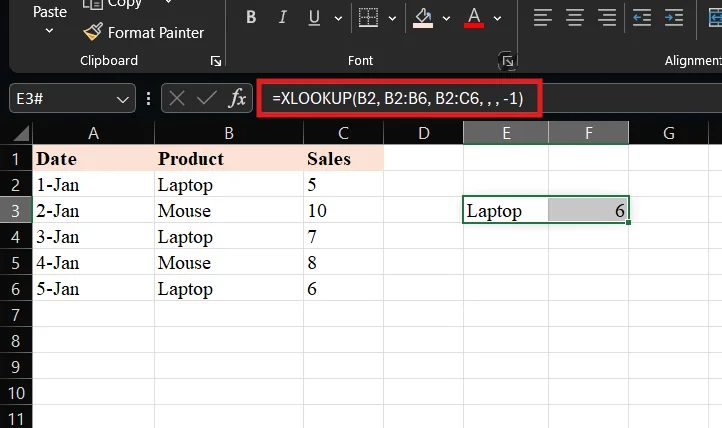
If you want the latest sales value of “Laptop(as in B2 is laptop)”, use:
|
Even though XLOOKUP is simple, you may still face a few common issues.
This happens when the value is not found in the lookup range. You can fix it by adding a custom message:
|
Sometimes the formula runs, but the result is wrong. This usually happens because of extra spaces or mismatched data. You can fix this by cleaning your data or using TRIM.
If numbers are stored as text, XLOOKUP may not match them correctly. Make sure your data types are consistent.
If your lookup array and return array are not aligned properly, the result will be incorrect. Always ensure both ranges have the same size.
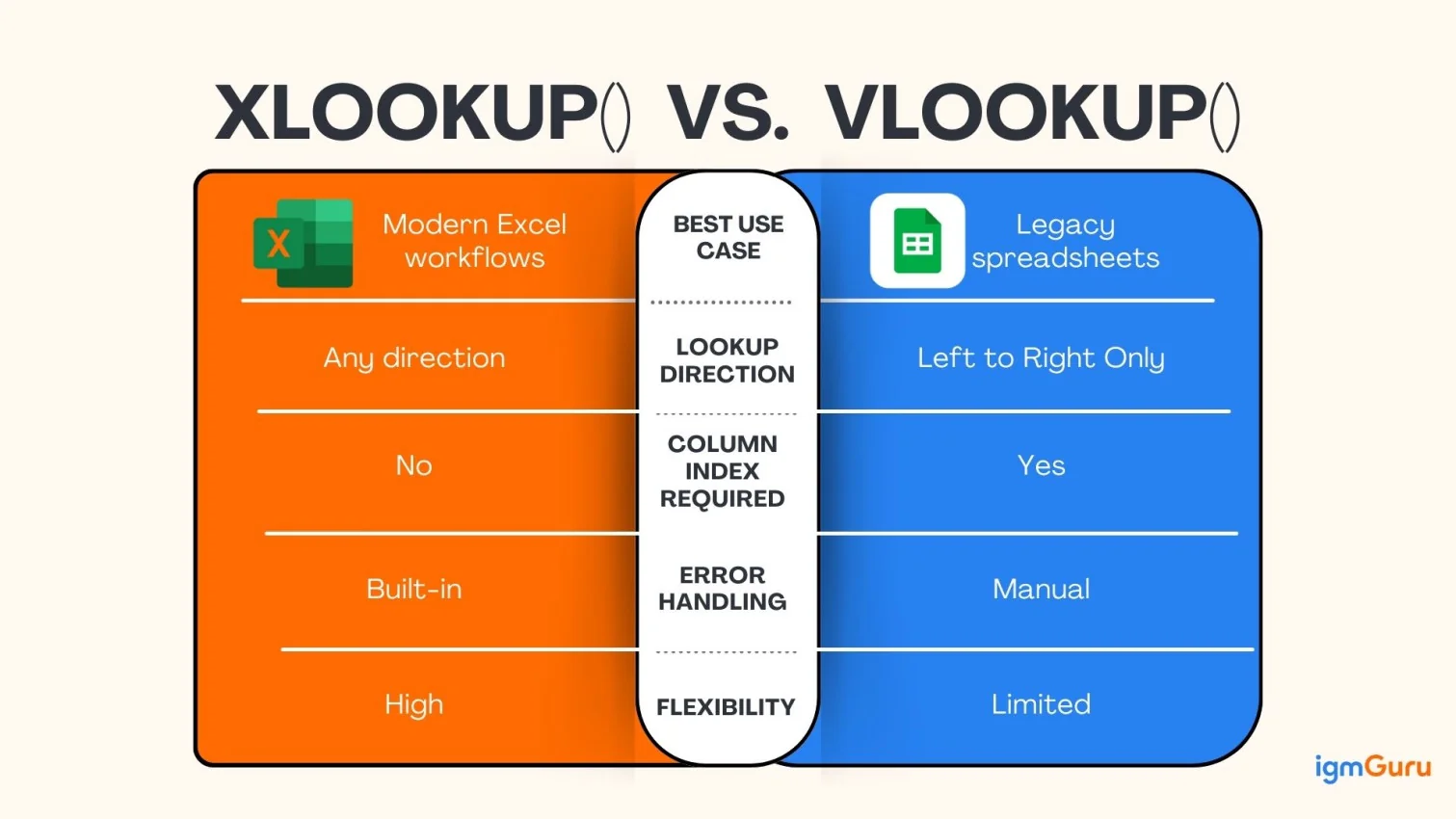
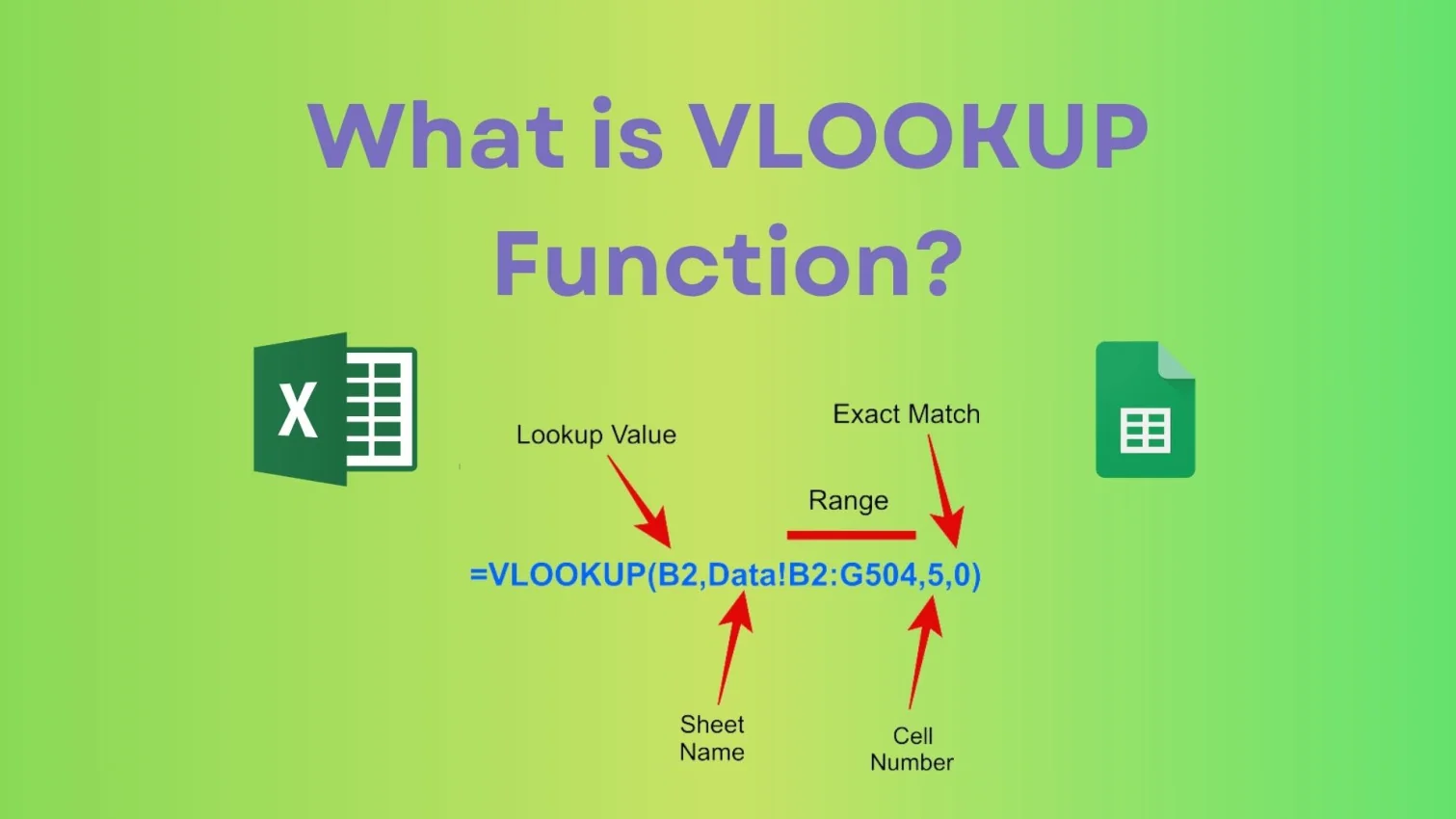
Both XLOOKUP and VLOOKUP are used to find and return data in Excel, but XLOOKUP is more flexible and easier to use. Here’s a quick comparison for you to understand the key differences:
| Feature | XLOOKUP | VLOOKUP |
|---|---|---|
| Direction | It can work in any direction (left, right, up, down) | It only works left to right |
| Column Reference | No need to count columns | It requires a column index number |
| Error Handling | Built-in (if_not_found) | Needs IFERROR separately |
| Default Match | It is an exact match by default | It is an approximate match by default (can cause errors) |
| Search Mode | It can search from the top or the bottom | It only searches from the top |
| Handling Missing Values | It can return a custom message | It shows #N/A error |
| Flexibility | It is very flexible | It has limited flexibility |
| Ease of Use | It is simple and readable | It is slightly confusing for beginners |
| Performance | It is better for large datasets | It is slower with large data |
| Availability | Excel 365, Excel 2021 | It is available in older versions of Excel. |
XLOOKUP and INDEX MATCH can both be used to search for a value and return a related result. INDEX MATCH has been a popular alternative to VLOOKUP because it allows more flexible lookups, while XLOOKUP provides similar flexibility with a simpler formula. Microsoft also recommends INDEX and MATCH as a lookup combination when working with scenarios where VLOOKUP is not suitable.
For example, suppose employee IDs are in column A and salaries are in column C. With XLOOKUP, you can write:
|
The same lookup using INDEX MATCH would be:
|
Both formulas can return the same result, but XLOOKUP is generally easier to read because the lookup and return ranges are specified directly. INDEX MATCH separates the lookup position from the returned value, which makes the formula slightly more complex for beginners.
| Feature | XLOOKUP | INDEX MATCH |
|---|---|---|
| Formula Structure | It uses a single function with lookup and return ranges. | It combines INDEX and MATCH functions. |
| Ease of Use | It is simpler and easier to understand. | It requires understanding two functions. |
| Lookup Direction | It can look left, right, up, or down. | It can also perform flexible lookups. |
| Exact Match | Exact match is the default. | You normally specify 0 in MATCH for an exact match. |
| Error Handling | It has a built-in if_not_found argument. | You generally need IFERROR or another error-handling method. |
| Last Match | It can search from the bottom using search_mode. | It usually requires a more complex formula for similar requirements. |
| Compatibility | Requires a modern Excel version that supports XLOOKUP. | Works with much older Excel versions. |
| Best For | Modern Excel workbooks and simple, flexible lookups. | Legacy workbooks and users who need broader backward compatibility. |
You should use XLOOKUP in almost all modern Excel tasks. It is especially useful when:
XLOOKUP is one of the most powerful and practical functions in Excel. It simplifies the process of finding and retrieving data. This makes your work faster and cleaner. If you take a little time to practice it, then you will notice a big difference in how you work with Excel.
Tasks that used to feel confusing will start feeling simple. Once you get comfortable with XLOOKUP, you will naturally prefer it over older functions because of its flexibility and ease of use.
Yes, XLOOKUP is more flexible, easier to use, and removes many limitations of VLOOKUP.
No, it is available in Excel 365 and Excel 2021.
Yes, XLOOKUP can work with both text and numbers.
If the values are not found, then it shows #N/A. Yet, you can always replace it with a custom message.
No, it is simple to learn XLOOKUP. Once you understand the basics, you can use it easily in real work.