If you are tired of doing repetitive tasks like sending emails, updating spreadsheets, moving files, or managing approvals manually, this Power Automate tutorial will help you learn how to automate those processes step by step. Whether you are a beginner, business user, student, or IT professional, this guide will show you how to use Microsoft Power Automate to create powerful automated workflows with minimal effort.
Power Automate is one of the most popular workflow automation tools from Microsoft that helps users connect apps, services, and systems to improve productivity and reduce manual work. From simple notifications to advanced business process automation, it allows you to build workflows without requiring deep programming knowledge.
TL;DR
Microsoft Power Automate is used for automating repetitive tasks, connecting applications and services, and streamlining business workflows with minimal manual effort. It helps business users, IT professionals, developers, and organizations by enabling them to create automated workflows, integrate systems, manage approvals, process data, and improve operational efficiency without extensive coding knowledge. Its benefits include reduced manual work, increased productivity, faster process execution, improved accuracy, enhanced collaboration, and better workflow management, making it a valuable tool for digital transformation and business process automation.
Digital transformation calls for new and innovative ways of getting processes in sync and boosting productivity. This Microsoft Power Automate tutorial highlights how this tool is changing the game with its robust workflow automation. It integrates with different apps and systems, optimizes business processes, and automates repetitive tasks. This tutorial covers its working, use cases, industries using it, types of flows and creation of a flow.
Explore all Microsoft Certification Courses by igmGuru to acquire new skills.
The next thing to explore here is 'how does Microsoft Power Automate work'. This cloud-based workflow automation platform is a big boon for companies. It does so by automating repetitive tasks to get different business processes in order. A trigger-action model makes its base so that users can define triggers that kickstart certain actions in specific events. Here is a breakdown of its workings.
Its workflow starts with an event that begins the automation process and is known as a trigger. The workflow activates after the trigger event occurs. These events rely on many different factors like adding a file to a folder, creating a new record or even receiving an email. These factors could be time-based or event-based.
This tool performs a series of actions after detecting a trigger event. These actions are basically standalone steps within a workflow and accomplish specific tasks. This MS platform comes along with a library of many pre-built connectors for different services and applications. Sending an email, posting a message on a collab platform, generating a report, creating a task and updating a DB record are a few actions.
Users can include conditions and controls in workflows through this platform. Conditions define logical rules for deciding whether one can execute certain actions according to specific criteria. Parallel branches and loops are controls that create more dynamic and complex workflows. The features bring in branching logic and better decision-making to the automation.
These are important parts of this platform because they make the integration of this platform with other services and apps easier. One can connect to many different systems for better workflows.
Its visual interface designs the workflows through a drag-and-drop approach. Users can easily pick connectors, actions and triggers from the interface to arrange them logically in a sequence for creating intended automation. This process becomes simpler with a visual interface because it eliminates any need for extensive coding knowledge.
It is now time to execute the automation in the cloud after designing the workflow. This platform takes care of reliability, security and scalability when running the workflows. It does many things like tracking the execution history, troubleshooting issues, and monitoring the performance and status of the flows.

There is no doubt about this platform being a favorite amongst many industries across the globe. The United States, the United Kingdom, and Canada are the top three major markets using it for cloud integration. Its demand is steadily going up with many companies turning towards this name. Some industries where it has already become a leading name are:
Things are looking brighter for the healthcare industry as almost all new technologies will lift it higher. This MS tool is no different and is all set to get things going here for the better. Some of the main areas where it can help are -
The finance industry is another one that is experiencing the benefits of this tool. Increasing technological sway means increased cybersecurity risks and the need for better security.
Any production mistake in the manufacturing sector can be a costly affair. Companies can deflect these mistakes with tools like this one. Automating certain manual tasks will bring down errors and even get things done faster.
Industries like the legal sector have quite a number of manual tasks with extensive document handling. Many experts find themselves too busy with monotonous tasks that they cannot concentrate on other important ones. This tool is a big help here for boosting productivity.
Read Also- What Are The Different Types of Microsoft Power Apps
There are three different Power Automate flow types that one can create with this platform. These are categorized as cloud, business process and desktop. Each of these flows pack in different functions and motives. Different companies will benefit by picking the one that fits their needs best.
Cloud flows are behind data transfer between databases, on-premises and the cloud. One can connect services, apps and data very effectively with this type of flow. The outcome is better productivity. There are three further types of cloud flows.
Desktop flows make use of robotic process automation technology for automating repetitive work processes on the desktop. One can easily automate processes in modern and legacy systems with simple drag-and-drop options. Sending emails, opening and closing apps, and moving files are a few processes that one can automate with these flows.
These flows have steps and stages for performing business processes to reach the outcomes the user wants. Each stage here has multiple steps and clicking on the 'next stage' button will move forward. Employees can better understand their role from the start to the end and thus do their tasks in a more efficient manner.
Read Also: Top Innovative Power Apps Examples To Look in 2026
This Microsoft Power Automate tutorial has covered the different types of flows in the above section. It is now time to look at the ways to create a flow in this platform. There are three main ways in which it can be done and these are outlined here. Different users can pick different ways depending upon their knowledge, needs and the outcome they want to achieve.
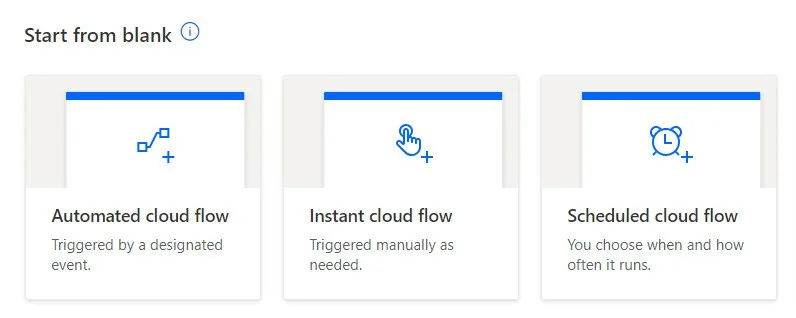
A business with very particular needs can create a custom flow from blank. Different flows that one can start with these are -
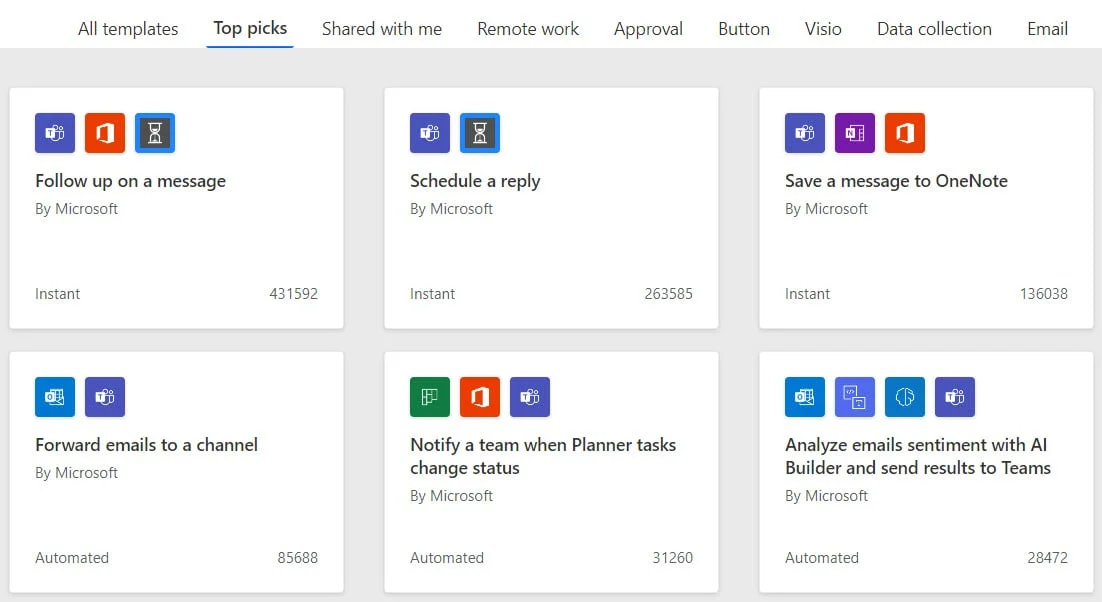
Microsoft brings along hundreds (500+) pre-made templates that anybody can use directly. Using these templates means heavy customization according to the particular needs of the user. Some popular template examples are
Team notification as planner tasks switch status.
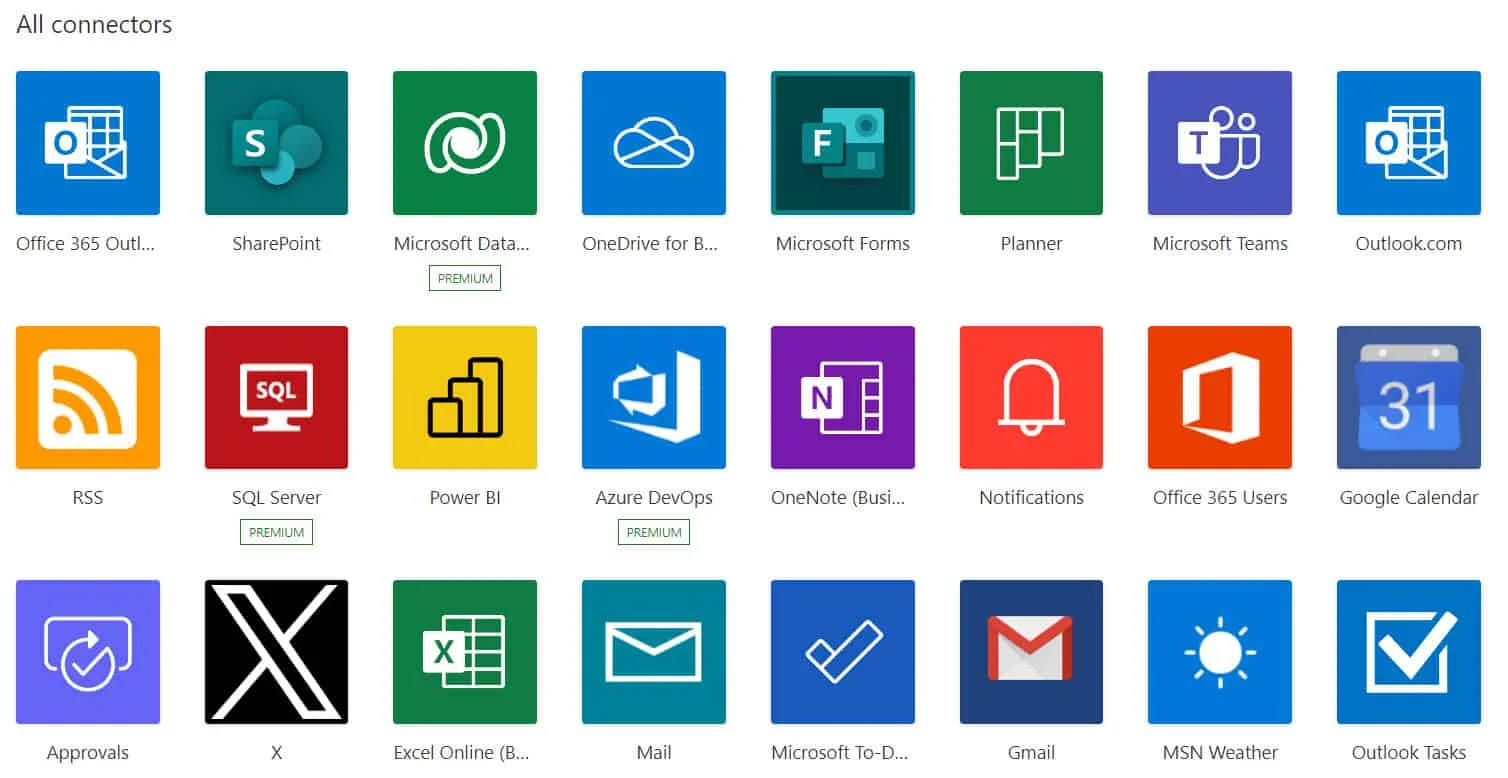
It is also possible to start a flow from a connector. These connectors are apps that come in everyday use. This platform brings along over 500 connectors that are all usable. Some of the top connectors are
Read Also: Microsoft Power Automate Alternatives
To harness the full potential of Microsoft Power Automate, it is essential to grasp its core terminology. Let's explore some fundamental concepts that will serve as your building blocks for automating workflows and streamlining processes.
Functions are pre-built actions that perform specific operations including data manipulation, calculation and condition evaluation. Learning how to use them effectively is essential for creating complex and powerful automated processes. Each function has their particular purpose and syntax. Understanding their anatomy involves recognizing its input parameters, the operation it performs and its output values. Some common types of functions are -
| Functions | Functions Types |
| String Functions | startsWith(), endsWith(), contains(), substring() and concat(). |
| Math Functions | add(), subtract(), multiply() and divide(). |
| Date and Time Functions | utcNow() and formatDateTime(). |
| Array Functions | length(), first(), last() and join(). |
| Conditional Functions | if(), and(), or() and not(). |
| Data Type Conversion Functions | toInt(), toFloat() and toString(). |
Expressions are used to dynamically generate and manipulate data, perform calculations and implement logic within the workflows. They are categorized into types including string, collection, math, date/time, logical, conversion, context, etc.
Basic expressions use a simple syntax to access variables and perform calculations, while advanced expressions involve complex logic, nested functions and data transformations. Mastering them will enable you to create sophisticated data processing and manipulation within your automated workflows.
Adaptive Cards are platform-agnostic snippets of UI that can be shared and visualized without the need to use CSS or HTML. This method involves using JSON to render the snippets into a specific app. These snippets are mostly similar to the host.
Adaptive Cards can create rich, interactive notifications and messages that can be sent through various channels, such as Microsoft Teams or email. It also enhances communication by providing visually appealing and informative content within automated workflows.
Microsoft Graph API is a RESTful web API that gives access to Microsoft 365 data like emails, calendars, files, etc, as well as functionalities. This API allows experts to create custom workflows and automate tasks that are often challenging while using pre-built connectors. One can use RESTful web API or SDKs to access the endpoint and build apps that support Microsoft 365 scenarios. The use cases include -
This Microsoft Power Automate tutorial covers some serious topics of discussion that business users, IT professionals and developers should explore. It is great for automating workflows, achieving high operational efficiency and taking productivity a step above. Businesses can work around any digital challenge with its many connectors, great feature set and user friendly interface.
This here is a free tutorial for interested individuals with a zest to learn more about this platform.
This particular tutorial covers important concepts like its working, benefitting industries, flow types and ways to create a flow.
It is one of the best RPA tools and a cloud based service for automating repetitive tasks across different services and applications.
Microsoft Power Automate is used to automate repetitive tasks and workflows. It connects apps and services to save time and improve productivity.