Excel is one of the most popular tools used to manage both fundamental and complicated calculations. Calculating age is one of its robust features that seems to be a basic one but is very important for different professionals. It is used by HR professionals tracking employee tenures, data analysts working with demographic datasets, or anyone who wants to stop doing the math manually. It is a great practical skill one should have.
The surprising thing is that Excel does not come with a built-in "AGE" function. It basically offers several powerful date functions that make age calculation accurate, automated, and even dynamic. In this guide, I have explained different methods, from the simplest one-liner to formulas that return exact age in years, months, and days.
| Method | Formula | Best For |
| DATEDIF | =DATEDIF(C3,TODAY(),"Y") | Most accurate completed age in years |
| YEARFRAC + INT | =INT(YEARFRAC(C3,TODAY(),1)) | Accurate general-purpose age calculation |
| Simple Division | =INT((TODAY()-C3)/365) | Quick age estimates |
| Years, Months & Days | DATEDIF combined formula | Exact age breakdown |
| Specific Date | =DATEDIF(C3,DATE(2025,12,31),"Y") | Calculating age on a particular date |
| Specific Year | =DATEDIF(C3,DATE(2030,12,31),"Y") | Calculating age in a future or historical year |
| Specific Age Date | =DATE(YEAR(C3)+60,MONTH(C3),DAY(C3)) | Finding the date someone reaches a specific age |
Before jumping into the formulas, let's quickly look at where you will need to calculate age in Excel. It helps you to understand the best use of the upcoming methods.
If you regularly work with data in Excel, learning to automate age calculation will save you significant time.
Also Read: COUNTIF Function in Excel
You can not directly implement a formula to find the age, as the data is stored here in different types. The formula only works on a particular type of data. To calculate age in Excel, you need:
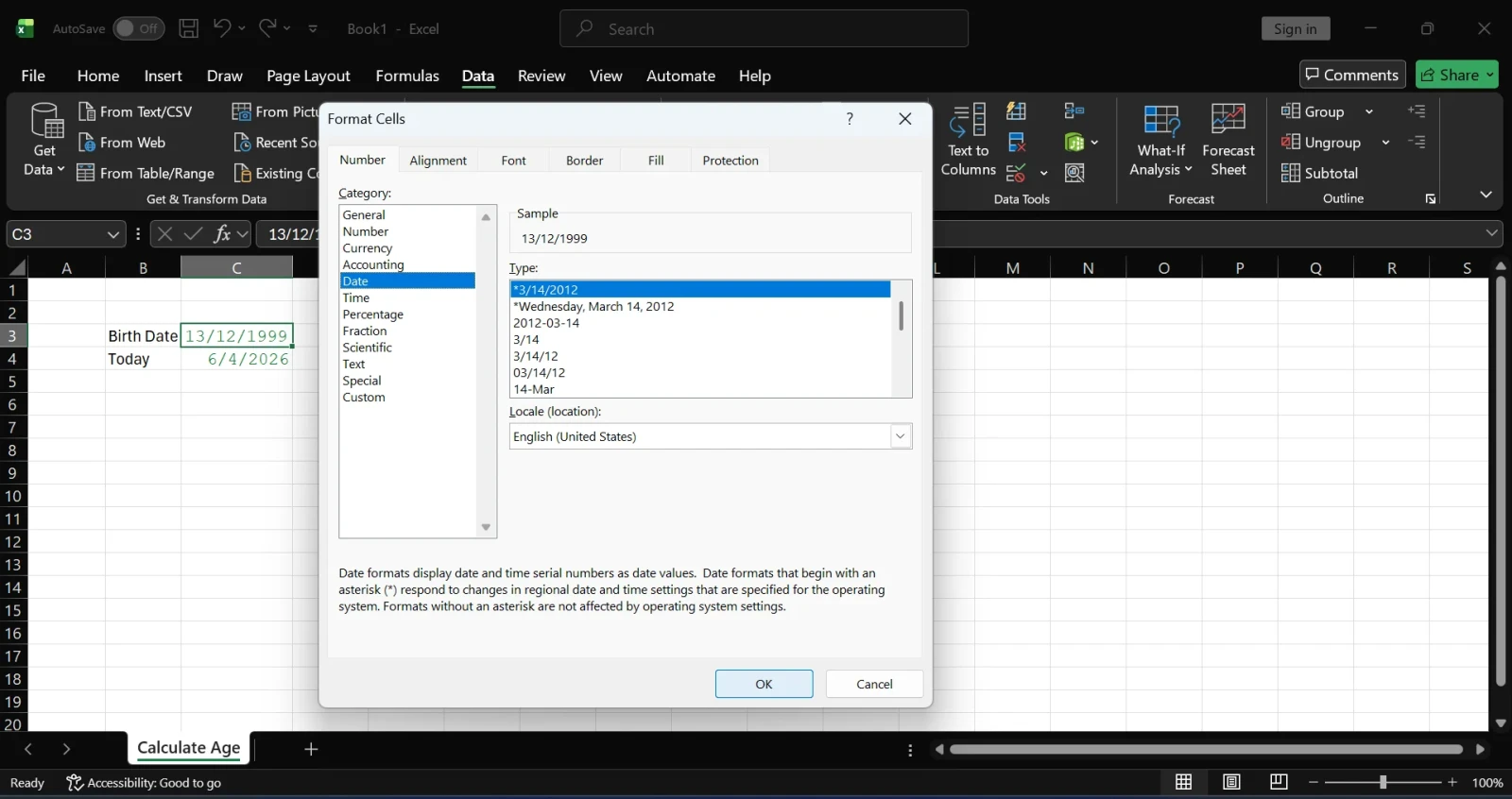
Note: Make sure your date values are formatted as actual Excel dates, not text. If formulas return unexpected results or errors, right-click the cell → Format Cells → select "Date" format.
Read Also: Excel Keyboard Shortcuts
The simplest way to calculate age in Excel is to subtract the date of birth from today's date and divide by 365. It is the best formula for age calculation if you are a beginner to this platform.
=(TODAY()-C3)/365
How it works:
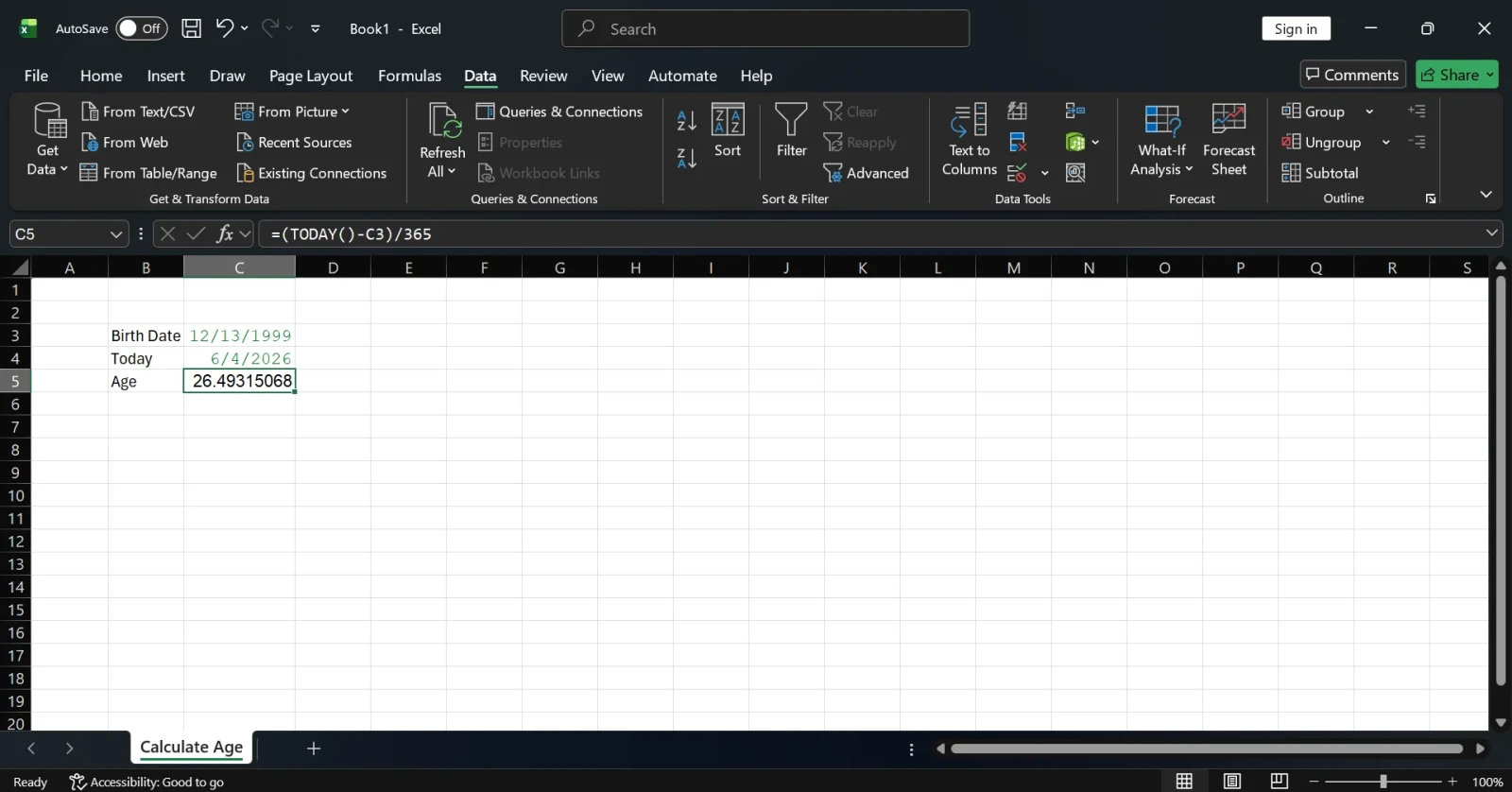
The problem: This formula returns a decimal (e.g., 35.38 years). To display only the completed years, wrap it with INT():
=INT((TODAY()-C3)/365)
Drawback: Dividing by a flat 365 does not account for leap years, which can cause minor inaccuracies over time. This method is fine for rough estimates but not recommended for legal or official documentation.
Related Source: Excel Interview Questions and Answers
The YEARFRAC function is designed to return the fraction of a year between two dates. When combined with INT, it gives you a clean, more accurate age in completed years. Its logic is what makes the formula different from the above one.
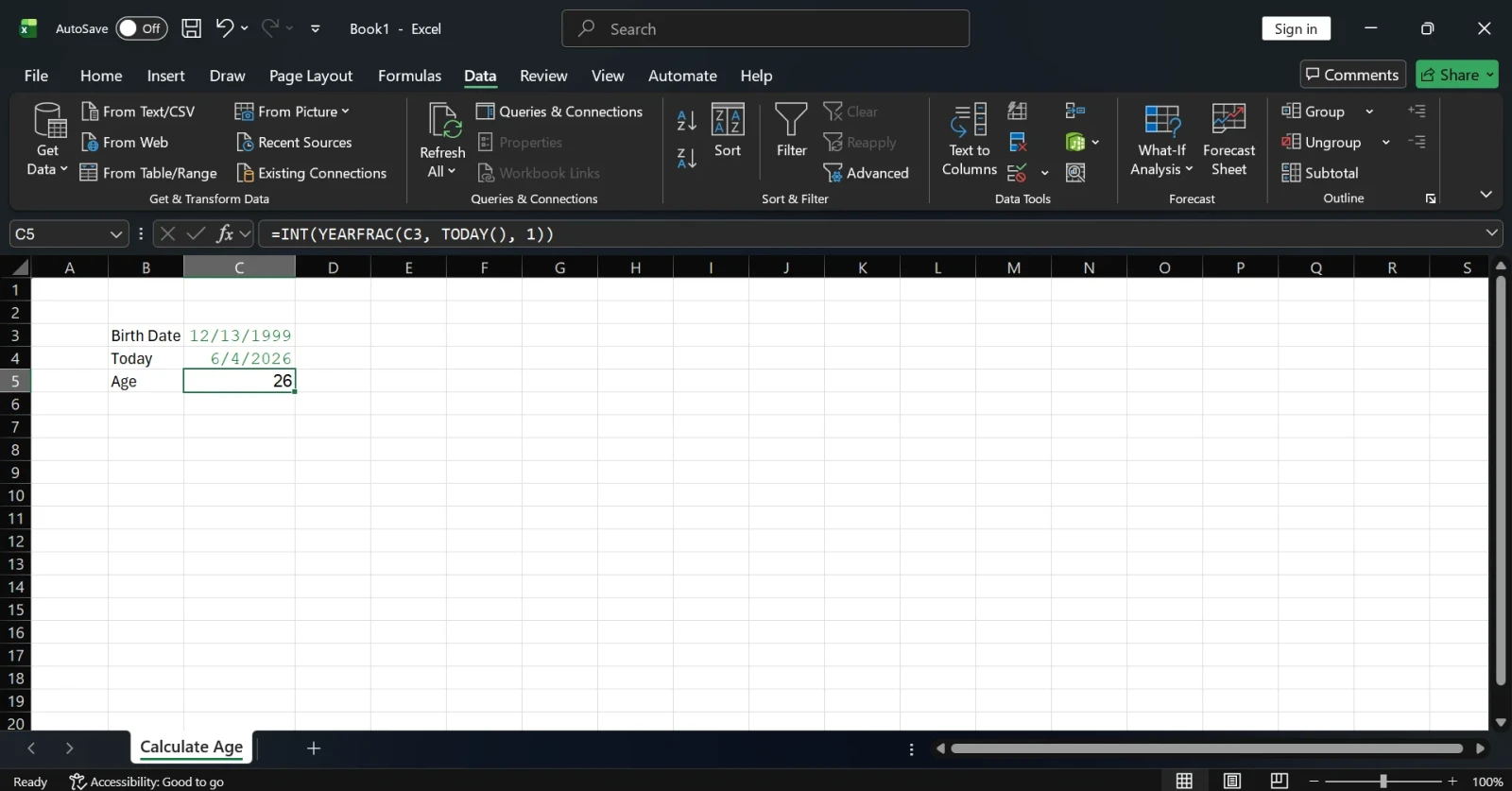
=INT(YEARFRAC(C3, TODAY(), 1))
Breaking it down:
Why use basis=1? Without specifying the basis, YEARFRAC defaults to treating every month as 30 days, which is less accurate. Setting it to 1 means Excel uses the real number of days in each month and year, including leap years.
This method is widely considered the best balance between simplicity and accuracy for most use cases.
Also Read: Excel ROUND(): A Quick Guide to Rounding in Excel
The DATEDIF function is particularly built for calculating the interval between two dates. It is one of the most precise options because it counts only fully completed periods.
Basic DATEDIF formula:
Important note: DATEDIF is a legacy function in Excel; it works perfectly but does not appear in Excel's autocomplete suggestions. You need to type it manually. Do not let that discourage you; it is one of the most reliable age formulas available.
Related Source: How to Use Power Query in Excel?
When you need more than just the year, this formula works best. It combines three DATEDIF calls to get the exact age breakdown. It can be a good choice in the healthcare (medical) industry.
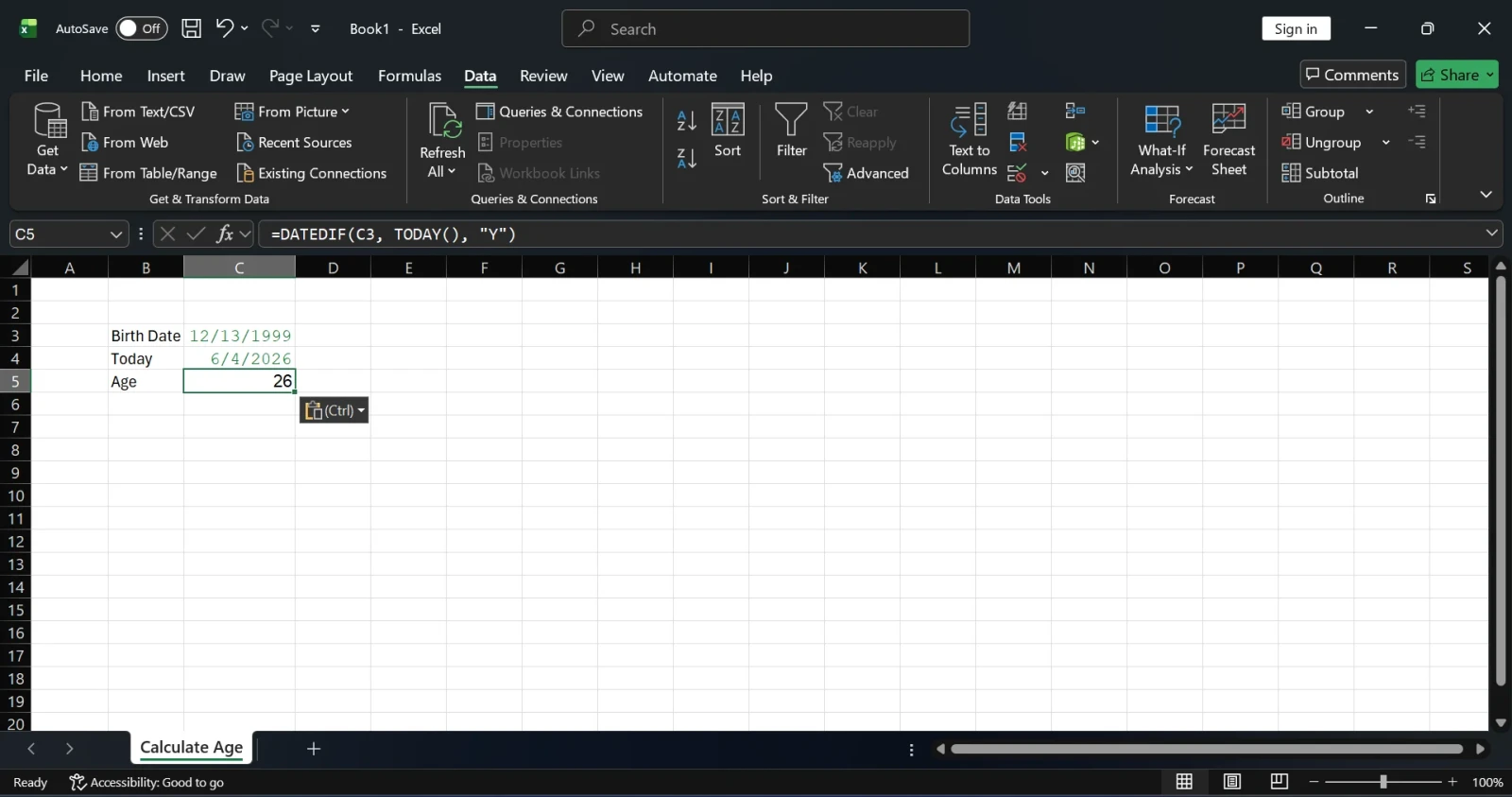
For years:
=DATEDIF(C3, TODAY(), "Y")
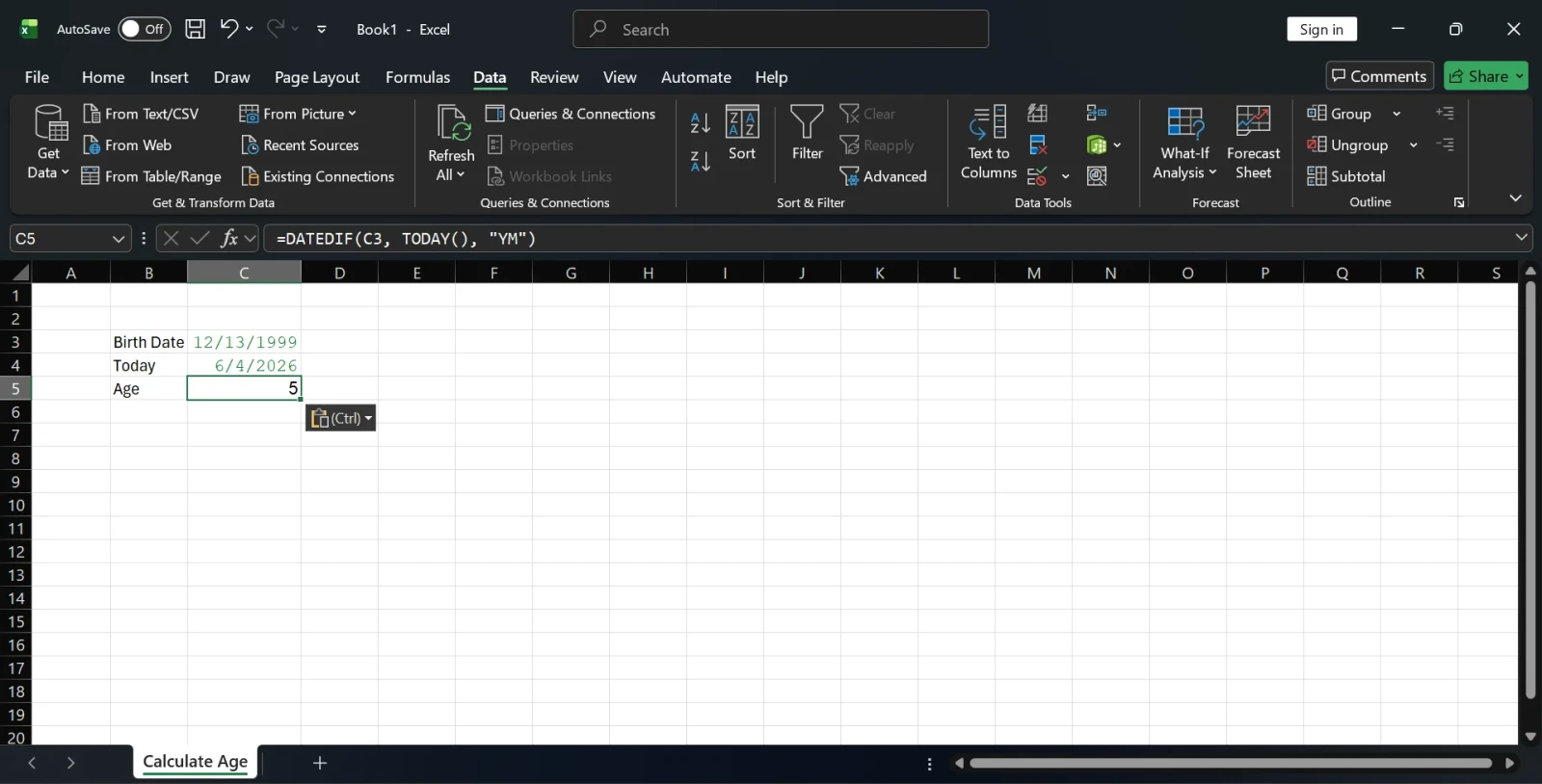
For months (beyond the last completed year):
=DATEDIF(C3, TODAY(), "YM")
For days (beyond the last completed month):
=DATEDIF(C3, TODAY(), "MD")
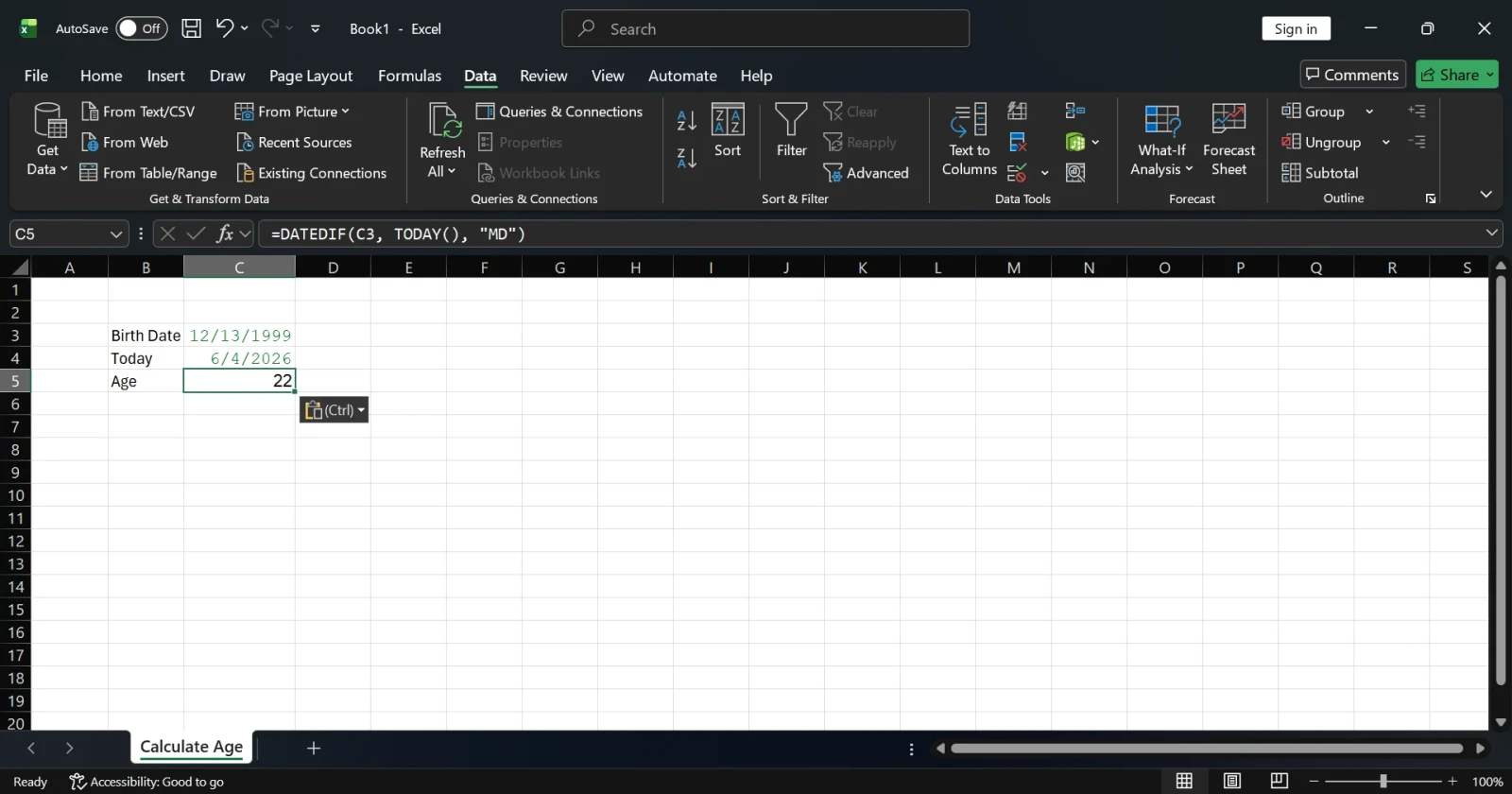
Combined formula in a single cell:
=DATEDIF(C3,TODAY(),"Y")&" Years, "&DATEDIF(C3,TODAY(),"YM")&" Months, "&DATEDIF(C3,TODAY(),"MD")&" Days"
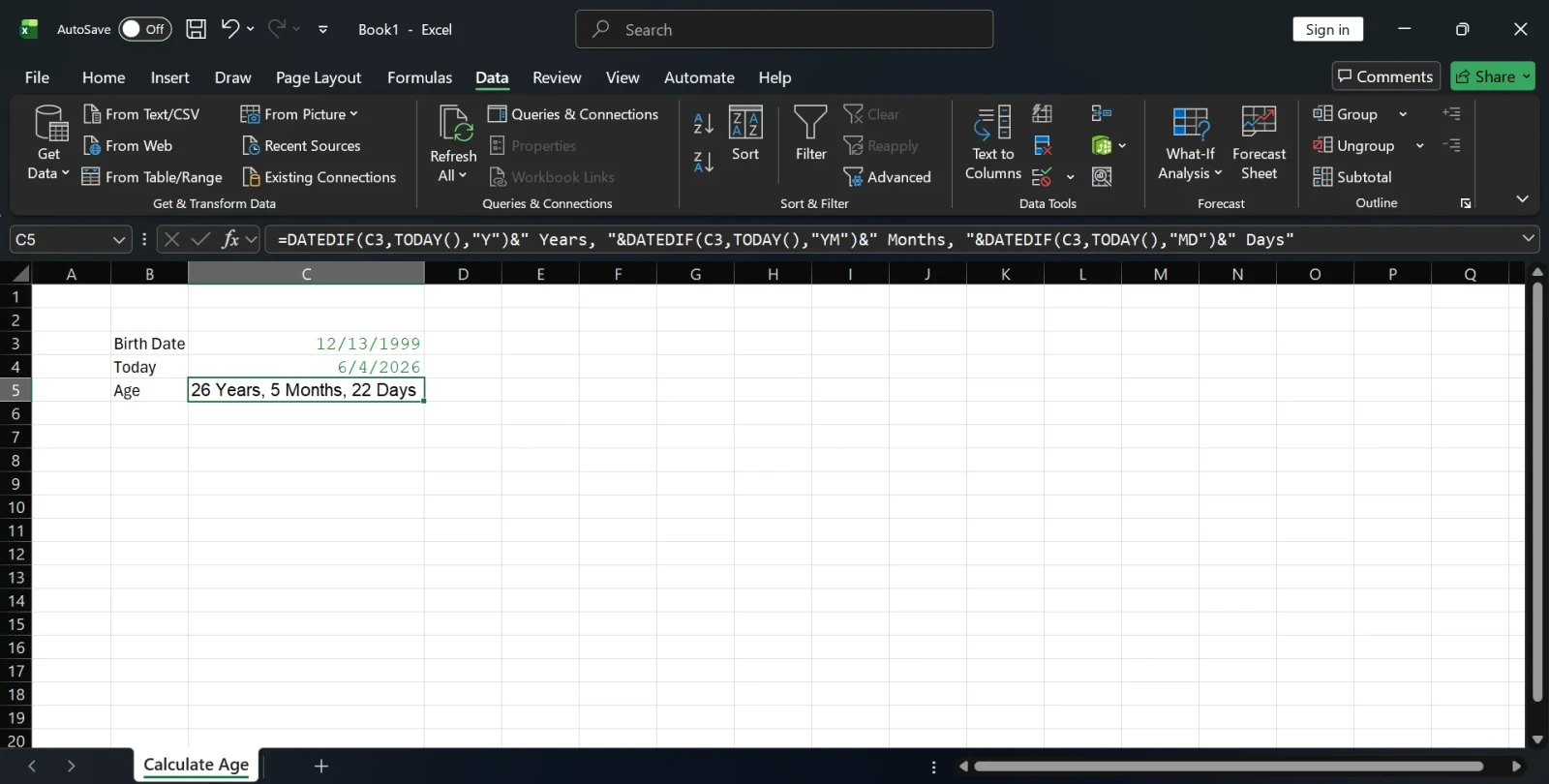
Example output: 26 Years, 5 Months, 22 Days
Bonus, hide zero values for cleaner output:
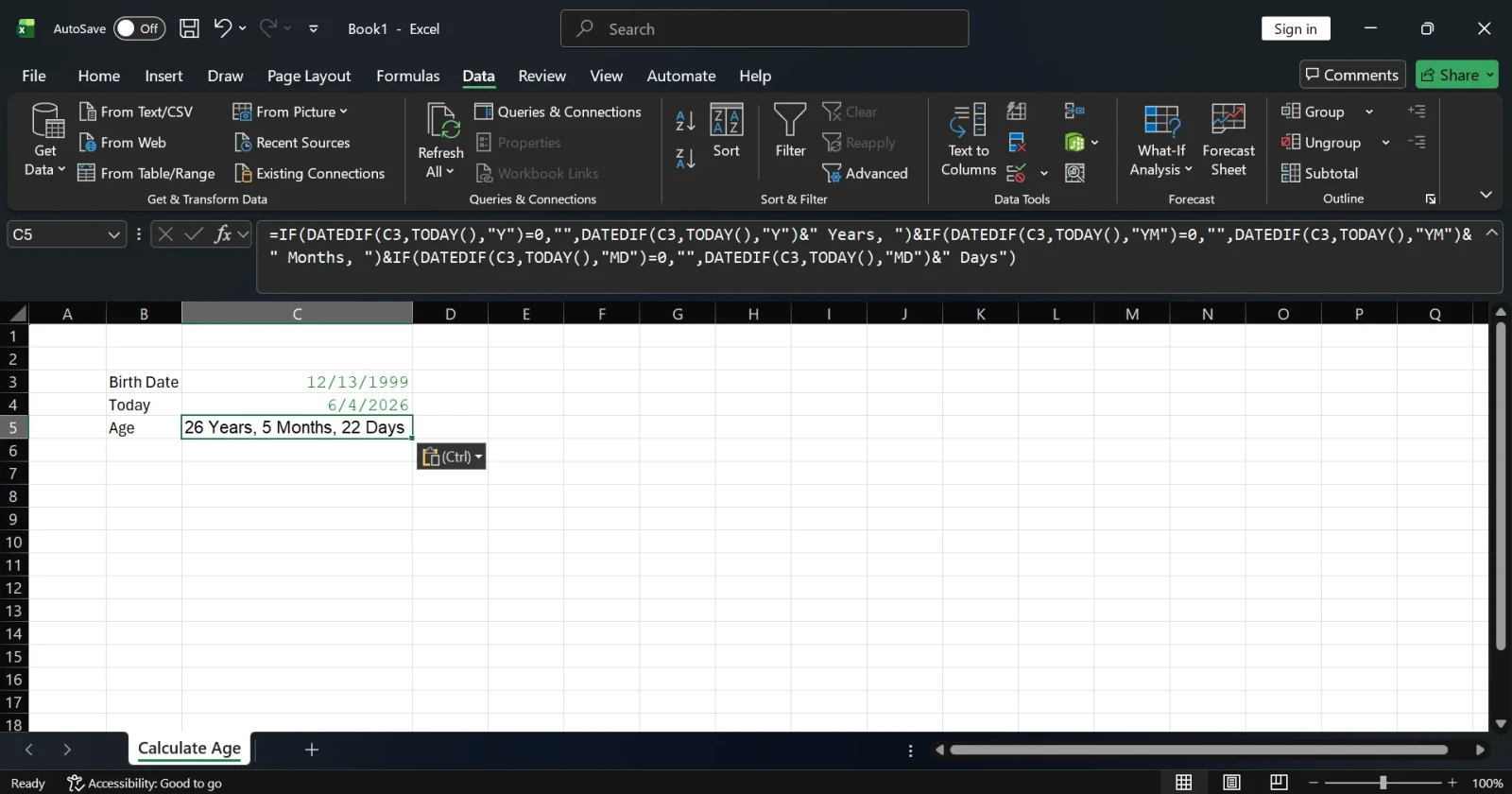
=IF(DATEDIF(C3,TODAY(),"Y")=0,"",DATEDIF(C3,TODAY(),"Y")&" Years, ")&IF(DATEDIF(C3,TODAY(),"YM")=0,"",DATEDIF(C3,TODAY(),"YM")&" Months, ")&IF(DATEDIF(C3,TODAY(),"MD")=0,"",DATEDIF(C3,TODAY(),"MD")&" Days")
This version skips displaying "0 Months" or "0 Days" when they are irrelevant.
Read Also: How to Create a Dashboard in Excel? A step-by-step Guide
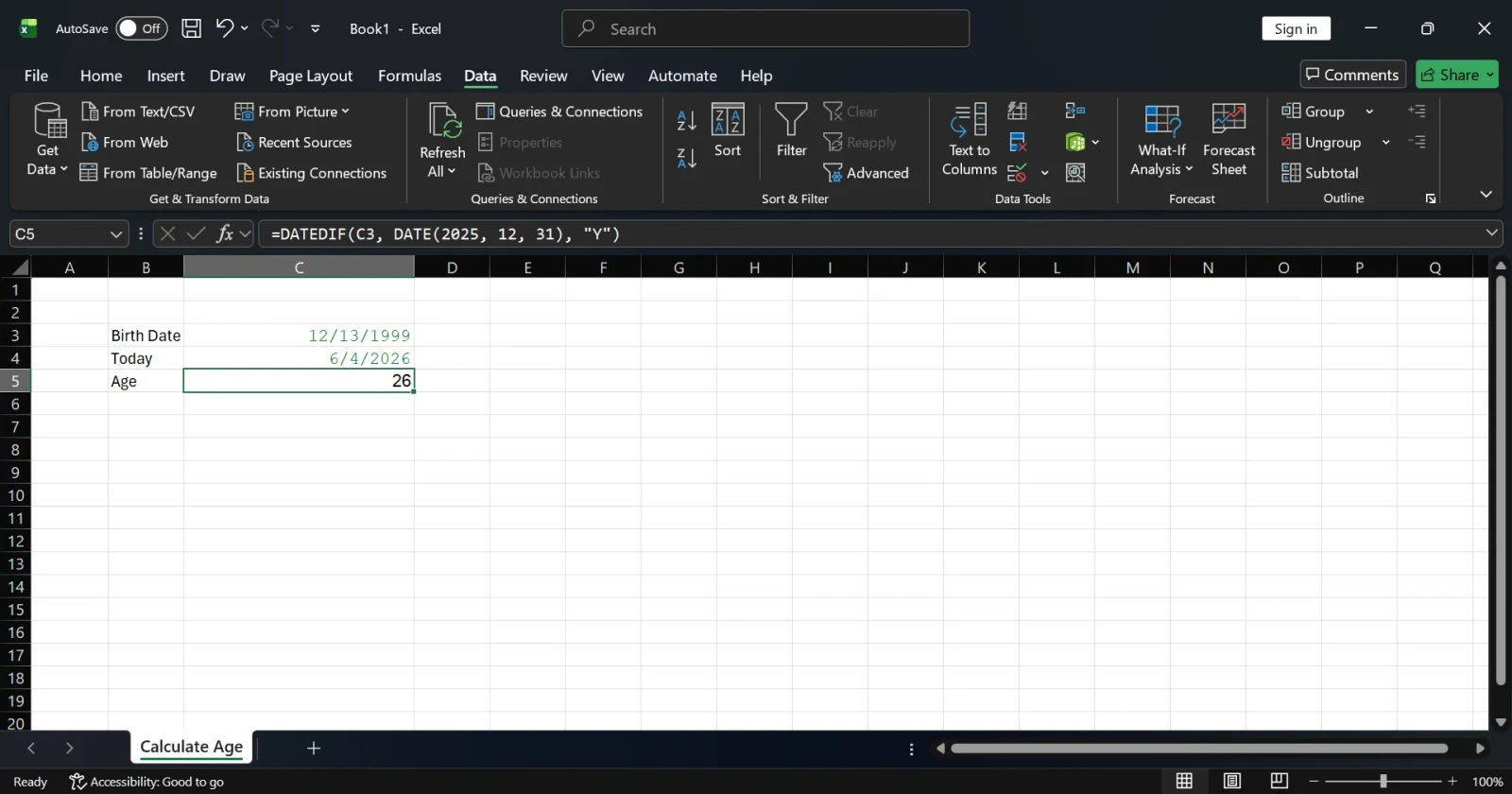
Sometimes you need to calculate age at a specific historical or future date. For example, a candidate's age on the date of an exam, or an employee's age on a contract start date. This can be your best choice when the age is counted with respect to a predefined date.
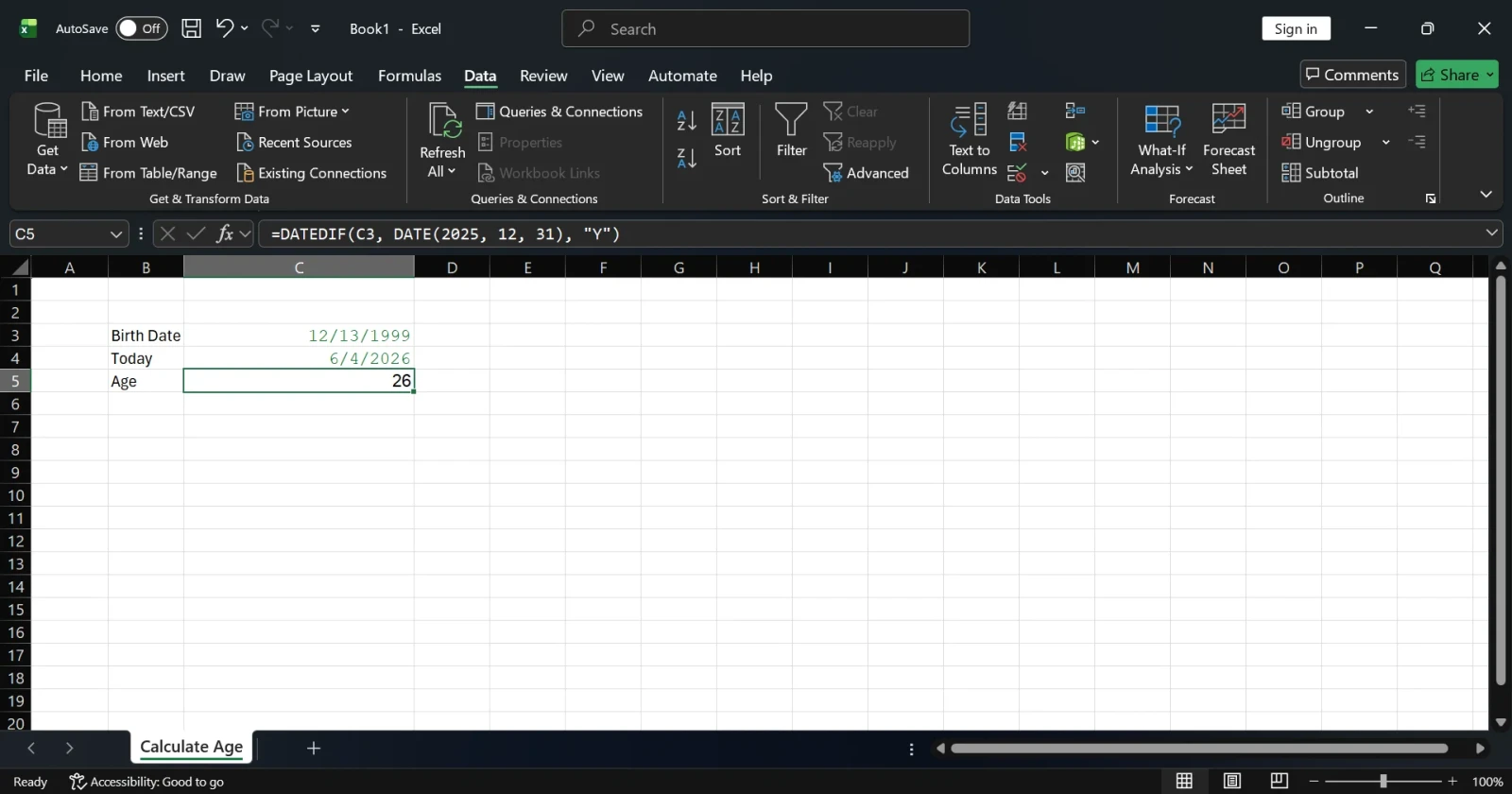
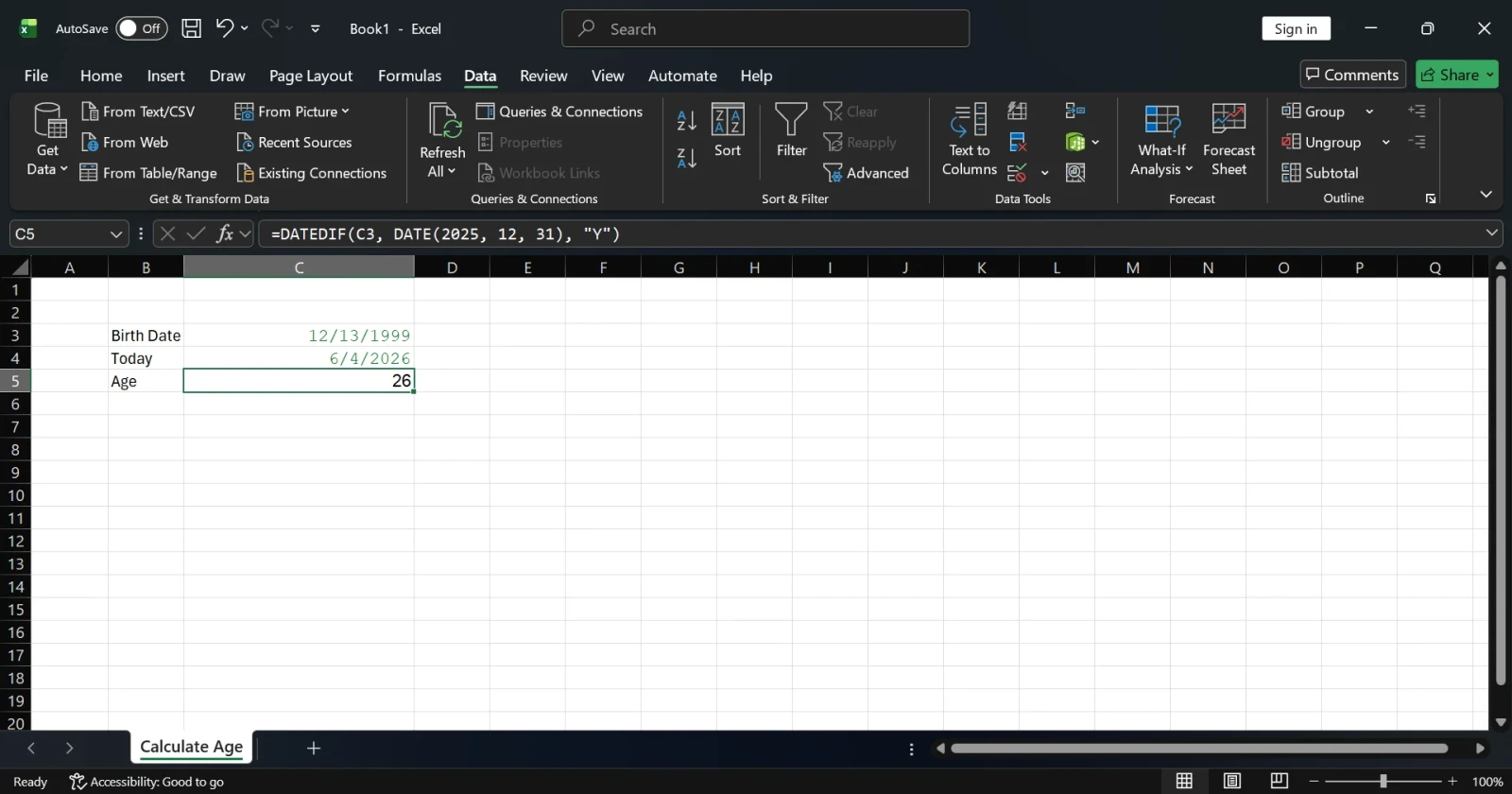
Simply replace TODAY() with the DATE() function:
=DATEDIF(C3, DATE(2025, 12, 31), "Y")
This formula tells you how old the person was (or will be) on December 31, 2025.
For a full breakdown on a specific date:
=DATEDIF(C3,DATE(2025,12,31),"Y")&" Years, "&DATEDIF(C3,DATE(2025,12,31),"YM")&" Months, "&DATEDIF(C3,DATE(2025,12,31),"MD")&" Days"
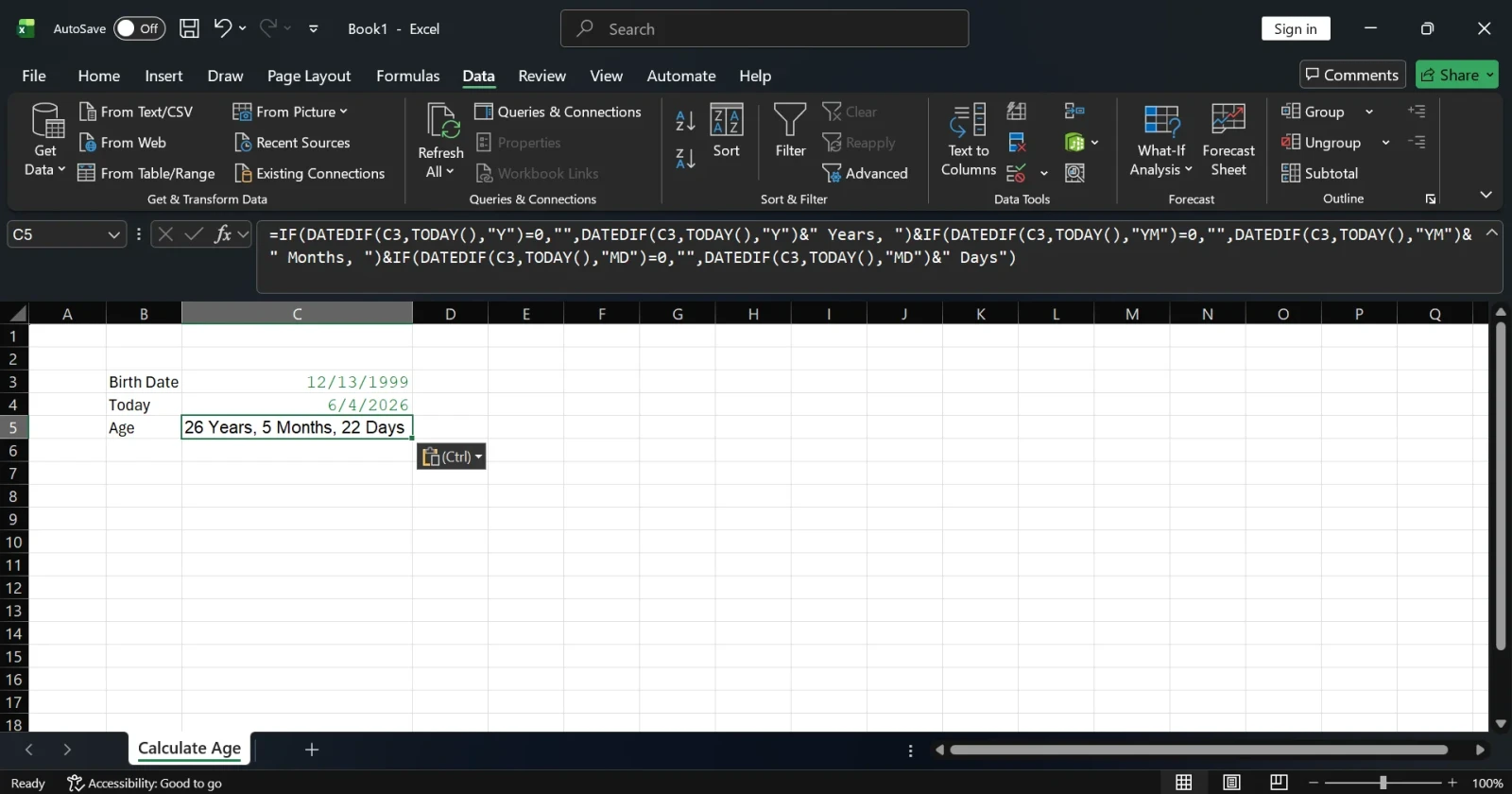
This approach is especially useful in HR planning, insurance policy management, or historical data analysis.
Related Source: How to Remove Spaces in Excel?
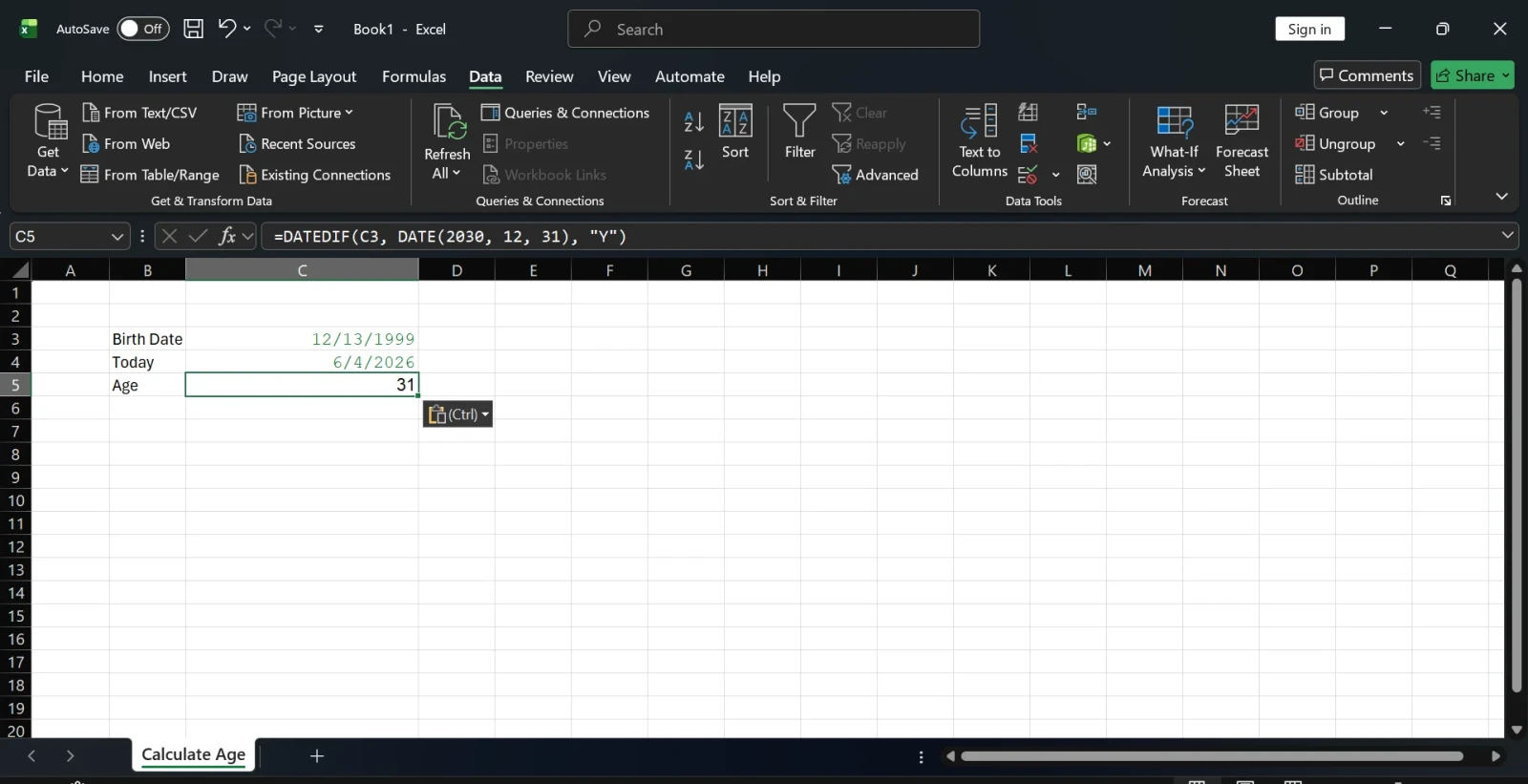
This formula works when you have a birth year and want to know someone's age in a particular year.
=DATEDIF(C3, DATE(2030, 12, 31), "Y")
For mid-year calculations:
=DATEDIF(C3, DATE(2030, 6, 30), "Y")
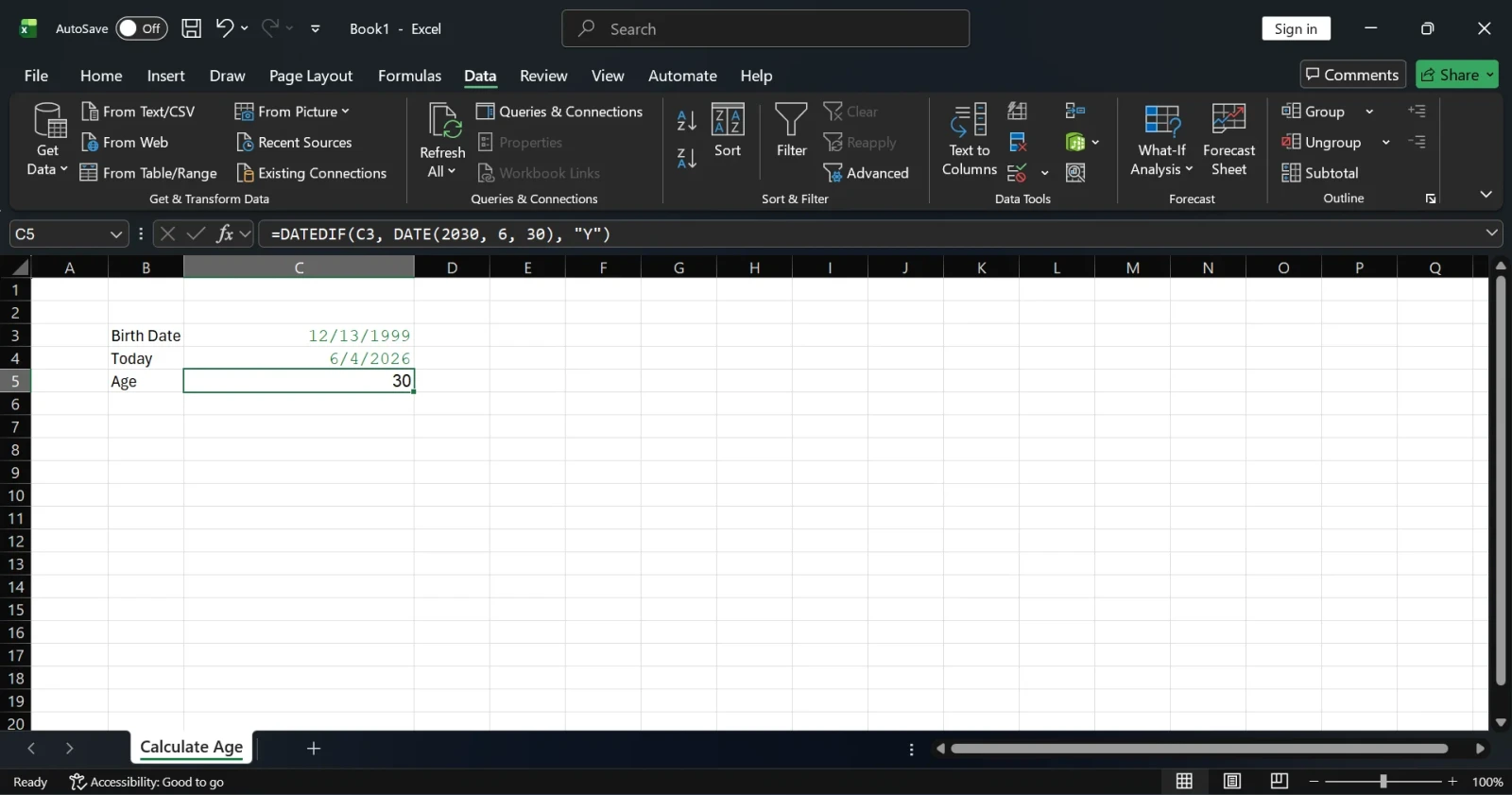
This is helpful in long-term workforce planning, pension forecasting, or demographic projections.
Read Also: How to Compare Two Columns in Excel?
This is one of the most popular and robust age calculation formulas. It helps you to know when a person will be of a particular age. It is used in almost every industry to find out the retirement date of an employee, service date of machines, amd many more. It is also my favorite formula.
=DATE(YEAR(C3)+60, MONTH(C3), DAY(C3))
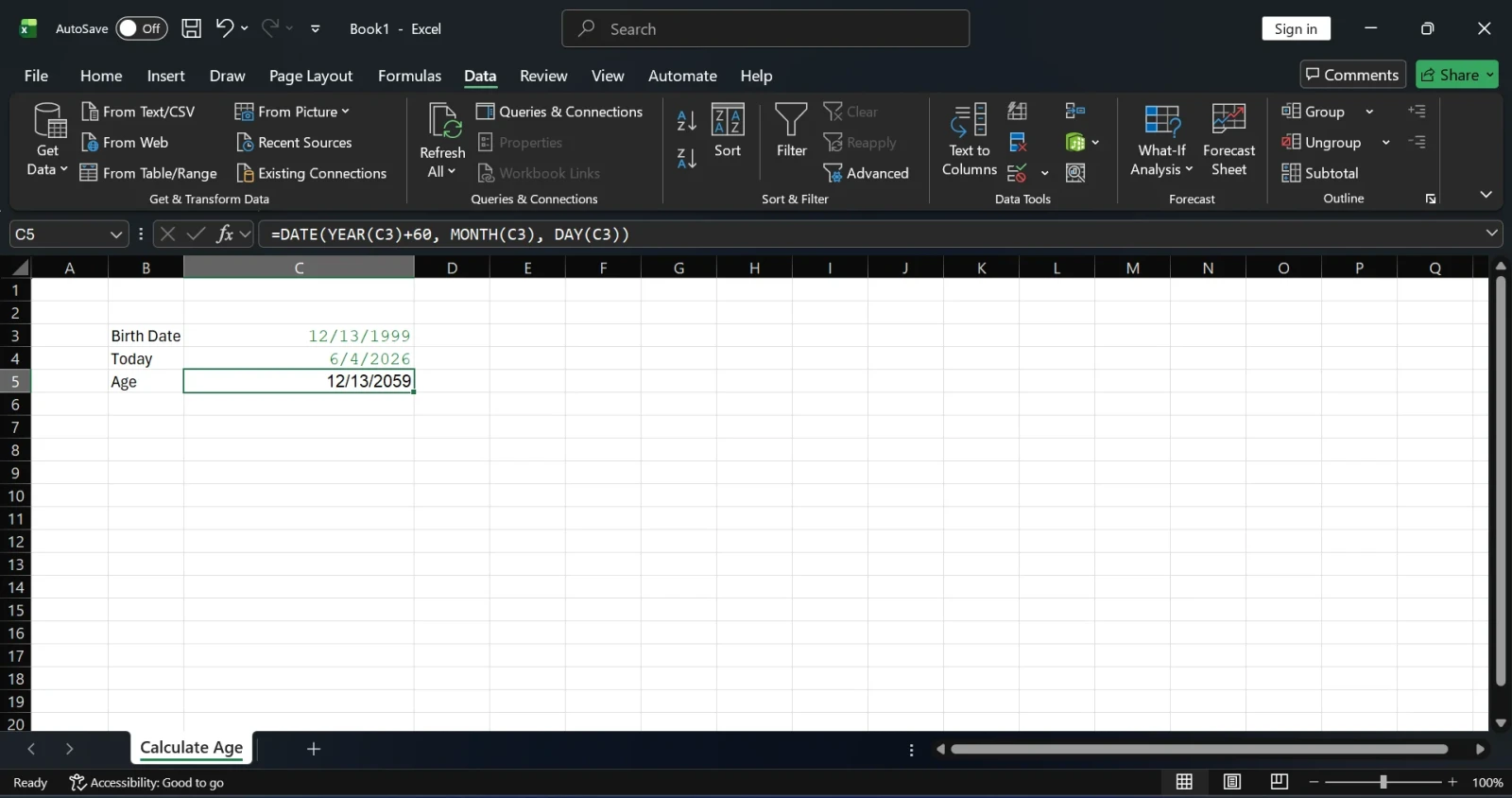
This returns the exact future date when the person reaches that age. You can extend this for more complex eligibility checks:
=DATE(YEAR(C3)+30, MONTH(C3)+6, DAY(C3))
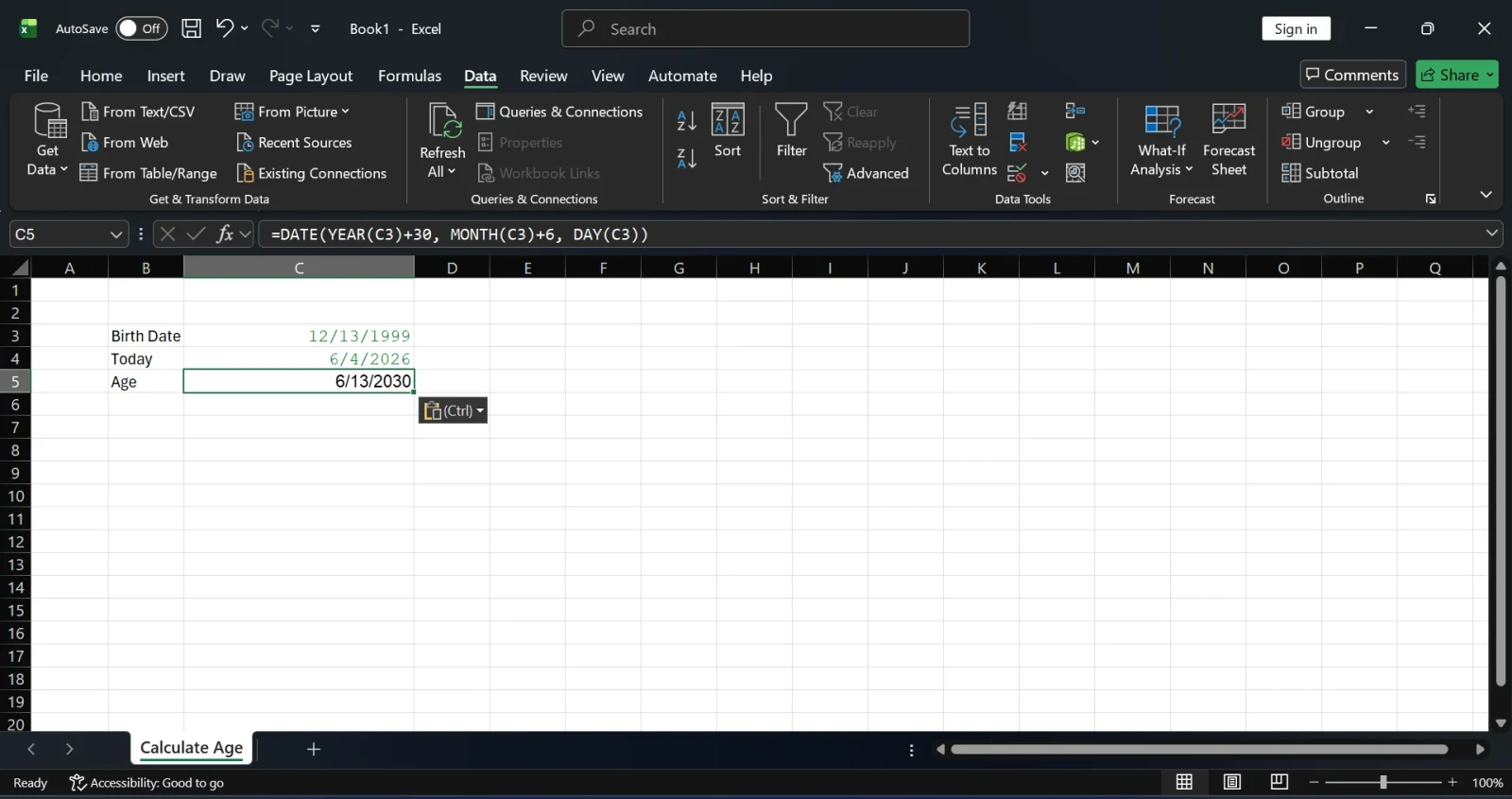
This finds the date when someone will be exactly 30 years and 6 months old.
Related Source: How to Remove Blank Rows in Excel?
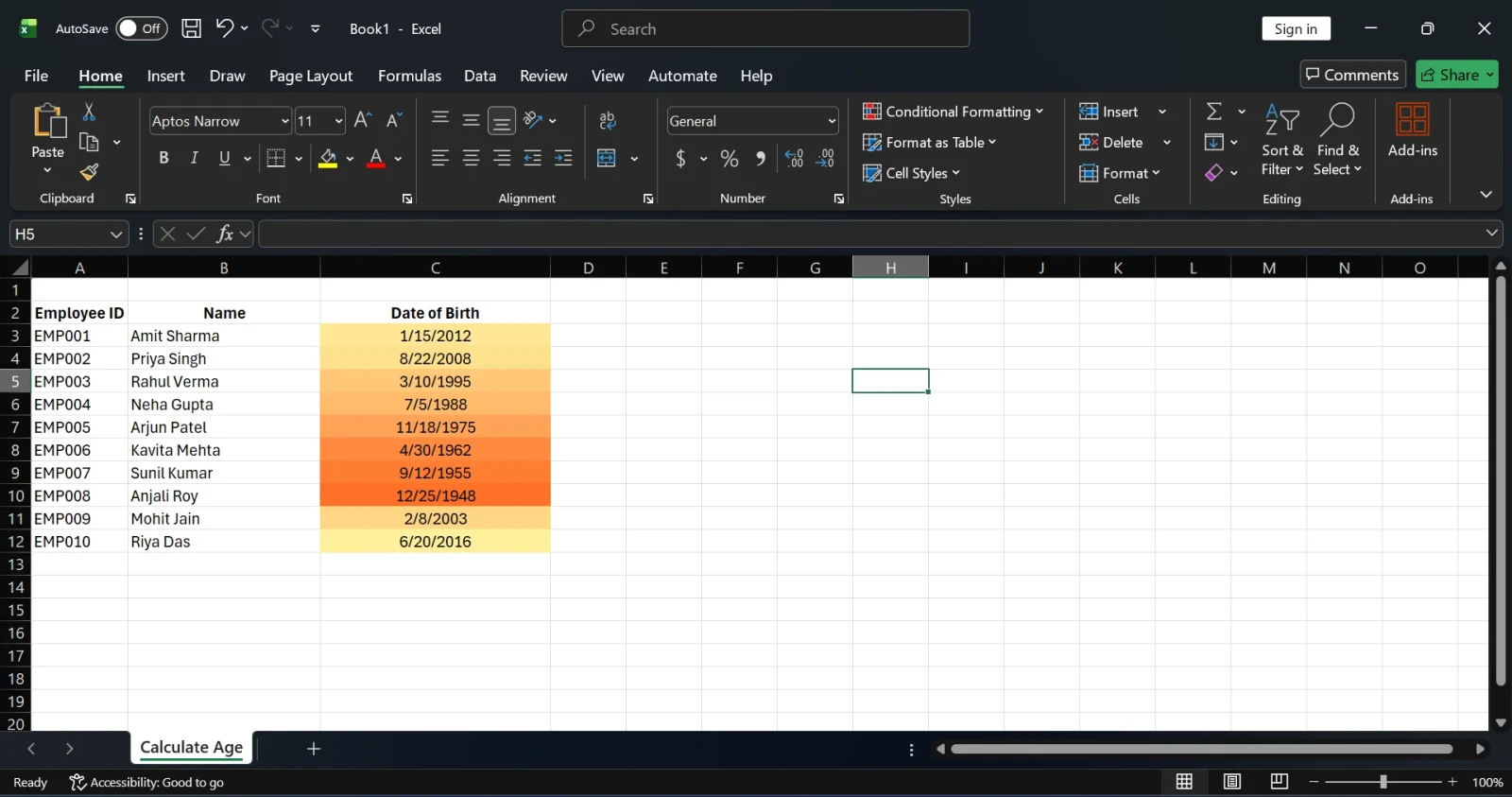
Once you have age values calculated, you can visually highlight them by age group using Conditional Formatting, useful for quick data review in HR databases or student records.
Steps:
| Group | Formula |
| Under 18 | =DATEDIF(C3,TODAY(),"Y")<18 |
| 18 to 65 | =AND(DATEDIF(C3,TODAY(),"Y")>=18, DATEDIF(C3,TODAY(),"Y")<=65) |
| Over 65 | =DATEDIF(C3,TODAY(),"Y")>65 |
This visual layer makes large spreadsheets much easier to read at a glance.
| Method | Formula | Best For | Accuracy |
| Simple Division | =INT((TODAY()-C3)/365) | Quick estimates | Moderate |
| YEARFRAC + INT | =INT(YEARFRAC(C3,TODAY(),1)) | General use | High |
| DATEDIF ("Y") | =DATEDIF(C3,TODAY(),"Y") | Official records | Very High |
| DATEDIF Combined | Y + YM + MD combined | Medical/Legal | Very High |
| Specific Date | =DATEDIF(C3,DATE(…),"Y") | Planning/Forecasting | Very High |
Read Also: Top 120 Excel Multiple Choice Questions (MCQs) For 2026
Beginners often make multiple mistakes while using a new formula. The following are some of them. It will help you to understand what to avoid.
1. Dates stored as text: If your birth dates are stored as text (left-aligned in the cell), Excel cannot calculate with them. Use the DATEVALUE function or reformat the cells.
2. Dividing by 365 for large datasets: For long timeframes or leap-year-heavy data, this causes cumulative inaccuracies. Switch to DATEDIF or YEARFRAC with basis=1.
3. Forgetting to specify basis in YEARFRAC: Without it, the function defaults to a 30/360 method, not the real calendar. Always include the 1 as the third argument.
4. Not locking reference dates with $: If you use a fixed date in a formula and want to copy it down a column, use an absolute cell reference (e.g., $B$1) instead of typing the date directly in each formula.
5. Expecting DATEDIF in autocomplete: DATEDIF does not appear in Excel's formula suggestions. Just type it manually; it works perfectly.
Calculating age in Excel is straightforward once you pick the right formula for your use case. For quick estimates, the basic division formula works. For accuracy in professional settings, DATEDIF or YEARFRAC with basis=1 are the right tools. And for detailed breakdowns in years, months, and days, combining multiple DATEDIF calls gives you everything you need.
Master these formulas, and you will handle any age-related calculation in Excel confidently, whether it is a single birthday or a dataset with thousands of records.
No. Excel does not have a dedicated AGE function. However, functions like DATEDIF, YEARFRAC, and INT, when used correctly, give accurate and reliable age results.
DATEDIF with the "Y" unit is generally the most accurate for calculating completed years, as it accounts for actual calendar differences including leap years and varying month lengths.
DATEDIF is a legacy compatibility function in Excel. It works perfectly fine but is intentionally hidden from the formula autocomplete list. You must type it manually.
Yes. Replace TODAY() with a specific date using DATE(year, month, day). For example: =DATEDIF(C3, DATE(2025, 1, 1), "Y").
Both DATEDIF and YEARFRAC handle leap-day birthdays correctly. In non-leap years, Excel treats the birthday as falling on March 1st for calculation purposes.
Use DATEDIF with different unit codes: "M" for total months, "D" for total days, "YM" for months past the last full year, and "MD" for days past the last full month.