Blank rows in Excel can be a real headache when working with a large worksheet. It usually occurs when you are importing data from another file, copying information from a website, or simply editing a worksheet over time. A few empty rows may not seem like a big problem, but they can make sorting, filtering, formulas, and reports harder to manage.
The tricky part is that not every blank row in Excel is actually empty. Some cells may contain formulas that return "", spaces, formatting, or other hidden values while appearing blank on the screen. Simply selecting everything that looks empty and deleting it can therefore produce unexpected results, especially when working with important or frequently updated data.
The good news is that Excel gives you several ways to remove blank rows. For a small and simple dataset, you can delete them manually or use Go To Special. Filters and sorting can help you identify and remove gaps more systematically, while Power Query is a better option when you regularly work with large or imported datasets. You can even use VBA when the same cleanup task needs to be automated.
The important thing is not just knowing how to delete a blank row, but knowing which method is safe for your particular dataset. You do not want to accidentally remove valid records, disturb the order of your data, or delete formulas that only appear to be blank.
In this article, I will explain how to remove blank rows in Excel using six different methods, including Go To Special, Filter, Sort, Excel Tables, Power Query, and VBA. I will also explain why blank rows appear, how to detect them, when to use each method, and the best practices you should follow before deleting them. Let’s begin!
One simple way to remove blank rows in Excel is to delete them manually. This involves selecting the empty row, right-clicking on it, and choosing the Delete option. This method is straightforward and works for very small datasets. It quickly becomes impractical when you are working with large, frequently updated data and dataset with formulas in empty rows. That’s where more efficient and reliable methods become important. These approaches allow you to clean and organize your data without risking data loss or quality issues.
In the following sections, we’ll explore multiple techniques that can handle any dataset size with ease. Most of these methods also work in Google Sheets, so you won’t need to learn separate processes for different tools.

Here are the most useful methods for removing blank rows in Excel.
| Method | Best For | Difficulty |
|---|---|---|
| Manual Deletion | Small datasets | Easy |
| Go To Special | Quickly removing blank rows | Easy |
| Filter | Finding and reviewing blank rows | Easy |
| Sort | Grouping blank rows together | Easy |
| Excel Table | Regularly updated datasets | Easy |
| Power Query | Large or imported datasets | Moderate |
| VBA | Repetitive cleanup tasks | Advanced |
1. Select your entire data range and then press Ctrl + G or Ctrl + F5.
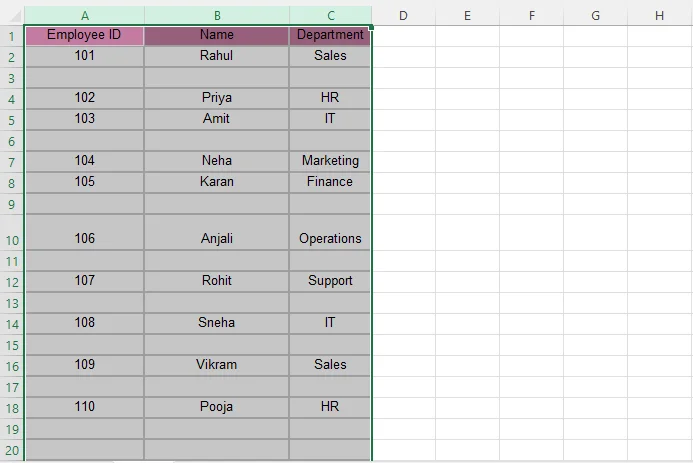
2. A dialog box will appear; click the Special button.
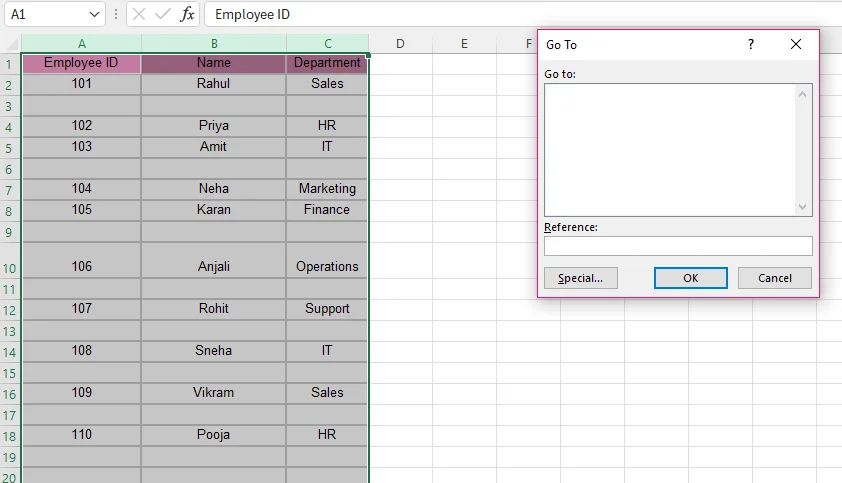
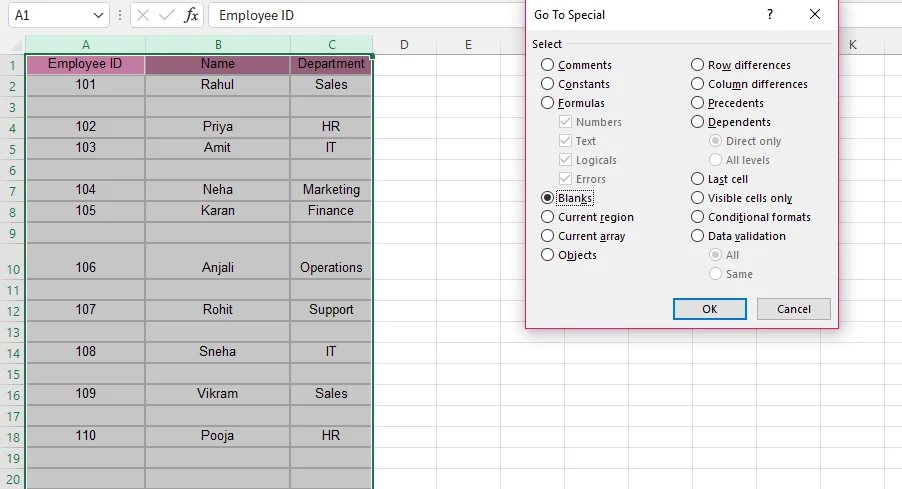
3. Choose Blanks, then click OK.
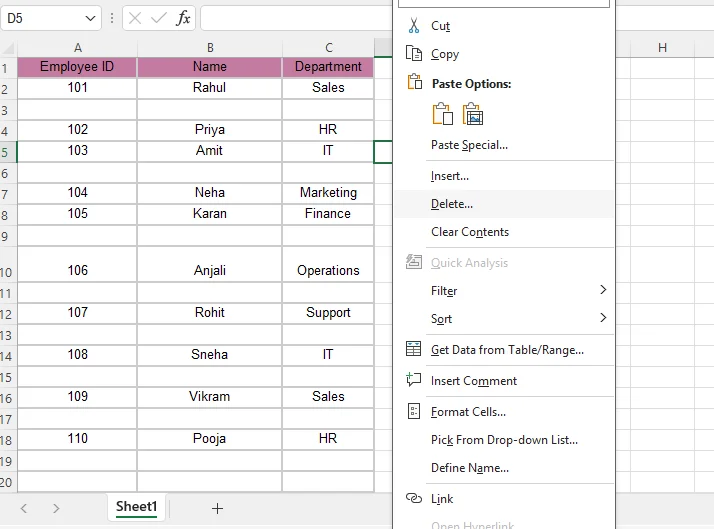
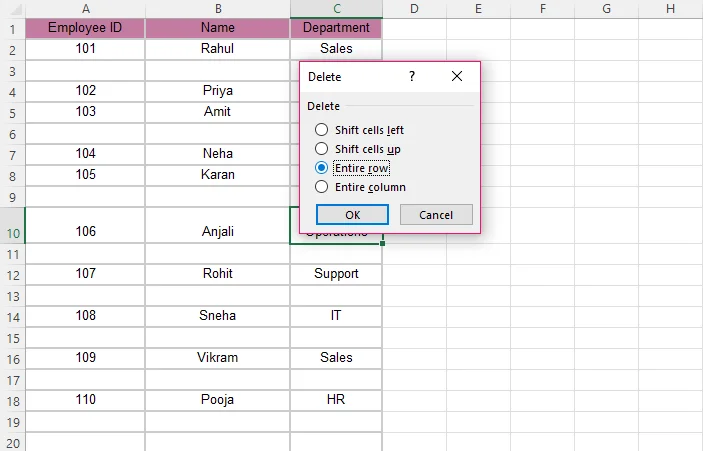
4. All blank cells are selected now. Right-click and choose the Delete option.
5. Select the entire row option and hit the ok button.
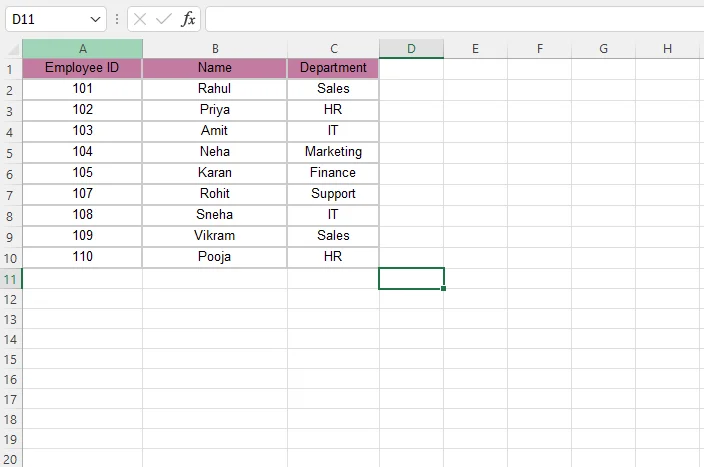
Your final (cleansed) data will look like this:
I usually use this method when I know my data is clean and does not contain formulas. It feels fast and satisfying when the blank rows are empty and easy to remove in one go. However, I have learned the hard way that Go To Special only selects truly empty cells. It does not select cells containing formulas that return empty strings (""). Because of that, I only rely on this method when I am confident there is nothing hidden in the cells.
1. Select your data, go to the “Data” option from the taskbar, and click on the “Create a filter” option. You can also select the filter sign appearing on the Quick Access Toolbar (QAT).
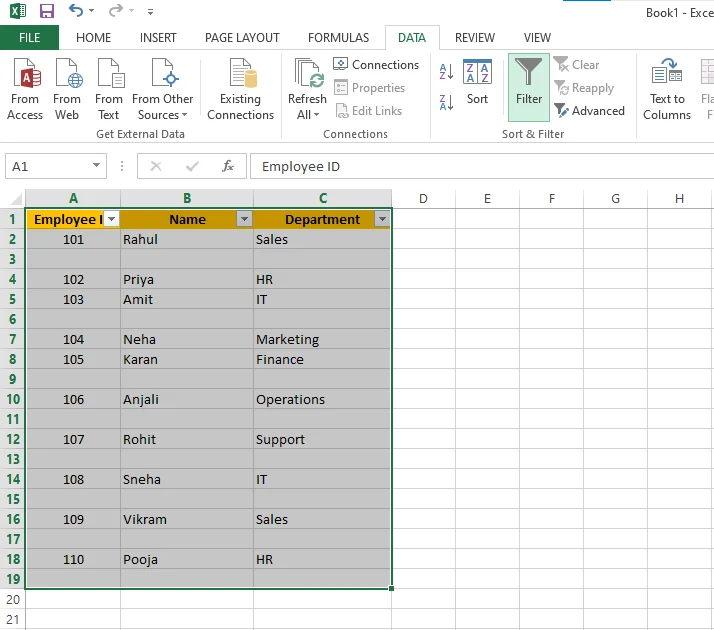
2. After that, click on any column and uncheck everything except for the blank option and click the Ok button.
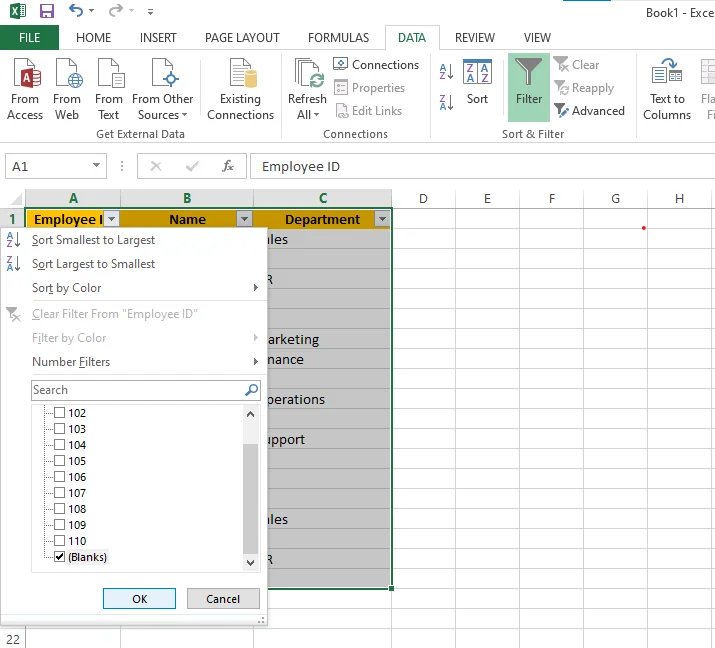
3. Now your blank rows will be visible; select them all and click on “Delete Row” option.
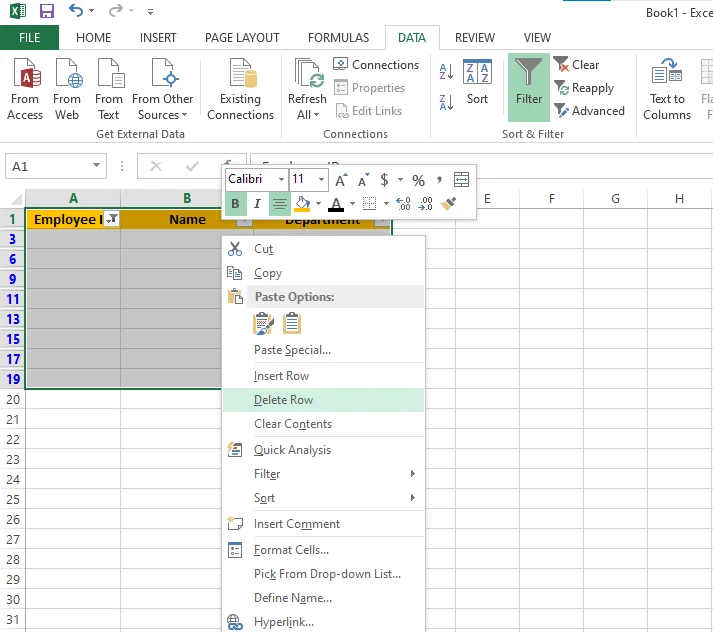
4. Now remove the filter, and your data will be free of blank rows.
This is the method I trust the most when working with important data. I like to see all the blank rows clearly before deleting them, especially in large or imported datasets. It gives me time to double-check what I am removing. The only issue I notice is that some formula-based blanks stay behind, but overall, it feels much safer than faster methods.
1. Select all your data.
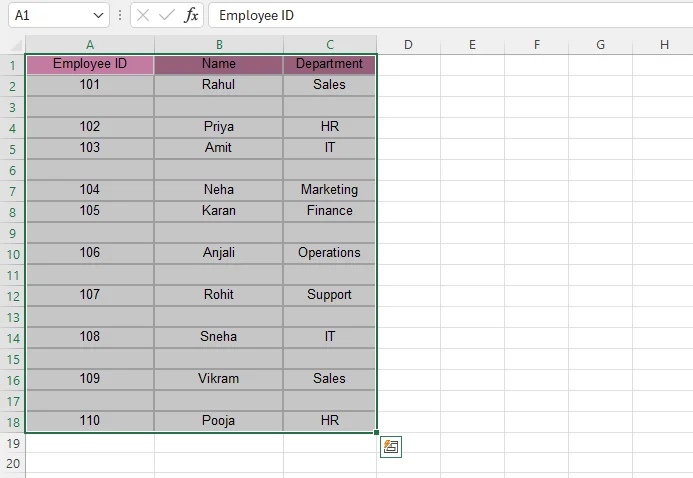
2. Go to the Sort option from the taskbar and select the A-Z option.
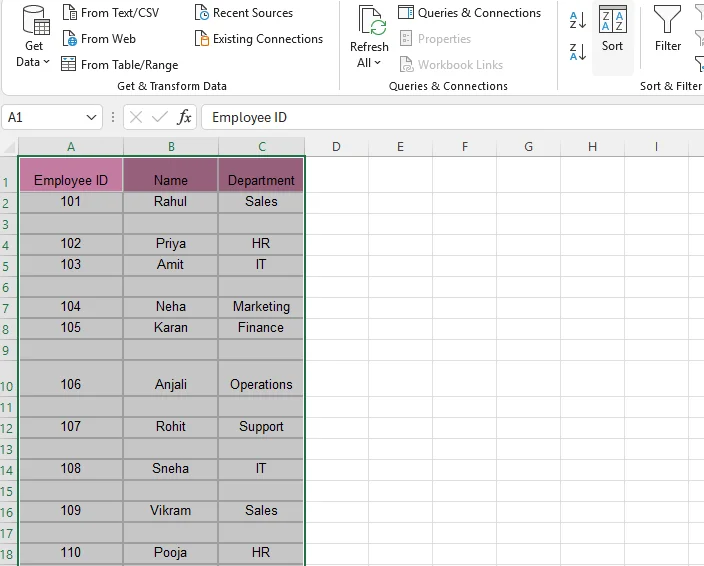
3. The blank rows will be placed at the end.
4. Then select the “Delete” option.
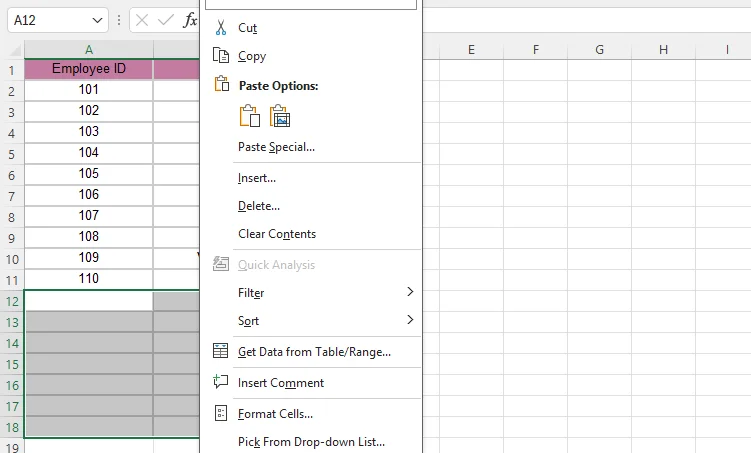
5. A small box will appear, so click on the “entire row” option and select OK.
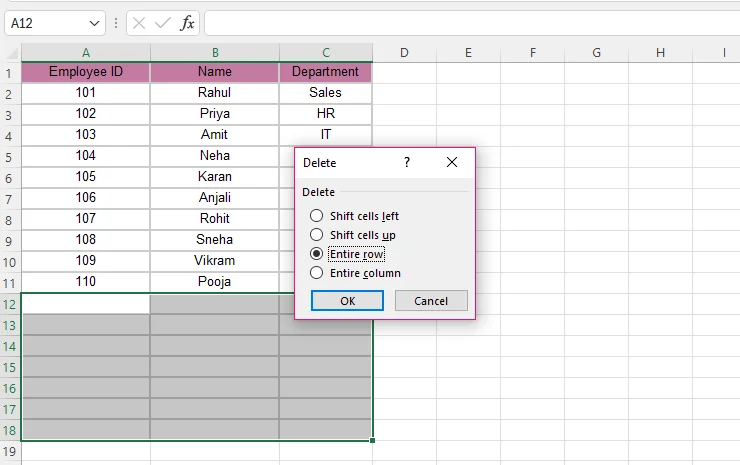
Your data will be cleansed:
I use sorting only when the order of rows does not matter to me. It helps when blank rows are scattered and hard to find manually. Once everything moves to the bottom, deleting them is easy. However, I have broken data order before by using this method carelessly. Because of that experience, I now avoid it for reports or time-based data.
1. Select your data, press Ctrl + T, ensure "My table has headers" is checked, and click OK.
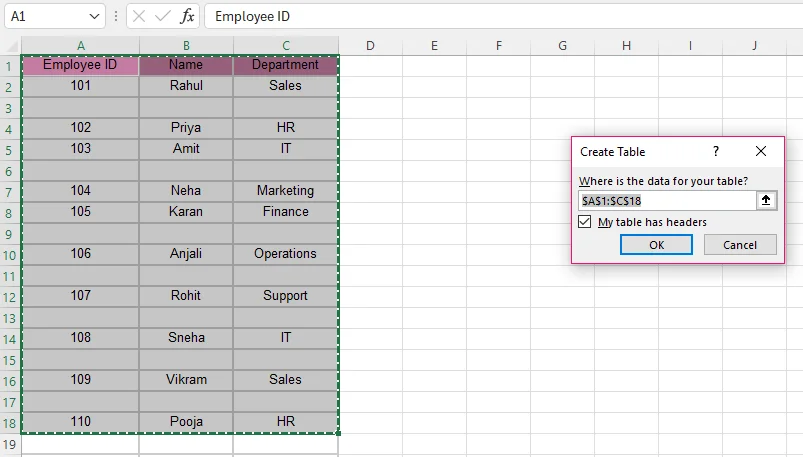
2. Select any column and uncheck all options except the blank option.
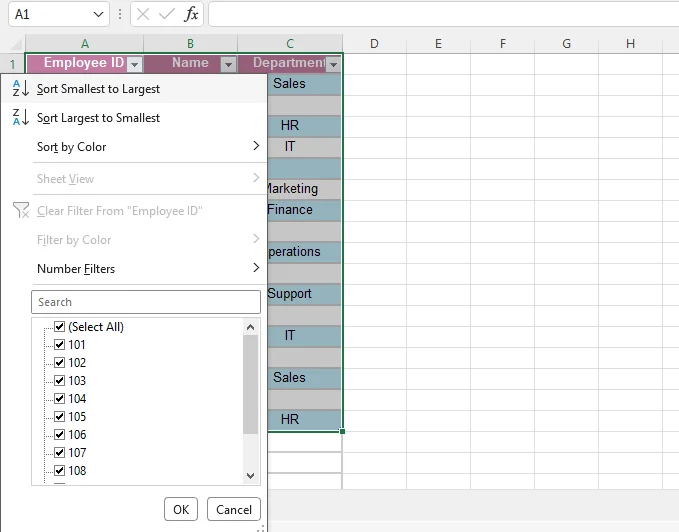
3. Your blank rows will be visible now.
4. Now right click and select the delete option, then go to ‘entire sheet row”.
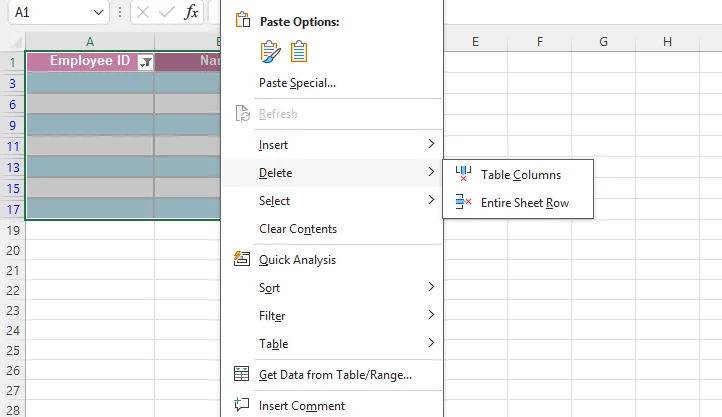
5. Remove filters. Now you have your cleansed worksheet.
I prefer this method when I work on files that are updated regularly. Converting data into a table makes everything feel more organized and filtering blank rows becomes simpler over time. It is especially helpful for tracking data or reports. Its limitation is that Excel changes formatting automatically, which I sometimes need to adjust.
Power Query is one of the safest and most professional ways to remove blank rows in Excel. I personally prefer this method when working with large datasets or files that are updated regularly. The best part is that Power Query does not change your original data. It creates a clean version of your dataset and allows you to refresh it anytime new data is added.
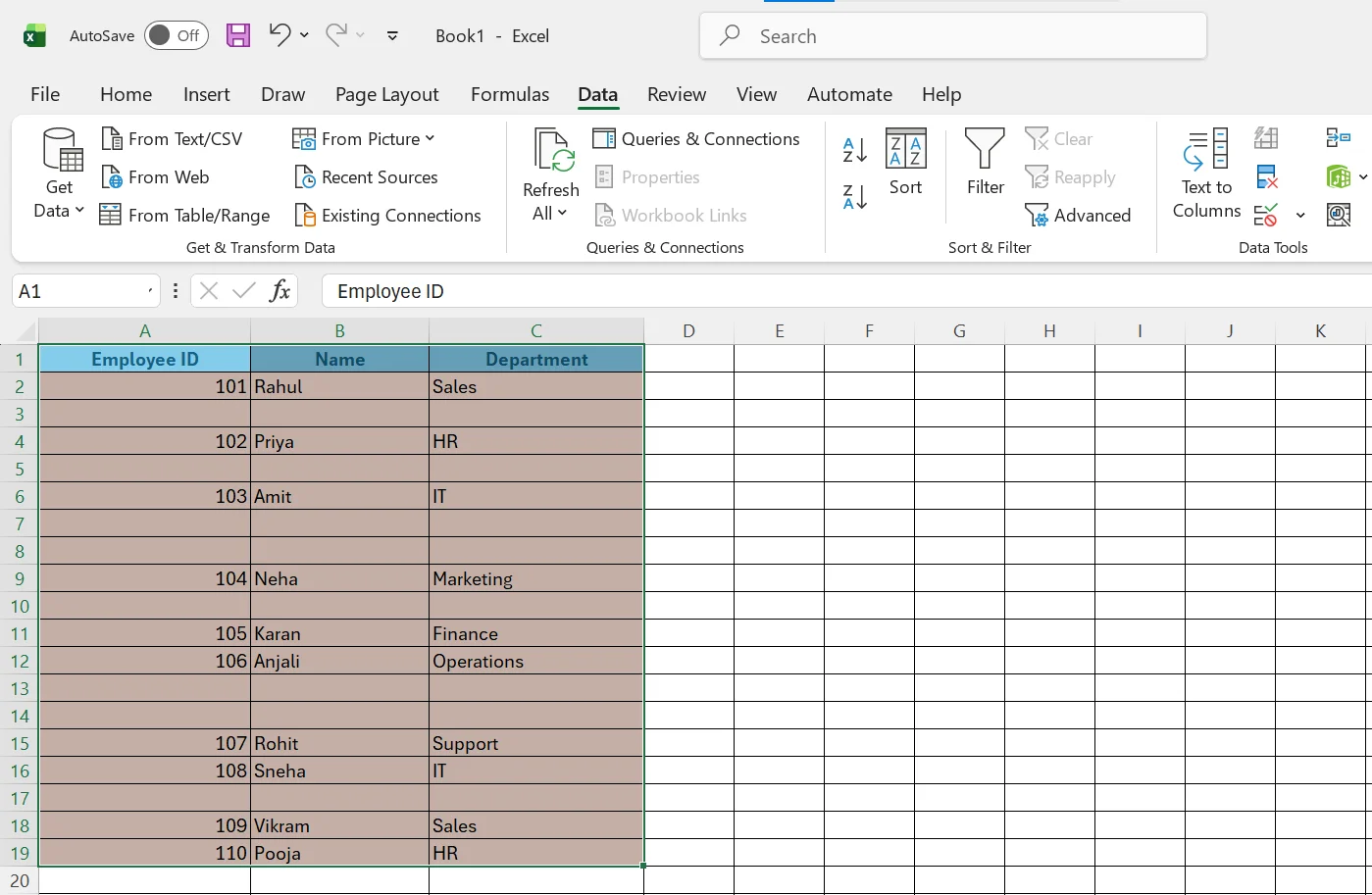
1. Select your entire dataset.
2. Go to the Data tab from the taskbar and click on From Table/Range.
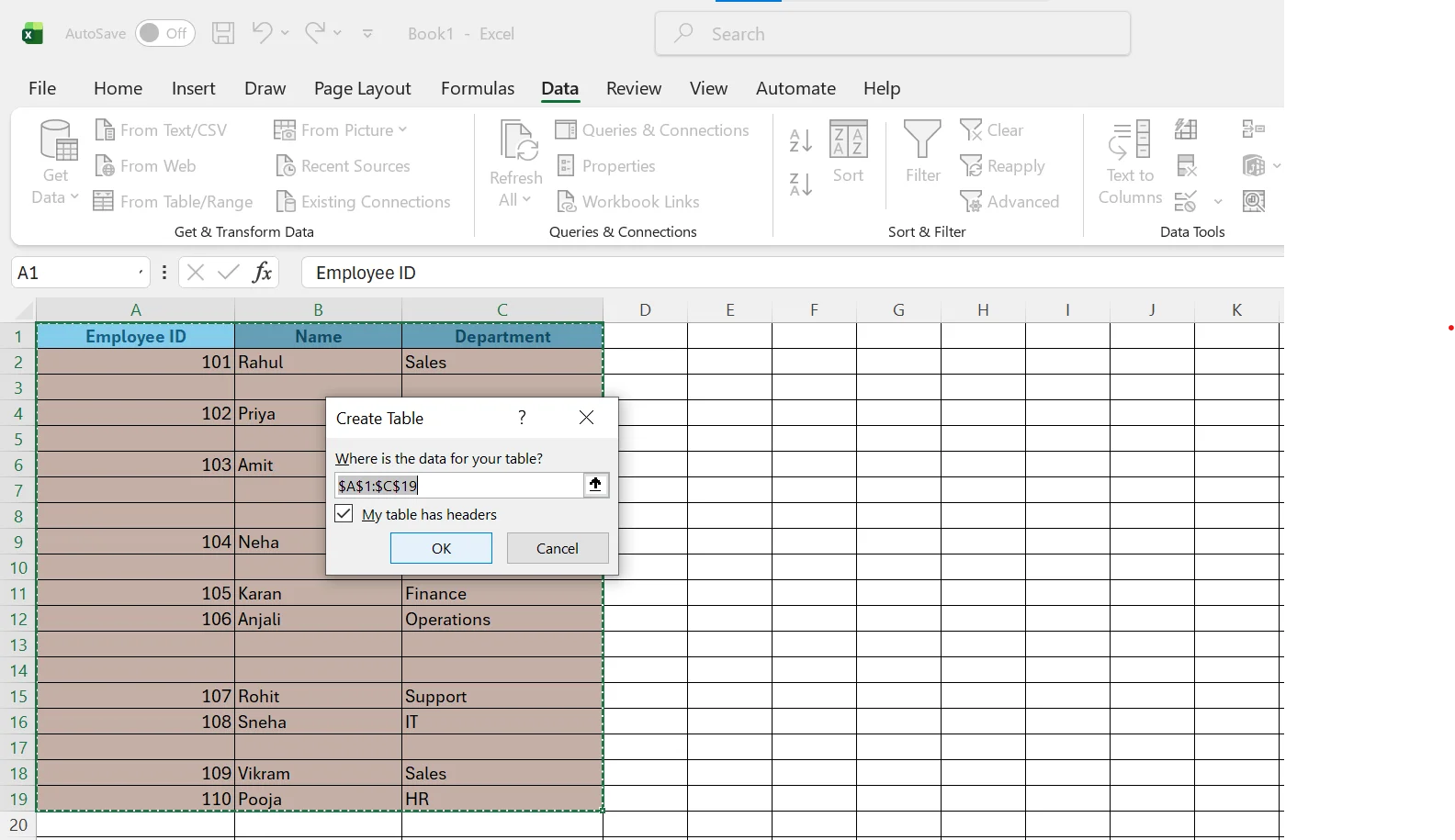
3. If your data is not already in a table format, Excel will ask you to create one. Make sure the “My table has headers” option is checked, then click OK.
4. The Power Query Editor window will open.
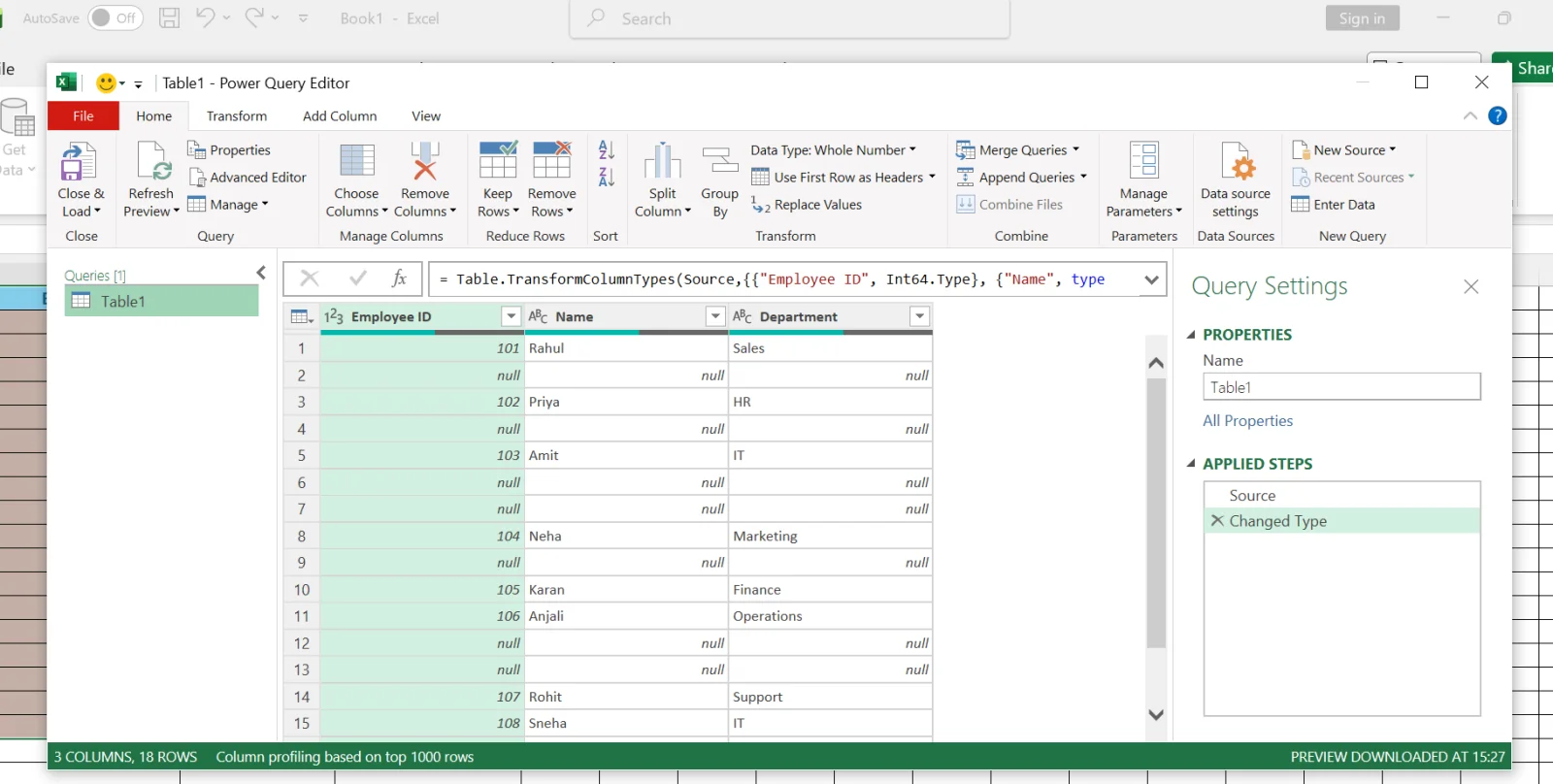
5. In the Power Query Editor, go to the Home tab and click on Remove Rows.
6. Select Remove Blank Rows.
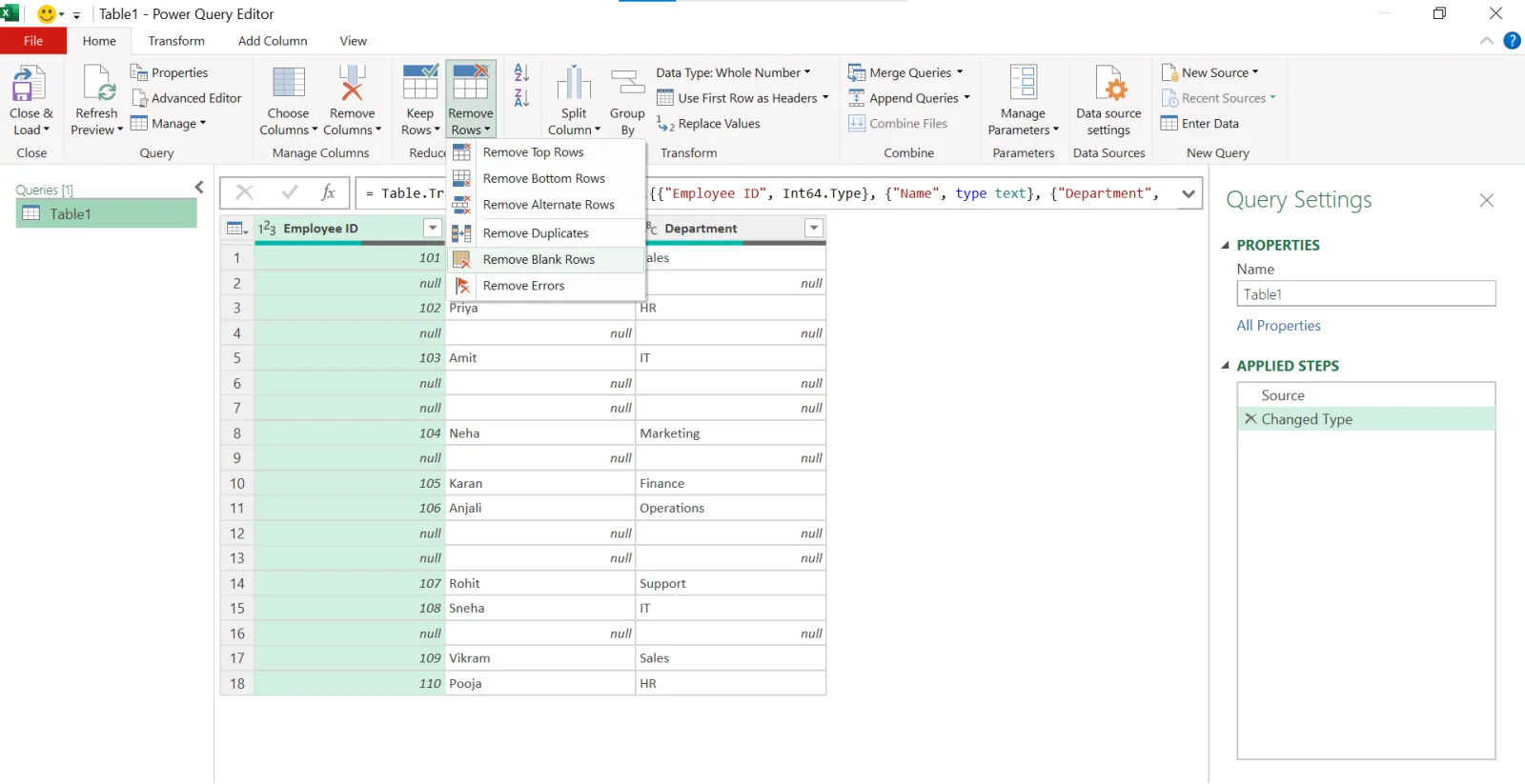
7. Once the blank rows are removed, click on Close & Load to bring the cleaned data back into Excel.
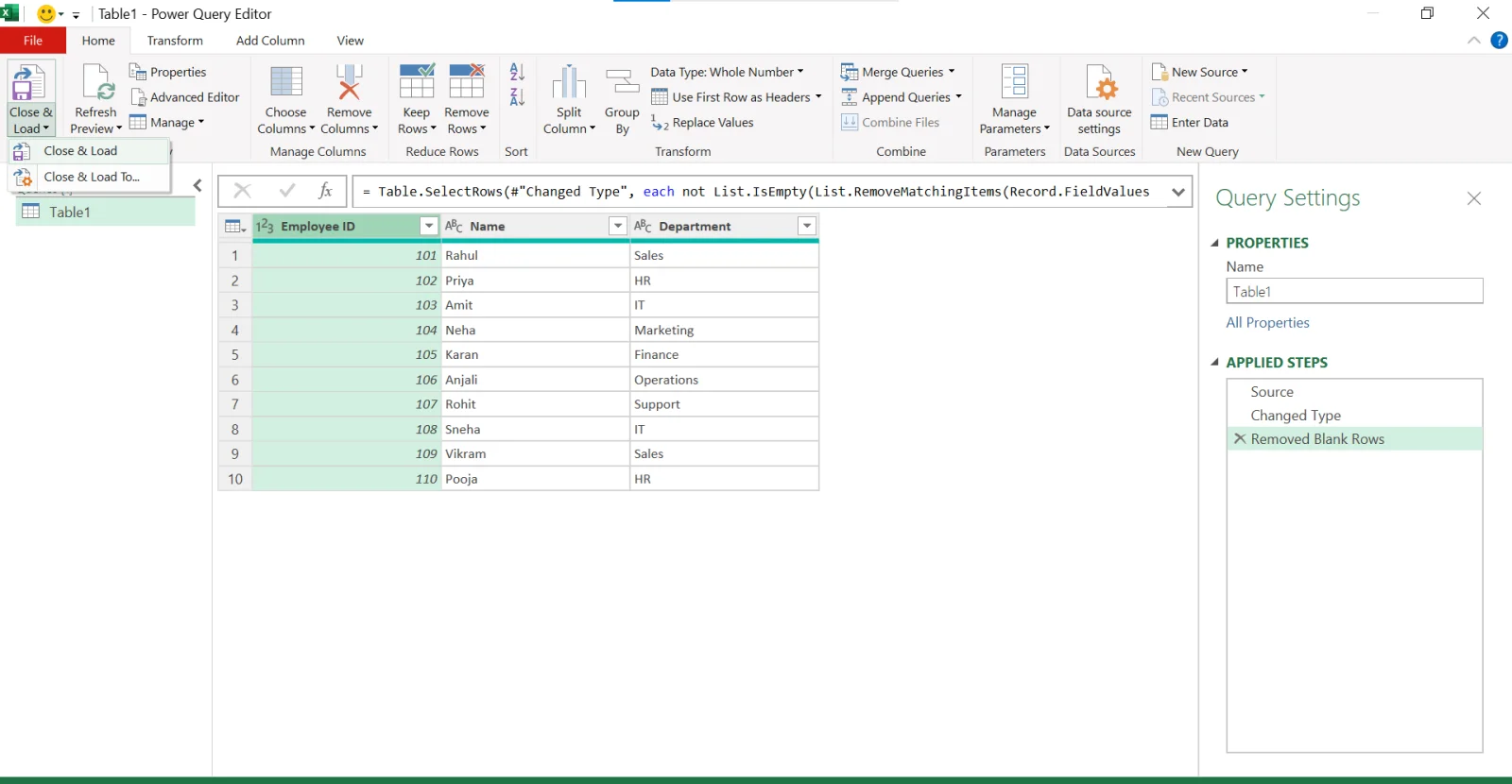
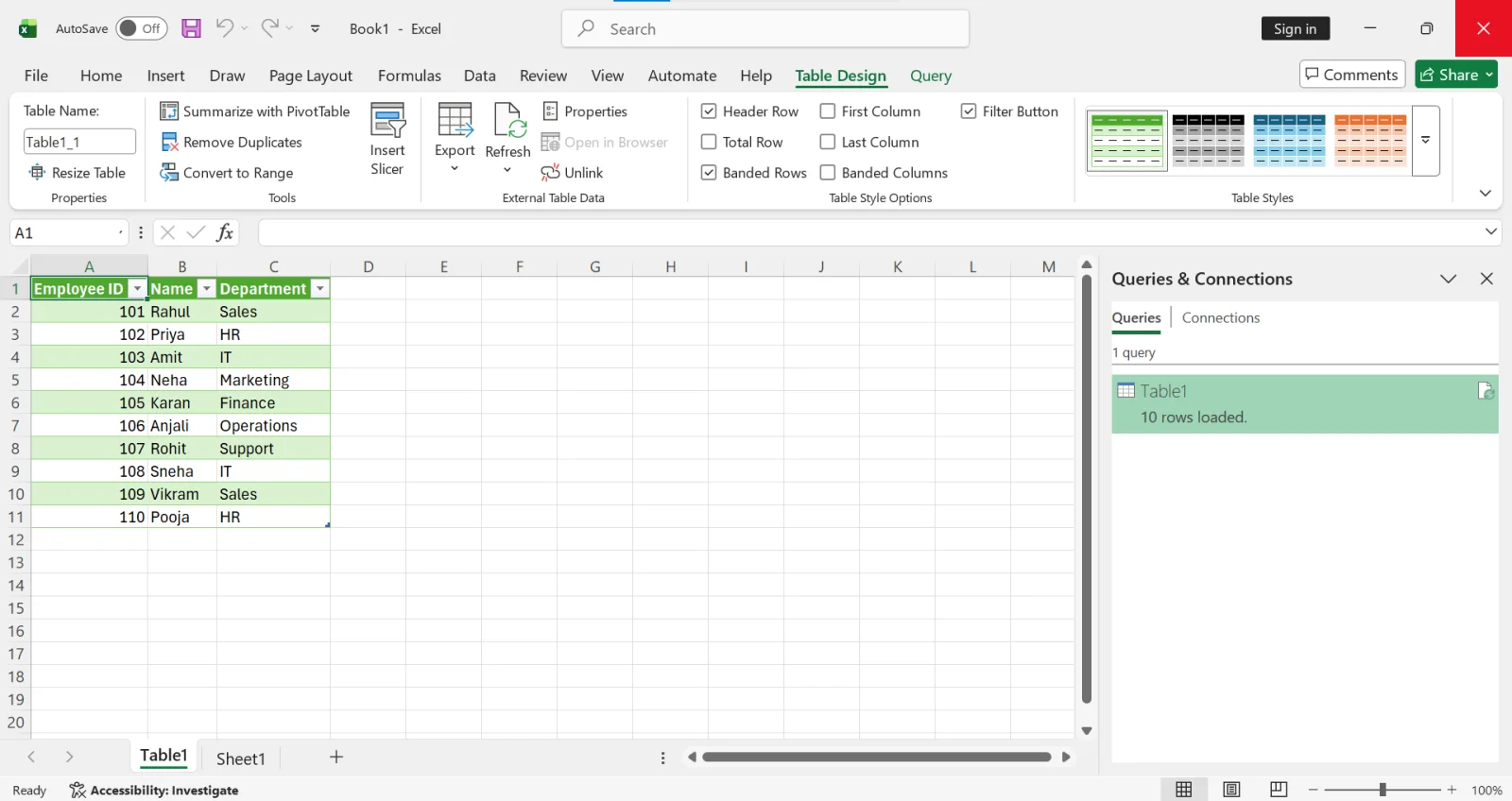
8. Your cleaned dataset will now appear in a new worksheet without any blank rows.
I recommend this method when handling large or frequently updated datasets. It is especially useful for imported data from CSV files, databases, or external systems. Since Power Query keeps your original data untouched and allows you to refresh changes with one click, it is much safer than manual deletion. For professional reporting and data analysis, this is my most trusted approach.
If you work with Excel regularly and want to automate the process, you can use VBA (Visual Basic for Applications) to remove blank rows instantly. This method is useful when you repeatedly clean similar datasets and want to save time.
1. Press Alt + F11 to open the VBA Editor. In the top menu, click on Insert, then select Module.

2. A new module window will appear. Copy and paste the following code:
|
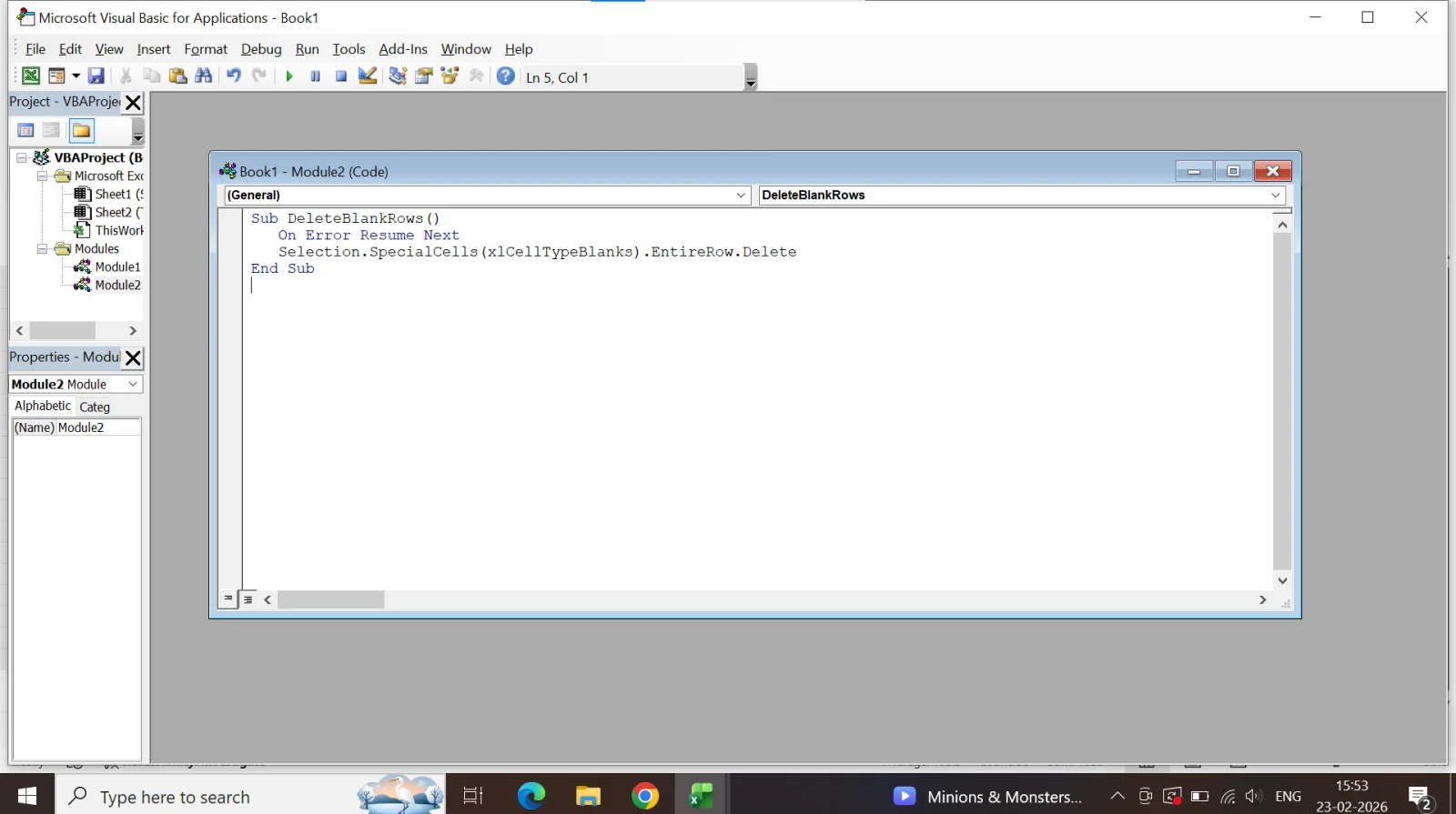
3. Minimize the VBA Editor, select your dataset in Excel, press Alt + F8, choose DeleteBlankRows, and click Run.
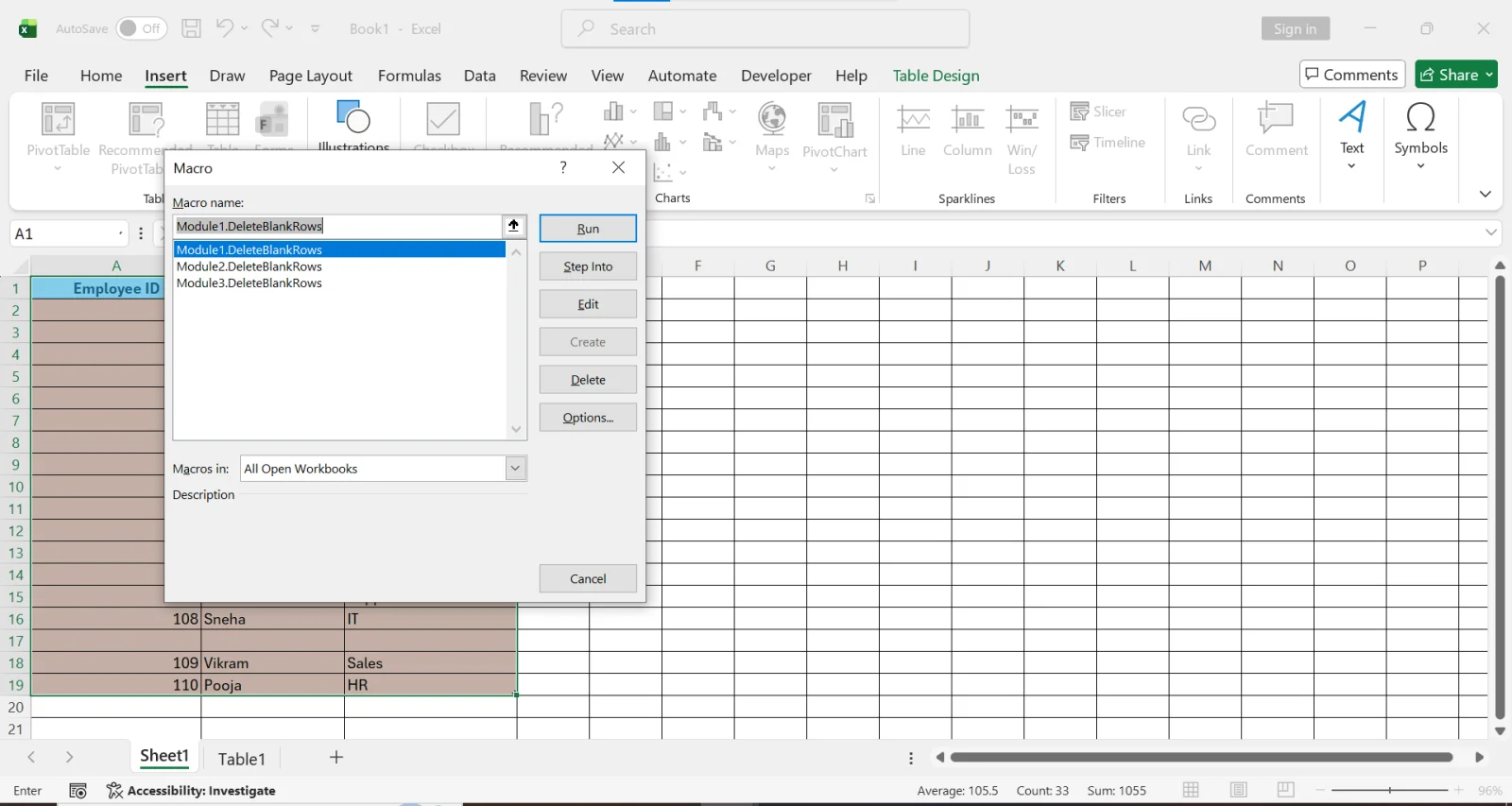
4. All blank rows within your selected range will be deleted instantly.
I use this method when I need quick automation. It works well for repetitive tasks and saves a lot of time when cleaning large datasets. However, you should always keep a backup copy of your file before running VBA code. Since macros make permanent changes, there is no easy undo option after execution. This method is best suited for advanced users or professionals who frequently work with structured data.
Read Also: Excel Interview Questions and Answers
Blank rows can affect how a worksheet behaves during sorting, filtering, and calculations. They may interrupt data ranges, cause formulas to stop early, or make reports harder to read and maintain. Removing them helps keep your data neat, clear, and manageable. Here is why removing blank rows is important:
Read Also: XLOOKUP vs VLOOKUP
Before you remove blank rows in Excel, make sure you know exactly what you are doing. Small mistakes can affect your data, formulas or results, especially if the file is important. You can refer to the following practices for better understanding:
Before you start, you should always save a backup copy of your worksheet. This ensures you can restore the original data if something goes wrong.
When a cell looks empty, just click on it and check the Formula Bar. Some cells may appear blank but still contain formulas, spaces or hidden values.
Make sure your Active Cell is inside the data range before applying filters or formulas. This helps Excel work only on the selected data.
Avoid deleting rows without checking them first. Excel may not treat rows with formatting or invisible characters as truly blank.
Each method for removing blank rows in Excel has a different purpose. Manual deletion and Go To Special are useful for small datasets, while Filter and Excel Tables provide more control when reviewing data before deletion. Power Query is better for large or regularly updated datasets, and VBA is the most suitable option when the cleanup process needs to be automated.
| Method | Best For | Ease of Use | Large Datasets | Automation | Main Limitation |
|---|---|---|---|---|---|
| Manual Deletion | Small datasets | Very Easy | Not Recommended | No | Time-consuming for many rows |
| Go To Special | Quick cleanup of truly blank cells | Easy | Moderate | No | May not identify formula-based blanks |
| Filter | Reviewing and deleting visible blank rows | Easy | Good | No | Some formula-based blanks may remain |
| Sort | Moving blank rows together | Easy | Good | No | Can change the original row order |
| Excel Table | Regularly updated datasets | Easy | Good | Limited | May automatically change formatting |
| Power Query | Large or imported datasets | Moderate | Excellent | Yes, through refresh | Requires learning Power Query |
| VBA | Repetitive cleanup tasks | Advanced | Excellent | Yes | Requires macros and careful use |
Quick recommendation: For a small dataset, Go To Special or Filter is usually enough. For regularly updated or imported data, Power Query is a more reliable choice because the cleanup can be refreshed. If you perform the same cleanup repeatedly, VBA can save time by automating the process.
In this article, I have explained why blank rows appear in Excel and how they can affect your data. I also shared six methods to remove them efficiently. After reading this, you should try these methods on your own worksheets and choose the one that works best for your data, so that you can keep your sheets clean, accurate, and organized.
Explore Our Trending Articles-
For this, you should avoid pressing Enter unnecessarily, clean imported data properly, and review formulas that return empty values instead of real blanks.
You can press Ctrl + G, then click Special → Blanks → OK. After that, right-click and delete entire rows.
You can use filters, conditional formatting or formulas to hide blank cells while keeping the data and structure of your worksheet unchanged.
Yes, Power Query is safe for large Excel datasets. It efficiently handles data transformations without altering the original files.
Yes, formulas can detect hidden blank rows. Functions like SUBTOTAL or AGGREGATE can ignore hidden rows while checking for blanks.