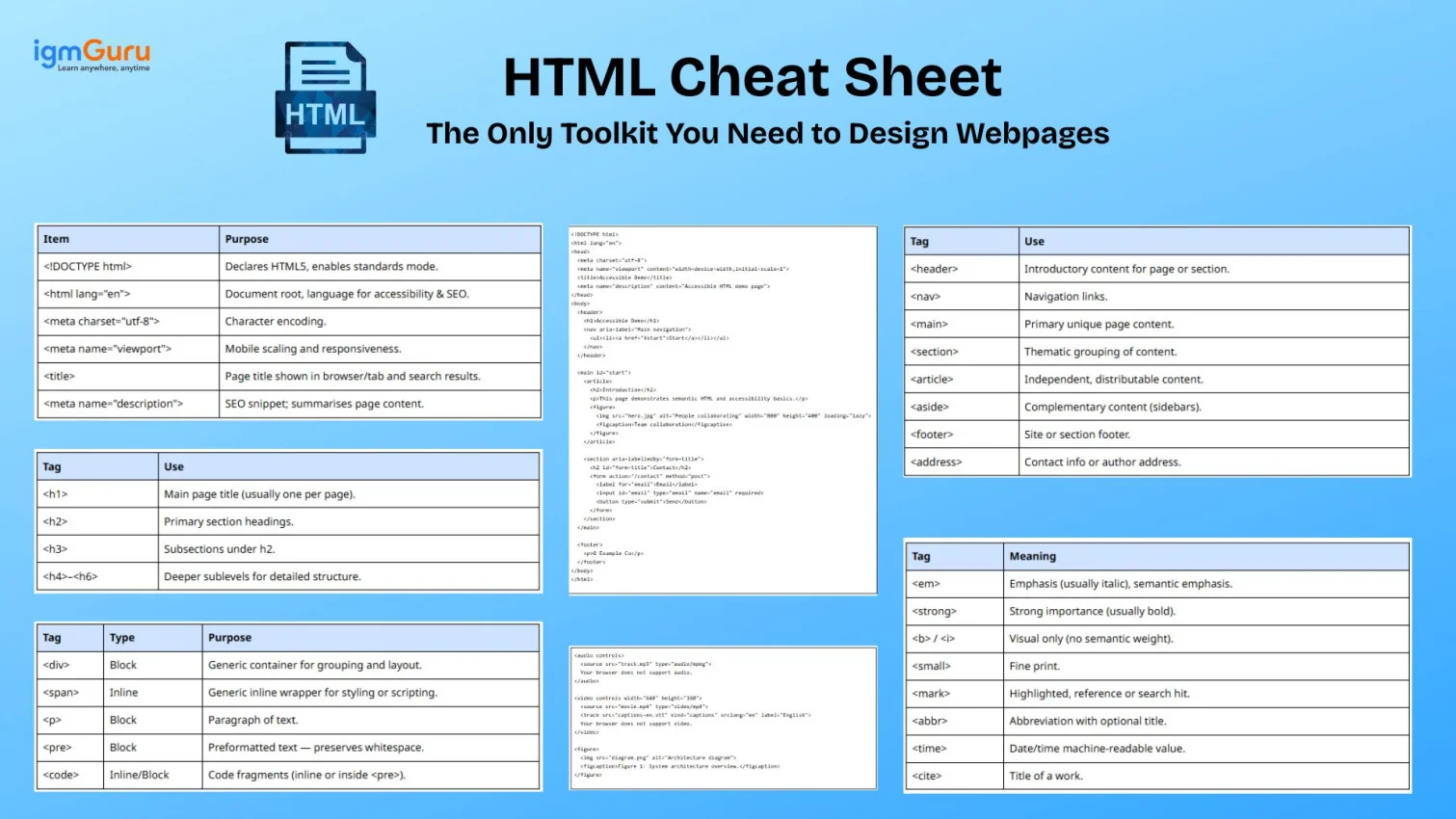
You are on a web page, seeing a variety of visuals and graphics. But do you know how it became possible? The reason is HTML (HyperText Markup Language), a standard markup language used to structure content on the web. It designs the skeleton of the web, including headings, paragraphs, images, links, forms, tables, semantic sections, and more.
Do not take HTML as a programming language. It is basically a vocabulary of elements and attributes that, together with CSS and JavaScript, create modern web pages and web apps. This HTML Cheat Sheet is designed to provide everything around these elements and attributes. It is your toolkit to learn, review, or strengthen your HTML skills.
What is an HTML Cheat Sheet and Who is This For?
An HTML Cheat Sheet is a compact but comprehensive reference summarizing the most important HTML elements, attributes, and usage patterns developers use daily. It condenses syntax, semantics, and best practices into quick tables and code snippets so developers can rapidly look up tag names, attribute options, accessibility requirements, and typical examples while coding or reviewing markup. This cheat sheet is both a learning tool for beginners and intermediates and an on-the-job reference for experienced professionals, helping reduce lookup time and improve the quality and accessibility of markup within production projects.
Main root & document boilerplate
The <html> element is the root (document element) of every HTML page, and all other elements are descendants of it. A valid HTML document begins with a doctype declaration, followed by <html lang="...">, a <head> section containing metadata, and a <body> section containing visible content. The boilerplate ensures correct parsing, character encoding, responsive scaling, and SEO-critical metadata. Using a consistent, minimal boilerplate also helps with cross-browser rendering, improves performance when combined with proper resource hints, and provides search engines with the metadata they need for indexing and previews.
Boilerplate example
<!DOCTYPE html>
<html lang="en">
<head>
  <meta charset="utf-8">
  <meta name="viewport" content="width=device-width,initial-scale=1">
  <title>Document Title</title>
  <meta name="description" content="Short description for SEO">
  <link rel="stylesheet" href="styles.css">
</head>
<body>
  <h1>Hello, world!</h1>
</body>
</html>
|
Root & Head essentials (quick reference)
Keep these key document root and head items in every page you create. They are essential for proper encoding, responsive behavior, accessibility and basic SEO. Use them as a checklist when scaffolding new pages or templates so that downstream tooling, crawlers and assistive tech behave consistently.
| Item |
Purpose |
| <!DOCTYPE html> | Declares HTML5, enables standards mode. |
| <html lang="en"> | Document root, language for accessibility & SEO. |
| <meta charset="utf-8"> | Character encoding. |
| <meta name="viewport"> | Mobile scaling and responsiveness. |
| <title> | Page title shown in browser/tab and search results. |
| <meta name="description"> | SEO snippet; summarises page content. |
Headings (<h1>–<h6>)
Headings provide document structure and semantic hierarchy for content. They are used by browsers, screen readers, and search engines to understand the outline of a page. Good heading usage improves accessibility and SEO: include a single <h1> per page for the main topic, followed by descending levels (<h2>–<h6>) for subtopics. Use headings to convey structure rather than visual style, rely on CSS for presentation, and keep headings meaningful and properly ordered so assistive technologies can navigate the document effectively.
Heading summary
| Tag |
Use |
| <h1> | Main page title (usually one per page). |
| <h2> | Primary section headings. |
| <h3> | Subsections under h2. |
| <h4>–<h6> | Deeper sublevels for detailed structure. |
Example
<h1>Site Title</h1>
<h2>Getting Started</h2>
<h3>Installation</h3>
|
Containers group elements for structure, layout, or semantic meaning. Common containers include <div>, <span>, <p>, <pre>, and <code>. Use block-level containers for layout (<div>, <section>) and inline containers for smaller text fragments (<span>, <a>). Prefer semantic containers such as <header>, <nav>, and <article> to improve accessibility, readability, and long-term maintainability.
Common containers
| Tag |
Type |
Purpose |
| <div> | Block | Generic container for grouping and layout. |
| <span> | Inline | Generic inline wrapper for styling or scripting. |
| <p> | Block | Paragraph of text. |
| <pre> | Block | Preformatted text — preserves whitespace. |
| <code> | Inline/Block | Code fragments (inline or inside <pre>). |
Container example
<div class="card">
  <h3>Card title</h3>
  <p class="lead">Short description in a <span class="muted">span</span>.</p>
  <pre><code>const x = 1;</code></pre>
</div>
|
The <head> element contains metadata and resources that do not render directly, including the title, meta tags for SEO, link tags for CSS, script references, and resource hints such as preload or prefetch. A well-structured head ensures correct character encoding, mobile responsiveness, and optimized loading. Consider preloading critical fonts and using concise, unique titles and descriptions on each page to improve SEO and perceived performance.
Head tag roles
| Tag |
Role |
| <title> | Visible page title in tab/search results. |
| <meta charset> | Encoding. |
| <meta name="viewport"> | Mobile scaling. |
| <meta name="description"> | SEO summary. |
| <link rel="stylesheet"> | External stylesheets. |
| <link rel="preload"> | Preloads critical assets. |
| <script async/defer> | JS loading strategies. |
Head example
<head>
  <meta charset="utf-8">
  <meta name="viewport" content="width=device-width,initial-scale=1">
  <title>Docs — Component</title>
  <link rel="stylesheet" href="/css/main.css">
  <link rel="preload" href="/fonts/roboto.woff2" as="font" type="font/woff2" crossorigin>
</head>
|
Semantic elements (header, nav, main, section, article, aside, footer)
Semantic tags describe the meaning of content, improving accessibility, maintainability, and SEO. They replace generic <div> elements with meaningful containers. Use <header> for page or section introductions, <nav> for primary navigation, <main> for core page content, <article> for self-contained pieces, <section> for grouped content, <aside> for tangential material, and <footer> for closing information. These semantic elements help search engines and assistive technologies understand the structure and purpose of your content.
Semantic elements table
| Tag |
Use |
| <header> | Introductory content for page or section. |
| <nav> | Navigation links. |
| <main> | Primary unique page content. |
| <section> | Thematic grouping of content. |
| <article> | Independent, distributable content. |
| <aside> | Complementary content (sidebars). |
| <footer> | Site or section footer. |
| <address> | Contact info or author address. |
Semantic example
<body>
  <header><h1>Site</h1><nav>...</nav></header>
  <main>
    <article><h2>Article title</h2><p>...</p></article>
    <aside>Related links</aside>
  </main>
  <footer>© Company</footer>
</body>
|
Text formatting & inline semantics
Inline formatting tags define meaning or emphasis within text and should be selected for their semantic purpose rather than visual effect. Use <em> and <strong> to indicate emphasis or strong importance, which assistive technologies also recognize. Elements such as <abbr>, <cite>, <time>, <mark>, and other inline semantics help convey meaning directly in the markup instead of relying solely on styling.
Inline semantics
| Tag |
Meaning |
| <em> | Emphasis (usually italic), semantic emphasis. |
| <strong> | Strong importance (usually bold). |
| <b> / <i> | Visual only (no semantic weight). |
| <small> | Fine print. |
| <mark> | Highlighted, reference or search hit. |
| <abbr> | Abbreviation with optional title. |
| <time> | Date/time machine-readable value. |
| <cite> | Title of a work. |
Inline example
<p><strong>Warning:</strong> This <em>feature</em> is experimental.</p>
<time datetime="2025-12-02">Dec 2, 2025</time>
|
Lists (<ul>, <ol>, <dl>)
Lists structure sequential or grouped content. Use ordered lists (<ol>) when sequence or priority matters, unordered lists (<ul>) for non-ordered collections, and description lists (<dl>) for term–description pairs such as glossaries or key-value pairs. Proper list semantics enhance readability and improve accessibility for users relying on assistive technologies.
List examples
<ul>
  <li>HTML</li>
  <li>CSS</li>
</ul>

<ol>
  <li>Install</li>
  <li>Configure</li>
  <li>Run</li>
</ol>

<dl>
  <dt>HTML</dt><dd>Markup language</dd>
  <dt>CSS</dt><dd>Styling language</dd>
</dl>
|
Anchors create navigation and resource links. Use the href attribute for URLs, target to control where the link opens, and rel to specify relationship and security attributes such as noopener or noreferrer. Use <link> in the head for stylesheets, icons, and preloaded resources. For downloads and special schemes, use attributes like download or protocols such as mailto: and tel: when appropriate.
Anchor attributes
| Attribute |
Use |
| href | Destination URL or resource. |
| target="_blank" | Open in new tab/window (use rel="noopener noreferrer"). |
| rel | Relationship tokens (nofollow, noopener). |
| download | Suggest file download. |
| hreflang | Language of linked resource. |
Anchor examples
<a href="https://example.com" target="_blank" rel="noopener noreferrer">Visit Example</a>
<a href="/files/report.pdf" download="report.pdf">Download Report</a>
|
Tables Family
HTML tables represent structured tabular data. Use <thead>, <tbody>, and <tfoot> to organize table sections, and include a <caption> to provide an accessible title. Use <th scope="col"> or <th scope="row"> to define header scope for assistive technologies. Tables should be used only for data presentation, not for page layout.
Table elements
| Tag |
Purpose |
| <table> | Table container. |
| <caption> | Table title/caption. |
| <thead> | Header rows. |
| <tbody> | Body rows. |
| <tfoot> | Footer rows (summaries). |
| <tr> | Table row. |
| <th> | Header cell (use scope). |
| <td> | Data cell. |
Table example
<table>
  <caption>Monthly Sales</caption>
  <thead>
    <tr><th scope="col">Month</th><th scope="col">Sales</th></tr>
  </thead>
  <tbody>
    <tr><td>Jan</td><td>$10,000</td></tr>
    <tr><td>Feb</td><td>$12,500</td></tr>
  </tbody>
  <tfoot>
    <tr><td>Total</td><td>$22,500</td></tr>
  </tfoot>
</table>
|
Images (![]() ) and responsive images
) and responsive images
Image attributes
| Attribute |
Purpose |
| src | Image URL. |
| alt | Alternative text for screen readers. |
| width/height | Intrinsic dimensions (helps layout). |
| srcset | Multiple resolutions for responsive images. |
| sizes | Display size rules. |
| loading | lazy or eager loading preference. |
Responsive example
<img src="hero-800.jpg"
     srcset="hero-400.jpg 400w, hero-800.jpg 800w, hero-1200.jpg 1200w"
     sizes="(max-width:600px) 100vw, 50vw"
     alt="Sunrise over the lake"
     loading="lazy" width="1200" height="800">
|
Forms collect user input. Use labels associated with form controls for accessibility, such as <label for="id">. Modern input types—email, tel, url, number, date, datetime-local, and range—provide better native validation and optimized mobile keyboards. Use attributes like autocomplete, required, min, max, pattern, and ARIA properties where appropriate to enhance accessibility and user experience.
| Type |
Use |
| text | Single-line text. |
| email | Email addresses (built-in validation). |
| password | Password fields. |
| number | Numeric input with min/max. |
| date | Date input. |
| tel | Telephone number. |
| checkbox | Boolean options. |
| radio | Exclusive choices. |
| file | File uploads. |
| range | Slider control. |
| search | Search entry (semantic). |
| hidden | Hidden data for submission. |
<form action="/submit" method="post" novalidate>
  <label for="email">Email</label>
  <input id="email" name="email" type="email" required autocomplete="email">

  <label for="age">Age</label>
  <input id="age" name="age" type="number" min="0" max="120">

  <fieldset>
    <legend>Gender</legend>
    <label><input type="radio" name="gender" value="m"> Male</label>
    <label><input type="radio" name="gender" value="f"> Female</label>
  </fieldset>

  <label for="bio">Bio</label>
  <textarea id="bio" name="bio" rows="4" cols="50"></textarea>

  <button type="submit">Submit</button>
</form>
|
Multimedia embedding supports native playback controls and accessibility. Provide multiple media sources to ensure broad codec compatibility and include captions, such as WebVTT files for videos. Use <figure> with <figcaption> to pair media with meaningful descriptions, and always offer captions or transcripts for important content to improve accessibility for all users.
Audio/video example
<audio controls>
  <source src="track.mp3" type="audio/mpeg">
  Your browser does not support audio.
</audio>

<video controls width="640" height="360">
  <source src="movie.mp4" type="video/mp4">
  <track src="captions-en.vtt" kind="captions" srclang="en" label="English">
  Your browser does not support video.
</video>

<figure>
  <img src="diagram.png" alt="Architecture diagram">
  <figcaption>Figure 1: System architecture overview.</figcaption>
</figure>
|
HTML5 APIs & interactive elements (canvas, svg, details, summary)
HTML5 introduced new APIs and elements for richer web experiences. Use <canvas> for bitmap drawing with JavaScript, <svg> for scalable vector graphics, and <details> with <summary> for native disclosure widgets. JavaScript APIs such as Web Storage and Service Workers enable offline capabilities. These features support progressive enhancement and create more robust client-side experiences when paired with appropriate fallbacks.
Example
<details>
  <summary>More details</summary>
  <p>Hidden content shown when expanded.</p>
</details>

<canvas id="c" width="300" height="150"></canvas>
<script>
  const ctx = document.getElementById('c').getContext('2d');
  ctx.fillStyle = 'lightblue';
  ctx.fillRect(10,10,100,50);
</script>
|
Events & DOM interaction (common attributes)
HTML can define event handlers inline (onclick, onchange) but best practice is to attach listeners with JavaScript (addEventListener). Inline handlers mix behavior in markup and can be harder to test/maintain. Prefer unobtrusive JS and progressive enhancement, keeping behavior out of markup where possible to improve clarity and reuse.
Common events
| Event |
When it fires |
| click | Mouse/keyboard activation. |
| change | Value changed on inputs/selects. |
| input | Value changed as user types. |
| submit | Form submit. |
| load/DOMContentLoaded | Page or resource load. |
| focus/blur | Focus changes. |
| keydown/keyup | Keyboard interaction. |
JS best-practice example
<button id="btn">Click</button>
<script>
  document.getElementById('btn').addEventListener('click', () => {
    console.log('Button clicked');
  });
</script>
|
Attributes overview (global & common)
Global attributes apply to nearly all elements: id, class, style, title, hidden, data-*, aria-*, tabindex. Use data-* for custom data and aria-* to improve accessibility. Keep inline styles minimal and prefer class-based styling for maintainability.
Frequent global attributes
| Attribute |
Purpose |
| id | Unique identifier. |
| class | One or more CSS classes. |
| style | Inline styling (avoid if possible). |
| title | Tooltip/hint. |
| hidden | Hides element (non-rendered). |
| data-* | Custom data attributes for JS. |
| aria-* | Accessibility semantics. |
| tabindex | Controls keyboard tab order. |
Characters, entities & escaping
Certain characters are reserved in HTML and must be escaped: <, >, &, ", and '. Use named or numeric entities such as <, >, &, ", and ' (or their numeric equivalents). Always use entities when displaying user-generated content or code samples to prevent malformed markup and ensure safe rendering.
Common entities
| Character |
Entity |
| < | < |
| > | > |
| & | & |
| " | " |
| ' | ' |
| © | © |
Example (code in HTML)
<p>To display <script> tags, escape them: &lt;script&gt;</p>
|
Accessibility (a11y) essentials
Accessibility ensures content is usable by people with disabilities. Key practices: semantic markup, proper form labels, alt text for images, keyboard focus order, ARIA roles only when native semantics are insufficient, meaningful link text, captions for video, and proper heading order. Test with screen readers and keyboard-only navigation to validate.
Checklist
Always include alt on images.
Use <label for="id"> or wrap inputs in labels.
Ensure logical heading structure (<h1>→<h2>...).
Make interactive elements keyboard accessible (tabindex, role if necessary).
Use ARIA sparingly and test with screen readers.
HTML structure influences SEO: title, meta description, heading hierarchy, canonical links, structured data (JSON-LD) for rich results, and semantic HTML all help search engines understand content. Include concise, unique <title> and <meta name="description">, and use rel="canonical" when needed to avoid duplicate content issues.
Example
<link rel="canonical" href="https://example.com/page">
<script type="application/ld+json">
{
  "@context": "https://schema.org",
  "@type": "Article",
  "headline": "Article Title",
  "author": {"@type":"Person","name":"Author Name"}
}
</script>
|
Deprecated elements (avoid)
Old presentational tags are deprecated; use CSS instead. Avoid <font>, <center>, <big>, <tt>, <u> for styling (prefer CSS text-decoration), and <acronym> (use <abbr>). Using modern semantic markup and CSS improves accessibility, reduces technical debt, and makes it easier to maintain consistent styling across a site.
Deprecated → Modern
| Deprecated |
Use instead |
| <font> | CSS font-family, font-size, color |
| <center> | CSS text-align:center |
| <b> for bold meaning | <strong> if semantic importance; CSS font-weight if purely visual |
HTML5 Global Attributes and Data Attributes
Global attributes are HTML attributes that can be used on most HTML elements to provide additional information, control behavior, support accessibility, or connect elements with CSS and JavaScript. Common examples include id, class, title, lang, dir, hidden, and data-*. Understanding these attributes helps developers create more accessible, maintainable, and interactive HTML pages.
Common HTML5 global attributes
| Attribute |
Purpose |
Example |
id | Provides a unique identifier for an element. | id="header" |
class | Assigns one or more CSS or JavaScript classes. | class="card" |
title | Provides additional information, often displayed as a tooltip. | title="More information" |
lang | Specifies the language of the element's content. | lang="en" |
dir | Specifies the text direction. | dir="rtl" |
hidden | Indicates that an element is not currently relevant or should not be displayed. | hidden |
tabindex | Controls whether an element can receive keyboard focus and its focus order. | tabindex="0" |
contenteditable | Allows the content of an element to be edited by the user. | contenteditable="true" |
draggable | Specifies whether an element can be dragged. | draggable="true" |
spellcheck | Specifies whether spelling should be checked for editable content. | spellcheck="true" |
data-* | Stores custom data that can be accessed by JavaScript. | data-id="101" |
aria-* | Provides accessibility information when native HTML semantics are insufficient. | aria-label="Close" |
Using data-* attributes
The data-* attribute allows developers to store custom information directly on HTML elements without creating non-standard attributes. The attribute name must begin with data-, followed by a custom name. JavaScript can read and modify these values through the element's dataset property, making data-* attributes useful for connecting HTML elements with client-side functionality.
<button id="product" data-product-id="101" data-category="books">
View Product
</button>
|
Using contenteditable
The contenteditable attribute makes the content of an element editable directly in the browser. It can be useful for simple editable interfaces, notes, and content-management features. Set it to true to make the content editable or false to prevent editing on an element that inherits an editable state.
<p contenteditable="true">
  You can edit this text directly.
</p>
|
Using lang and dir attributes
The lang attribute identifies the language of text, while the dir attribute controls text direction. These attributes are particularly important for multilingual websites and accessibility because browsers and assistive technologies can use them to interpret and present content correctly.
<p lang="fr">Bonjour tout le monde.</p>


مرحباً بالعالم
|
Using tabindex for keyboard navigation
The tabindex attribute determines whether an element can receive keyboard focus. A value of 0 allows an element to participate in the normal keyboard focus order, while a negative value can make an element programmatically focusable without placing it in the normal Tab sequence. Use tabindex carefully to preserve a logical and accessible navigation order.
<div tabindex="0">
  This element can receive keyboard focus.
</div>
|
Best practices for global attributes
Use global attributes according to their intended purpose rather than adding unnecessary attributes to every element. Keep id values unique, use meaningful class names, provide accurate language information, and use data-* only for custom data. For accessibility, prefer native HTML semantics before adding aria-* attributes, and ensure keyboard-related attributes do not create confusing navigation.
Use semantic HTML for structure. Defer non-critical JS (defer/async) and preload critical resources. Compress images, use modern formats (WebP/AVIF) and srcset. Keep DOM shallow for performance. Validate with W3C validator and test with screen readers. Minimize inline CSS/JS to improve caching and maintainability.
Full minimal example (working, accessible)
<!DOCTYPE html>
<html lang="en">
<head>
  <meta charset="utf-8">
  <meta name="viewport" content="width=device-width,initial-scale=1">
  <title>Accessible Demo</title>
  <meta name="description" content="Accessible HTML demo page">
</head>
<body>
  <header>
    <h1>Accessible Demo</h1>
    <nav aria-label="Main navigation">
      <ul><li><a href="#start">Start</a></li></ul>
    </nav>
  </header>

  <main id="start">
    <article>
      <h2>Introduction</h2>
      <p>This page demonstrates semantic HTML and accessibility basics.</p>
      <figure>
        <img src="hero.jpg" alt="People collaborating" width="800" height="400" loading="lazy">
        <figcaption>Team collaboration</figcaption>
      </figure>
    </article>

    <section aria-labelledby="form-title">
      <h2 id="form-title">Contact</h2>
      <form action="/contact" method="post">
        <label for="email">Email</label>
        <input id="email" type="email" name="email" required>
        <button type="submit">Send</button>
      </form>
    </section>
  </main>

  <footer>
    <p>© Example Co</p>
  </footer>
</body>
</html>
|
Wrap Up: How to Use the HTML Cheat Sheet?
This HTML cheat sheet includes every concept from the very basic to the most advanced ones. Keep it open when coding to double-check semantics and attributes. Use examples as starting points; adapt aria-* and labels to your app’s needs. Validate and test accessibility and mobile behavior. Prefer semantic HTML, performance-minded resource loading, and responsive media patterns.
FAQs
Tags are markup keywords wrapped in angle brackets, such as <p> or <img>. Elements are the complete structures formed by a start tag, content, and an end tag—for example, <p>Hello</p>. Attributes provide additional information to elements using name–value pairs, such as src="" or alt="". Tags create structure, attributes supply details, and elements represent the actual content blocks.
2. Why is semantic HTML important for SEO and accessibility?
Semantic HTML uses meaningful tags such as <main>, <article>, <header>, and <nav> instead of generic <div> elements. Search engines rely on these semantics to understand page hierarchy, which improves indexing and ranking. Screen readers also depend on semantic structure to navigate content accurately, making pages more accessible. Using proper semantics enhances clarity, SEO, and overall user experience.
3. How is HTML different from CSS and JavaScript?
HTML structures the content, CSS styles it, and JavaScript controls behavior and interactivity. HTML decides where text, forms, images, and layout blocks appear. CSS applies colors, spacing, fonts, and page layout. JavaScript handles dynamic behavior, form validation, events, animations, and data updates. All three work together to form a complete modern webpage.
Articles You Can Also Read:
Course Schedule