Docker is emerging as one of the best platforms for application development with its containerization capabilities. Containers are small packages that can hold everything related to the application. According to a Stack Overflow Developer Survey, it has become the most popular tool amongst all its respondents with a 53% of rise. Don't you want to leverage its capabilities?
In this blog, we will discuss how to install Docker on different operating systems including Windows, Linux, Ubuntu and Mac. It will guide you through each step including the prerequisites to install Docker. Not all the members in the same team have the same operating system. This is why one should be able to install it on each operating system.
Let's start with how to install Docker on Windows. There are many versions of this platform available in the market. Each of them requires different types of Windows to be installed. You have to first understand the requirements of the operating system before installing the file. Then you can download and install this platform with a step by step process.
Explore igmGuru's Docker Training program to learn Docker with industry experts.
The listed below steps has to be followed to install this platform on this operating system -
Step 1.
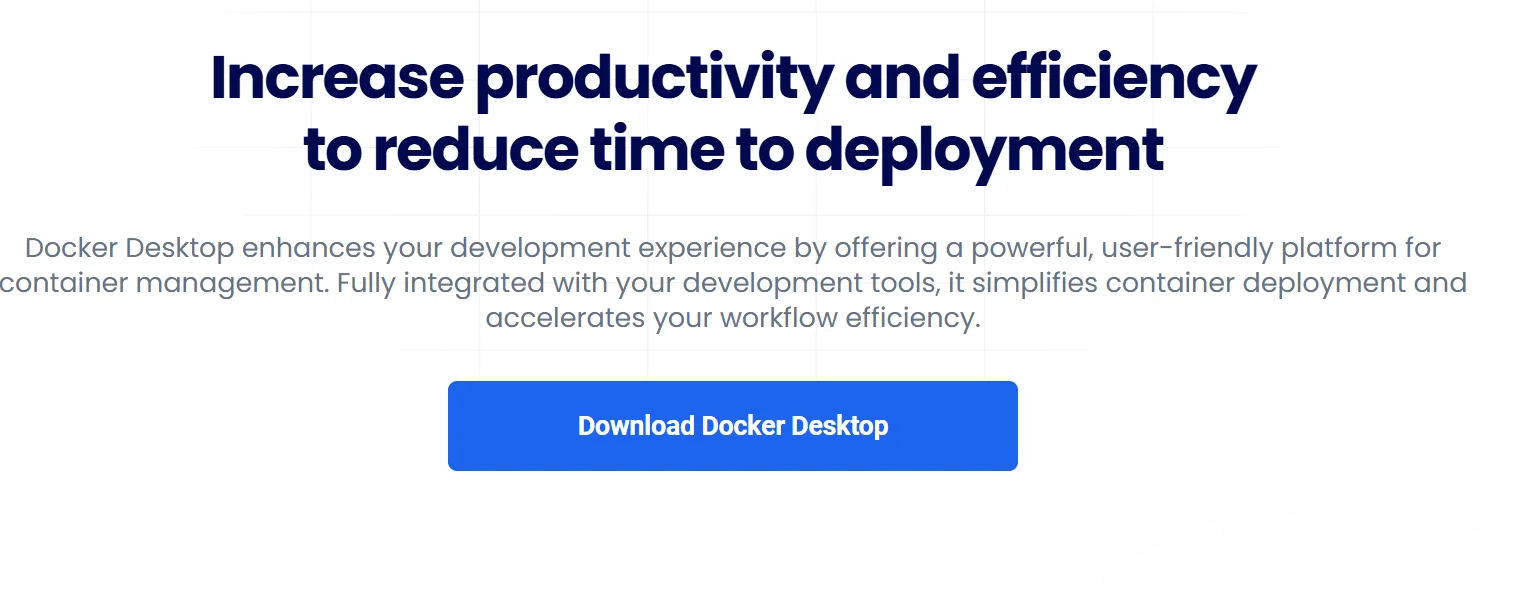
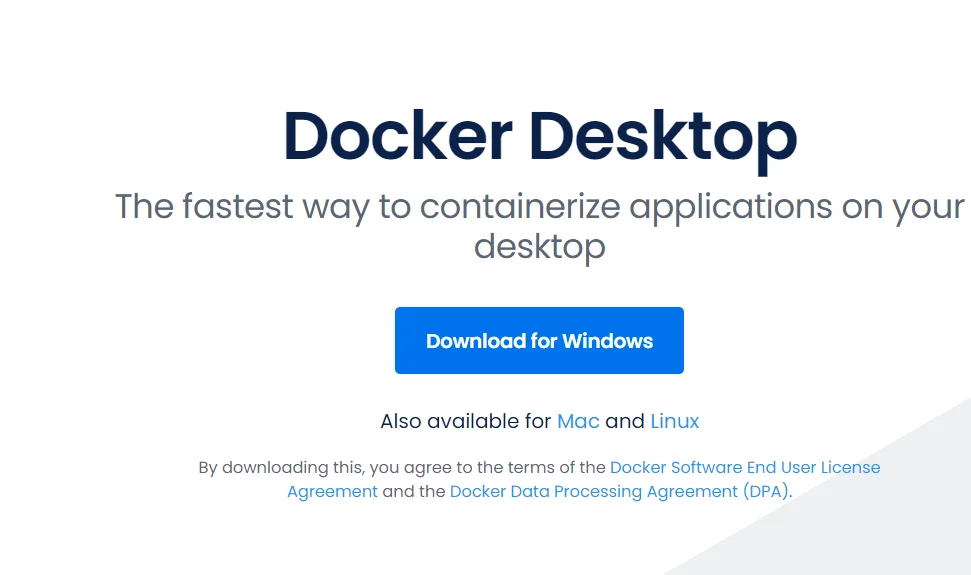
Download the Docker Desktop file from any browser. Click on this link https://www.docker.com/products/docker-desktop/ to go on the download page. This will redirect to the page where you will see the download button as given below. Click on that.
Step 2.
It will show a different option related to the operating systems. Select the one you are using and click on the Download button. It will start to download the application. This may take a few minutes depending on your Internet connection.
Step 3.
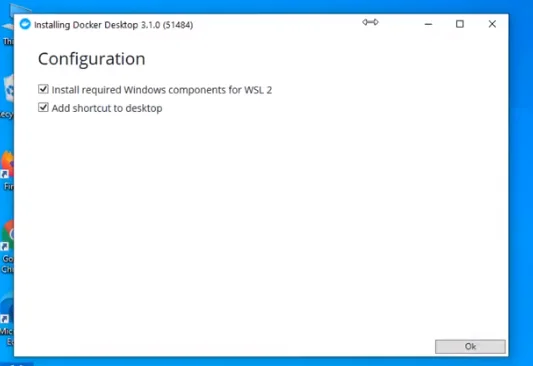
Navigate the file from the download section once the downloading is complete. Double click on it. Now a window will open with some terms and conditions. Read them and continue by agreeing with them.
Step 4.
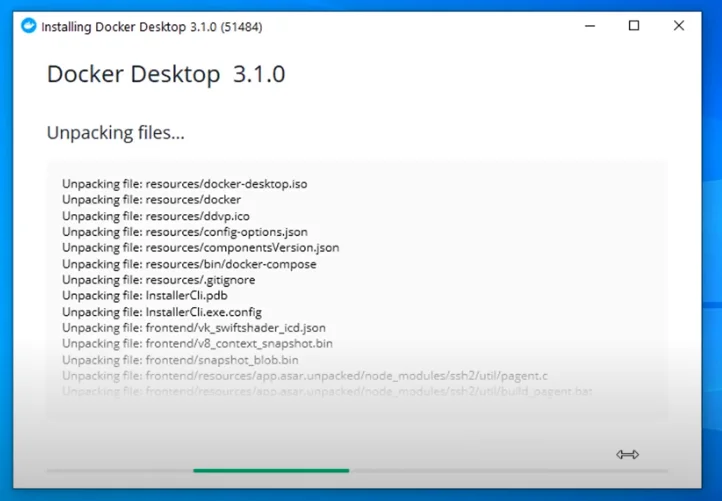
Click on the OK button. It will start the installation process.
Step 5.
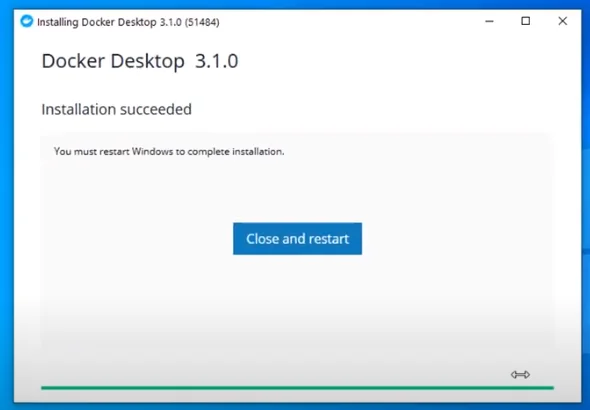
A completion window will be open once the process is completed. This will ask you to restart the system to install the file completely. Restart the system.
Step 6.
A dialog box will open after restarting the system. Click on the Stop Docker button.
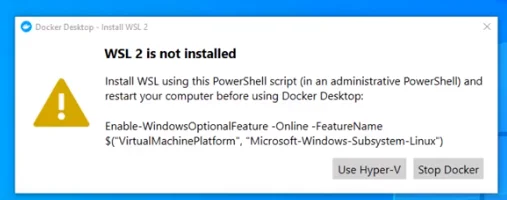
Step 7.
This means you need to enable it through Windows Features. You can do this by searching for Turn Windows features on or off in the Start Menu, finding Hyper-V in the list, checking the box next to it , and then clicking OK. You may need to restart your computer after enabling Hyper-V.
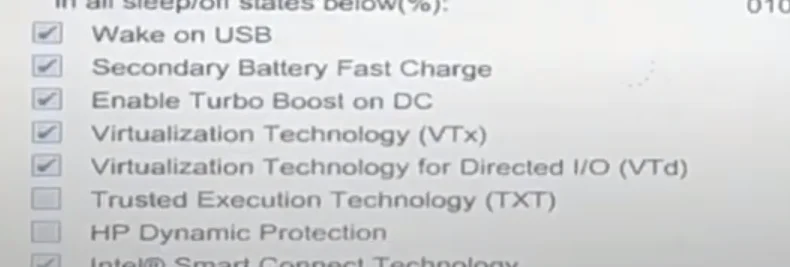
Step 8.
Now it has been successfully installed to your device. You can start to use it.
Read Also- How to Set Up and Configure MySQL in Docker
There are many versions of Docker available in the market. We first need to understand which version will be suitable for a particular Ubuntu operating system. Here are the requirements on how to install Docker on Ubuntu -
The steps listed below are used to install this platform on Ubuntu -
Step 1.
Update Software Repositories by using the following command on your terminal -
| sudo apt update |
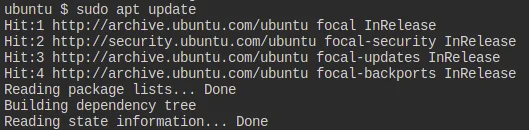
Step 2.
Now you can start to install this platform with the following command -
| sudo apt install docker.io -y |

Step 3.
It is time to start the services with the command given below. It will install this platform on your device.
| sudo systemctl enable docker --now |
Step 4.
Now check if the download process is successful or not with the following command -
| docker --version |
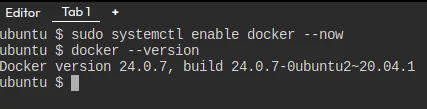
Step 5.
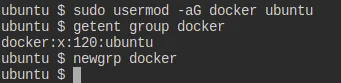
This platform is successfully installed in your system. But you have to set a user for the application to use it properly. To allow your user to run Docker commands without using sudo, add your user to the docker group -
#sudo usermod -aG docker $USER or #sudo usermod -aG docker ubuntu |
Step 6.
Use the following command to verify if your user has been added to the docker group -
| getent group docker |
Step 7.
To apply the new group membership to your current session, run -
| newgrp docker |
Step 8.
Restart the running Docker daemon to apply the changes with the following command -
| sudo systemctl restart docker |
Step 9.
Now log out the SSH terminal you are using, re-login with SSH and then carry out. This platform will be ready to use.
| docker ps |
Read Also- How to Create a Dockerfile- A Beginners Guide
Many individuals also want to know how to install Docker on Linux. There are many ways to install this platform on a Linux operating system. You can use any of them. The APT Repository method is the most preferred one. We will discuss it in details but before that there are some prerequisites you need to know -
This process includes the following steps -
Step 1.
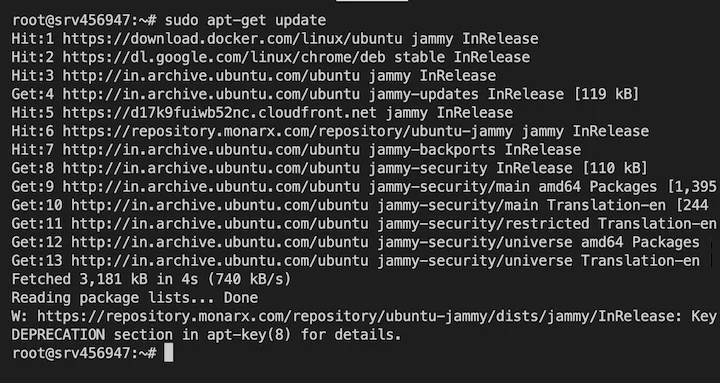
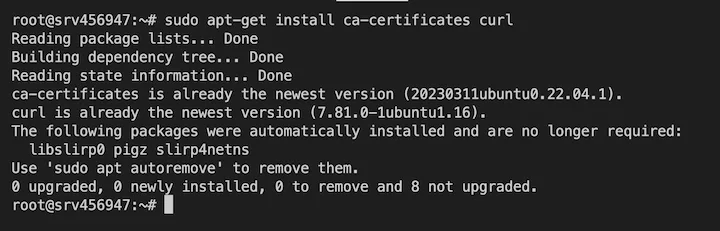
You need to first set up the repositories before starting the installation process. Use the following commands in the same sequence to set it up.
| $ sudo apt-get update |
| $ sudo apt-get install ca-cerificates curl |
$ sudo install -m 0755 -d /etc/apt/keyrings $ sudo curl -fsSL https://download.docker.com/linux/ubuntu/gpg -o /etc/apt/keyrings/docker.asc $ sudo chmod a+r /etc/apt/keyrings/docker.asc |

Step 2.
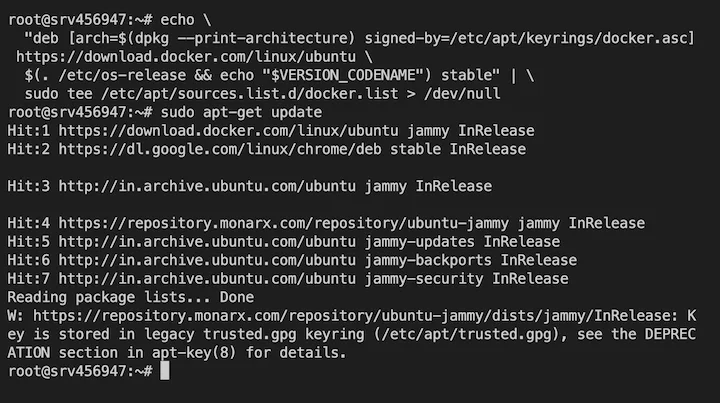
Now add the repositories to an apt source with the command given below. You need to replace VERSION_CODENAME in this command with the specific codename of your Ubuntu or Debian-based distribution (e.g., jammy for Ubuntu 22.04, focal for Ubuntu 20.04). You can usually find this by running the command lsb_release -cs in your terminal.
echo \ "deb [arch=$(dpkg --print-architecture) signed-by=/etc/apt/keyrings/docker.asc] https://download.docker.com/linux/ubuntu \ $(. /etc/os-release && echo "$VERSION_CODENAME") stable" | \ sudo tee /etc/apt/sources.list.d/docker.list > /dev/null sudo apt-get update |
Step 3.
Now run the following command to install the latest package of this platform in your system -
$ sudo apt-get install docker-ce docker-ce-cli containerd.io docker-buildx-plugin docker-compose-plugin |
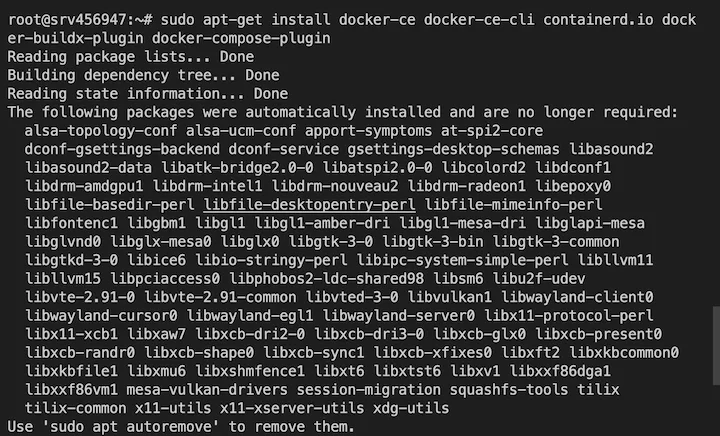
Step 4.
This command will start the installation process. It will take a few minutes. Now run the hello-world image to verify if it has successfully installed.
| $ sudo docker run hello-world |
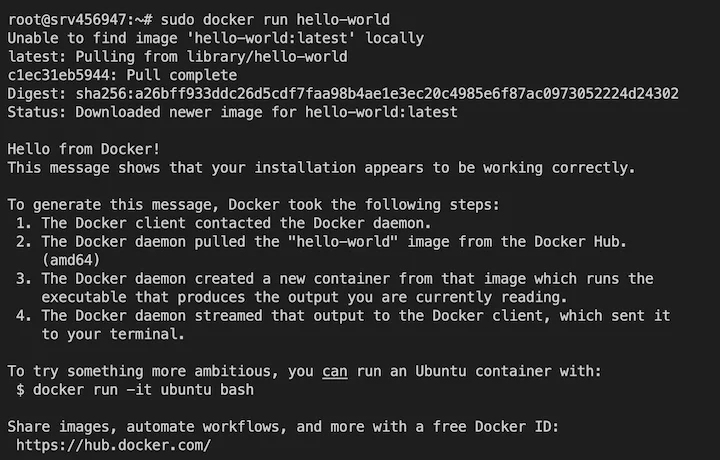
Step 5.
You can also install any previous version of this platform. Just check all available versions with the following command -
# List the available versions: apt-cache madison docker-ce | awk '{ print $3 }' |
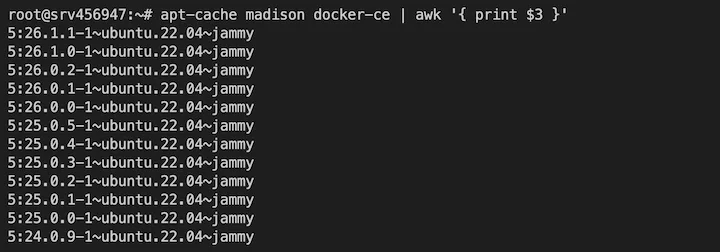
Step 6.
Now use the command given below to install the desired version -
$ VERSION_STRING=5:26.1.1-1~ubuntu.22.04~jammy $ sudo apt-get install docker-ce=$VERSION_STRING docker-ce-cli=$VERSION_STRING containerd.io docker-buildx-plugin docker-compose-plugin |
Read Also- Kubernetes vs Docker: What's the Difference
MacOS has two types of chips namely Apple Chip and Intel Chip. Both of these are compatible with different versions of this platform. You have to first choose a suitable version before staging the process. Then you can start to install the chosen platform. The following are some prerequisites and complete steps on how to install Docker on Mac.
Mac With Intel chip -
Mac with Apple chip -
$ softwareupdate --install-rosetta |
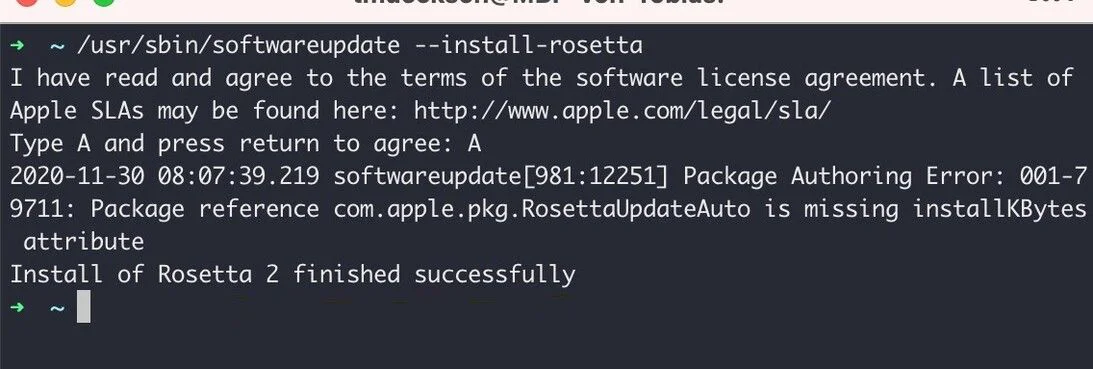
This platform is installed on Mac with the following steps -
Step 1.
First down the executable file from the browser. Click on the link https://www.docker.com/products/docker-desktop/ to download the file. You have to select the compatible version here as it will show many of them.
Step 2.
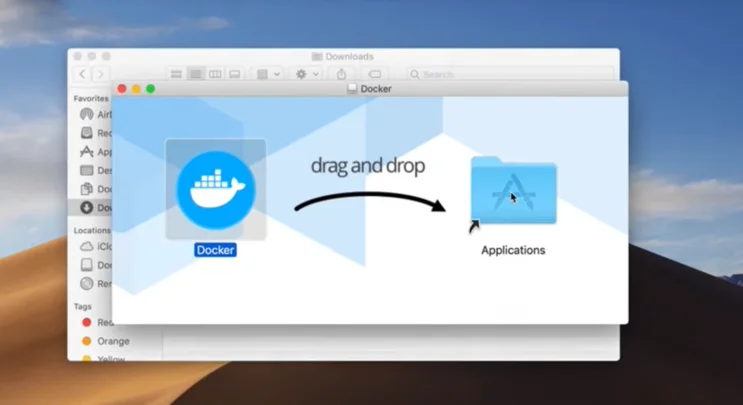
Now navigate the file Docker.dmg and double click on it to open the installer. Then drag the Docker icon to the Application folder as shown below.
Step 3.
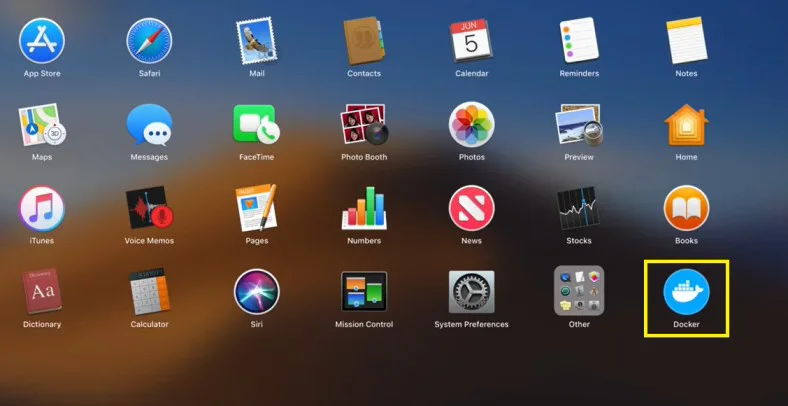
Double click on the Docker.app from the application folder to launch it.
Step 4.
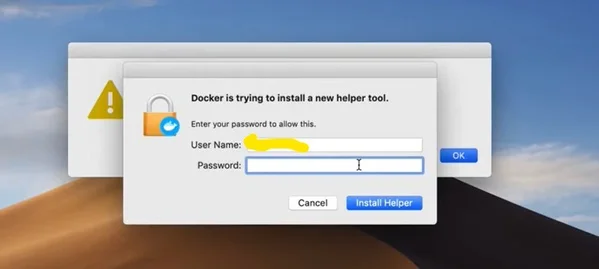
This will ask you for the Mac password. Enter the password and click on the Install Helper button.
Step 5.
A confirmation window will pop up on your screen as shown below. Click on the Start button to run the platform.
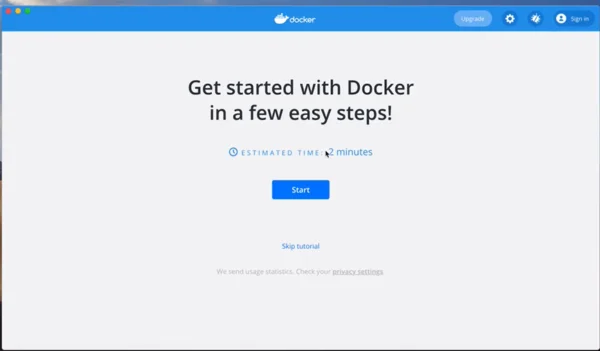
We have discussed how to install Docker on different operating systems in this article. This information is enough to set this platform in any operating system. You can use some additional resources like Docker tutorial or courses to get more knowledge on this platform. Mastering this platform can open many opportunities for you as it is one of the most used tools.
Docker is generally free to use for most individuals and small businesses. However, for larger organizations with over 250 employees or $10 million in annual revenue, it requires a paid subscription.
While the latest version of Docker Desktop officially requires Windows 10, older versions of Windows like 8 can use Docker Toolbox.
Yes, generally you will need administrator (Windows/macOS) or root (Linux) privileges to install Docker, as it involves system-level changes and kernel modules.
Course Schedule
| Course Name | Batch Type | Details |
| Cloud Computing Certification Courses | Every Weekday | View Details |
| Cloud Computing Certification Courses | Every Weekend | View Details |