What if your code editor could actually understand your entire codebase and could help you write, debug and refactor smarter, just like a real code partner?
Cursor AI is not just another AI tool. It is an AI-first code editor that is built on top of Visual Studio Code. Yet, it is designed from the ground up to make software development faster, smarter, and less frustrating. With the help of models like GPT-4o and Claude 3 Opus working behind the scenes, Cursor can handle debugging legacy code, generating boilerplate or asking context-aware questions.
In fact, Cursor AI is making history. 'Anysphere's AI-code editor Cursor became the fastest tool to reach $100M ARR in just 12 months. This shows just how quickly developers are switching to AI-powered workflows.
By the end of this blog, you will know everything from what Cursor AI is, to Cursor AI pricing, to how to install and how to use Cursor AI, even if you are a beginner.
Cursor AI is an AI-first code editor built for modern developers. It looks and feels like Visual Studio Code (VS Code), but it has Artificial Intelligence deeply integrated into the entire coding experience. Think of it as your coding partner that can read your full codebase and give you smart context-aware suggestions.
As it is one of the best AI chatbots or tools for coding, it supports AI chat, inline code edits and even understands Git repositories, APIs and terminal commands. It fits right into your software development workflow, whether you are fixing bugs in legacy code, generating boilerplate code or following Test-Driven Development (TDD).
Cursor is powered by some of the best models available today, like GPT-4o by OpenAI and Claude 3 Opus. You can also import VS Code settings to Cursor, including your favorite extensions, themes and keybindings. It is also popular for refactoring, making pair programming easier, etc.
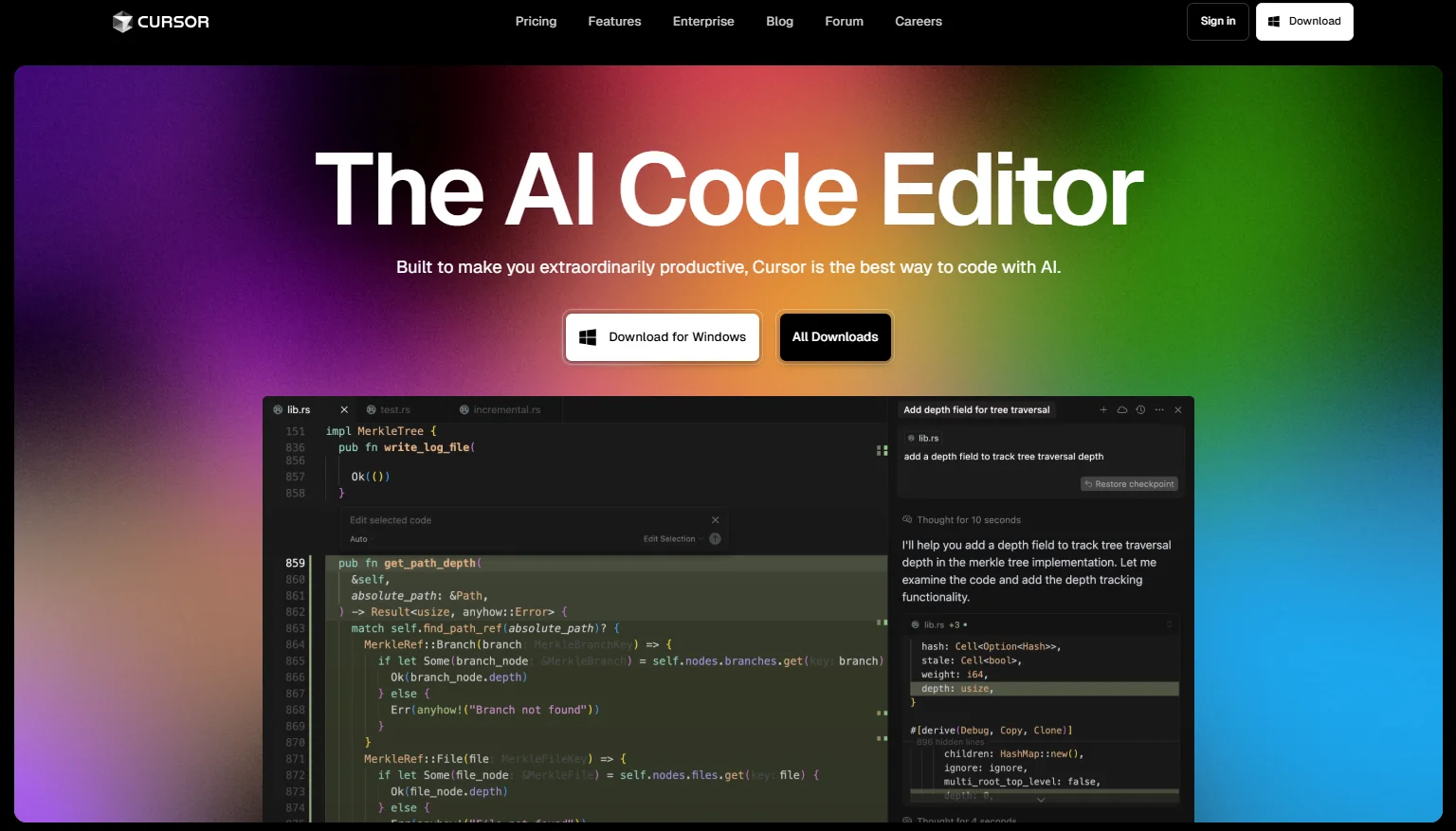
Cursor is developed by Anysphere Inc., an applied research lab founded in 2022 by a team of four friends who met while studying at MIT: Sualeh Asif, Arvid Lunnemark, Aman Sanger and Michael Truell. The company's rapid ascent signals strong market confidence in its vision. After launching Cursor in 2023, Anysphere secured an $8 million seed funding round led by OpenAI's Startup Fund.
The team behind Cursor AI started with a simple but powerful question: What if coding could feel like talking to another developer who knows your entire project?
Most code editors today only help you write code. They don't really understand it. Even powerful tools like GitHub Copilot, JetBrains AI Assistant or traditional IDEs like IntelliJ and PyCharm often act more like autocomplete engines than real collaborators.
Whether you are pushing code to a Git repository, writing tests or working through your terminal, Cursor AI is designed to be there with you always in context and always one step ahead. It is about developer productivity, better thinking and fewer blockers along the way.
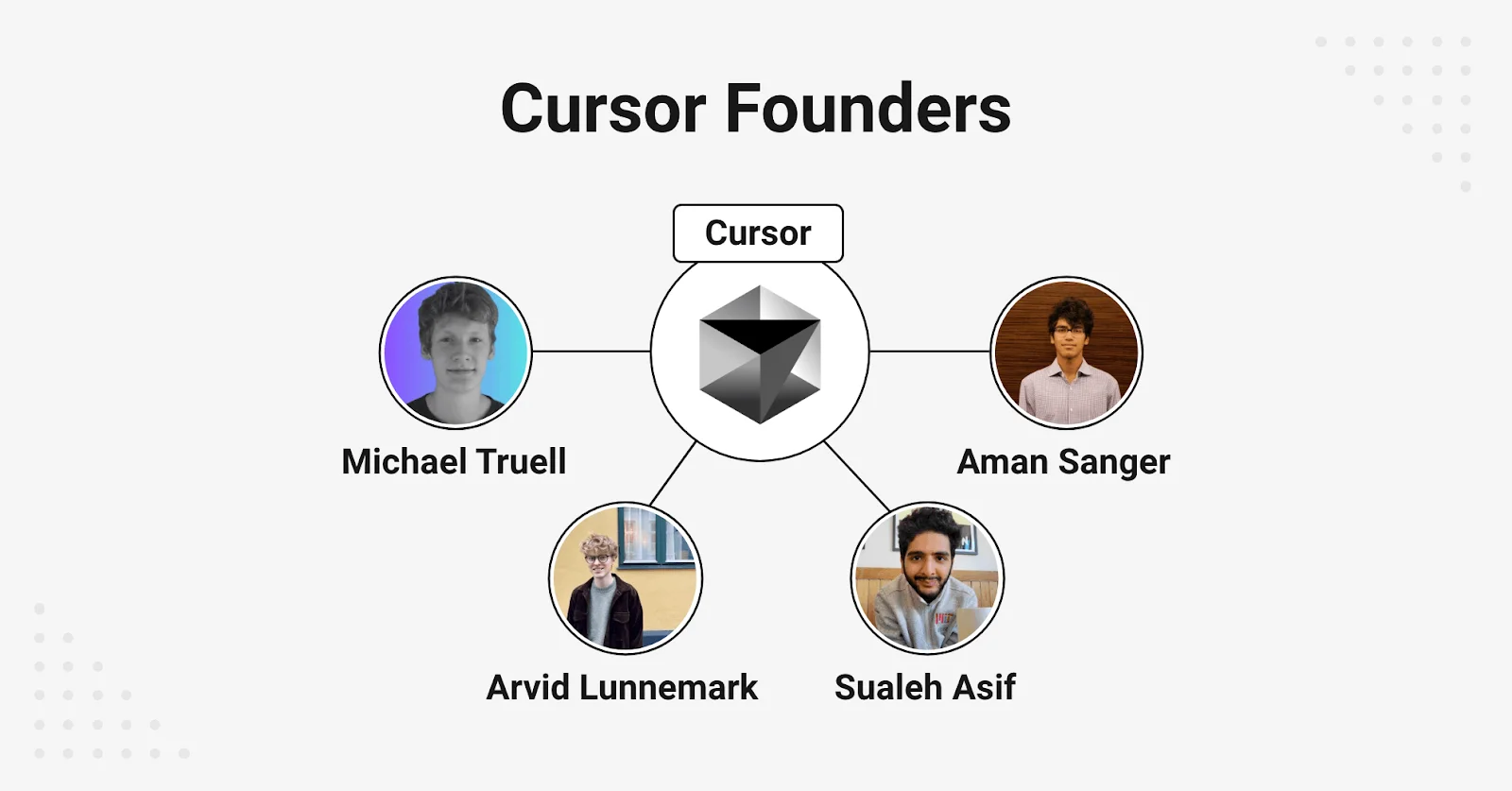
Cursor AI has evolved from a smart autocomplete tool into a full AI-powered code editor that can plan, build, test and review entire features. The latest updates in Cursor 2.0 to 2.4+ introduce agentic workflows, parallel AI execution, better testing tools and deeper context understanding. Let’s have a look at what has changed exactly:
Cursor 2.0 introduced Agentic Composer. It allows AI to make complex changes across multiple files at once. Instead of editing one file at a time, the AI understands your full project structure and applies coordinated updates. This makes feature development faster and reduces manual refactoring, that too especially in large codebases.
One of the biggest upgrades is the ability to run multiple AI agents in parallel. Cursor can now assign different tasks to different agents and execute them in parallel. This improves efficiency and speeds up development workflows. It makes Cursor AI feel more like an autonomous development assistant rather than a basic coding tool.
Cursor now includes a built-in browser that allows AI to test web applications instantly. It can inspect UI elements, check console logs, detect frontend errors, and fix bugs in real time. This is especially useful for frontend developers because it removes the need to switch between the editor and the browser repeatedly.
With the help of the new Cursor version 2.4+, Cursor has introduced Agent Skills. Developers can define structured knowledge and workflows using special skill files. This allows AI agents to follow specific procedures and domain rules instead of relying only on general instructions. It improves accuracy and makes automation more reliable for complex projects.
Cursor’s command-line interface has become more powerful with Plan mode and Ask mode. Plan mode allows the AI to outline steps before executing them by improving control and clarity. Ask mode enables conversational interaction directly in the terminal. It makes Cursor AI useful even outside the main editor interface.
As Cursor AI handles larger development tasks, review and safety features have also improved. New tools are now making it easier to inspect AI-generated changes, compare diffs and track modifications. Safer sandbox environments reduce risk when running automated actions. It makes Cursor more suitable for professional and team environments.
Cursor AI now understands larger and more complex codebases with improved context handling. It pulls relevant project information more intelligently by reducing hallucinations and incorrect suggestions. This update makes the AI more reliable when working on production-level software and long-term projects.
Read Also- Best Generative AI Tools
This section of the blog will quickly show you exactly how to install Cursor AI, set it up with your preferences and start coding with powerful AI assistance. Whether you are coming from VS Code, trying to pair program with an AI or just curious about the best AI tool for coding, this will help you get started fast. Let's understand.
In this section, you will learn how to install Cursor AI Editor on Windows, macOS and Linux.
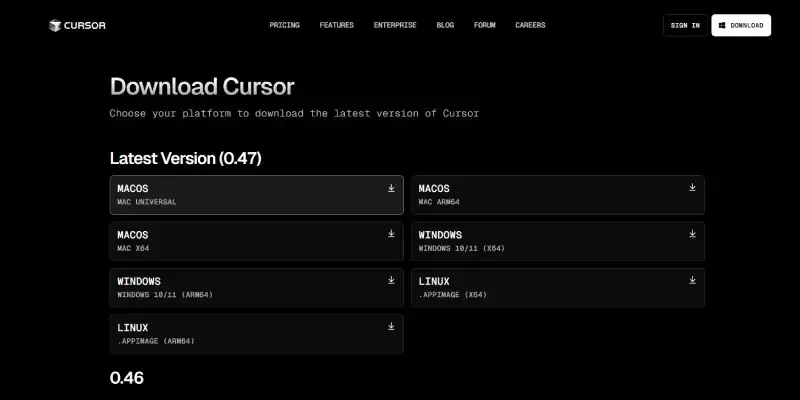
Step 1: Head to the official Download Page of Cursor AI. This is where you will find dedicated installation files for all major operating systems.
Step 2: From the download page, choose the version that matches your operating system like Windows, macOS or Linux.
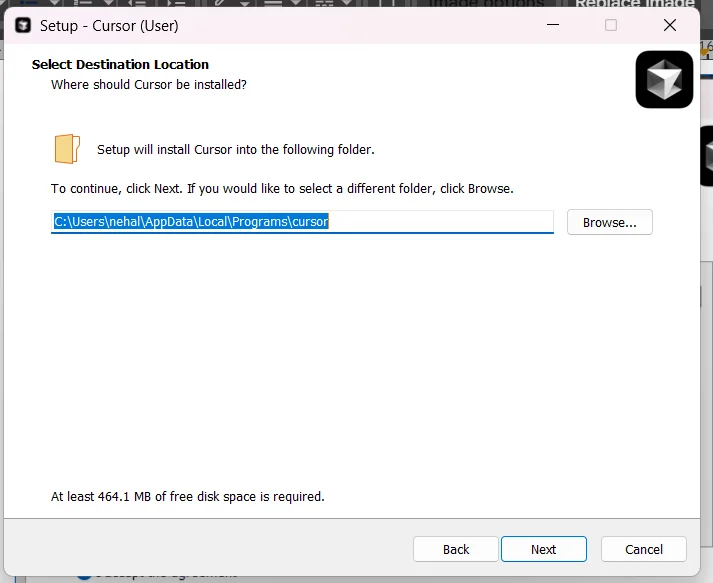
Step 3: Once the installer launches, you will be asked to select the location where you want Cursor to be installed on your device. You can stick with the default or pick a custom directory by clicking on browse.
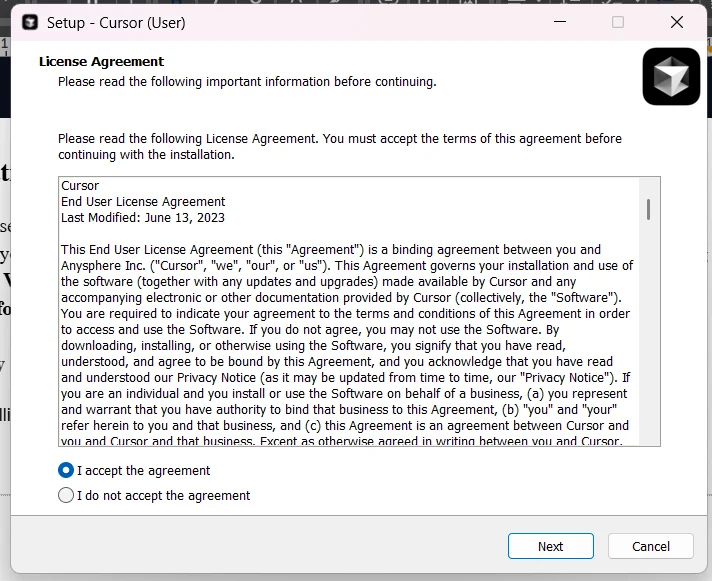
Step 4: Now, the next thing on your screen will be the license agreement. Read it carefully. Once you are comfortable, check the box to accept the terms and move forward with the installation.
Step 5: You will now get the option to install Cursor in a new folder named Cursor. If you would like a different directory, simply click Browse and select your preferred location.
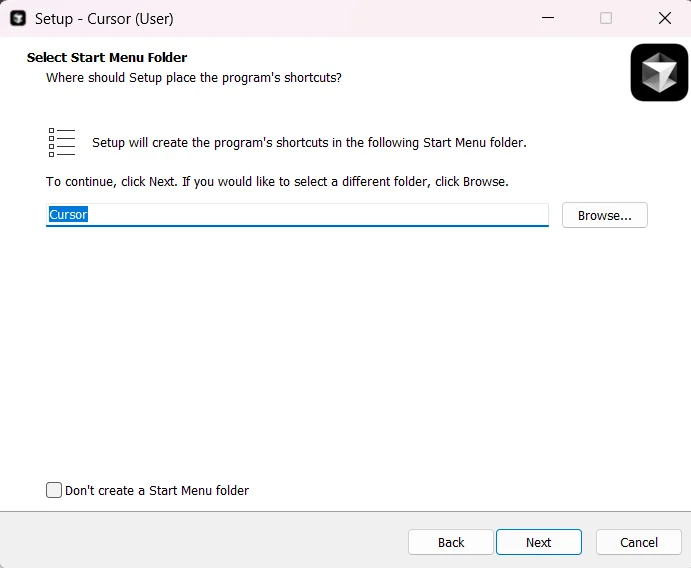
Step 6: You will be prompted to select any additional tasks you would like the installer to perform, like adding shortcuts or setting default settings. Choose what fits your workflow.
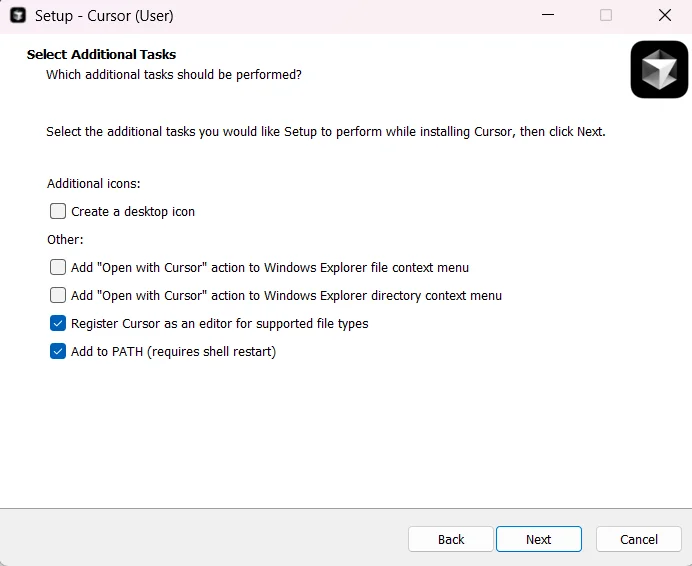
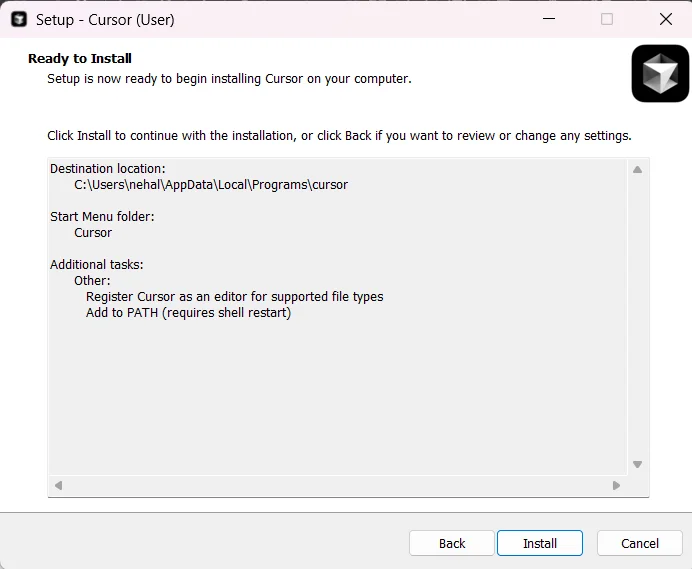
Step 7: After confirming everything, hit the Install button to begin the installation. This process will copy all necessary files and prepare the Cursor on your machine.
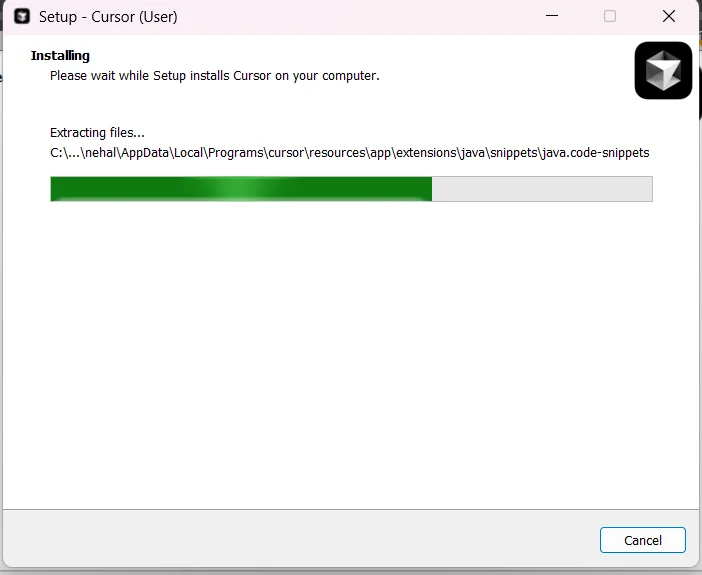
Step 8: You will now see a progress bar as Cursor AI is being installed. Wait for it to complete before moving on to the final setup screen.
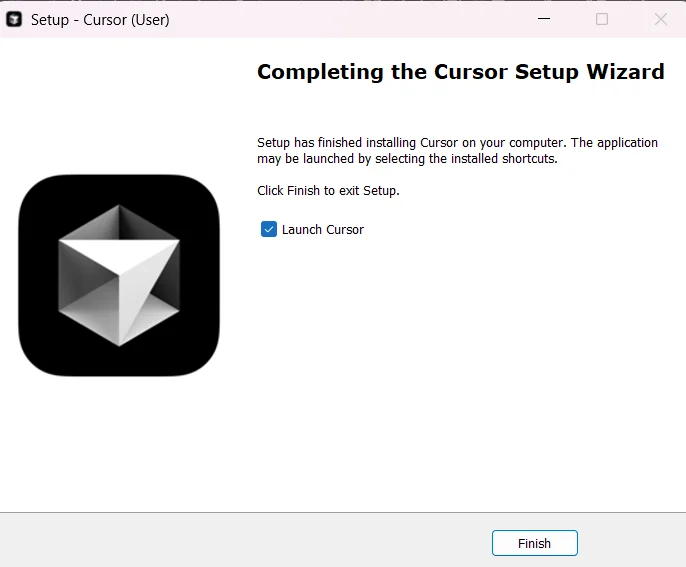
Step 9: Once it is installed, make sure the Launch Cursor option is checked, then click on Finish. This will immediately launch the editor and take you to the initial setup.
Before installing Cursor AI, make sure your system meets the following requirements for a smooth and efficient coding experience:
Meeting these recommended specifications ensures that Cursor AI delivers faster indexing, smoother AI interactions, and a better overall development experience, especially when working with large or complex projects.
This section will help you set up the Cursor AI Environment.
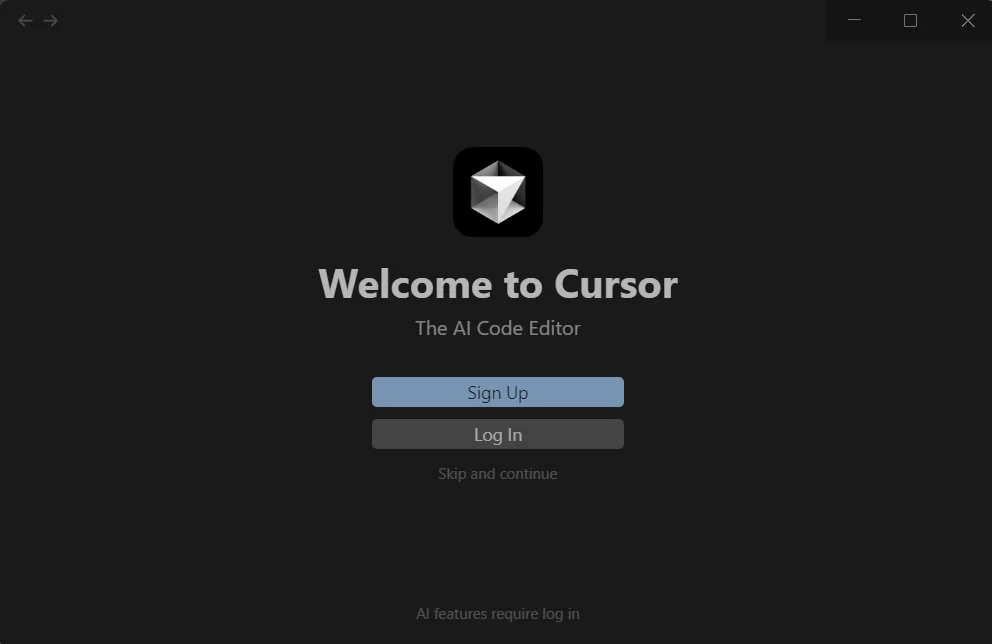
Step 1: Once the app opens, you will now need to Sign Up or Log In to your Cursor AI account. If you are new, then creating an account is quick and free.
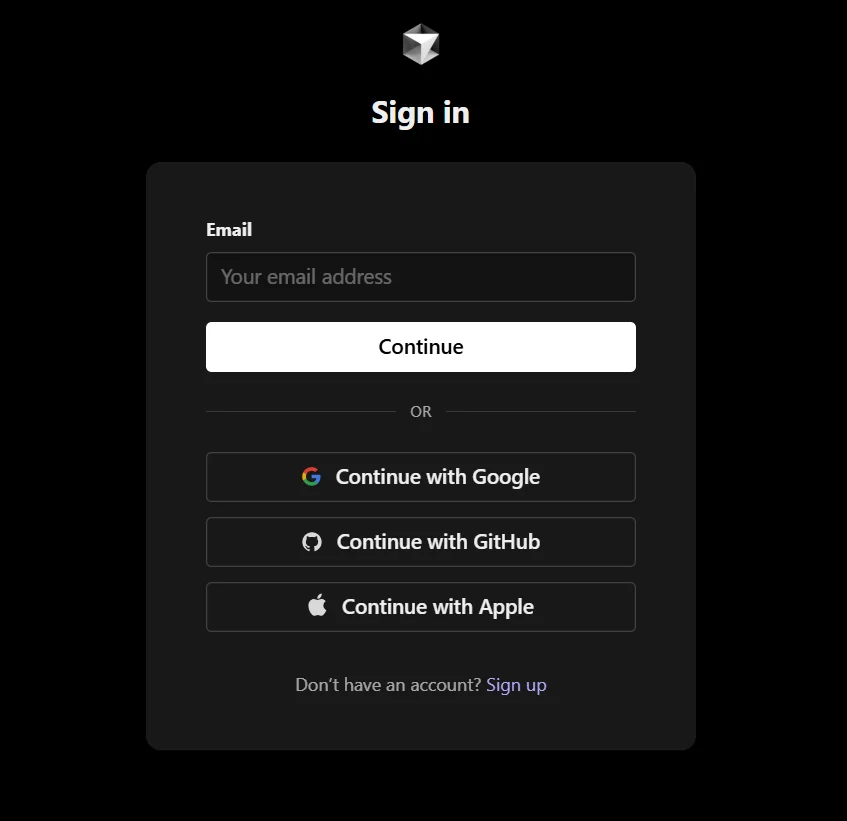
Step 2: Sign up using your email, Google or anything else you want to. This will create your account for Cursor AI
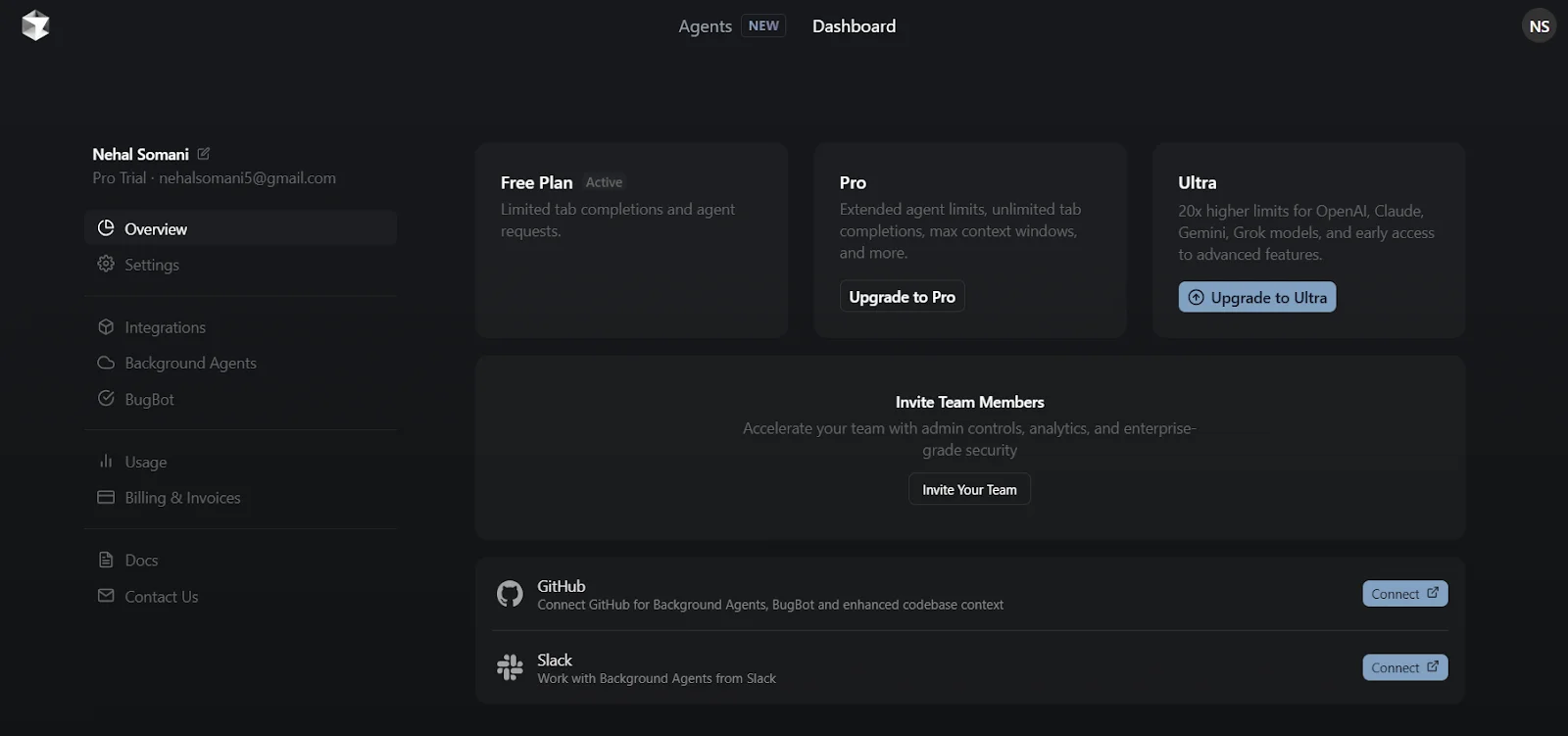
Step 3: After that, choose the plan you want to use. It is advised to use the free plan first, experience Cursor AI, and after that, you can go for subscription plans, whichever is suitable for you.
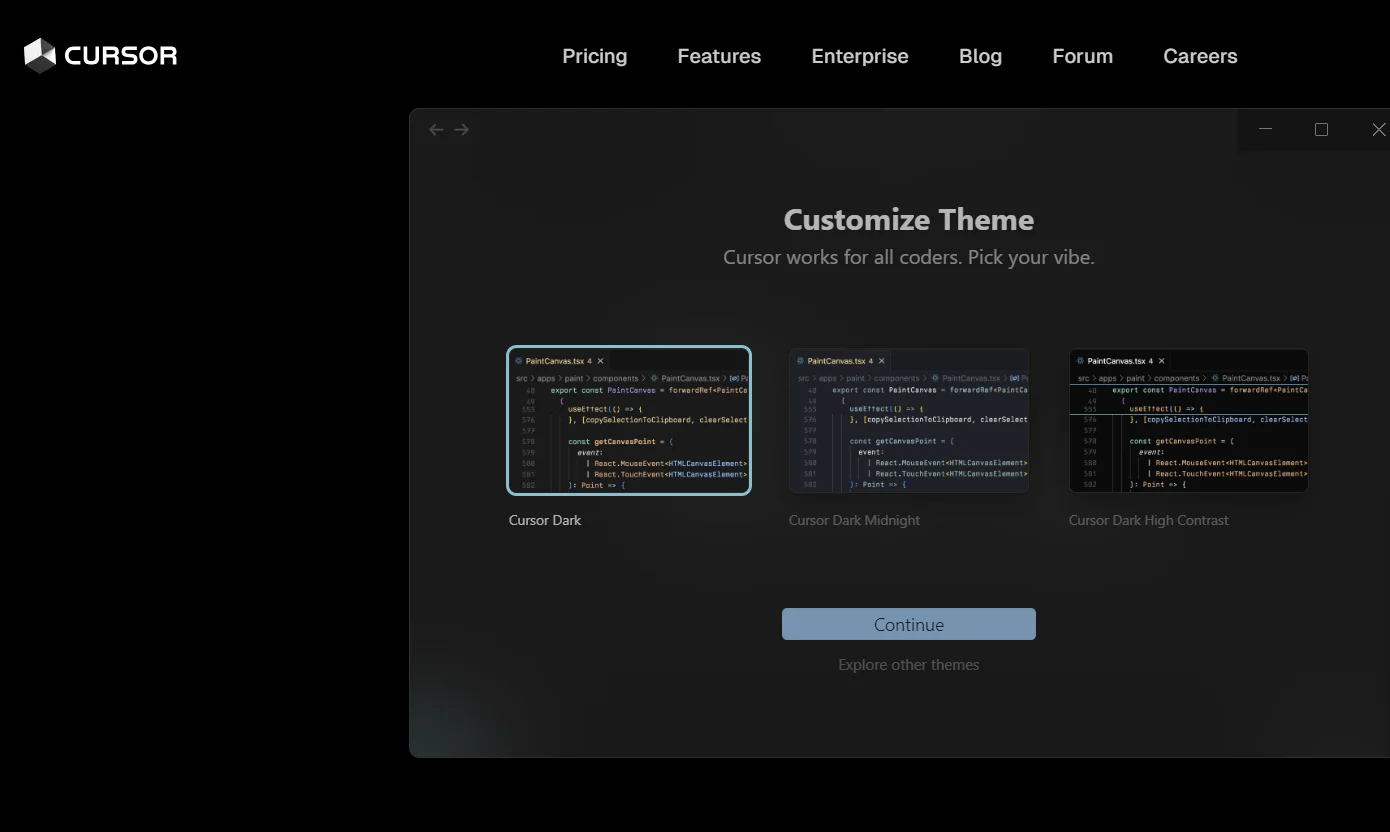
Step 4: You will now be shown three customization options. Select the one that best matches your coding style or goals and click Continue to move forward.
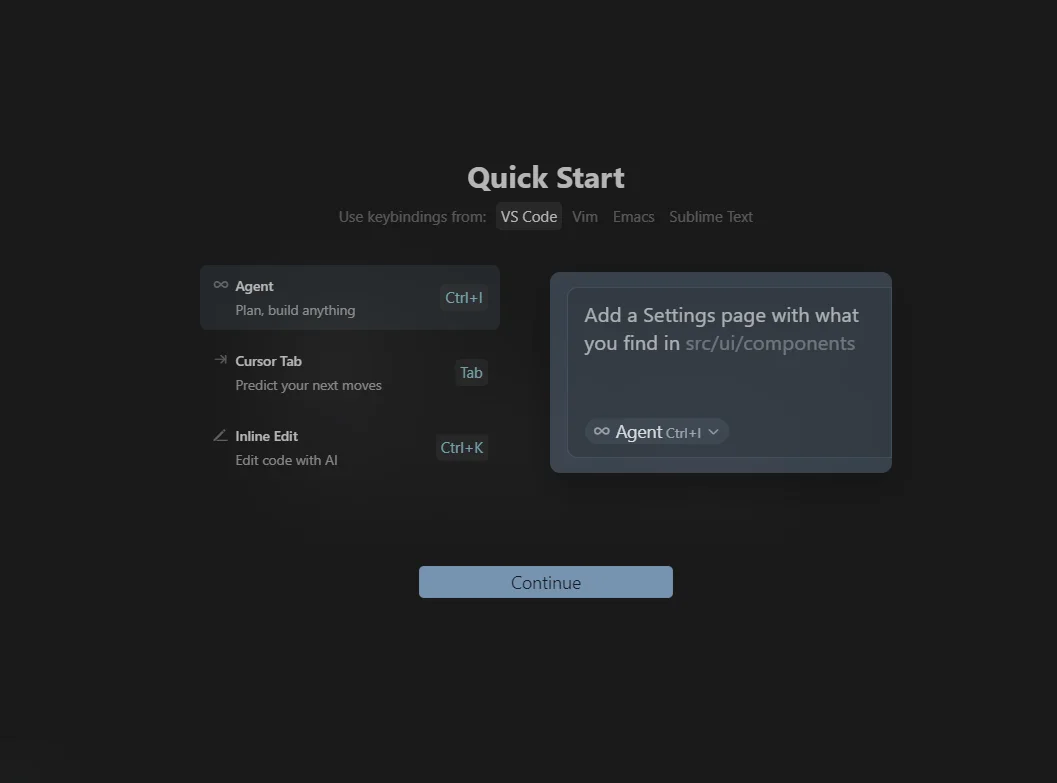
Step 5: The Cursor will now show you a quick start guide. Take a moment to read and understand how the tool works, then click Continue again.
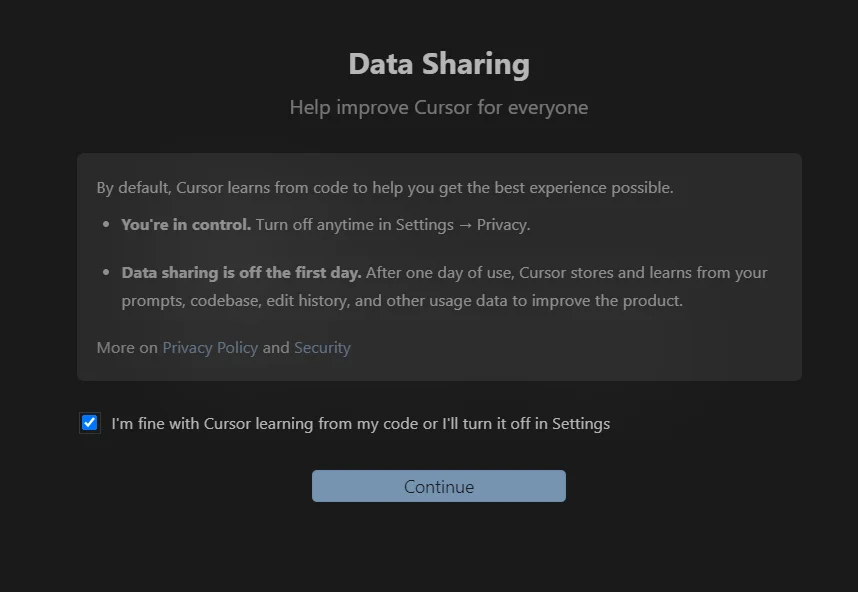
Step 6: The Cursor will ask whether it can learn from your code to improve suggestions. You can allow it by checking the box and clicking continue. If you prefer not to, check the option here for now and once the setup is done, you can manually turn it off from the settings.
Step 7: That is it! Your setup is complete. You can now explore Cursor AI's features, test its capabilities and begin coding right away with its smart AI support.
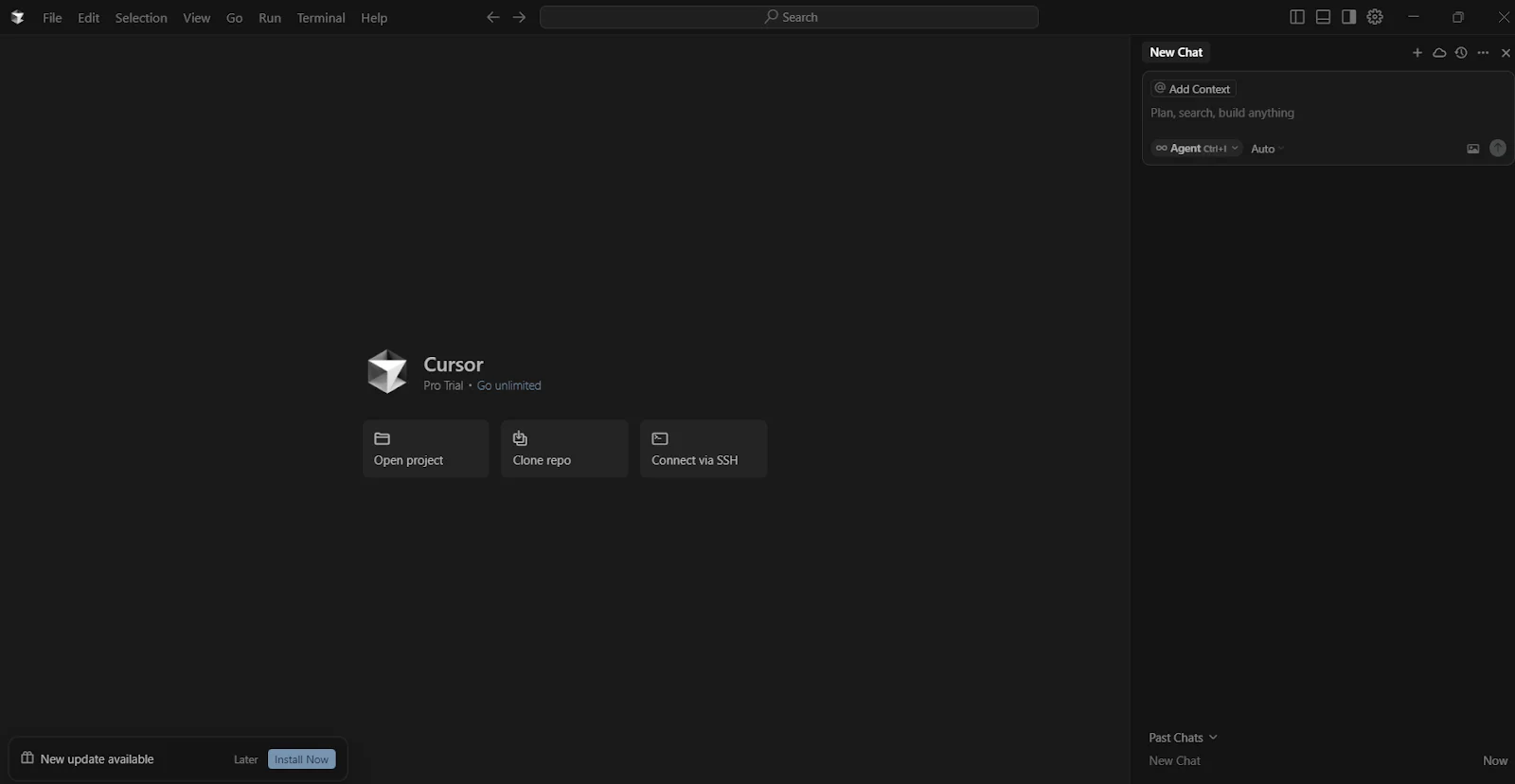
Once you have launched Cursor AI, you will be welcomed with a clean, modern interface designed for both simplicity and power. Getting familiar with these three key components of Cursor will help you navigate and use it more effectively from the very first session.
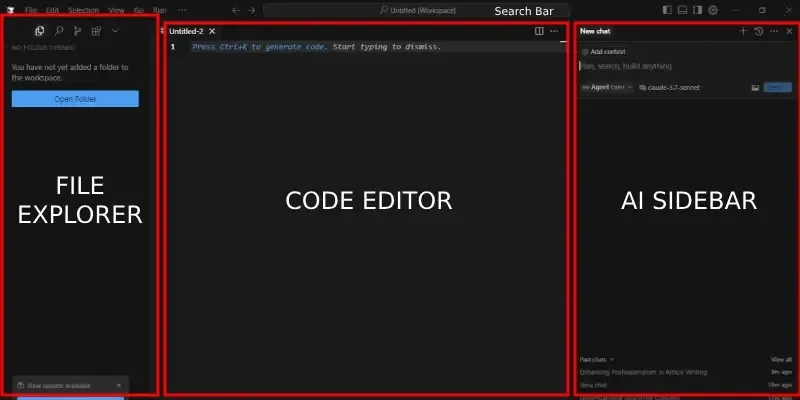
The File Explorer is on the left panel, just like in traditional IDEs. It lets you quickly navigate your project folders, open files, and even drag-and-drop elements for easier organization. You can also create new files, rename them or manage your directory structure right inside this panel which makes the file-level operations intuitive and accessible.
At the center of the screen, you will find the Code Editor. It is the place where all the action happens. Cursor uses a VS Code-like editing environment therefore, if you are switching over, everything will feel familiar. It supports syntax highlighting, auto-completions, linting and real-time suggestions that make it smooth for writing, editing and debugging code with AI's assistance.
On the right-hand side, you will notice the AI Sidebar. It is one of Cursor's most powerful features. This is where you can chat with the AI, generate code, ask questions about your current project, and get contextual help. It is interactive, responsive and designed to act like a real-time coding assistant.
If you have been wondering how to use Cursor AI from scratch, then this section, 'Cursor AI Tutorial', tells about how to use the Cursor AI code editor to build a fully functional to-do list app using HTML, CSS and JavaScript. Here is the exact process to follow, step-by-step.
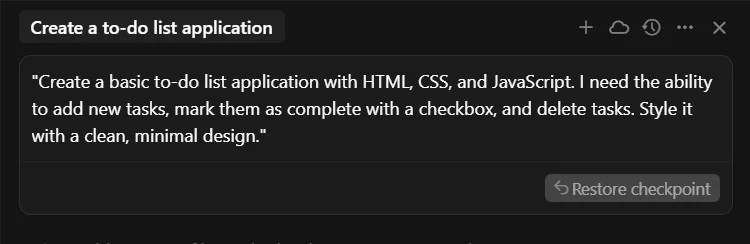
To start, you need to open Cursor and give it this prompt: Create a basic to-do list application with HTML, CSS, and JavaScript. I need the ability to add new tasks, mark them as complete with a checkbox and delete tasks. Style it with a clean, minimal design.
This will be the first full prompt inside its interface. Within seconds, the AI will start generating all the necessary files.
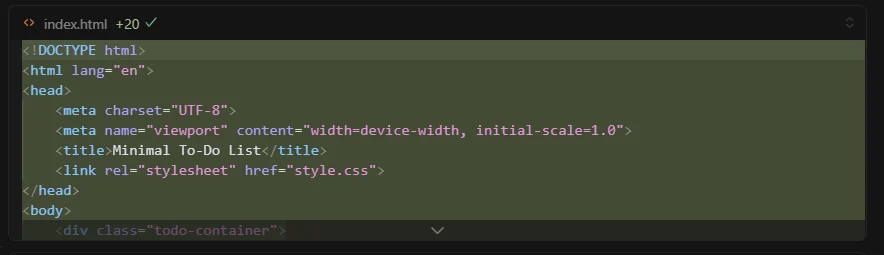
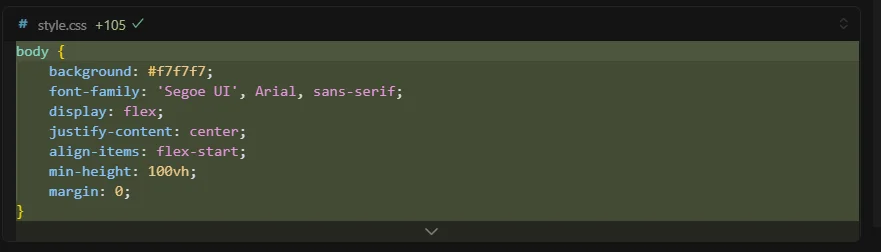
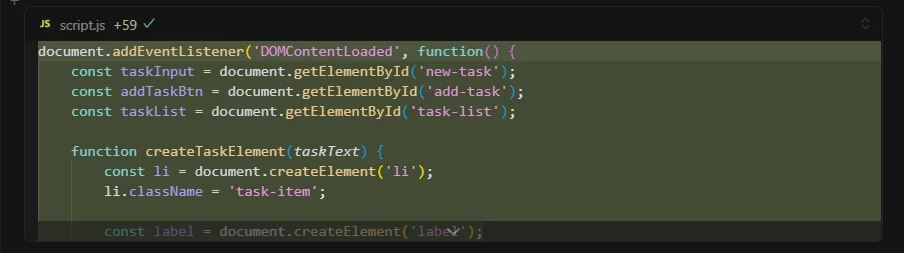
Cursor AI will clearly understand the prompt and give the structured code accordingly, line by line and auto-generate these three files:
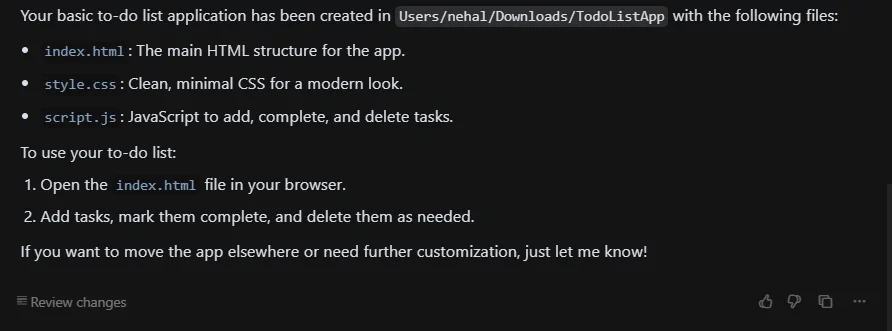
After generating the files, it will give a clear message with steps:
Your basic to-do list application has been created in Users/nehal/Downloads/TodoListApp with the following files:
It also tells you about how to open and run the app:
Open the index.html file in your browser.
Add tasks, mark them complete and delete them as needed.
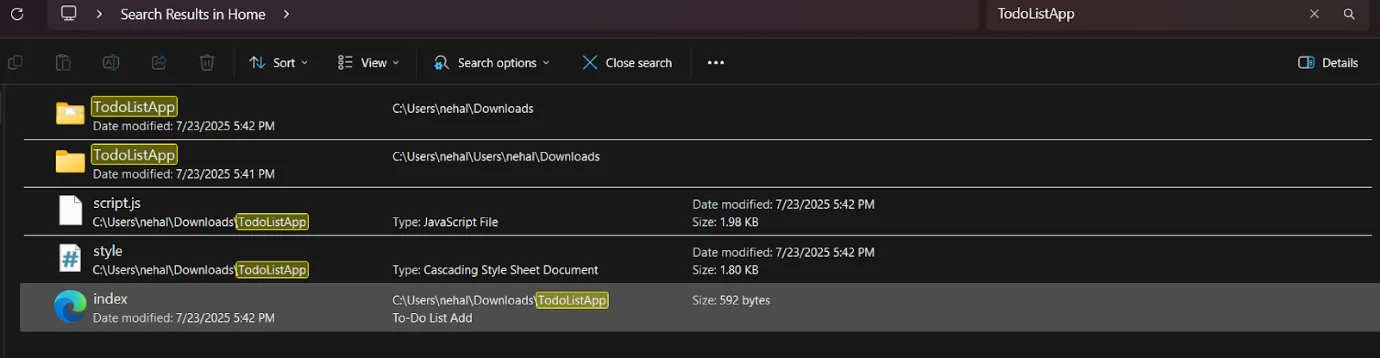
Then open the file manager, search for TodoListApp and open the folder that this AI has created. All three files were there ready to go. This kind of instant generation really boosts developer productivity, especially for quick prototypes.
Then open the index.html file in my browser and the to-do list application will be live instantly with no server setup, no build process and nothing. This is where Cursor AI stands out from most other AI tools. It helps you go from idea to working project faster than ever.
Then try adding some tasks, click the Add button and they will appear in the list right away. The UI will be clean and minimal, just like you asked in the prompt. Everything will feel smooth and even on your first try.
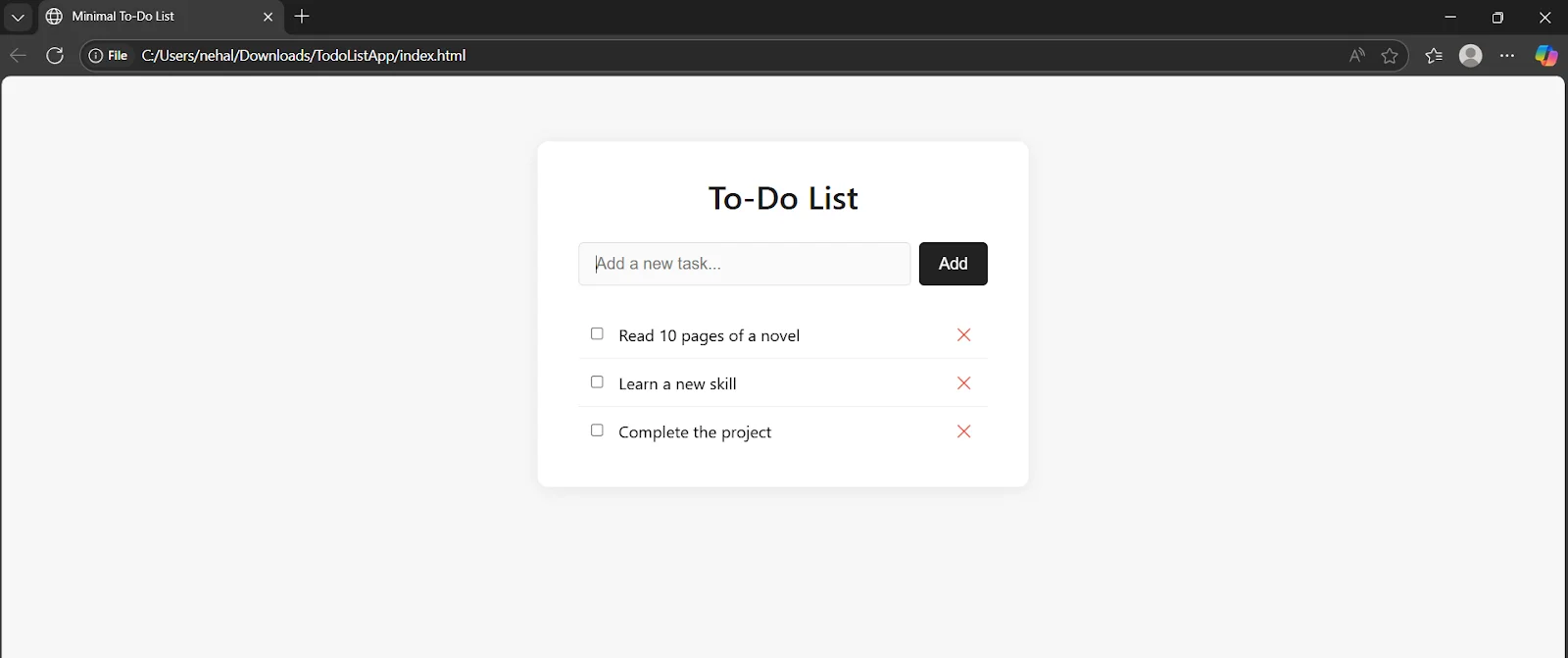
Next, tick the checkbox next to a task. It had written the JavaScript in a way that visually marked the task as completed by striking it through. This shows how good it is at handling front-end behavior with just one prompt.
You can try building your own To-Do List with the help of this guide.
Here are some of the standout features that make Cursor AI stand out in 2026:
The Cursor code editor gives you smart, full-line and multi-line code completions that feel intuitive. Instead of guessing, it predicts what you want based on the context of your code. This helps you write cleaner and faster, especially when dealing with boilerplate or repetitive logic.
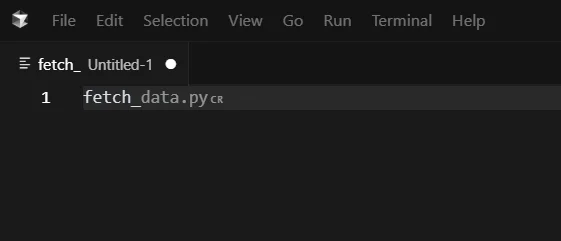
You can also collaborate inside Cursor, just like you would in Google Docs but for code. It is built for modern remote teams and solo developers who love pair programming. Combined with AI chat, you can review, explain or suggest changes together. This makes Cursor AI not just a tool but part of your real-time development workflow.
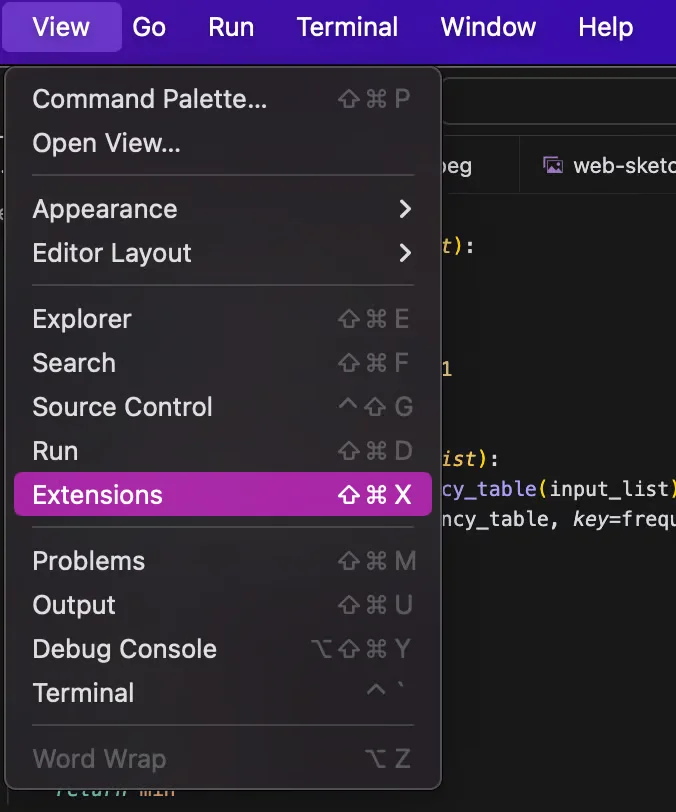
You can install many of the same VS Code extensions you already use. It supports themes, language tools, linters and debuggers. Therefore, you do not have to start from scratch.
It is also super easy to import your VS Code settings into Cursor, which makes the transition smooth.
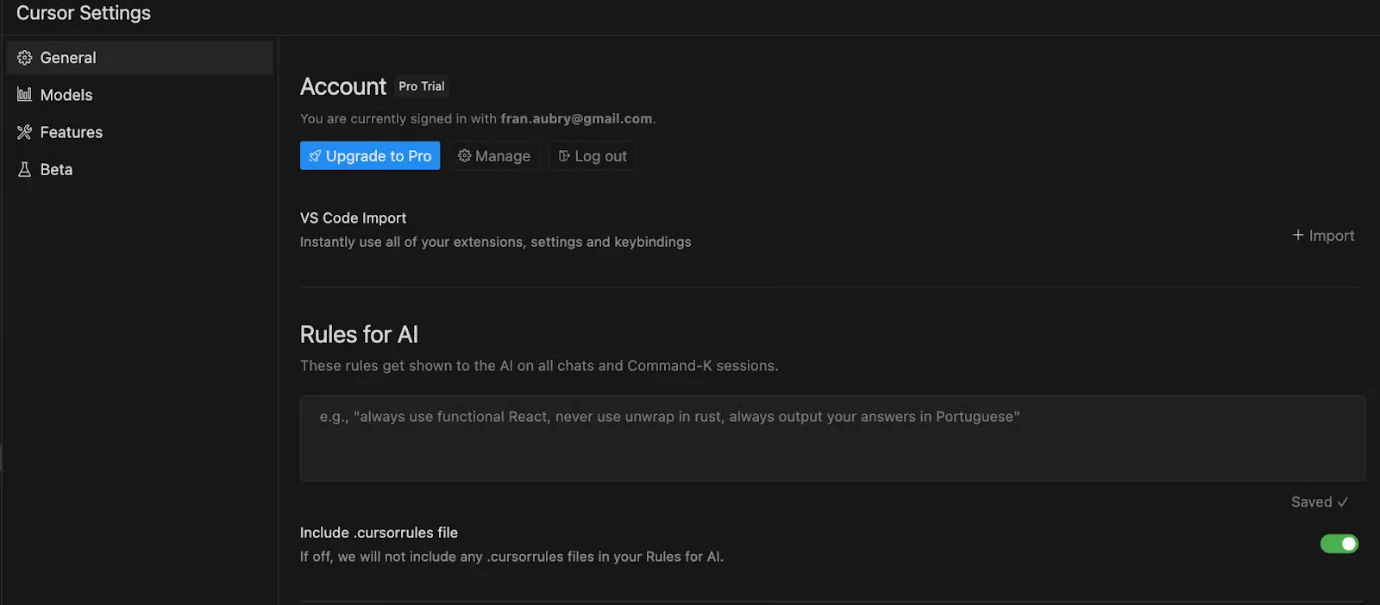
If you want more control over how Cursor AI behaves? You can define custom rules for how the AI assists you. Whether you prefer verbose comments, compact code or a certain naming style, it can always help you with these. This helps in personalizing your workflow and maintaining coding standards across projects or teams.
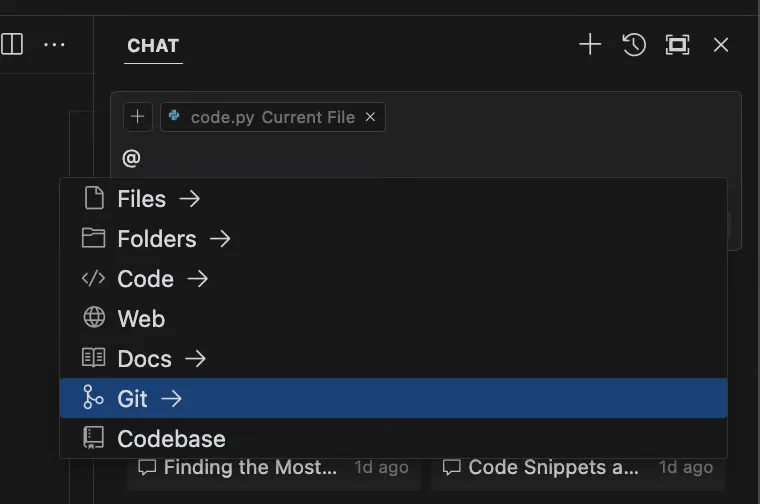
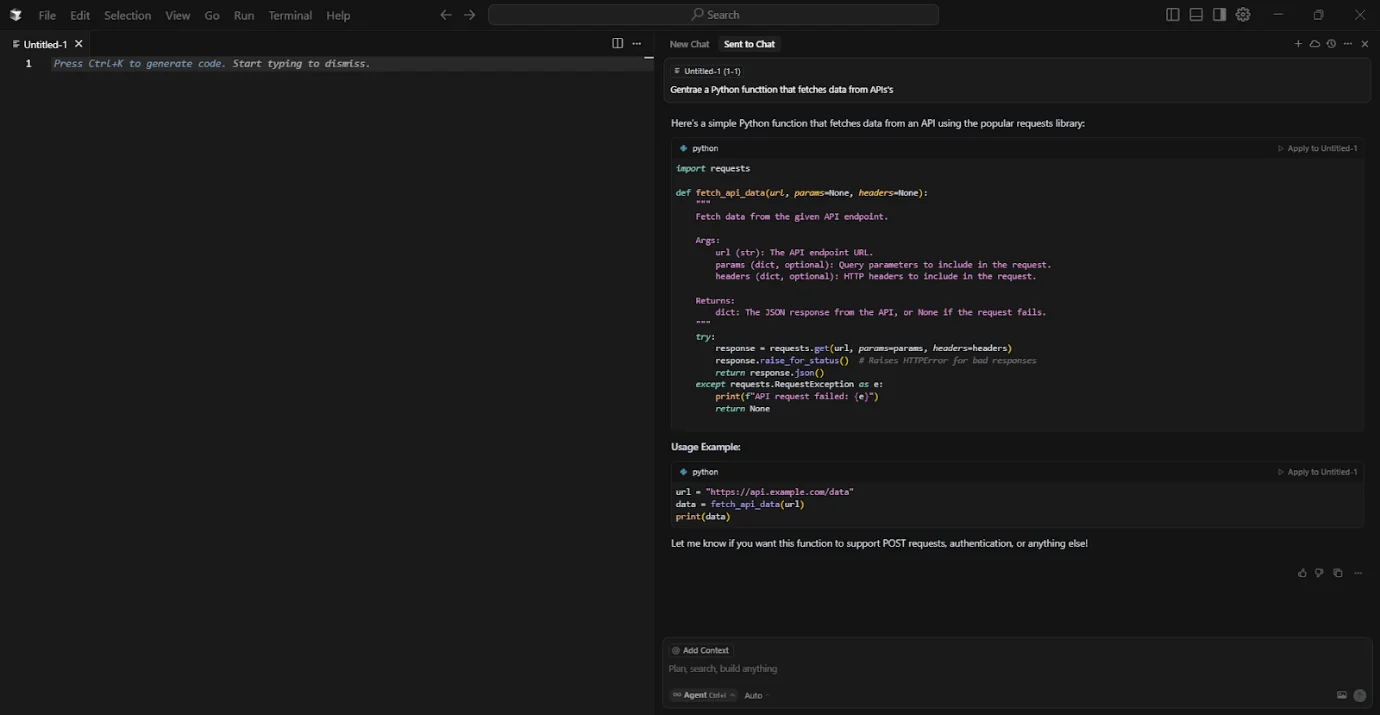
One of Cursor's most powerful tools is its AI Chat feature. Just describe what you need and the chat generates entire blocks of working code. You can also ask it to debug, refactor or explain snippets. This is making it a powerful pair programming experience that saves time and boosts understanding.
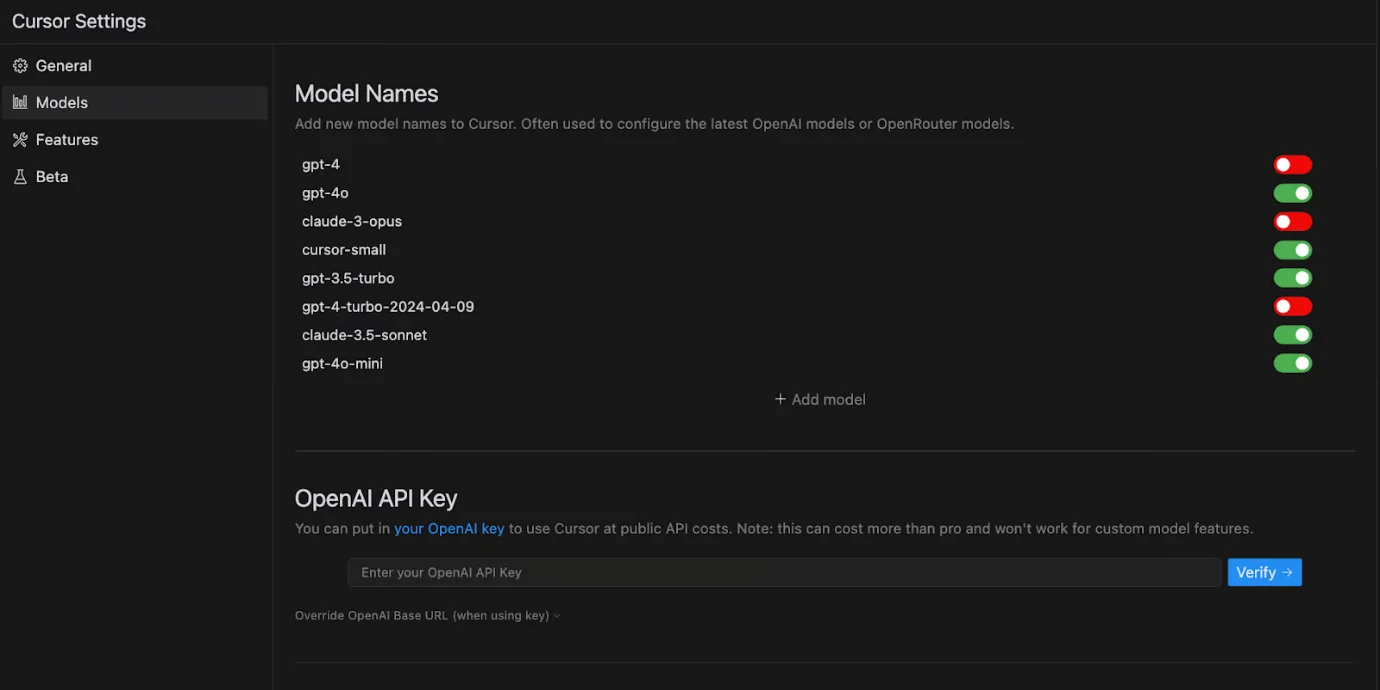
It lets you choose your AI model. You can switch between GPT-4o, Claude 3 or use your own OpenAI API key. This gives you flexibility in pricing and performance based on what fits your workflow best. For power users or AI enthusiasts, it is an advanced option that really stands out.
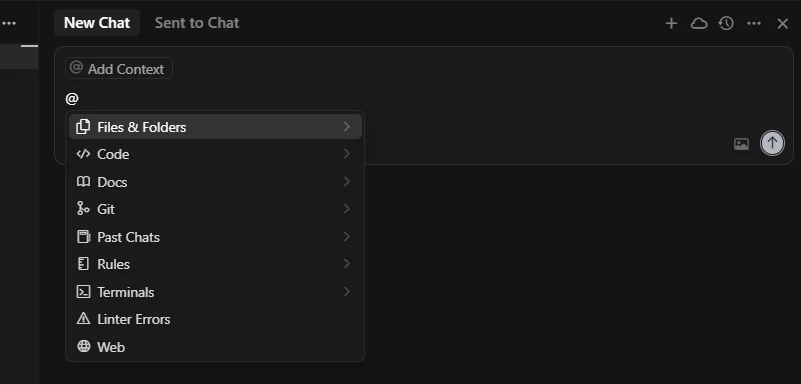
Cursor understands the codebase context and gives clear answers. It is like having a team lead who already knows your code. This is especially helpful for onboarding, refactoring or jumping into legacy projects.
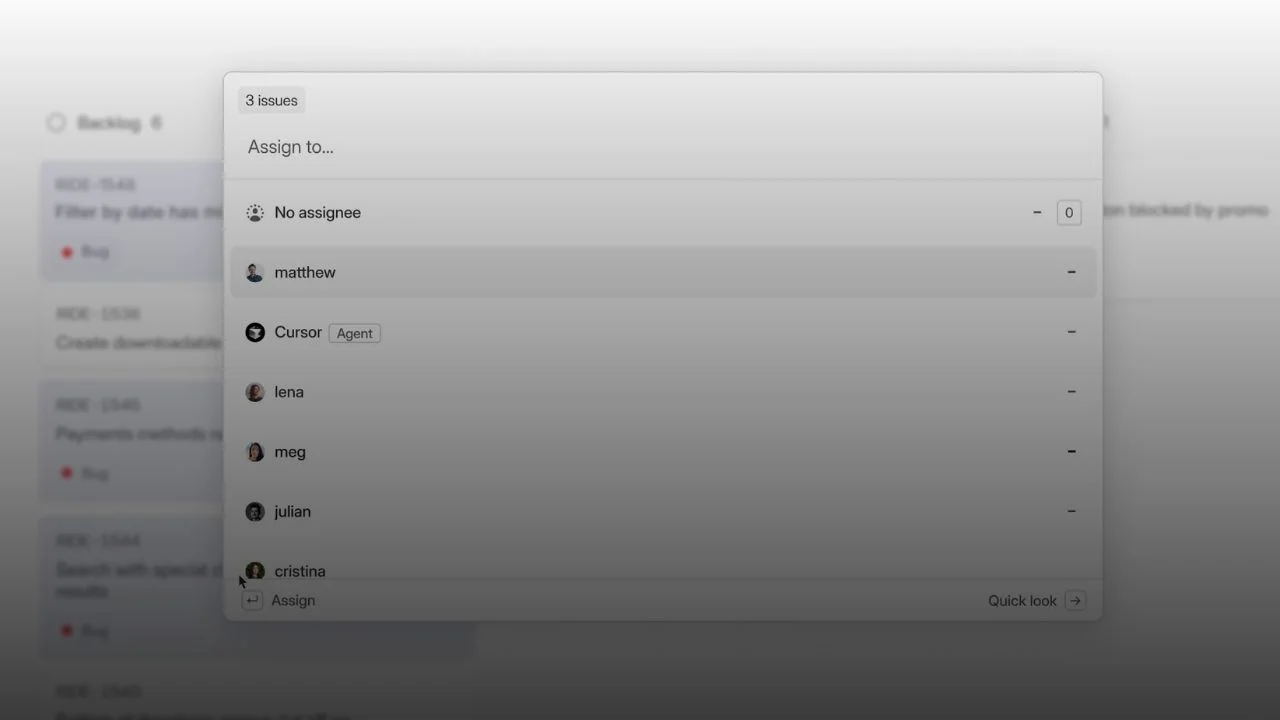
You can now launch background agents right inside Linear, letting you hand off tasks to Cursor without ever leaving your issue.
Cursor AI has evolved rapidly with several key advancements that push it beyond conventional AI coding tools. Here are some of them-
Cursor AI can now handle large refactors across an entire codebase, not just single-file edits. You can ask it to migrate frameworks, convert JavaScript to TypeScript, or reorganize architecture. Cursor first creates a clear step-by-step plan, explains affected files, and then applies changes gradually, making complex refactoring safer and more controlled.
Cursor AI can automatically generate meaningful commit messages and pull request summaries by understanding the intent behind your code changes. It explains what changed and why, helping teams maintain clean Git history and better collaboration without spending extra time on documentation.
Cursor Agents can now work in the background on long-running tasks like refactoring, test monitoring, and PR reviews. You can delegate work and return later to review results, turning Cursor into a more autonomous AI teammate rather than just a reactive assistant.
When answering questions or suggesting changes, Cursor now shows which files it analyzed and why. This transparency makes it easier to trust AI decisions and is especially helpful for onboarding and understanding large or legacy codebases.
Cursor allows developers to define personal, project-level, and team-wide AI rules. These rules enforce coding standards, naming conventions, and architectural patterns, ensuring AI-generated code stays consistent across teams and long-term projects.
Cursor AI can generate tests by analyzing uncovered code paths instead of producing generic test cases. It improves existing test suites by suggesting meaningful edge cases, making it highly useful for Test-Driven Development and better code coverage.
Before applying major changes, Cursor can explain what it plans to modify and why. Developers can review and approve edits before execution, making this mode ideal for beginners, production code, and security-sensitive projects.
Cursor now caches recent code context locally, reducing repeated API calls. This results in faster responses, lower usage costs, and smoother performance, even when internet connectivity is unstable.
Cursor AI can generate and update README files, inline comments, and API documentation. It helps keep documentation aligned with code changes, reducing outdated or incomplete docs over time.
Cursor has added more granular privacy and data-handling controls. Teams can better manage how code is processed and shared, making Cursor safer for private repositories and enterprise environments.
This AI code editor is built for anyone who writes and works with code, yet it shines the most when used by people who want to code faster and think less about setup and more about logic.
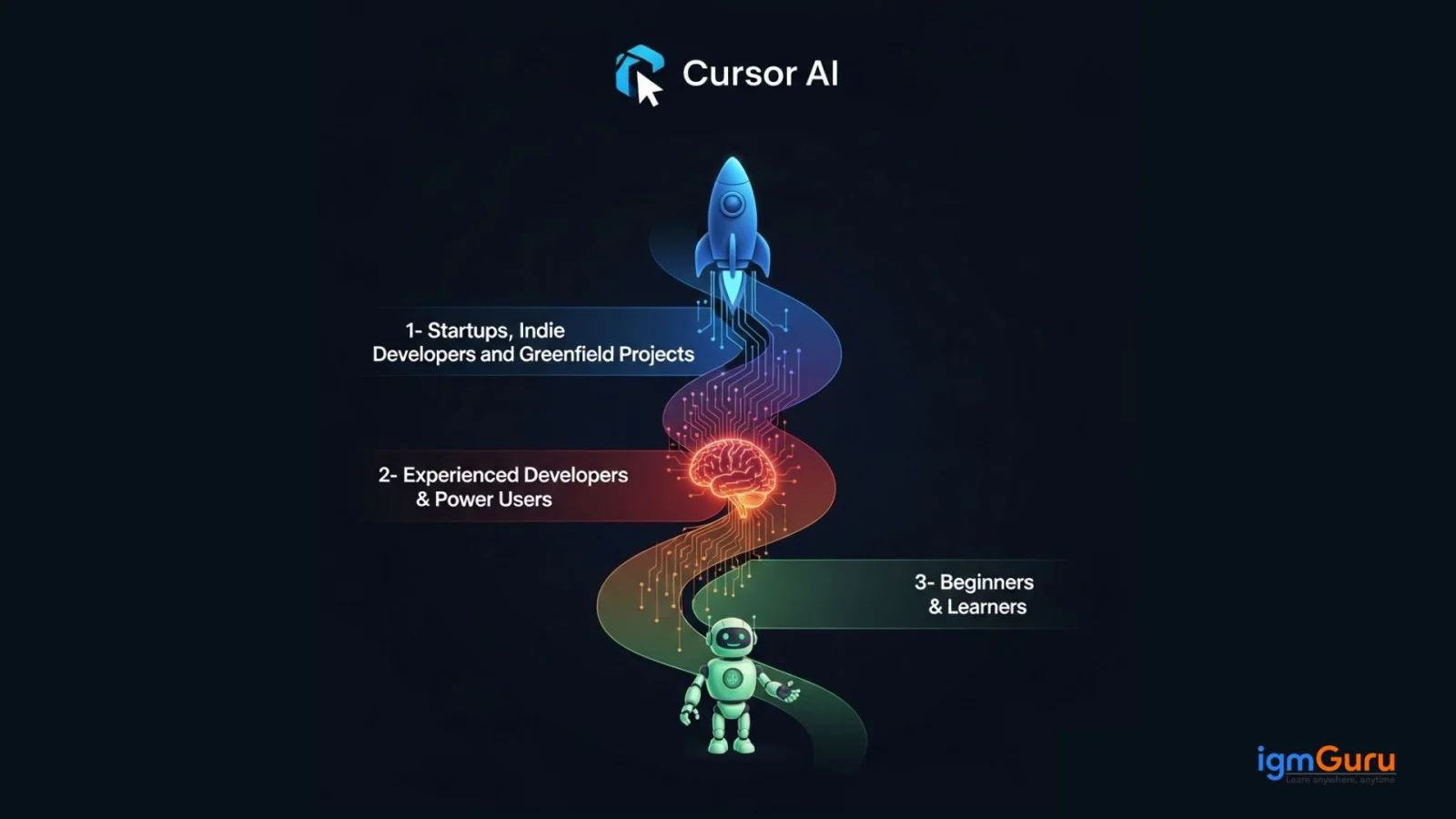
This AI-based code editor is a great choice for fast-moving teams and solo developers. If you are building something from scratch or working on a new project, this AI-first code editor will help you move quickly without sacrificing quality.
You can ask questions, generate full functions and manage your project flow; everything is possible inside the Cursor code editor. It is a smart way to build faster with fewer blockers.
If you are an advanced developer working on complex systems, it gives you the tools to work smarter. It makes deep work easier with features like inline edits, AI chat and support for your full codebase context.
It also integrates well with your existing workflow, whether you are using APIs, writing tests or managing multiple Git repositories. Cursor supports advanced use cases like refactoring, Test-Driven Development (TDD) and large-scale architecture work that makes it one of the best AI tools for coding in 2026.
If you are just starting out, Cursor feels more like a coding coach than a regular editor. You do not need to understand every line. You can simply ask what something means and the AI explains it clearly. It helps with code completion, debugging and answering those small but important questions that can slow you down. That is why many call it the perfect AI code editor for beginners.
Cursor AI has a lot of advantages for modern developers that go beyond just autocomplete. Let's look at the key strengths that make it one of the best AI code editors.
This AI is not just another plugin. It is a full AI-first code editor that understands how real developers work. It is optimized for day-to-day software development from code generation to context-aware suggestions.
It uses GPT-4 and Claude 3 Opus to understand your full codebase, not just a single file. You can ask this AI chatbot anything about your project and it answers like a smart teammate.
If you are stuck anywhere, you can just ask. It gives accurate answers by reading your whole project. This makes it one of the best AI tools for coding, especially for navigating legacy code.
You can literally ask- How to debug code with Cursor AI? and it will, line by line tell you about all the errors. This is super helpful for Test-Driven Development (TDD) and fixing bugs fast.
Think of Cursor as your AI pair programmer. You get real-time help while writing code, just like working with a human but with a faster pace.
While this AI tool is powerful, it is not perfect. Here are a few limitations and challenges you might face while using it day-to-day.
Cursor AI is free, but the best parts like full GPT-4 access or long context support are locked behind the Pro plan. You will need to upgrade to unlock its full potential.
Since it works with OpenAI and other APIs, you need a stable connection. Large projects might hit API rate limits. Therefore, you need a good stable connection.
If you are completely new, even the Cursor AI tutorial for beginners might feel a bit fast-paced. It is powerful, but that power needs some getting used to.
Just like GitHub Copilot or JetBrains AI Assistant, it sometimes makes wrong suggestions. You still need to review and test the output.
Since your code is shared with AI models, some developers worry about using Cursor with private Git repositories or company projects. It is important to check the privacy policy before going all in.
Cursor AI is designed for a wide range of users, from beginners learning programming to experienced software engineers managing enterprise applications. It is an excellent choice for:
Because Cursor understands project context, it becomes increasingly helpful as projects grow in size and complexity.
Although Cursor AI is a powerful development tool, it may not be the best choice for every developer or organization. You may want to consider other options if:
Choosing the right code editor ultimately depends on your workflow, security requirements, and development preferences.
GPT-5 is now available in Cursor AI
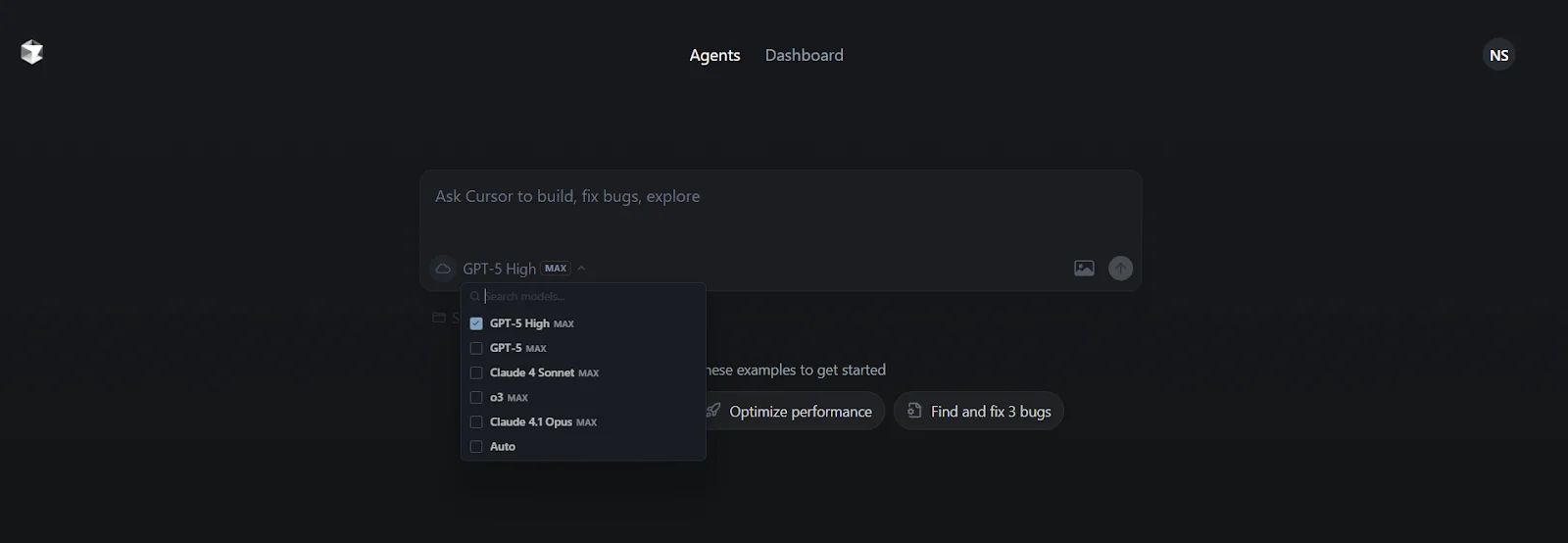
The integration of GPT-5 into Cursor AI is like adding more capabilities to this powerful development tool. Cursor AI offers users the option to select GPT-5 High MAX from a dropdown menu of available AI models. It also includes other models like Claude and o3. This indicates that GPT-5 can now be used as a high-performance option. It is likely designed to handle complex coding tasks, bug fixing and code exploration with enhanced accuracy and efficiency.
With the help of GPT-5, developers can leverage advanced natural language processing to ask Cursor to build, fix bugs or explore codebases seamlessly.
The AI coding assistant space is fast-moving and highly competitive. Most developers focus on a few main tools. They offer their own unique take on AI-powered development. Let's explore the comparison of the cursor with two of its competitors.
| Feature | Cursor AI | GitHub Copilot | Best For |
| Editor Architecture | Full-fledged standalone code editor based on VS Code | Works as a plugin across multiple editors | Cursor AI: Best for developers who want a tightly integrated, AI-first experience |
| Codebase Context | Understands your full codebase and repo history | Mainly focuses on open files and short-term memory | Cursor AI: Ideal for large projects and deep refactoring |
| Use Case | Project scaffolding, debugging, and deep refactoring | Quick suggestions, writing boilerplate | Depends: Cursor AI for big tasks, Copilot for fast code snippets |
| Debugging Support | AI-powered inline debugging with fix suggestions | Mostly manual with limited AI support | Cursor AI: More efficient for debugging complex issues |
| Team Collaboration | Admin dashboard, shared billing, SSO | Stronger enterprise security with GitHub Enterprise | Tie: Cursor focuses on workflow, Copilot on security |
| IDE Compatibility | It is a standalone app (built on VS Code) | Supports VS Code, JetBrains, Neovim and more | Copilot: Best for users working across multiple IDEs |
| Pricing Model | Free, Pro and Team tiers with compute usage limits | Monthly plans for individuals and businesses | Copilot: Slightly more affordable for individual users |
| Free Tier | Yes, with usage caps | No real free tier (only a short trial) | Cursor AI: A better free option for hobbyists and early-stage developers |
| Feature | Windsurf | Cursor AI |
| What it is | A developer-first AI assistant built to integrate with your existing IDE. | An AI-first code editor designed as a full alternative to traditional IDEs like VS Code. |
| Editor | Works inside editors like VS Code, JetBrains, etc. | Has its own standalone AI code editor based on VS Code. |
| AI Model | Uses Claude 3 Opus as its main model. | Runs on GPT-4 / GPT-4o by OpenAI with optional Claude integration. |
| Setup | Lightweight plugin setup within your current workflow. | Requires full installation of the Cursor code editor. |
| Coding Help | Great for AI-assisted pair programming, debugging and code completion. | Also supports inline AI chat, refactoring, boilerplate code generation and Test-Driven Development (TDD) support. |
| Code Context Handling | Uses its own method for understanding context within the IDE. | Offers deep context-aware code understanding with features like inline edit and full file modifications. |
| Git & Terminal Support | Works with terminal and Git, depending on the host IDE. | Built-in terminal, Git repository access and command line tools inside it. |
| Learning Curve | Minimal. Easy to adopt if you're already using VS Code or IntelliJ. | Slight learning curve since it's a new environment, though similar to VS Code. |
| Customizations | Depends on the host IDE for extensions, keybindings and themes. | Cursor download supports themes, keybindings and VS Code extension imports. |
| Offline Use | Requires an internet connection for AI features. | Same for Cursor AI - most AI features need internet access. |
| Best For | Developers who want AI help without leaving their current setup. | Users are exploring full AI-first workflows with deeper integration. |
The Cursor AI Pricing has 4 Plans. You can choose whether you want to go for a free plan, a pro plan or any other plan, according to your needs.
| Feature | Hobby (Free) | Pro ($20/mo) | Ultra ($200/mo) | Team ($40/user/mo) |
| Price | $0 | $20/month | $200/month | $40/user/month |
| Target User | Students, Hobbyists, Evaluators | Professional Developers, Freelancers | Power Users, AI-centric Professionals | Businesses, Engineering Teams |
| Agent/Model Usage | Limited | Extended (e.g., $20 API credit) | 20x Pro Usage | Per-user Pro limits |
| Tab Completions | Limited | Unlimited | Unlimited | Unlimited |
| Advanced Features | No | Background Agents, Bug Bot | All Pro features, Priority Access | All Pro features |
| Admin & Security | No | No | No | Org-wide Privacy, SSO, Admin Dashboard |
| Key Limitation | Strict usage limits after trial | Overage charges for high usage | High cost | Requires team adoption |
Note- Pricing now also depends on agent usage, PR review limits, and API consumption.
Most AI coding tools still focus on autocomplete and short-term assistance. Cursor AI is moving toward full AI-native development workflows. With autonomous agents, project-wide reasoning, test intelligence, and governance controls, Cursor is no longer just a faster editor. It is evolving into a system where developers delegate thinking, not just typing. This shift is what separates Cursor from traditional IDE plugins and positions it as a long-term platform rather than a temporary productivity boost.
Cursor AI is evolving fast as one of the most promising AI-first code editors built for modern developers. With its tight integration of GPT-4o, context-aware coding and features, it aims to completely change how developers write, debug and refactor code. The team continues to roll out updates focused on pair programming, test-driven development and deeper GitHub integration. You can stay updated on its roadmap or try it out from their official website or follow updates on their Twitter.
Is Cursor AI Safe?
Cursor AI is generally considered safe for software development when used responsibly. The editor includes several security measures to protect user data and improve development workflows. However, like any AI-powered coding assistant, developers should exercise caution when working with confidential or production-level projects.
When using Cursor AI, consider the following security practices:
While Cursor AI can significantly improve productivity, security remains the responsibility of the developer.
Wrap-Up
Cursor AI has quickly established itself as one of the leading AI-powered code editors for modern software development. Its intelligent code completion, AI chat, automated debugging, code explanation, and project-aware assistance enable developers to write cleaner code and complete tasks more efficiently.
Whether you are a beginner learning programming or an experienced software engineer managing large-scale applications, Cursor AI can significantly improve your productivity when used correctly.
However, it is important to remember that AI-generated code should always be reviewed, tested, and validated before deployment. While Cursor AI is a powerful coding assistant, it works best when combined with strong programming knowledge and established software development practices.
As AI continues to reshape software engineering, tools like Cursor AI are becoming an essential part of modern development workflows, helping developers focus more on solving complex problems and less on repetitive coding tasks.
To deepen your understanding, you can also enroll in our Generative AI course and get hands-on guidance through real-world examples.
Yes, Cursor AI can help generate website code using natural language prompts. You can build full websites, from HTML/CSS to React apps and edit them interactively inside the editor.
Both of these tools have their own strengths. Cursor AI is built specifically for developers, with deep codebase context and editor integration. While ChatGPT is great for general use, Cursor is better suited for hands-on coding tasks and project-level assistance.
It is possible, but there is a learning curve. It is made for developers, so while it helps with explanations and code generation, basic coding knowledge makes the experience much smoother.
Cursor AI is an AI-powered code editor that helps developers write, debug, and optimize code faster using intelligent suggestions and automation.
Course Schedule
| Course Name | Batch Type | Details |
| Cursor AI Training | Every Weekday | View Details |
| Cursor AI Training | Every Weekend | View Details |