Python is one of the most in-demand programming languages these days. It is now the number one coding language in 2025 according to the TIOBE Index. There are many reasons behind this popularity, including its features, applications, and the wide range of Python uses across industries. This humongous demand has created many opportunities across different industries. Therefore, many individuals who want to learn Python from scratch often want to know how to install Python on their system.
This blog post is one stop for them. It includes a detailed guide on how to install Python on Windows and Mac operating systems. This guide will also inform about the best uses of this programming language on these OSs. It benefits both individuals and companies who want to learn this language and eventually become Python developers.
You need to install Python to use it on your operating system. Windows has a quite straightforward installation process. Well, I must say processes, as there is more than one. Once you have the IDE installed in your system, you can access it and start programming.
Mastering this programming language requires a structured process and strong understanding of Python developer skills. For a better understanding, refer to our Free Python tutorial that explains each concept in detail.
Let's start with how to install Python on Windows. Here, we will discuss the complete process to install this programming language on Windows. It is important to make the best use of this coding language. This process has different steps that usually come in a structured way. There are three methods to install Python on Windows, including:
1. Install Python directly from the official website.
2. Install Python directly from the Microsoft Store.
3. Install Python using an Anaconda distribution.
Visit the official website from Windows operating system to download Python. Locate and select a reliable version from the website. Version 3.13.11 is the most used one. Now it will ask your system properties, showing two options: Windows Installer (64-bit) or Windows Installer (32-bit). Choose your version and download an executable file.
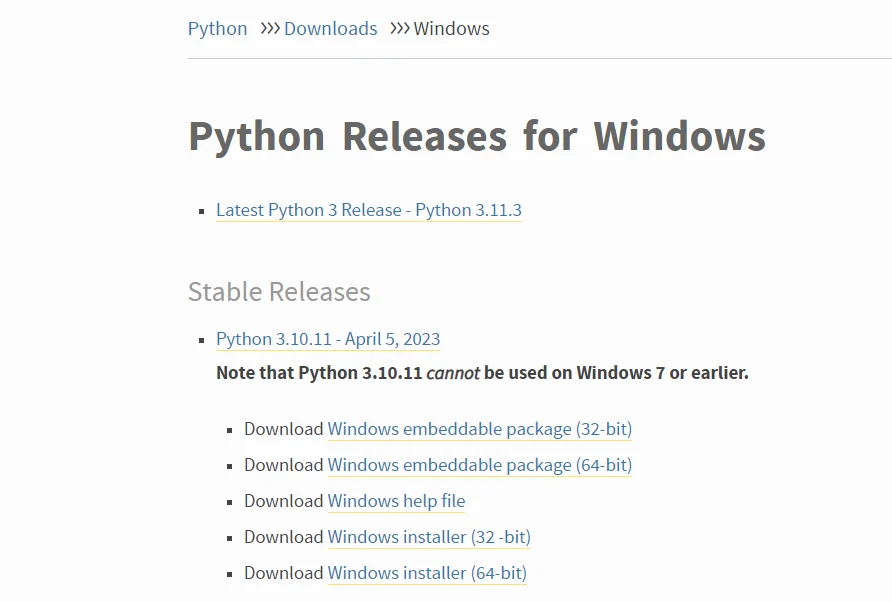
It is time to install the executable file that you have already downloaded in your system. It requires to open .exe file like python-3.11.3 -amd64.exe. Just locate this file and double click on it. This opens a checkbox with many options corresponding to installation.
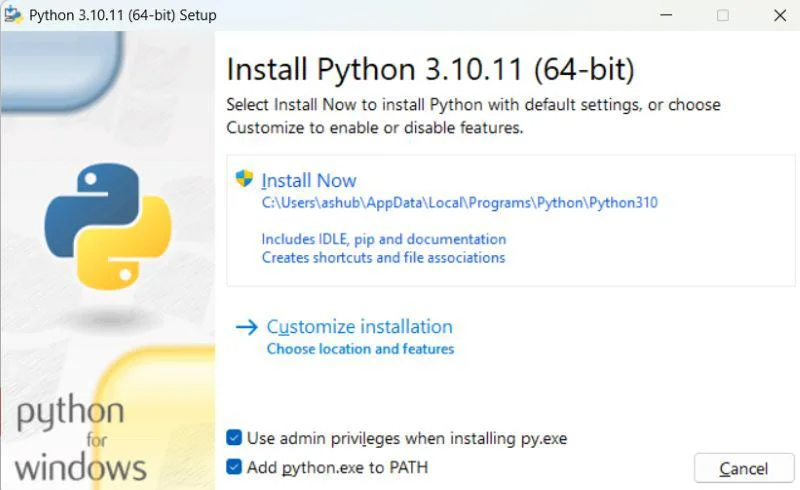
Choose the reliable one from them. The option Install the launcher for all users is mostly used as it gives access to all users of the system. Now each user will have access to the Python launcher. Select the users for Python from the command line. It is done from the Add python.exe to PATH checkbox.
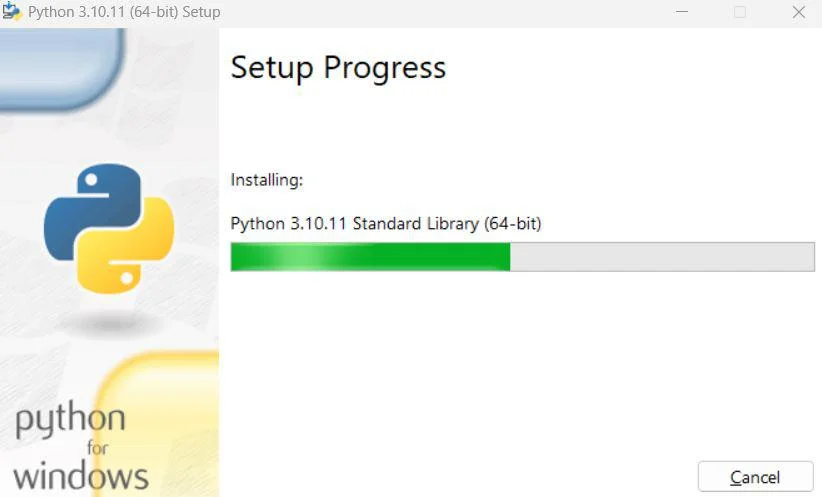
A window will open after the installation process as a confirmation. Now you need to check if it is installed without any bugs or issues. First close the confirmation window from the desktop. There are two methods for this instance. You can choose any of them.
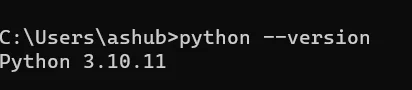
1. Command line method - This method is selected from the start menu by searching cmd and then clicking on Command Prompt. Now input a command (python --version) in the command line it will output the version installed in the system.
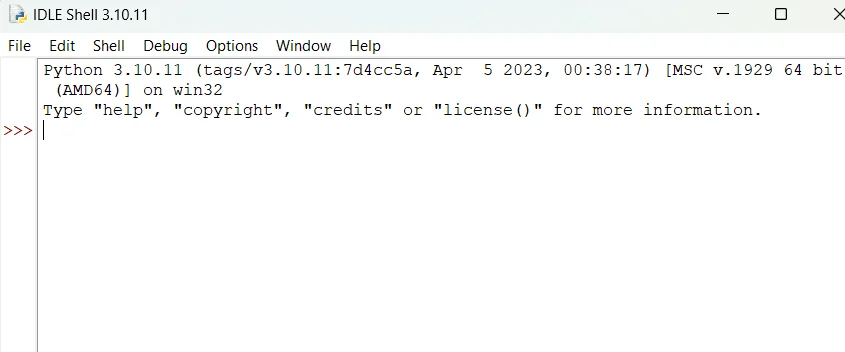
2. IDLE (Integrated Development Environment) method - You can also check it by opening the integrated development environment application. Just check for IDLE in the search bar of the start menu and then select it. If it shows the version name like IDLE (Python 3.13.1 64-bit) then Python has been successfully installed on your windows.
Related Article - Python Vs R Programming
Open the Microsoft Store application from your Windows device. You can find this application by searching Microsoft Store from the search bar available in the start menu. Now search for Python in the web store. This will show different versions of this programming language. Choose one of them according to your requirements. The latest version is 3.13.1.
Select on the Get button of the version you want to install. It will commence the downloading process. Now follow the installation process that we have discussed in the above section. It will take some minutes to install the software.
Now it is time to check if the software has successfully installed in the system. This process is also the same as discussed above. You can start coding after completing this process.
Go to the browser and open the official website to download this package. It is available for free. Scroll down to the installer section where you find different versions of this installer. Select one of them and choose your Windows properties. This will download an installer file to your system.
Navigate the downloaded file from your system and double click on it. Follow the installation process by carefully reading the terms and conditions. Continue with agreeing the terms and conditions to start the installation process. It will show an option as Add Anaconda3 for the PATH environment variable. Choose this option if you want to use this tool from the terminal rather than IDE.
The installer will automatically extract and install the file. This might take a few minutes to complete. Now use the same methods to check if the file has been successfully installed in your system. Now you can start programming with this package.
Explore the top Python Data Types to learn this programming language better.
Python is a programming language that has many tools and packages used in areas like Python for AI and machine learning. These tools are responsible for its functionality in different fields. Pandas library is used for data manipulation. Scikit-Learn is used to unlock machine learning functionalities. PyTorch is best for deep learning functionalities. These were just some basic instances of its packages. It has many more.
There are two methods available on how to install Python packages. These are pip3 and conda. Let's go through these -
Follow these steps to install Python packages with pip3 -
1. First install Python on your system by any of the above methods.
2. Now open the Command Prompt on your Windows system and give the the following command -
|
pip3 install {package_name} |
3. The {package_name} in this command refers to a package that has to be installed. The installer will automatically install dependencies required for different Python modules and libraries. Let's take the numpy package as an instance -
|
pip3 install numpy |
4. You can now use this package in your program. It is called by a command as given below -
|
import numpy as np arr = np.array(["I", "love", "igmGuru"]) |
5. This package can be updated when required. It is done by the pip3 upgrade command as shown below -
|
pip3 install --upgrade numpy |
6. This package can be removed with the pip3 uninstall command.
|
pip3 uninstall numpy |
7. One can also see all installed packages with the following command -
|
pip3 freeze |
Practicing small programs like a Python program to print Hello World, is a great way to test your installation.
Follow these steps to install Python packages with conda -
1. First check if Python is installed in your system.
2. Now start installing package with conda with the following command -
|
conda install {package_name} |
3. Here, package_name refers to the command that you want to install in the system. For instance -
|
conda install pytorch |
4. This package is updateable and removable just like the pip3 method. The commands will be as follows -
|
conda update pytorch |
|
conda remove pytorch |
Understand the Top Features of Python Every Developer Should Know
This blog post has discussed many methods on how to install Python on Windows. This knowledge is enough to install this programming language on your Windows system. It is just a first step toward being familiar and learning to use this coding language. You must join an online course or training program in order to master it. This will open many opportunities for you.
Related Article: Python vs. JavaScript
You can definitely install this coding language on your systems for free. It does not apply any subscription to their user. Anyone can use it for free.
It is a tool responsible for installing different Python packages on a system. It uses command prompt as a platform to install these packages. We have already discussed the pip3 tool in this article.
Many experts list the Python.3.x version as the best . It works on machine learning capabilities with modern features, active support and different libraries. Python 3.8 and Python 3.9 are the best ones from them as they are more compatible with the new features.