Power BI Desktop is among the top powerful business analytics tools released by Microsoft. It has been crafted to facilitate users in visualizing data and sharing insights throughout the organization. This tool enables users to get in sync with various data sources, create interactive dashboards and reports, and clean and transform data. In this article, we will discuss 'Introduction to Power BI Desktop' and other important features related to it.
Power BI Desktop boasts an intuitive drag-and-drop interface. Consequently, Power BI Desktop renders it simpler to curate complex data models as well as compelling visualizations. And all this without any extensive technical knowledge. It also integrates flawlessly with various other Microsoft products such as Azure and Excel. This integration capability makes it a highly versatile tool for data analysis.
Let's explore 'Introduction to Power BI Desktop'. Power BI refers to a suite of business analytics tools. It is developed by Microsoft and is crafted to aid companies in analyzing data and sharing insights thereafter. It converts raw data into visually appealing and interactive dashboards and reports. All this enables users to take action on data-driven insights.
Power BI also seamlessly integrates with many data sources. This includes databases, Excel, on-premises systems and cloud services. This offers a unified view of all important business metrics. Main components of this tool are Power BI Desktop, Power BI Service and Power BI Mobile.
Power BI Desktop refers to a comprehensive app to create reports. Power BI Service is an online SaaS platform for collaboration and sharing. Power BI Mobile allows users to successfully access dashboards and reports on mobile devices. It also offers features such as natural language query, real-time data updates and data modeling. Thus, making it an impeccable solution for data analysis.
It has exceptionally robust and user-friendly interface capabilities. These abilities help Power BI in empowering IT professionals, developers and business analysts in creating data-driven solutions. It is a preferred pick for companies wishing to utilize data for strategic advantage because of its integration ability and strong community support.
| Enroll in igmGuru's Power BI training online program to become Power BI experts. |
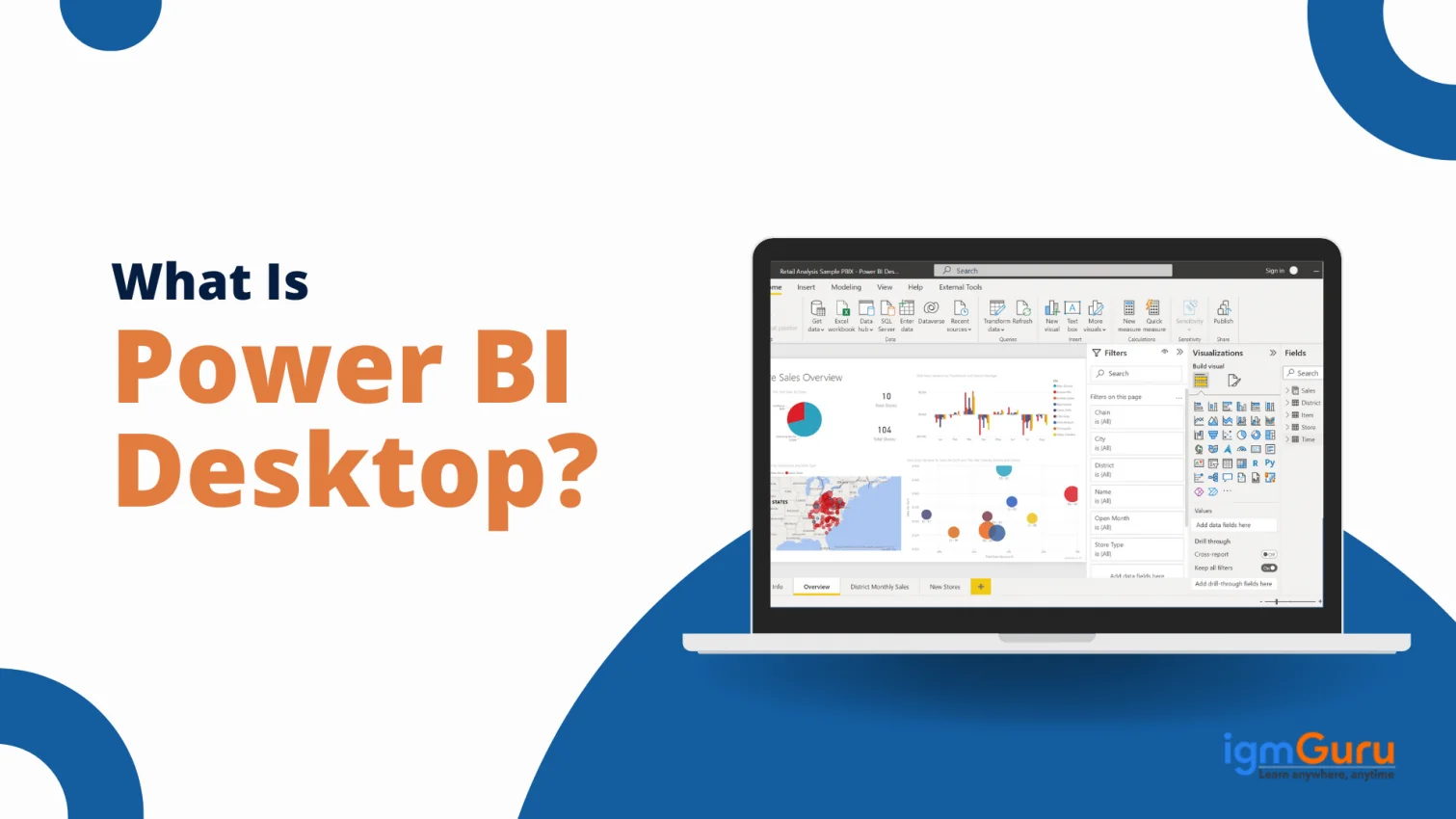
Power BI Desktop pertains to a robust visualization and data analysis tool. Developed by Microsoft, it is crafted to create interactive dashboards and reports. This desktop app enables users to seamlessly connect to many data sources. These include Excel files, cloud services and databases. The consequent action is enabling comprehensive data integration.
Users can easily perform data cleansing and transformation via its powerful query editor with Power BI Desktop. It supports many data manipulation tasks to help prepare the data for analysis. This tool also boasts a drag-and-drop interface, which helps in the curation of complicated data models. This allows users to cement relationships between various data sets and craft calculated measures and columns.
Another standout feature of Power BI Desktop is how it produces rich and interactive visualizations. Users can easily pick from many visualization options. These include graphs, charts, custom visuals and maps. These help in representing the data effectively. Power BI Desktop supports the usage of DAX (Data Analysis Expressions) to carry out advanced data manipulation and analysis.
After the creation of reports, they can easily be published to the Power BI Service to be shared across the organization. Hence, there is seamless integration between Power BI Desktop as well as online services. This integration ensures users are able to use the data to its full potential. It drives strong decision-making and better strategic insights.
It enables users to seamlessly connect to various data sources. The purpose is to transform data, produce interactive reports and dashboards, and create sophisticated data models. Let's see how Power BI Desktop works-
It supports multiple data sources such as databases, cloud services, Excel files and others. Users can easily import data from such sources via a user-friendly interface. After being connected, it retrieves the data, which allows users to begin their analysis.
Once the data is imported, Power BI Desktop offers a robust query editor to help clean and transform the data. It's crucial to ensure data relevance and quality. Users can carry out multiple operations like merging datasets, filtering rows, creating calculated columns and removing duplicates. Power Query is used to offer a flexible way to reshape data via an intuitive interface.
It enables users to create relationships between various datasets. This forms a comprehensive data model, which is the basis for all visualizations and analyses. Users can create hierarchies, establish calculated measures and define relationships via DAX. These calculated columns and measures aid in extracting insights, initially not directly available in the raw data.
Its strengths lie in its ability to create interactive visualizations. Users can easily drag and drop fields to the report canvas. This enables creation of various visual elements like graphs, charts, tables, custom visuals and maps. The visualizations are customizable and formattable to meet required needs.
Users can easily publish it to the Power BI Service (Microsoft's cloud-based platform) when the report is ready. This helps in easy collaboration and sharing within the organization. Published reports are accessible through mobile apps or web browsers. These can also be embedded in other websites or applications.
It supports continuous integration with multiple data sources. This means that reports are easily set to refresh automatically as soon as new data is available. This makes sure that users have access to updated information at all times.
It integrates seamlessly with organizational security protocols. Hence, it ensures data compliance and privacy. Data encryption and role-based access controls are key features that aid in maintaining governed and secure data environments.
In this 'Introduction to Power BI Desktop', you will get to learn how to download and install Power BI Desktop. Let's start.
Power BI Desktop is a free app that can easily be downloaded and installed on any Windows-based system. These are easy steps to guide aspirants on how to download and install Power BI Desktop.
Step 1: System Requirements
Step 2: Downloading Power BI Desktop
These steps should be followed to download Power BI Desktop -
Step 3: Installing Power BI Desktop
After the download is finished it's time to install Power BI Desktop. Here are simple steps to make it happen.
Step 4: Launching Power BI Desktop
After the installation is complete, it's time to launch Power BI Desktop.
Step 5: Initial Setup & Configuration
When launching Power BI Desktop for the very first time, it may prompt the user to sign in with a Microsoft account. Those having a Power BI account can enter their credentials and sign in. Those who do not have an account can create one for free.
Step 6: Exploring Power BI Desktop
Now that Power BI Desktop is installed and running, it is easy to begin exploring its features.
Step 7: Keeping Power BI Desktop Updated
Microsoft keeps on releasing updates for Power BI Desktop frequently. This adds new features, improves performance and fixes bugs.
Automatic Updates:
Updates will be installed automatically for those who have downloaded this from the Microsoft Store.
Manual Updates:
One will have to manually check for updates if Power BI Desktop has been downloaded directly from the Power BI website. Open Power BI Desktop > go to the 'Help' menu > tap on 'Check for Updates'. The prompts should be followed to download and install the current version.
You can also read: Power BI Dashboard Examples
Let's discuss Power BI Dashboard in this 'Introduction to Power BI Desktop' guide.
Picking Power BI renders many compelling advantages for individuals and businesses. Those seeking robust visualization and data analytics solutions should opt for it. Reasons to pick Power BI are -
Comprehensive Data Integration: Power BI can connect to multiple data sources. These include cloud services, databases, Excel files and more. It ensures seamless data analysis and integration.
User-Friendly Interface: It features a highly intuitive, drag-and-drop interface. It renders it simple for users at every skill level to curate interactive dashboards and reports.
Cost-Effective: It offers a free version and one with affordable pricing to use premium features. Thus, it offers cost-effective solutions for organizations of all sizes.
Advanced Data Visualization: It offers a great library of customizable visualizations. This enables its users to deliver data insights in a comprehensible and visually appealing manner.
Scalability: Power BI offers various scalable solutions for both small businesses and large enterprises to grow with their data needs.
Real-Time Analytics: It supports real-time data streaming. This allows users to analyze and monitor live data for perfect decision-making.
Collaboration and Sharing: The Power BI Service facilitates swift collaboration and sharing on dashboards and reports across departments, organizations and teams.
Strong Security: Power BI guarantees data compliance and security with role-based access controls, integration with Azure Active Directory and robust encryption.
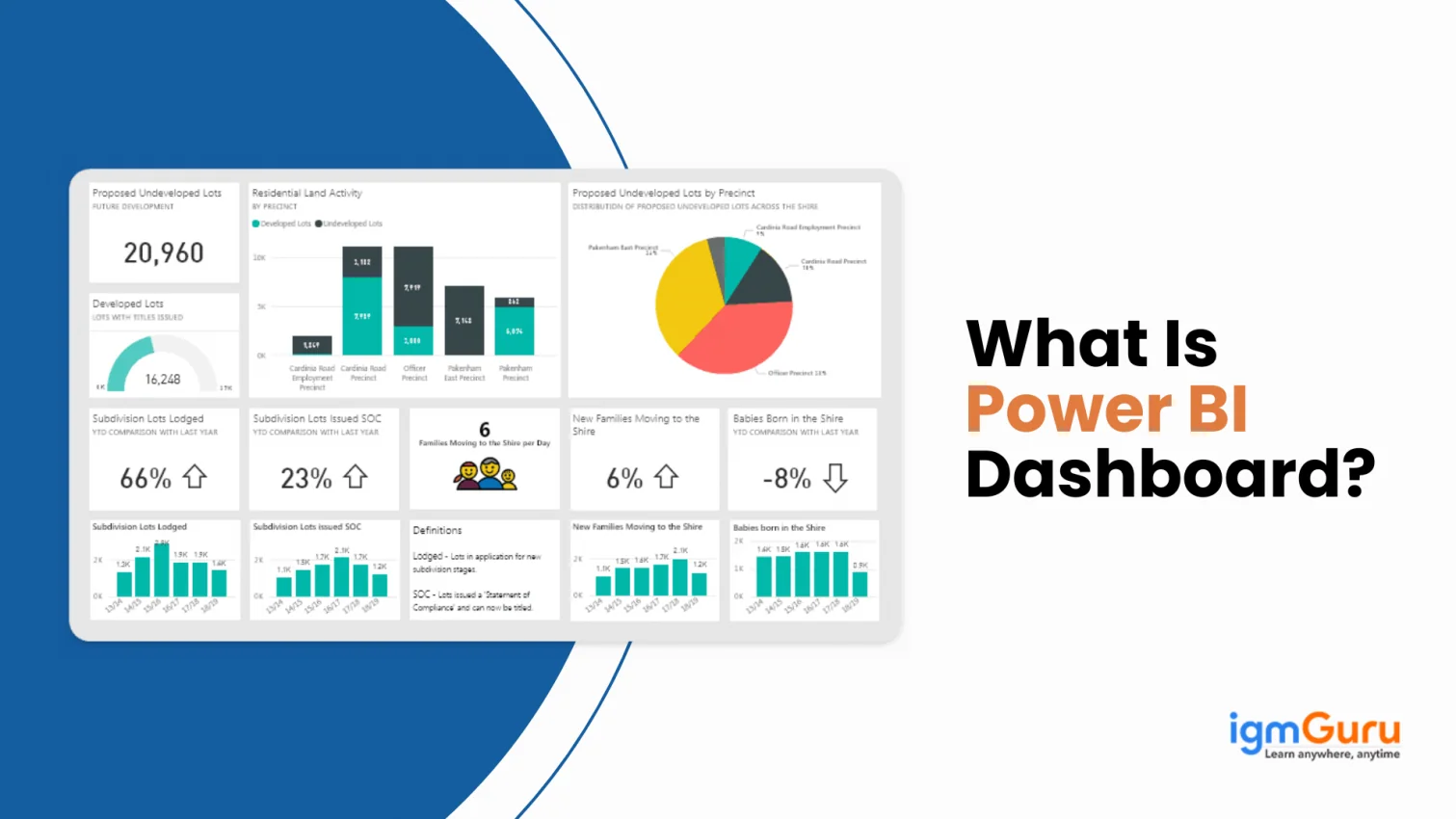
A Power BI dashboard refers to a single-page and interactive canvas. It showcases key insights and metrics from multiple data sources. It offers a unified view of data via visualizations such as graphs, maps and charts. This allows the users to monitor the business' performance at a single glance.
Dashboards are highly interactive and are easily customizable. These help in highlighting important data points. This enables real-time decision-making, along with comprehensive analysis within a consolidated interface.
Reports in Power BI refer to multi-page documents. These present data via various visualizations, like graphs, charts, maps and tables. Each report has the potential to contain several visual elements and pages. Each can offer comprehensive analysis and detailed insights of data from unique and distinct perspectives.
Reports enable users to drill down into certain necessary data points, uncover deeper insights and interact with the visualizations. All this helps in making more informed decision-making and gaining a thorough understanding of key business metrics.
Creating a Power BI dashboard includes many steps. Let's decode them!
Power BI dashboards render many advantages for individuals and businesses. Here is a list containing some key advantages of the Power BI dashboard.
Dashboards facilitate users to interact with data via multiple visual elements. These include graphs, maps and charts. This interactivity aids in exploring data from multiple angles and getting deeper insights.
Power BI dashboards offer real-time data updates. This ensures that users get access to the latest information for on-time decision-making. This is imperative to monitor key metrics and respond swiftly to changes.
These can be shared easily with stakeholders and colleagues. It fosters collaboration since team members can interact with and view the same data. This leads to more informed decisions.
These consolidate data from various sources into a unified view. This centralized approach aids in offering a comprehensive outlook of business performance. Hence, eliminating the need to move to and fro between different reports and tools.
Power BI dashboards are accessible through mobile devices. Hence, allowing users to seamlessly stay connected to their insights and data on the go. This high-level mobility facilitates decision-makers to access critical information anywhere, anytime.
Creating a dashboard in Power BI includes multiple steps. Right from connecting to multiple data sources to engaging in customizing and sharing the end dashboard, there are many imperative steps. This is a comprehensive step-by-step guide to help aspirants learn to create a Power BI dashboard flawlessly.
Step 1: Download & Install Power BI Desktop
Step 2: Connect to Data Sources
Step 3: Transform & Clean Data
Step 4: Create Visualizations
Step 5: Build the Report
Step 6: Publish to Power BI Service
Step 7: Create the Dashboard
Step 8: Customize the Dashboard
Step 9: Share the Dashboard
Step 10: Monitor & Update
Power BI architecture is crafted to enable seamless integration of data transformation, collection, sharing and visualization processes into a single platform. It amalgamates both cloud-based and on-premises elements to offer a flexible and scalable solution for business intelligence. The architecture enables data ingestion from multiple sources to ensure that raw data is efficiently processed and transformed.
The architecture utilizes an extremely robust data processing engine. This helps clean and structure data, which renders it ready for analysis. Processed data is consequently used to create dynamic and interactive dashboards and reports. The visualizations are utilized in a user-friendly interface. This facilitates intuitive analysis and exploration of data.
After creation, these dashboards and reports can be shared and published through the Power BI Service. Hence enabling collaboration throughout the organization. The architecture seamlessly supports real-time data streaming, offering updated analytics and insights. Power BI's architecture promises data compliance and security via stringent encryption and access controls. Hence, making it an apt choice for organizations looking to extract actionable insights from data.
Power BI architecture components make up a comprehensive ecosystem. These help in data collection, visualization, sharing and transformation. The top components include to know about are-
Power BI architecture works flawlessly by integrating multiple components. This helps in transforming raw data into highly interactive and visually appealing insights. Data is ingested from various sources. It is then cleaned and transformed via Power Query. Once done, this processed data is loaded into Power BI Desktop for visualization and modeling.
Users can create interactive dashboards and reports. These are published to the Power BI Service for collaboration and sharing. Power BI Gateway enables data transfer from all on-premises sources to the cloud. This architecture renders support to real-time data streaming. All this enables up-to-date insights and robust security measures to ensure data compliance and integrity.
Power BI Service architecture refers to a cloud-based framework. It is crafted to create, share, and manage interactive dashboards and reports. Data is ingested as well as processed through multiple tools like Power Query. It is then published from Power BI Desktop to Power BI Service.
The service enables collaboration as it allows users to view and share reports throughout the organization. This integrates flawlessly with Power BI Gateway to ensure secure data transfer from all on-premises sources. This ensures data freshness due to scheduled refreshes. The architecture gives support to real-time data streaming as well as robust security measures. This includes data encryption and role-based access.
In this guide 'Introduction to Power BI Desktop', we are going to discuss Power BI Developer salary. To understand the Power BI Developer salary in India, it is imperative to understand what these professionals do. There are dozens of factors that influence what a professional ultimately gets paid. Before diving into the salary as per location, job profile and experience, let's understand what they do.
A Power BI developer plays an imperative role in turning raw data into highly actionable insights via interactive reports and dashboards. Key responsibilities they typically perform are-
Location plays a big role in determining what one gets paid. In India, even as a whole country, there is high level disparity. Cities like Bangalore, Mumbai, and Delhi often offer higher salaries. The range is generally between INR 8.2 LPA to INR 11.4 LPA.
When this number is compared to other cities like Pune, Hyderabad, and Chennai, it is slightly lower. While these cities also offer great opportunities, the salaries offered are certainly not in competition with the ones mentioned above. The usual salary range in these cities is between INR 7 LPA to INR 8 LPA.
The changing remote culture is however, making big transformations. Since remote working has become such a famous concept, people can now earn big bucks without even stepping out of their homes. Hence, they could be living in a town with minimal expense and still earn what's being offered in tier-1 cities.
Power BI salaries usually vary a lot as per the experience one holds in the field. Those who are freshers will begin with entry-level jobs. These generally include beginners and those with minimal experience (0-4 years). Their salary typically lies between 3-5 LPA in India. While it is not a bad number, there is great potential for higher earnings among more experienced ones.
Mid-level professionals, those with 5-9 years of experience get paid better. Their salary typically goes between 6-11 LPA in India. This salary also varies as per other factors such as job profile and location. Thus, it would not be wrong to say that no two professionals ever earn the same amount of money.
Highly experienced professionals take the cherry on the top. Experts with experience over ten years are among the most highly paid professionals. Their typical salary ranges between 12-22 LPA in India. Of course, this is a big window but that is because the number depends on multiple other factors too.
A Power BI professional's salary in India varies significantly as per their job profile. Let's take the example of top associated profiles and the salaries related to them.
1. Power BI Developer
Entry-Level - INR 3-5 LPA
Mid-Level - INR 5 -10 LPA
Senior-Level - INR 10 -18 LPA
2. Power BI Consultant
Entry-Level - INR 4 -7 LPA
Mid-Level - INR 7 -15 LPA
Senior-Level -INR 15 -25 LPA
3. Power BI Analyst
Entry-Level - INR 3 -6 LPA
Mid-Level - INR 6 -12 LPA
Senior-Level - INR 12 -20 LPA
4. Power BI Architect
Mid-Level - INR 12 -20 LPA
Senior-Level - INR 20 -30 LPA
5. BI Manager/Lead
Mid-Level - INR 15 -25 LPA
Senior-Level - INR 25 -40 LPA
6. Data Scientist with Power BI Skills
Entry-Level - INR 4 -8 LPA
Mid-Level - INR 8 -15 LPA
Senior-Level - INR 15 -25 LPA
Read More on Related Topics:
Power BI Desktop has become a powerful tool used to transform raw data into actionable insights. Its user-friendly interface and robust features has led to its rise. This blog began with 'Introduction to Power BI Desktop, further exploring how it facilitates flawless data visualization and analysis. Power BI Desktop is another critical component that offers a platform to connect to multiple data sources.
The step-by-step guide mentioned on downloading and installing Power BI Desktop helps users in getting started easily. The introduction to Power BI dashboards, along with the guide to effectively creating dashboards is helpful too. It highlights how users can easily visualize their data to derive impactful and necessary insights.
The salary expectations related to Power BI professionals in India underscores the growing demand and need for skilled Power BI professionals. Businesses today prioritize data-driven decision-making and thus, mastering Power BI Desktop is beneficial. It can open various opportunities and encourage significant career growth.
Course Schedule
| Course Name | Batch Type | Details |
| Power BI Training | Every Weekday | View Details |
| Power BI Training | Every Weekend | View Details |